
Manage DNS records
1. Introduction and general summary
This manual aims to explain in detail the DNS record management process using the SWPanel platform, the service and domain administration tool offered by SW Hosting. Throughout the document, all types of DNS records that you can create, modify, or delete are described, as well as their functions and configurations.
What is a DNS record?
DNS (Domain Name System) is a system that translates human-readable domain names (such as tudominio.com) into machine-understandable IP addresses (such as 192.0.2.1). DNS records are entries in a domain's "DNS zone" that define how this domain should behave in response to specific requests, such as emails, connections to web servers, etc.
Types of DNS records explained in this manual
- A Record: Associates a domain with an IP address.
- CNAME Record: Creates an alias for a domain.
- NS Record: Informs which DNS servers are authoritative for the domain.
- MX Record: Associates a domain with mail servers.
- SPF Record: Defines which servers can send email on behalf of your domain.
- DKIM Record: Authenticates the origin of emails through a digital signature.
- DMARC Record: Defines action policies for unauthorized emails.
- TXT Record: Allows adding any type of informative text.
- SRV Record: Defines services available under a domain.
Each section of the manual includes examples and screenshots to facilitate understanding, as well as warnings and recommendations on the use of each type of record.
2. Accessing DNS management in SWPanel
To start managing DNS records:
-
Access your Dashboard in SWPanel.
-
Use the search field at the top to locate the service you wish to work on. Type the name of the service and click on it.
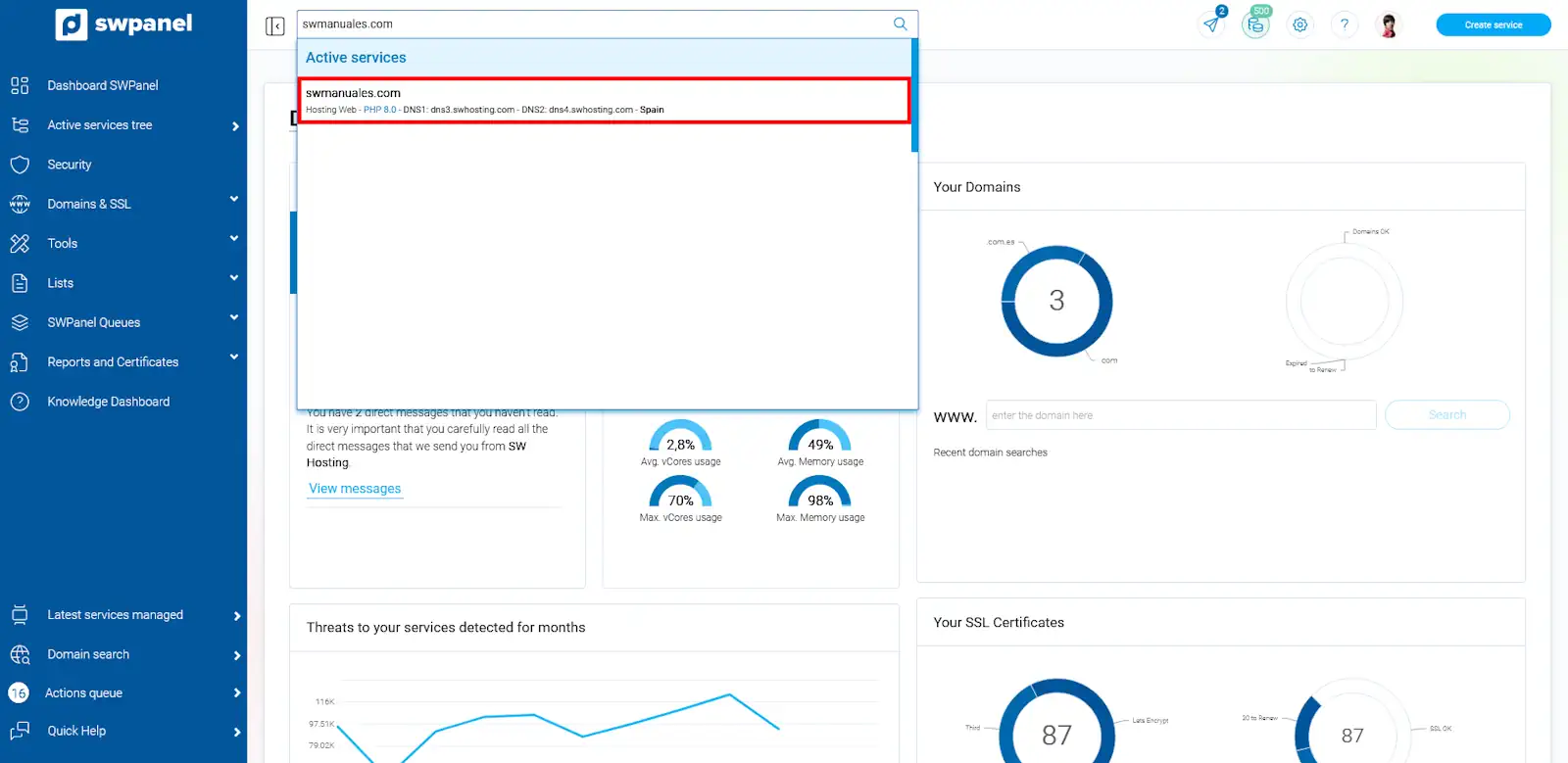
-
In the left side menu, go to Service Management > DNS Management.
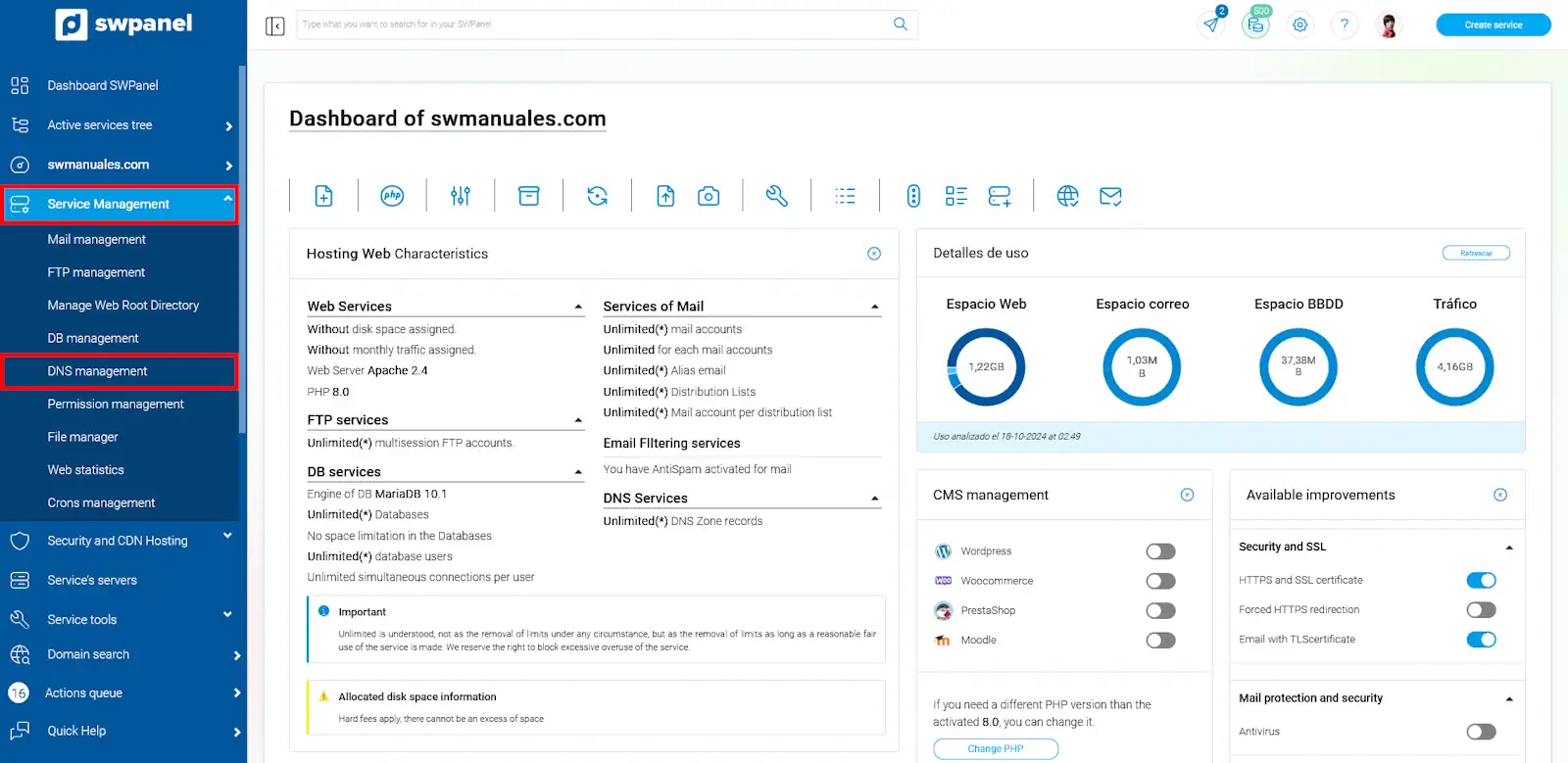
In this section, you will see all the DNS records currently configured for the selected service.
From here you can:
-
Create new DNS records.
-
Modify or delete existing records.
-
Automatically create advanced security records such as SPF, DKIM, and DMARC.
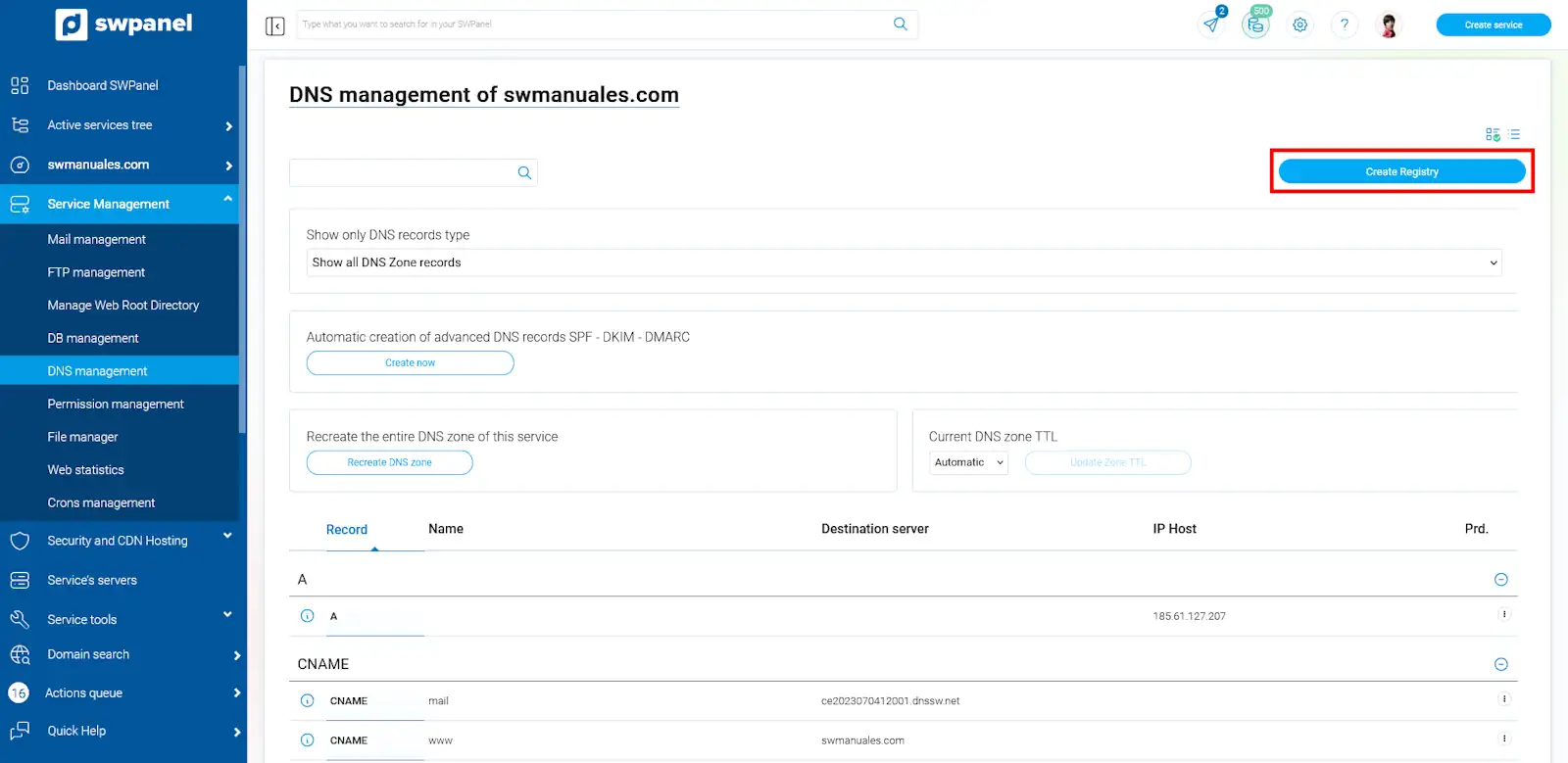
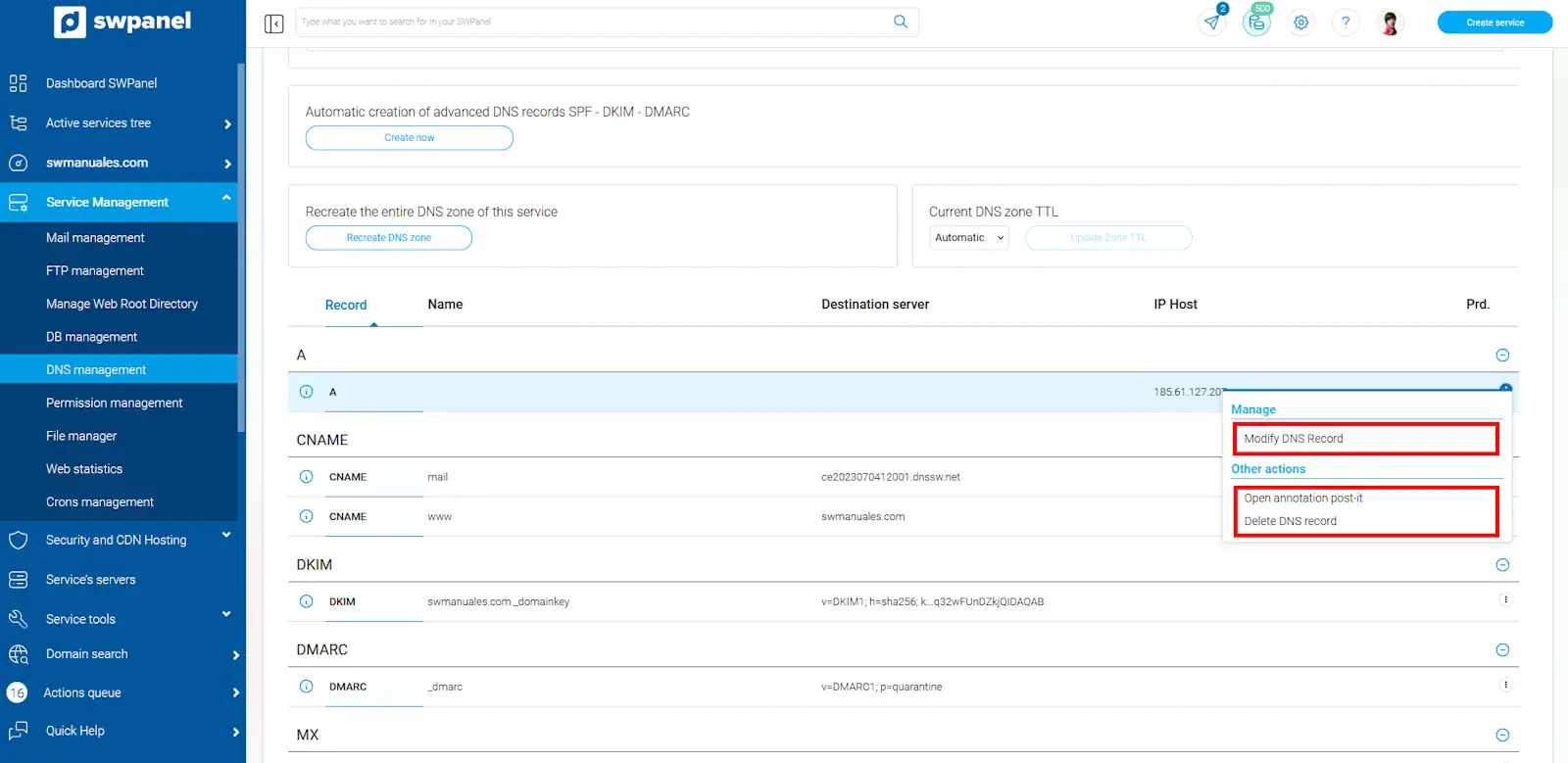
To modify or delete a record, click the Manage button to the right of each entry:
Automatic creation of security records
SWPanel offers the option to automatically create SPF, DKIM, and DMARC records. These records improve email security and help ensure your messages do not end up in the SPAM folder.
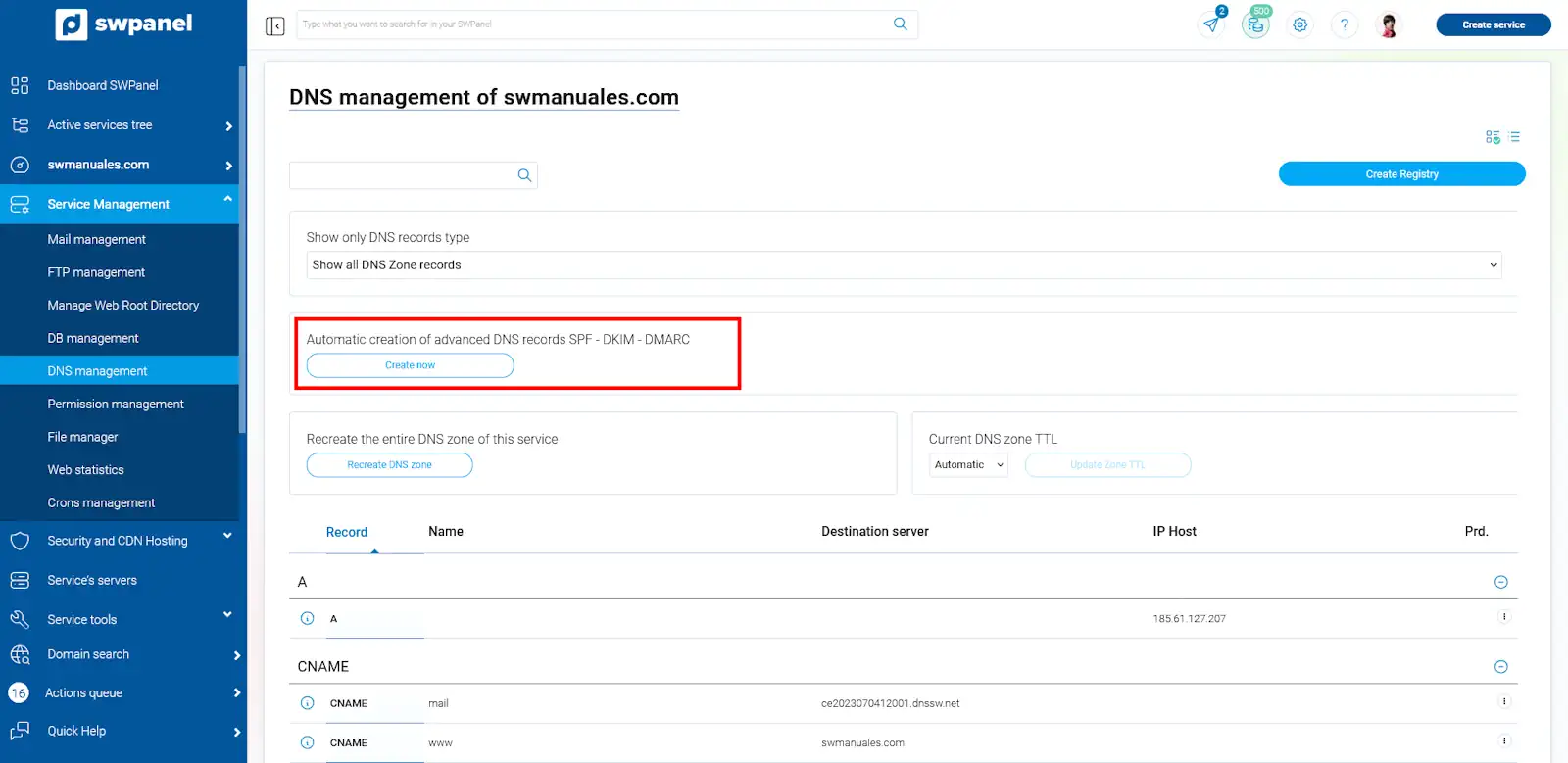
The interface allows you to know if the records are already created by the color of the button: green if they are not created, blue if they already exist.
info Note: Changes made to the DNS zone may take up to 48 hours to propagate completely on a global level.
We explain how to create each of the records. In the following examples, we will create them in the DNS zone of "swmanuales.com".
3. Creating an A record
An A record (Address) is used to associate a domain or subdomain with an IPv4 address. It is essential for your domain to be accessible from web browsers or other services.
Steps to create an A record:
-
Click the Create Record button (located on the right of the interface).
-
In the Record Type dropdown, select A Record (Host).
-
Complete the following fields:
- Host Name: Indicate the name of the subdomain. Example:
tienda - Host IP: The IP address you want the subdomain to point to. Example:
1.2.3.4
- Host Name: Indicate the name of the subdomain. Example:
-
Press Create Record.
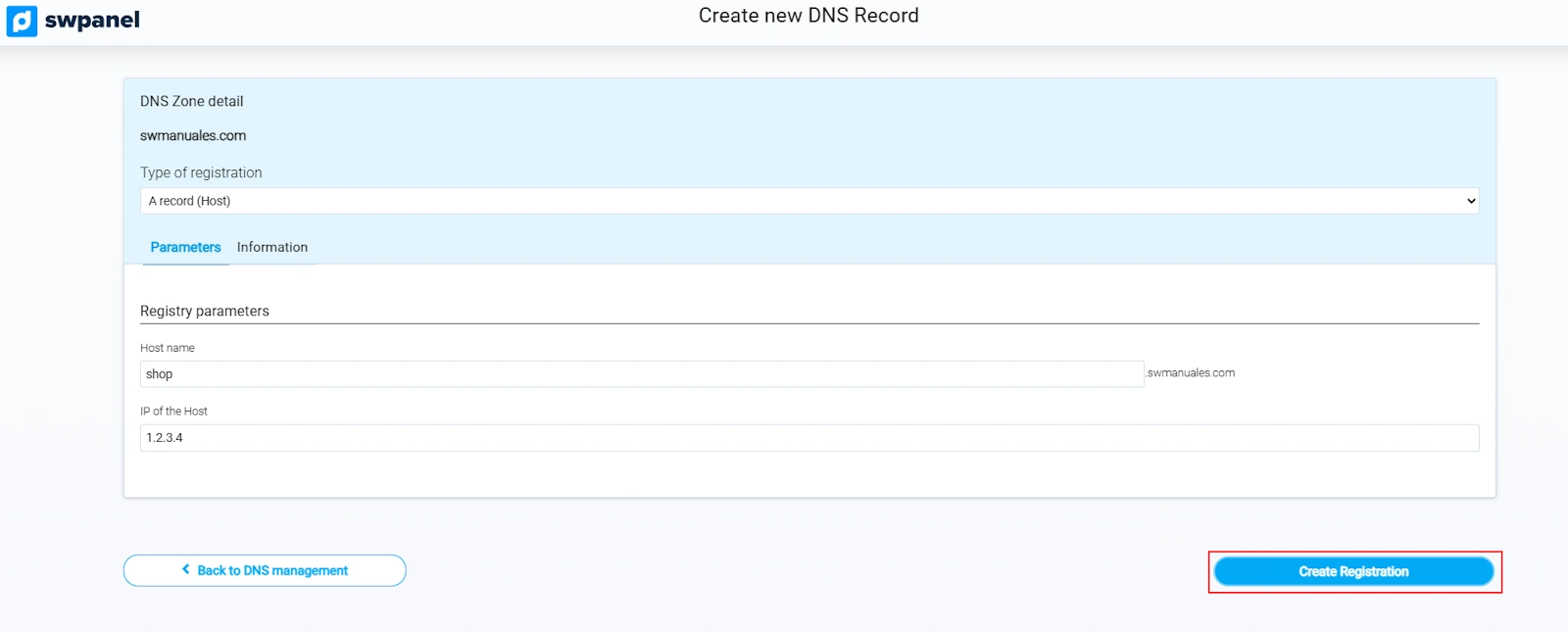
Expected result: The subdomain tienda.dominiosw.com will point to the IP address 1.2.3.4.
You can consult detailed technical information about this type of record in the Information tab.
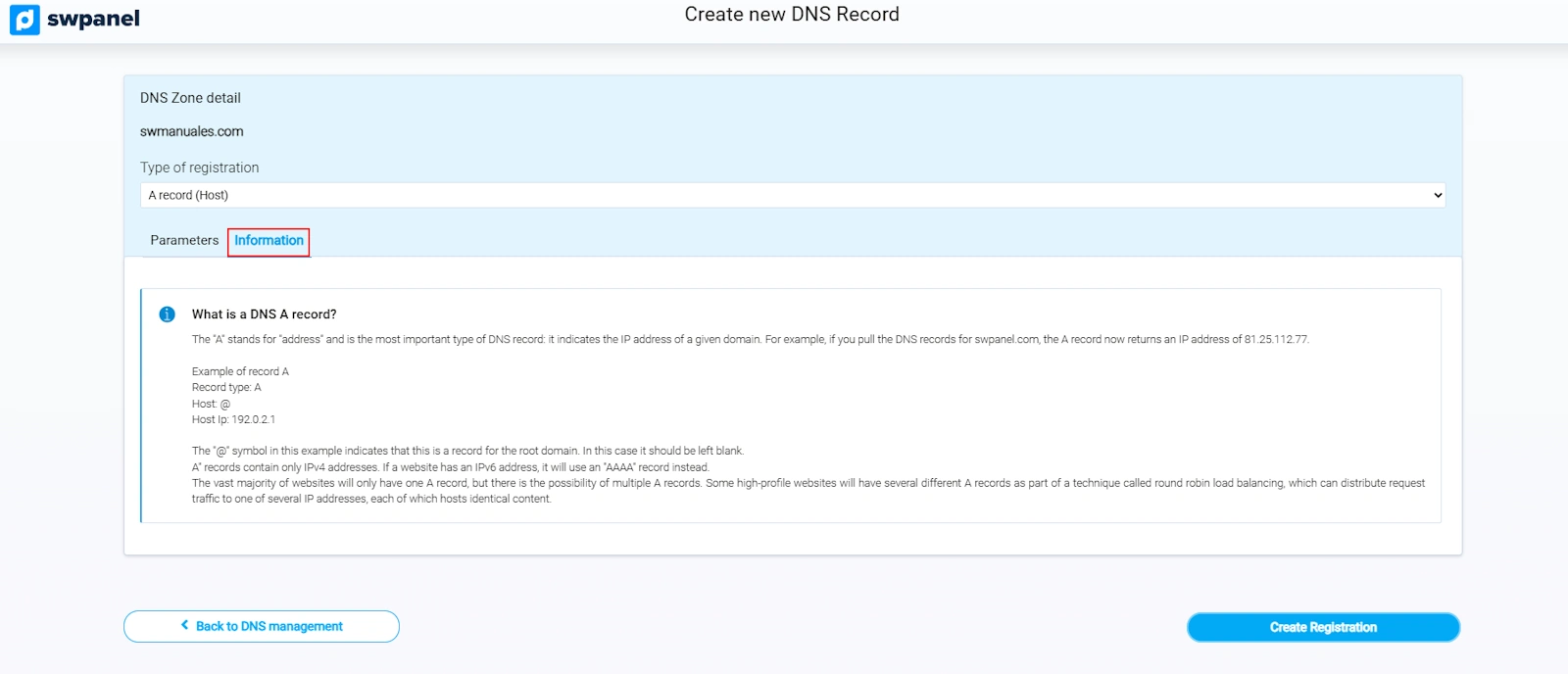
4. Creating a CNAME record
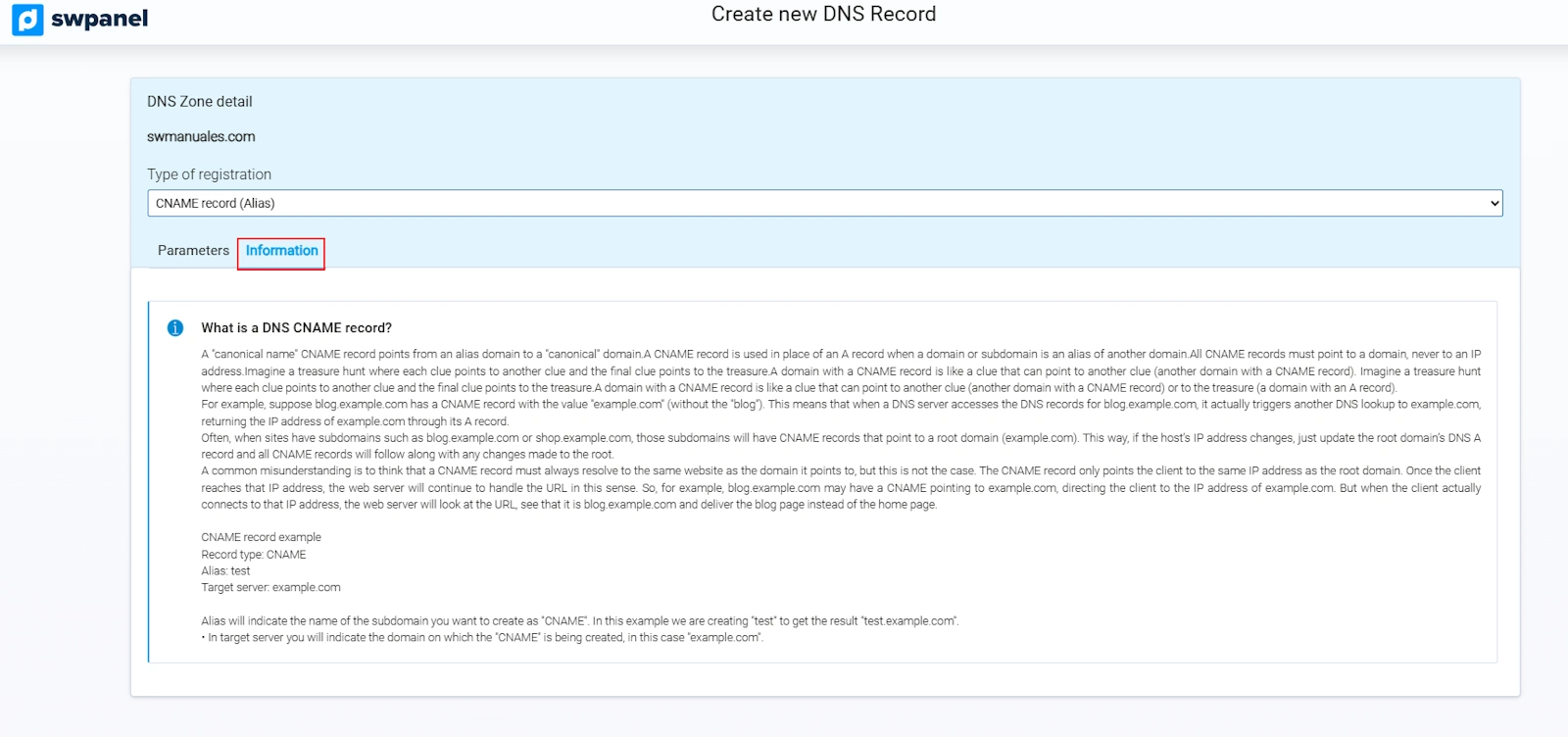
The CNAME record (Canonical Name) allows a subdomain to act as an alias for another domain. This means the subdomain redirects to the same destination as another already existing domain, avoiding duplication of IP records.
Steps to create a CNAME record:
-
Click on Create Record.
-
Select CNAME Record (Alias) in the type dropdown.
-
Fill in the following fields:
- Alias: The subdomain that will function as the alias. Example:
sw - Destination server: The domain it will redirect to. Example:
www.swhosting.com
- Alias: The subdomain that will function as the alias. Example:
-
Press Create Record.
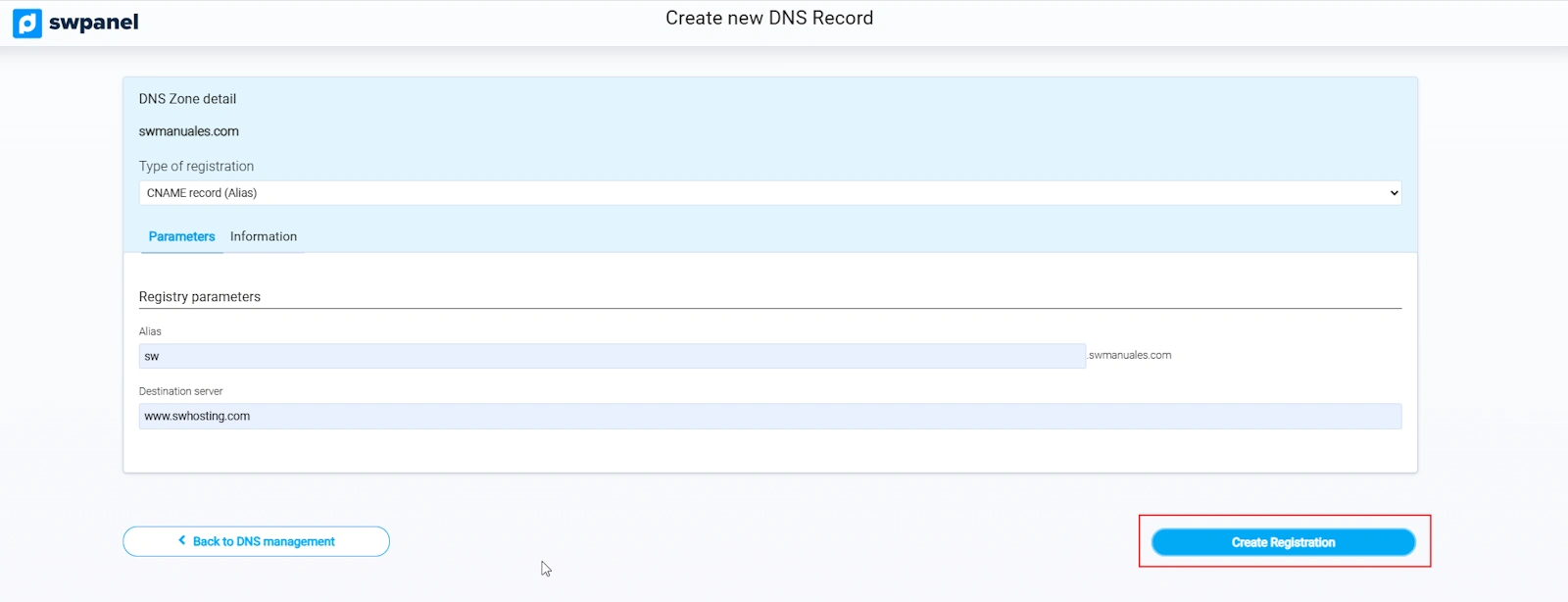
Expected result: sw.dominiosw.com will point to the same IP as www.swhosting.com.
Consult more technical details from the Information tab.
5. Creating an NS record
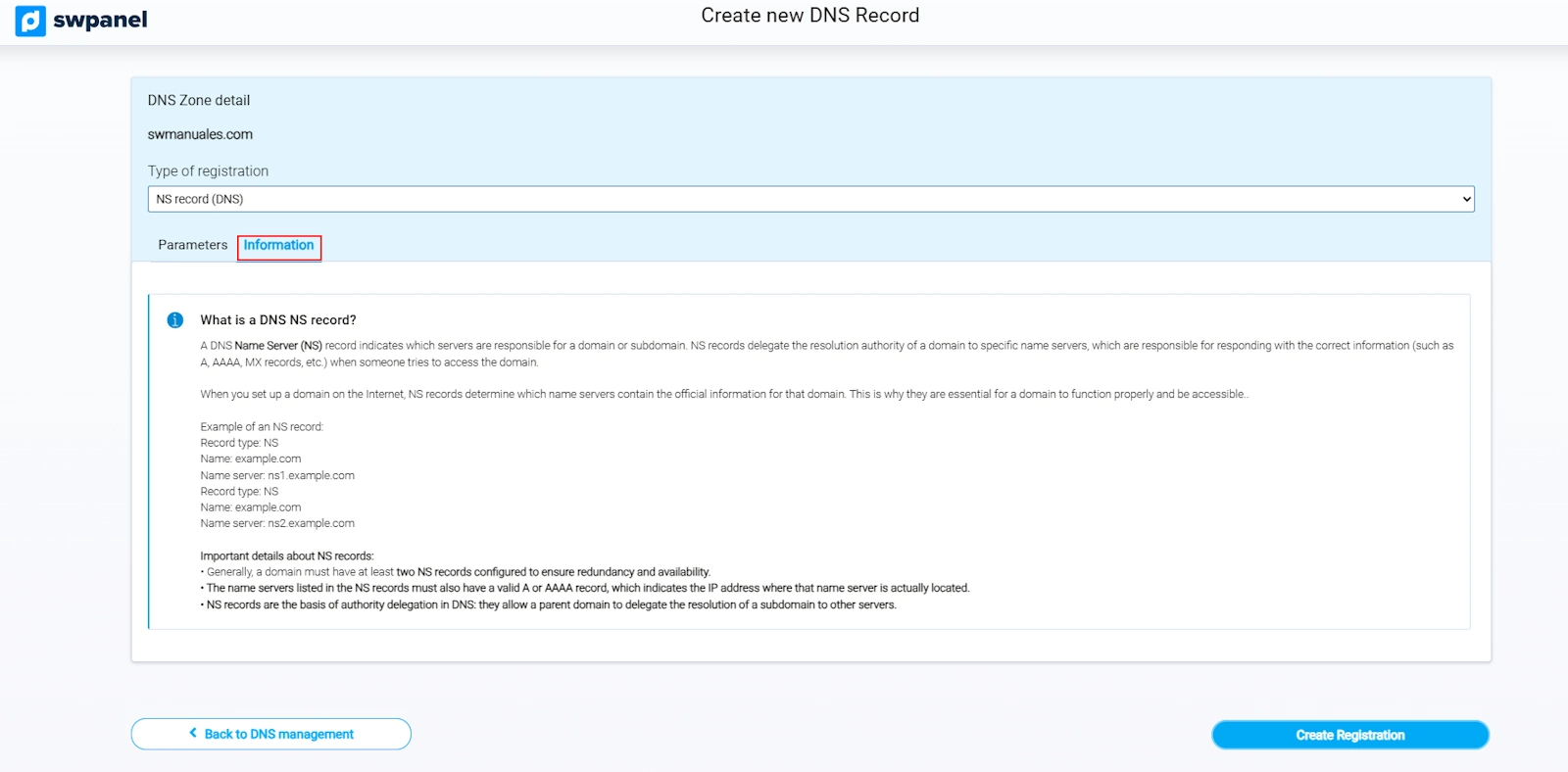
NS (Name Server) records indicate which DNS servers are authoritative for the domain or subdomain.
info These records are generated automatically. You should only modify them if you know what you are doing and have a specific configuration.
Steps to create an NS record:
-
Click on Create Record.
-
Select NS Record (DNS).
-
Complete the required fields:
- Subdomain: The subdomain to which these DNS servers apply.
- Destination server: Name of the DNS server. Example:
ns1.miservidordns.com - Host IP: IP of the DNS server. Example:
1.2.3.4
-
Press Create Record.
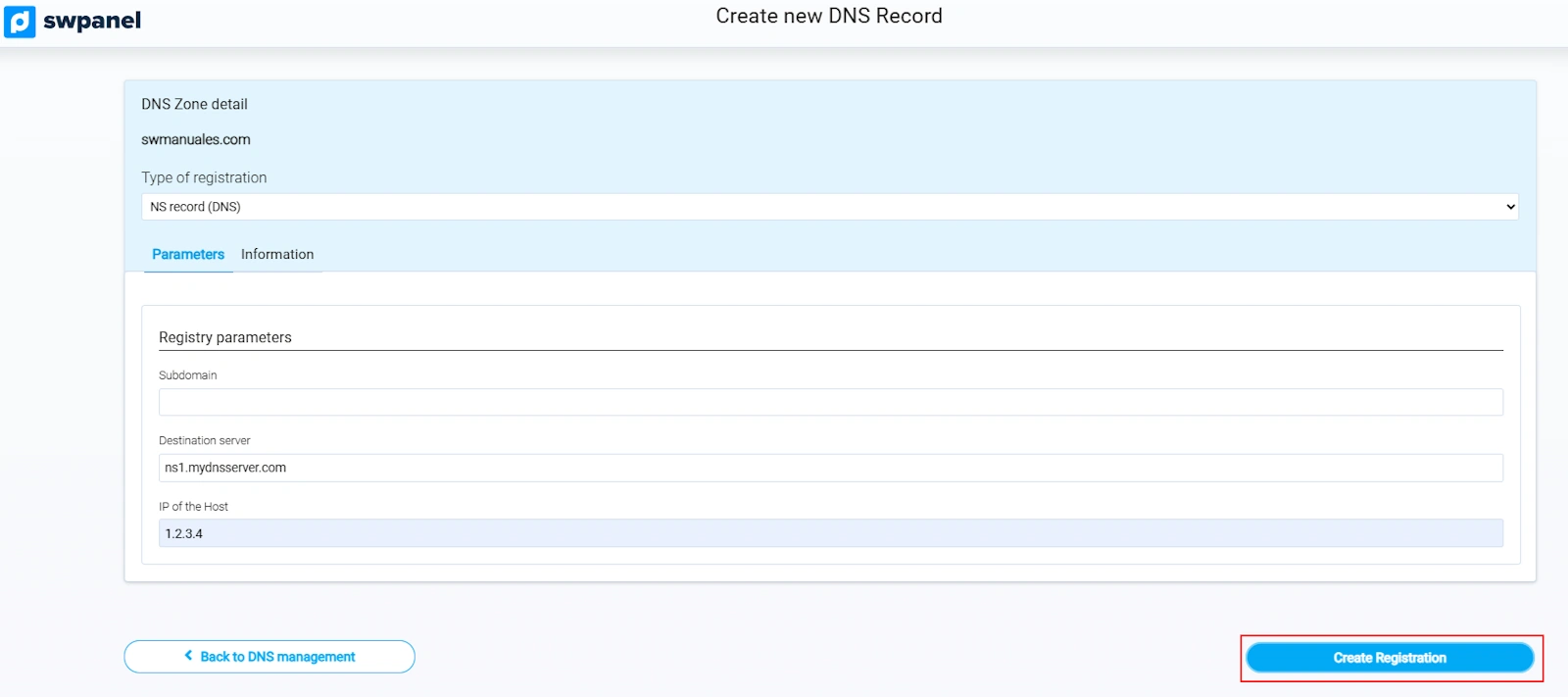
Form to indicate which authoritative DNS servers will be used for a specific subdomain.
Expected result: Declare that ns1.miservidordns.com (IP 1.2.3.4) manages the DNS of the indicated subdomain.
Consult additional information in the Information tab.
6. Creating an MX record
MX (Mail Exchange) records allow you to indicate which mail servers should manage emails directed to your domain or subdomain.
Steps to create an MX record:
- Click on Create Record.
- In the Record Type dropdown, select MX Record (Mail Exchange).
- Complete the fields:
- Alias: Subdomain (can be left empty if it is for the main domain).
- Mail server: Example:
mail.correosw.com. - Priority: A number that indicates the order of preference. The lower the value, the higher the priority. Example:
10.
- Press Create Record.
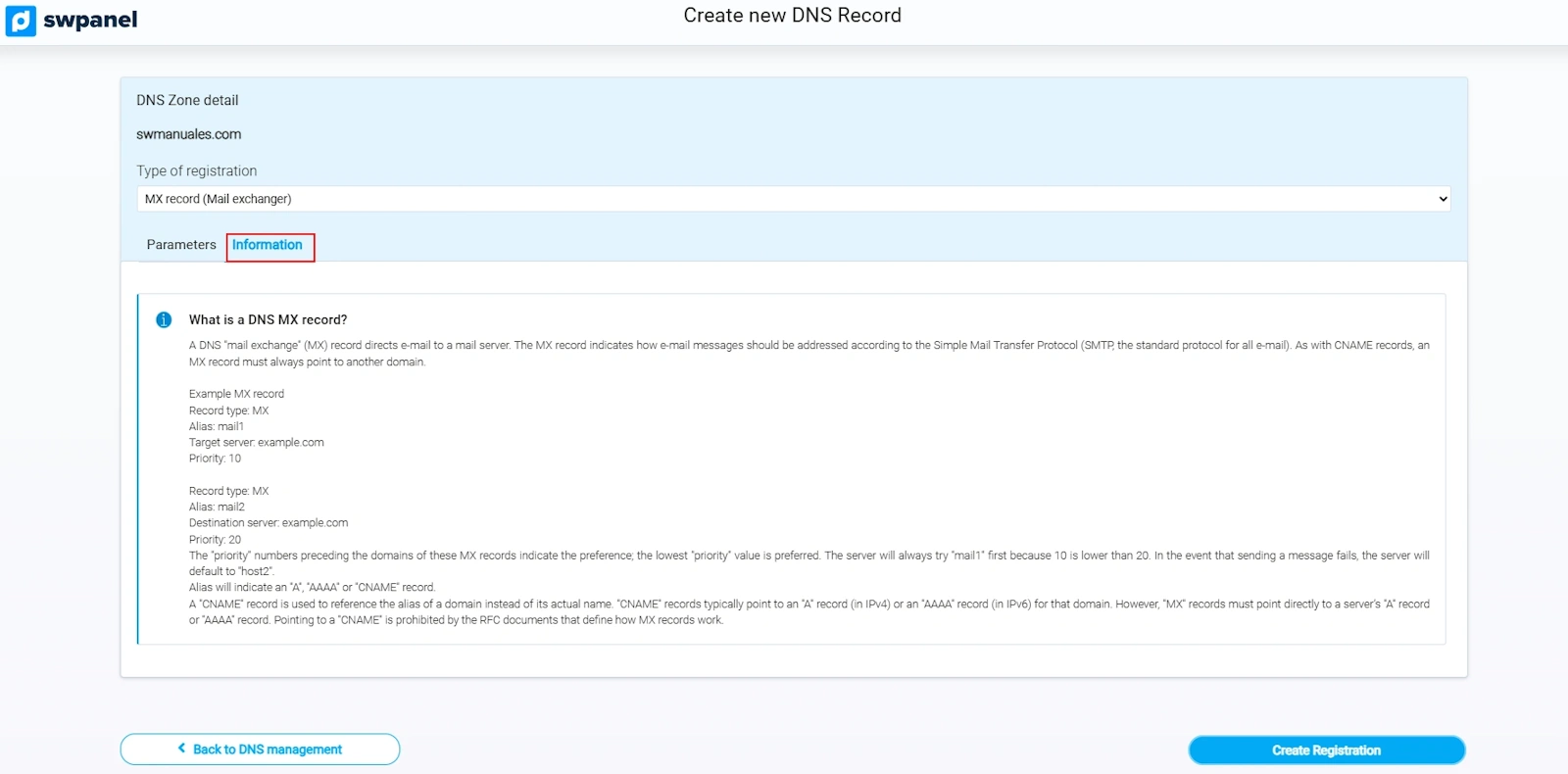
info Important: The "Mail server" field must be a domain name (not an IP) and this domain must have an A record, it cannot be a CNAME. This is because mail servers will perform two DNS resolutions to send an email to a domain on another server: the first to find the MX record and the second to discover its IP.
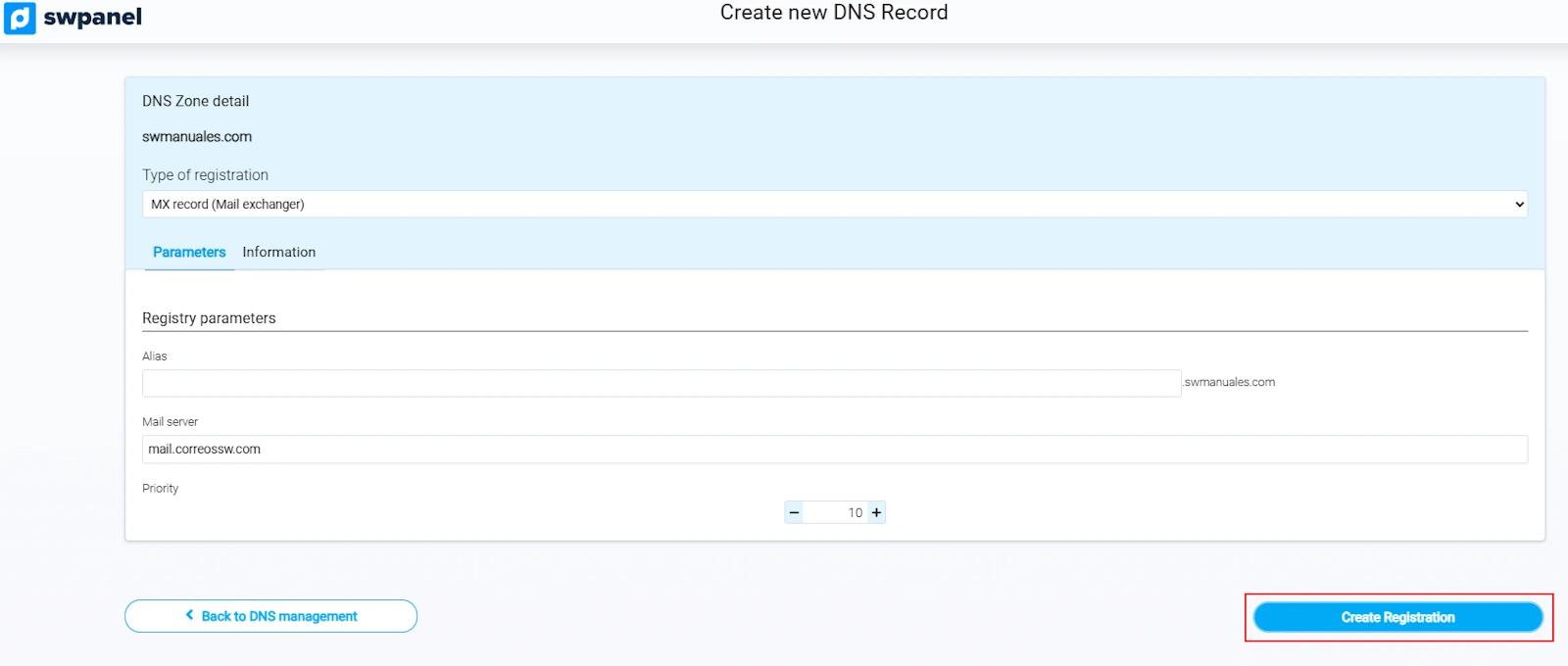
Expected result: All emails sent to dominiosw.com will be managed by mail.correosw.com.
Consult more details from the Information tab:
7. Creating an SPF record
The SPF (Sender Policy Framework) record allows you to specify which servers have permission to send emails on behalf of your domain. It helps prevent identity theft (spoofing). To prevent fraud and unwanted mail, it is common for large email service providers (such as Google) to require the presence of this record. Otherwise, emails directed to them may be rejected or classified as SPAM.
info You can generate SPF rules with tools such as:
https://www.spfwizard.net
https://mxtoolbox.com/spf.aspx
Steps to create an SPF record:
-
Click on Create Record.
-
Select SPF Record (TXT Record).
-
Complete:
- Alias: Subdomain, if applicable. Leave blank for the main domain.
- TXT Content: SPF rule. Example:
v=spf1 mx a ~all
-
Press Create Record.
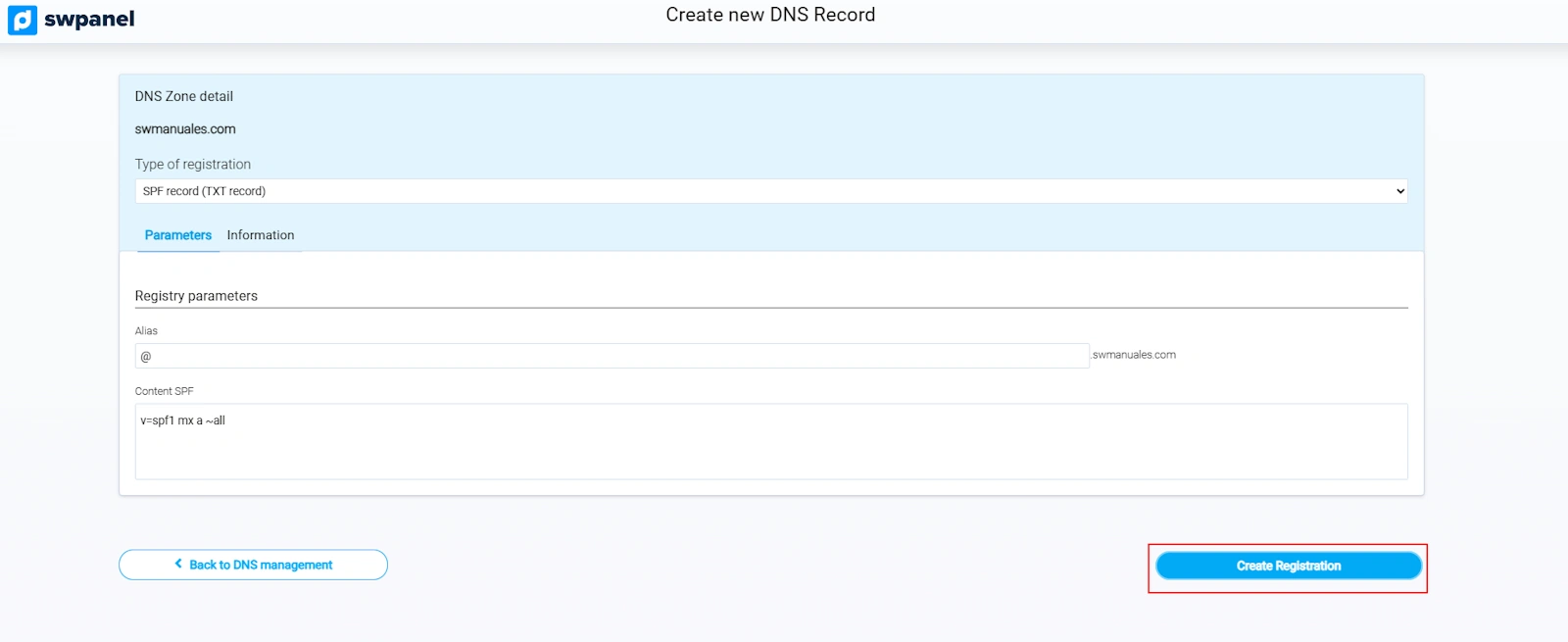
Consult detailed technical information from the Information tab:
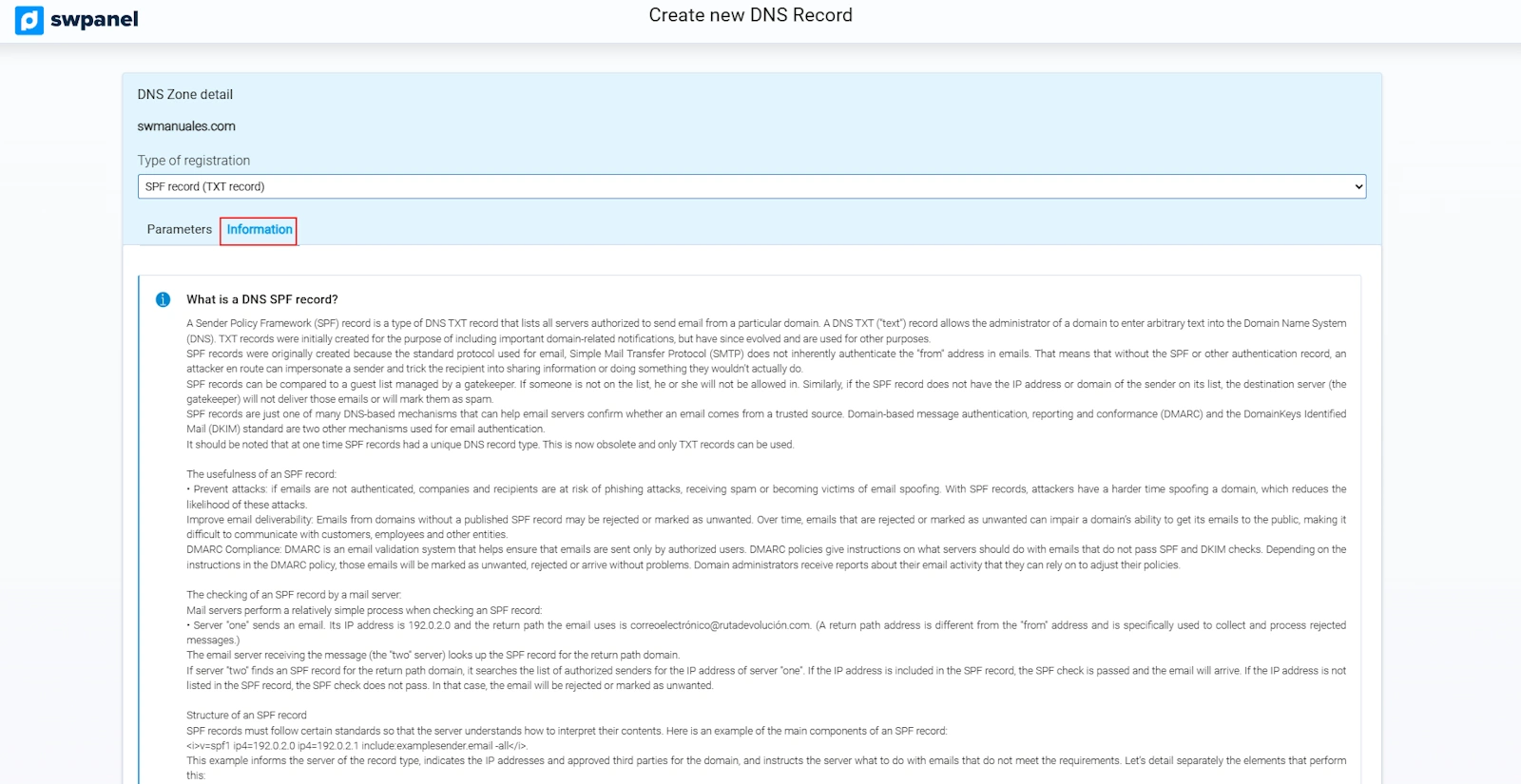
Common parameters in SPF rules
- v=spf1 Indicates the start of the rule and which SPF version will be used.
- mx Allows MX servers to send email.
- a Allows the IP of the A record to send email.
- ip4:x.x.x.x Authorized IP to send email.
- ptr Authorizes any host ending in "dominiosw.com" to send email.
- all Closes the rule, indicating behavior for what is not defined. It is included at the end of the SPF rule.
Possible prefixes:
- + Accepted (default if no prefix is indicated).
- - Rejected.
- ~ Conditional acceptance, it is marked but not rejected.
- ? Neutral.
Examples:
-
v=spf1 mx a ~all
-
mx: The servers of the MX records are authorized (as no prefix is included, + is assumed).
-
a: The IP of the A record is authorized.
-
~all: Those that do not match the previous rules are not authorized, but will not be rejected; they will be marked with a special header.
-
v=spf1 mx -all
-
mx: The servers of the MX records are authorized (as no prefix is included, + is assumed).
-
-all: Those that do not match the previous rules are not authorized and will be rejected.
-
v=spf1 -mx a ?ip4:1.2.3.4 ~all
-
-mx: The servers of the MX records are not authorized; they will be rejected.
-
a: The IP of the A record is authorized.
-
?ip4:1.2.3.4: The IP "1.2.3.4" will be marked as neutral.
-
~all: Those that do not match the previous rules are not authorized, but will not be rejected; they will be marked with a special header.
8. Creating a DKIM record
The DKIM (DomainKeys Identified Mail) record allows the authentication of the content of emails through a digital signature. Like SPF and DMARC records, its goal is to prevent fraud and unwanted mail.
Example:
DKIM Selector: dominiosw
DKIM Key: v=DKIM1; g=*; k=rsa; p=MIGfMA0GCGGGGGb3DQEBAQUAA4G0000BiQKBgQD0000VKvGjmSb4FkI70000e1KqV01eQ70n0000D5bpRfo8ZGcab0000+3+O0mPI7wYblklU0000T0A3LVJk+QTwX00007VA7EiL0utBMW0000iZLJ8Exyzoajql0000RRJmyhngY/0000t0yq21pdlYLrJa0000CfaniL/8gKQGQID0000
Steps to create a DKIM record:
-
Click on Create Record.
-
Select TXT Record.
-
Complete:
- Alias: Format
selector._domainkey. Example:dominiosw._domainkey - TXT Content: The generated DKIM key. - Example: v=DKIM1; g=*; k=rsa; p=MIGfMA0GCGGGGGb3DQEB(...)
- Alias: Format
-
Press Create Record.
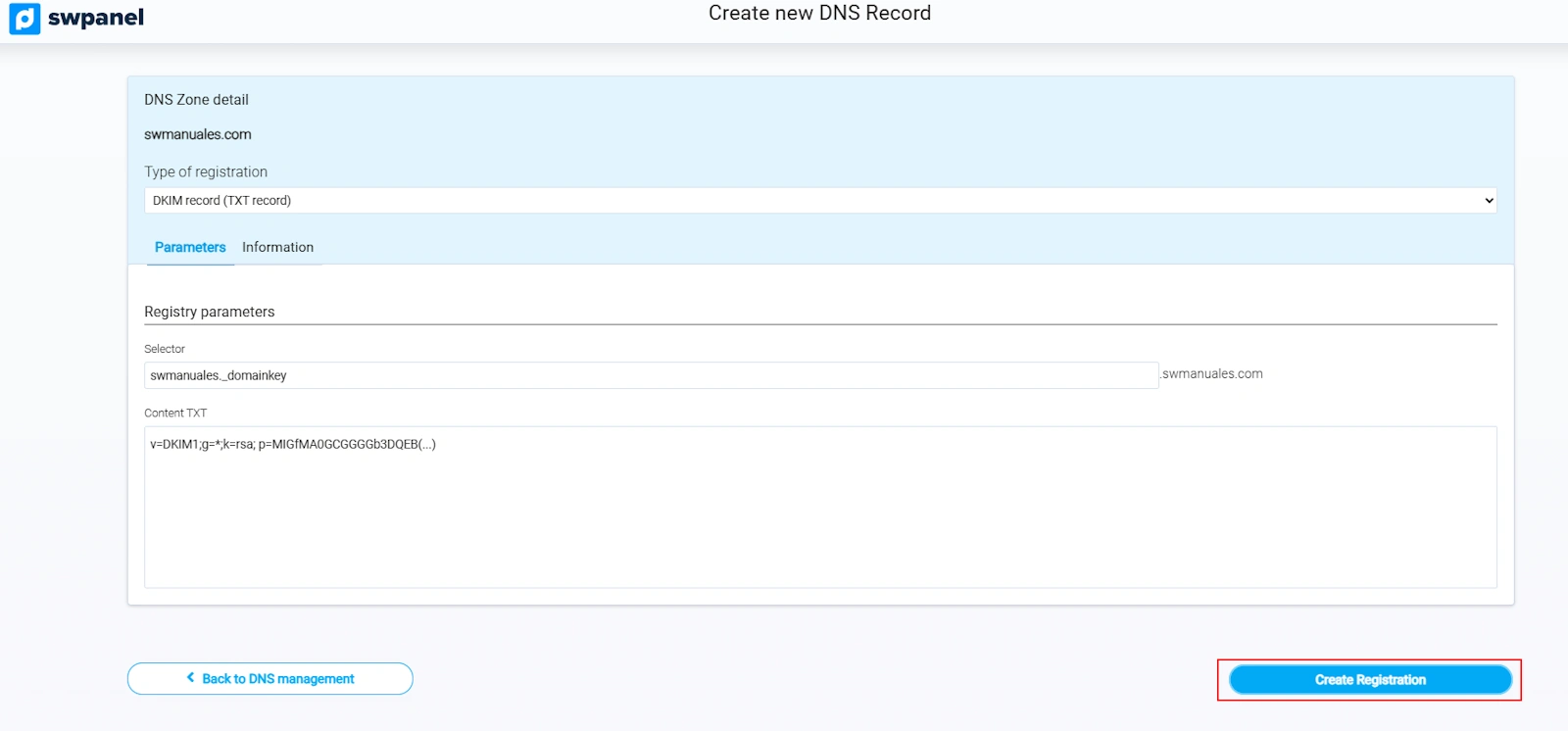
Consult technical information from the Information tab:
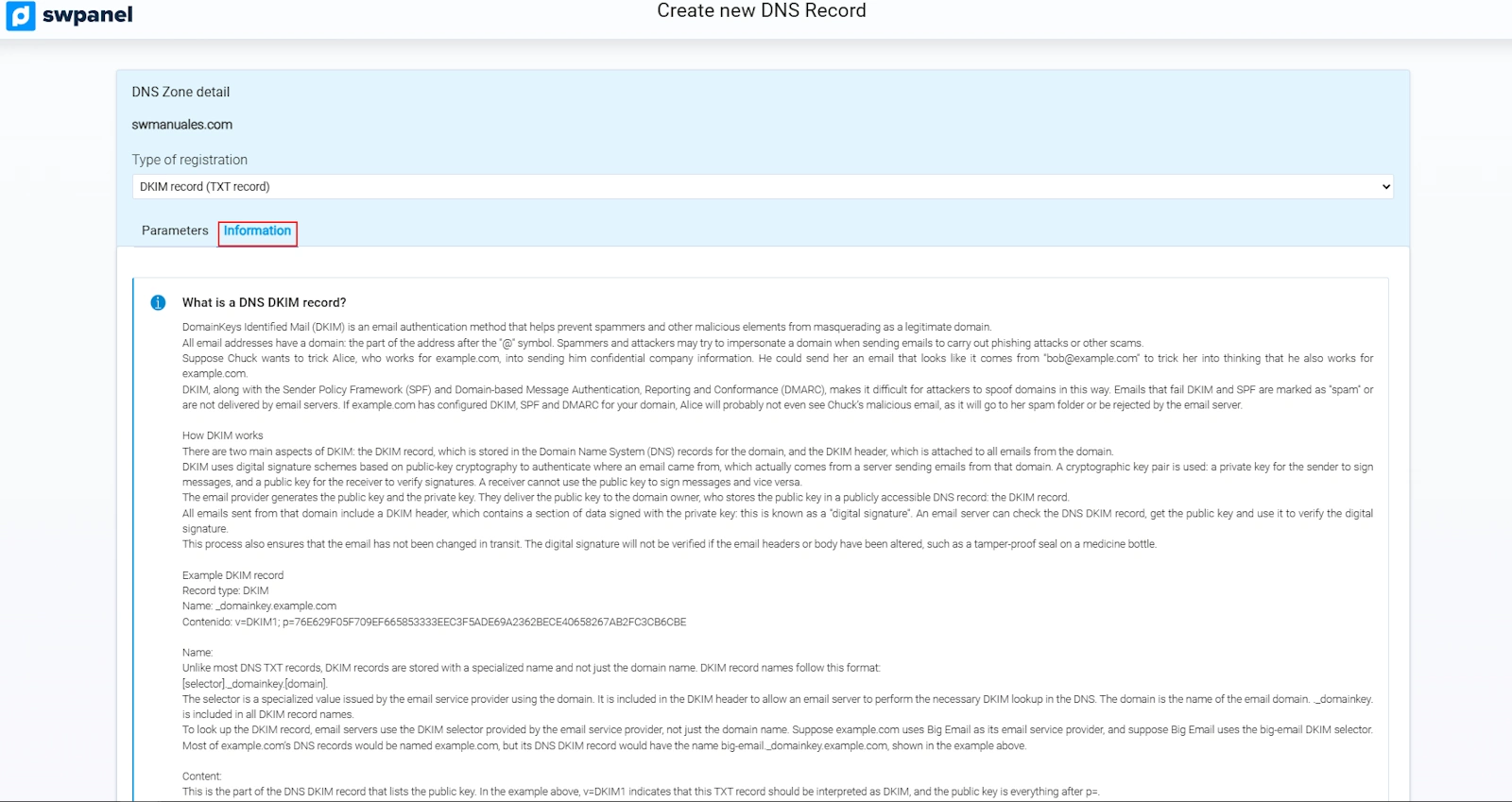
Result: An appropriate TXT record query will respond with the entered content. The recipient of an email will obtain this key to unequivocally verify that the sender is who they claim to be.
info The DKIM system requires additional configuration on your server or Cloud.
9. Creating a DMARC record
The DMARC (Domain-based Message Authentication, Reporting & Conformance) record complements SPF and DKIM. It defines action policies for validation failures and allows the sending of reports:
- Action policy for suspicious emails that have not passed both SPF and DKIM validation systems.
- Generation of aggregate reports with statistics on SPF and DKIM validation failures, among others.
- Generation of forensic reports with details about emails that fail the validation processes.
info Tools to generate DMARC rules:
https://dmarcian.com/dmarc-record-wizard/
https://mxtoolbox.com/DMARCRecordGenerator.aspx
info Important: Before creating DMARC, you must have SPF and DKIM operational.
Steps to create a DMARC record:
- Click on Create Record.
- Select TXT Record.
- Complete:
- Alias:
_dmarc - TXT Content: Rule. Example:
v=DMARC1; p=none;
- Alias:
- Press Create Record.
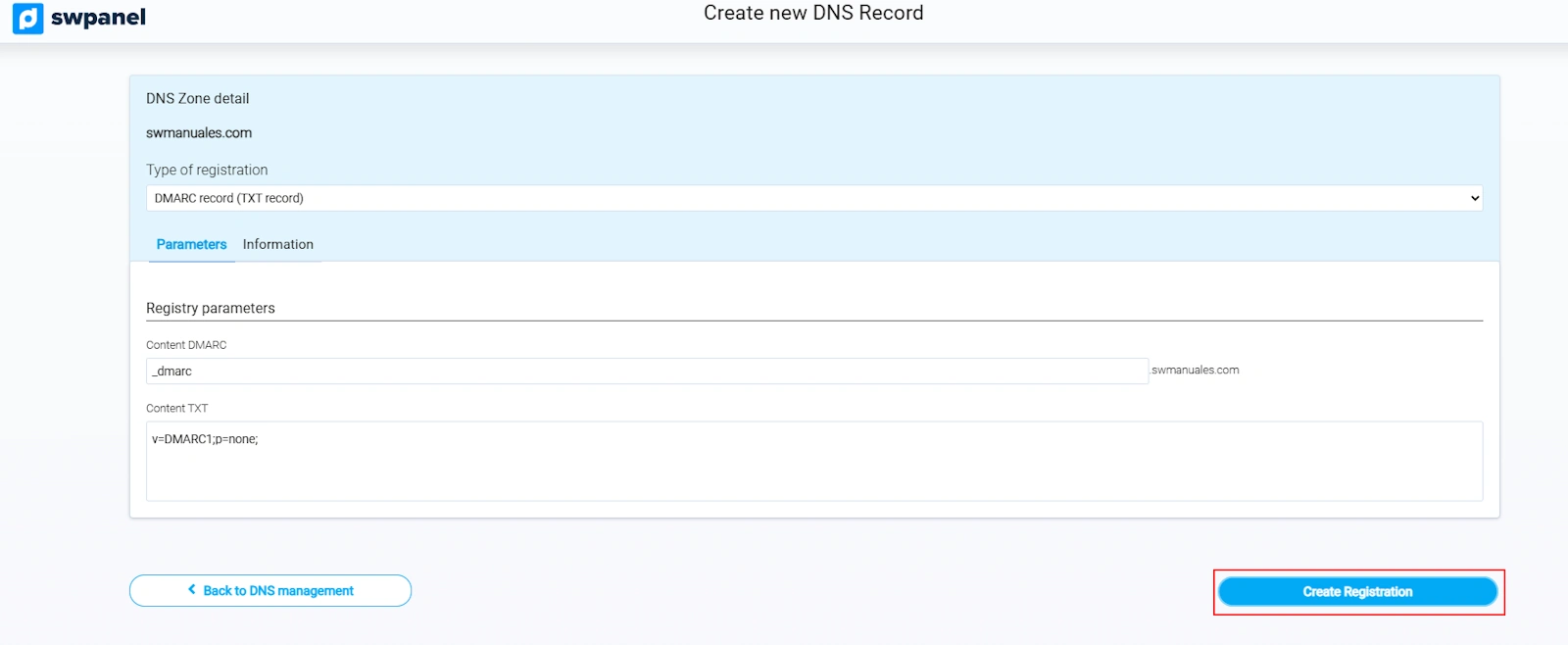
Consult details from the Information tab:
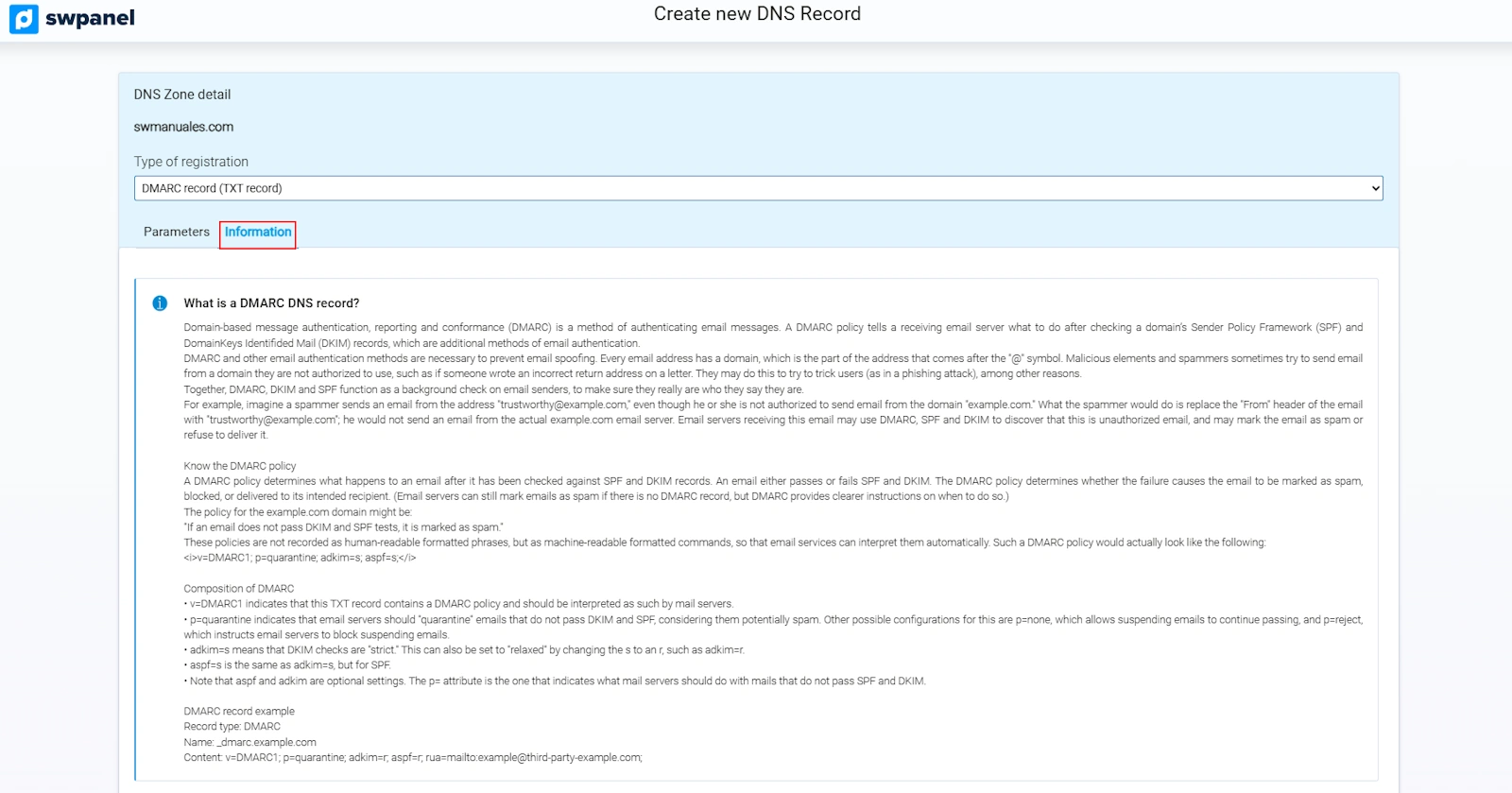
Common parameters in DMARC rules:
- v=DMARC1; - Indicates the start of the rule.
- p=none; - Monitoring and report sending policy. The email will be delivered normally, but receiving servers will monitor behavior and generate reports. It is used to verify functionality and check if someone is attempting to spoof your domain as a mail sender.
- p=quarantine; - The receiver will mark as SPAM or quarantine emails that do not pass both validation systems (DKIM/SPF).
- p=reject; - The receiver will reject emails that do not pass both validation systems (DKIM/SPF).
- sp=none;/sp=quarantine;/sp=reject; - [Optional] Different policy for subdomains. If this parameter is not present, the previous parameter ("p=none;/quarantine;/reject;") will take effect on the domain and subdomains.
- rua=mailto:[email protected]; - [Optional] Email address to which aggregate reports should be sent.
- ruf=mailto:[email protected]; - [Optional] Email address to which forensic reports should be sent.
- aspf=s; - [Optional] Strict SPF validation. The domain must be identical to the one appearing in the SPF rule; subdomains of the same are not accepted.
- adkim=s; - [Optional] Strict DKIM validation. The domain must be identical to the one appearing in the SPF rule; subdomains of the same are not accepted.
Examples:
-
v=DMARC1; p=none;
-
p=none; - Monitoring and report sending policy. No email address for receiving reports is included in the rule, so they will not be generated. The email will be delivered normally; nothing is done for emails that do not pass the validation systems.
-
v=DMARC1; p=none; sp=reject; rua=mailto:[email protected];
-
p=none; - Monitoring and report sending policy. The email will be delivered normally; nothing is done for emails that do not pass the validation systems.
-
sp=reject; - Emails coming from subdomains (example: "correo.dominiosw.com") will be rejected if they do not pass both validation systems (DKIM/SPF).
-
rua=mailto:[email protected]; - Aggregate reports will be sent to the indicated email address.
10. Creating a TXT record
A TXT record allows including any type of text in the DNS zone. It is used for verifications, configurations, or documentation.
Steps to create a TXT record:
-
Click on Create Record.
-
Select TXT Record.
-
Complete:
- Alias: Record identifier.
- TXT Content: The text you wish to include.
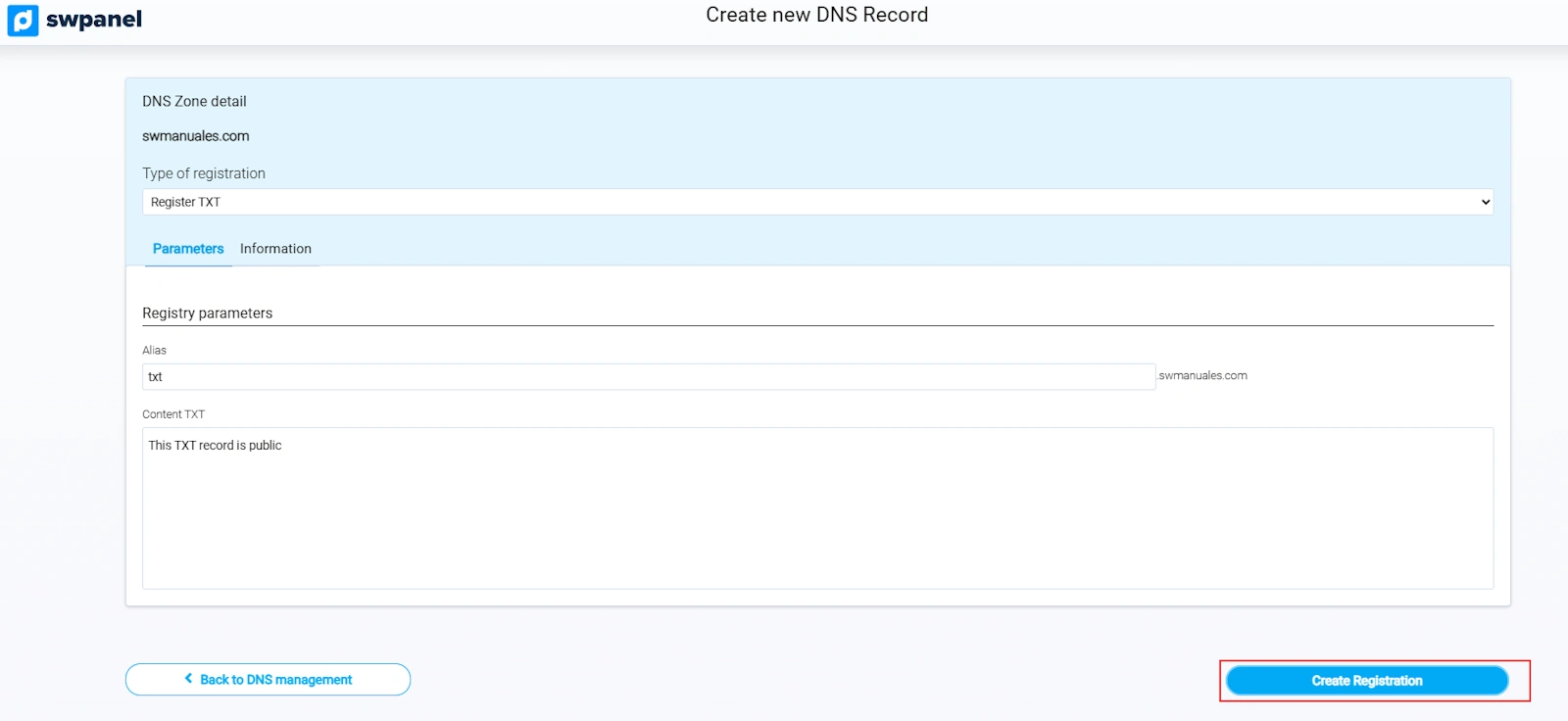
-
Press Create Record.
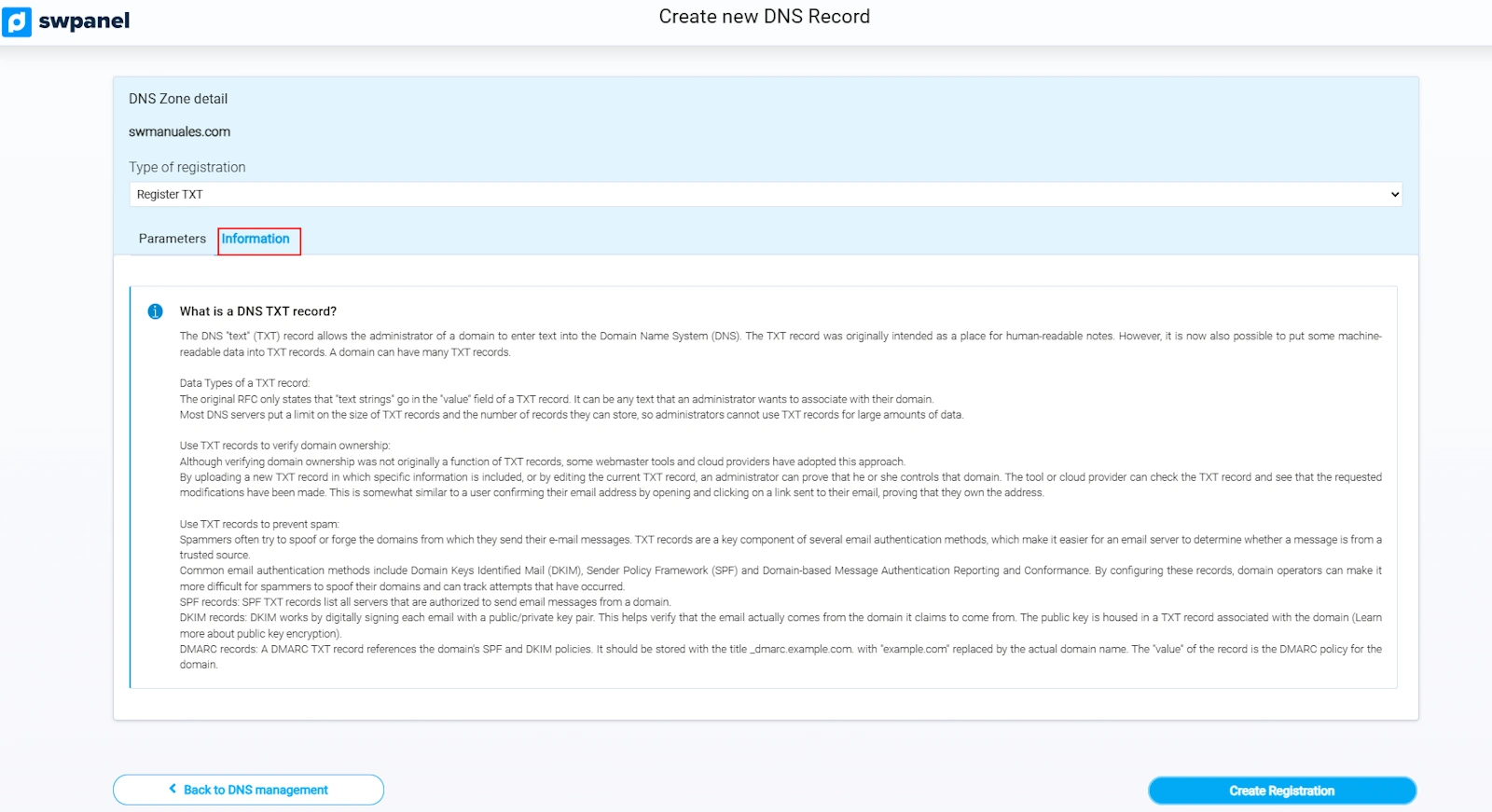
Consult additional information from the Information tab:
Result: An appropriate TXT record query will respond with the entered content.
11. Creating an SRV record
The SRV record informs about services available under your domain, such as telephony (SIP), messaging (XMPP), or Office365.
Example:
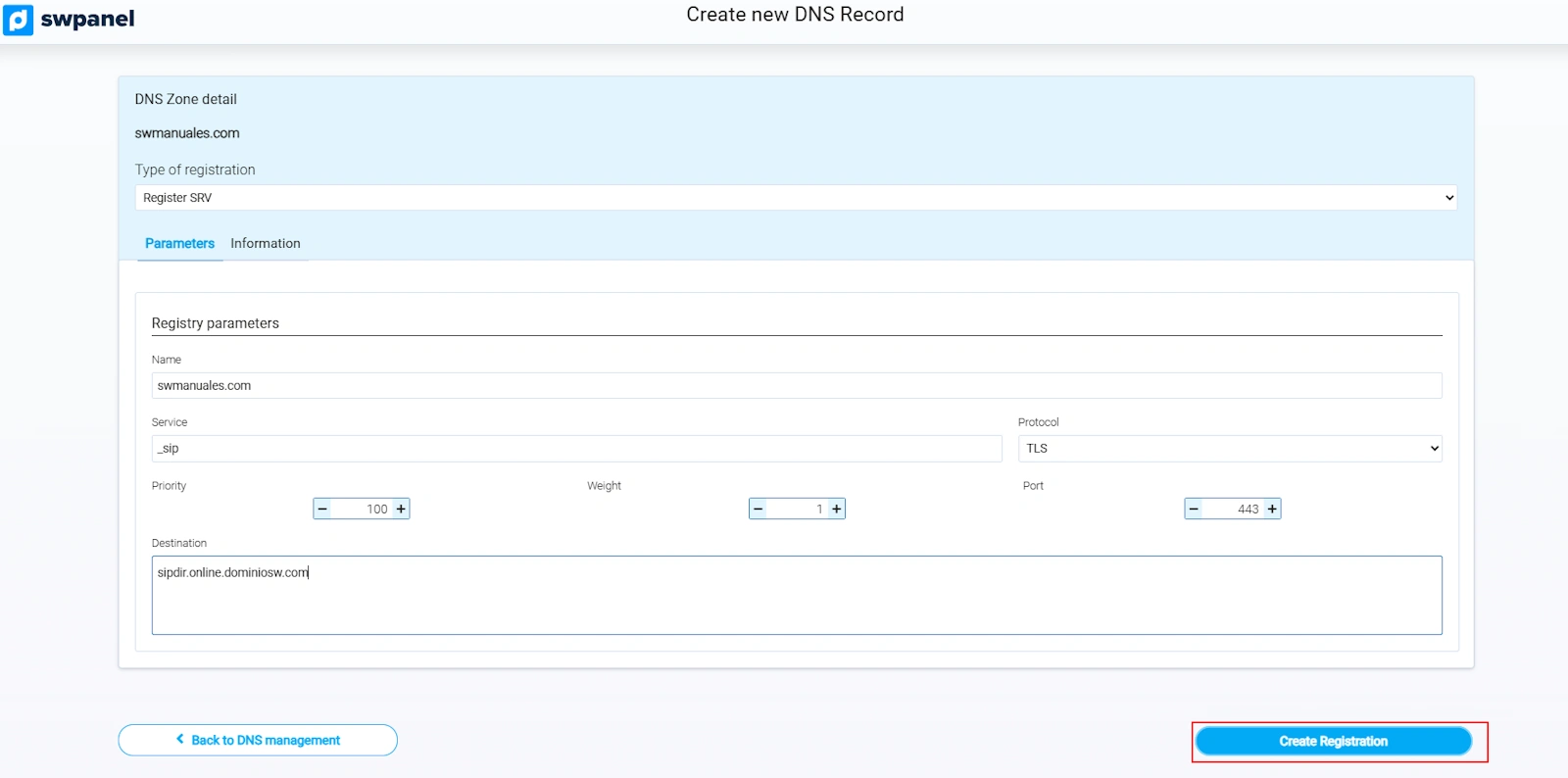
Service: _sip. Protocol: _tls Port: 443 Weight: 1 Priority: 100 Name: @ Destination: sipdir.online.dominiosw.com TTL: 3600
Steps to create an SRV record:
- Click on Create Record.
- Select SRV Record.
- Complete:
- Alias: Service + Protocol. Example:
_sip._tls - TXT Content: Priority Weight Port Destination. Example:
100 1 443 sipdir.online.dominiosw.com.
- Alias: Service + Protocol. Example:
- Press Create Record.
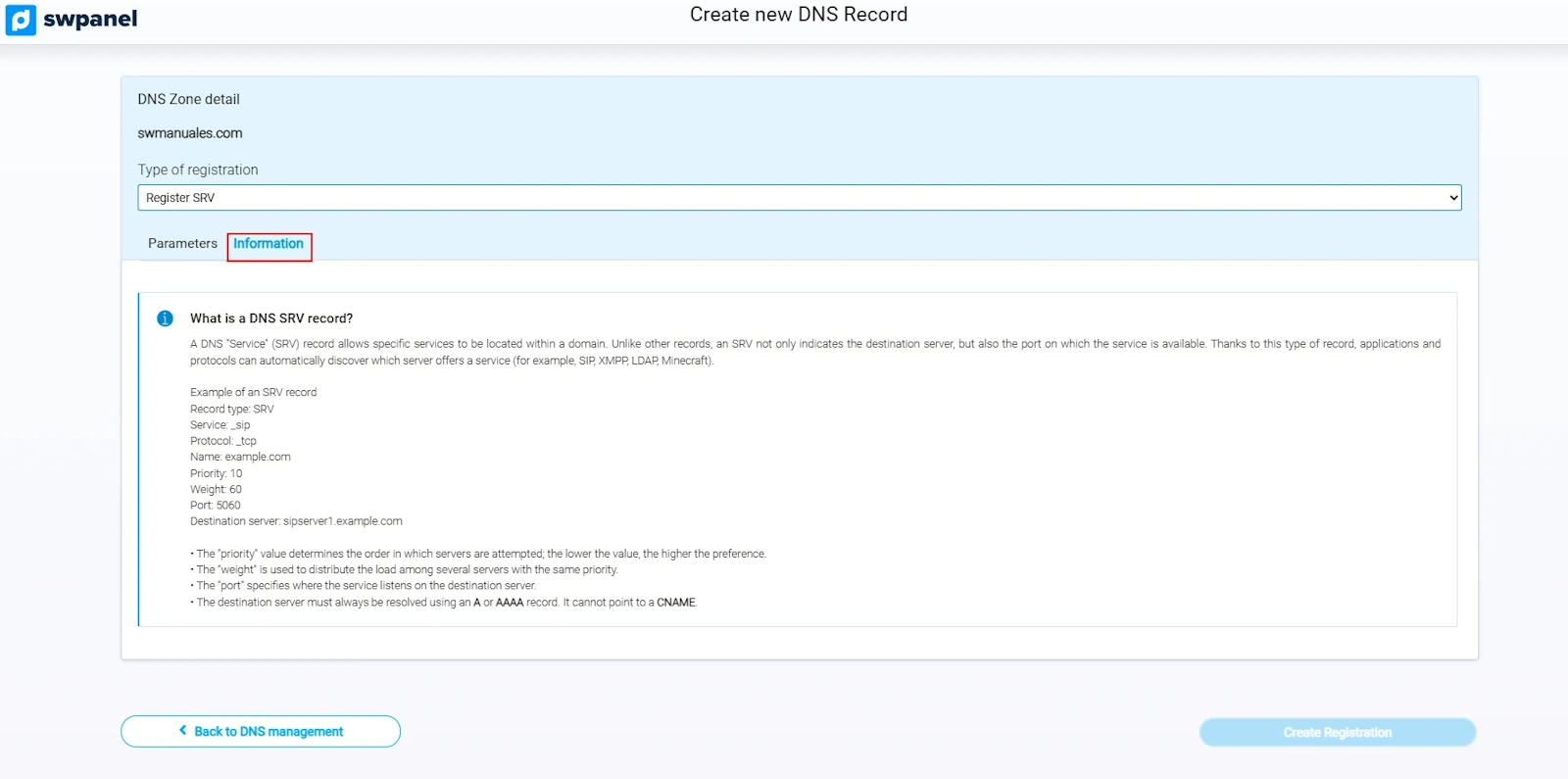
Consult technical information from the Information tab:
info Important: The destination domain must end with a dot (
.), otherwise the domain name will be added automatically, causing errors.