How to manage the state of cloud services
Cloud services status management
At SWHosting, we have implemented a new tool to further facilitate the management of your server services, so that you can manage these services graphically and intuitively and avoid the tedium that can involve accessing your server internally and doing so via the command line.
What actions can I perform from the panel and what do they entail?
Until now, in order to manage and/or review the various services of your server, you had to access your server via ssh and perform the necessary actions via the command line; however, with the new tool implemented by our development team, we have synthesized some of the simplest actions so that you can perform them graphically directly from your cloud server dashboard.
The actions you can perform on the multiple services of your server are the following:
- Visualization: You will be able to view the current status of your services in the form of a list.
- Start: You will be able to start a service that is currently stopped.
- Stop: You will be able to stop a service that is currently running.
- Restart: You will be able to restart the service, an action that can be useful for reloading it after another modification related to the service (for example, a modification of its default configuration).
- Status information: You can request information about the current status of the service, which can be very helpful for quick diagnostics of a specific functionality.
How can I make use of this tool?
If you have a private server whose management panel is SWPanel, you can use these new functions in a very simple and intuitive way.
1. Access your server dashboard
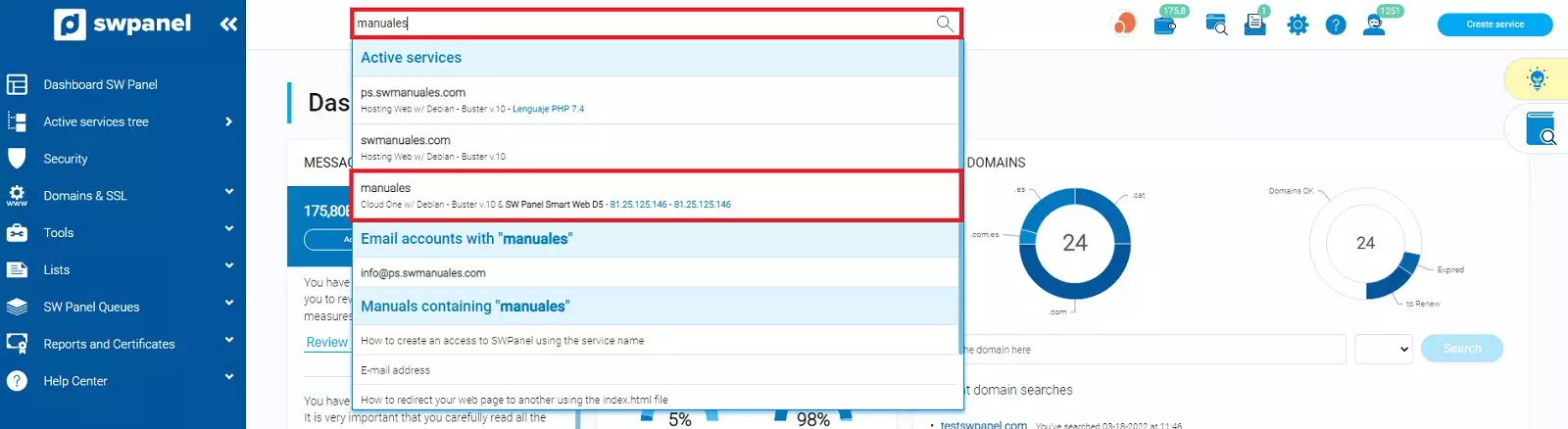
Enter your server name in the search bar at the top of your SWPanel and access it.
2. Go to the Cloud services status section
Once in your dashboard, you will find the Cloud services status section on the right side.
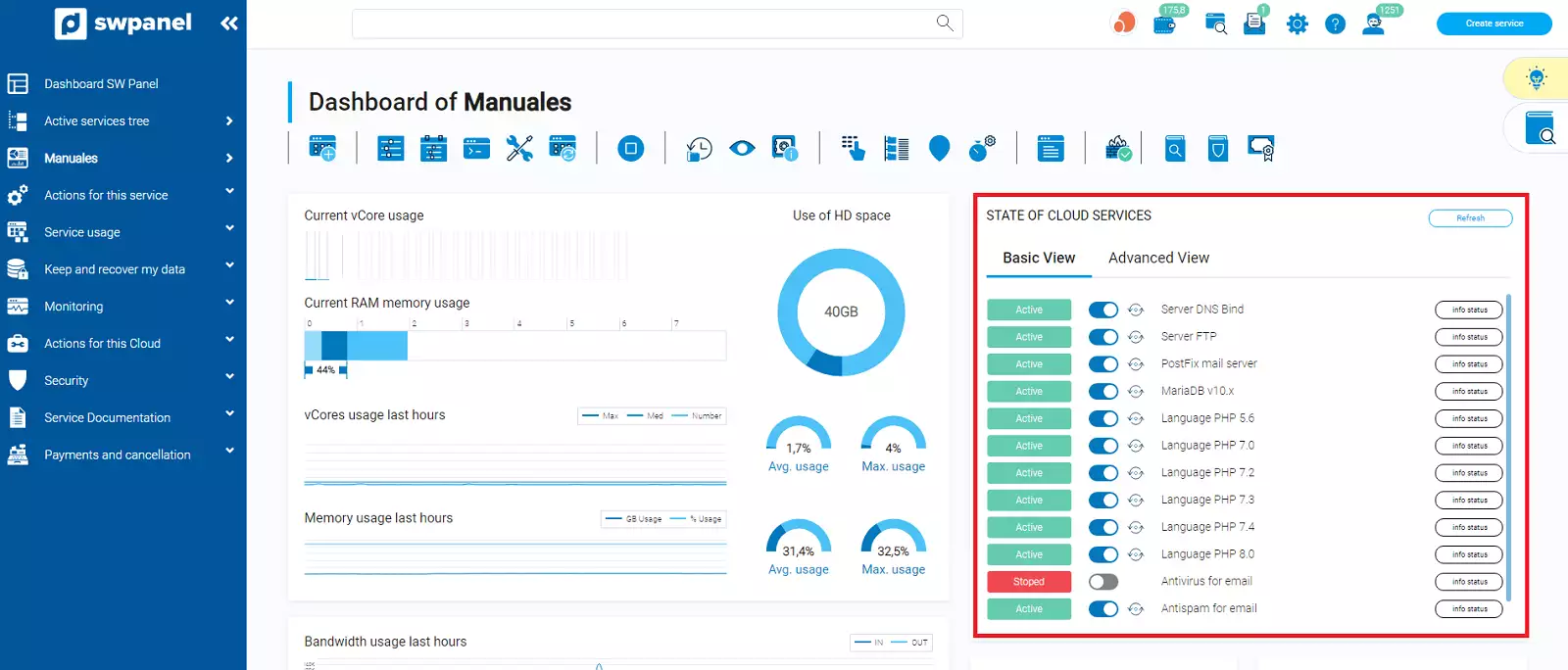
In this section, you will be able to view the list of all your server's services, together with the interface of available actions to perform.
Visualization
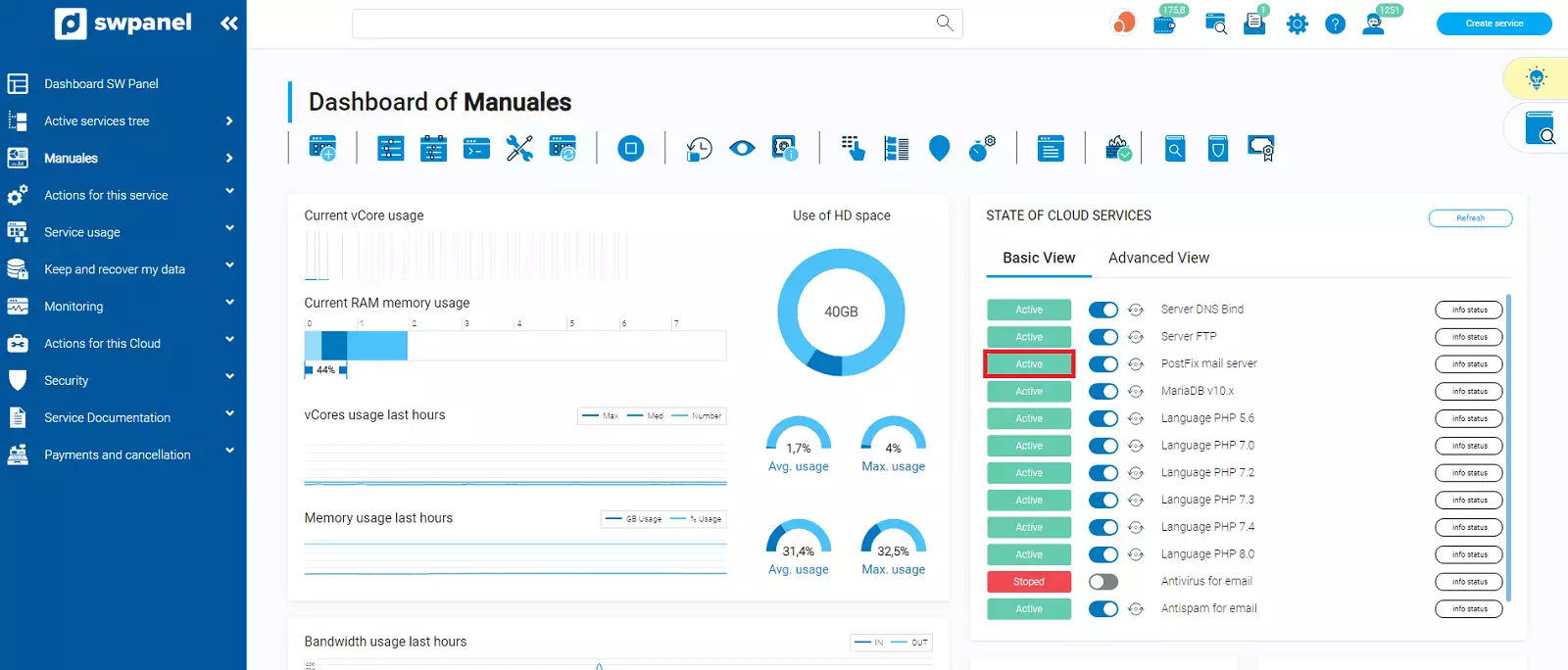
To the left of the service name, you will be able to see the current status of the service (Activated or Stopped).
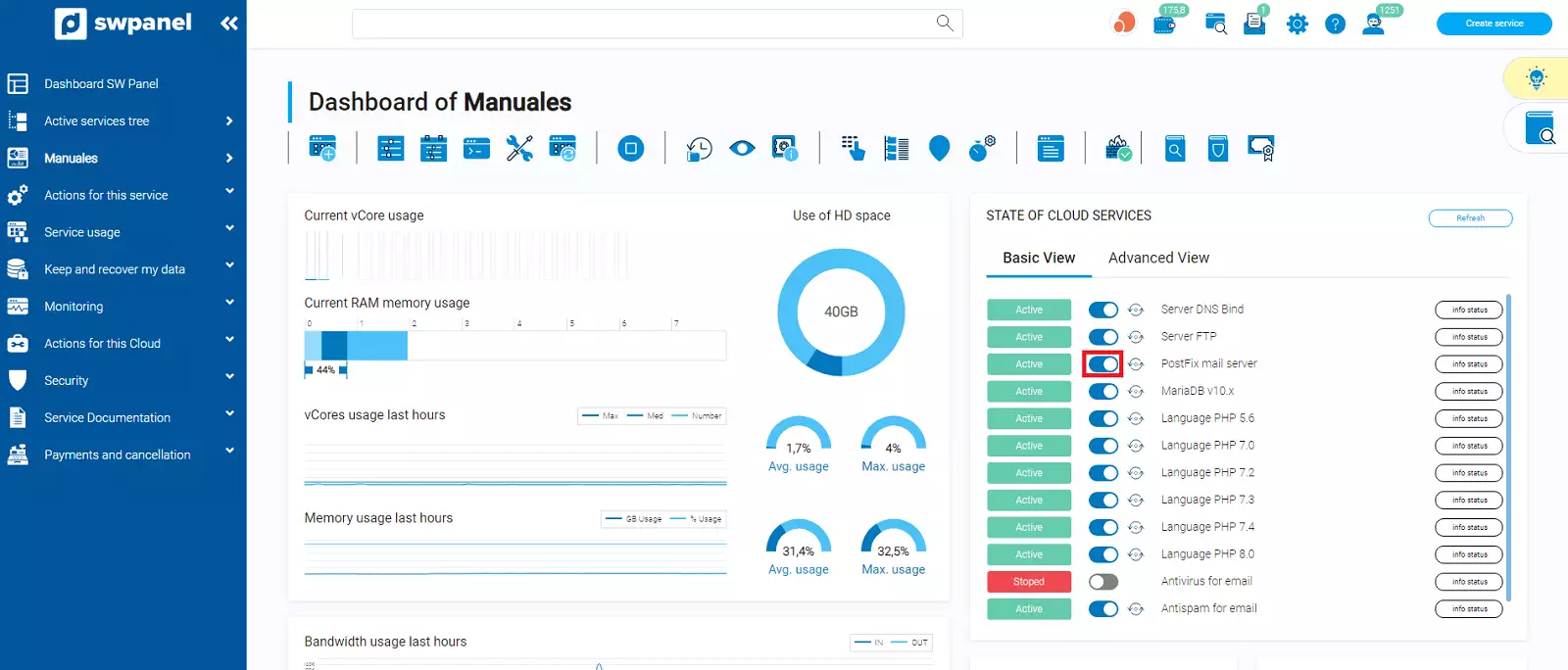
Start / Stop
Next to the visualization of the current service status, you have an interactive button that will allow you to stop or start the service.
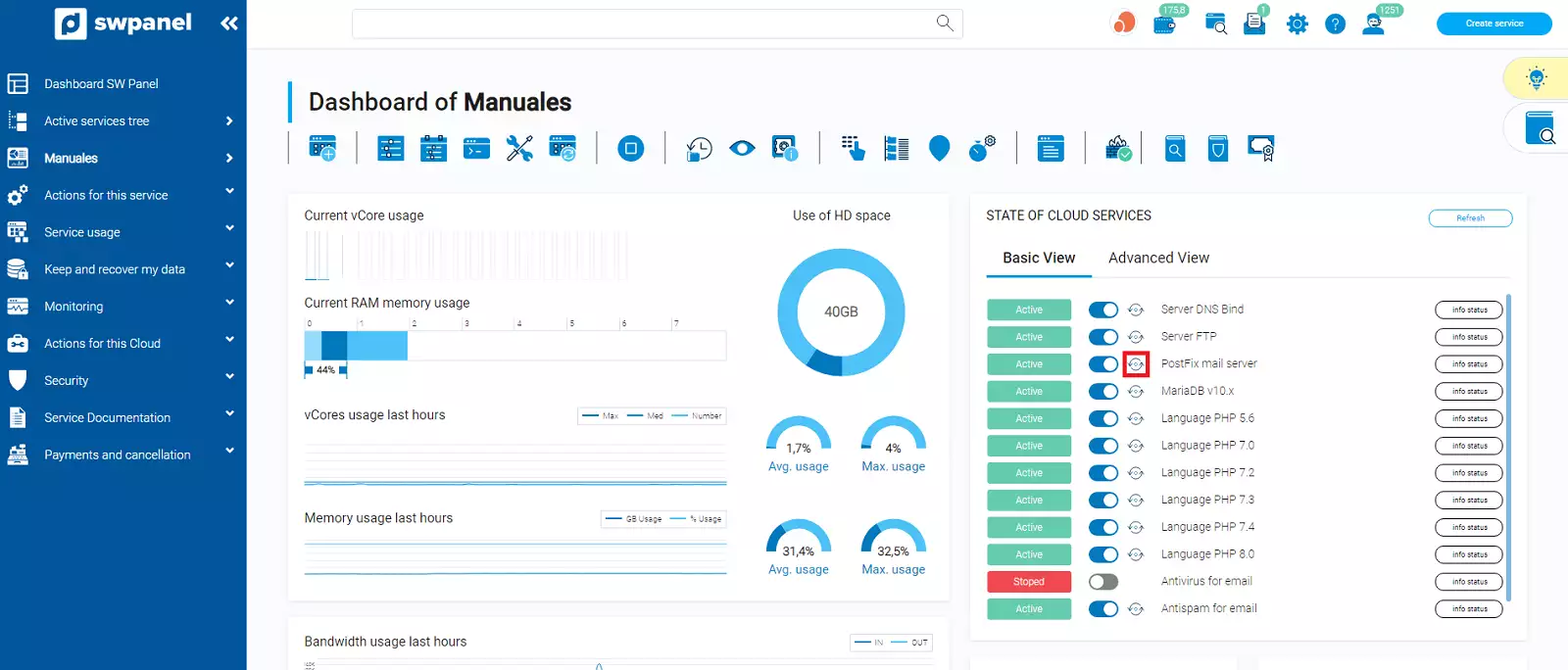
Restart
Next to the start or stop button of the service, you will find another button that will allow you to restart said service.
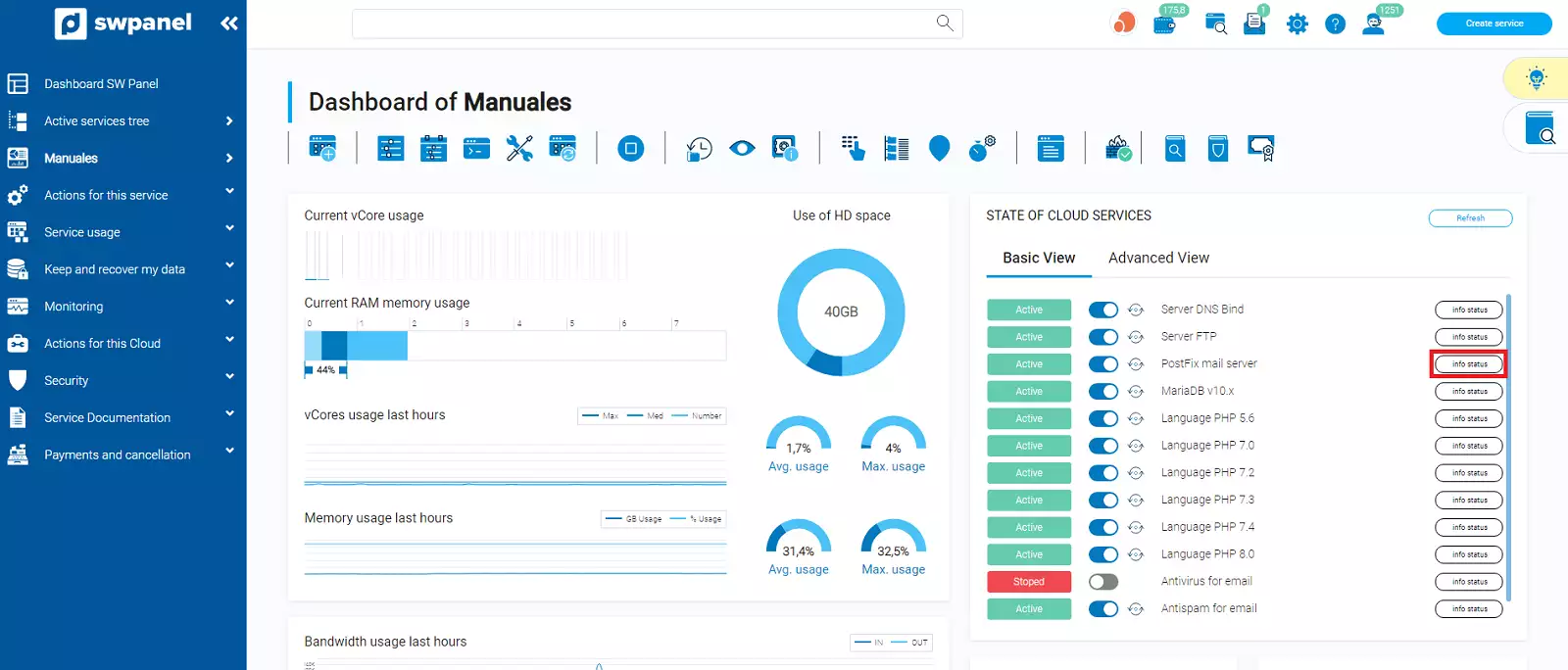
Status information
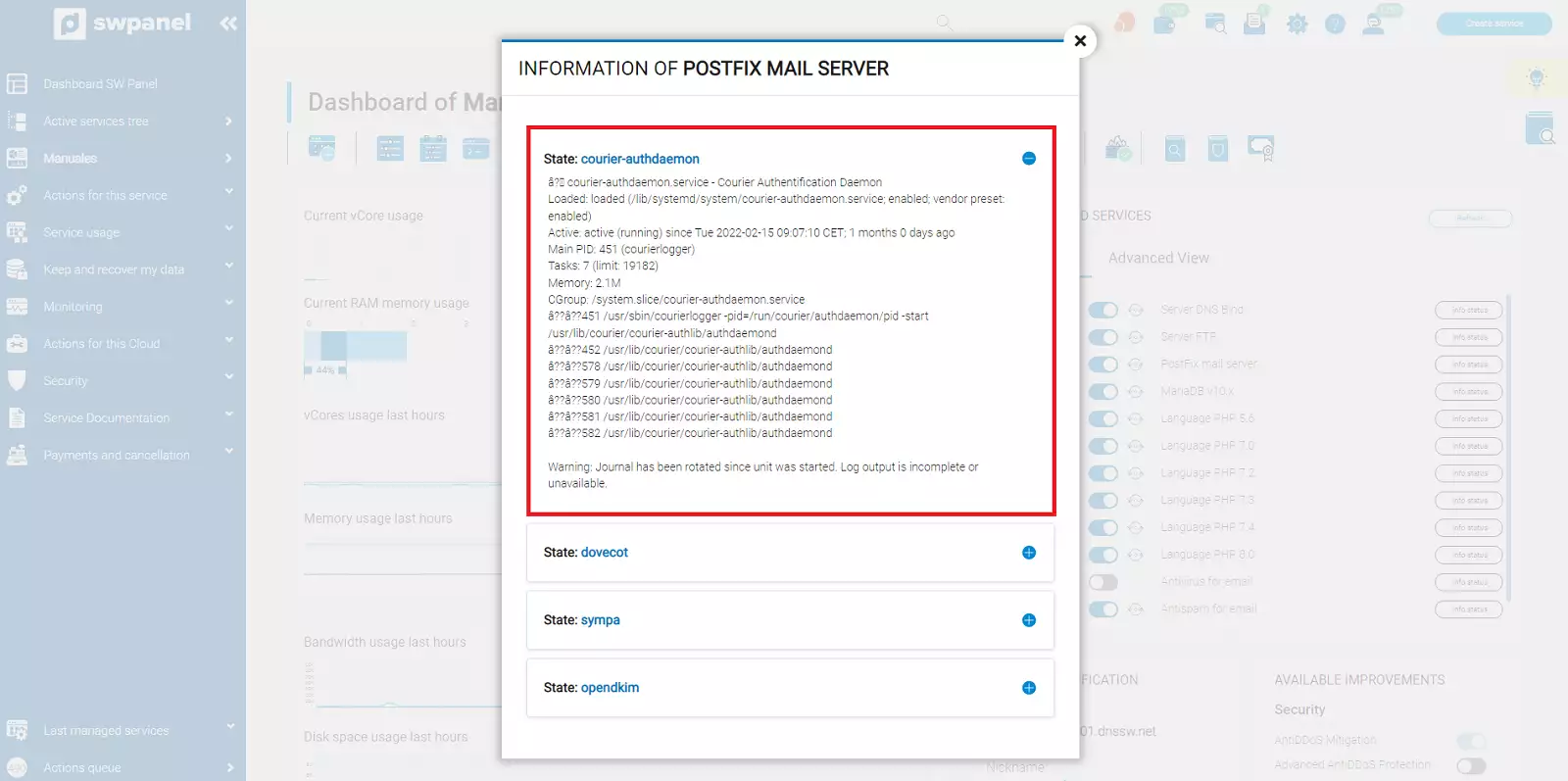
To the right of the service name, you will find the info status button. This button will report information on the status of the service, including a brief summary of it.
Below, you can view an example of the information reported by the service status:
Refresh
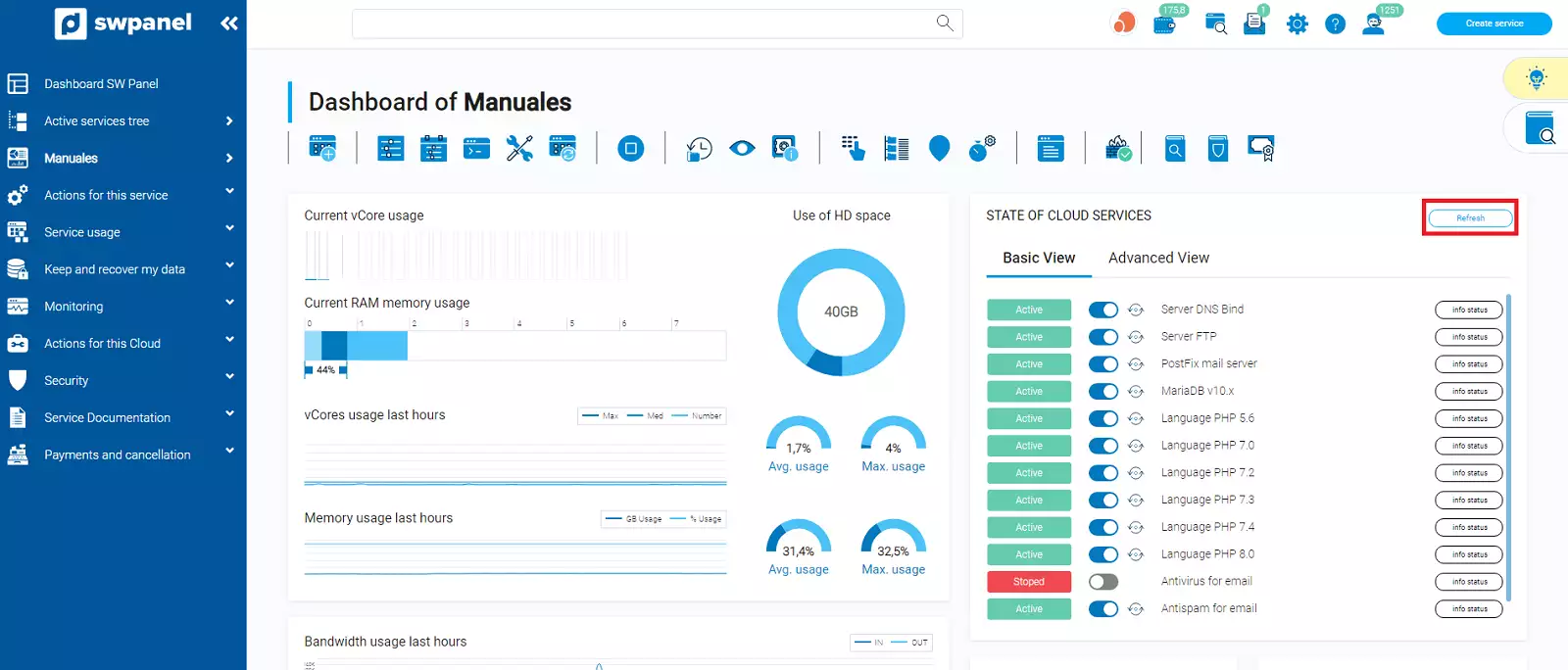
Additionally, in the upper right corner of said section, you also have a button that will allow you to simultaneously refresh the visualized information for all services.