
How to request a certificate of ownership for a .ES domain
Unlike generic domains, “.es” domains have certain peculiarities that require managing some aspects directly from the ESNIC portal, the entity responsible for their administration.
One of these tasks is requesting the domain ownership certificate. The steps necessary to complete this process are detailed below:
?? Important: This process must be performed by the domain owner, as credentials and passwords will be sent to the email address associated with the ownership during the request.
Create access to the ESNIC management portal
First, we must access the Red.es control panel, which corresponds to the ESNIC management portal:
?? https://www.nic.es/sgnd/login.action
Since we initially do not have the access credentials, we must select the “Recover password” option on the home screen to generate them.
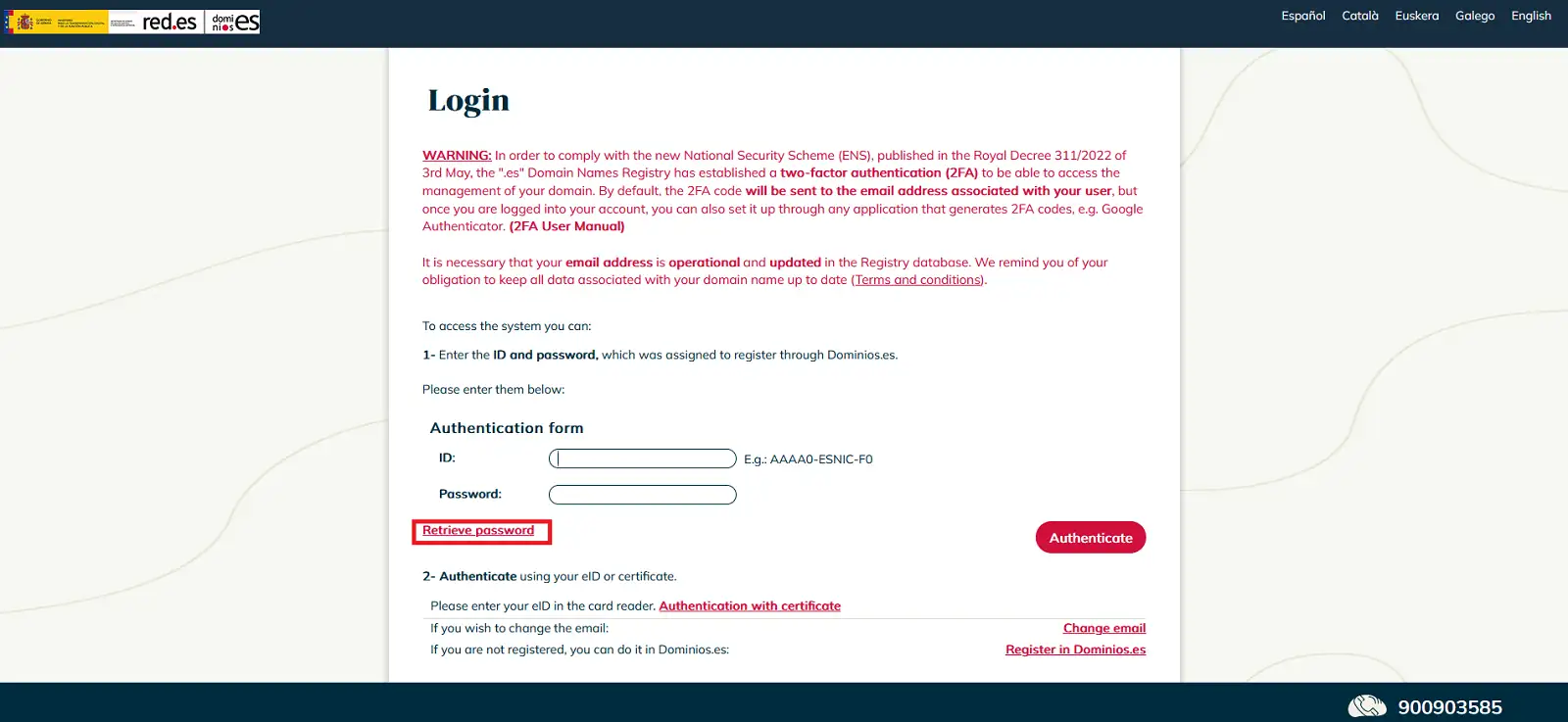
In the following window, the “Identifier” of the domain owner contact will be requested.
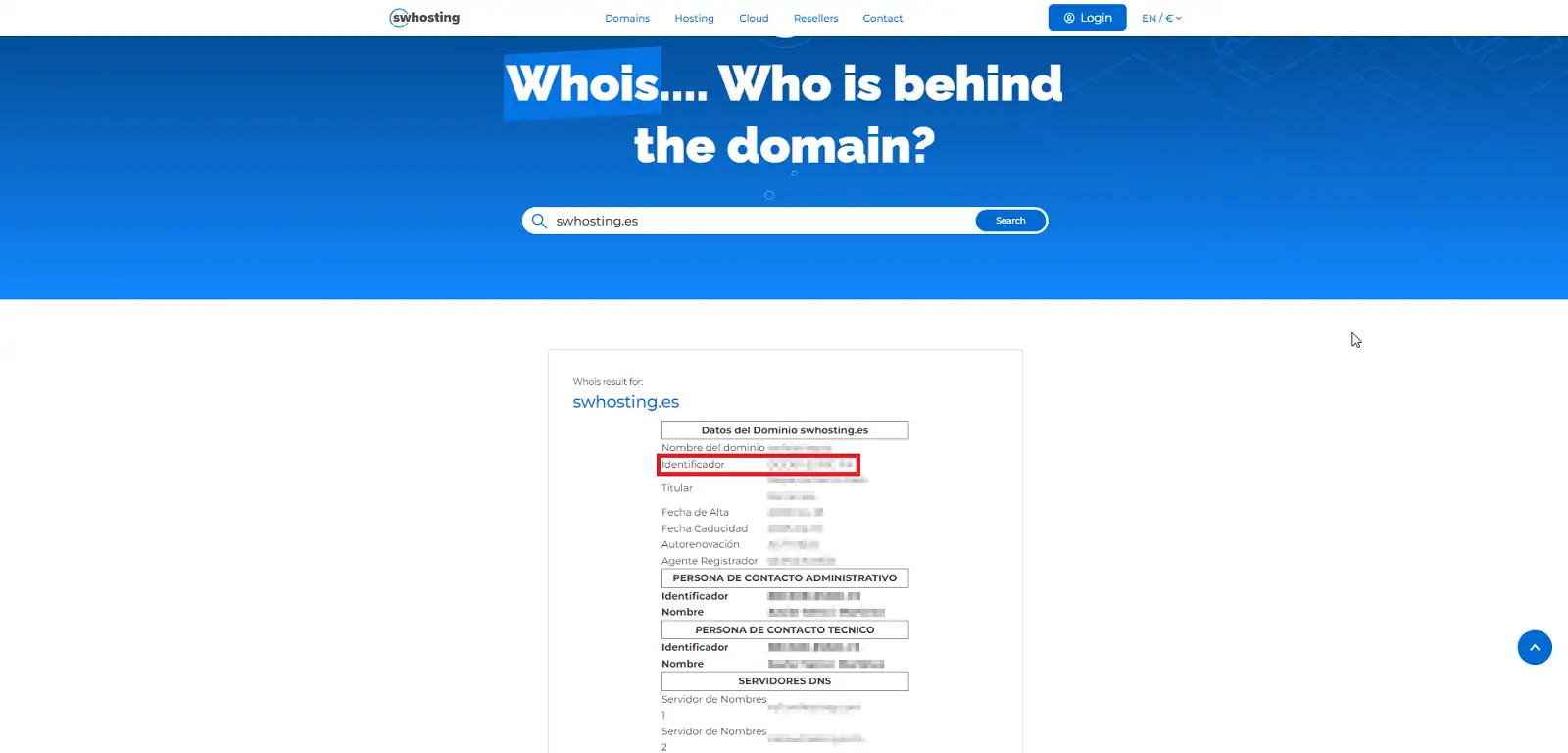
If you do not have this information, you can obtain it by performing a whois query of your domain from the SW Hosting website:
?? https://www.swhosting.com/es/whois
The identifier will appear in the section corresponding to the owner's data, as shown in the highlighted area.
Once you have the identifier, enter it in the corresponding field to continue with the process.
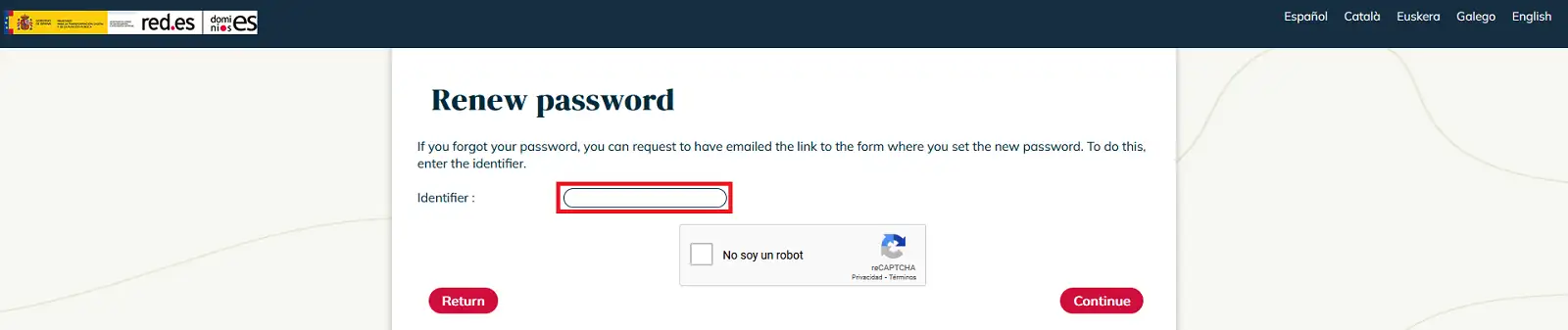
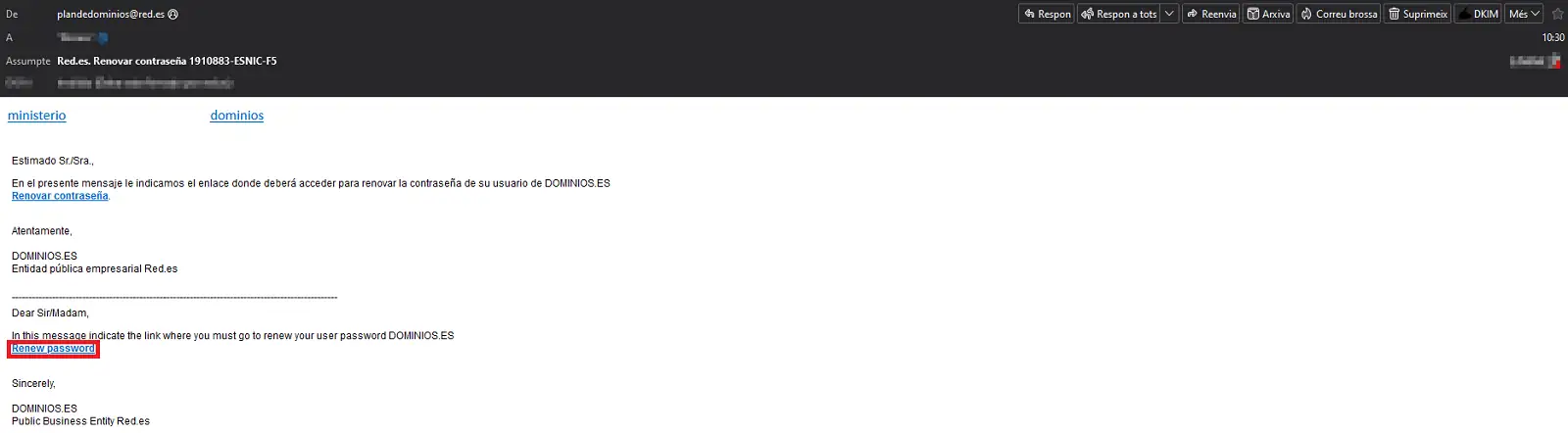
Upon selecting “Continue”, an email will be sent to the address associated with the domain owner contact.
You must access that email and click on the “Renew password” option to continue with the process.
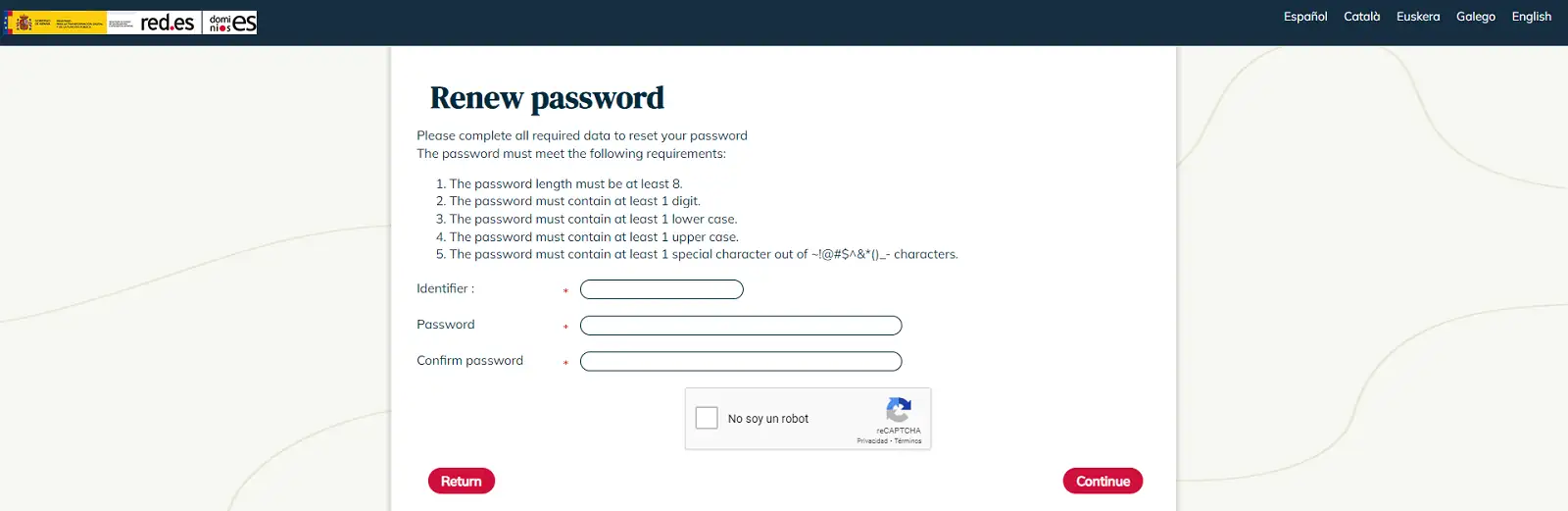
The link received will take you to the following window, where you must:
- Re-enter the owner's identifier.
- Create and enter the new password, ensuring that it meets the requirements indicated on the same screen.
Access the domain management panel
Once you have correctly changed the password, you can use your identifier and the new password to access the Red.es panel:
?? https://www.nic.es/sgnd/login.action
Enter your credentials in the corresponding fields and click on “Authenticate” to enter the domain management portal.
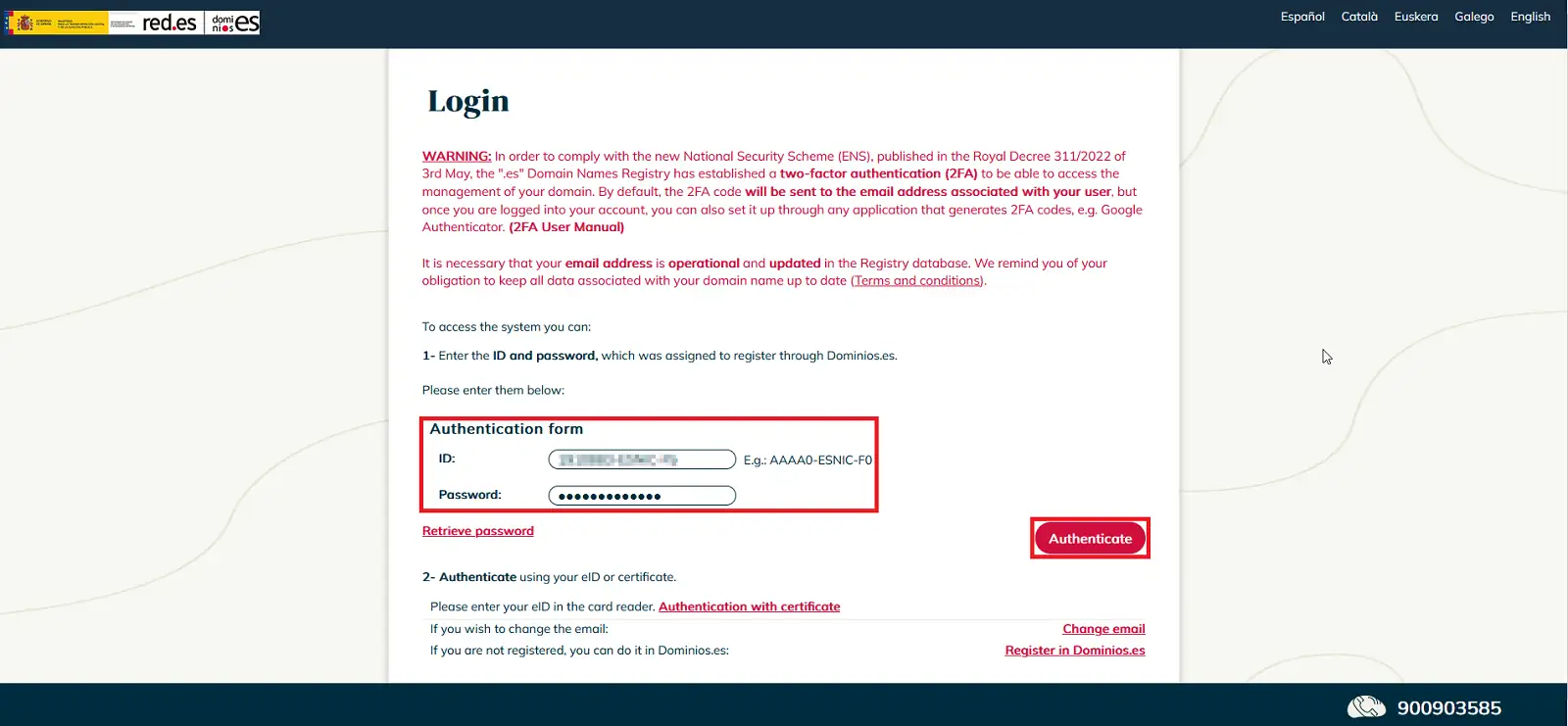
When attempting to authenticate, the system will send an email to the domain owner contact's mailbox, as a two-factor authentication (2FA) code is required to complete access.
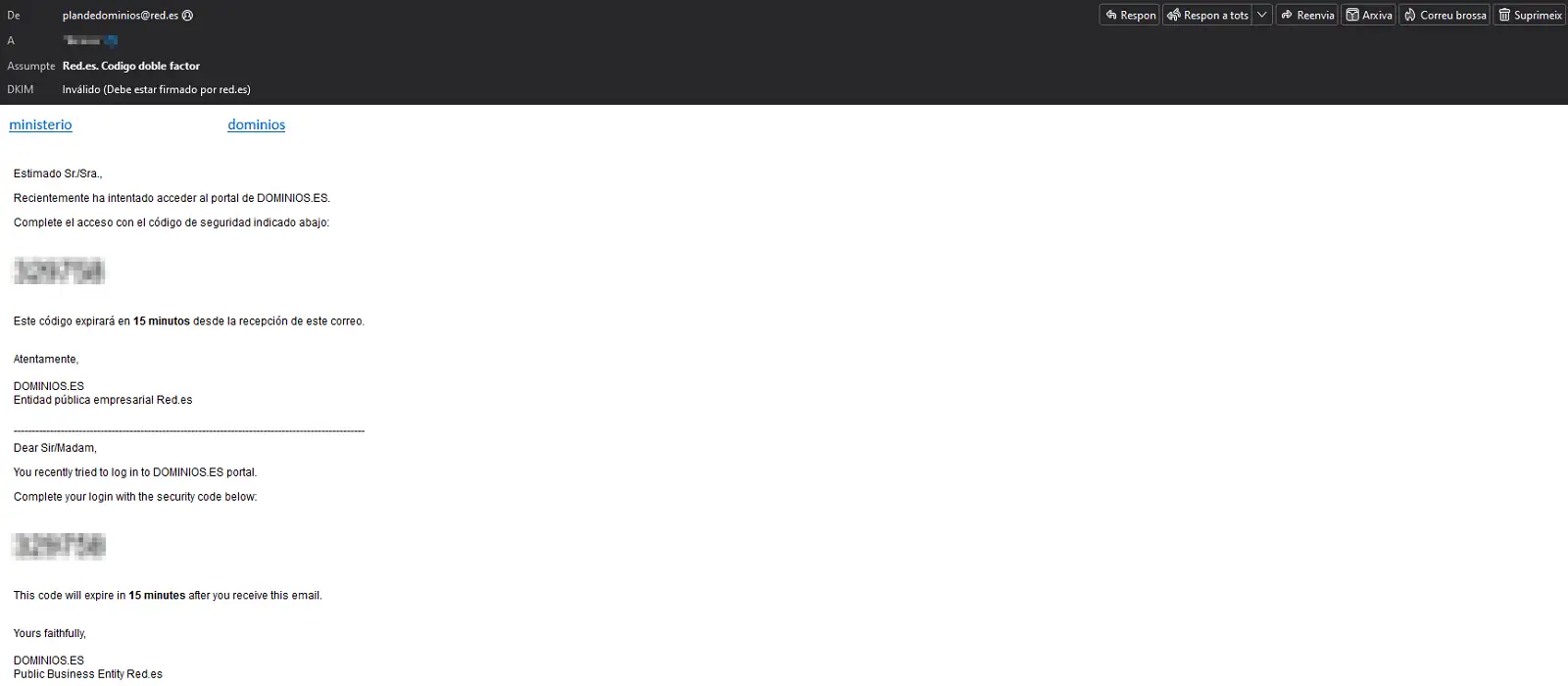
Next, enter the two-factor code in the corresponding field. Once entered correctly, you will be able to access the domain control panel.

Once inside the panel, go to the left side menu and select the “Domain registration” section.
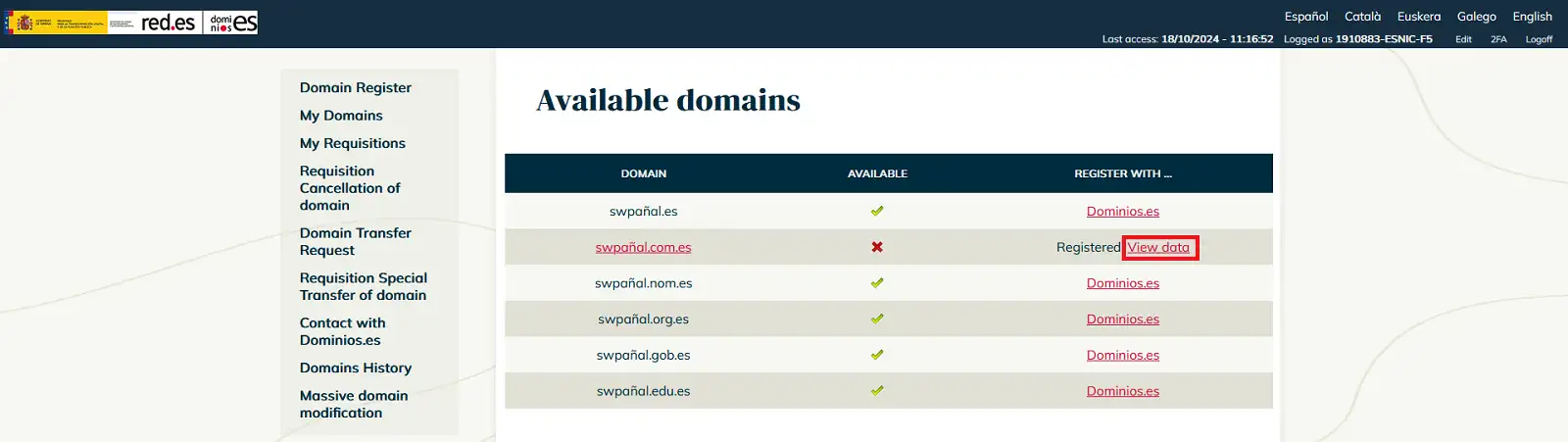
In this section, enter the domain name for which you wish to request the ownership certificate and click “Search”.
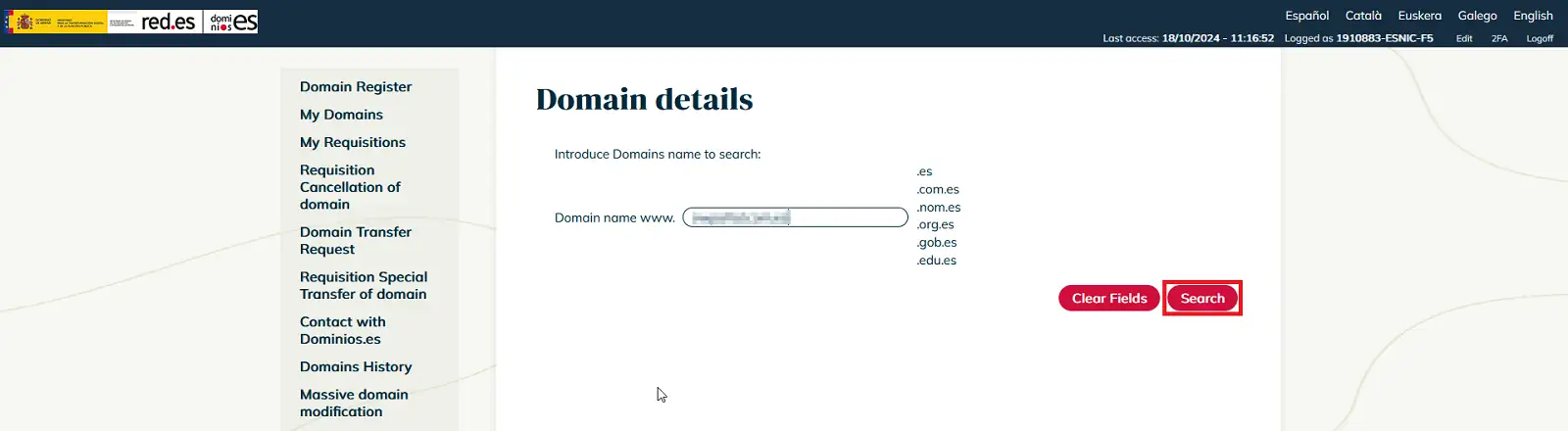
On the following screen, the domain will be displayed along with its different extensions.
Locate the correct domain and click “View data” in the column on the right.
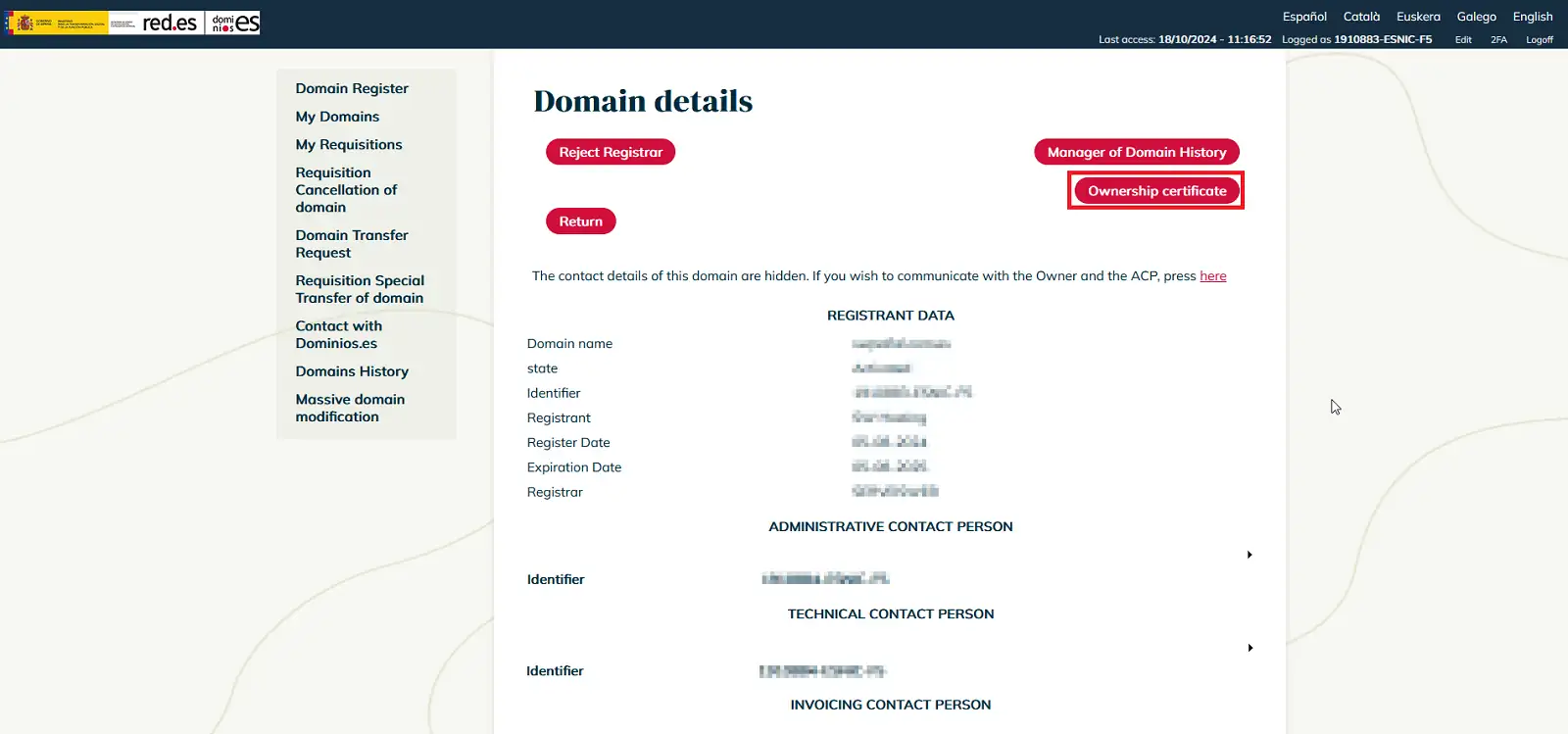
Upon accessing the data view section, you will find the “Ownership certificate” option in the upper right part to start its issuance.
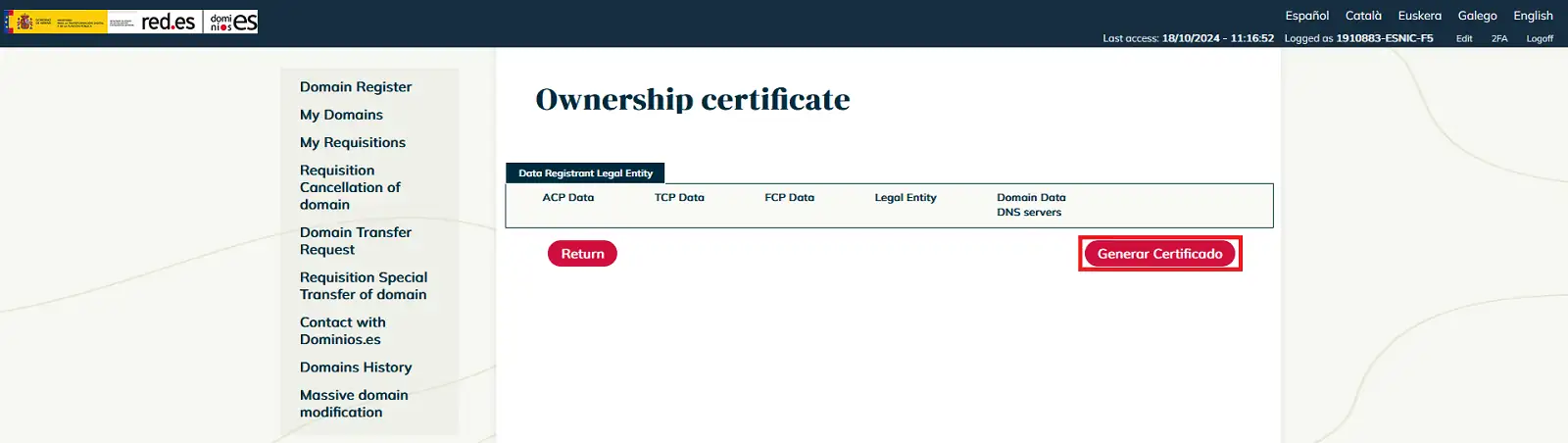
You will be directed to a section where you can select the data you want to appear on the certificate.
Once the adjustments have been made, click “Generate certificate” to complete the process.
Immediately, you will receive an email at the address associated with the owner contact, which will contain the requested certificate as an attachment.
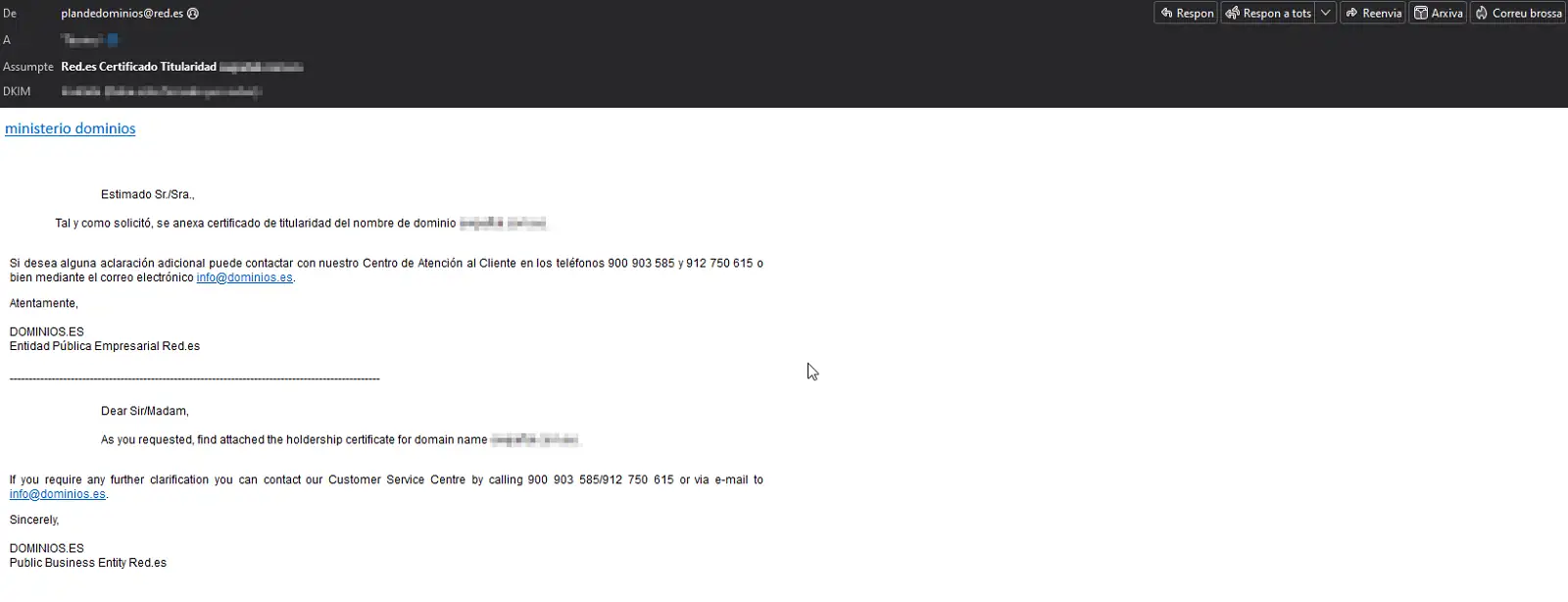
With this, you will have completed the process and will now have the ownership certificate for your domain.