
How to transfer/migrate services between SWPanel accounts
SWPanel Service Migration Manual
1. Introduction
This manual provides a detailed guide on how to move a hosting service from one SWPanel account to another. Through this process, it is possible to transfer website content, email and domain management in a secure and efficient manner.
1.1. What will you learn in this manual?
In this document, you will find:
- How to generate a migration code in SWPanel to authorise the transfer of services.
- Migration configuration options, including code expiry and specific permissions.
- How to use a migration code in another SWPanel account to complete the transfer.
- Visual details and step-by-step explanations to facilitate the migration process.
2. Generate a Migration Code in SWPanel
To move a service to another SWPanel account, you must first generate a migration code.
2.1. Access the migration option
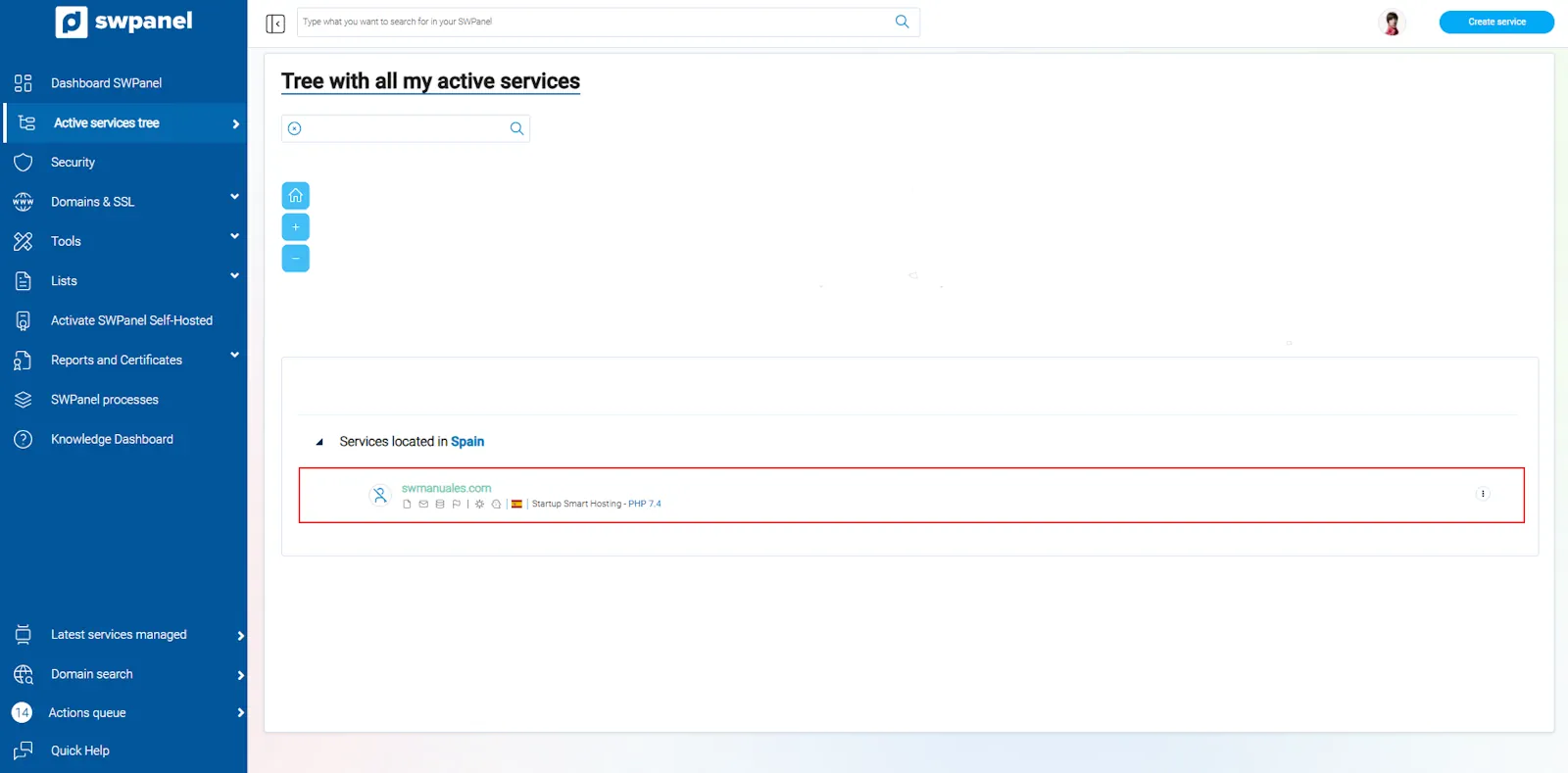
- Access your Active services tree in SWPanel.
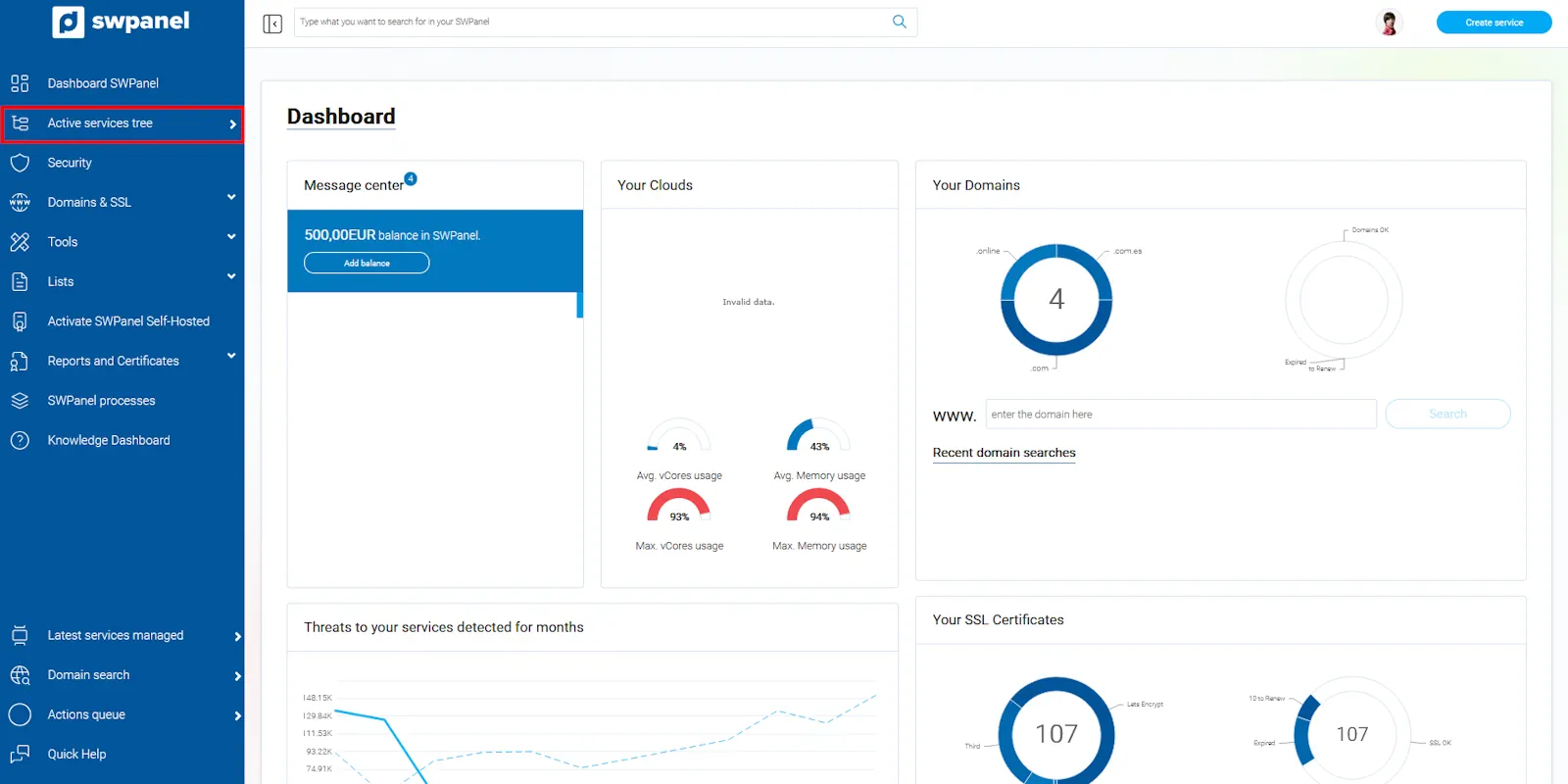
info_capture The screenshot is for guidance purposes. It was taken on version 2025.02.0002 dated 11/03/2025. It may differ from what the current version of SWPanel shows.
- Locate the service you want to migrate and access the [...] menu.
- Click on Moving Hosting Plan to another SWPanel.
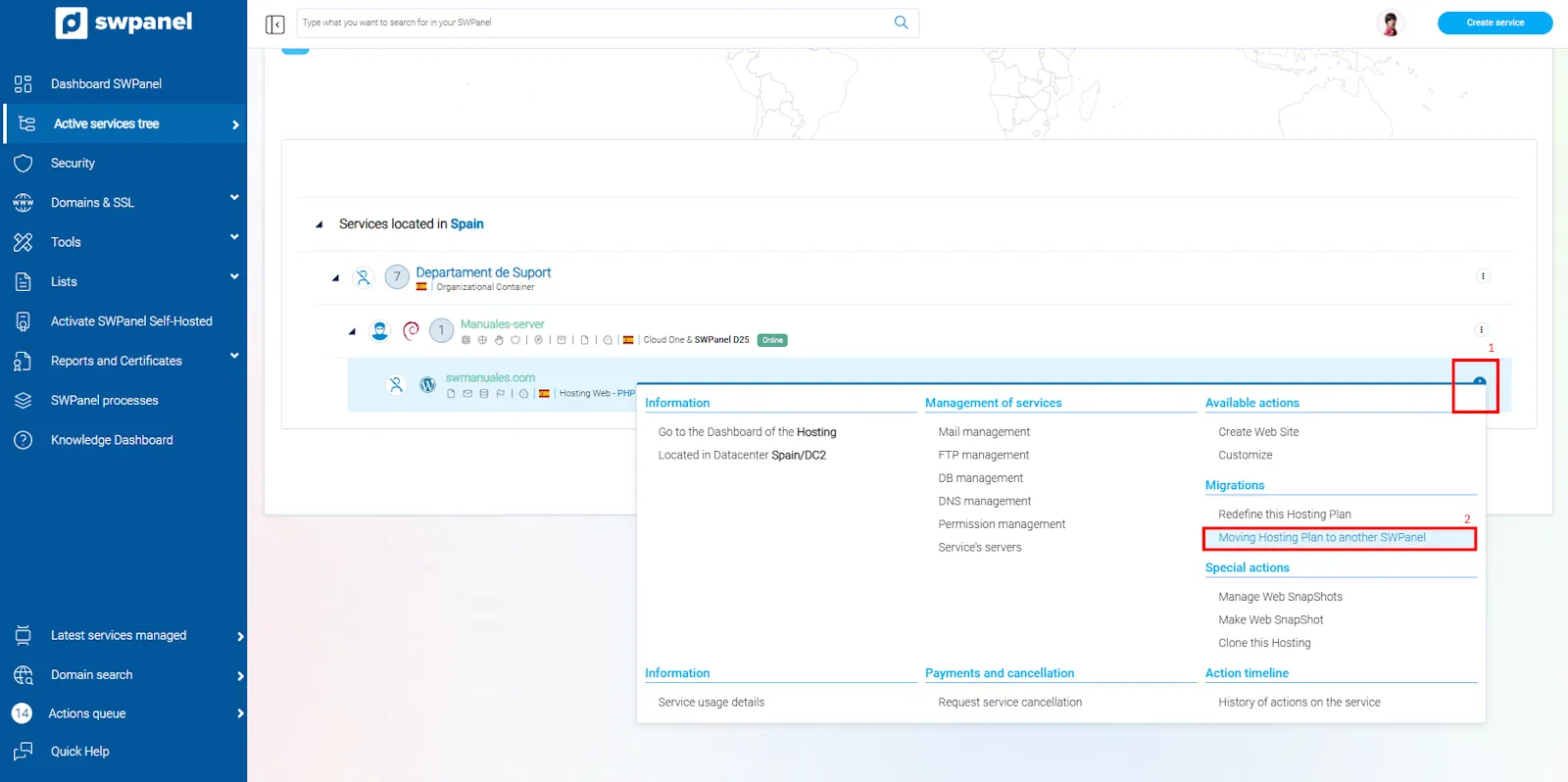
info_capture The screenshot is for guidance purposes. It was taken on version 2025.02.0002 dated 11/03/2025. It may differ from what the current version of SWPanel shows.
2.2. Configure the migration parameters
- Select the elements to be transferred:
- Website (includes files and database).
- Email.
- Domain transfer (if applicable).
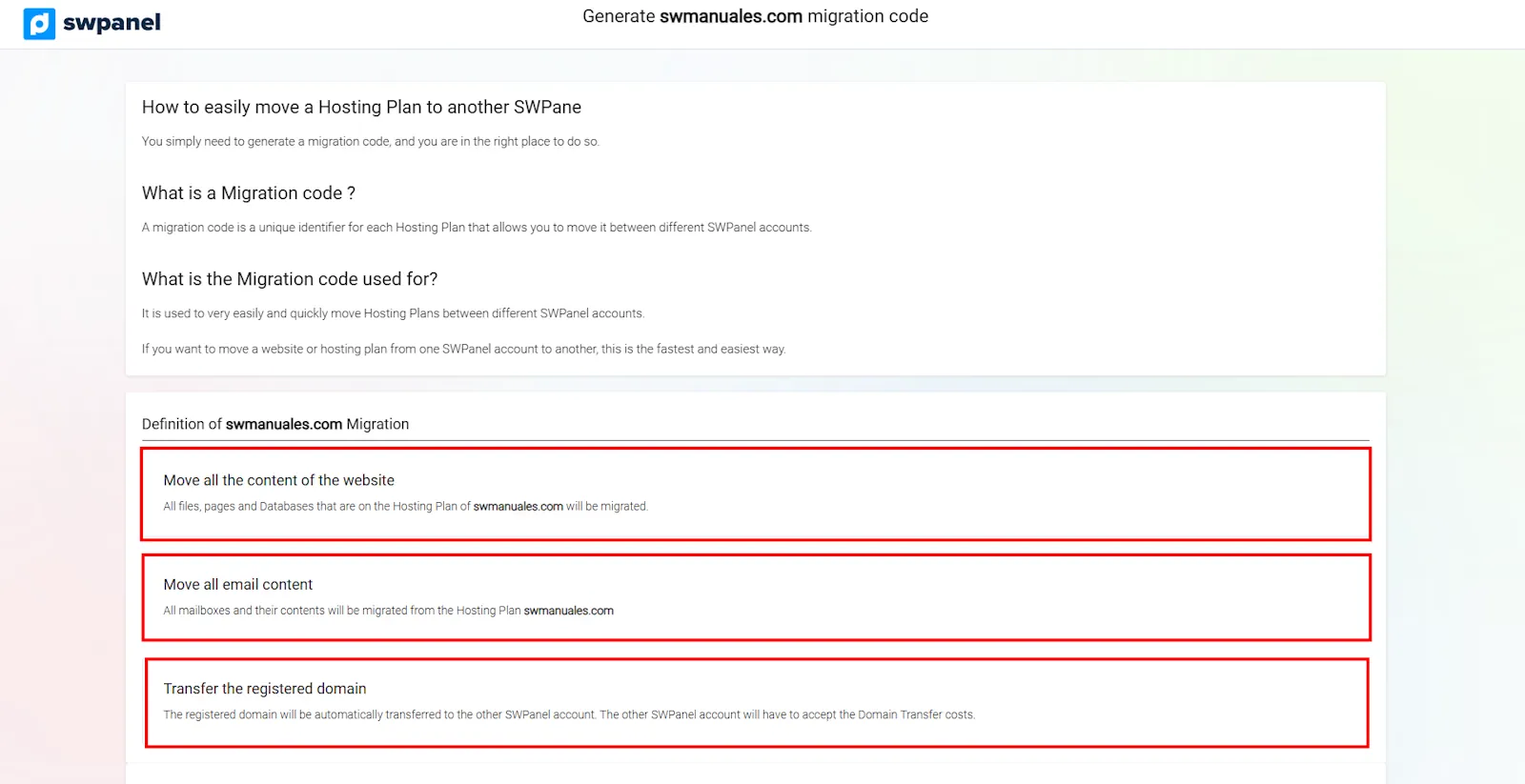
info_capture The screenshot is for guidance purposes. It was taken on version 2025.02.0002 dated 11/03/2025. It may differ from what the current version of SWPanel shows.
- Configure the migration code options:
- Code expiry.
- Number of uses allowed.
- Restrict migration to a specific SWPanel account.
- Option to cancel the service once the migration is complete.
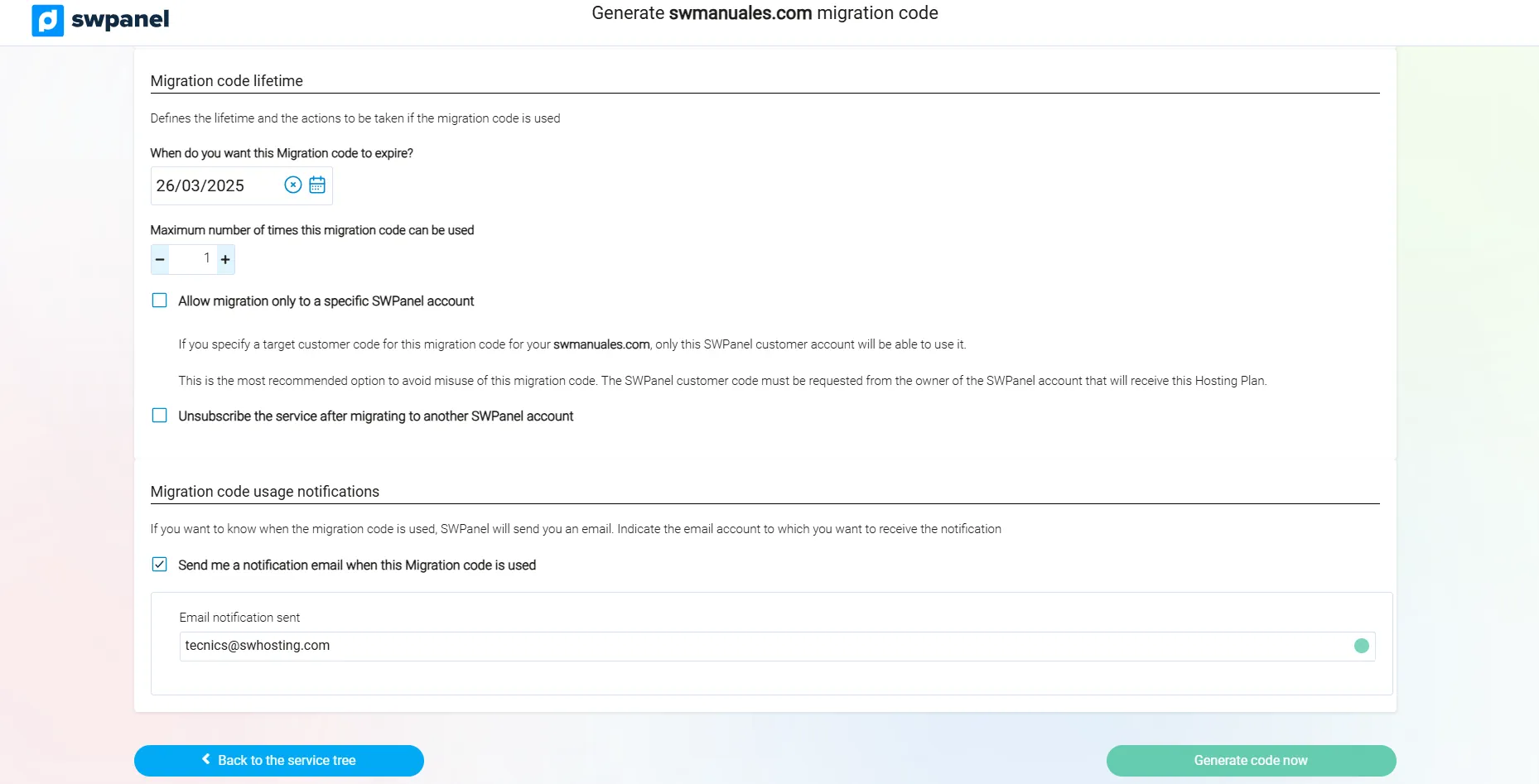
info_capture The screenshot is for guidance purposes. It was taken on version 2025.02.0002 dated 11/03/2025. It may differ from what the current version of SWPanel shows.
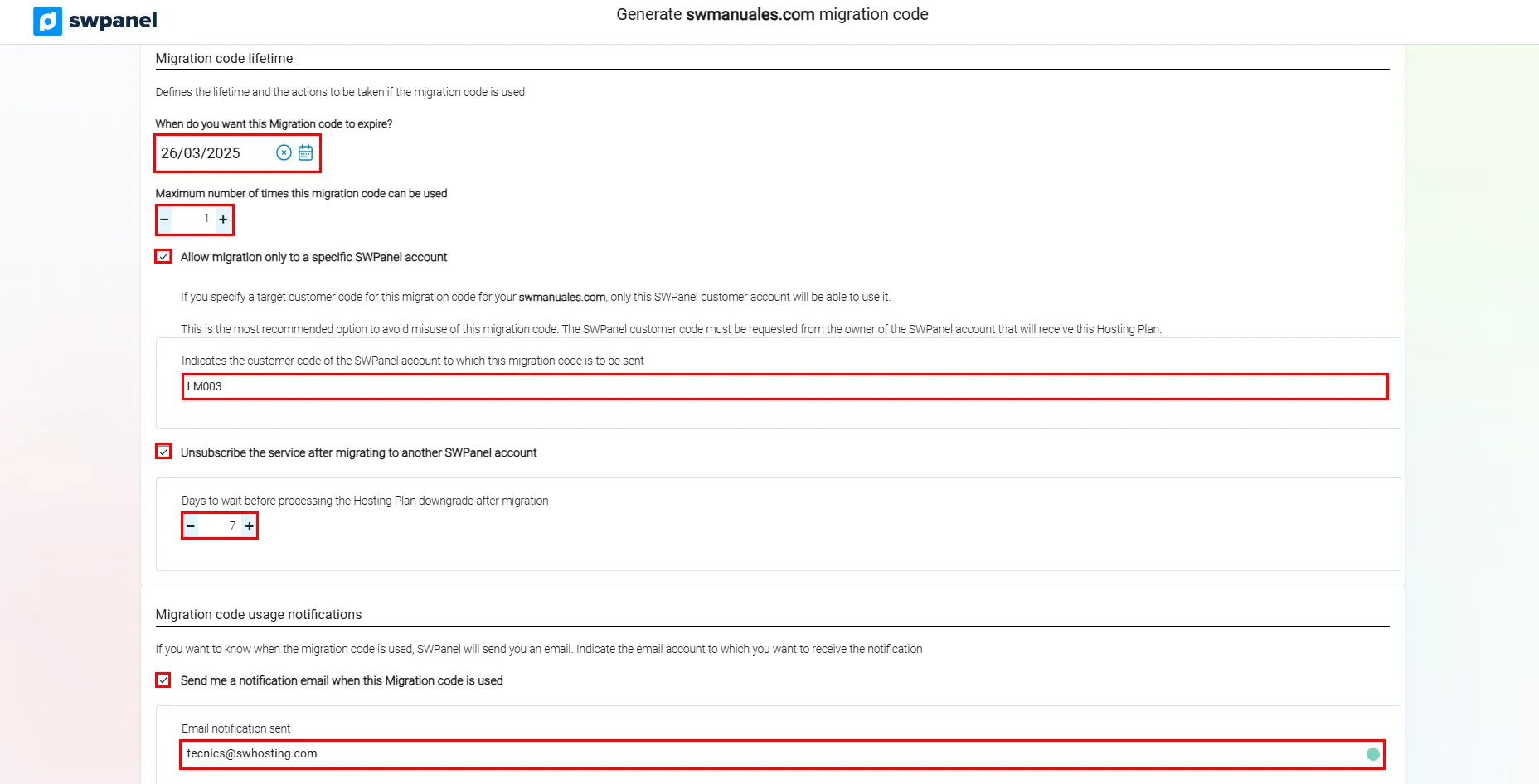
info_capture The screenshot is for guidance purposes. It was taken on version 2025.02.0002 dated 11/03/2025. It may differ from what the current version of SWPanel shows.
- Once configured, click on Generate code now.
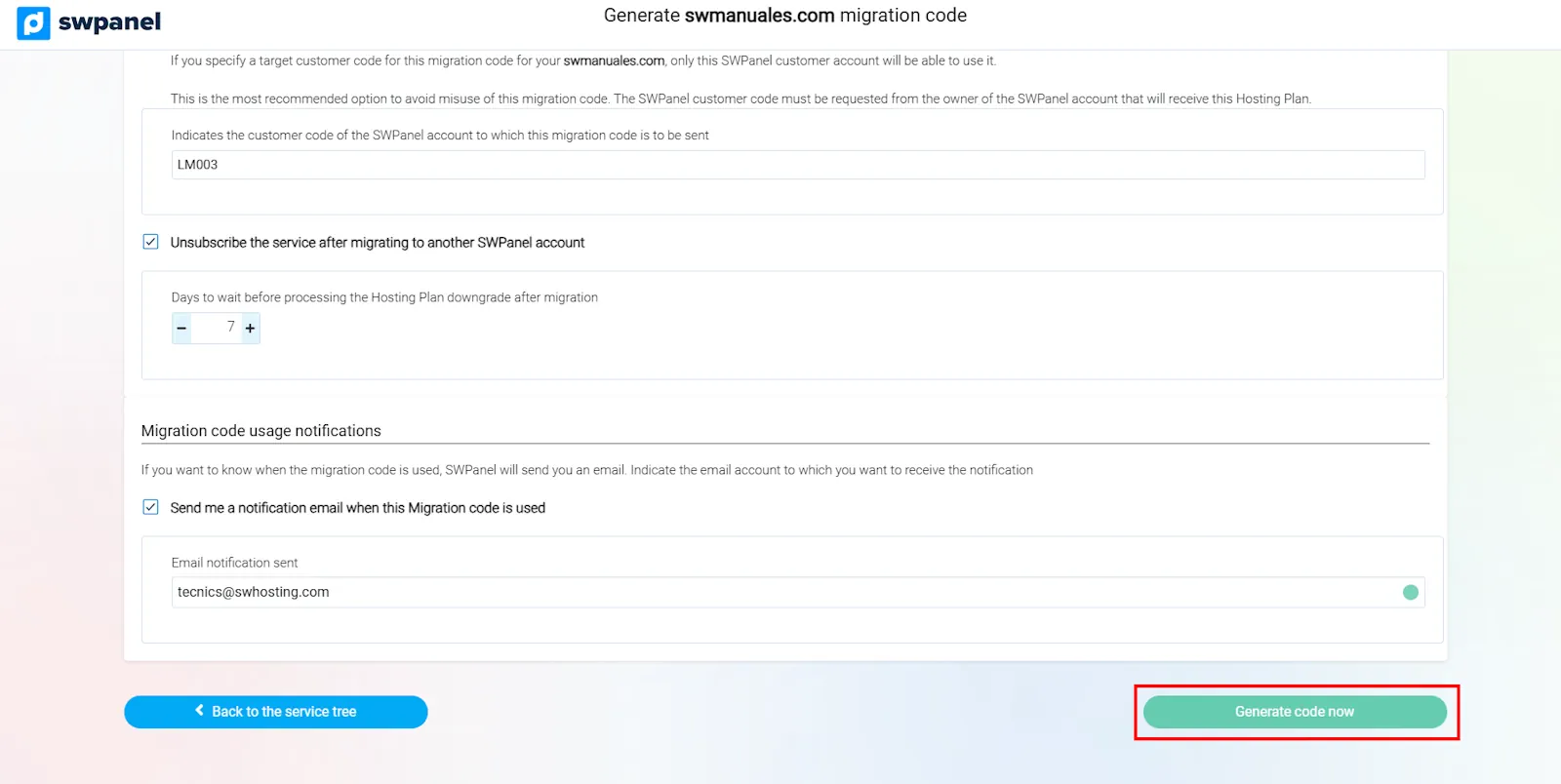
info_capture The screenshot is for guidance purposes. It was taken on version 2025.02.0002 dated 11/03/2025. It may differ from what the current version of SWPanel shows.
2.3. Obtain and manage the migration code
- To view the code, go back to Moving Hosting Plan to another SWPanel.
- Copy the code to your clipboard.
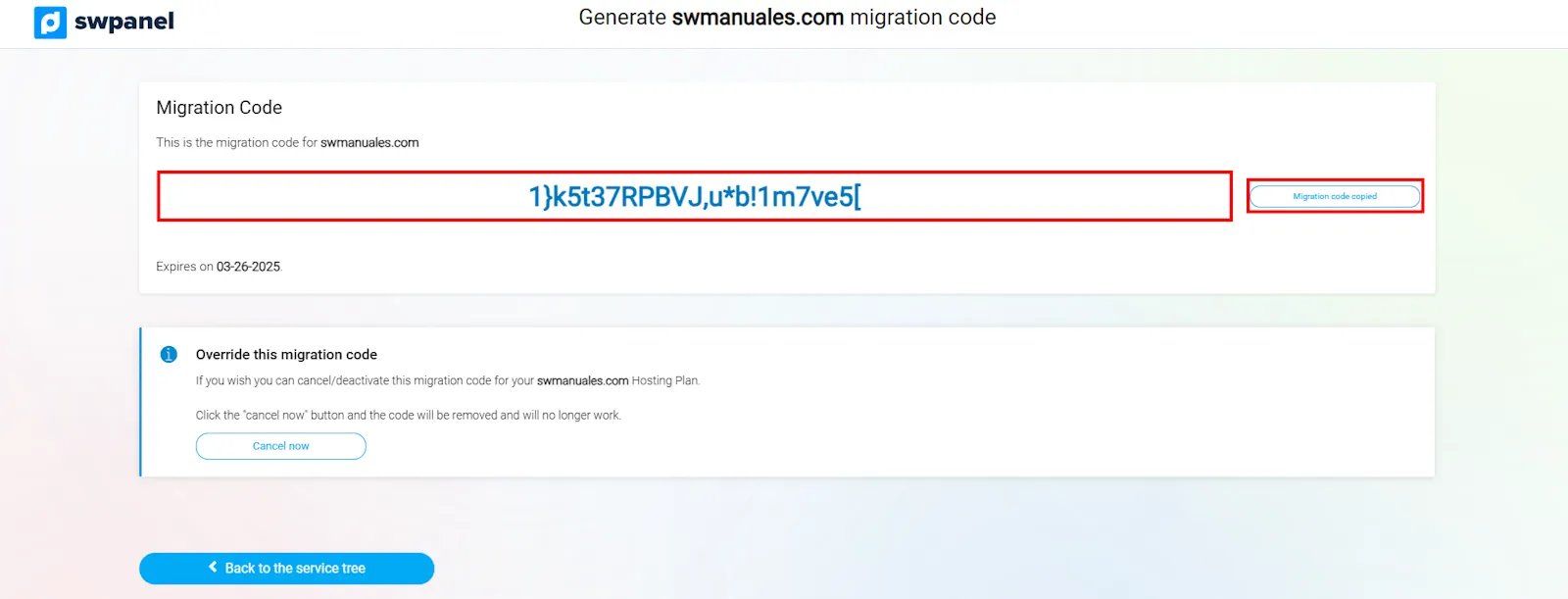
info_capture The screenshot is for guidance purposes. It was taken on version 2025.02.0002 dated 11/03/2025. It may differ from what the current version of SWPanel shows.
- If you need to cancel the migration, you can void the code by clicking on Cancel now.
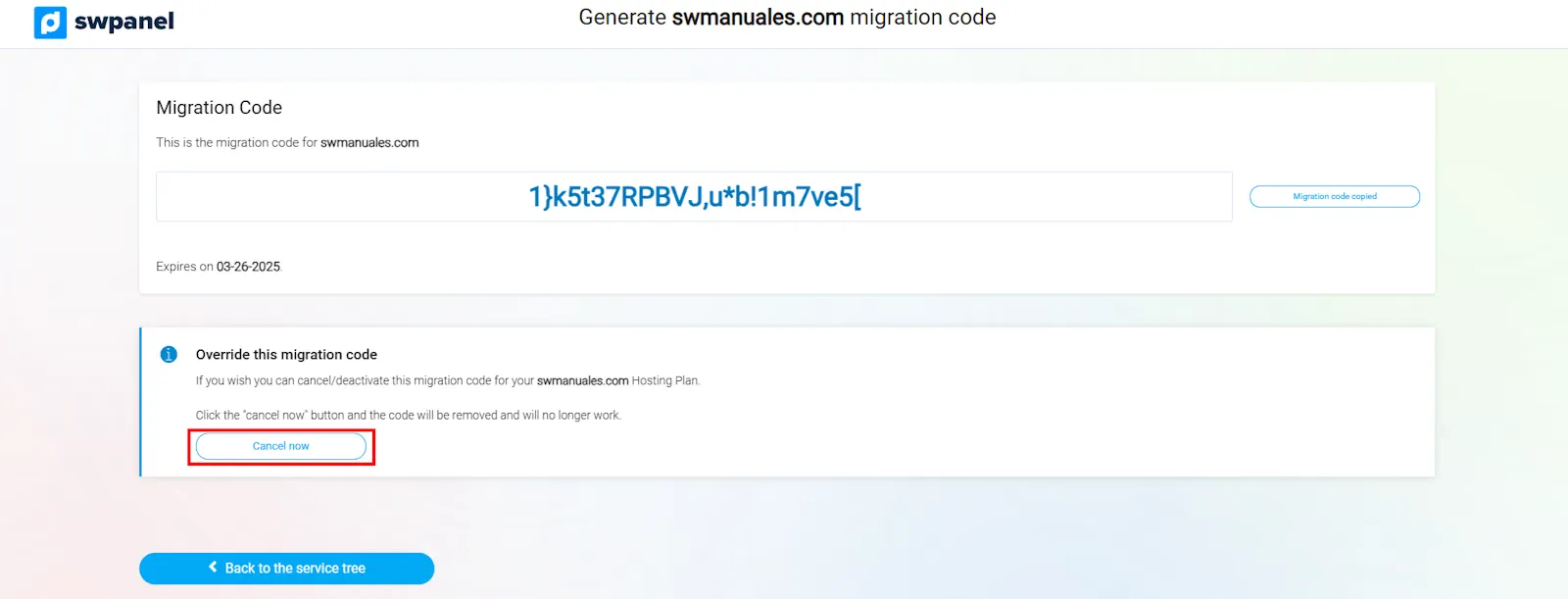
info_capture The screenshot is for guidance purposes. It was taken on version 2025.02.0002 dated 11/03/2025. It may differ from what the current version of SWPanel shows.
3. Using a Migration Code in another SWPanel Account
Once a migration code has been generated, it can be used in another SWPanel account to transfer the hosting services.
3.1. Start the migration process in the destination account
- Log in to the destination SWPanel account.
- Go to Main Dashboard > Tools > Migrate a Webe now.
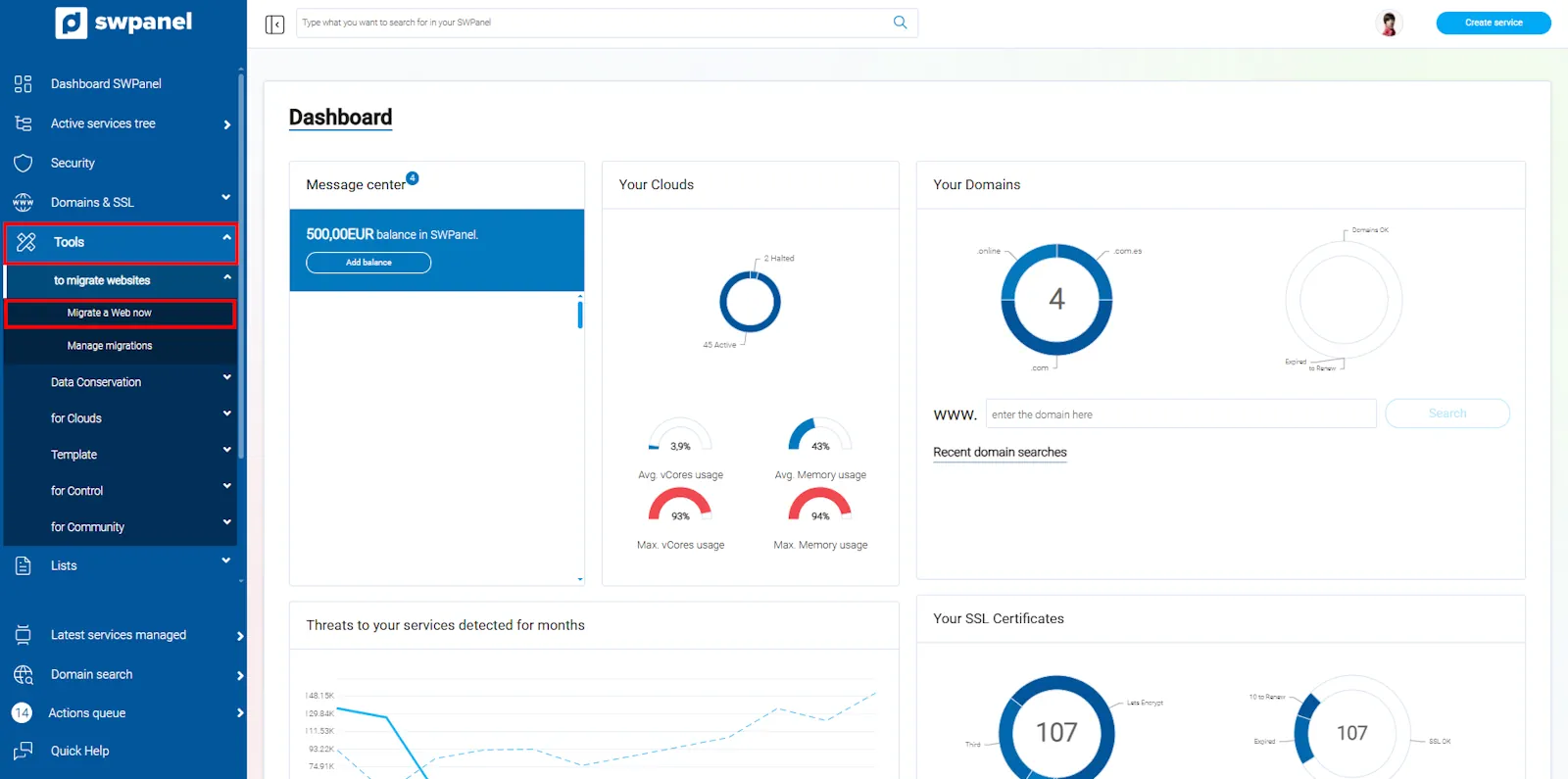
info_capture The screenshot is for guidance purposes. It was taken on version 2025.02.0002 dated 11/03/2025. It may differ from what the current version of SWPanel shows.
3.2. Enter the Migration Code
- Select the option Migrate from another SWPanel using migration code.
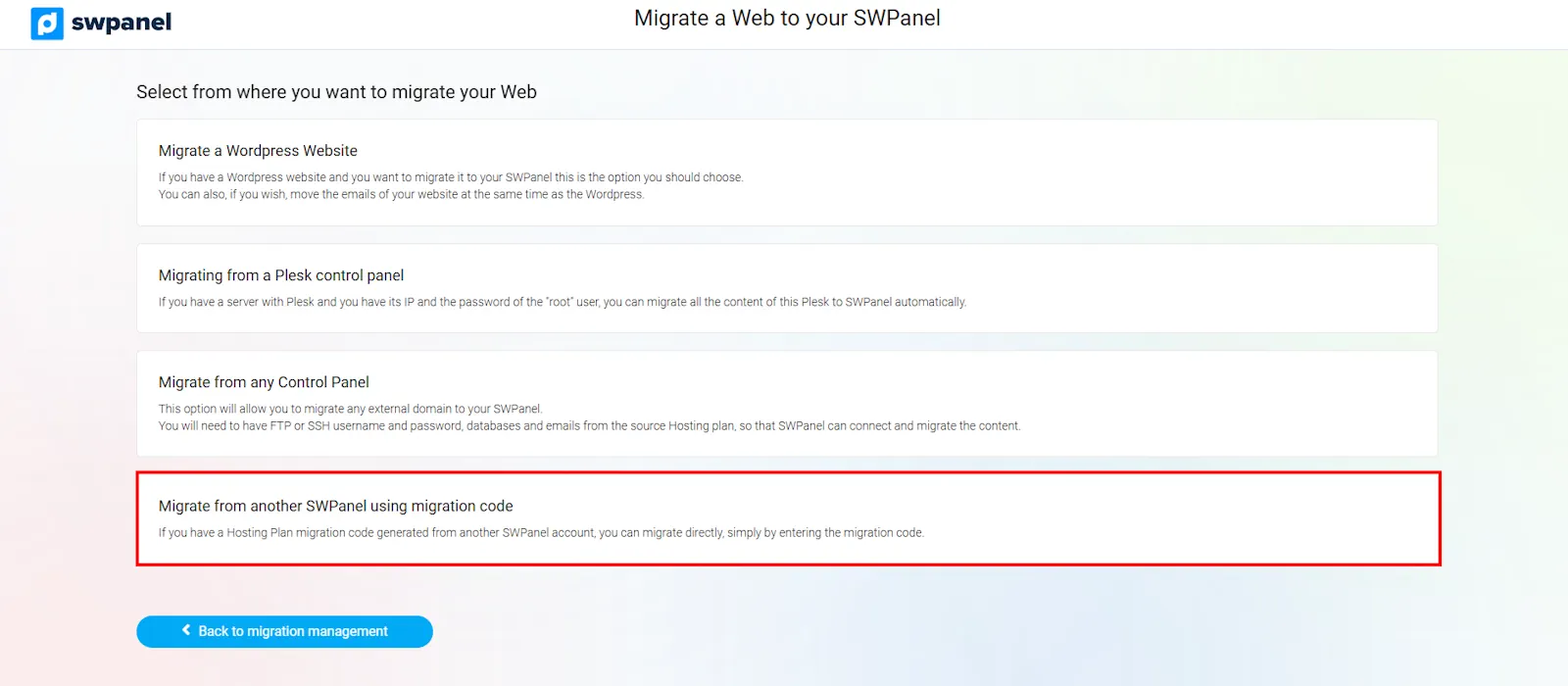
info_capture The screenshot is for guidance purposes. It was taken on version 2025.02.0002 dated 11/03/2025. It may differ from what the current version of SWPanel shows.
- Enter the generated code and click on Check migration code.
- If the code is valid, the service and the data that will be transferred will be displayed.
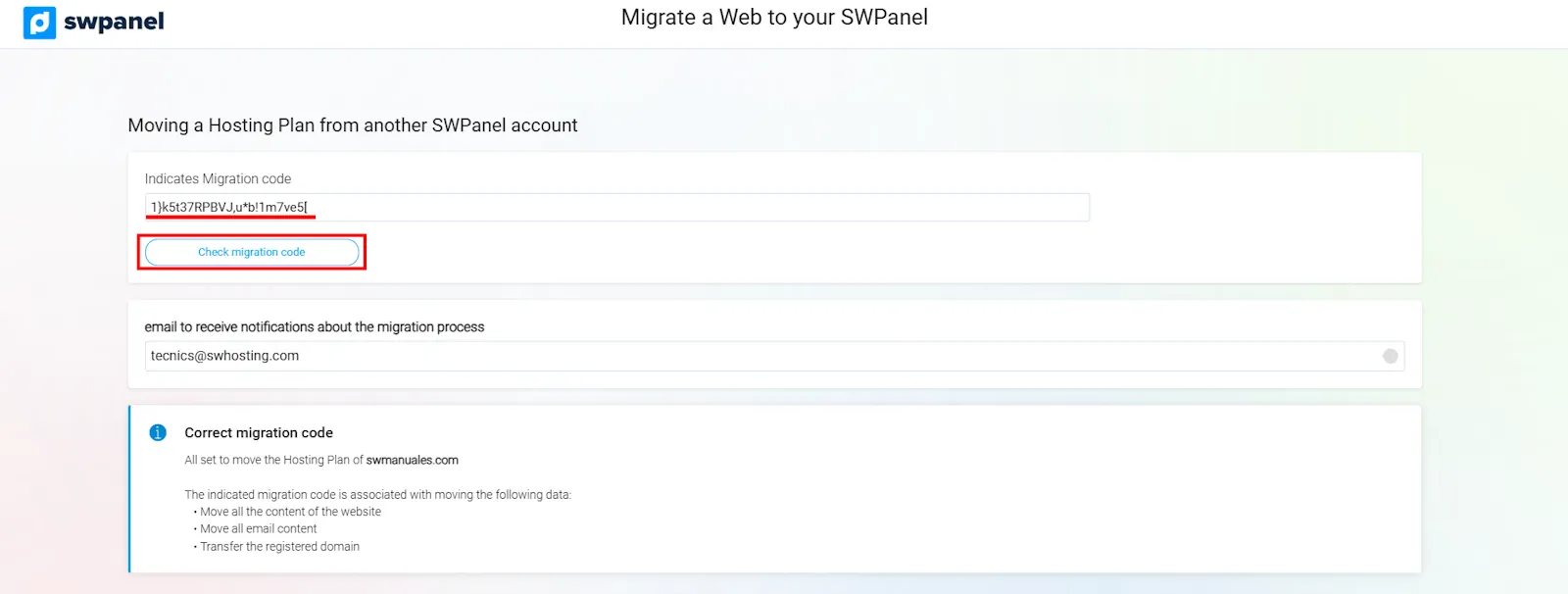
info_capture The screenshot is for guidance purposes. It was taken on version 2025.02.0002 dated 11/03/2025. It may differ from what the current version of SWPanel shows.
3.3. Confirm and finalise the migration
- The type of service to be created and the associated cost will be indicated.
- Click on Move now to complete the transfer.
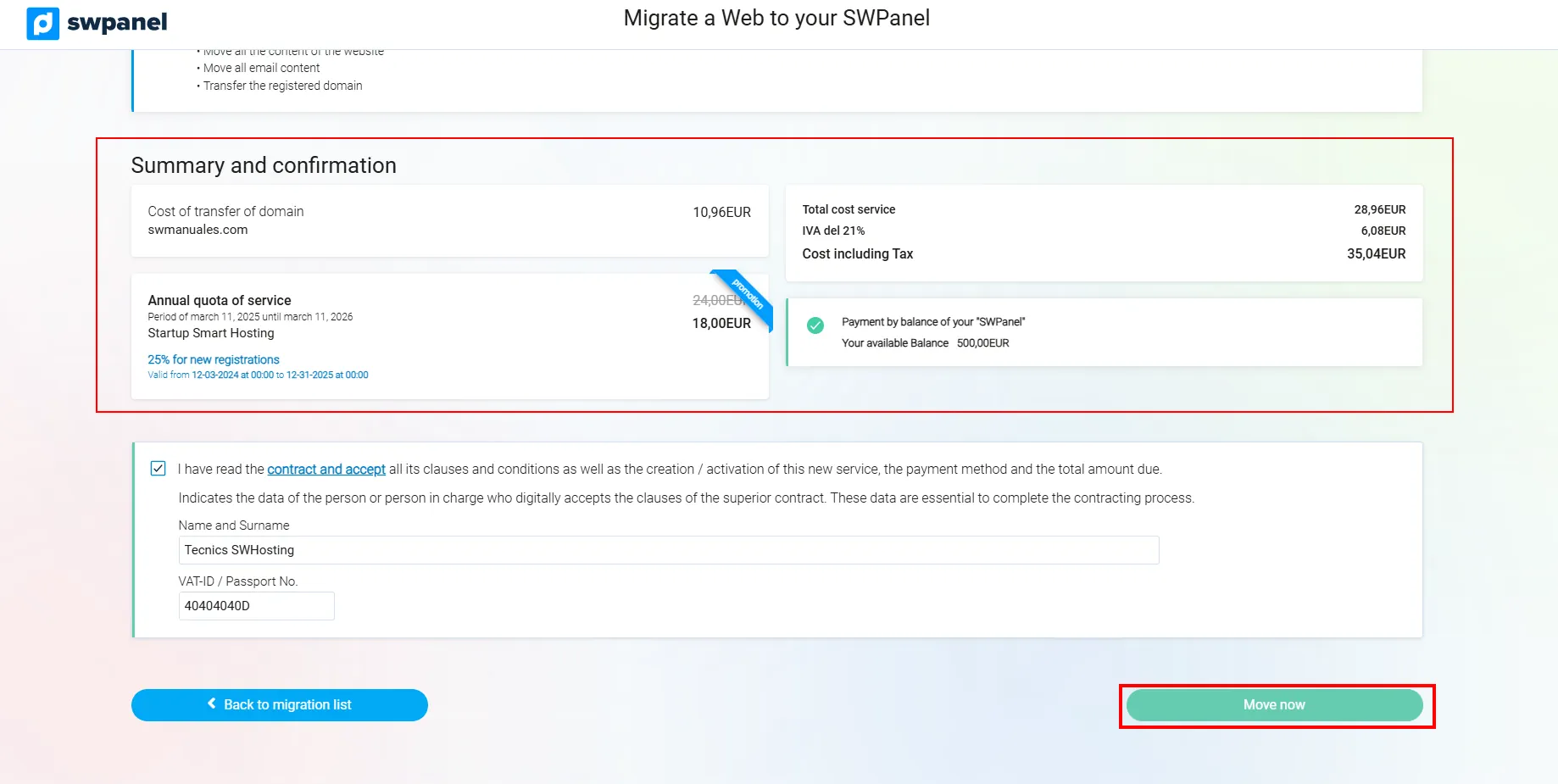
info_capture The screenshot is for guidance purposes. It was taken on version 2025.02.0002 dated 11/03/2025. It may differ from what the current version of SWPanel shows.
- Once the process is finished, the new service with the migrated content will be created in the destination account.
info_capture The screenshot is for guidance purposes. It was taken on version 2025.02.0002 dated 11/03/2025. It may differ from what the current version of SWPanel shows.
success ¡Listo! Ahora sabes cómo generar y utilizar un código de migración para transferir tus servicios entre cuentas de SWPanel.
4. Glossary of Terms
| Term | Definition |
|---|---|
| Migration code | Code generated in SWPanel that allows the transfer of hosting services between accounts. |
| Hosting migration | Process of moving a website, emails and domains between SWPanel accounts. |
| SWPanel account | User profile in SWPanel where hosting services and domains are managed. |
| Domain transfer | Process of moving a domain from one registrar or account to another. |
This manual guides you through each step to facilitate the migration of services in SWPanel. If you have any questions, please review the official documentation or contact support.