
Password limitations and how to modify them
Often, when creating a password, whether for our email accounts, different login users, or other services, we encounter certain requirements regarding its strength.
In this manual, we will explain why these minimums are required, which ones are applied by default in SWPanel, and how we can customize them.
Why do I need to respect a minimum password strength?
Every day, identity theft via email, website breaches, and other types of hacking, phishing, spoofing, etc., are becoming more common and frequent. Many of these occur due to mass hijacking of passwords from different login services.
These password hijackings are carried out using software specifically designed for this purpose, and the simpler the passwords are, the easier it is for such software to breach them. To avoid this, it is recommended to use strong passwords, with multiple different characters, and that are not deducible from the login username.
What are the default password limitations in SWPanel?
The limitations applied by default to your SWPanel account regarding passwords are as follows:
- It is not possible to 'copy and paste' in the password text field
- It is not possible to use passwords repeated in other accounts
- Minimum length of 8 characters
- Respect a minimum strength of 70%
- Minimum of 1 lowercase character
- Minimum of 1 uppercase character
- Minimum of 1 numeric character
- Minimum of 1 special character
These minimums are usually standard across most service providers to avoid weak passwords prone to being breached.
Can I customize my password limits in SWPanel?
Indeed, for your convenience or that of your final customers, you can customize your password limits from your security preferences in SWPanel.
danger You should keep in mind that modifying the configuration of password security minimums can cause serious security problems for your services, so it is recommended to maintain reasonable standards.
First, you must go to your SWPanel account. Once here, to open the contextual menu, click on your client icon found in the upper right corner, select the 'My SWPanel' tab, and choose the 'Security Preferences' section.
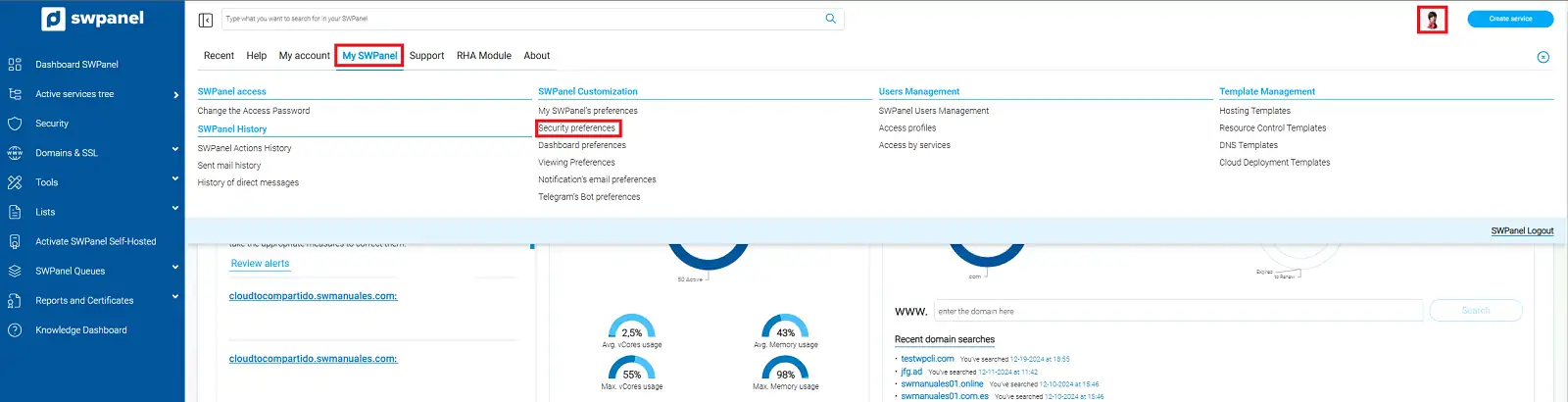
info_capture The screenshot is for guidance. It was taken using version 2025.00.0017 dated 12/25/2024. It may differ from what the current version of SWPanel shows.
Once here, we will go to the 'Password Definition' section, where we can activate, deactivate, and modify any of the limitations assigned to passwords mentioned in the previous section of the manual.
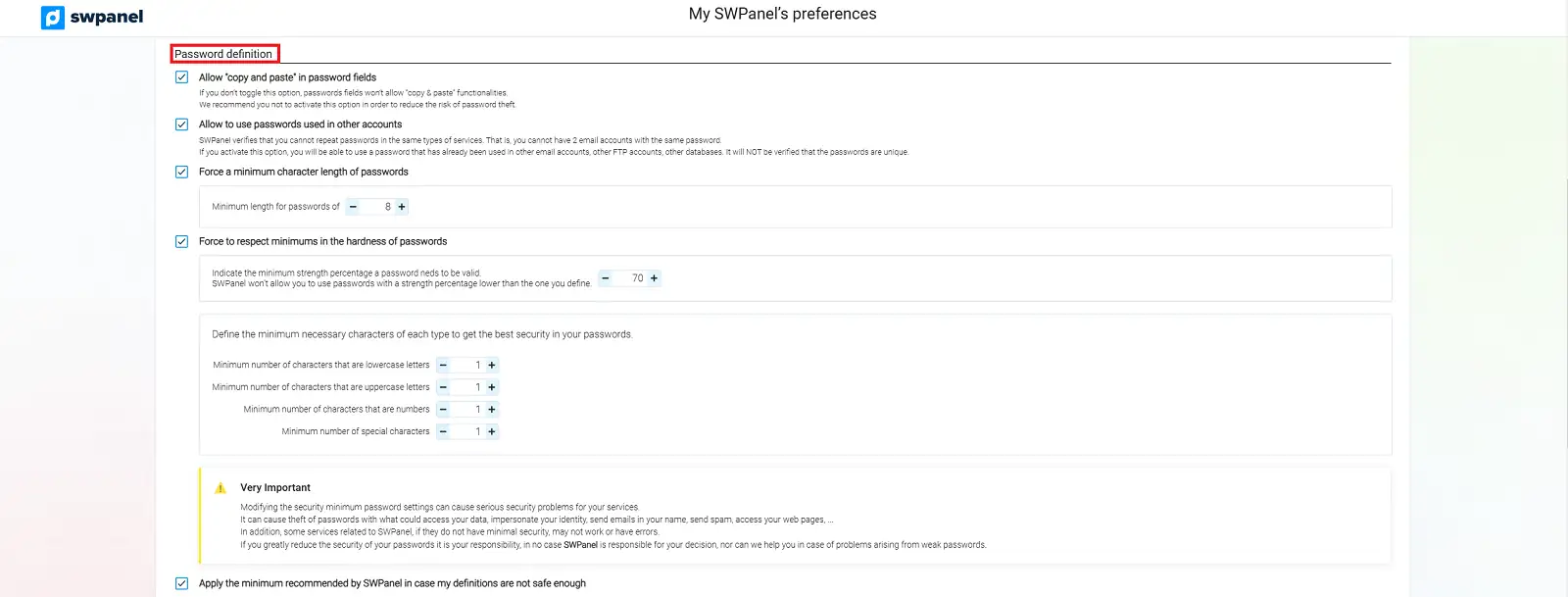
info_capture The screenshot is for guidance. It was taken using version 2025.00.0017 dated 12/25/2024. It may differ from what the current version of SWPanel shows.
In this way, we can ensure, whether we use the limits applied by default by SWPanel or those we define ourselves, that we will be doing everything in our power to make it very difficult for anyone intending to breach our credentials.