
How to import and export DBs with phpMyAdmin
Database Import with phpMyAdmin
To import your website's database to your new hosting on SWPanel, you must follow these steps:
1. First, you must access your SWPanel and enter the name of the hosting service you wish to configure in the top search window. Once the service is located, you can click on its name to access its Dashboard:
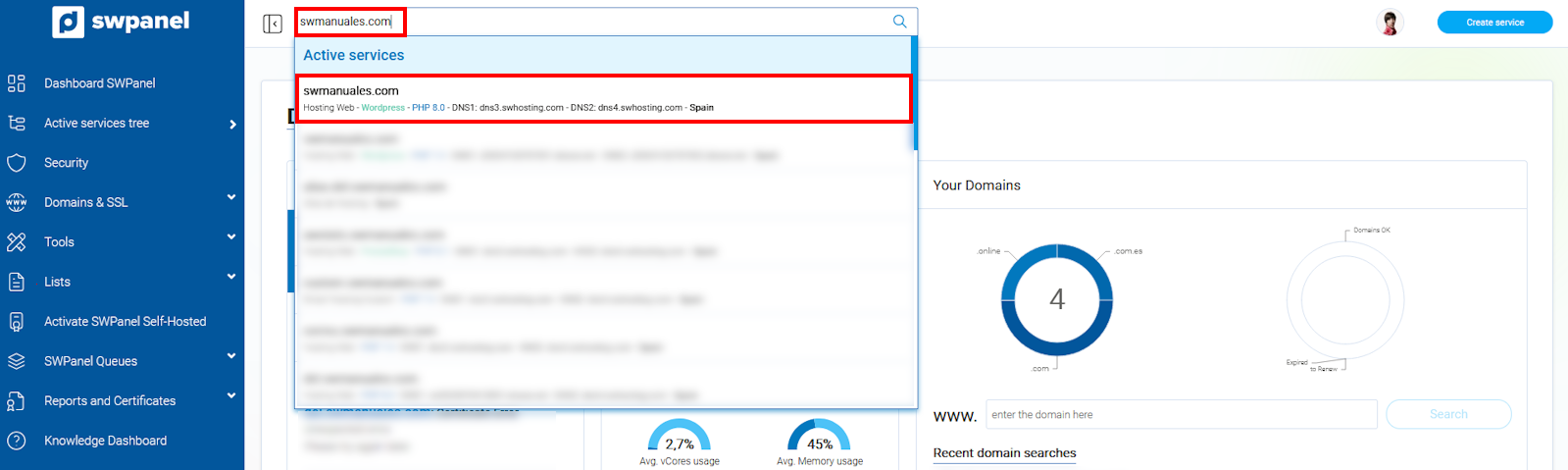
info_capture The screenshot is for illustrative purposes. It was taken using version 2025.00.0017 dated 02/01/2025. It may differ from what the current version of SWPanel shows.
2. Next, click on Database Management.
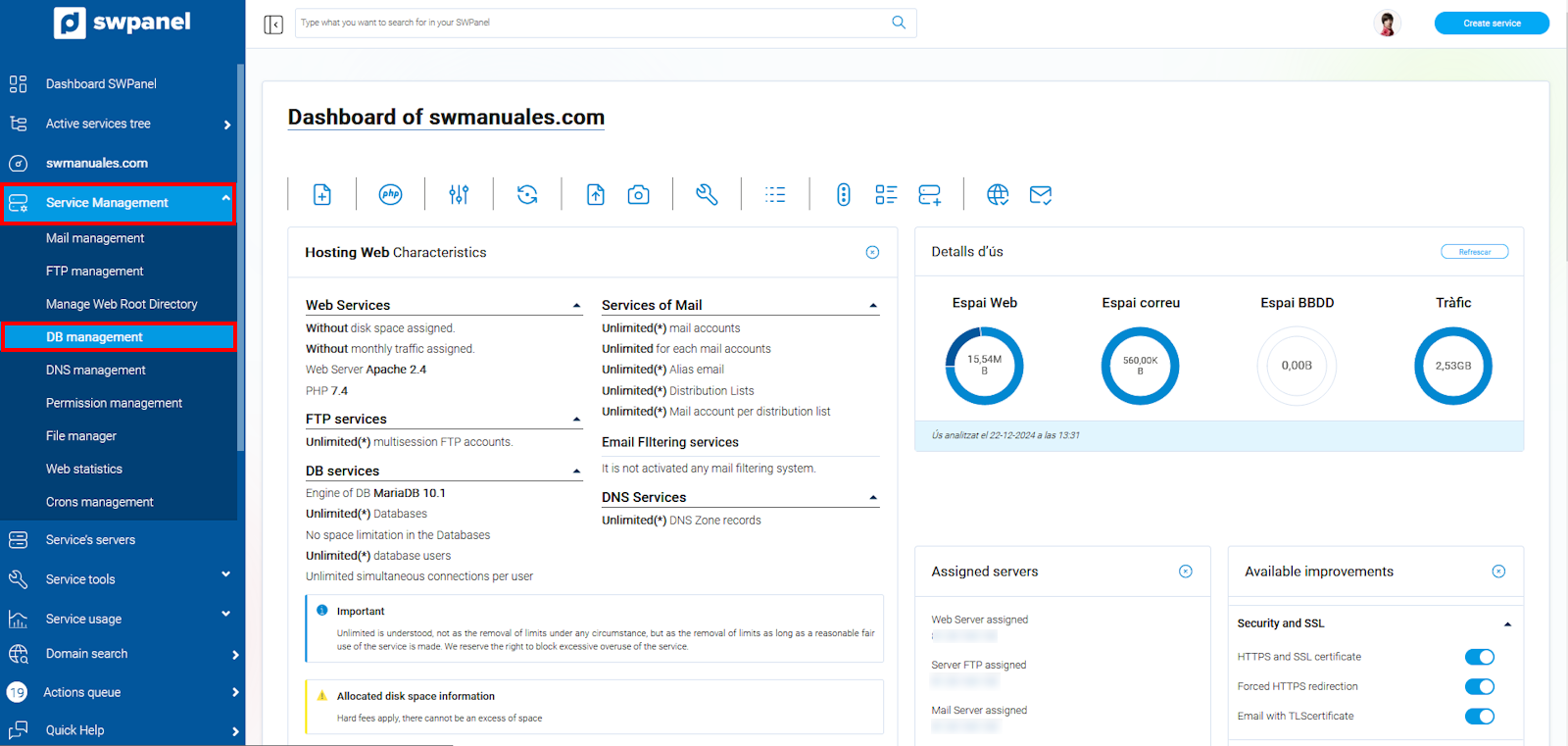
info_capture The screenshot is for illustrative purposes. It was taken using version 2025.00.0017 dated 02/01/2025. It may differ from what the current version of SWPanel shows.
3. Here you can view the existing databases. In case you do not have any database created, you must create one to be able to import the data. Once the database is created, go to the "[...]" menu and then select Open PhpMyAdmin. You must perform this action on the database where you want to import the data:
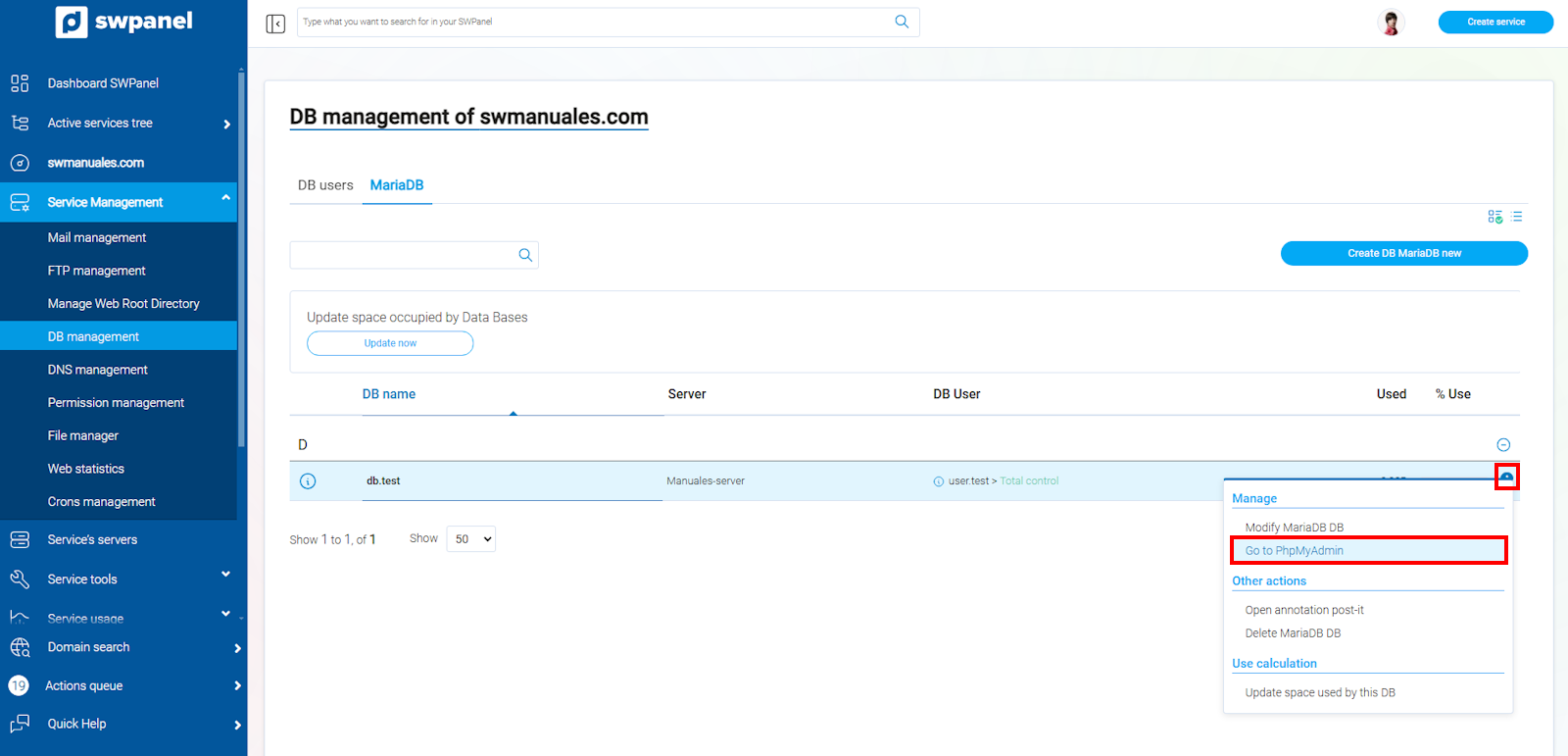
info_capture The screenshot is for illustrative purposes. It was taken using version 2025.00.0017 dated 02/01/2025. It may differ from what the current version of SWPanel shows.
4. Once the phpMyadmin tool has opened in your browser, you must enter the Username and Password of your website's DB and click the Continue button
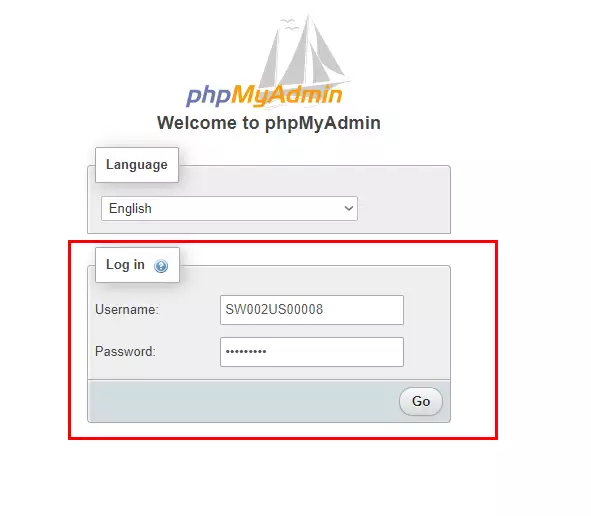
5. Next, select the DB in which you want to import the data and go to the Import tab.
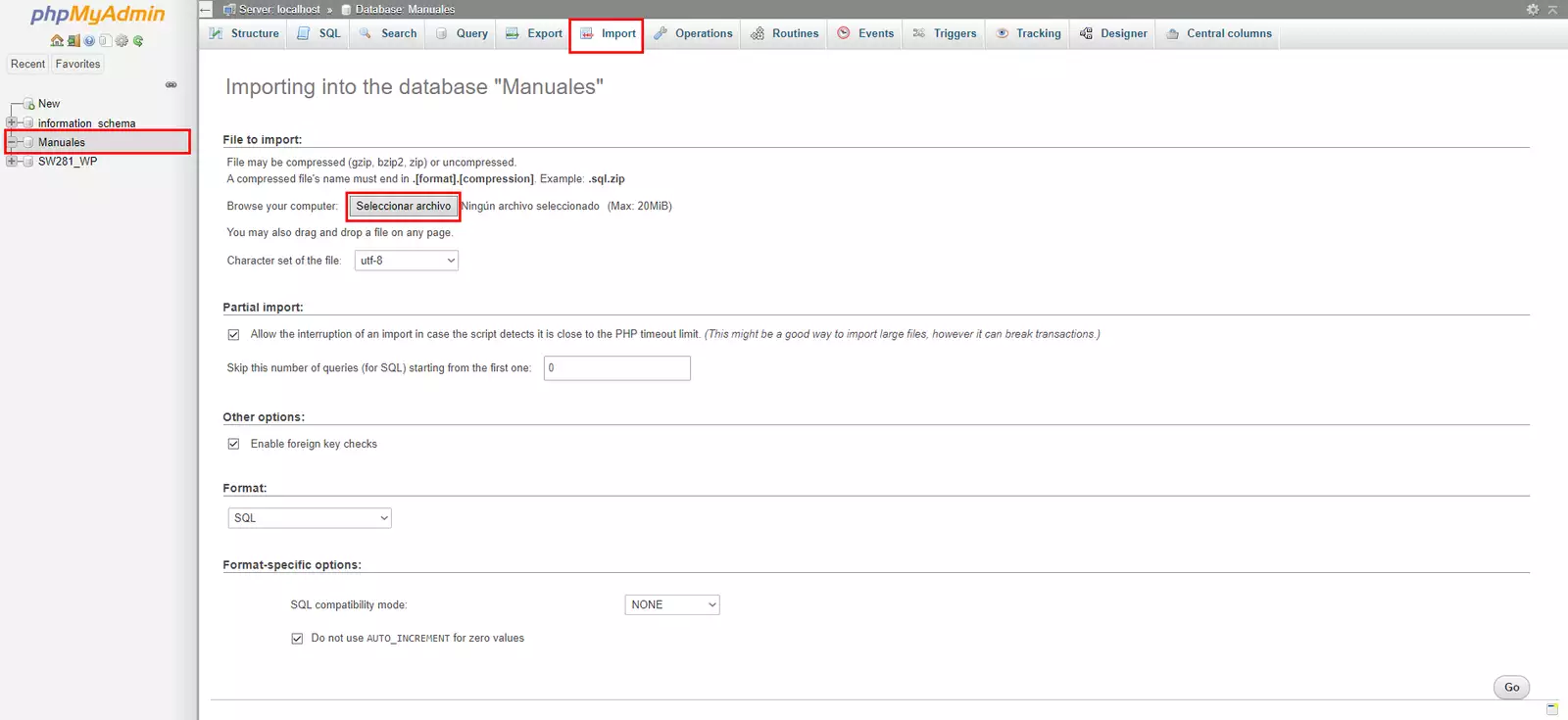
To import the DB, you must follow these steps:
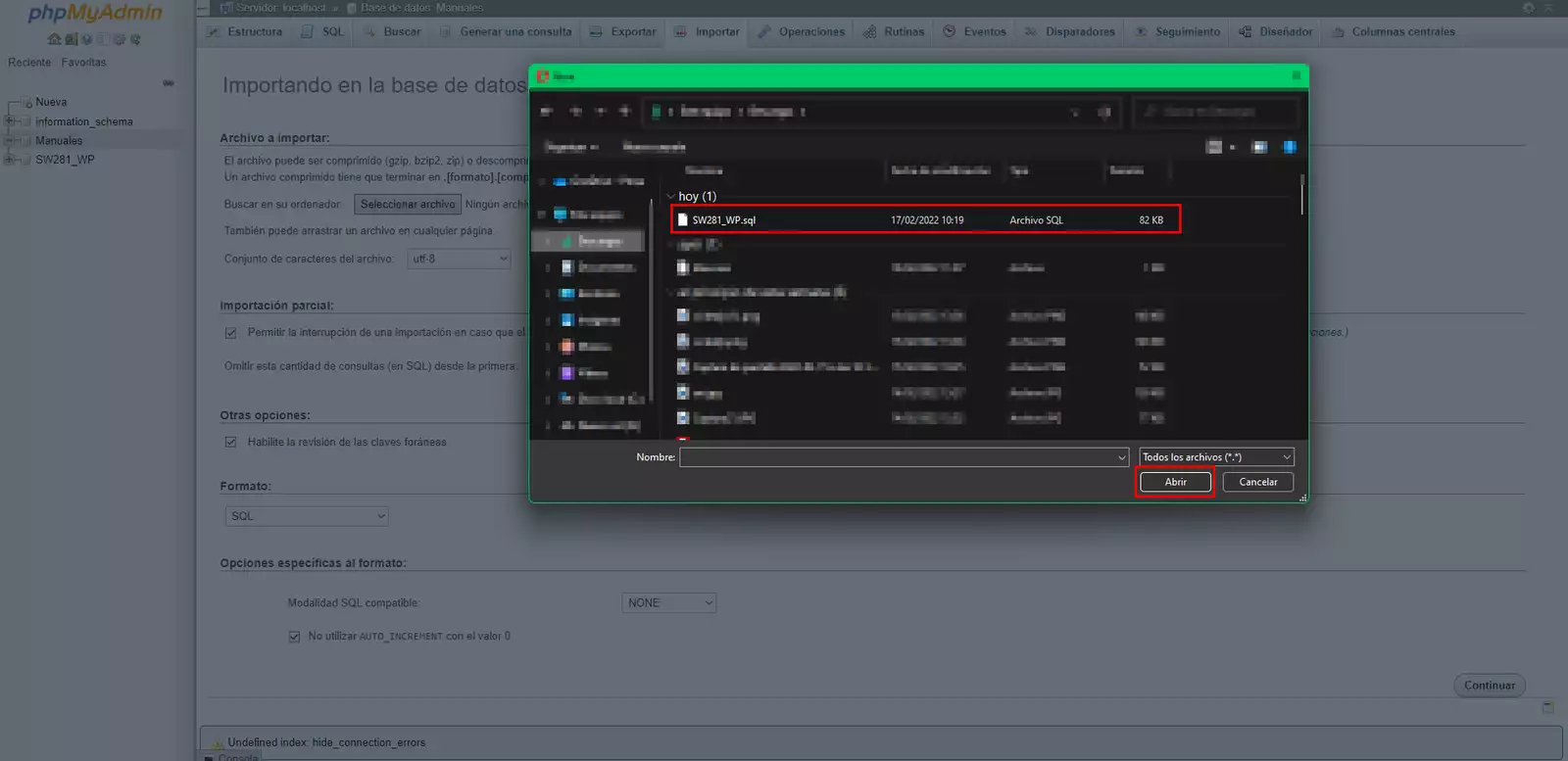
1) Use the Browse... button to open your file browser and select the DB with the .sql extension that we previously exported and saved with phpMyAdmin.
2) Once you have selected the DB to import, you must press the Continue button
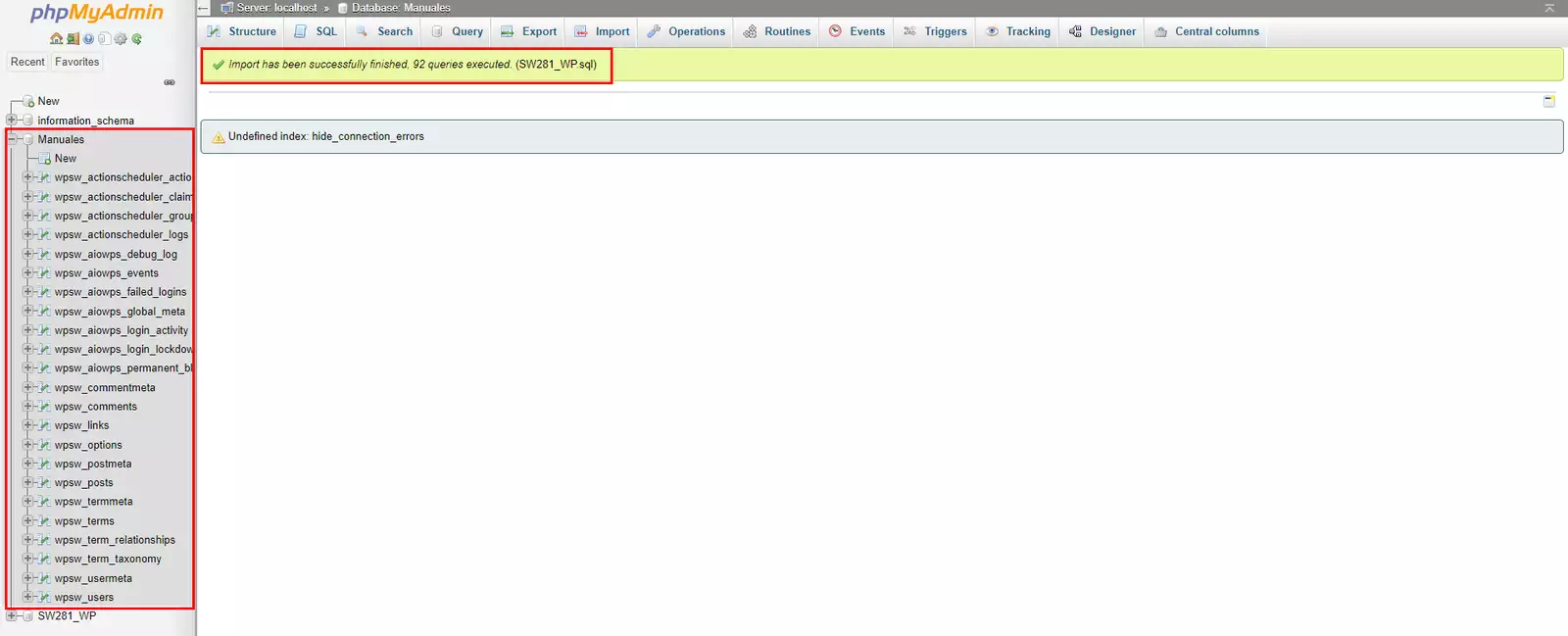
3) Once the DB import process has been successfully completed, the window will change and show the message Import executed successfully. Additionally, you will be able to see that the corresponding tables and fields have been generated:
Database Export with phpMyAdmin
To export a database, you must follow these steps:
1. First, you must access your SWPanel and enter the name of the hosting service you wish to configure in the top search window. Once the service is located, you can click on its name to access its Dashboard:
info_capture The screenshot is for illustrative purposes. It was taken using version 2025.00.0017 dated 02/01/2025. It may differ from what the current version of SWPanel shows.
2. Next, click on Database Management.
info_capture The screenshot is for illustrative purposes. It was taken using version 2025.00.0017 dated 02/01/2025. It may differ from what the current version of SWPanel shows.
3. Here you can view the existing databases. Go to the "[...]" menu and then select Open PhpMyAdmin. You must perform this action on the database from which you want to export the data:
info_capture The screenshot is for illustrative purposes. It was taken using version 2025.00.0017 dated 02/01/2025. It may differ from what the current version of SWPanel shows.
4. Once the phpMyadmin tool has opened in your browser, you must enter the Username and Password of your website's DB and click the Continue button
5. Once inside, you must select the DB corresponding to your website and then go to the Export tab
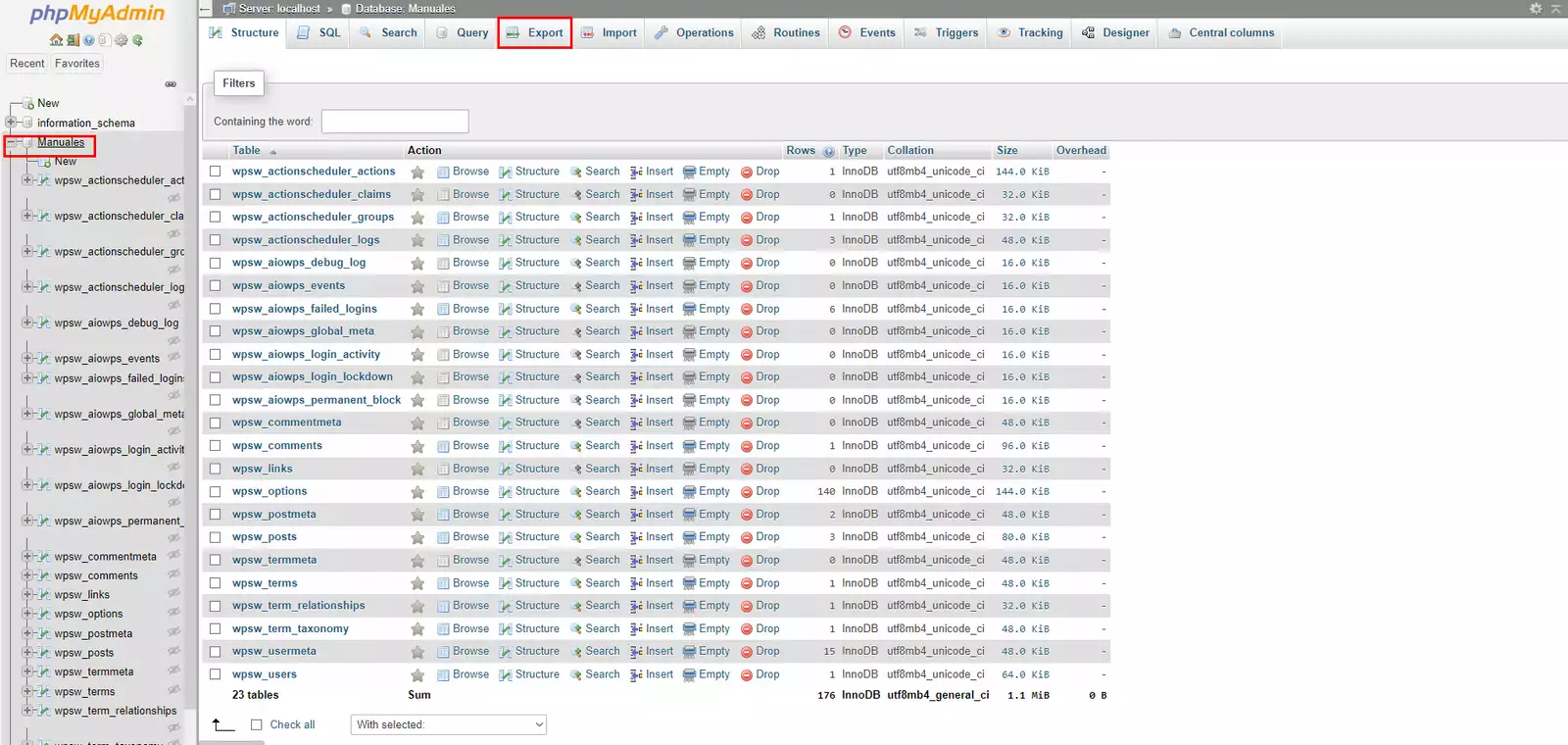
6. In the following window, you should leave the default options selected and then click the Continue button.
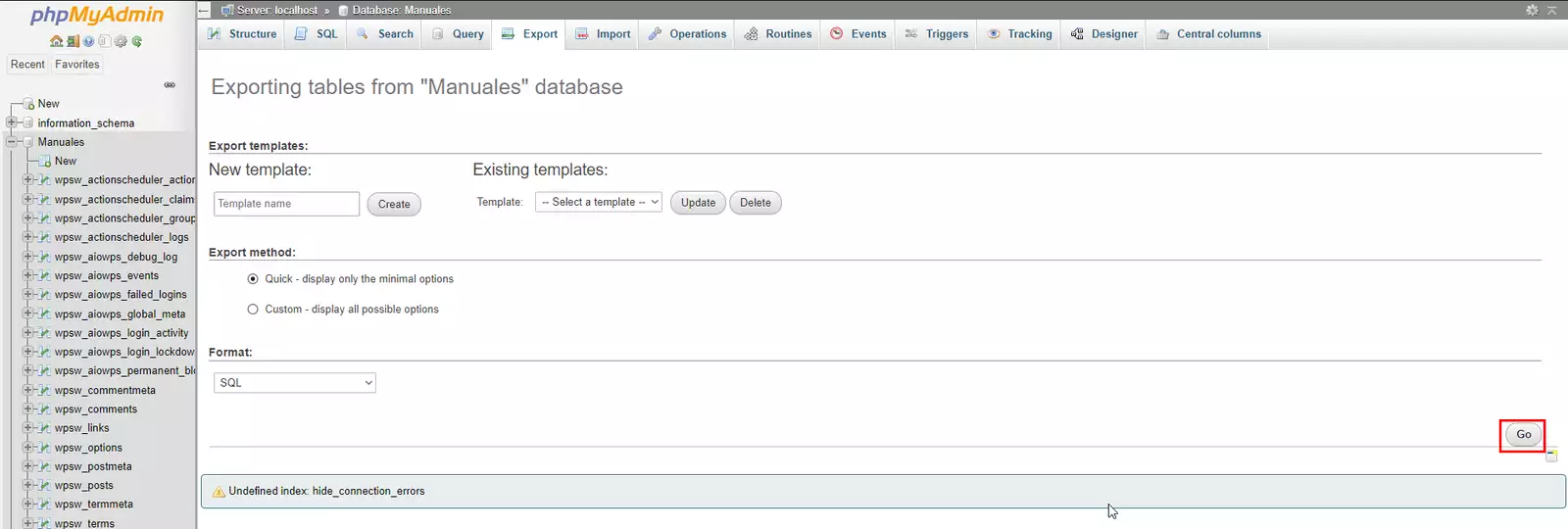
7. Your browser will download your website's database in database_name.sql format to your downloads folder.