How to configure Smart Hosting + in your WordPress
Once you have activated Smart Hosting + for your website [Manuale: How to activate Smart Hosting + for your website] with WordPress, you can configure it by following these steps:
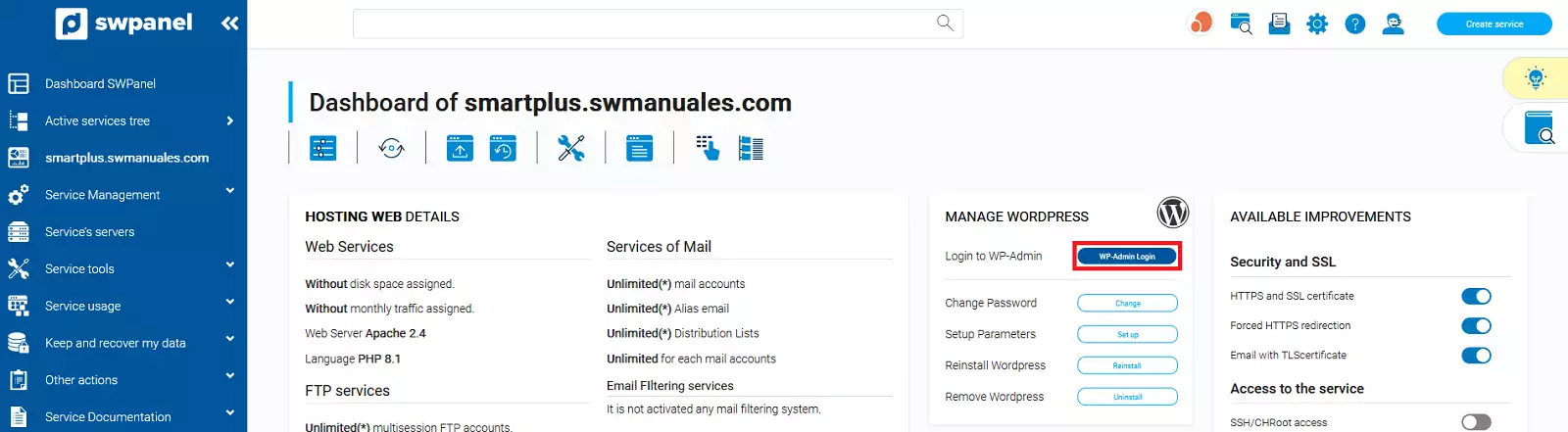
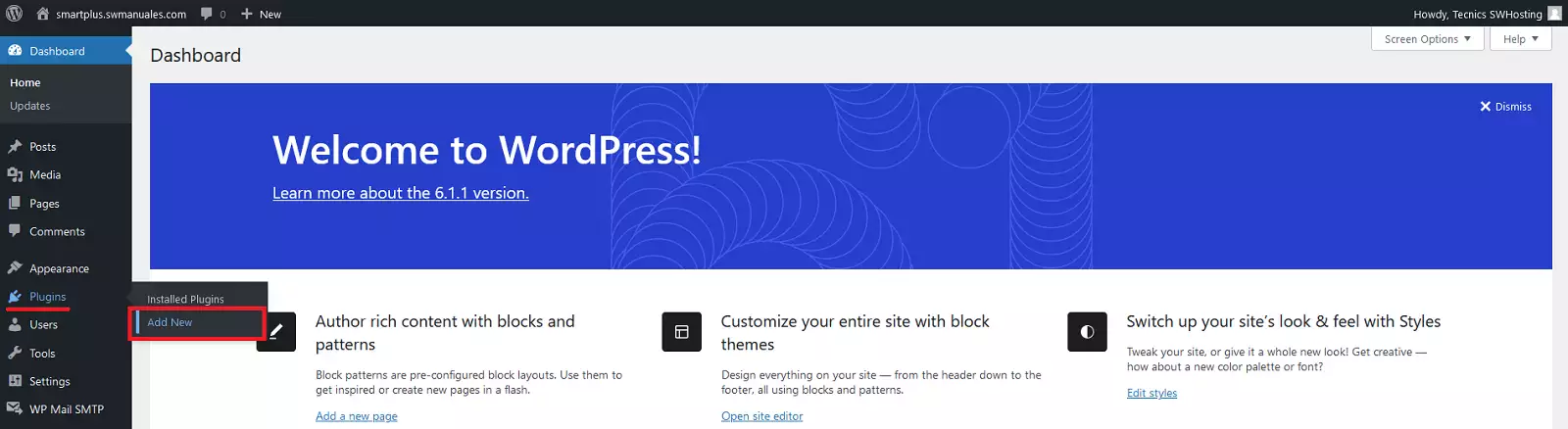
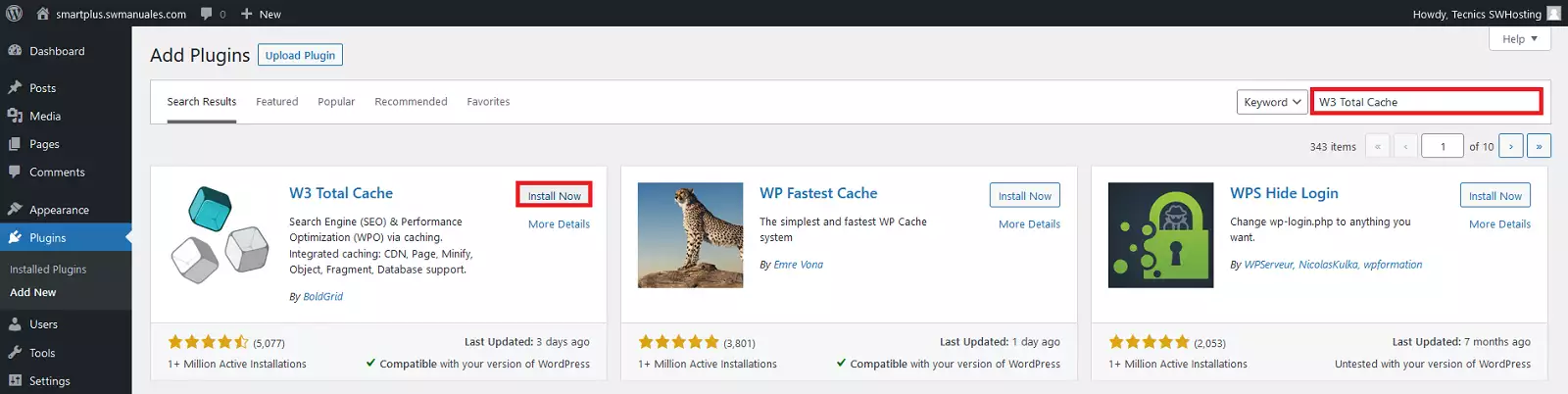
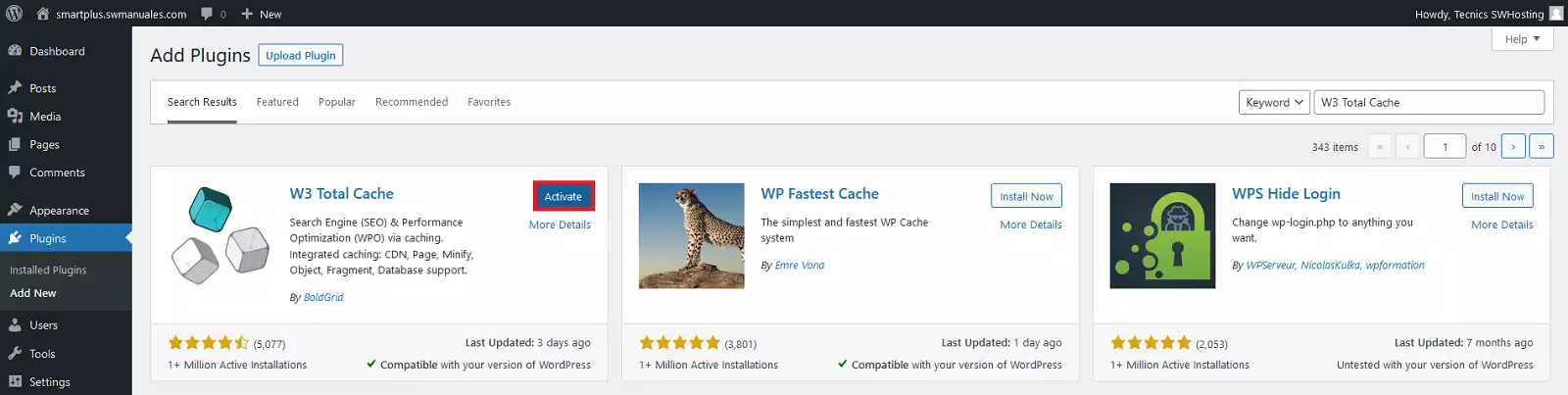
1. Access your WordPress management from SWPanel by clicking the "WP-Admin Login" button in the "Manage WordPress" section, and install a caching plugin, such as "W3 Total Cache": go to "Plugins" > "Add Plugin", search for "W3 Total Cache", click "Install Now" and, once finished, click "Activate".
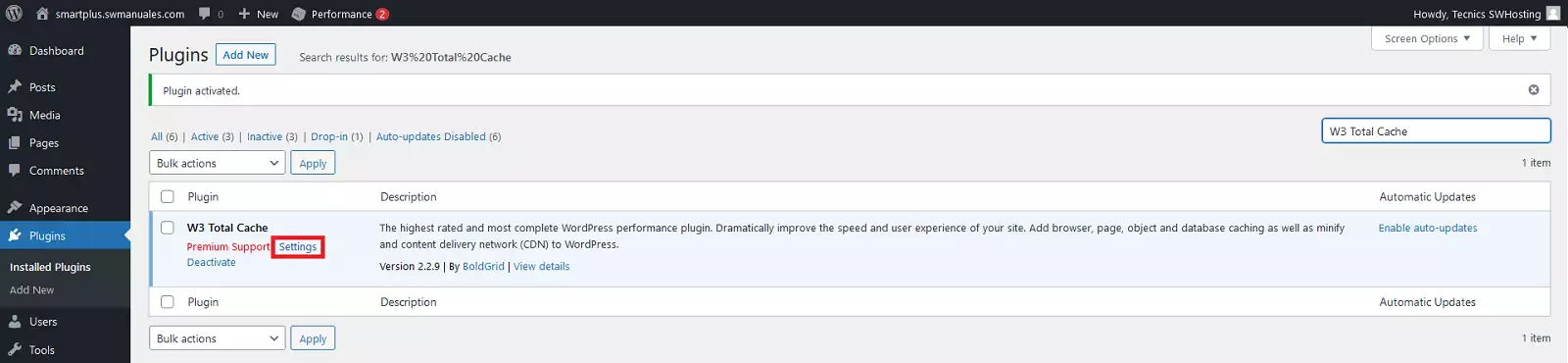
2. Go to the "Plugins" section of your WordPress and click "Settings" on the "W3 Total Cache" plugin to configure it.
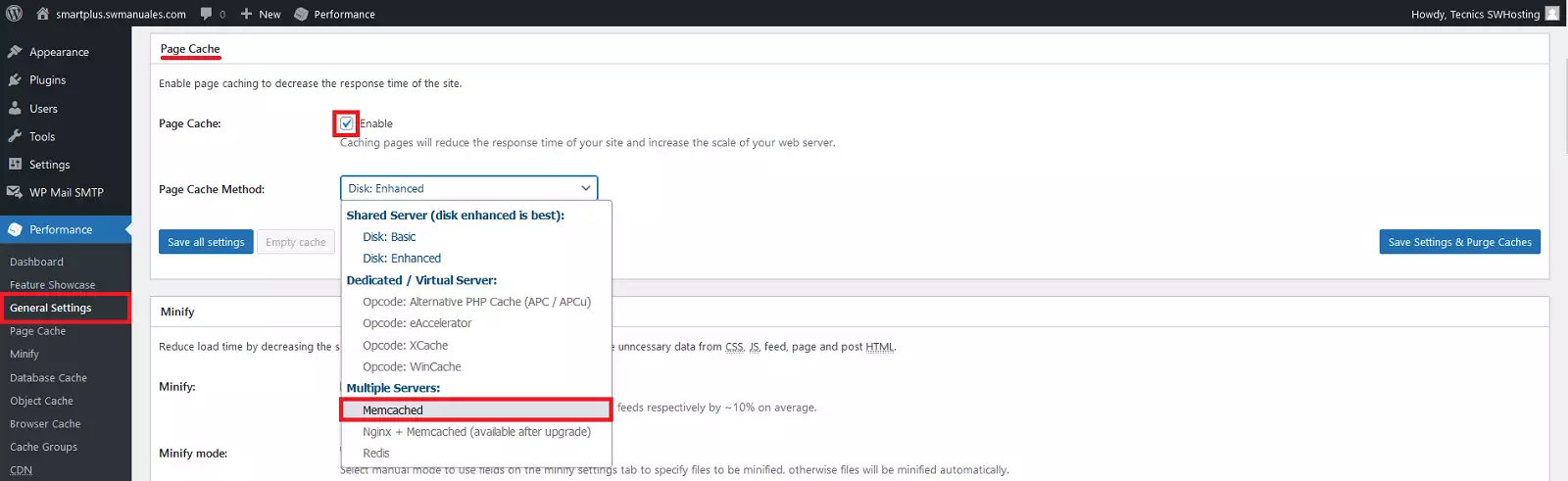
3. In the "General Settings" section, under "Page Cache", tick the "Enable" checkbox and, in the "Page Cache Method" drop-down, select the "Memcached" option.
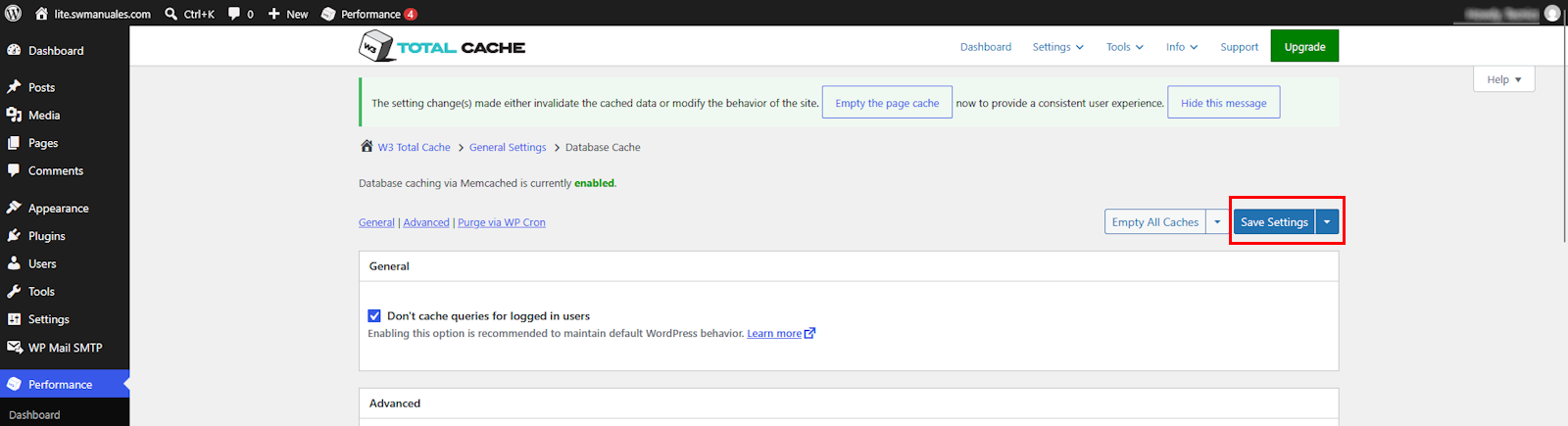
4. Save the settings by clicking the "Save Settings" button.

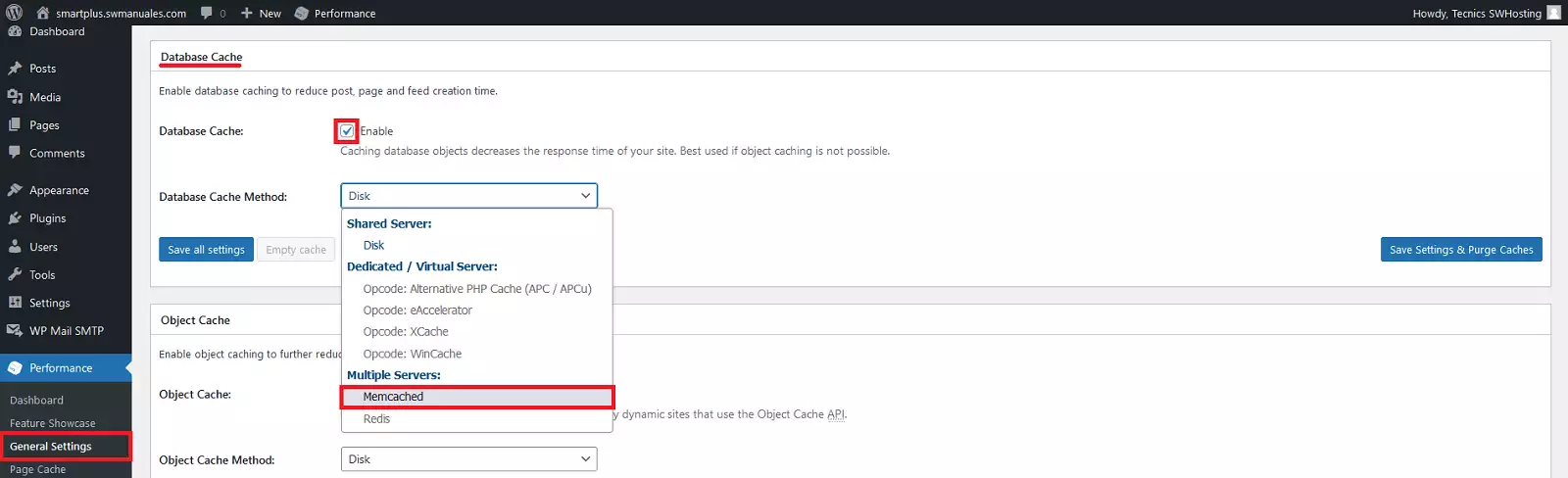
5. In the "General Settings" section, under "Database Cache", tick the "Enable" checkbox and, in the "Database Cache Method" drop-down, select the "Memcached" option.
6. Save the settings by clicking the "Save Settings" button.

7. Go back to SWPanel, open your service management and, in the "Web Acceleration Services" section, under "Smart Hosting +", click the "Copy memcached route" button.
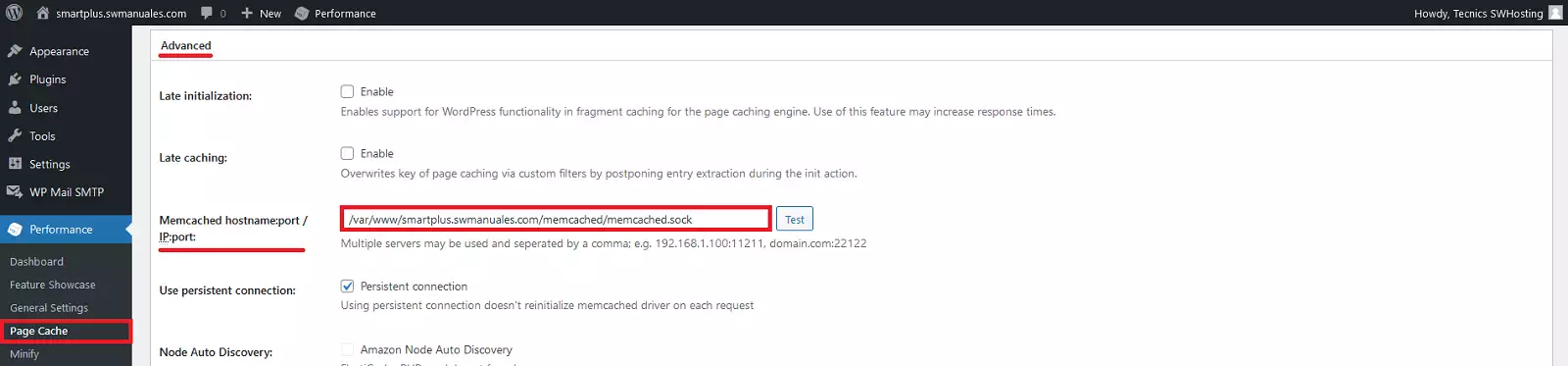
8. In WordPress, go to "Performance" > "Page Cache", go to the "Advanced" section and, in the "Memcached hostname:port / IP:port" option, paste the route copied in the previous step. You can also type it manually using this format: /var/www/yourwebsitedomain.extension/memcached/memcached.sock
For example, if your website's domain is "swhosting.com", you should enter the value: /var/www/swhosting.com/memcached/memcached.sock
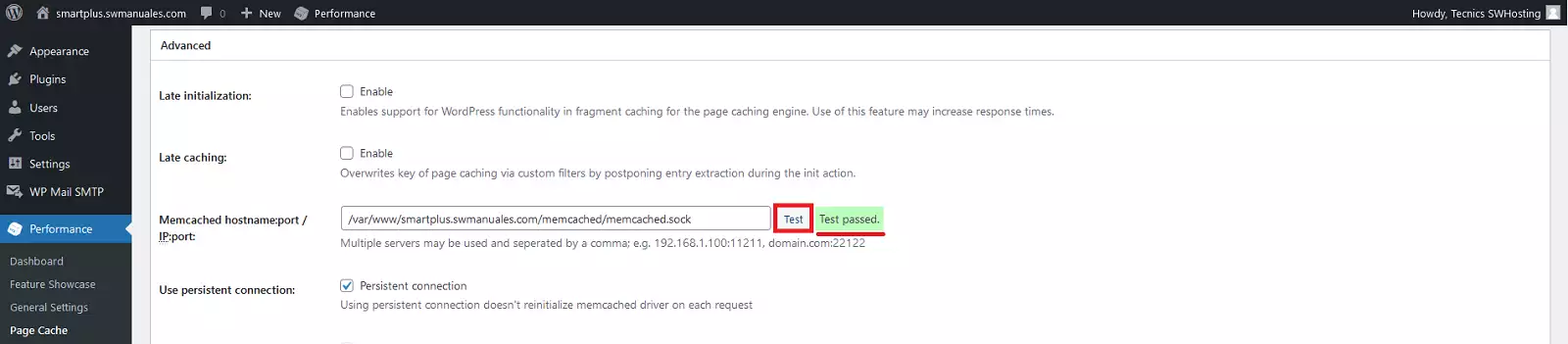
9. Next, click the "Test" button and check that the "Test passed" message appears.
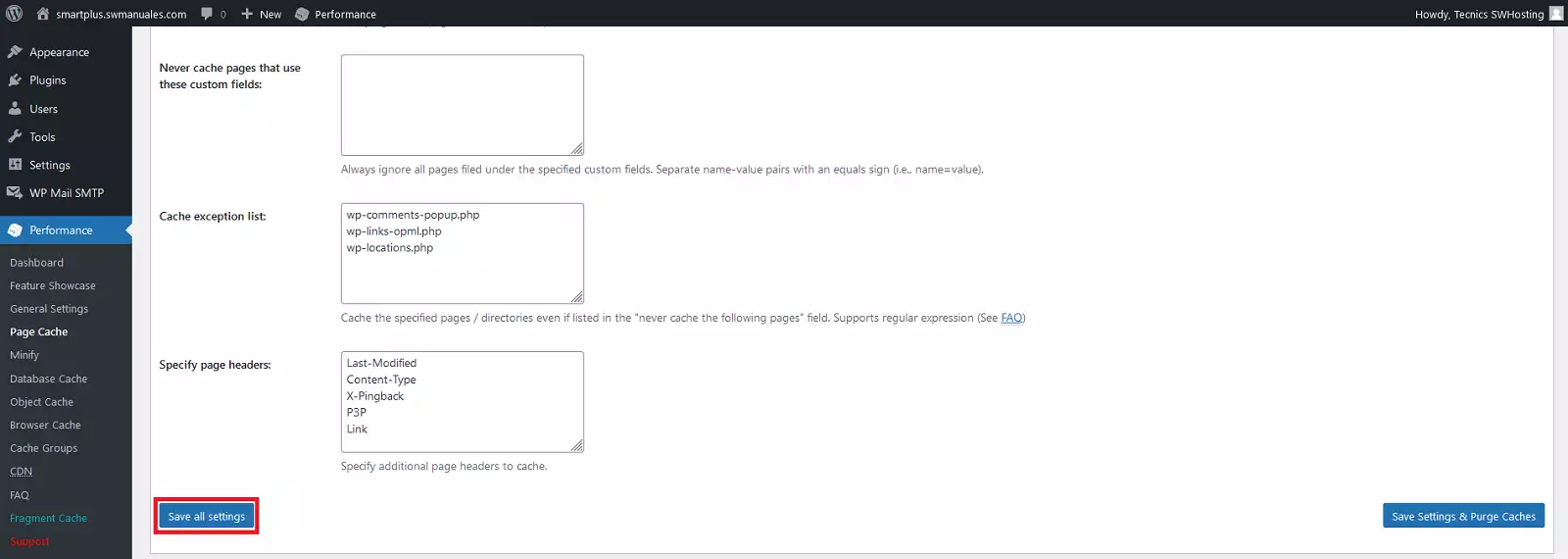
10. Save the settings by clicking the "Save Settings" button.
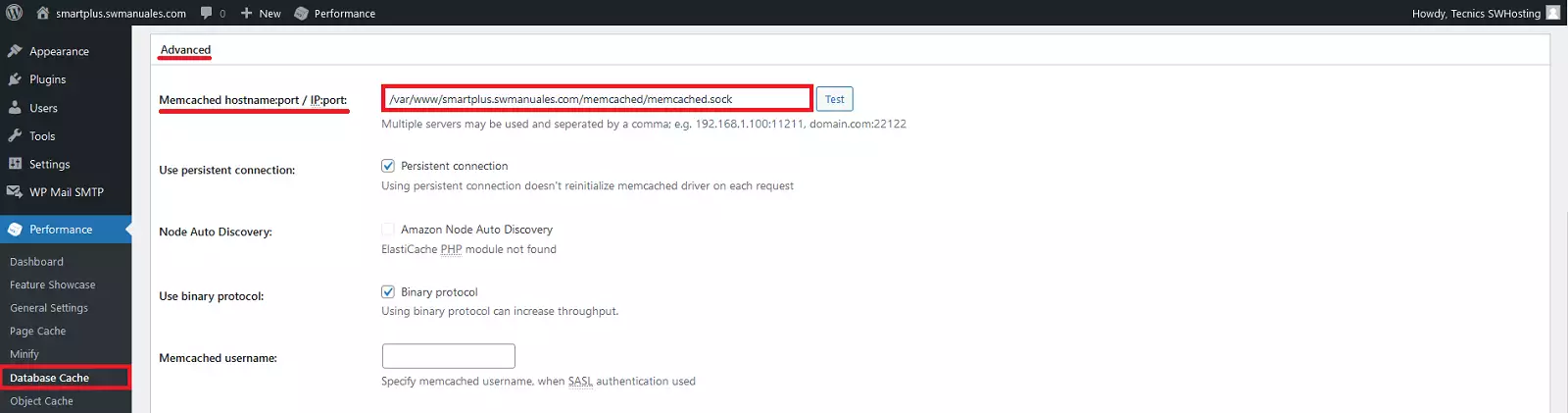
11. Go to "Performance" > "Database Cache", go to the "Advanced" section and, in the "Memcached hostname:port / IP:port" option, enter the same route: /var/www/yourwebsitedomain.extension/memcached/memcached.sock
For example, if your website's domain is "swhosting.com", you should enter the value: /var/www/swhosting.com/memcached/memcached.sock
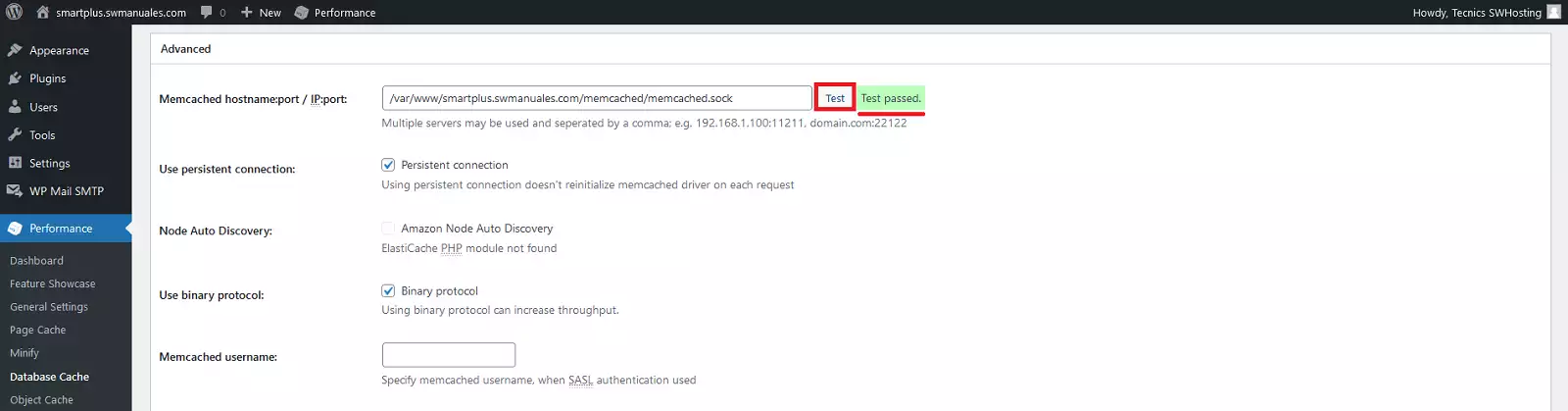
12. Click the "Test" button and check that the "Test passed" message appears.
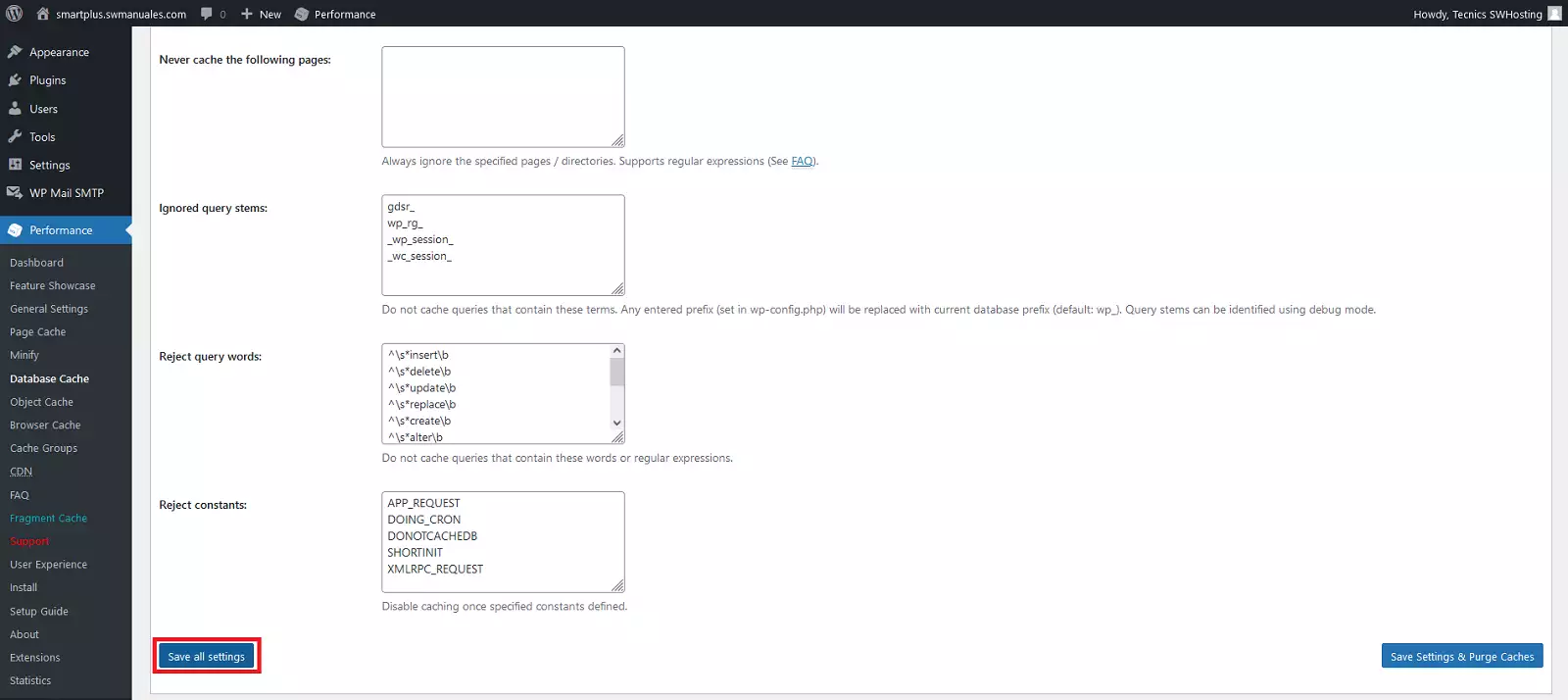
13. Save the settings by clicking the "Save Settings" button. If everything is correct, you will see a message indicating that database caching via Memcached is enabled.