Factors for the correct optimization of a store with Prestashop
0. General introduction to the manual
This manual is designed to provide a detailed guide on the configuration, optimization, and maintenance of an online store based on Prestashop, using servers managed with SWPanel.
Objective of the manual
The main objective is to help the reader understand the technical and functional aspects that directly affect the performance of their online store. Each section includes detailed information on the factors that influence loading speed, system stability, security, and user experience. Additionally, good practices and specific recommendations are included to improve operational efficiency and the SEO positioning of the e-commerce site.
Topics covered
This manual covers the following key topics:
-
Web Hosting Server: Explains the appropriate choice of hosting type (shared or Cloud), the necessary resources (CPU, RAM, storage), and the configuration parameters (Apache, Nginx, PHP).
-
Database: Describes the optimal configurations of the database engine (MariaDB), as well as maintenance and cleaning tasks to ensure its efficiency.
-
Prestashop Application: Provides details on the configuration of the Smarty system, CCC (Combination, Compression, and Cache), module management, and platform updates.
-
Web Images: Provides recommendations for image optimization to improve loading times and the website's SEO.
Basic concepts
Below are some concepts that will be used throughout the manual and are fundamental to its understanding:
-
Prestashop: Content management system (CMS) specialized in the creation and management of online stores.
-
SWPanel: Comprehensive Cloud server management platform, which allows for the simple and efficient configuration and monitoring of hosting services.
-
Cloud Server: Virtual hosting environment that offers dedicated and scalable resources to host web applications.
-
Smarty: Template engine used by Prestashop to generate the HTML content shown to the user.
-
CCC: Combination, Compression, and Cache. A set of techniques that allow reducing the size of web files and improving performance.
-
CDN (Content Delivery Network): Content distribution network that allows delivering static resources (images, scripts, styles) from geographically distributed servers to improve loading speed.
1. Web Hosting Server
The web server is one of the most important factors when ensuring the proper functioning and optimization of your online store with Prestashop. A quality server with high resource availability (vCores, RAM, and HD) will translate into greater speed in data processing to handle visitor requests. In this way, the web loading speed, content visualization in the browser, and agility in the response process to database queries will be much faster and more efficient. In short, a server with good performance translates into better SEO results, avoids website errors, and improves the user experience, thereby increasing trust and, consequently, online sales.
1.1 Web server type - (Shared / Cloud)
An online store website always demands more server resources than any other type of site, such as a blog or a corporate website. Furthermore, the larger the volume of products in the online store or the number of visitors, the higher the demand for resources to handle customer requests quickly and efficiently. For this reason, the type of web hosting for our online store must be chosen taking into account not only its current size, but also its future size, since one of the goals of our e-commerce will be to achieve growth in the number of customers and sales.
Currently, there are different types of hosting for an online store, with the most commonly used being the following:
a) Shared Server (Shared Web Hosting) - This is the most economical hosting service, as it consists of a server where multiple websites are hosted sharing the same resources (vCores, RAM, and HD). The configuration parameters, corresponding to the server resources that the website can access and use, are always limited, so it is not always possible to adapt them to cover the configuration or performance requirements of the website. For this reason, this type of web hosting is recommended for relatively small stores that do not have a large product portfolio and have a low number of visitors/customers.
b) Cloud Server - This is a virtual server with high availability and service continuity guarantee, due to the redundancy of the infrastructure on which it is deployed and to which exclusive hardware resources are assigned (vCores, RAM, HD), which can be scalable at any time, making it possible to constantly adapt them to the growth needs of the online store. All server resources are fully available for the online store, allowing them to be completely allocated to the programming, configuration, and demand requirements of the e-commerce. These types of Cloud servers entail a higher web hosting cost due to their higher performance and quality, so their use is recommended for online stores with a high product portfolio, number of customers, and sales.
1.2 Web server resources - (CPU / RAM / Disk)
a) CPU - Processor (vCores) - The higher the number and power in GHz of the vCores assigned to the server, the better its response speed when executing the calculations necessary to handle database queries, loading web content into RAM, and subsequent visualization in the browser. In short, a higher value in the number and speed of the vCores assigned to the server translates into better overall performance of our online store. When the number of vCores assigned to the server reaches more than 90% of its processing capacity, it begins to suffer from overload, which considerably reduces the loading speed of the online store. For this reason, the server should be provisioned with a sufficient number of vCores so that the sustained process load does not continuously exceed 60% or 70% of the server's capacity, thus reserving a prudent margin in the server's processing capacity of 30% or 40% to handle occasional peaks and avoid process overload that can cause the web to slow down or even stop responding. It is recommended that for a store with Prestashop, the Cloud server has a minimum of 4 vCores with speeds exceeding 2 GHz.
b) RAM Memory - RAM memory plays a crucial role in the performance of your online store. It acts as a temporary storage space for the data that the processor needs in real-time. When a visitor accesses your store, the web server receives the request and the processor executes the necessary calculations to generate the page content. This content is transferred to the RAM, which in turn sends it to the visitor's browser for visualization.
If the amount of data generated by the processor exceeds the RAM capacity, the server becomes saturated and stops responding, interrupting your customers' shopping experience and negatively affecting your business.
Therefore, it is fundamental to correctly size the RAM of your Cloud server. As your store receives more simultaneous visits, the demand for RAM increases. To ensure optimal performance, we recommend:
- Provision sufficient RAM: Ensure that your server has enough RAM to handle the usual traffic of your store.
- Consider traffic peaks: Reserve an additional RAM margin to absorb possible traffic peaks, such as promotions or advertising campaigns.
- Recommendation for Prestashop: For online stores built with Prestashop, we suggest starting with a minimum of 4 GB of RAM, and increasing this amount as your store grows.
By optimizing the RAM of your server, you ensure a fluid shopping experience for your customers, which translates into greater satisfaction and better results for your business.
c) Hard disk capacity and type - To optimize the performance of your online store, we strongly recommend the use of SSD disks. These disks offer data read and write speeds significantly higher than traditional hard disks, which translates into smoother and faster navigation for your customers.
Key benefits of SSD disks:
- Higher speed: Instant access to data, reducing page loading times.
- Simultaneous access: Ability to handle multiple data requests at the same time, ideal for stores with high traffic.
- Superior efficiency: The SSD's integrated memory controller manages data intelligently, freeing the CPU from integrity control tasks.
In addition to speed, it is crucial to correctly size the storage space of your Cloud server. The disk must be large enough to host the operating system, installed software, web content, and your store's database, which will grow as traffic increases.
Recommendations for Prestashop:
- For a Cloud server with Linux, Apache/Nginx, MySQL/MariaDB, and PHP, we recommend a minimum of 20 GB of disk space.
- As your store grows, consider increasing the storage space to ensure optimal performance.
By choosing SSD disks and correctly sizing the storage space, you ensure an exceptional shopping experience for your customers, which translates into greater satisfaction and better results for your business.
d) Traffic limit. - When a visitor accesses your website, the server exchanges data with their browser to display the content. This data exchange, known as traffic, has a size that providers usually limit monthly.
What does the traffic limit imply?
The monthly traffic limit represents the total amount of data transferred between the server and your visitors' browsers during a month. Once this limit is reached, the server stops responding to new requests, leaving your website inaccessible.
Impact on your business:
An insufficient traffic limit can disrupt your customers' experience and negatively affect your business.
Key recommendations:
- Pay attention to traffic: When hiring a Cloud server, carefully verify the monthly traffic limit.
- Prioritize unlimited traffic: If your website receives a lot of traffic, consider choosing a provider that offers unlimited traffic.
By choosing a provider with an appropriate traffic limit, or ideally, unlimited traffic, you ensure that your website is always available to your customers, which translates into a better user experience and greater business opportunities.
In an SWPanel Cloud server, you can adjust the assigned resources from the server administration Dashboard, as described in the following Manuale: Increase and decrease resources of my Cloud
1.3 Web server configuration parameters - (Apache / Nginx/ PHP)
SWPanel Cloud servers use Apache and Nginx Web servers dually, working together. Apache is configured to run behind Nginx, with Nginx acting as a reverse proxy. This configuration allows Nginx to efficiently handle requests for static content, while Apache takes care of managing dynamic requests, providing a balanced and efficient server configuration.
a) Apache web server configuration - The optimization of the Apache Web server for our store with Prestashop can be performed through the .htaccess file located in the root directory of our website. In this file, we can define what the behavior of the Apache web server will be for tasks as important as the use of browser cache, increasing web security, protecting directories, etc... as well as optimizing the processing and delivery of data by the browser, notably improving server performance and the SEO positioning of our website.
- Use of GZIP (The Gzip module must be installed on the Apache server) The following code enables the compression of the information delivered by the Web server, so that the reduction in data size decreases the bandwidth necessary to display the online store content, increasing the speed at which the web loads.
<IfModule mod_gzip.c>
mod_gzip_on Yes
mod_gzip_item_include file .html$
mod_gzip_item_include file .php$
mod_gzip_item_include file .css$
mod_gzip_item_include file .js$
mod_gzip_item_include mime ^application/javascript$
mod_gzip_item_include mime ^application/x-javascript$
mod_gzip_item_include mime ^text/.*
mod_gzip_item_include handler ^application/x-httpd-php
mod_gzip_item_exclude mime ^image/.*
</IfModule>
- Activate the Keep Alive resource. Enabling Keep-Alive (Persistent Connection) can help optimize website performance and offer a better user experience. It allows the visitor's browser to reuse a single TCP connection to load page content, thus reducing the number of HTTP requests necessary to display each element of the web page.
<ifModule mod_headers.c>
Header set Connection keep-alive
</ifModule>
- Define a Cache duration value (The “max-age” data is expressed in seconds). Cache allows storing copies of the data necessary to display the web content in the visitor's browser, so that the first time the browser accesses the web, it locally saves a copy of the data delivered by the server, which will be reused in subsequent requests to the same web and therefore will no longer be requested from the server, reducing the bandwidth necessary to display the web content, reducing server resource consumption, and improving the loading speed of our online store.
<FilesMatch "\.(php|html|htm|txt|html5|jpg|png|js|css)$">
Header set Cache-Control "max-age=604800"
</FilesMatch>
# Deshabilitar parámetros siguientes
<FilesMatch "\.(pl|cgi|spl|html)$">
Header unset Cache-Control
Header unset Expires
Header unset Last-Modified
FileETag None
Header unset ETag
Header unset Pragma
</FilesMatch>
b) Nginx web server configuration
The configuration of the Nginx server parameters for our online store will be carried out from the Dashboard of our Hosting service with SWPanel.
- Define a Cache duration value. Indicates the period of time during which the cached data will be stored in the browser. The “Expires” data is expressed in days and we can indicate the default value which is 7 days. (7d)
7d
- limit_req_zone. Allows defining the amount of HTTP/HTTPS requests that a user can make in a given period of time. It is usually used for security purposes to limit the response speed of the Nginx server and protect it against possible brute force or DDoS attacks, although increasing this value can improve the response speed of the Nginx server and the overall performance of our online store. We will define this parameter with a value of 300 per second.
$binary_remote_addr zone=swmanuales.com_rate:1m rate=300r/s
- proxy_cache_path. Allows indicating the local directory of the server in which the cache data will be stored, in addition to other parameters such as the maximum size of the server disk that will be used to save the data cached by Nginx. When the cache size reaches the limit, a process called the cache manager removes the files that were used less recently so that the cache size is again below the limit. We will define the value of this parameter as 67108864 (Expressed in bytes).
/var/www/domain.com/cache levels=1:2 keys_zone=swmanuales.com_proxy:5m max_size=67108864
In a server managed with SWPanel, you can adjust the values assigned to the Nginx parameters from the hosting administration Dashboard, as described in the following Manuale: How to adjust the basic parameters of my hosting in a Cloud.
c) PHP Parameters. The configuration of PHP parameters is one of the most important points when guaranteeing the correct functioning of the web server as well as avoiding its overload. In shared server web hosting services, these possible PHP configuration values are usually set by default to low levels and cannot be freely increased to adapt them to the needs of our website. This is one of the reasons why we recommend hosting your online store on a Cloud Server, as this type of hosting allows you to freely configure the values of the PHP parameters without any type of restriction. PHP parameters can be configured through the SWPanel hosting control panel
The most important PHP parameter values to configure are:
- max_execution_time: Sets the maximum time in seconds that a script can execute before it terminates. We define it with a value of 300 seconds.
max_execution_time = 300
- max_input_time: Sets the maximum time in seconds that a script can parse input data such as POST and GET. This is generally increased to allow large file uploads. We define it as -1, which means we apply the same limit value defined for the max_execution_time parameter.
max_input_time = -1
- max_input_vars: Sets the maximum limit of GET/POST/COOKIE variables that can be accepted during requests to the server. In the case of multilingual online stores, a high value for this parameter allows the site's translations to be correctly displayed in different languages. We will set the value to 20000.
max_input_vars = 20000
- memory_limit: Sets the maximum memory limit in MBytes that a script can allocate. Websites that perform long or heavy processes will need a high memory limit value. Depending on the amount of RAM memory available on the server, the value can be increased proportionally. For a server with 4 GB of RAM, we will set a value of 512M.
memory_limit = 512M
- post_max_size: Sets the maximum allowed size for POST requests. We will set a value of 32M.
post_max_size = 32M
- upload_max_size: Sets the maximum allowed size for file uploads to the server. For example, from the website's contact form. The set value will be 32M.
upload_max_size = 32M
- allow_url_fopen: Allows PHP file functions to retrieve data from remote locations via FTP or HTTP. We recommend having this option activated, as there are modules and addons that need to connect to external URLs to perform their processes. We will set the value to 'on'.
allow_url_fopen = on
- pm.max_children Defines the limit of PHP requests that run simultaneously for a particular hosting service. We set the value to 20.
pm.max_children = 20
In a server managed with SWPanel, you can adjust the values assigned to the PHP parameters from the hosting administration Dashboard, as described in the following Manuale: How to adjust the basic parameters of my hosting in a Cloud.
2. Database
Our Prestashop database is responsible for saving our store's information, organized through the use of tables, indices, and records. It is also responsible for managing queries and access to the information stored in the tables, in addition to processing and administering its content. Good configuration and efficient maintenance of the database is essential to guarantee optimal performance of our online store with Prestashop.
2.1 Database Server Configuration
Any online store constantly makes multiple simultaneous connections to the database to retrieve data for products, prices, images, user sessions, etc. While a query made to the DB is being executed, for example about a product, a list of its characteristics, an image, or video... the web remains inactive waiting for the data resulting from the query and once the database engine resolves this query, the web displays the information to the user, so it is a critical factor that the structure and configuration of the database be optimized to minimize the response time of the database engine, thus improving the loading speed of the web and the user experience.
In an SWPanel Cloud server, the configuration parameters of the MariaDB DB engine can be modified from its administration Dashboard, where we will find the tool to modify the basic settings of the server.
a) Cache. Optimizing database (DB) performance is as crucial as optimizing the static content of your website. The use of cache in the DB allows storing the results of frequent queries, preventing the server from having to execute them repeatedly.
Key benefits of DB cache:
- Reduction of server load: By not having to repeat queries, the server is freed from unnecessary work.
- Increase in response speed: Your Prestashop store pages load faster, improving the user experience.
- Improvement of overall performance: An optimized DB contributes to a smoother functioning of your website.
Important considerations:
- Increasing the size of the DB cache implies higher RAM memory consumption.
- It is fundamental to monitor resource consumption and adjust the server RAM accordingly.
- The more RAM you allocate to the server, the higher the cache values you can configure.
Recommendations for Prestashop:
- Start with a moderate cache configuration and adjust it according to traffic and performance.
- Monitor the server's RAM consumption and ensure you have enough capacity to handle the cache.
- As your online store grows, consider increasing the server's RAM space to guarantee optimal performance.
By implementing an efficient cache strategy for your DB, you can achieve a notable increase in the performance of your online store, which translates into a better experience for your customers and greater sales opportunities.
The recommended MariaDB DB engine parameter values for a server with 4 GB of RAM are the following:
- query_cache_type: enables the cache.
query_cache_type = ON
- query_cache_limit: indicates the maximum size of results per query that can be stored in cache, that is, for each query, how much of the total cache size we allow it to use at most.
query_cache_limit = 128K
- query_cache_size: controls the total amount of memory we allocate to the query cache; if we set it to 0, we will be disabling the cache.
query_cache_size = 32M
- table_open_cache: indicates the number of tables that can be kept open in cache.
table_open_cache = 1000
- thread_cache_size: indicates how many new connections can use cache queries instead of executing the query on disk.
thread_cache_size = 80
- host_cache_size: number of hosts we will store in cache.
host_cache_size=10000
b) Buffering. Buffering (Memory space in which data is stored temporarily) is also part of the cache management process of our DB. Buffering values serve to adjust the parameters that work with the memory area containing the data stored in cache and that we have defined previously.
- read_buffer_size: Sets the buffer size for the optimization of reads of data stored in the tables.
read_buffer_size = 2M
- read_rnd_buffer_size: Sets the buffer size for reading tables in Full Table Scan mode and the reading of rows ordered with the SORT command.
read_rnd_buffer_size = 1M
- join_buffer_size: It is the maximum buffer size used for join queries that require a full scan of tables that do not use indices.
join_buffer_size = 2M
- sort_buffer_size = 2M: It is the maximum buffer size used to sort the results of the SORT command directly in the cache memory (server RAM) instead of creating temporary files on the hard disk with the same result of the data sorting.
sort_buffer_size = 2M
- innodb_buffer_pool_size: It is the maximum buffer size used by the DB engine to store database indices and data. For a server in which the Web server and the DB server run simultaneously, it is recommended to assign between 50% - 60% of the total available RAM memory in the system to this configuration variable. This is the configuration parameter that offers the greatest improvement in the overall performance of the Database.
innodb_buffer_pool_size = 2G
c) Additional parameters. To increase DB performance, we can modify other parameters such as:
- performance_schema: In production DBs, we will disable this function since its use is recommended only in pre-production environments and for monitoring events that occur in the DB engine.
performance_schema = OFF
- max_heap_table_size: It is the maximum size of a table that can be created by the DB user and stored in memory.
max_heap_table_size = 32M
- tmp_table_size: Specifies the maximum size of a temporary table created in memory during the execution of a complex query. When this specified maximum size is reached, the DB engine automatically converts the internal temporary table in memory into an internal temporary table on disk.
tmp_table_size = 32M
2.2 Clean, optimize and repair Database tables
We can perform this type of task on our database using DB administration tools such as phpMyAdmin, HeidiSQL, MySQLWorkBench, etc. To perform these types of operations on our store's DB, we must execute different SQL code queries.
a) Clean dynamic tables: Dynamic tables are tables where data for statistical use, metrics, etc., are stored, whose content is not essential for the functioning of the online store (visits, connections, logs...). These tables tend to fill up with records daily, so they reach a considerably large size if they are not cleaned frequently. We will detail those dynamic tables on which periodic cleaning should be done and not let them increase their size too much.
The Prestashop dynamic tables are:
- ps_connections
- ps_connections_source
- ps_connections_page
- ps_guest
- ps_log
- ps_modules_perfs
- ps_pagenotfound
- ps_referrer_cache
- ps_page_viewed
- ps_smarty_cache
- ps_smarty_last_flush
- ps_smarty_lazy_cache
- ps_statssearch
To clean these tables, we can use the following SQL query:
TRUNCATE TABLE [table name];
For example, if we wish to clean the ps_connections table, we will use the following query:
TRUNCATE TABLE ps_connections;
What this query does is completely remove all records from the table, leaving it totally empty.
b) Optimize and repair tables: Many DB management applications such as HeidiSQL include integrated tools for the optimization and repair of DB tables, although some actions can also be executed manually from simple SQL queries:
To optimize the tables, reorganizing the table's storage structure, we can use the following SQL query:
OPTIMIZE TABLE [table name];
To repair the tables (Only in tables with the MyISAM engine), we can use the following SQL query:
REPAIR TABLE [table name];
These queries only cover a small part within the process of optimization and repair of tables. To be able to solve referential integrity errors, defragment fragmented data, remove records with invalid values, etc... it is necessary to do it through specific software or specific modules for Prestashop, generally paid, although some free modules exist.
2.3 Prestashop modules for DB optimization and maintenance
We indicate some specific Prestashop modules for DB optimization and maintenance:
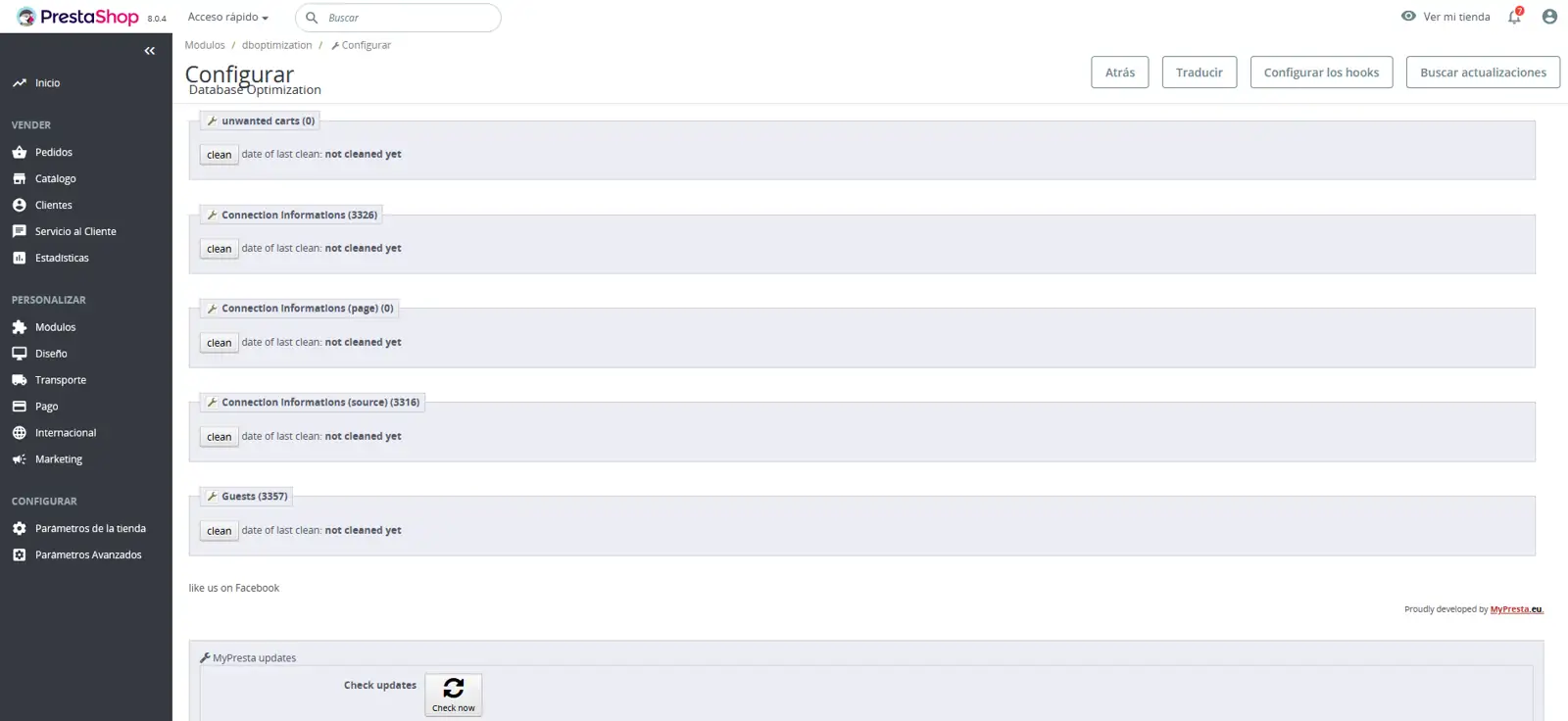
- Prestashop Database Optimization (Free): Allows cleaning records stored in the DB corresponding to unwanted shopping carts, connection information (Statistics related to visitors), connection information related to viewed pages and page types, connection information related to the origin of visits, and information about store visitors/guests.
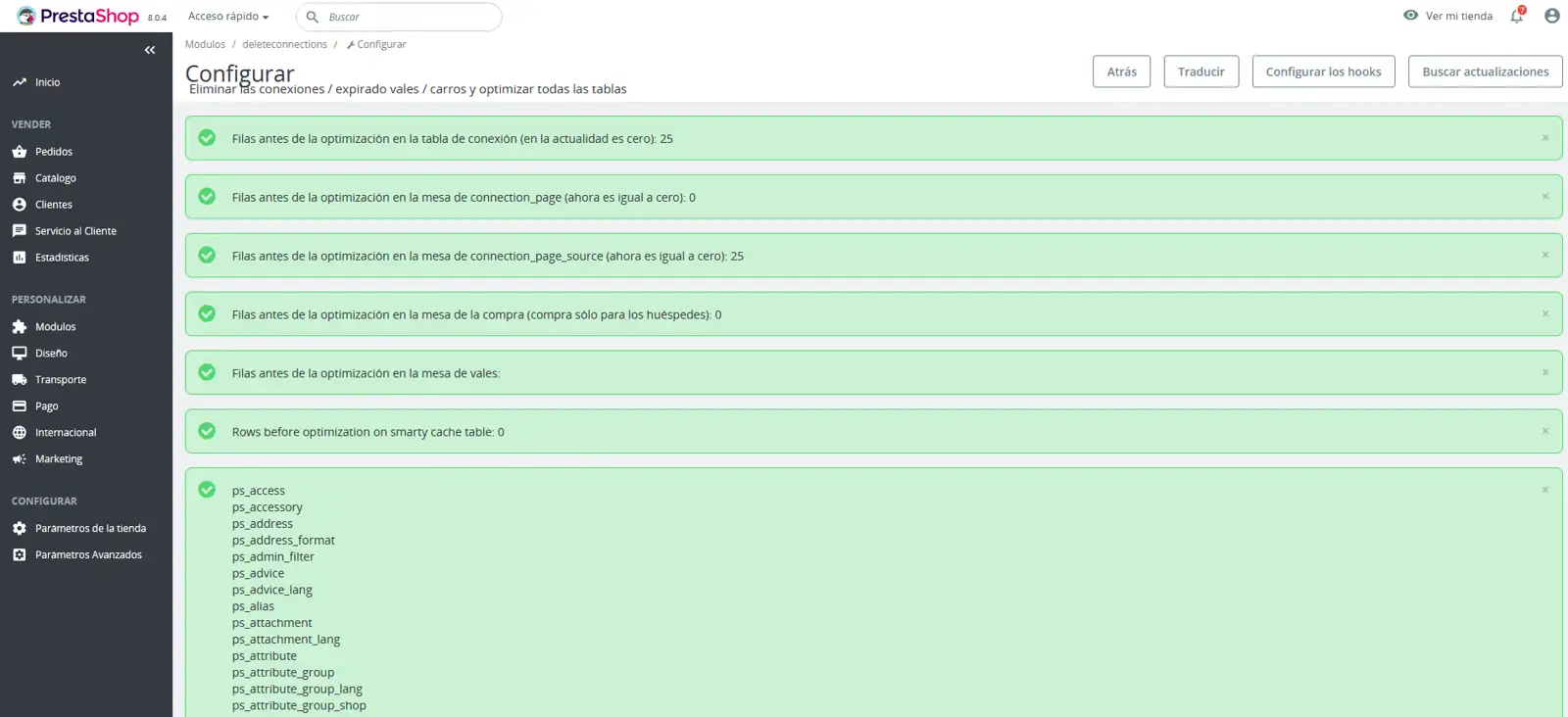
- Prestashop Delete Connections (Free): Deletes and optimizes records in the database tables corresponding to the tables, connections_source, connection_page, cart, etc...

- Ultimate Database Optimizer: (Paid) Monitors, optimizes, repairs, defragments, cleans dynamic tables, and solves database errors. Advanced functions for comprehensive and periodic maintenance of the DB.
3. Prestashop Application
This section combines tools and tips that can help you improve the performance of your store created with Prestashop, so that the server will be able to more efficiently handle queries and requests from a greater number of users, and therefore you could obtain more sales.
3.1 Configuration (Smarty, Debug Mode, Optional Features, CCC, Cache)
These configuration options of the Prestashop application itself are available in the "Advanced Parameters\Performance" section of the administration panel (Back-office).
Smarty
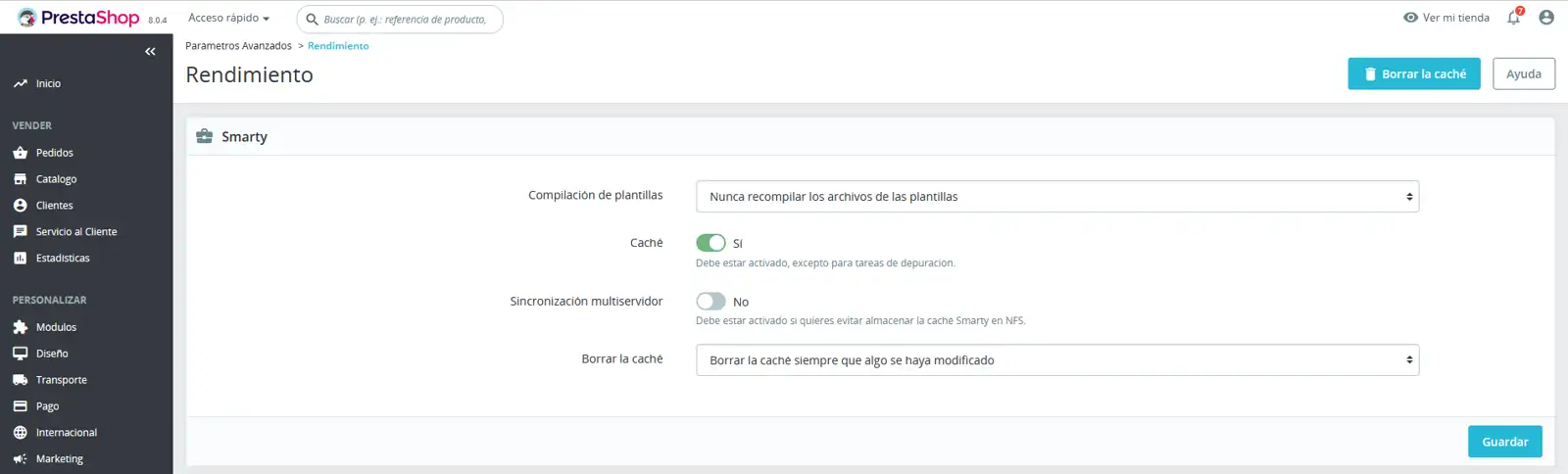
Smarty is the name of the template engine used by PrestaShop themes and has the following options:
- Template compilation To improve front-end performance, PrestaShop caches HTML pages, and 3 modes of action can be defined:
- Never recompile template files. The normal behavior: HTML pages are compiled and stored in the browser's cache memory and are displayed as they are, even if the theme has changed since then. This option is recommended if the store is in production and no visual changes will be made at the template file level. It is the option enabled by default and the one that provides the most performance to the store, improving the site's loading speed.
- Recompile templates when files are updated. PrestaShop is able to know if a theme has been modified, so the application only recompiles the template files if it detects that its content has been modified. We recommend this option if modifications are made to the template files from time to time.
- Force compilation. Only activate this option if you are editing a theme and want to see the changes made every time you reload the page. The Smarty system will compile the template files every time the content is shown to the web user. This mode notably reduces store performance. This option is only recommended to be activated while maintenance work, development, or important modifications are being carried out on the website.
-
Cache: This option makes it possible for you to disable the cache of all files, and not only those belonging to the template files. Disable this option only for the debugging of modules and/or templates. In any other case, you should leave it active. The "Clear Smarty cache" option makes it possible to clear the cache memory with a single mouse click, instead of having to go and delete the files from the FTP server. It controls the use of cache files for the content shown on the Frontend and the queries to the database. It is very important that this option is activated; otherwise, a decrease in the website's performance will be experienced. Its deactivation is only recommended for error debugging tasks.
-
Multi-server Synchronization. This function allows the synchronization of the cache between multiple interconnected web servers, optimizing performance in distributed web hosting architectures. By enabling it, the consistency of the data stored in cache across all servers is ensured, avoiding discrepancies and improving the overall efficiency of the system.
-
Clear cache. - This is the recommended option for most online stores. By clearing the cache after each modification (products, design, configurations), it is ensured that visitors always see the most updated version of the site. This practice guarantees consistency between the displayed content and the information stored in the database, preventing visual and functional errors.
Debug mode

From the debug mode, you can choose to reduce the impact that certain functionalities have in PrestaShop, and thus be able to accurately evaluate where an error comes from. This section should only be used for control and error debugging, since debug mode slows down the loading of store elements and shows the existing error messages on the Frontend. For this reason, it is very important to have all its options deactivated while the store is in production.
If you have to activate any of these options to debug errors, the store must previously be in maintenance mode; otherwise, website users could experience problems and errors during navigation on the website.
Debug Mode Options:
-
Disable overrides. Many of PrestaShop's features can be overridden. If you enable this configuration, all code overrides will be deactivated, and you will be able to determine if the problem comes from PrestaShop's own code or from a third-party module.
-
Debug mode. By activating this option, technical error messages will be visible. This is useful when a person is helping another who does not have access to your store, but needs to know what is happening technically.
Modules
Disable non-native modules. PrestaShop's native modules are exhaustively tested so they should not present any type of problem. If you enable this option, you can determine if the problem comes from PrestaShop's own code (core or module), or from a third-party module.

Optional features

Some PrestaShop features can be deactivated if you do not use them, as they can slow down your store.
If your catalog currently has products that make use of these features, you will not be able to deactivate them. You will have to delete those products to be able to deactivate these options.
You can deactivate the following catalog features:
-
Combinations. Product combinations allow you to offer a wide range of variants of the same item, simplifying the management of your catalog and improving the shopping experience for your customers. With this function, you can present a single product with multiple options, such as different sizes, colors, capacities, materials, styles, etc., allowing your customers to customize their purchase according to their preferences.
-
Characteristics. Product characteristics allow providing specific and detailed information about each item: weight, material, country of origin, etc.
-
Customer groups. Customer groups allow you to group customers within the same group in order to give them certain privileges and restrictions: discounts, module restrictions, etc.
(CCC) Combination, Compression, and Cache.
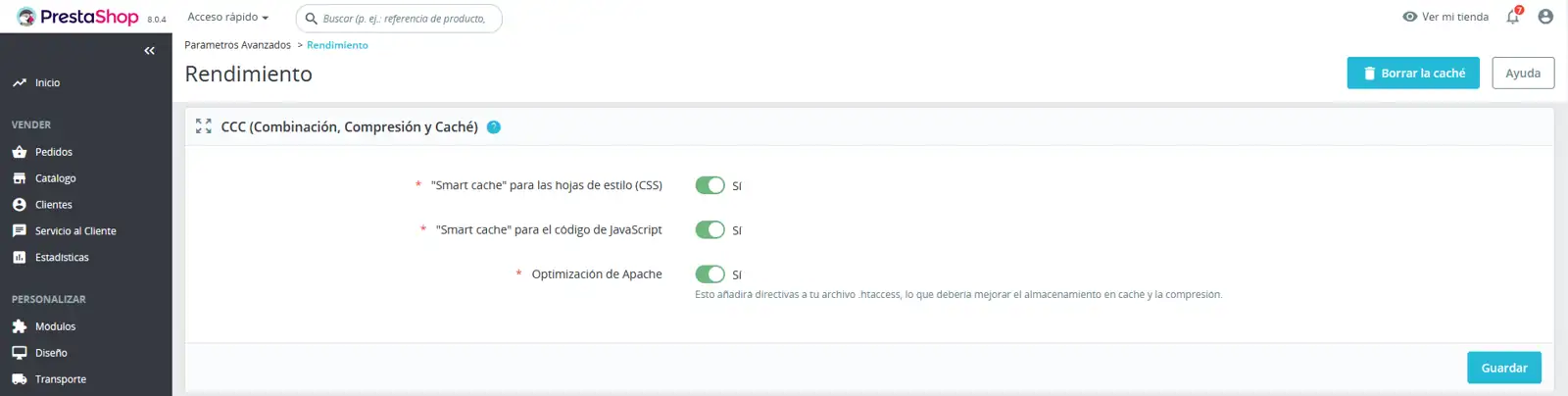
CCC is a set of tools intended to minimize server load and the loading time of the store's theme.
This does what its name indicates: it combines text files of the same type into a larger file, which reduces the number of files to download; it compresses the file using the Zip algorithm, which makes it download faster; finally, the compressed file is cached, so the server does not have to perform this process every time a page is loaded, which relieves the load on the server's processor.
Options (CCC) Combination, Compression, and Cache:
-
"Smart cache" for stylesheets (CSS). CSS files are text files, which can be safely combined and compressed. This option unifies all style sheets with CSS code coming from modules, templates, and custom codes and compresses them into a single file to reduce its weight and increase the reading speed of its content.
-
"Smart cache" for JavaScript code. JavaScript files are text files, but their combination can sometimes be problematic. Make sure to test everything before leaving this option activated. This option unifies all Javascript codes coming from modules, templates, and custom codes and compresses them into a single file to reduce its weight and increase the reading speed of its content.
-
Apache optimization. This configuration setting will modify the web server configuration file in order to make it more efficient for CCC. Prestashop inserts advanced code into the .htaccess file located in the main directory of the store, to make use of the browser and server cache and the compression of the website content through Gzip and Deflate.
It is recommended that all these options are activated and only deactivated for error debugging or during the development phases of the online store.
Media servers (Use only when CCC is activated)
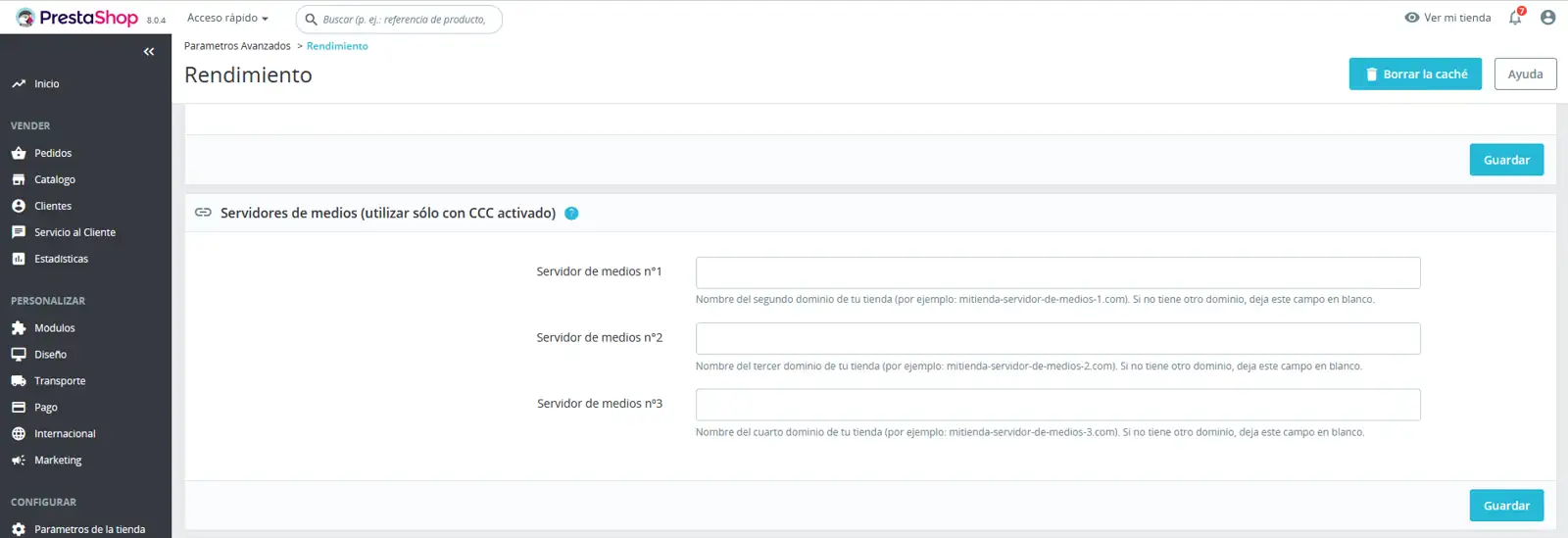
This section allows redirecting part of your store's traffic (images and video files, for example) to other servers under your control, through other domains or subdomains – generally, the files are hosted on a CDN (Content Delivery Network).
This is one of the techniques that most improves site performance since it distributes the load of some web elements across different CDN servers. This translates into placing elements such as images, templates, and modules on other servers. In this way, when a user visits the store, the browser requests the information they host from each of these servers. This causes the load not to be assumed by a single server, but rather each one assumes the load of its elements.
By configuring this option, the performance increase and the increase in web loading speed is extraordinary.
In Cloud servers with SWPanel, you can automatically activate the CDN service without the need to configure this section of Prestashop and only by following the steps described in the Manuale: How to activate Cloudflare CDN via SWPanel for your Hosting service; additionally, you can also apply various configuration parameters described in Manuale: How to adjust Cloudflare CDN and cache parameters
Cache
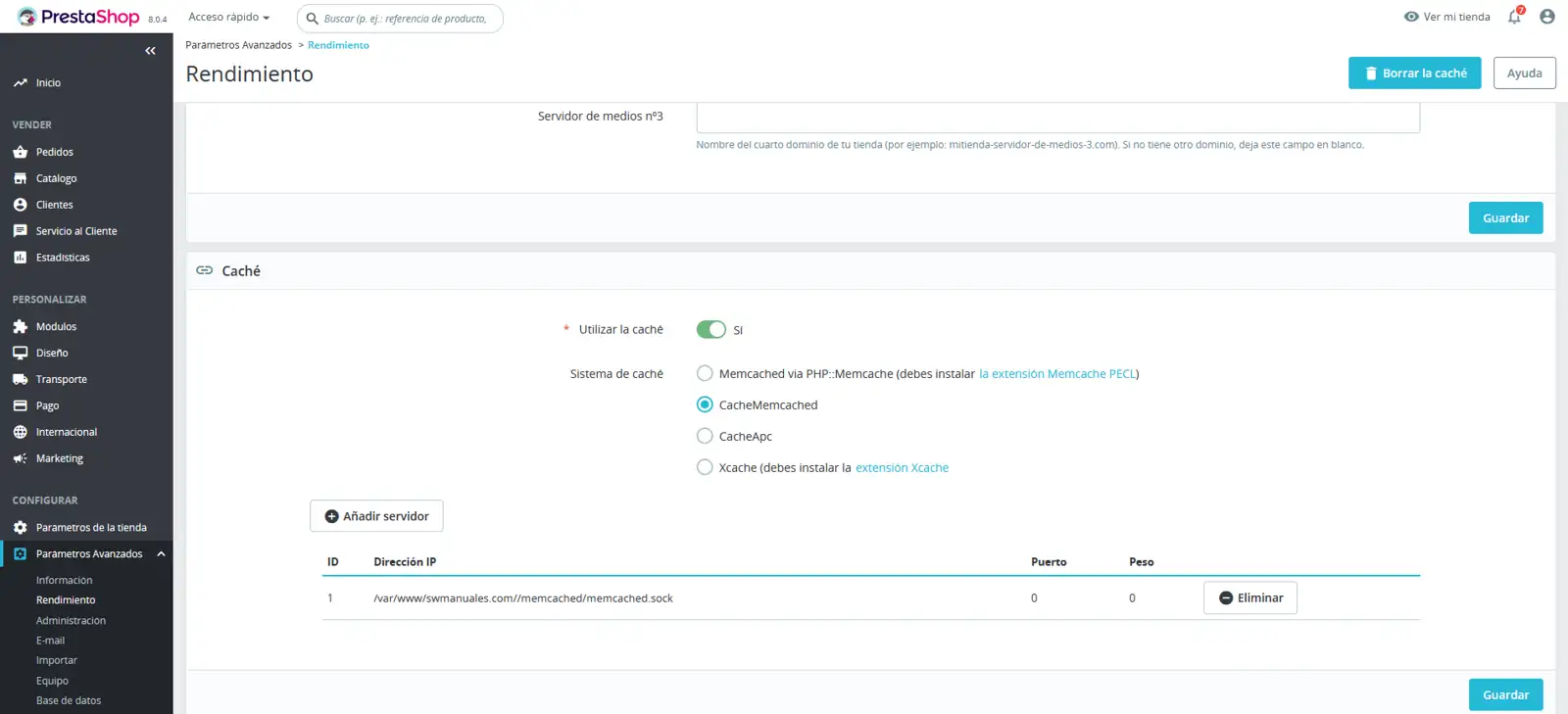
The server cache stores static versions of your dynamic web pages, allowing them to be served quickly to your visitors. This significantly reduces server load and compilation times, improving the overall performance of your store.
Difference from Prestashop Cache:
Unlike the Smarty cache (native to Prestashop), the server cache is managed at the hosting level. Therefore, its configuration and management require additional considerations:
Prerequisites:
- Cache Extension Installed: Before activating any server cache system, ensure that the corresponding extension (for example, Varnish, Redis, Memcached) is installed on your server.
Considerations on Dynamic Content:
- Frequent Updates: If your online store experiences constant changes (new products, images, design updates), deactivate the server cache and perform manual cleanings. Otherwise, the changes might not be correctly reflected for your visitors.
- Cache Cleaning: Remember that server cache cleaning is independent of Prestashop cache cleaning.
Configuration Options:
This section allows you to activate the server cache and select the caching method compatible with your hosting provider.
SWPanel Users:
- If you use a hosting server managed with SWPanel, you can take advantage of the SmartHosting+ system based on CacheMemcached. See the Manuale: How to configure Smart Hosting + in your Prestashop for detailed instructions.
Key recommendations:
- Evaluate the frequency of updates: If you make constant changes, you can deactivate the server cache.
- Ensure the cache extension is installed: This is a fundamental step before activating the server cache.
- Cache cleaning: If you make manual changes, perform a cache cleaning.
In summary, the server cache is a powerful tool to improve the performance of your online store, but its configuration and management require attention to detail.
3.2 Prestashop Modules
It is common to expand, add, or customize the basic functionalities of Prestashop through the installation of modules/addons. The installation of these modules implies adding more elements to the store's structure and also increasing the server's workload, to a greater or lesser extent depending on its code architecture or its functionalities. To prevent the use of these modules from causing a decrease in server performance, it is essential to provision it with the necessary hardware resources to assume the extra load.
Additionally, we recommend the following practices:
- Install only official modules from the Prestashop Addons platform (Before being published, each module goes through a verification and quality control process to comply with the official platform standards).
- Always keep the module updated to the latest version.
- Install only the essential modules for the functioning of the store.
- Uninstall or deactivate the rest of the modules that are not being used.
- Make use of modules that improve the website's performance, use of cache, optimize the Database, etc.
3.3 Prestashop Update
You should update your site to the latest version of PrestaShop (8.x) to have the performance improvements and security fixes. Keeping the PrestaShop installation updated guarantees the benefits provided by the latest features and optimizations provided by the platform.
To perform the major update from a version 1.6, 1.7 to the latest available version 8.x (1.8), you can use the "official module" 1-Click Upgrade which also generates a previous backup of your online store as part of the update process, so that you can restore it to the original state if an unexpected error occurs.
4 Web images
Images are some of the main elements of a web page or online store. In the case of online stores, each product must contain one or several images. These elements, as happens with the rest, have a determined size. The larger the size and dimension of an image, the greater the workload it generates for the server to be able to process these elements, therefore, the loading time will be greater.
It is very important to optimize the images that will be used on the website, as in this way loading times will be reduced and it will also positively affect SEO.
To reduce the weight of images, we must use file formats or extensions that compress their data while maintaining a high level of image quality. The most widespread formats are the following:
- JPG: Most recognized and used image format for saving photos. Due to its compression, it is a format that loses quality every time you reduce its size.
- PNG: With it, you can add transparencies and, unlike JPG, it is a lossless compression format, ideal for use with all the elements that make up our website.
- WebP: It is a modern image format that, thanks to a sophisticated compression algorithm, generates images of smaller size than JPG / PNG and maintains high image quality. Additionally, search engines like Google improve the SEO positioning of websites that use this format for their images.
Once the format in which we will save the images for our online store is decided, we must pay special attention to their resolution. If the space reserved to visualize an image is 250px, we must create an image exactly of this size, because otherwise, if the image is for example 500px, its visualization will still be 250px and the only thing we will achieve is increasing the weight of the website. For this reason, we advise that you create all images at the real size they will be shown on your web.
To optimize and convert the images of your online store, there are Prestashop modules, generally paid, or also for free some web applications or specific software such as paint.net.