
How to check the mail queue of a Linux server at SW Hosting
Sometimes we may find that our mail server is generating a high message queue. In these cases, it is recommended to check the behavior of the mail server to ensure that everything is working correctly.
CRITICAL: postfix mail is 203 (threshold c =200)
How to check if the services are active
The first thing we should check is that all services related to the mail server are working correctly. To do this, we must go to our SWPanel account and, using the top search bar, access the dashboard of our mail server:
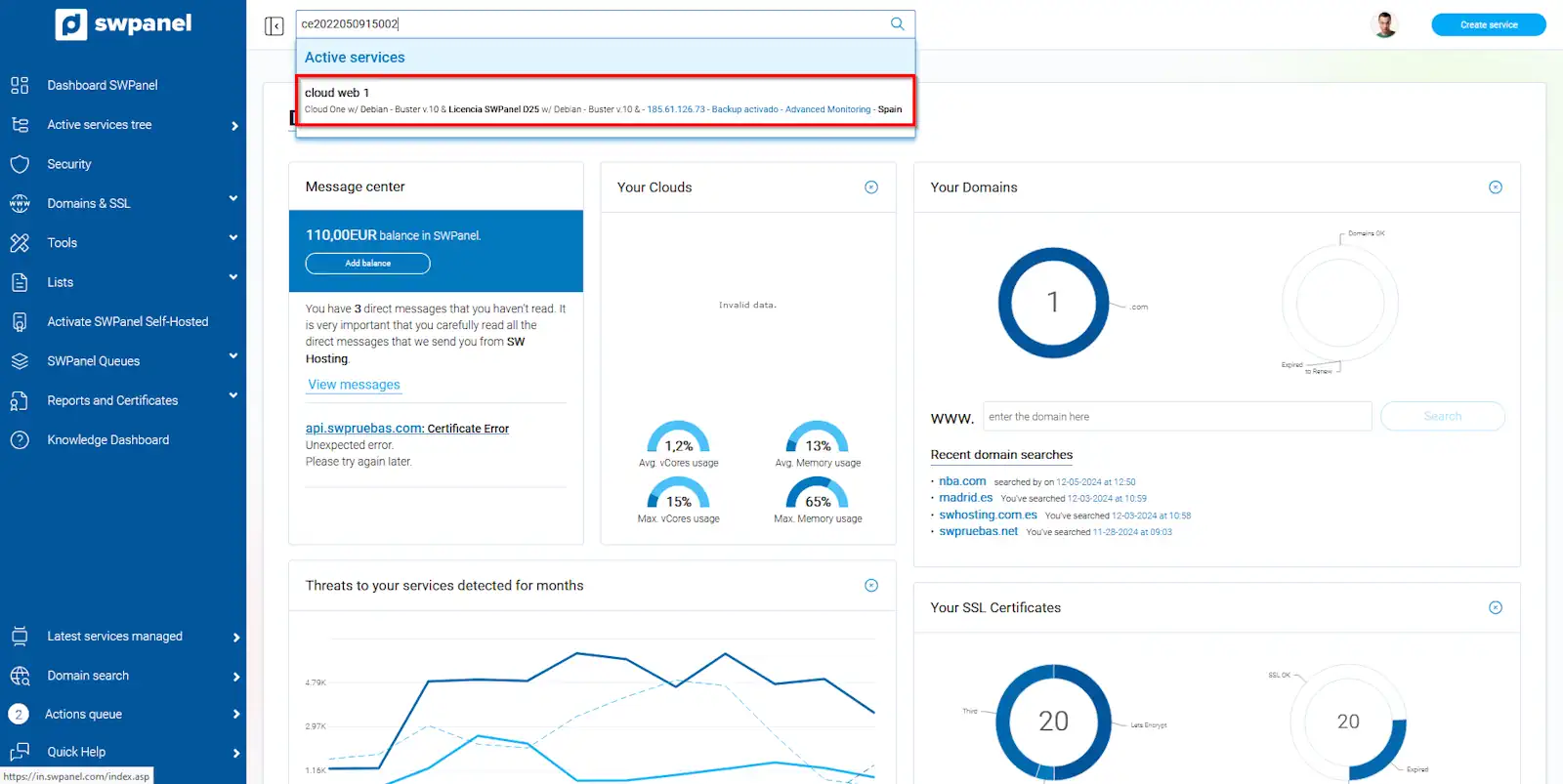
info_capture The screenshot is for guidance purposes. It was taken on version 2025.00.0017 dated 12/16/2024. It may differ from what the current version of SWPanel shows.
Subsequently, through the "Service Status" section, we can see the status of all the mail server services:
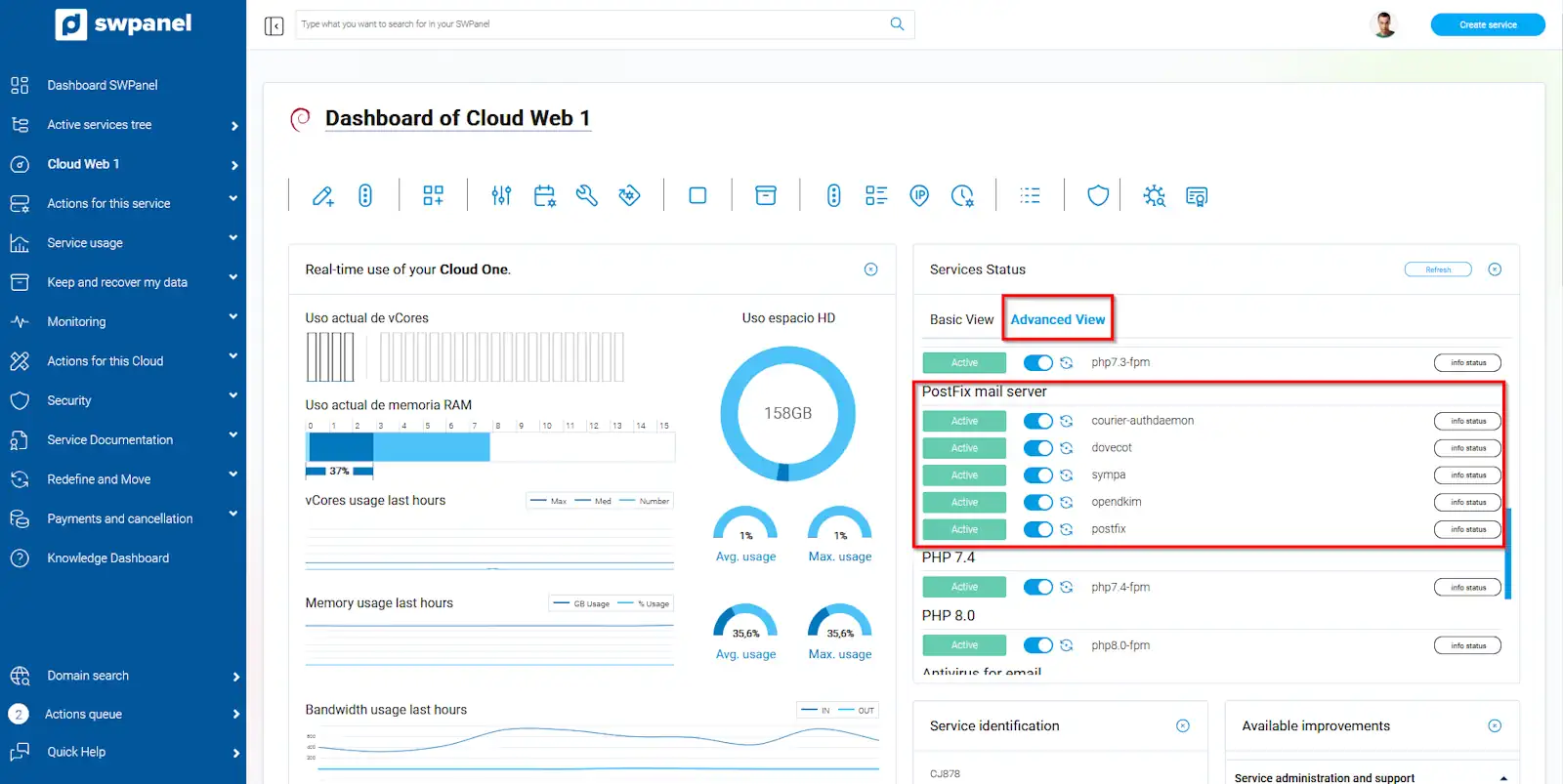
info_capture The screenshot is for guidance purposes. It was taken on version 2025.00.0017 dated 12/16/2024. It may differ from what the current version of SWPanel shows.
How to check the mail server queue
If all services are active, we must review the reason why emails are being stored in the server queue and are not reaching their destination.
To do this, we will connect via SSH to the mail server. In the following manual Manuale: How do I access my Cloud using the console via SWPanel you can see how to connect to your server's console through SWPanel.
Once in the server console, we will use the following command to check the server queue:
mailq
This command will show us the email messages that are in the queue with the following format.
Each email message will be shown with the following parts:
- Identifier: This code uniquely identifies each message on the server. An identifier can only identify one message from the same server.
- Source account: This is the account that sent the message (If the source account is MAILER-DAEMON, the message was sent by the mail server itself).
- Destination account: This is the account to which the email message is addressed.
- Error message: This message informs us, briefly, of the reason why our email message could not be sent.
Finally, at the end of the mailq command output, it will show the current number of messages in the server queue.

info Messages that could not be delivered will be retried after some time. If the number of delivery attempts for the same message is exceeded, it will be automatically deleted.
Most common error messages
The most common error messages are some of the following:
'Over quota': The destination email account is completely full.
'Conection refused': This message is usually due to a large volume of mail being processed at the time the message was received/sent. It will be retried later.
'Conection timed out': The error indicates that the destination server is taking too long to respond to the request made from this server. The message will be attempted to be sent again later.
'Service temporarily unavailable': This is commonly due to the destination server being overloaded or inactive.
For more information about errors when sending emails, you can consult the following manual Manuale: Typical mistakes you can make when sending an email.
How to check the content of an email message
If the Hosting service from which the message was sent does not have a TLS security certificate for mail and the message is in the queue, we will be able to see its content as well as its headers.
To install a free TLS certificate for mail, you can follow the following manual Manuale: How to Activate TLS for my email via SWPanel..
In the event that the Hosting service does have the TLS certificate for mail installed, we will only be able to see the message headers. Its content will be encrypted and therefore unreadable.
To view the content of a message, we must use the following command, replacing "ID" with the actual identifier of the message we want to read:
postcat -q ID
- 'From': Source account
- 'To': Destination account
- 'Subject': Email message subject
- 'Content': Message body

How to delete email messages from the server queue
?? IMPORTANT: If an email is deleted from the server queue, it will be completely impossible to recover it??
To delete an email from the server queue, we can do it in different ways:
- Delete a single email: The message with the specified identifier will be deleted (Replace 'ID' with the actual identifier of the message).
postsuper -d ID
- Delete all emails from an account: With the following command, all emails from the specified account will be deleted (Change the example email account).
postqueue -p | tail -n +2 | awk 'BEGIN { RS = "" } / [email protected]/ { print $1 }' | tr -d '*!' | postsuper -d -
- Delete all emails from the server queue: The mail server queue will be emptied.
postsuper -d ALL deferred