
How to transfer files in any directory of your Cloud server using an SFTP client
The following manual will teach you how to transfer files in any directory of your Cloud server using an SFTP client, logging in as administrator('root'), who has access to all directories on the server. This is useful, especially if you need to transfer files in a directory to which you do not have access using a 'normal' FTP account.
What is an SFTP client?
An SFTP (SSH File Transfer Protocol) client is a program or application that allows users to transfer files securely between a client and a server using the SFTP protocol; this is an extension of the SSH (Secure Shell) protocol that adds file transfer capabilities to the basic functionality of SSH.
The SFTP client provides a graphical interface or a command line that allows the user to connect to an SFTP server, authenticate using credentials (such as a username and a password), and transfer files between the client and the server.
Access credentials
First, you must have the access credentials for your Cloud.
When registering the server, both from the web and from the SWPanel, an email will be sent to your email account with the SSH(IP, port, username and password) access credentials for your Cloud server. The email is similar to the following:
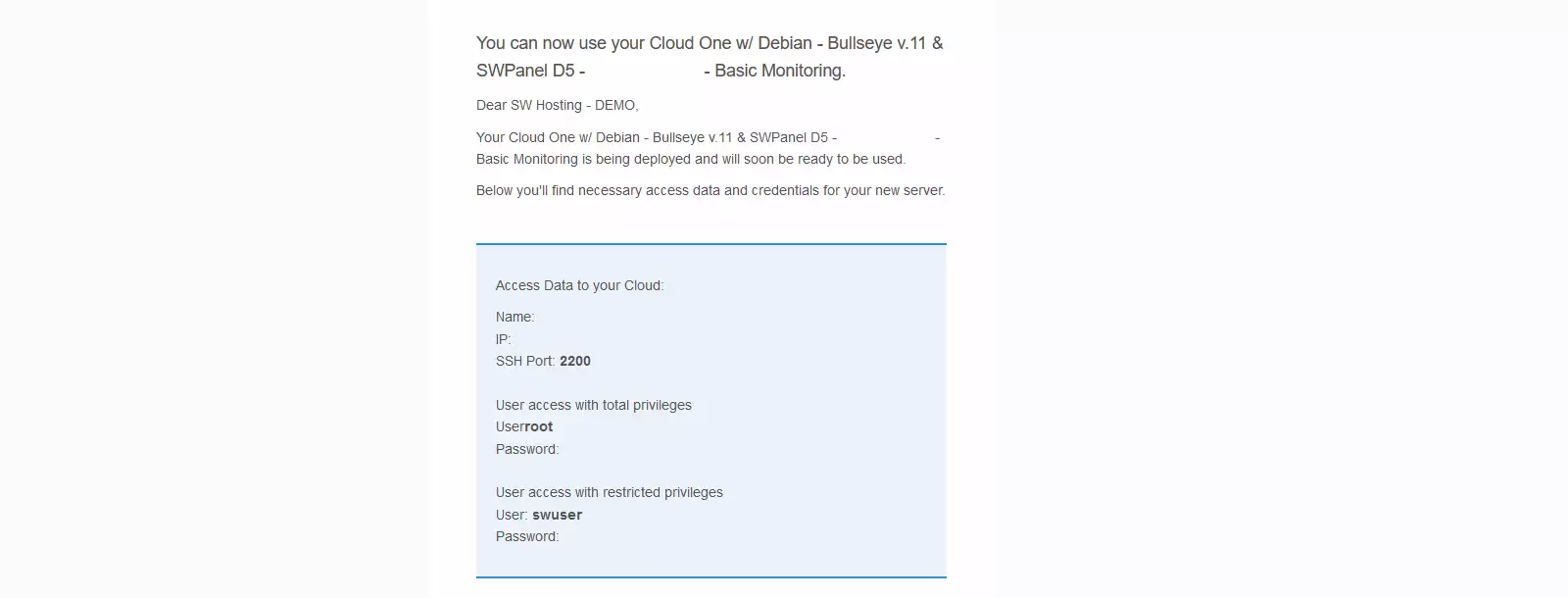
NOTE: If you have a Cloud with an SWPanel administration panel, you can change the administrator('root') credentials with the following manual:
? Manuale: How to change the root password of your Server with SWPanel
Server access via SFTP
To access and transfer your files, you will need to download an SFTP client, a program that is responsible for connecting to the remote SFTP server and managing the sending/receiving of files.
The most popular clients that can use the SFTP protocol are WinSCP and FileZilla. They are free and easy-to-use managers.
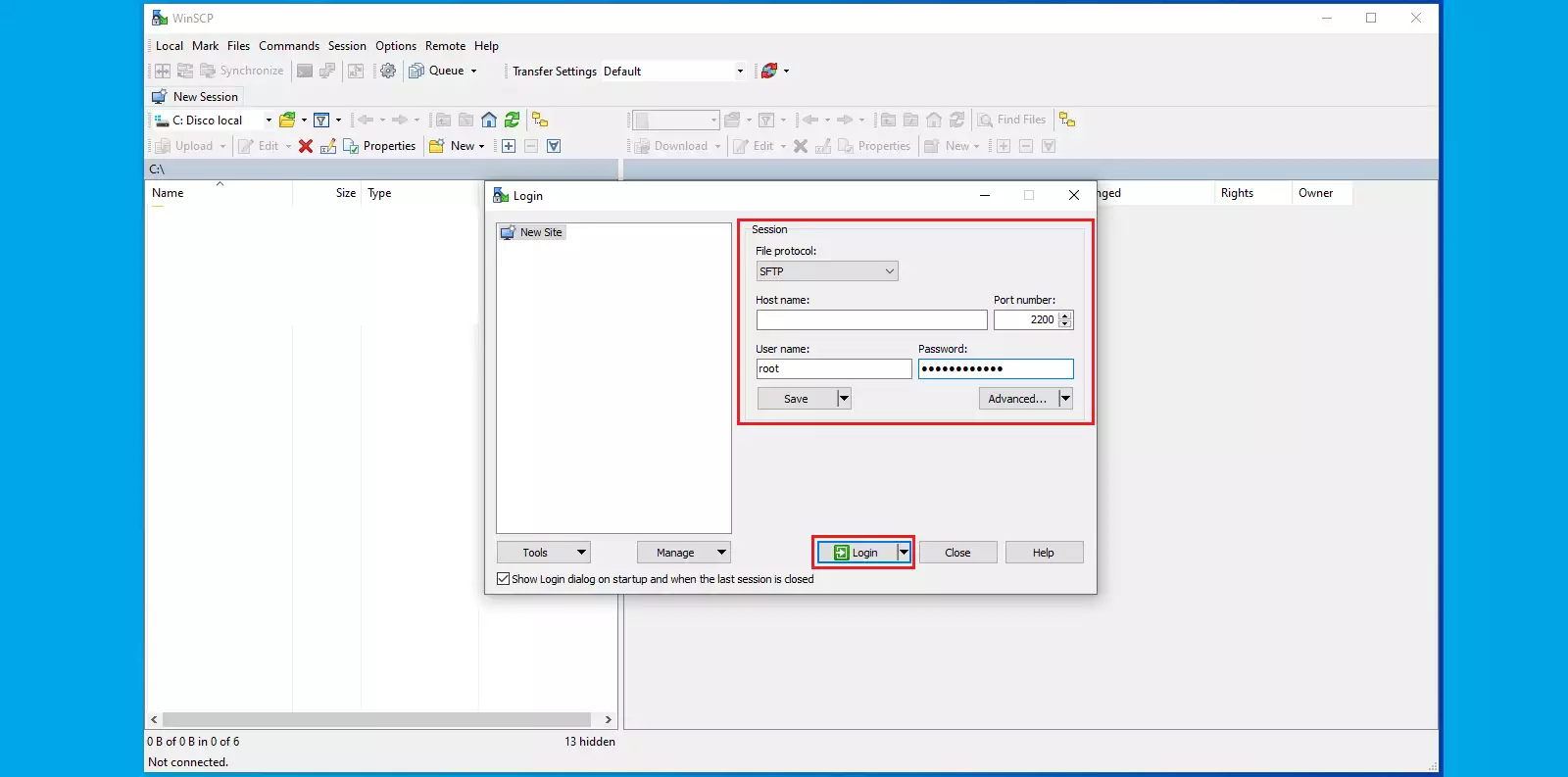
The access data for the SFTP server are:
- Protocol: SFTP
- Server: Corresponds to the IP of your Cloud server
- Port: 2200(usually)
- Username and password: Will correspond to those shown in the access credentials.
Next, we will show an example of an SFTP connection using the WinSCP application:
When accessing the WinSCP application, you will have to create a new connection and fill in the fields with the previously mentioned data, and then click on 'Connect'.
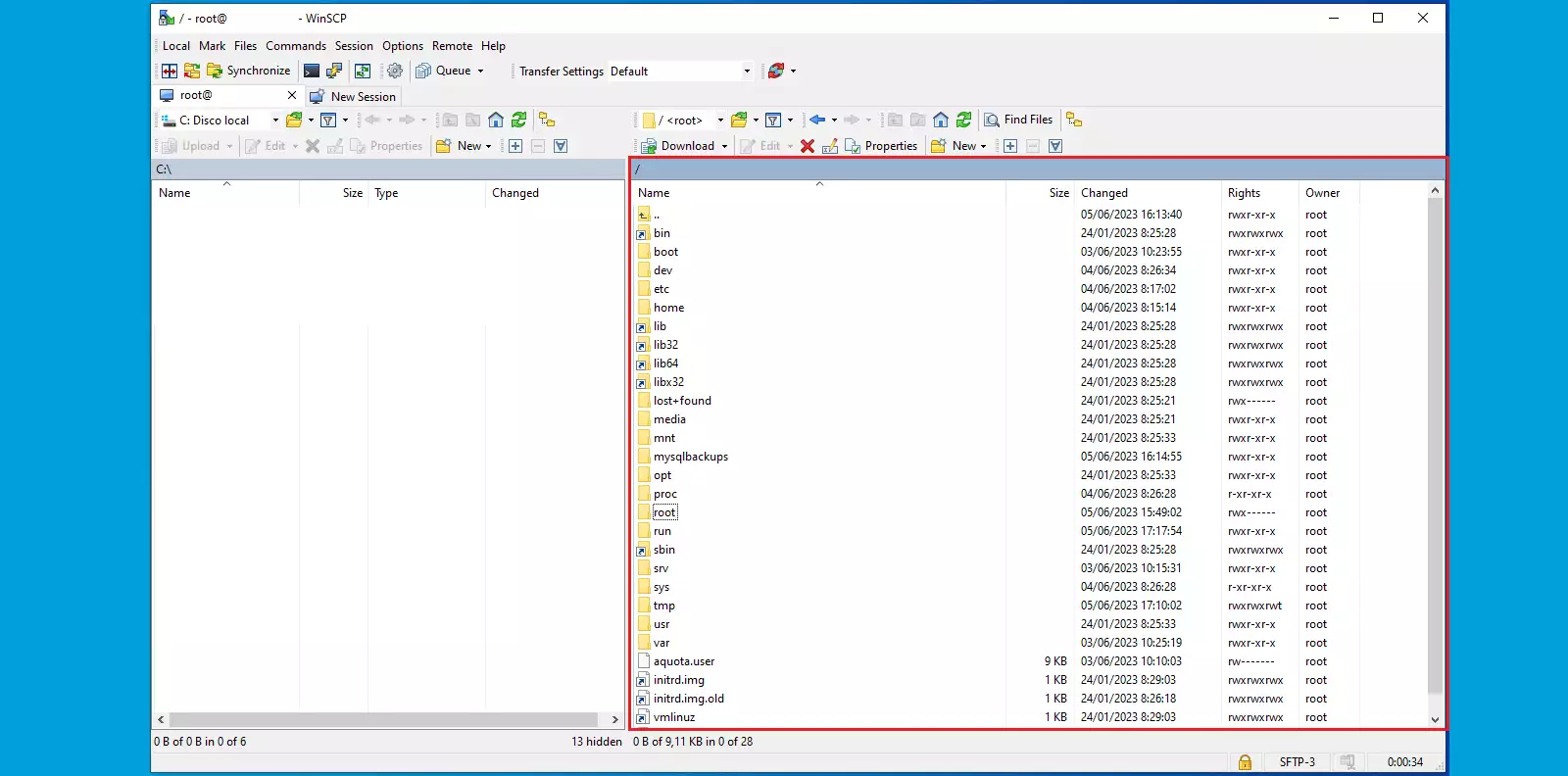
The SFTP connection will then be established; the right section corresponds to the directory structure of the Cloud server, while the left corresponds to the local one.
Done! Now you know how to connect to your Cloud server via SFTP.