
Move your Hosting to a Cloud with SWPanel
The "Move this Hosting to a Cloud" option allows you to change the location of a Hosting and, additionally, split its services across different servers.
If you do not have a Cloud, you can contract one by following the instructions in the following manual:
Manuale: How to create a Cloud with SWPanel as a management panel
Dividing the services of a Hosting refers to separating the Database, DNS, and email services into different Cloud servers.
Important! When splitting the services of a Hosting across different Clouds (for example: Cloud1 with Database and Cloud2 with Web, email and DNS), a service with the same name will be created in each Cloud. Since these services refer to the same Hosting, if the cancellation of one is requested, both will be deleted.
- To start, you must go to the Service Tree of your SWPanel and locate the Hosting service you wish to move.
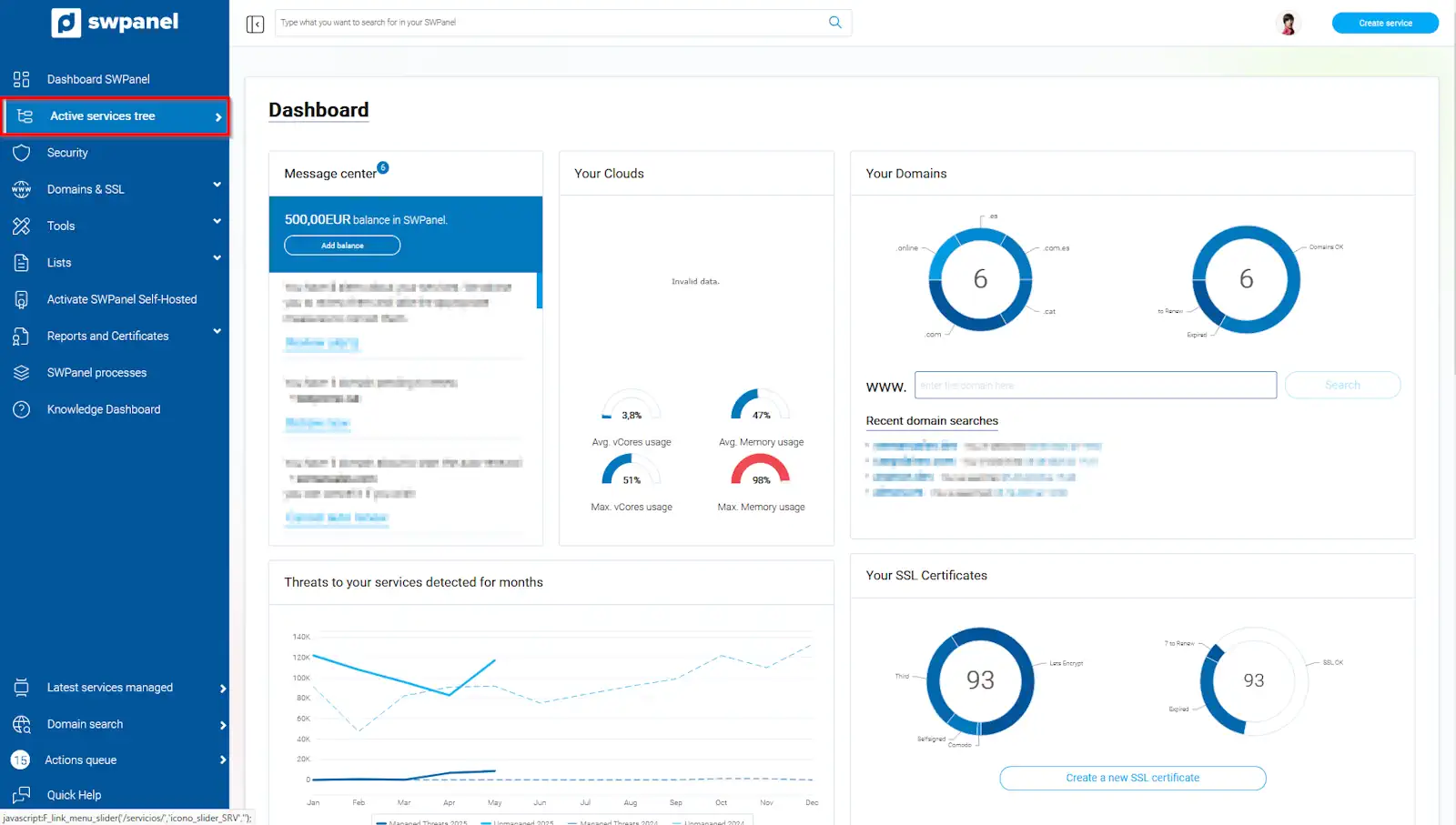
info_capture The screenshot is for guidance purposes. It was taken using version 2025.004.0002 dated 30/05/2025. It may differ from what is shown in the current version of SWPanel.
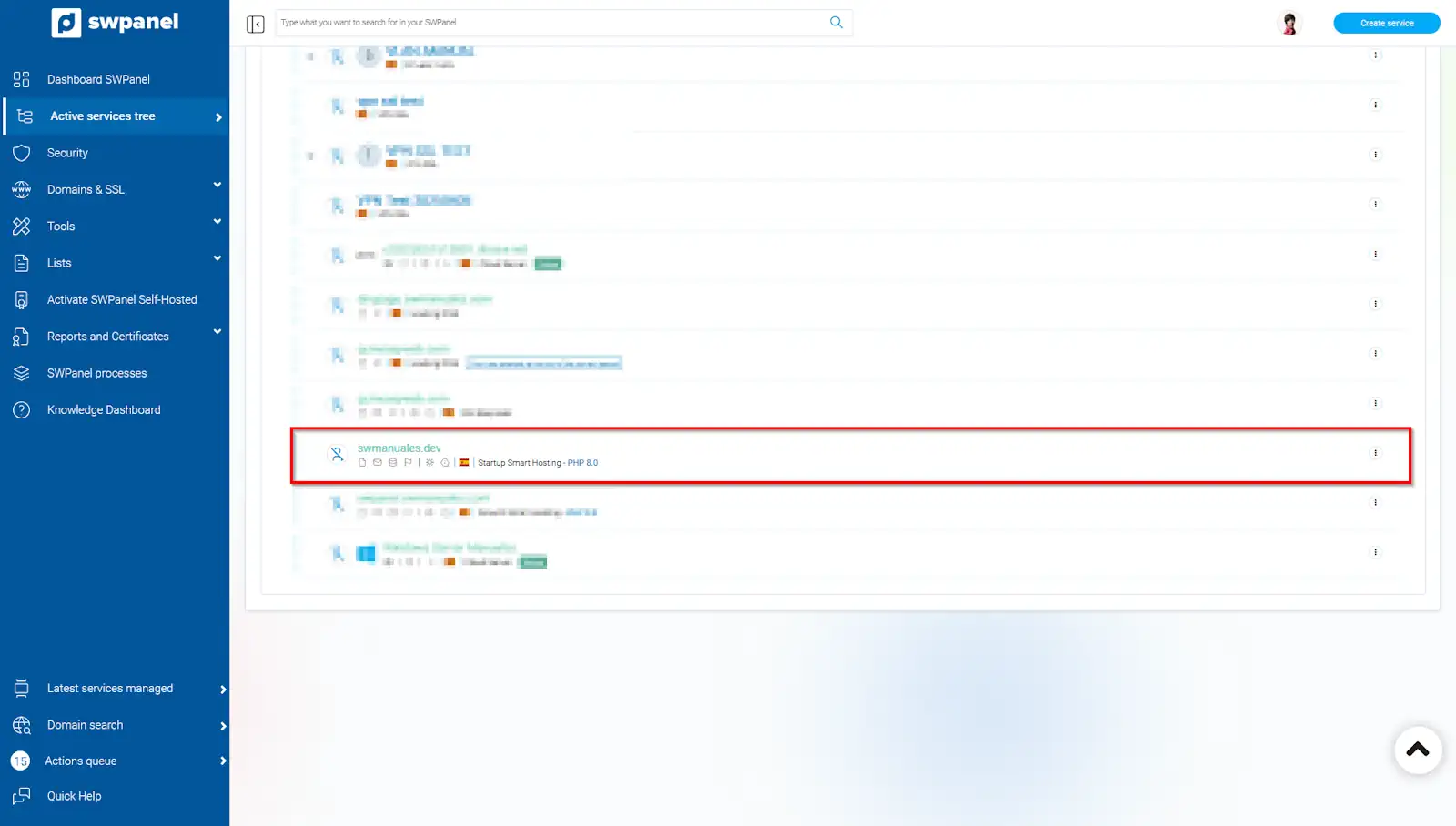
info_capture The screenshot is for guidance purposes. It was taken using version 2025.004.0002 dated 30/05/2025. It may differ from what is shown in the current version of SWPanel.
-
Once located, you must position the mouse pointer on the side menu [···] and click on 'move this Hosting to a Cloud'.
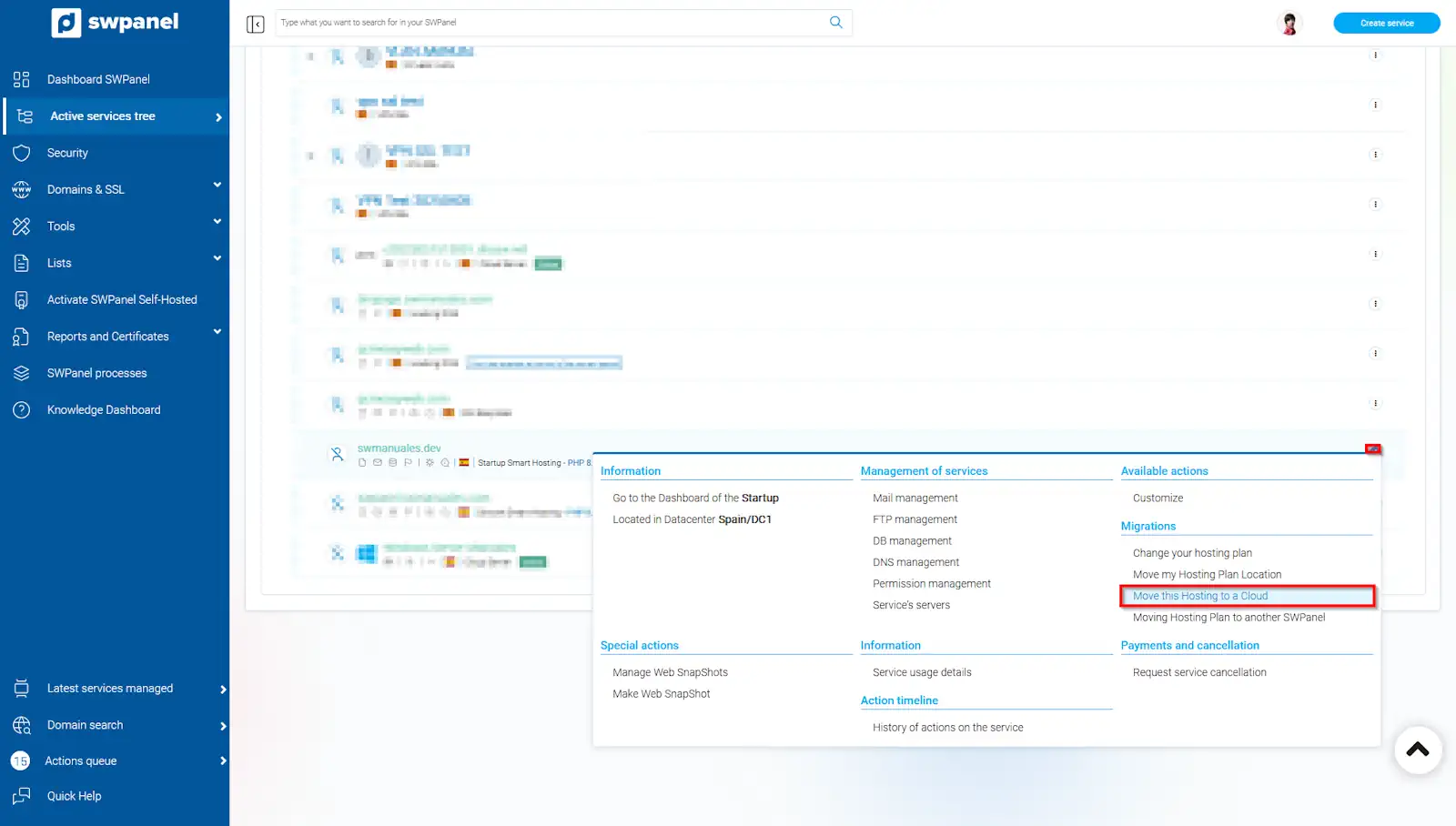
info_capture The screenshot is for guidance purposes. It was taken using version 2025.004.0002 dated 30/05/2025. It may differ from what is shown in the current version of SWPanel.
Next, click on Change the Hosting Plan servers.
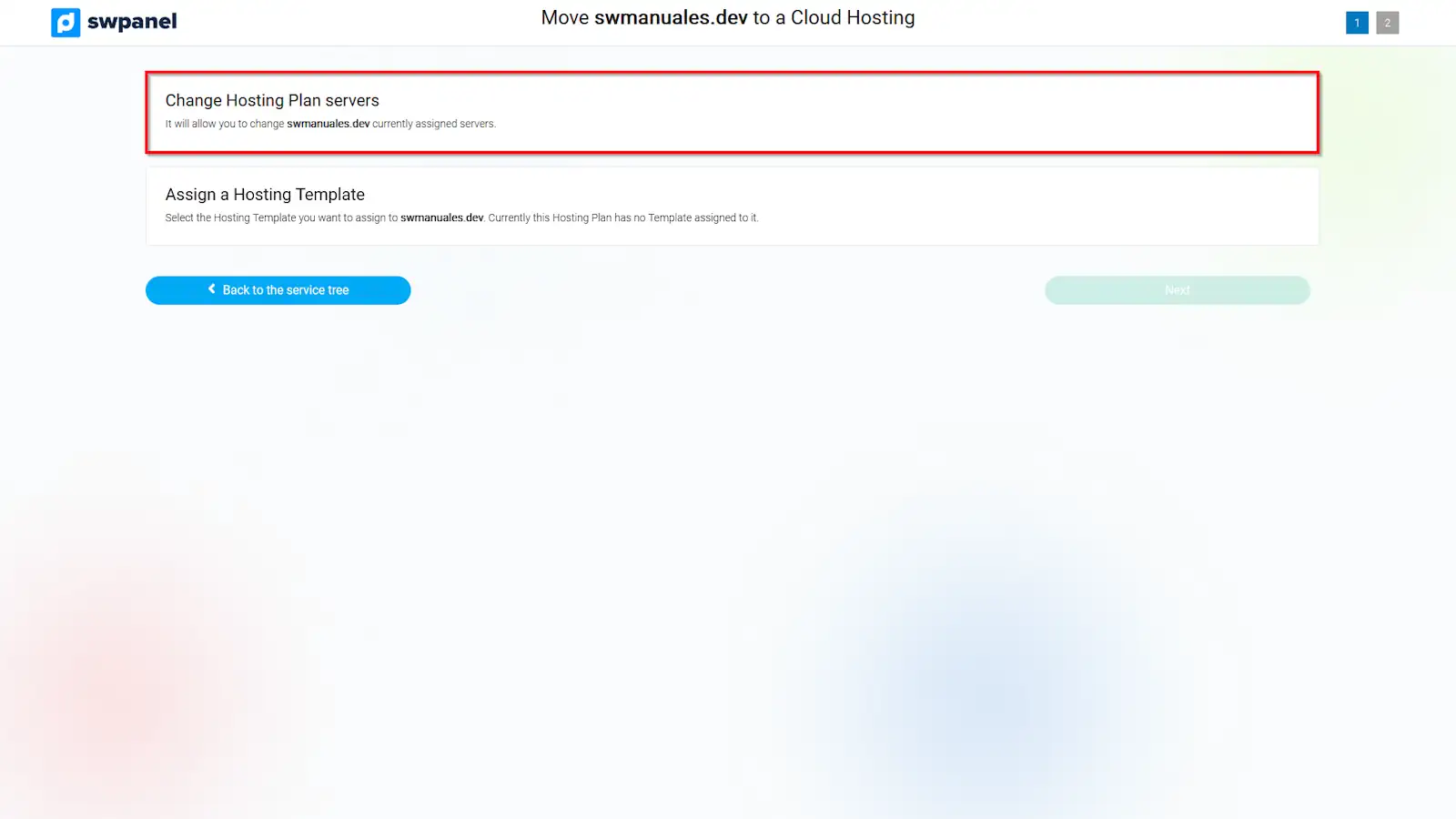
info_capture The screenshot is for guidance purposes. It was taken using version 2025.004.0002 dated 30/05/2025. It may differ from what is shown in the current version of SWPanel.
- Once in the section to move this Hosting to a Cloud, on the left side, you must check the checkbox of the Cloud server to which you want to move the Hosting.
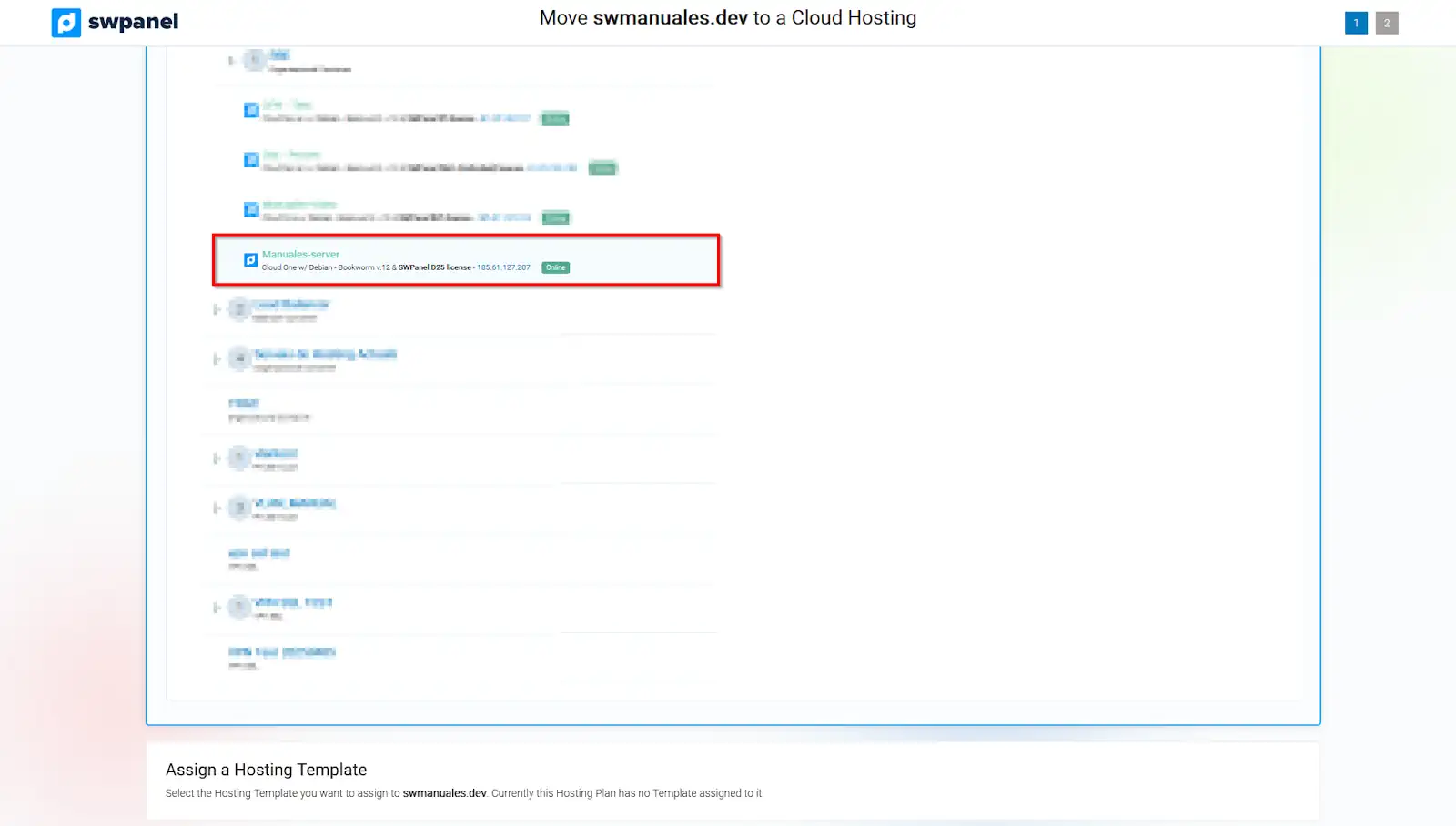
info_capture The screenshot is for guidance purposes. It was taken using version 2025.004.0002 dated 30/05/2025. It may differ from what is shown in the current version of SWPanel.
- On the right side, you must select the Cloud server where you want the different Email and Database services to be located. Also, you must specify which DNS server you want to point to your Hosting.
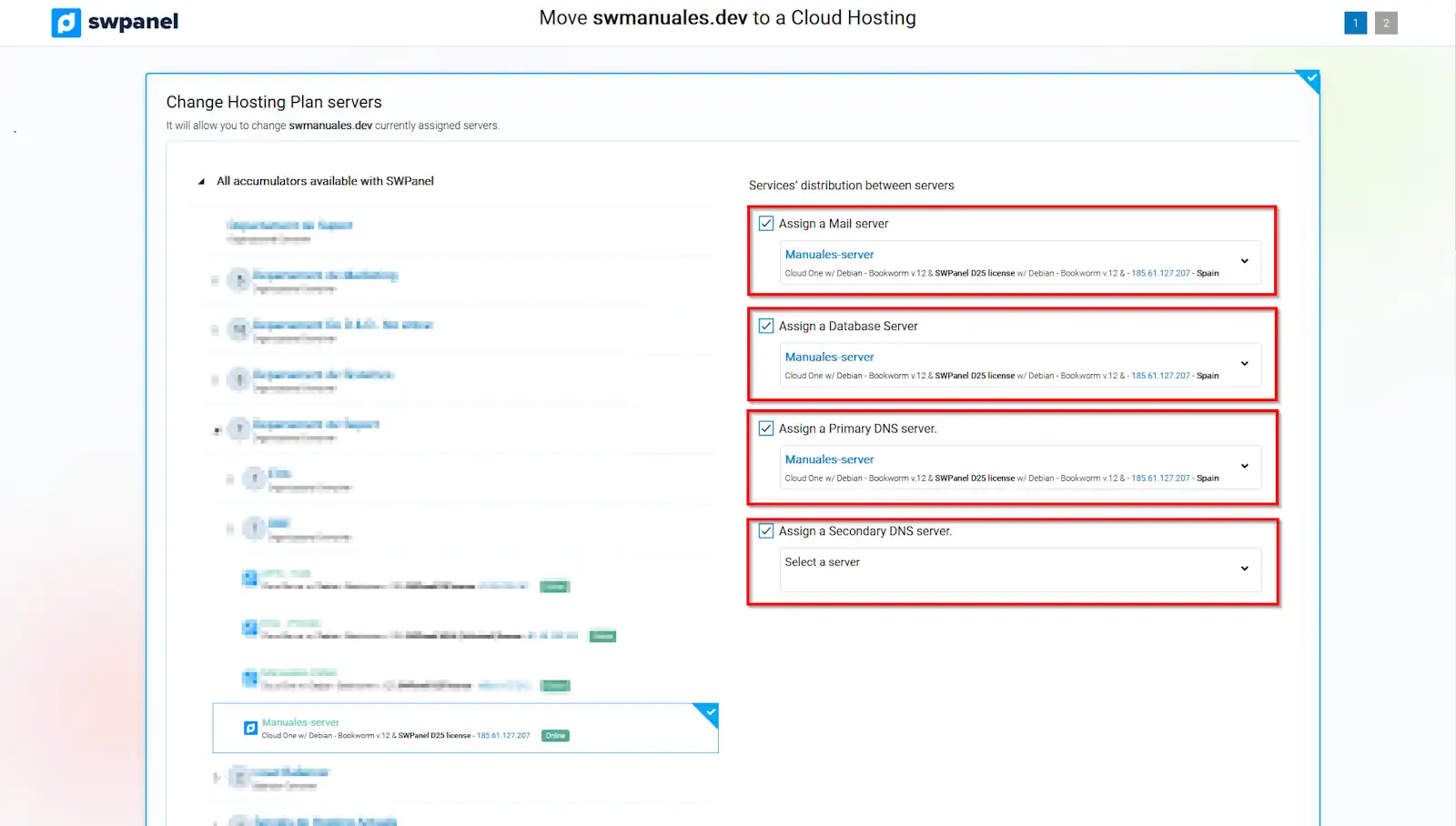
info_capture The screenshot is for guidance purposes. It was taken using version 2025.004.0002 dated 30/05/2025. It may differ from what is shown in the current version of SWPanel.
If you want all the Hosting services to be in the same Cloud, you only need to select the same Cloud server for Email and Database.
Once reviewed, you must click on Next
- In this section, you must finalize the new configuration. Once reviewed, you must click on Accept and finalize.
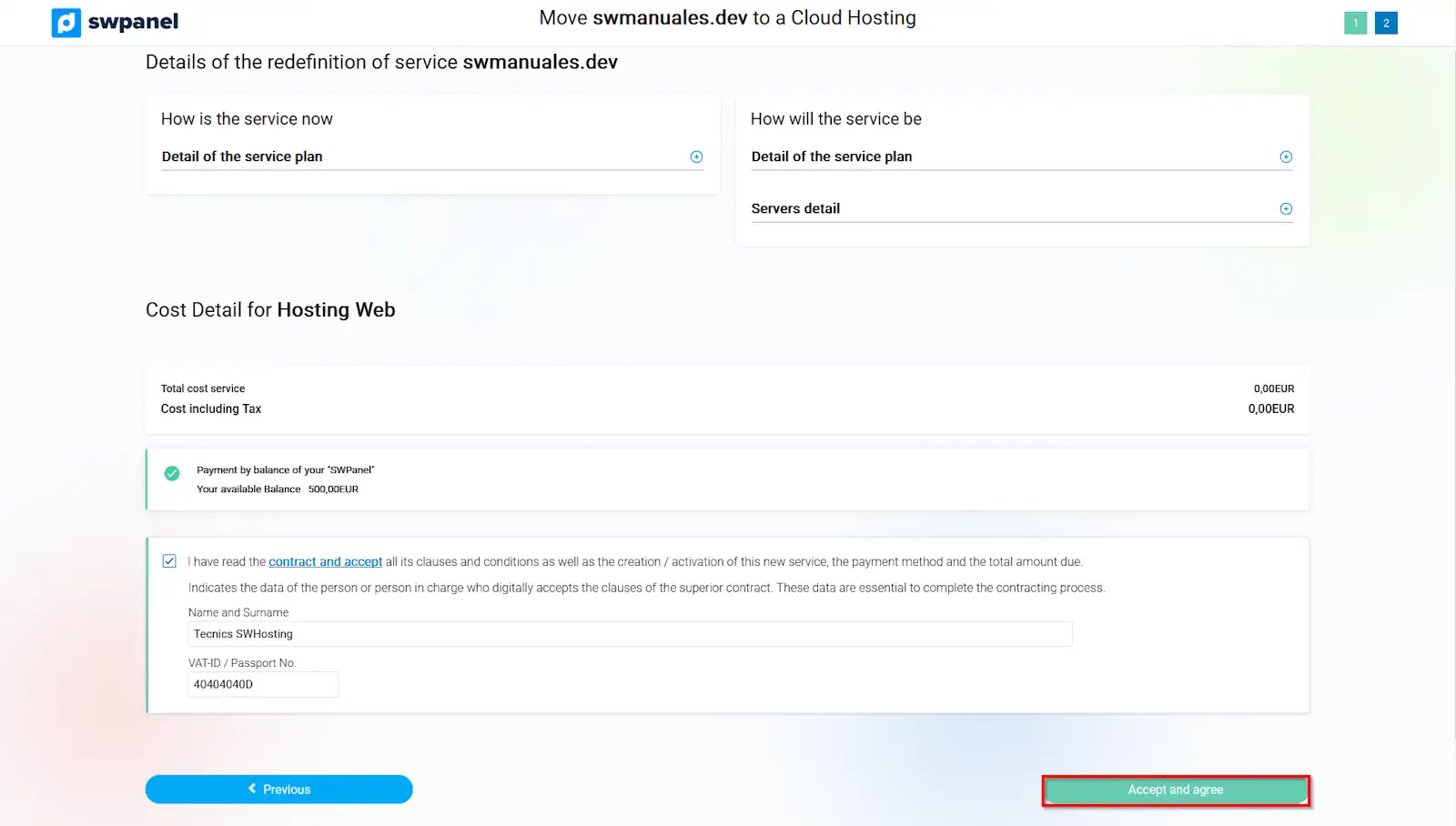
info_capture The screenshot is for guidance purposes. It was taken using version 2025.004.0002 dated 30/05/2025. It may differ from what is shown in the current version of SWPanel.
- Once finalized, the SWPanel will begin to perform the move of the Hosting, and the following message will appear in the Active Services Tree: This service is being prepared, please wait a few minutes...' in your service.
Important! We recommend that before starting the Hosting service redefinition process, you set your website to maintenance mode, so that there are no modifications at the file or database level during the time period required for the service redefinition between your servers.
*Important! When moving services, if the DNS servers have been modified, you must wait for them to propagate again. The maximum time for this operation is 24/48 h.