
How do I create and manage access profiles for SWPanel
To manage access profiles, it is necessary to activate reseller mode in your SWPanel. To activate it, check manual Manual: ##título##
1. What are access profiles
Access profiles are used to define which actions a user can perform within SWPanel and which they cannot. These access profiles are assigned to a user, so they will only be able to see and perform the actions permitted by their access profile and their assigned service(s).
To create a user, assign them an access profile and a service, check manual Manual: ##título##
2. How to access access profile management
To access Access profiles management, you must click on your profile logo in the upper right part of your SWPanel. Subsequently, click on My SWPanel and, finally, click on SWPanel User Management:
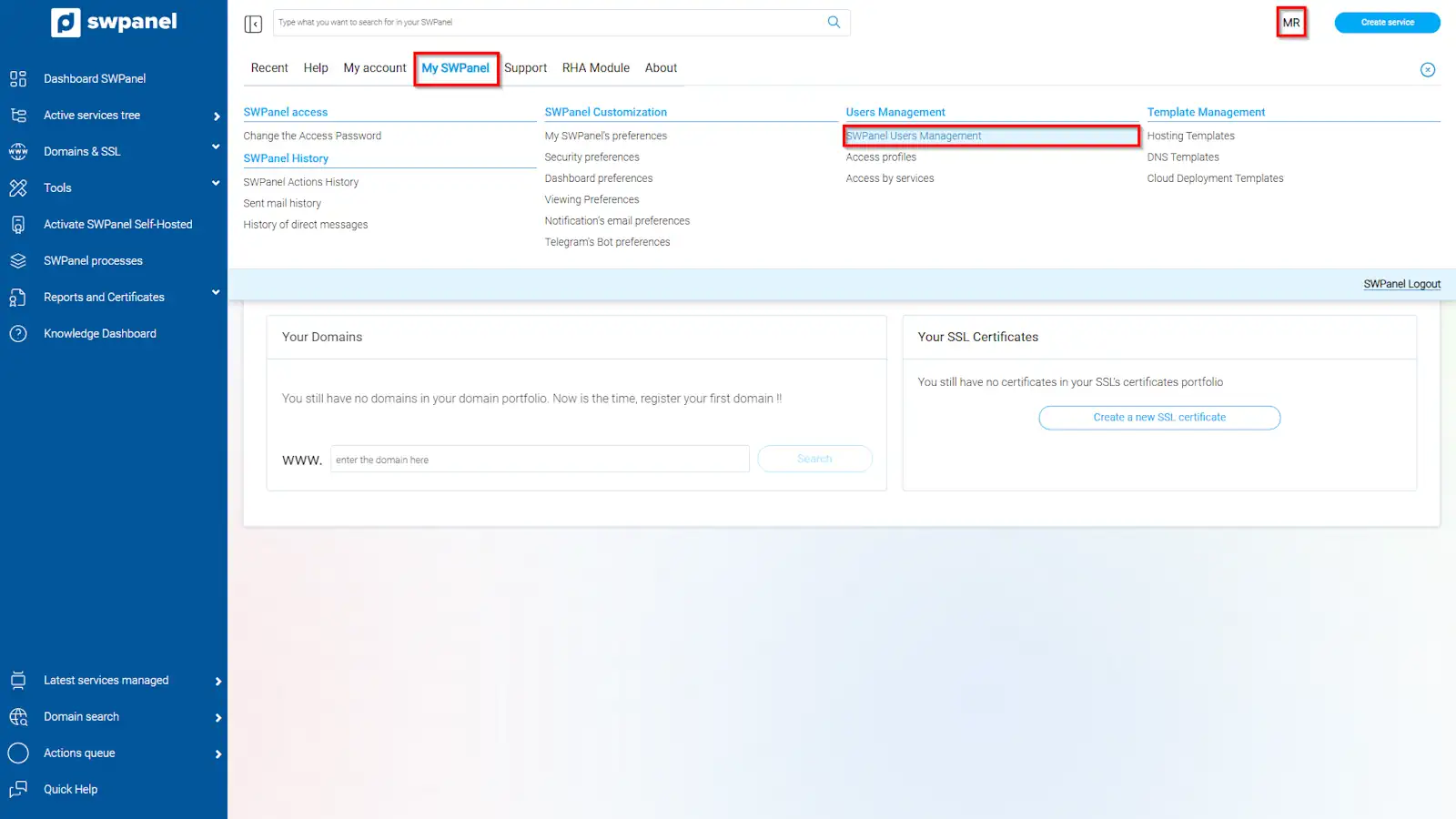
info_capture The screenshot is for guidance purposes. It was taken using version 2025.01.0002 dated 13/02/2025. It may differ from what the current version of SWPanel shows.
Next, click on the Access profiles tab:
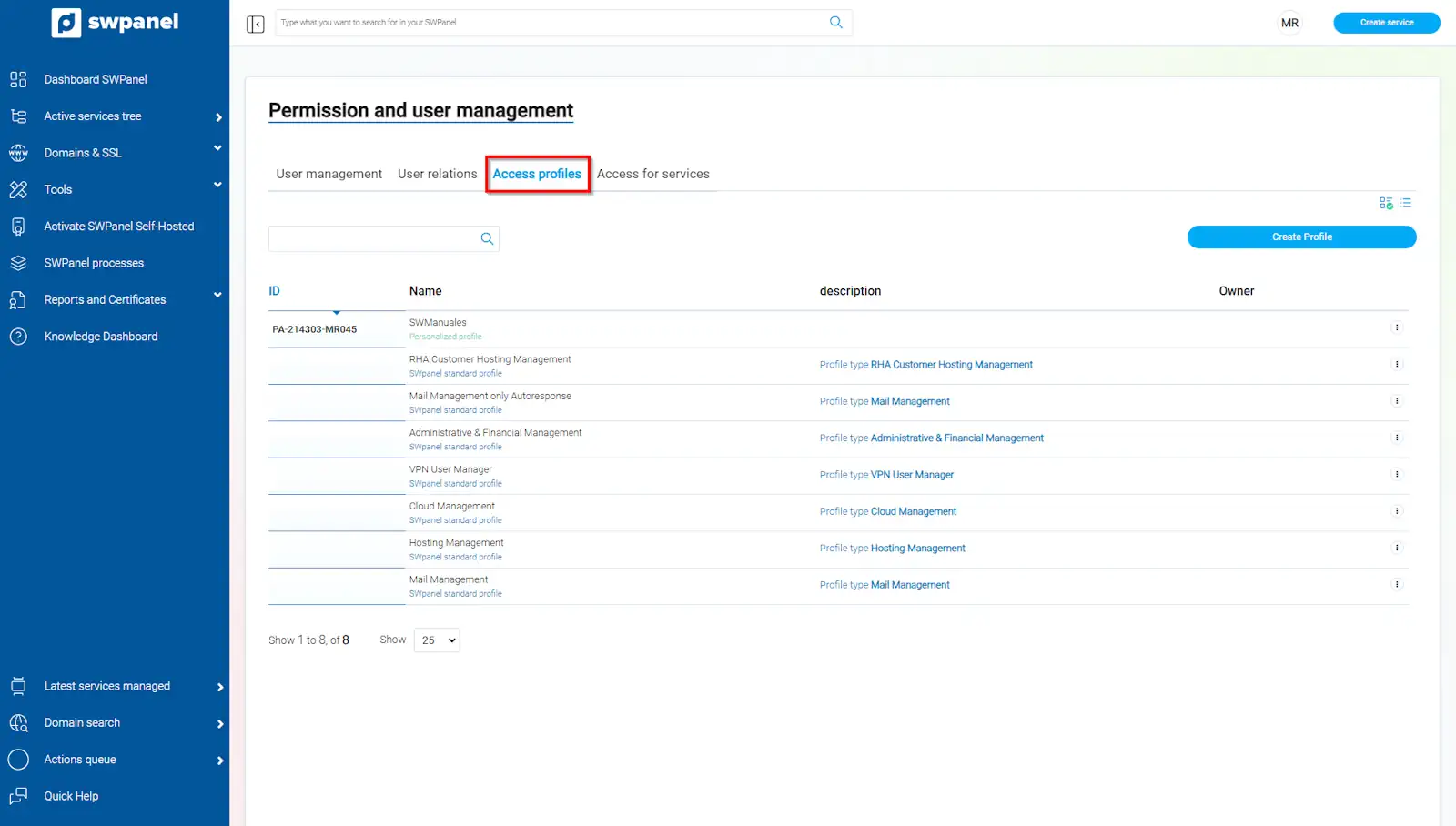
info_capture The screenshot is for guidance purposes. It was taken using version 2025.01.0002 dated 13/02/2025. It may differ from what the current version of SWPanel shows.
3. Default access profiles
There are seven automatically created access profiles. These profiles are configured so that users can perform the most common actions.
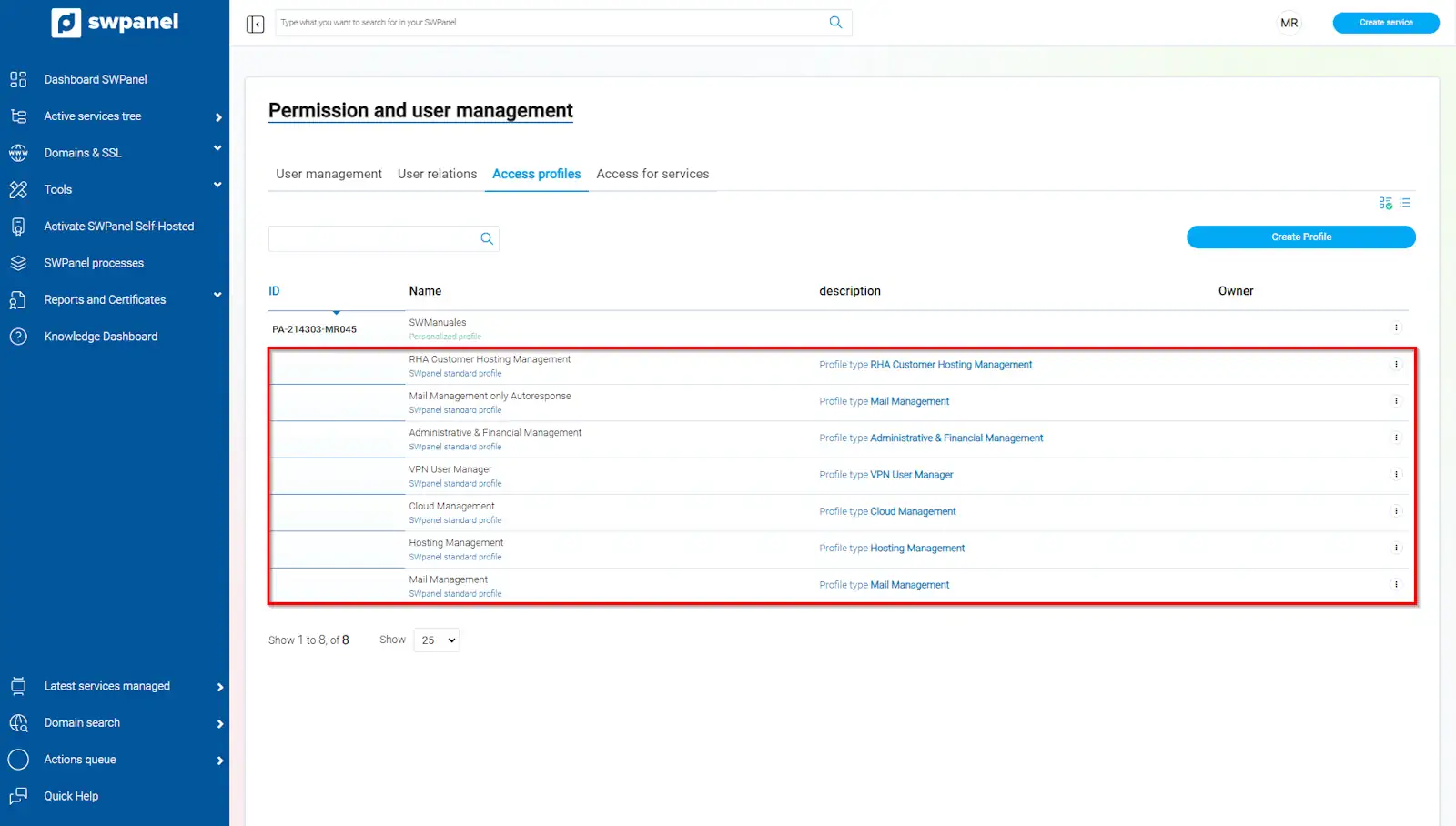
info_capture The screenshot is for guidance purposes. It was taken using version 2025.01.0002 dated 13/02/2025. It may differ from what the current version of SWPanel shows.
If you need to create a user profile with specific permissions, check the section '4. How to create a custom access profile'.
Hosting Management
The Hosting Management profile has the permissions assigned so that the user can manage everything related to the assigned Hosting service: create, modify and delete databases, FTP account management, email accounts, DNS record management, installation and management of CMS (WordPress, PrestaShop, Moodle), etc. The user will not have access to the cloud.
More information in manual Manual: ##título##
Cloud Management
The Cloud Management profile allows the user to manage one or more clouds, enabling actions such as: stopping, starting, restarting and parking the cloud, alert management, backups, snapshots and logs. Management of security systems (AntiDDos, Fail2Ban, Layer 4 FW), log management, among others. If a Hosting service is also assigned to the user, they will be able to: start and stop services, view Hosting resource usage and view the service servers. Hosting services cannot be created through this profile.
Mail Management
The Mail Management profile has the permissions assigned to manage the assigned email account, so they will be able to: Change the password, create and delete Auto-replies. In this case, the user will not be able to modify the mailbox space limit.
More information in manual Manual: ##título##
Mail Management only Autoresponse
The Mail Management only Autoresponse profile allows modifying only the email auto-reply, both creating and deleting it.
Administrative and Financial Management
The Administrative & Financial Management profile has permissions for the user to manage everything related to Billing and payments. They will be able to review invoices, balance management, credit card management, and open administrative tickets, among others. At no point will they be able to see or perform actions on domains or services.
VPN User Manager
The VPN User Manager profile allows managing modifications to the VPN user, such as activating two-factor authentication and its type, viewing the VPN access history or changing the access password.
RHA Customer Hosting Management
The RHA Customer Hosting Management profile allows, in addition to managing the hosting, checking billing methods, such as the action of adding balance, and performing a contractual change of the service.
4. How to create a custom access profile
Duplicate a default profile
To create a custom access profile, you must first duplicate one of the profiles that have already been created. Choose the one that most closely resembles the permissions you want to apply. Subsequently, click on the […] menu of the profile → Duplicate Profile:
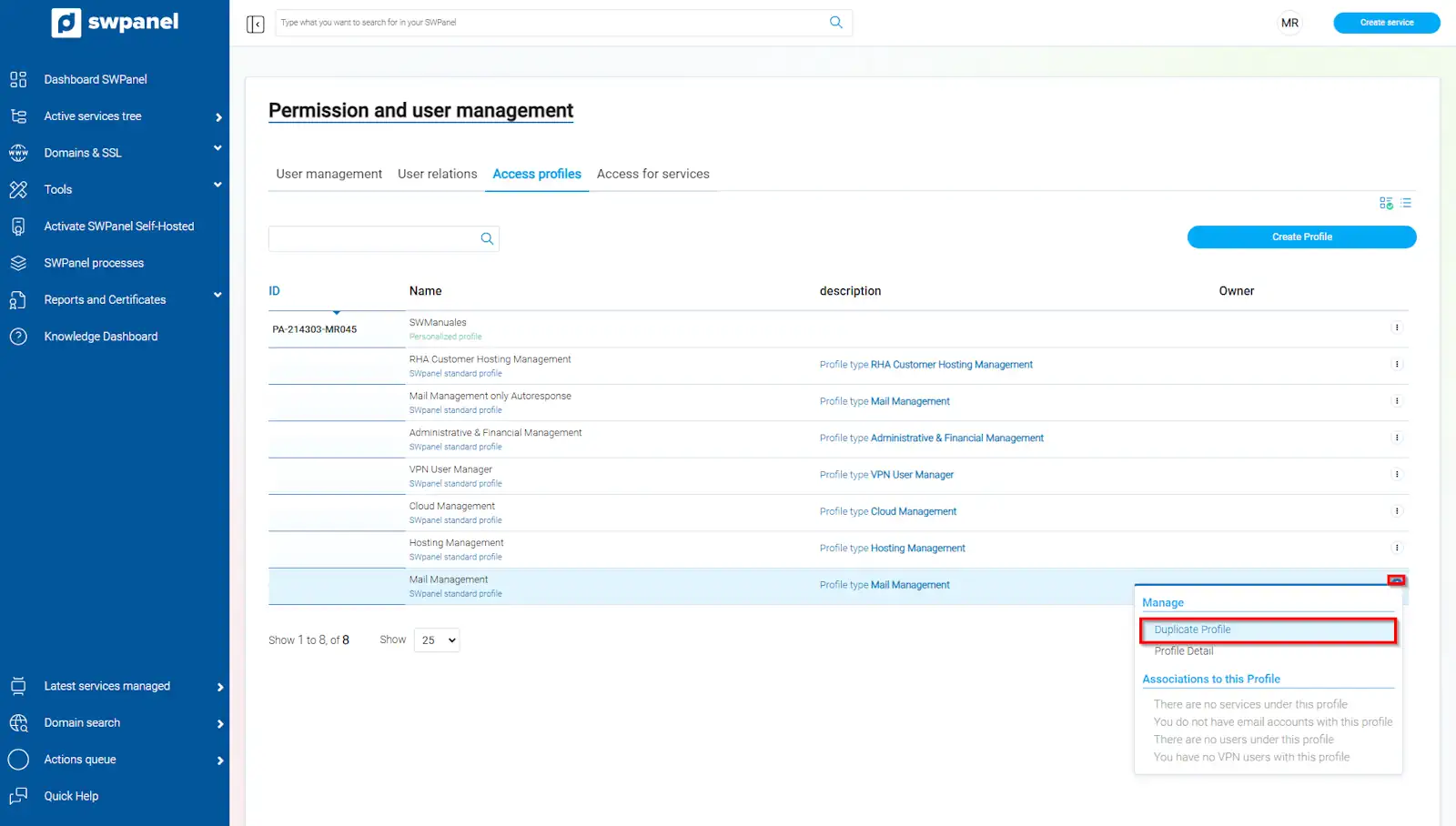
info_capture The screenshot is for guidance purposes. It was taken using version 2025.01.0002 dated 13/02/2025. It may differ from what the current version of SWPanel shows.
In the new window, you must assign a name to the access profile:
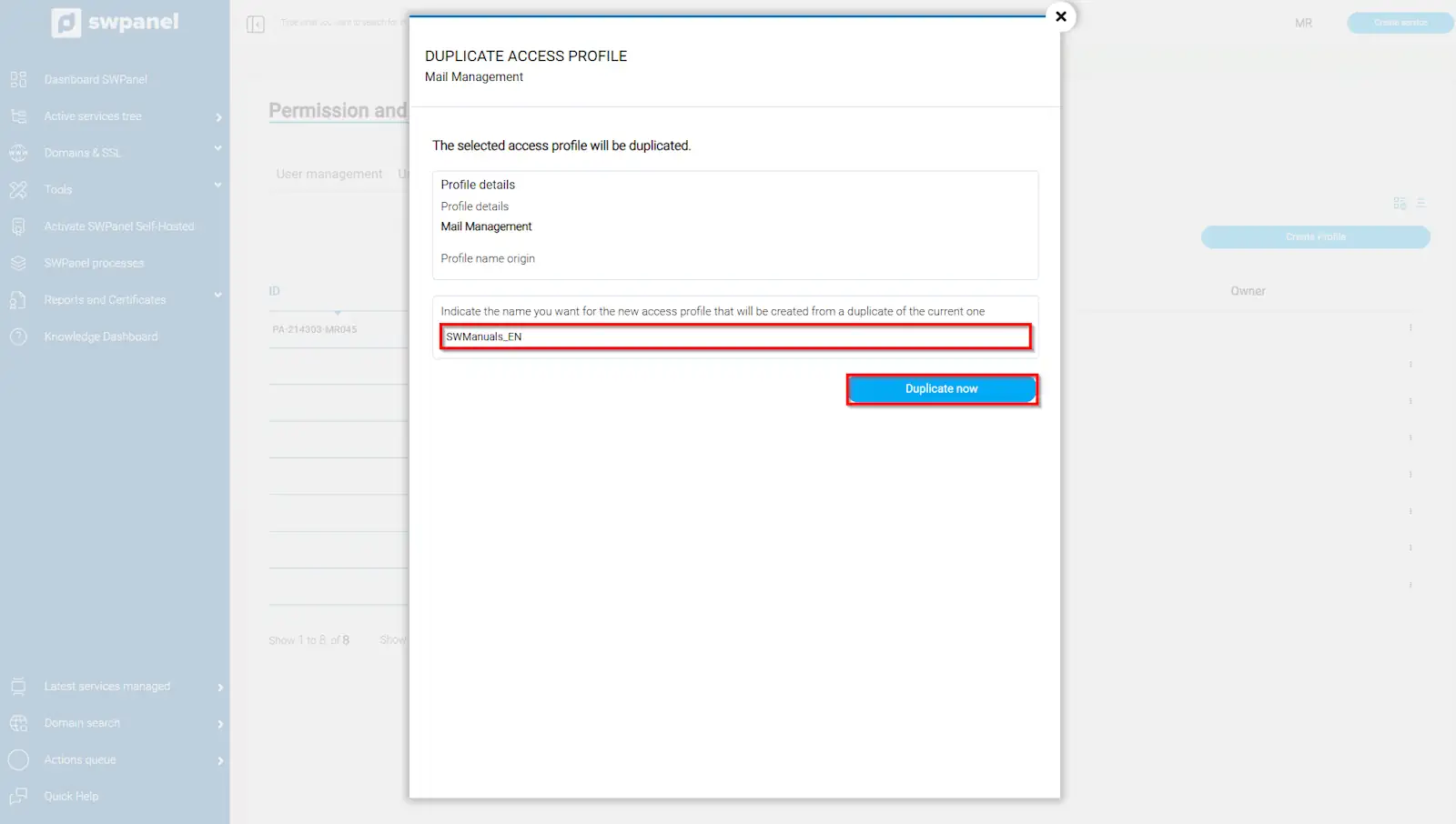
info_capture The screenshot is for guidance purposes. It was taken using version 2025.01.0002 dated 13/02/2025. It may differ from what the current version of SWPanel shows.
Modify profile permissions
From the […] menu of the previously created profile, click on Modify this Profile.
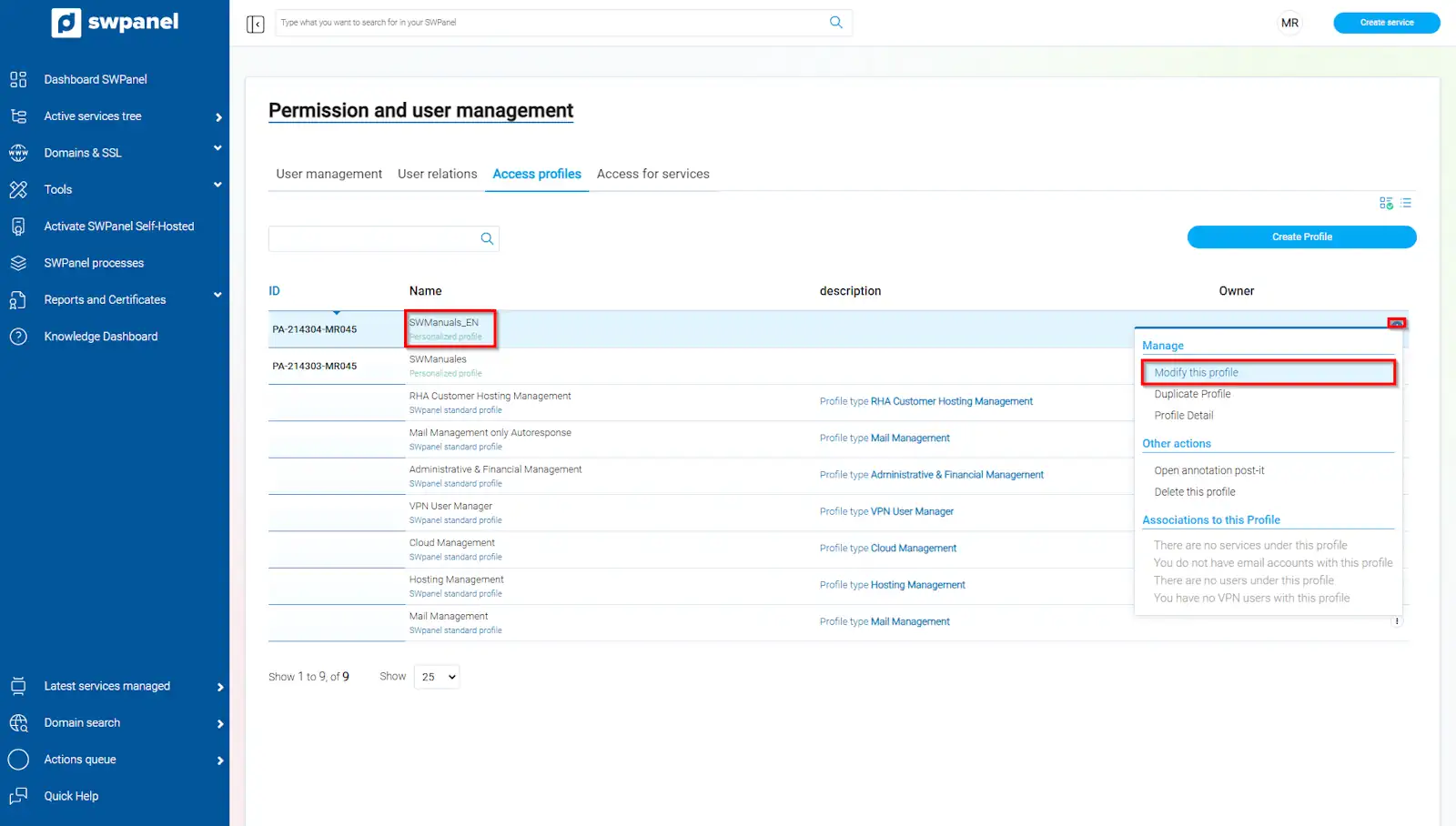
info_capture The screenshot is for guidance purposes. It was taken using version 2025.01.0002 dated 13/02/2025. It may differ from what the current version of SWPanel shows.
In this tab, you can assign permissions to your access profile by checking the boxes for the permissions you need.
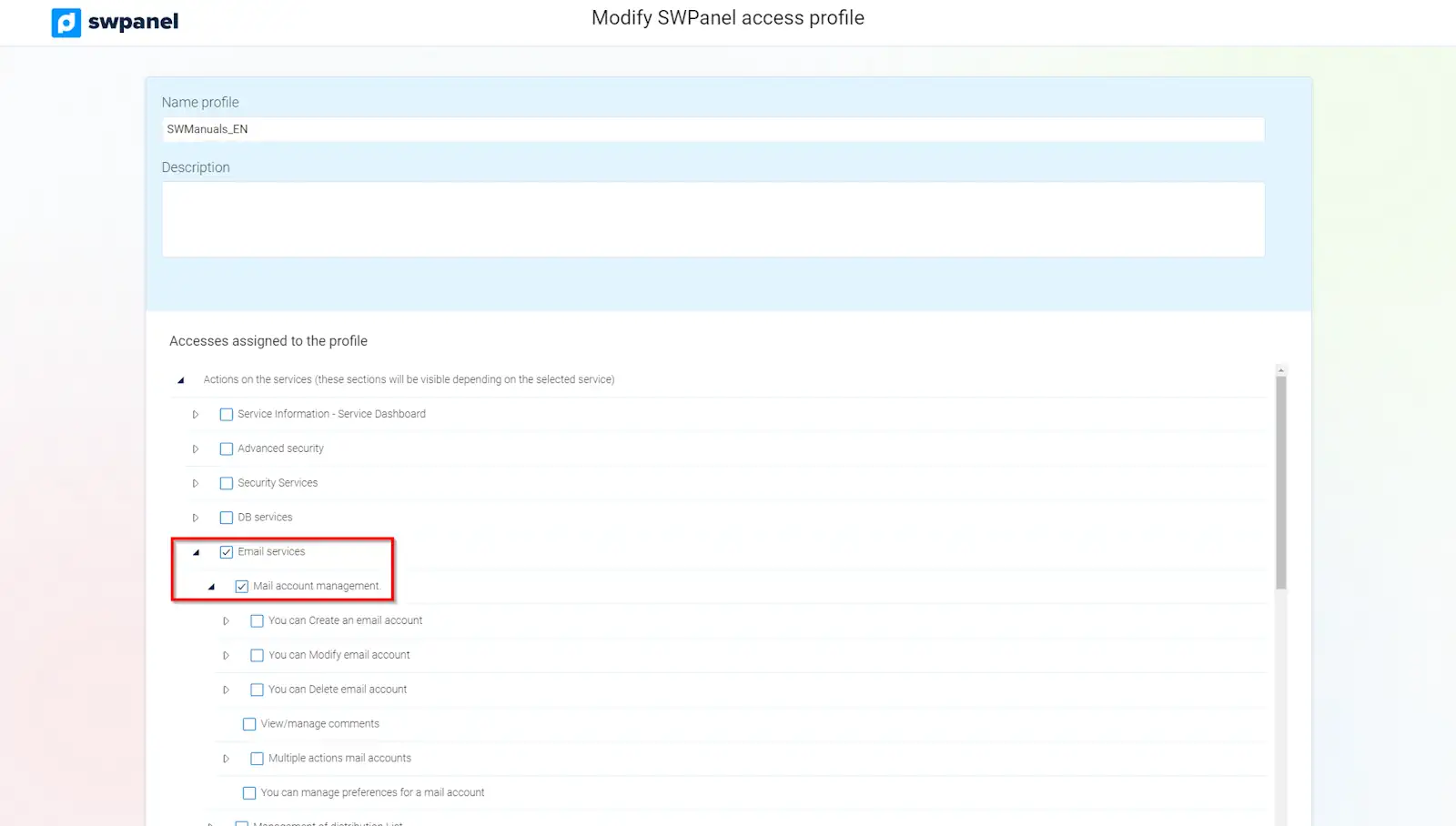
info_capture The screenshot is for guidance purposes. It was taken using version 2025.01.0002 dated 13/02/2025. It may differ from what the current version of SWPanel shows.
If you need the profile to have access to a service dashboard, you must check the option Management of Services → Manage services and uncheck the boxes within it (if you do not need those permissions).