
Create a CHRoot access to access your service via console
This type of access creates a user with root privileges (with some limitations) via console or SSH. With this CHRoot user, you can perform actions such as a manual migration directly on the service or manage the website's folders and directories via console. An action you can execute is, for example, unzipping a .zip file of a website previously uploaded via FTP.
To activate access, first go to the service Dashboard. In the top search bar of your SWPanel, search for the name of the corresponding service and access it by clicking on its name:
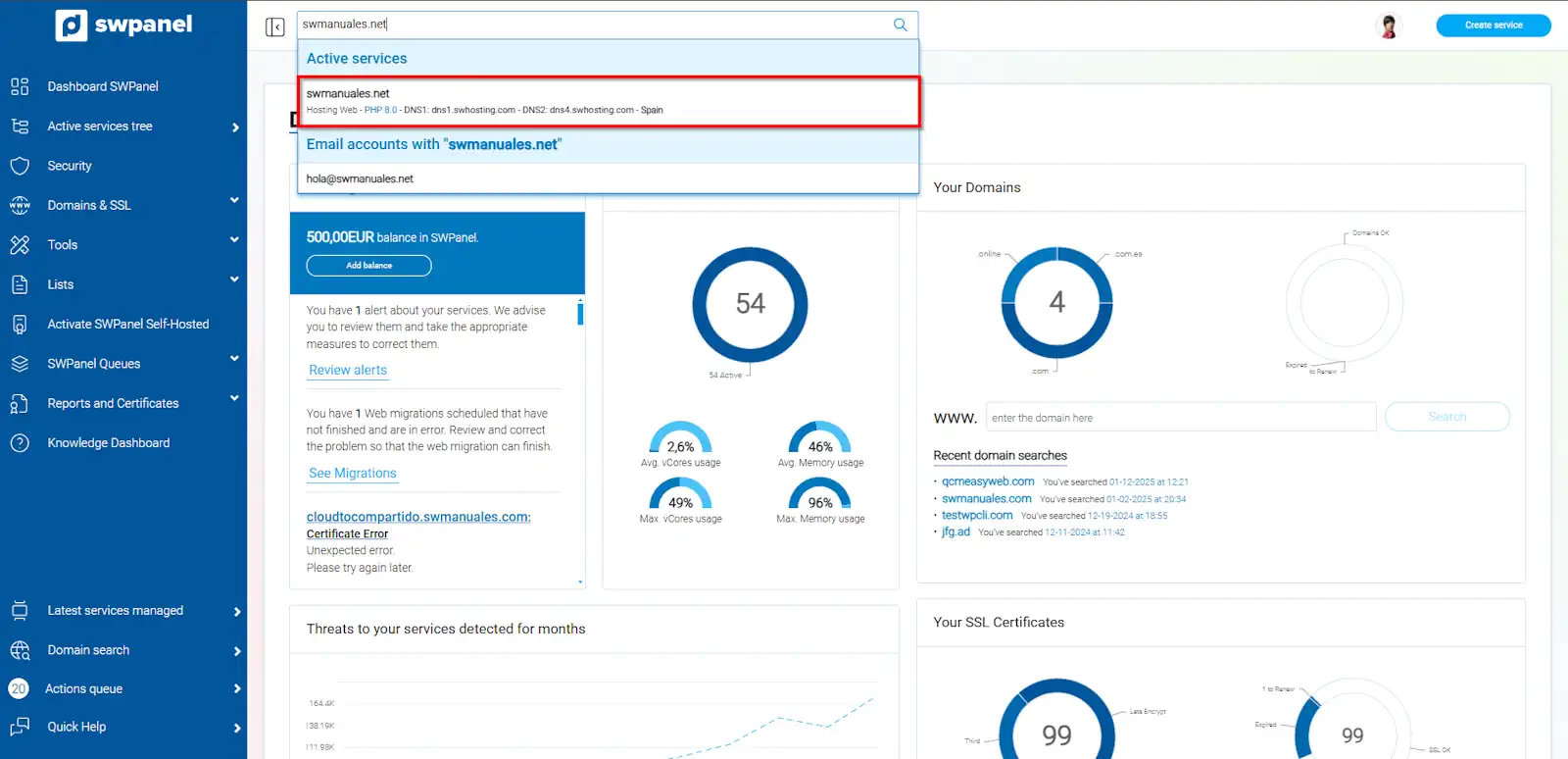
info_capture The screenshot is for guidance purposes. It was taken using version 2025.00.0015 dated 14/01/2025. It may differ from what the current version of SWPanel shows.
From the service Dashboard, look for the 'Available improvements' option, 'SSH/CHRoot Access':
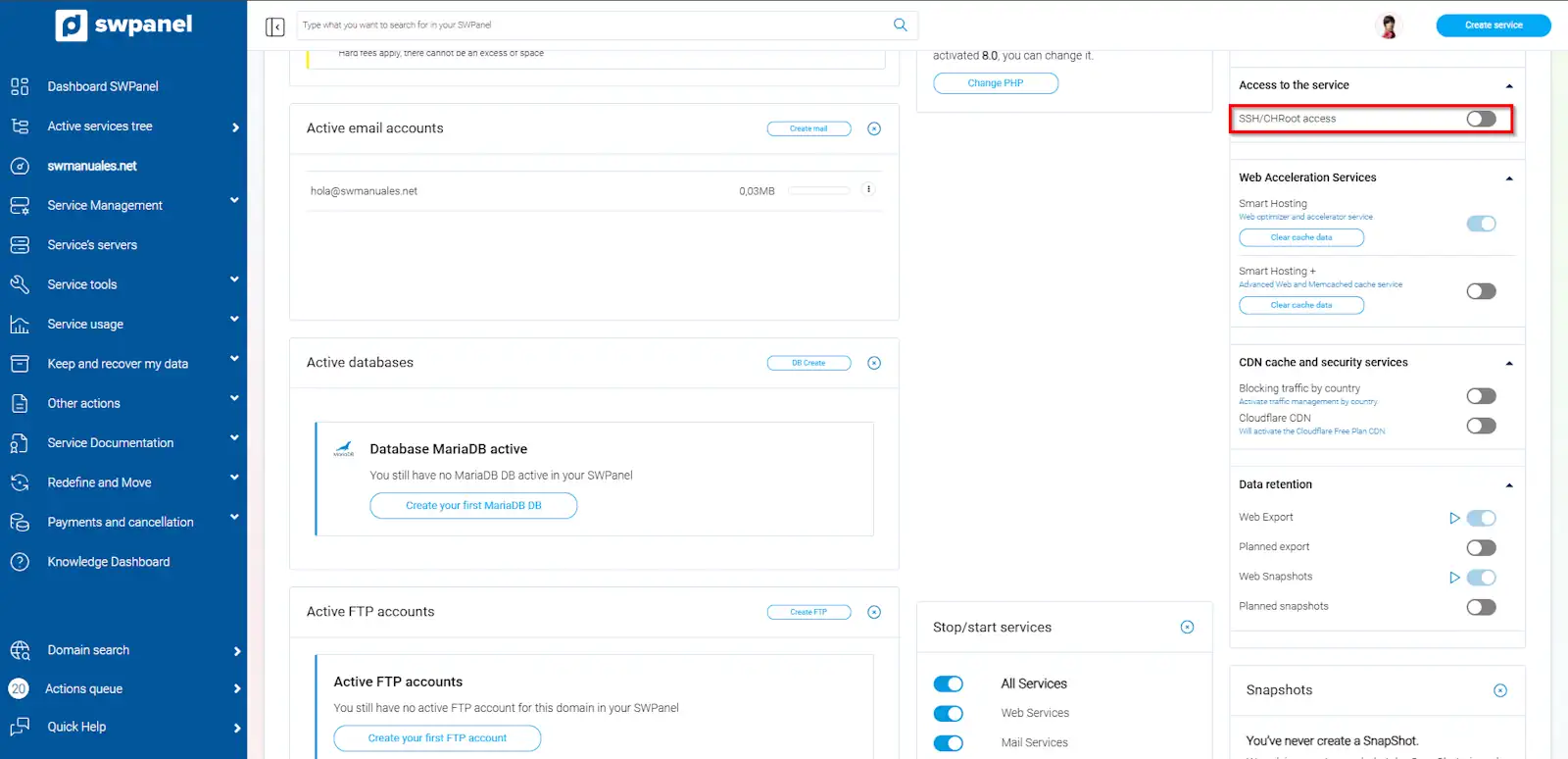
info_capture The screenshot is for guidance purposes. It was taken using version 2025.00.0015 dated 14/01/2025. It may differ from what the current version of SWPanel shows.
You will be asked to enter a secure password for access; you can enter one manually or click the automatic password generation button. We will click the auto-generate password button. Once entered, we click 'Yes, activate':
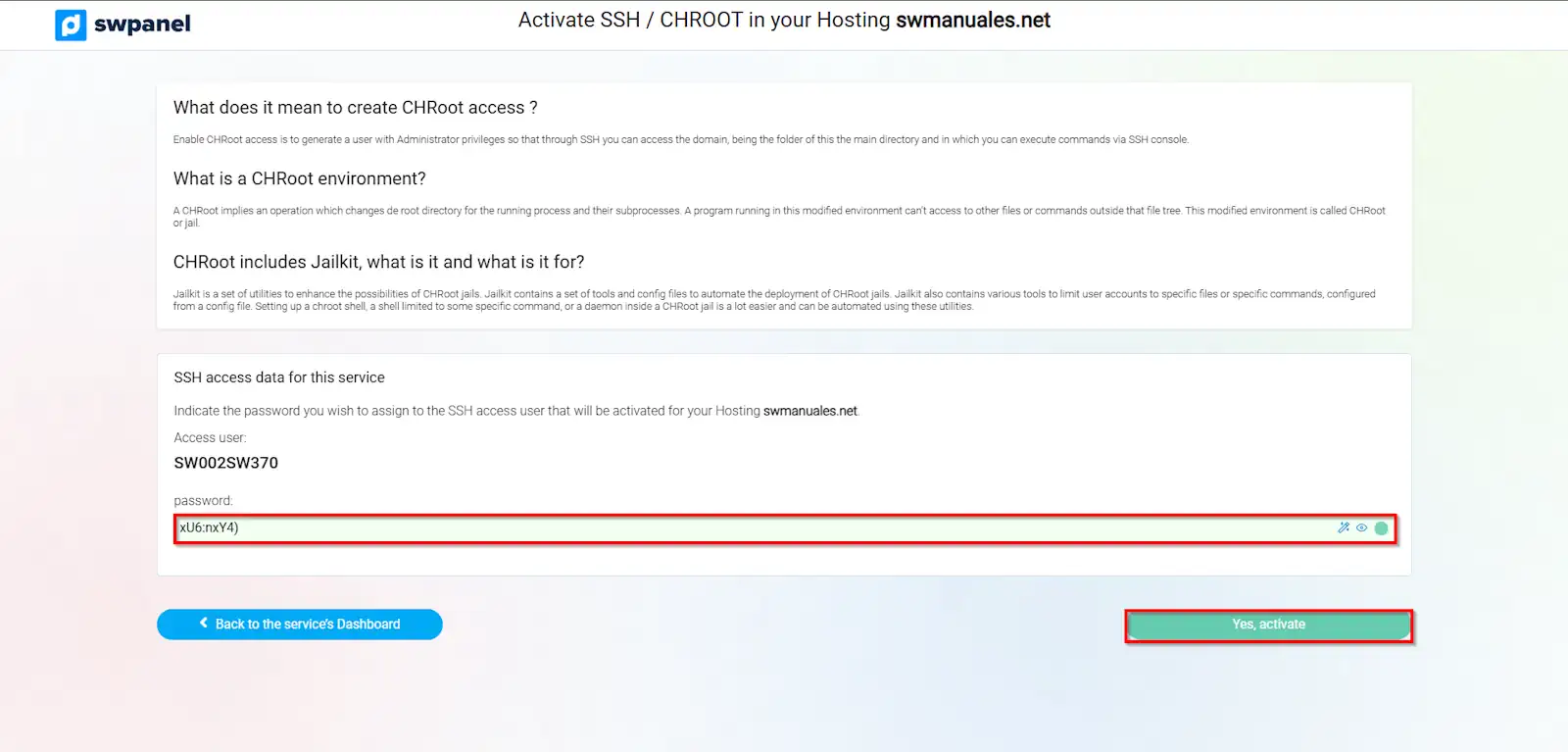
info_capture The screenshot is for guidance purposes. It was taken using version 2025.00.0015 dated 14/01/2025. It may differ from what the current version of SWPanel shows.
Once activated, it will look as follows from the Dashboard:
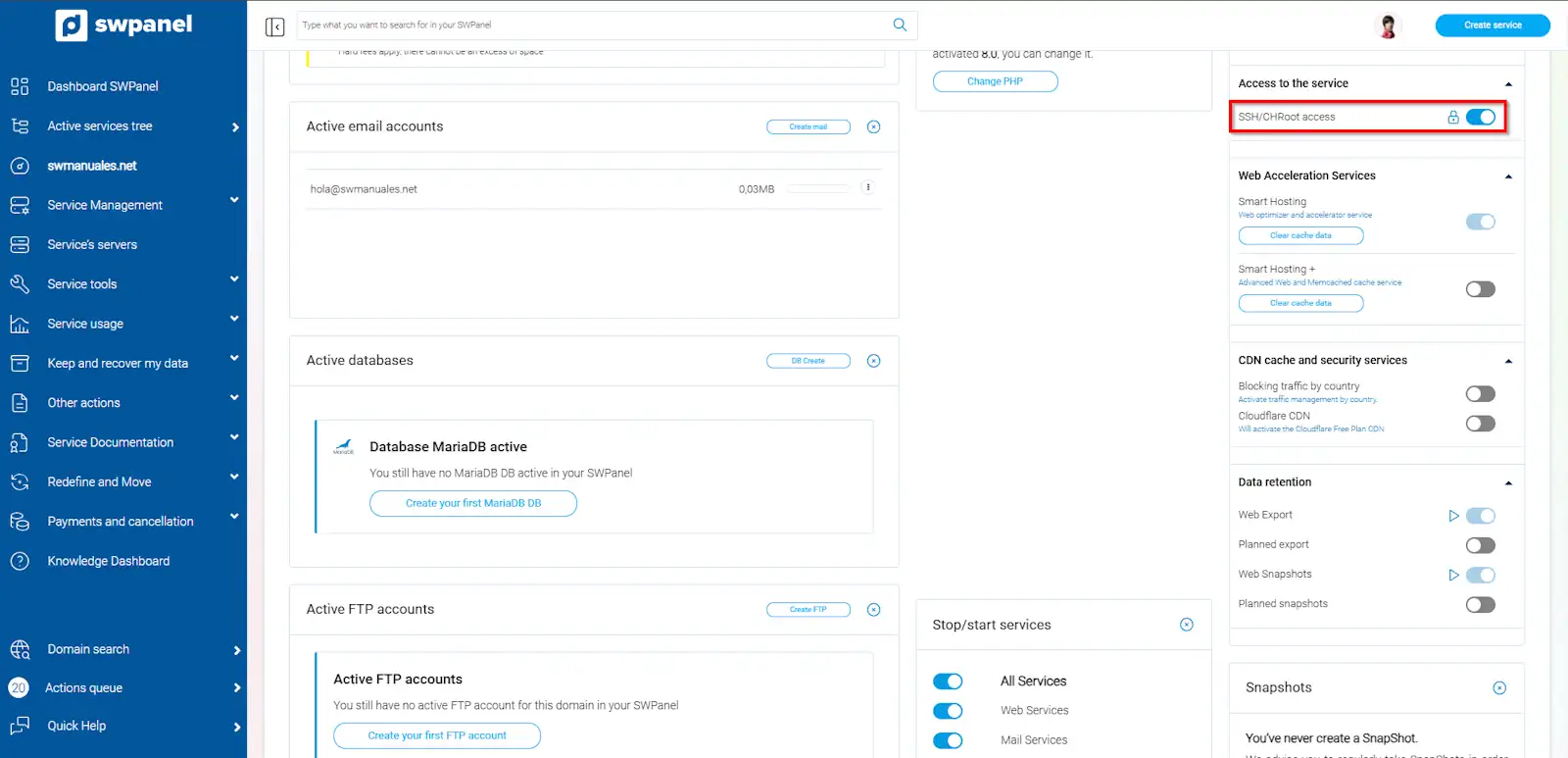
info_capture The screenshot is for guidance purposes. It was taken using version 2025.00.0015 dated 14/01/2025. It may differ from what the current version of SWPanel shows.
Change access password
We can change the access password again by clicking the lock-shaped button:
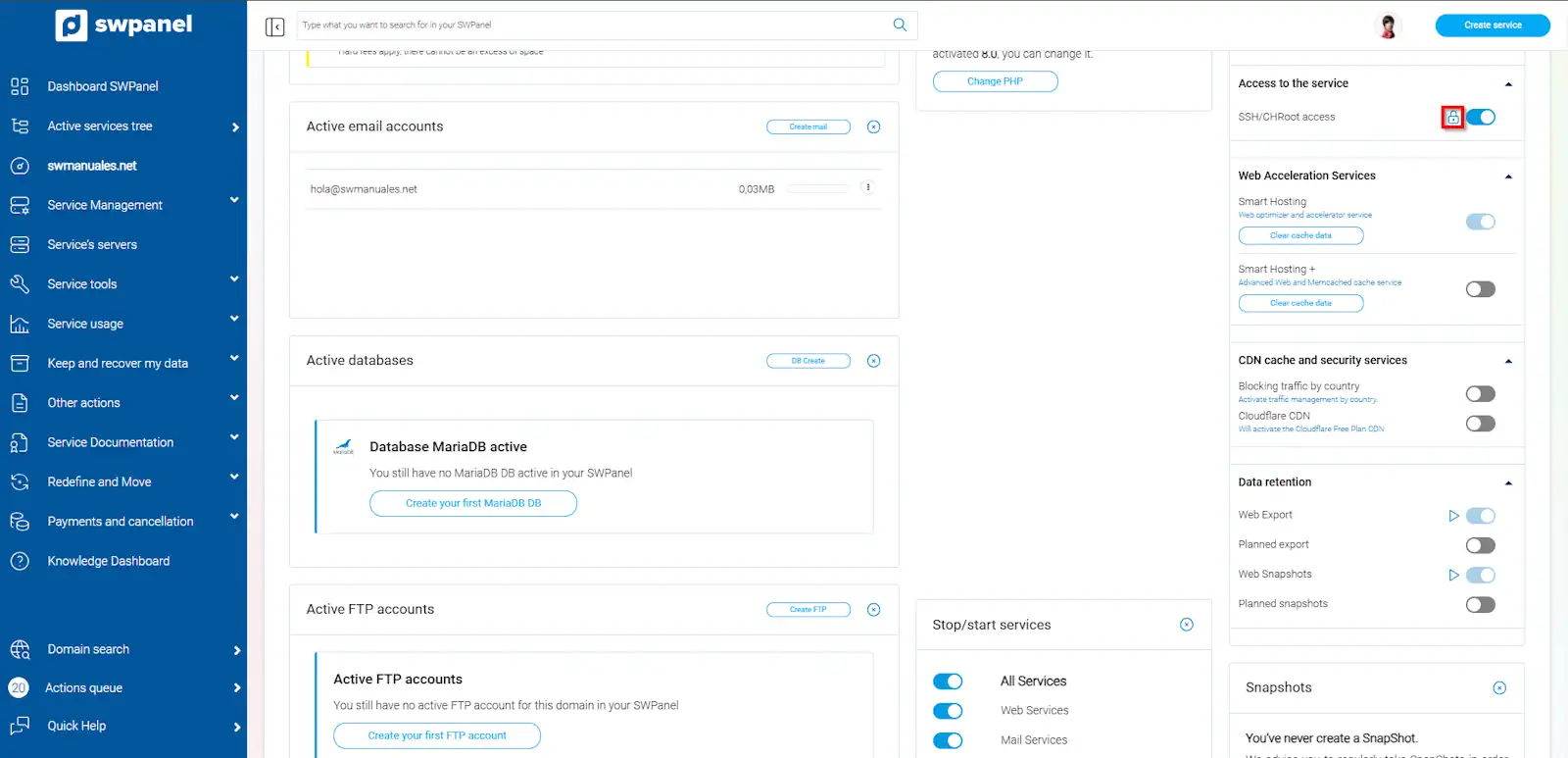
info_capture The screenshot is for guidance purposes. It was taken using version 2025.00.0015 dated 14/01/2025. It may differ from what the current version of SWPanel shows.