
Form submission in WordPress
When creating our website with WordPress, it is necessary to have form submission configured from the page itself, so that users can contact us quickly and effectively.
This method allows us to provide an additional communication channel to the usual ones or even avoid having to provide corporate emails or phone numbers that we may prefer to keep private.
Email form submission methods
Currently, the most commonly used methods for sending website forms are the PHP Mail function or using an SMTP server.
The first method (Mail function) is an insecure method that can cause more problems than solutions because it sends emails without needing to authenticate against the mail server; for this reason, all our servers have the Mail function disabled by default, guaranteeing an extra point of security.
The second method is to use an SMTP server to perform the form submission. This is the most recommended method, as every email sent is authenticated against the mail server, which allows us to create a specific account for this purpose, securely channeling all forms through that account.
SMTP submission configuration
In our company, we like to make things easy, and that is why all WordPress installations come with the “WP Mail SMTP” plug-in pre-installed and configured with the mail server corresponding to your hosting service and the email account you have created with your WordPress (if you do not specify one, it is created with the name “admin@yourdomain”).
This way, you only need a form creation plug-in that allows you to define SMTP submission so that the form uses said configuration to be sent. For example, if we install the free “WPFOMS” plug-in, we only have to create the form and drag it to all the pages where we want it to appear, as the two plug-ins communicate with each other and no further configuration is necessary.
Let's see how to perform this process step by step:
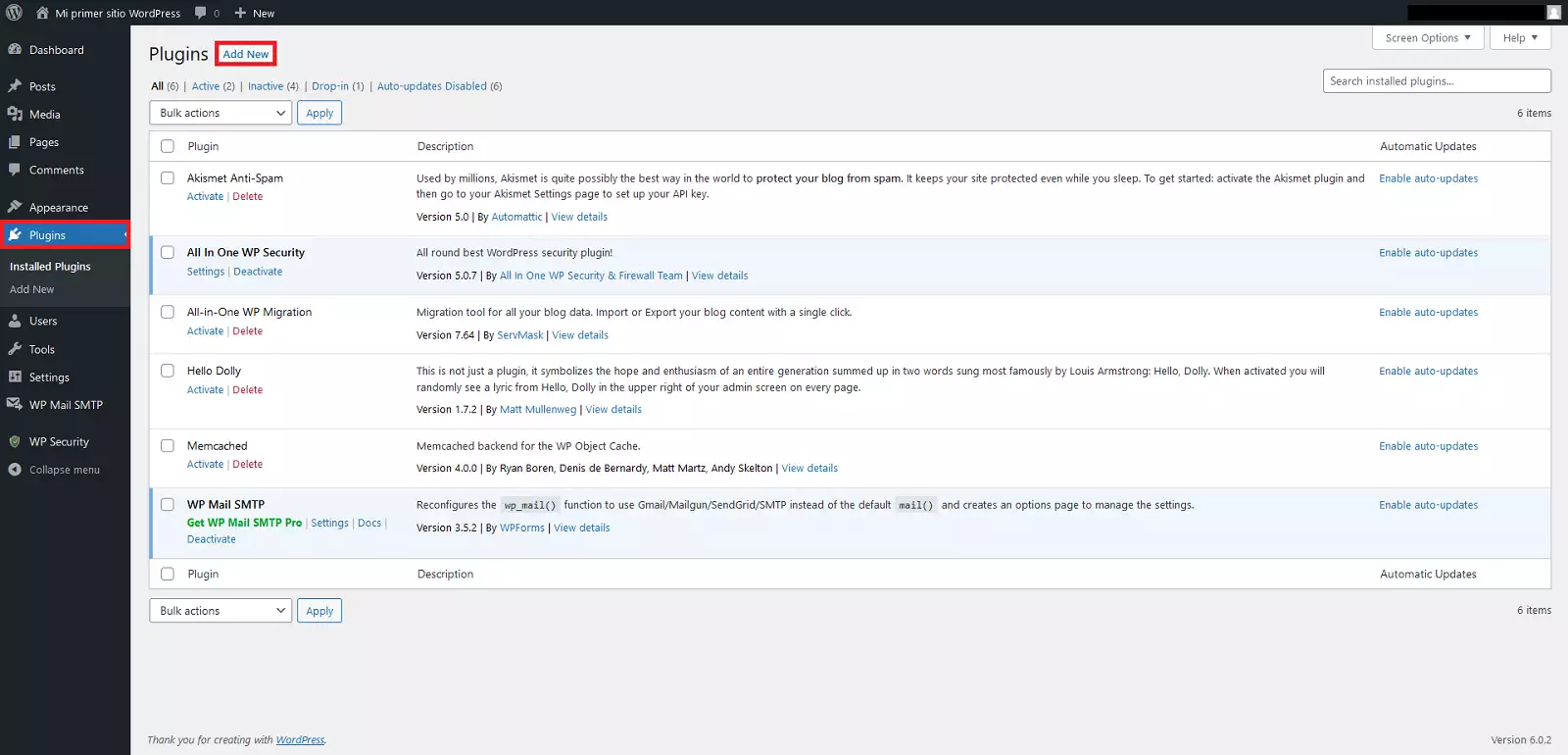
-We enter the backend of our WordPress, we click on 'Plugins > Add New'
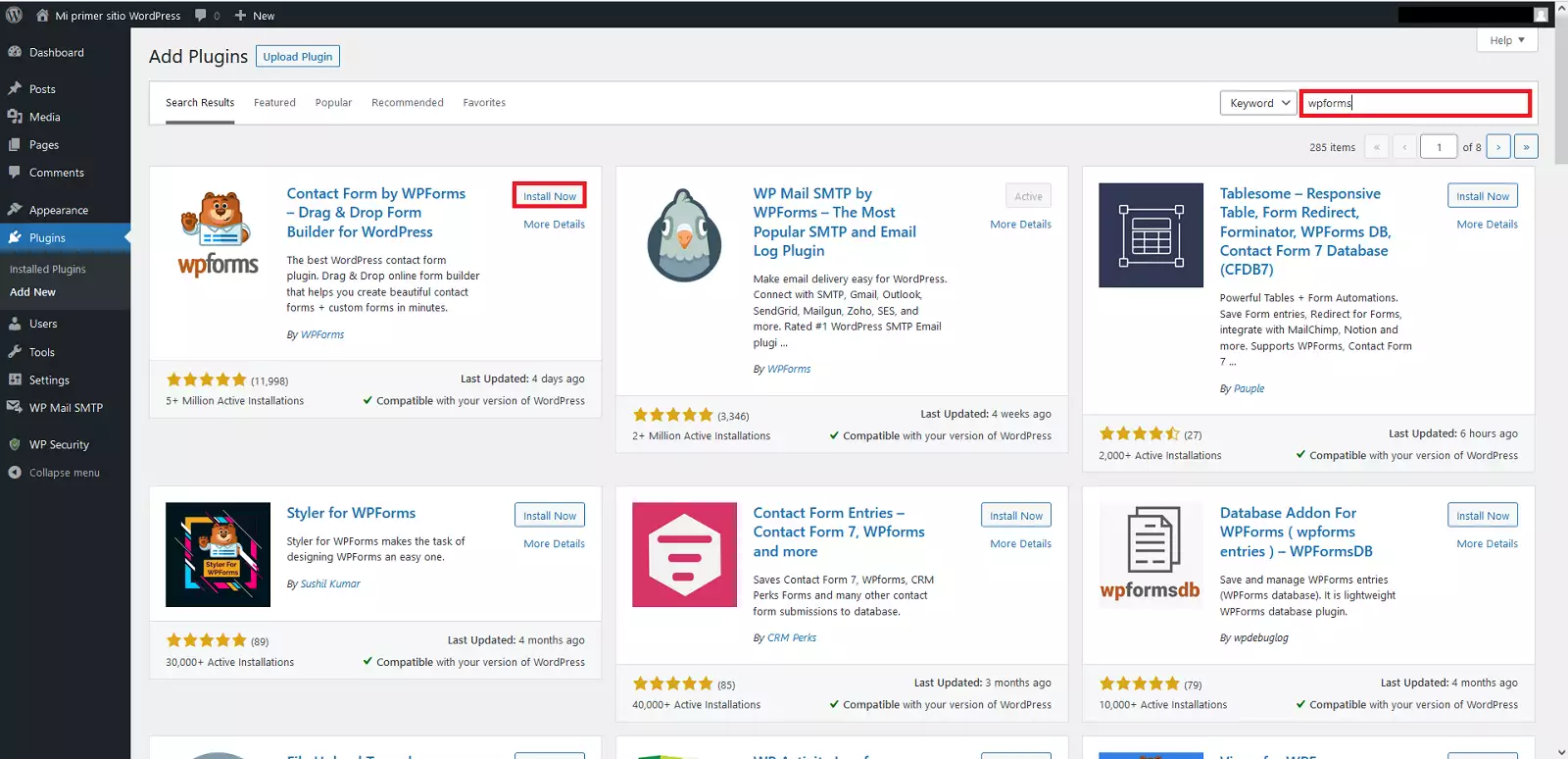
-Once the page loads, we search for 'wpforms' in the search box located at the top right and click on 'Install Now'
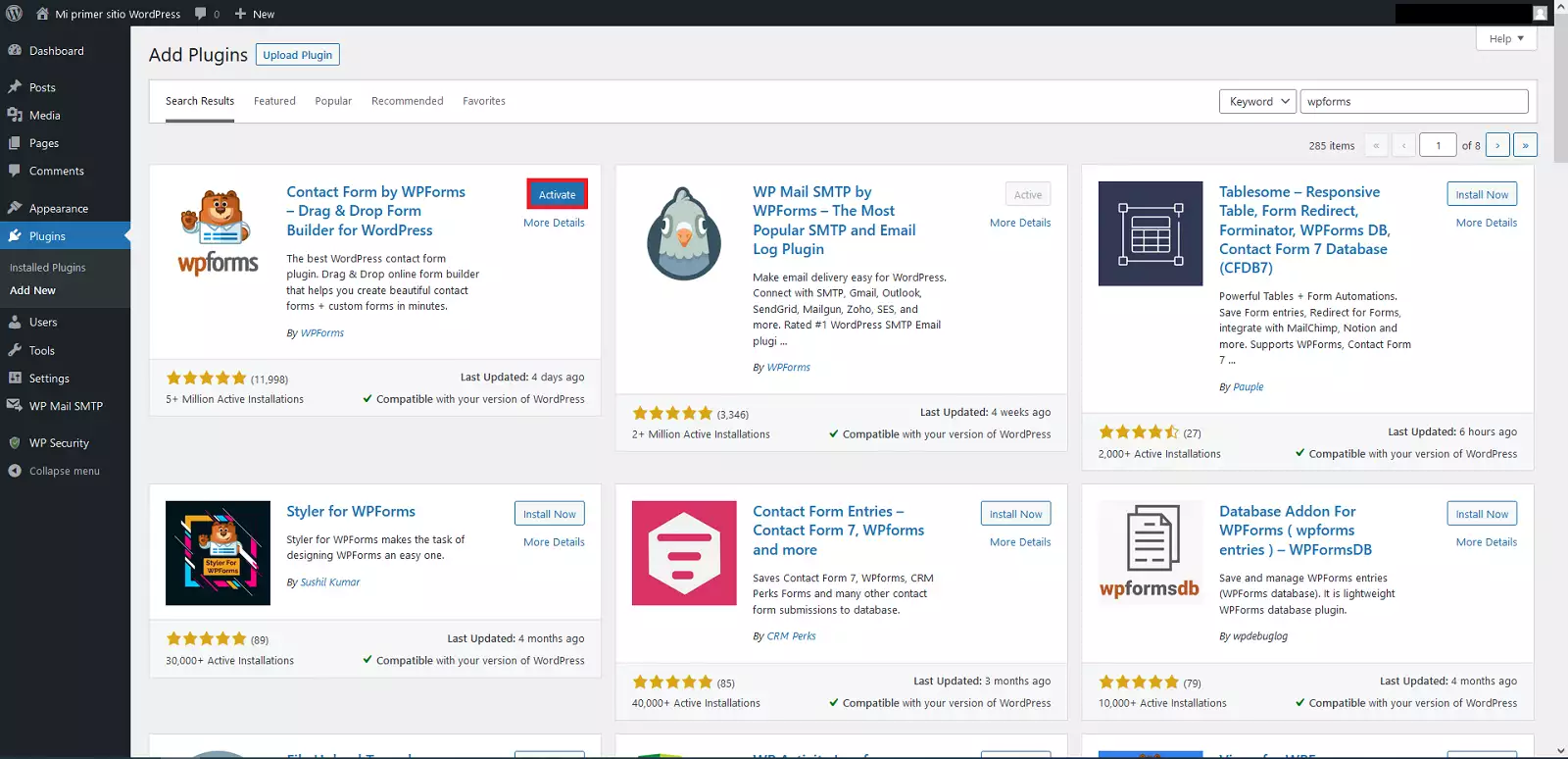
-Once the plug-in is installed, we click on 'Activate' on the search page itself
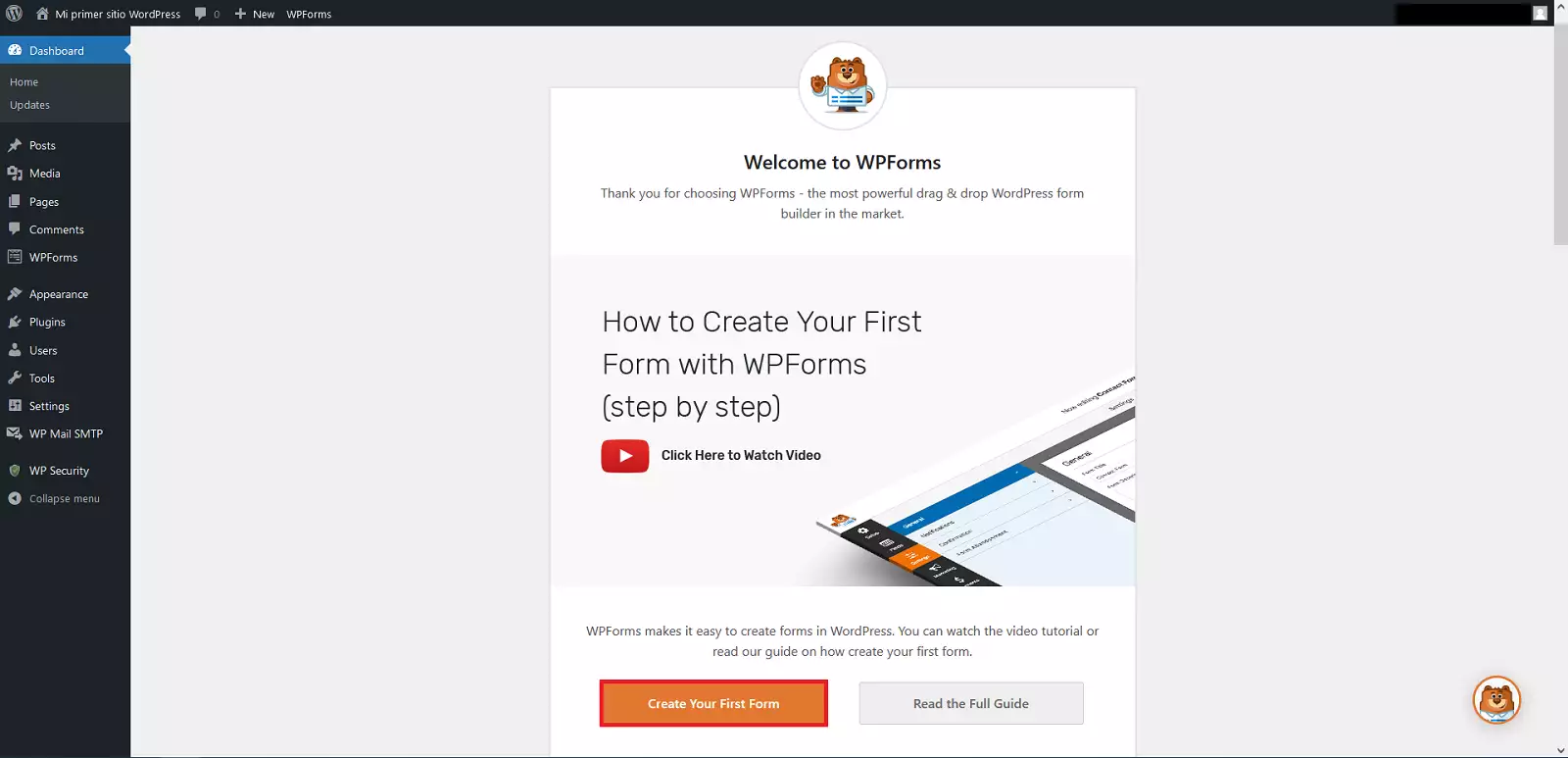
-Next, the plug-in's welcome page will open, we click on 'Create Your First Form'
-Immediately after, we will select 'Use Template' within the 'Simple Contact Form' template
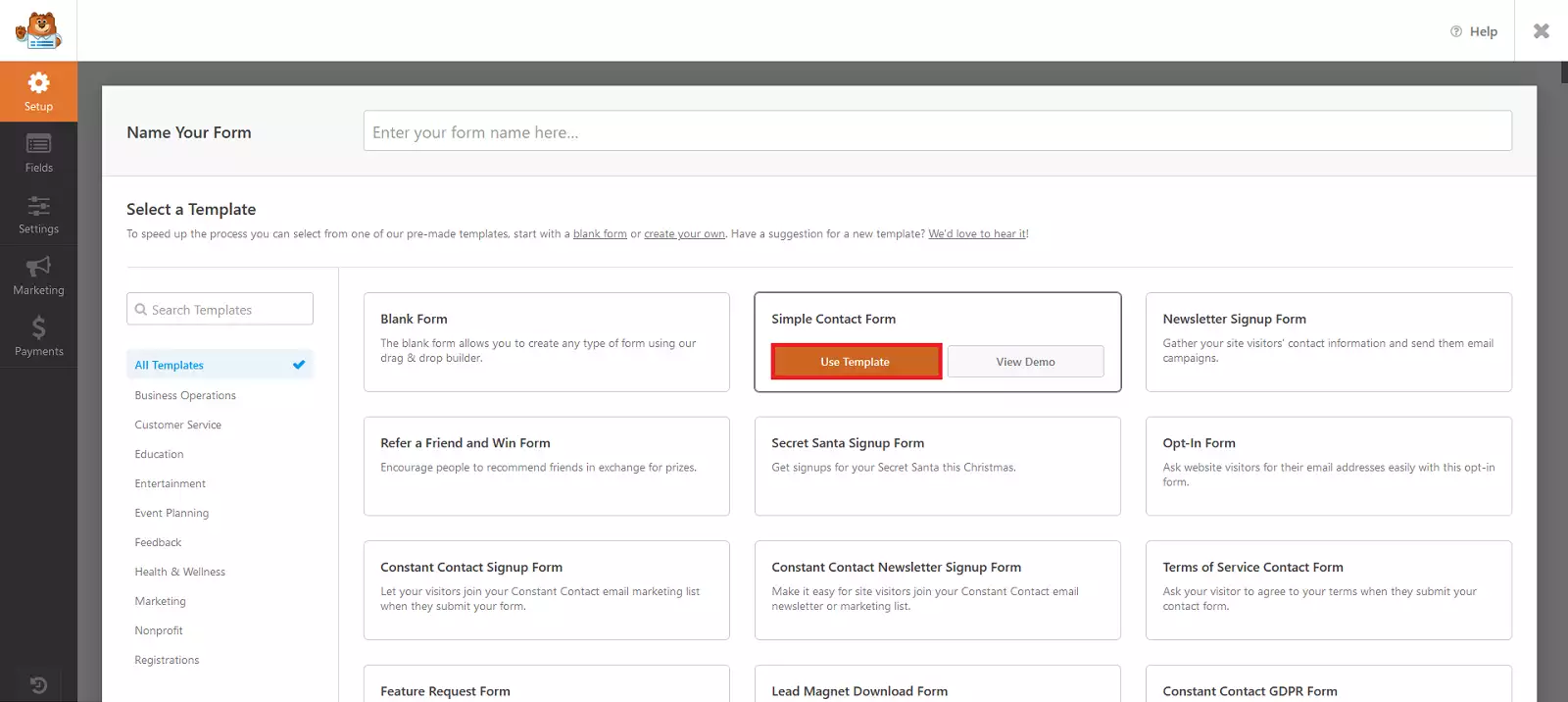
-A sample form will appear that we can customize; in our case, it works as is, we will click on 'Save' and once saved, on the 'Exit' cross
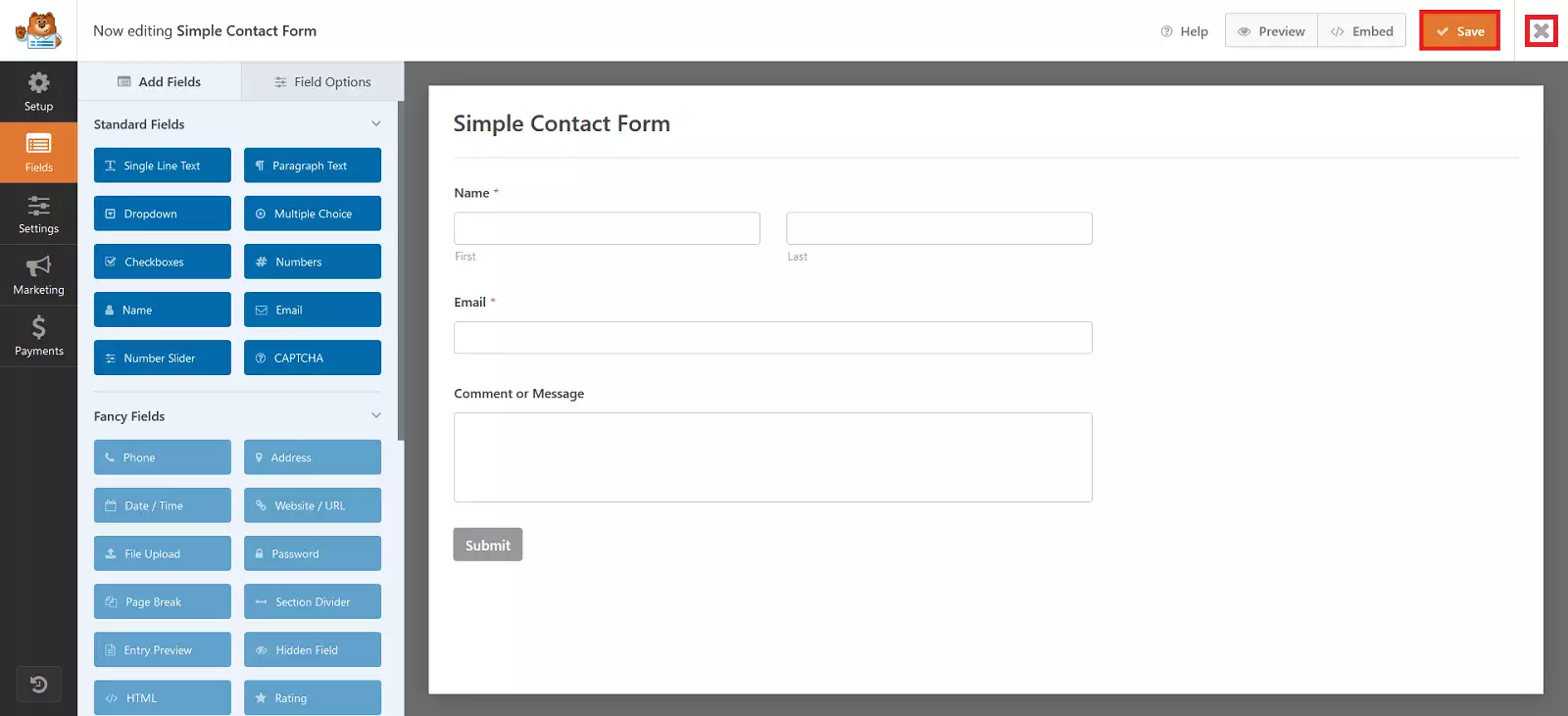
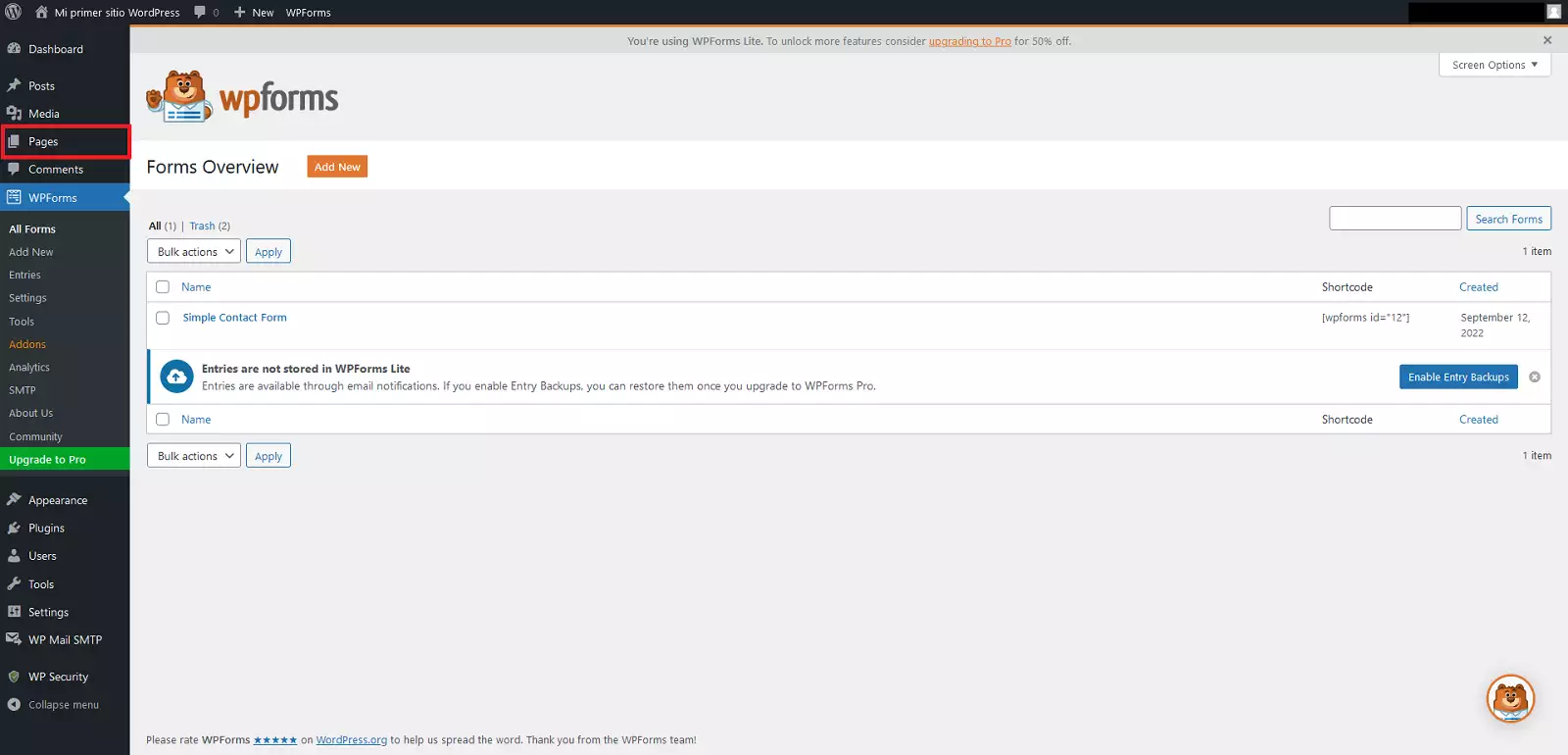
-Now we just need to apply the form to the page where we want it to appear, we click on 'Pages'
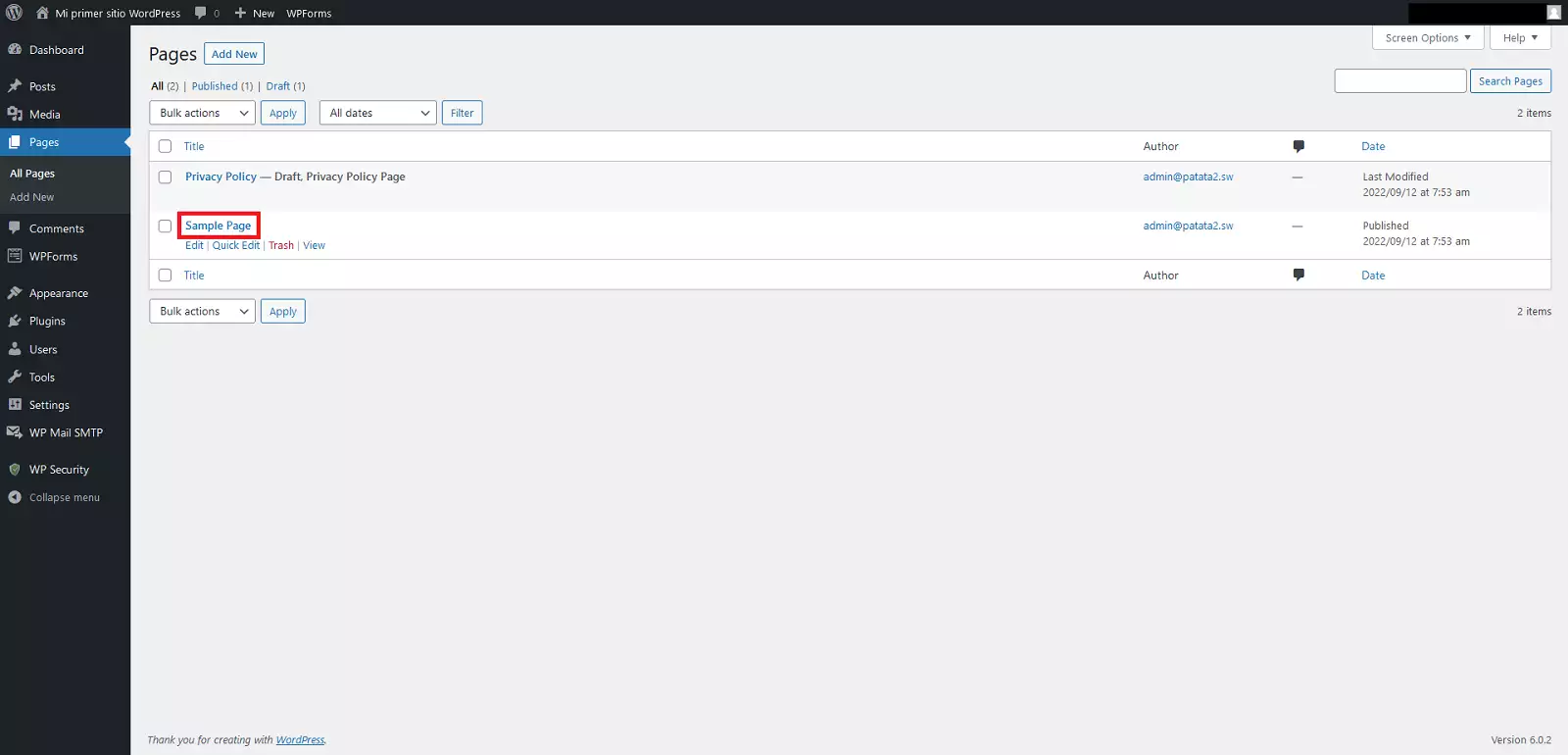
-We will select, for example, 'Sample Page'
-We will click on the '+' symbol in the upper left part to show all the possible objects to insert
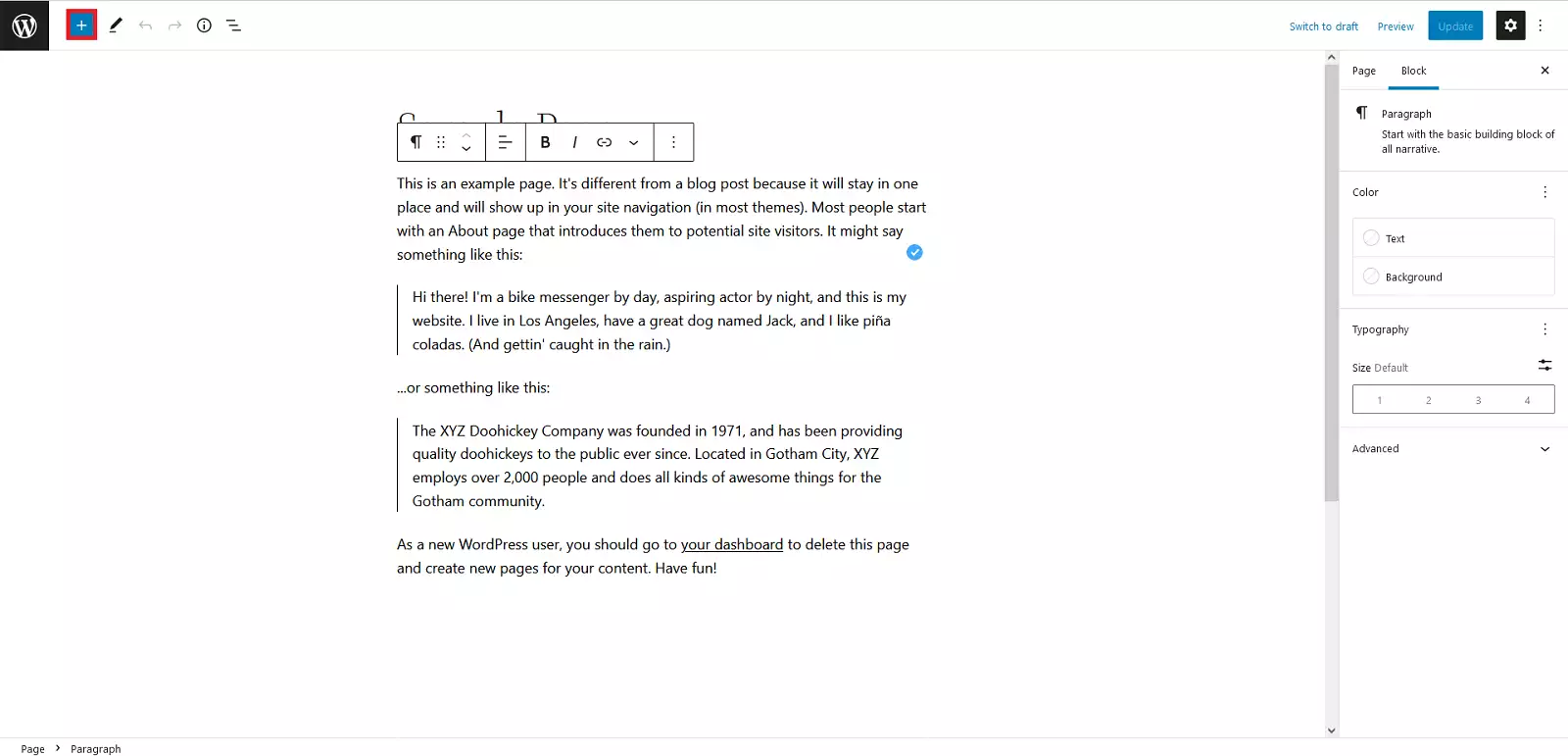
-We will locate the 'WPForms' option within the 'WIDGETS' section and drag it to the bottom of the page
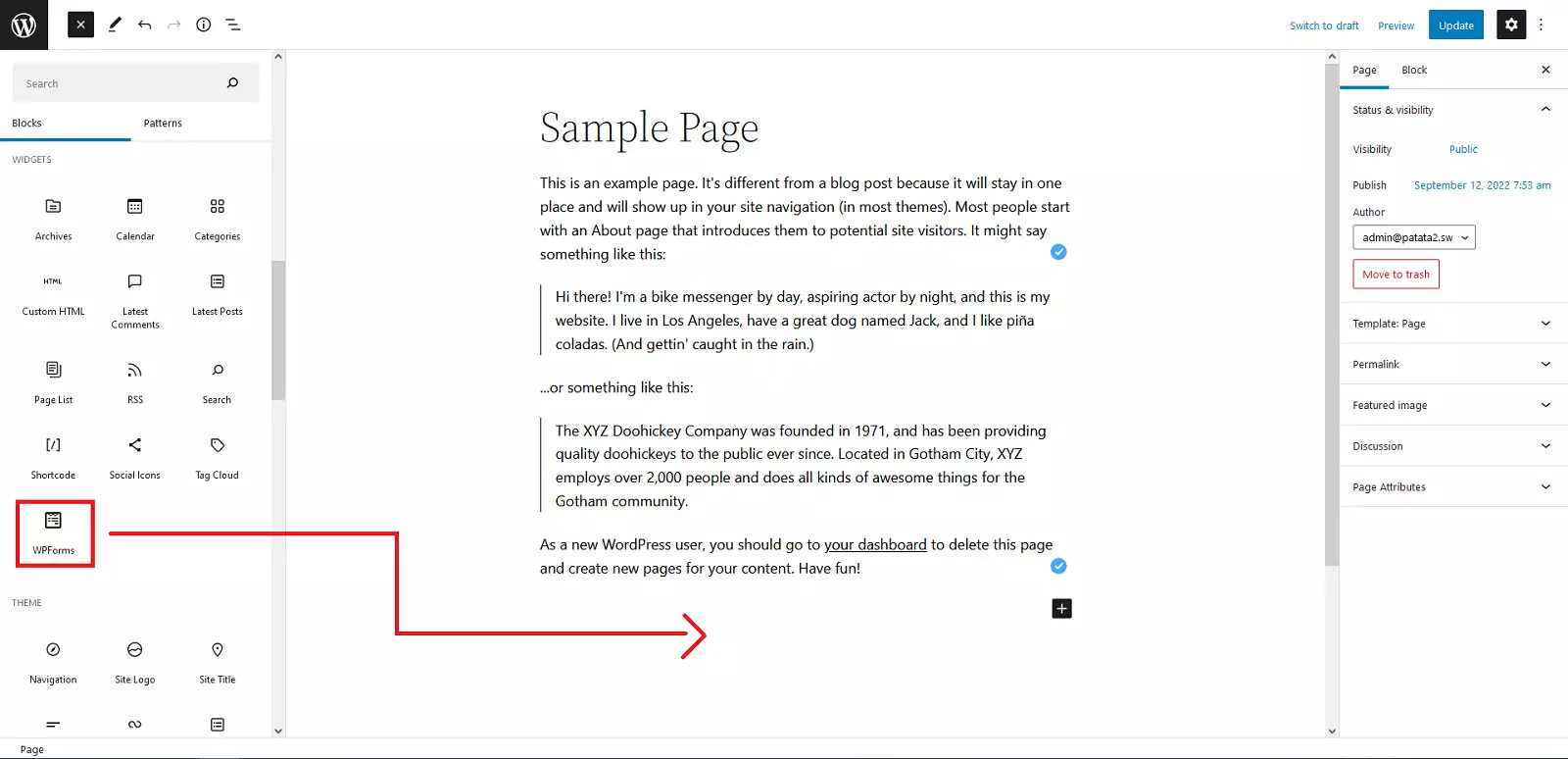
-A dropdown list will appear where we will choose the form we previously created 'Simple Contact Form'
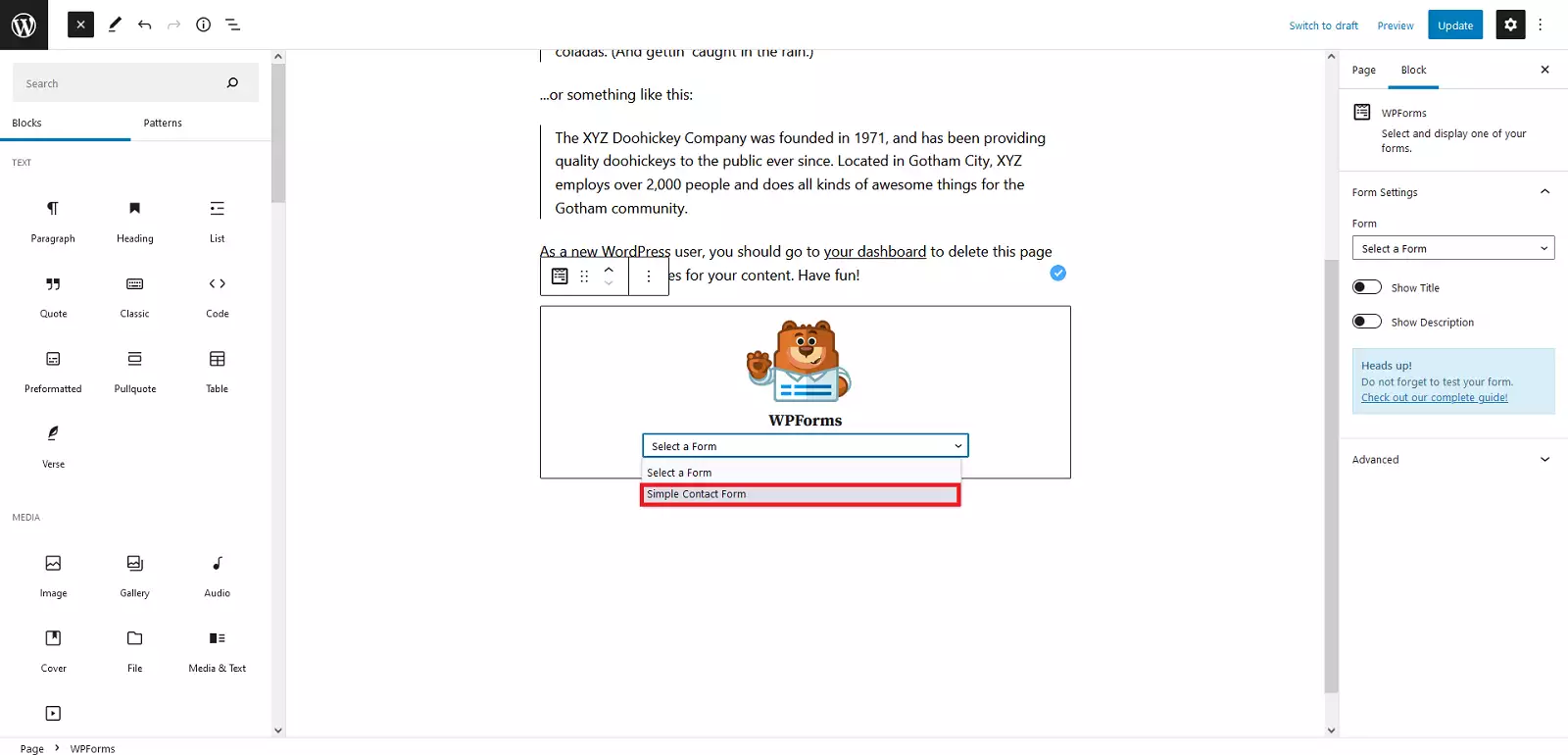
-Finally, we will click on 'Update' to update the page
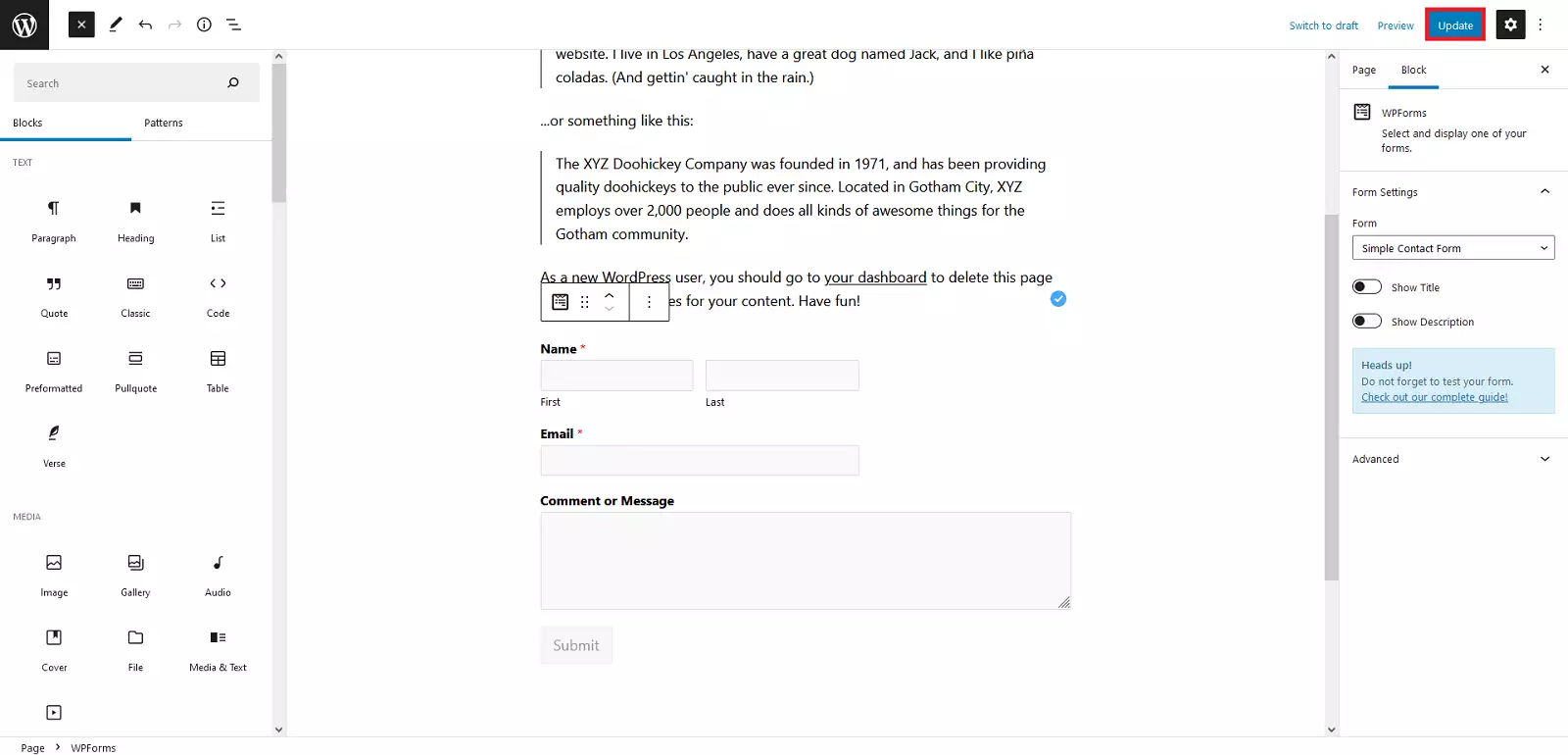
Done, we now have the form on our website ready to use.
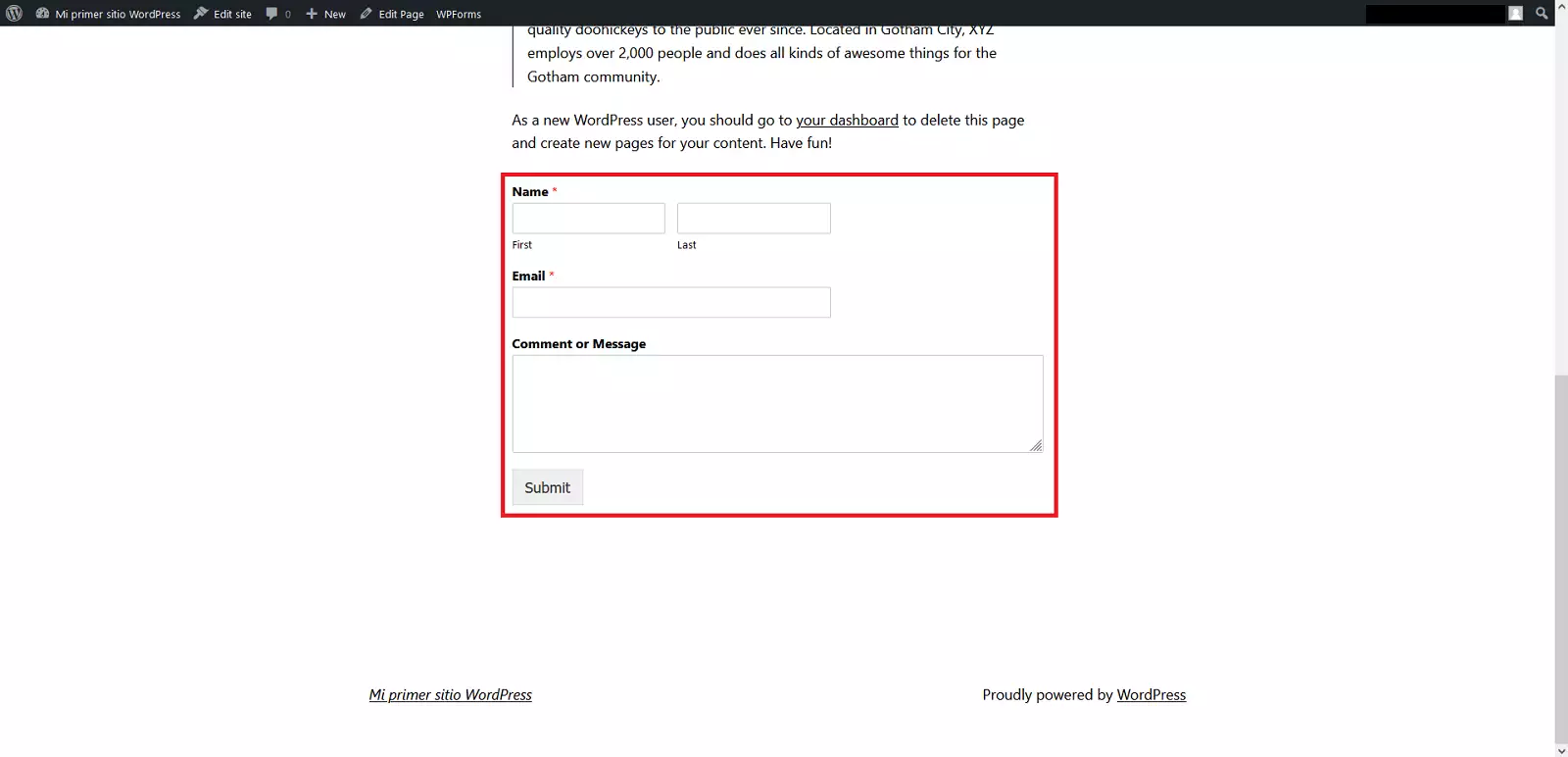
In this way, in a couple of minutes, we can configure a fully functional form that uses the email account associated with WordPress to send emails without the need to use any type of code.
TIP
Add a CAPTCHA to your forms to give them another layer of security. If we go to the settings of the aforementioned form plug-in (WPFOMS > Settings > CAPTCHA), it will allow us to configure a CAPTCHA account that we can use in all our forms. The CAPTCHA account must be contracted separately (free versions exist).
With these instructions, we hope you can configure your forms in the WordPress installations hosted with our company in a few minutes in an agile and secure manner. All our hosting plans allow you to install WordPress with a single click. Don't wait any longer, hire your hosting or cloud for your business now at www.swhosting.com.