
How to create and manage Snapshots of your Web
A website snapshot is a snapshot of your website's content on a specific day and time.
In SW Hosting you can create snapshots of all your websites through your service management tool, SWPanel. The steps to create a snapshot are:
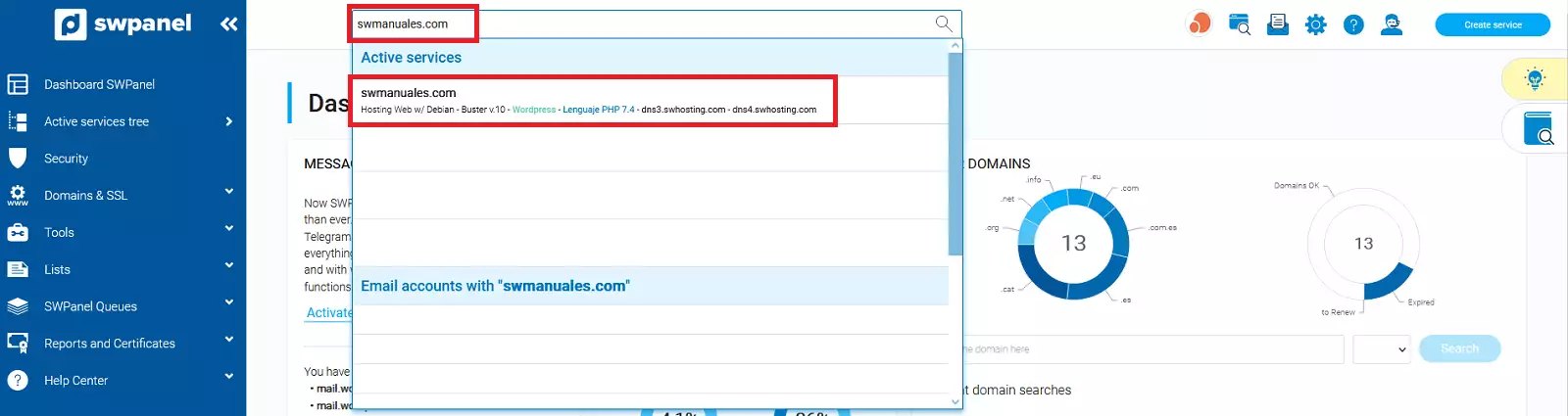
1. From the search box in your SWPanel, you must locate the service where the website you want to create a Snapshot for is hosted
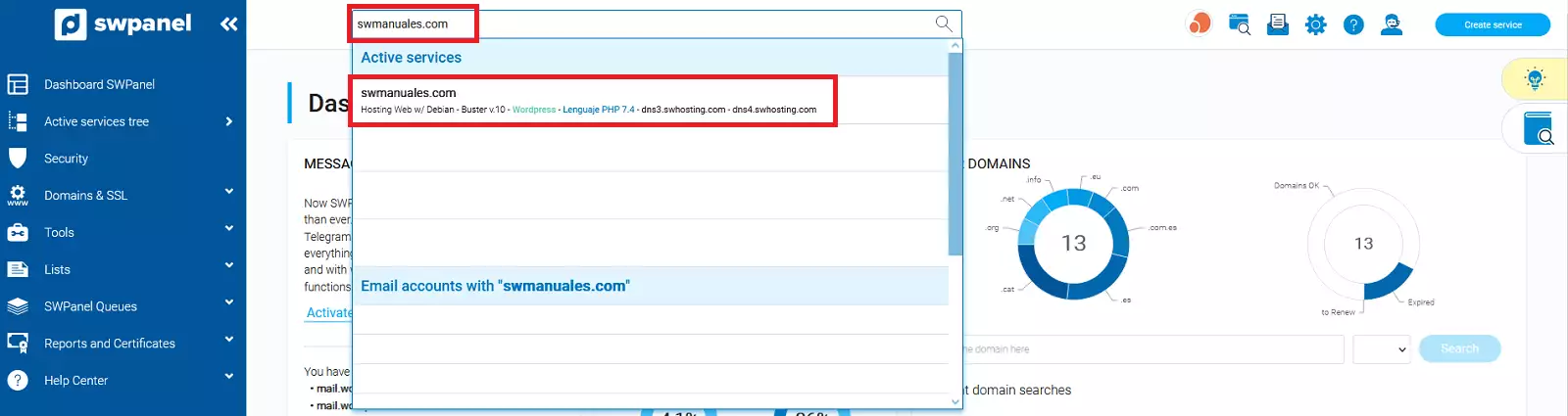
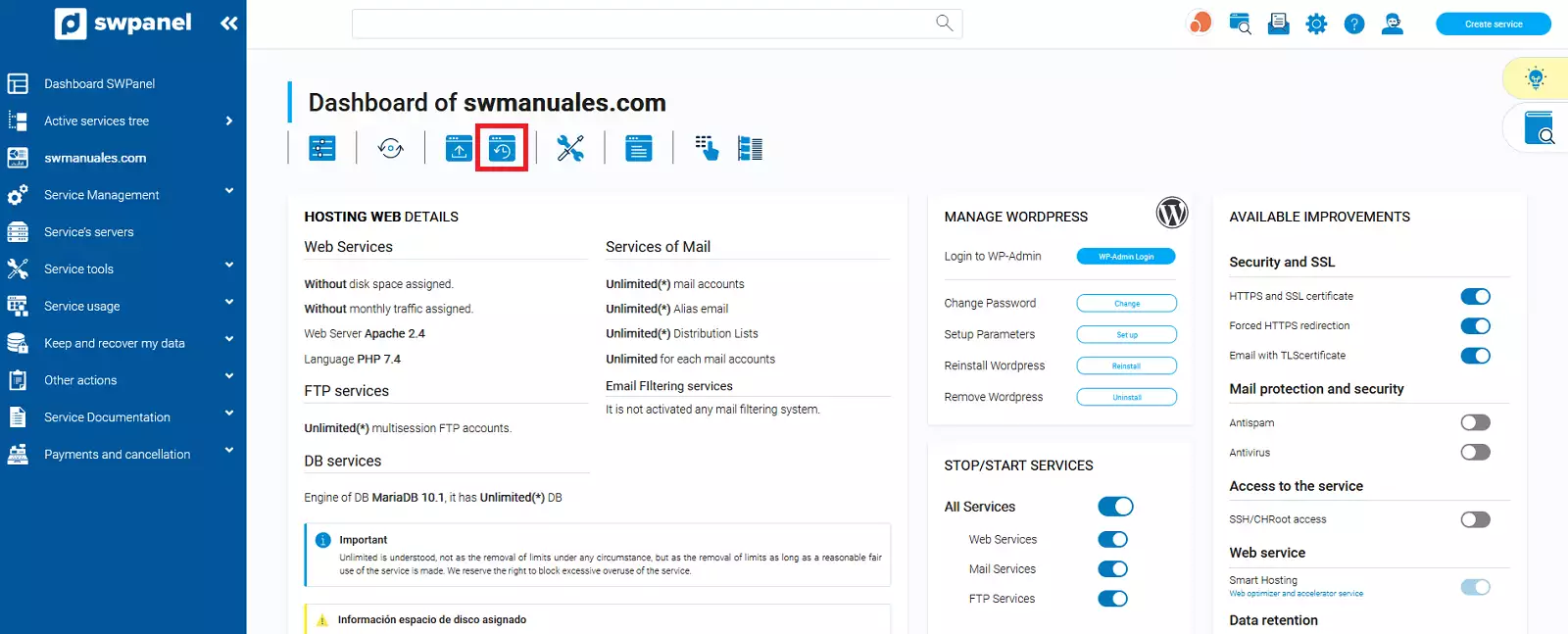
2. Once you are in the service Dashboard, you must click on the snapshot icon that appears at the top:
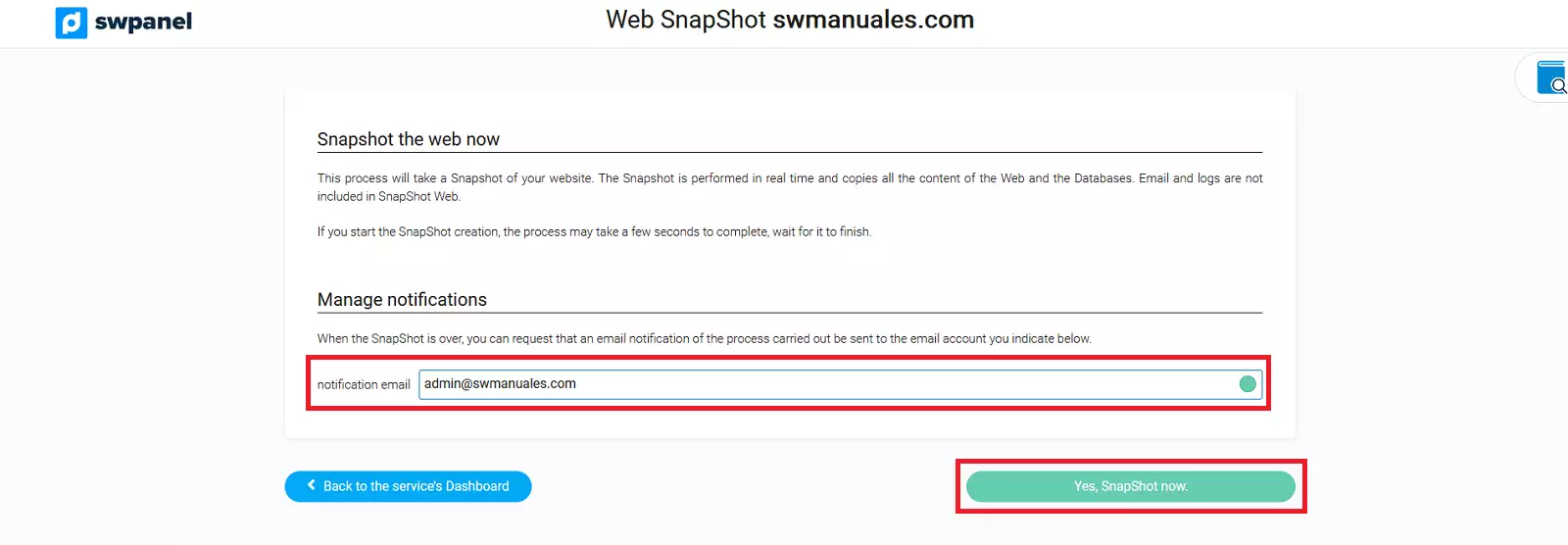
3. Enter an email address to be notified of the creation of your snapshot and click on the "Yes, make Snapshot now" button
4. In a matter of seconds, your Snapshot will have been created and you can manage it by clicking on Keep and recover my data -> Snapshots -> Snapshot Management.
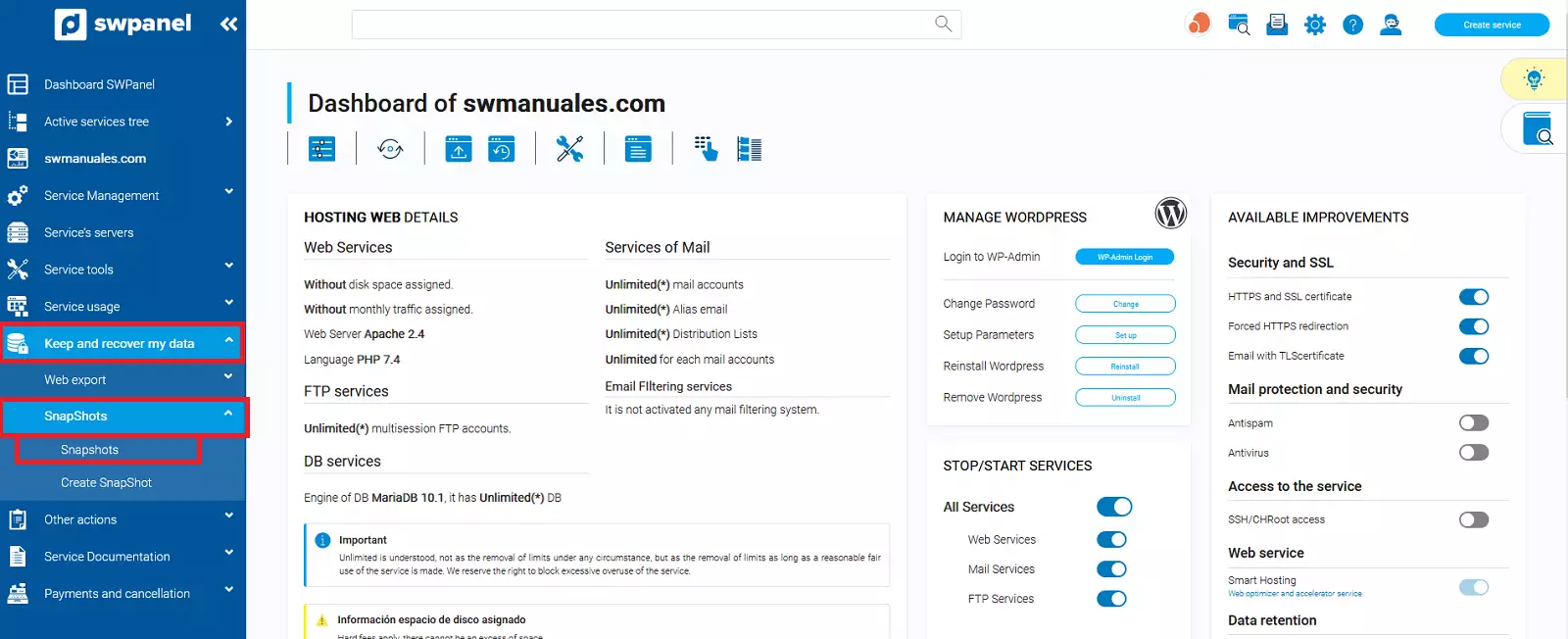
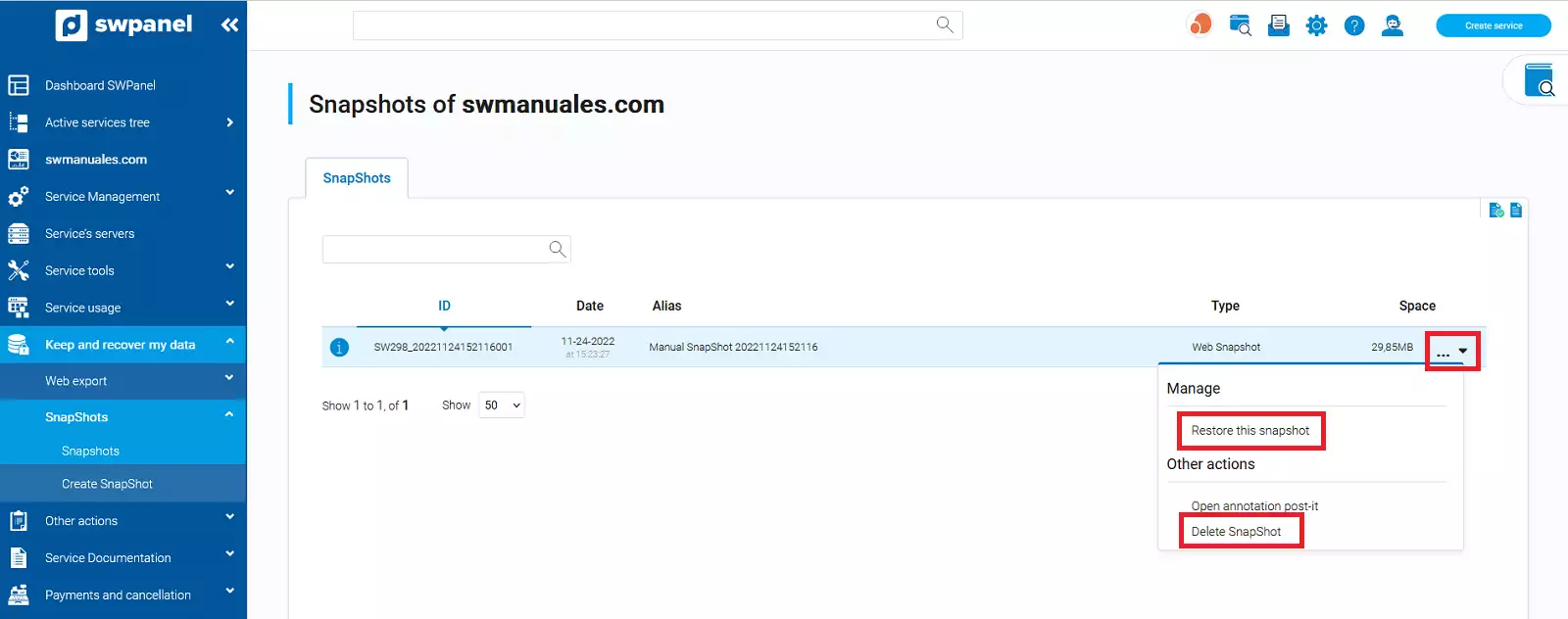
Once the Snapshot Management screen loads, you will see a list of all created Snapshots and you can restore or delete them
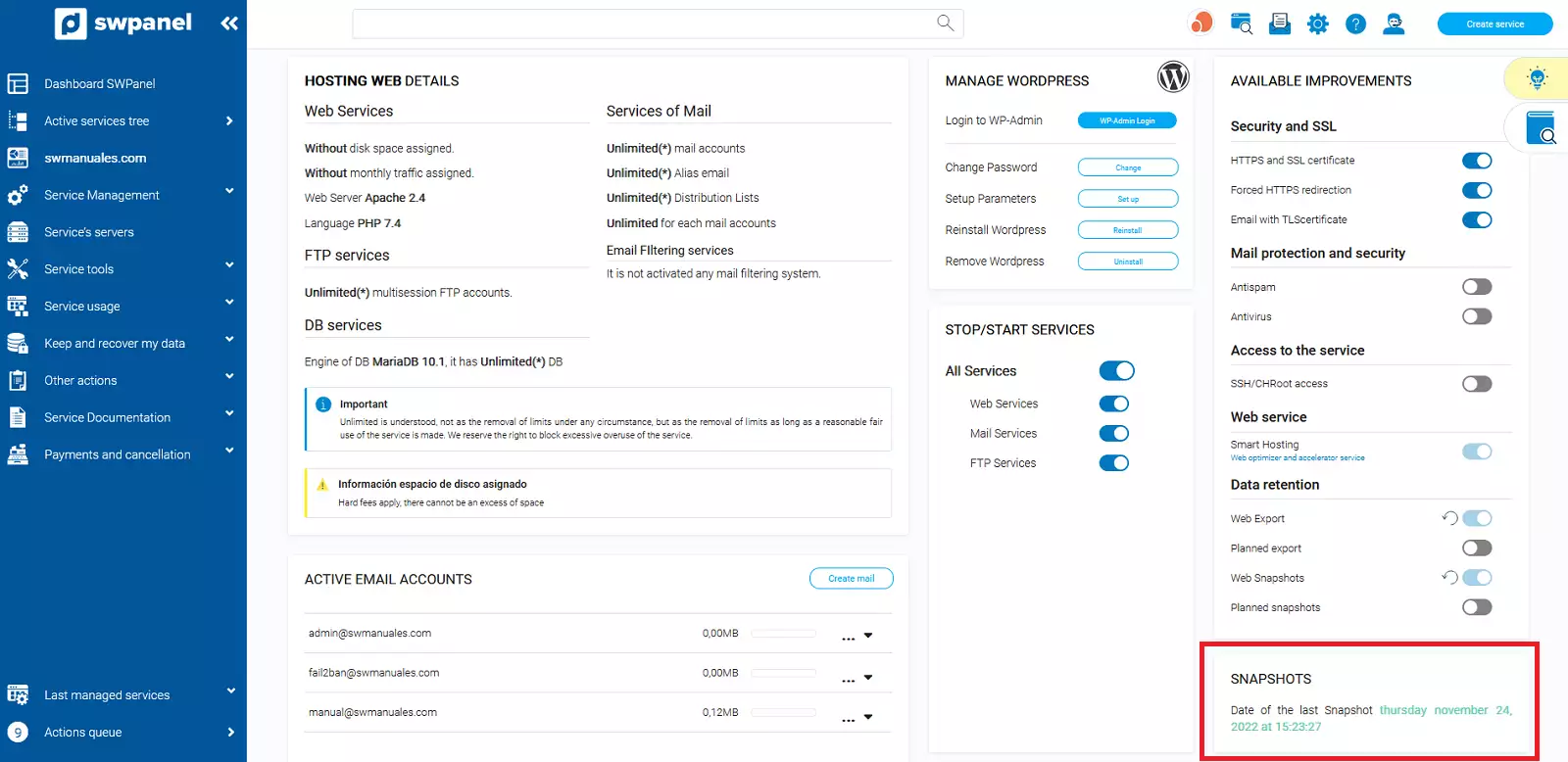
From your services Dashboard, you can also see the details, date, and time of your last created Snapshot
How to restore a Snapshot from SWPanel
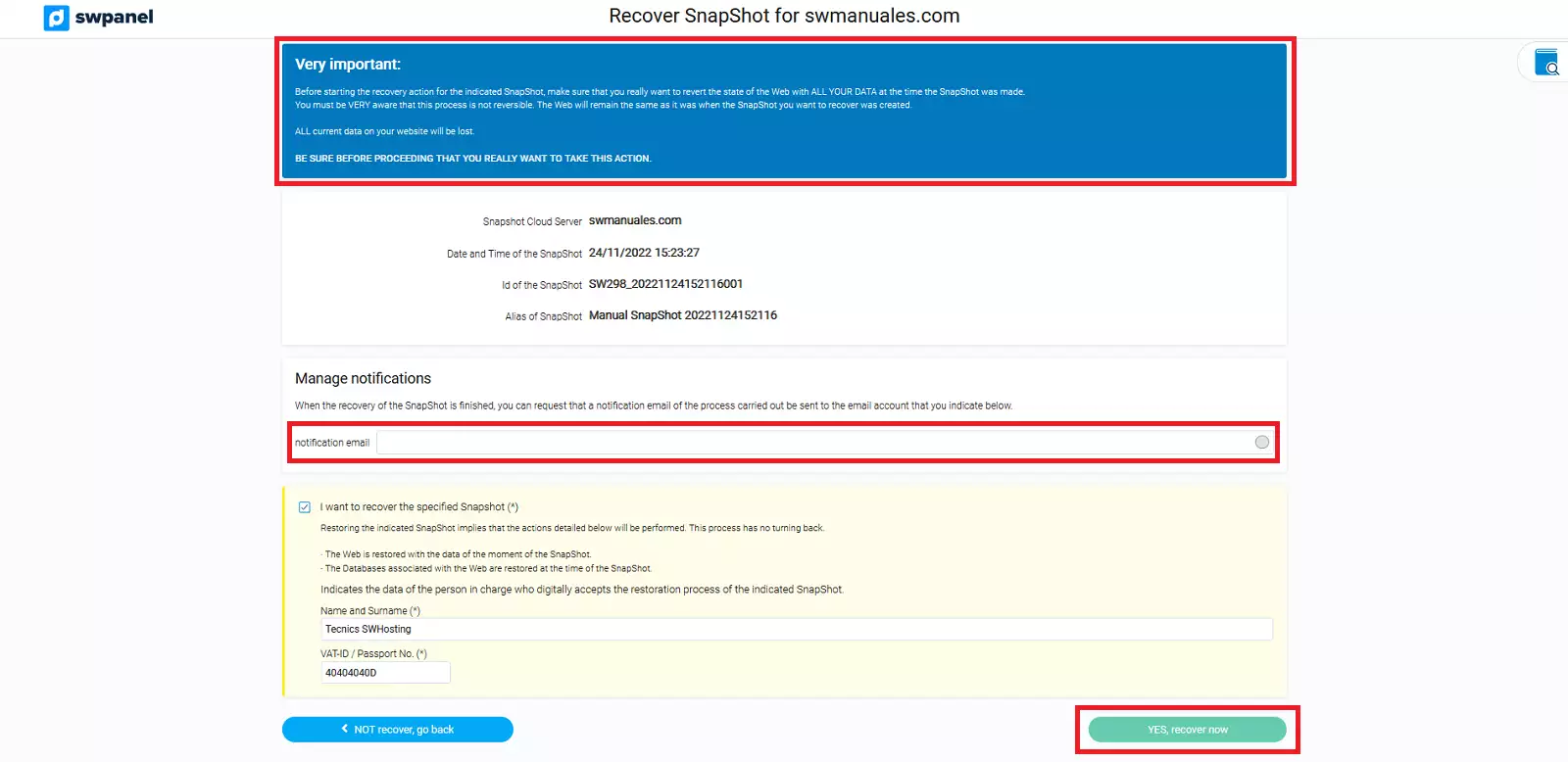
Important: Before starting the recovery action for the indicated Snapshot, make sure you really want to revert the website state with all your data from the moment the snapshot was taken. You must keep in mind that this process is not reversible. The website will be exactly as it was at the time the Snapshot was created. Therefore, ALL your current data will be lost.
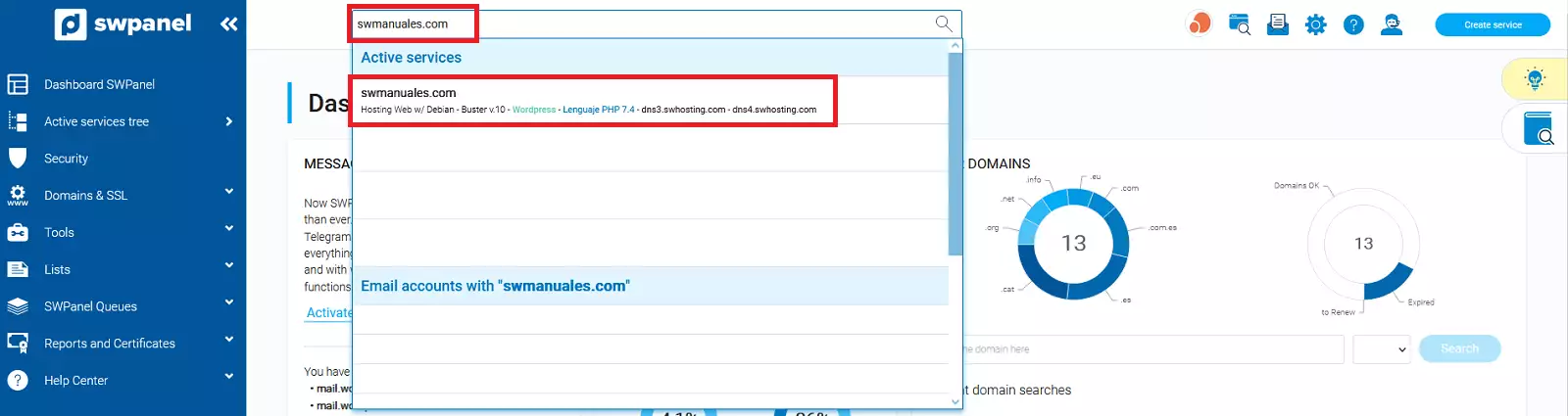
1. From the search box in your SWPanel, you must locate the service you want to restore a Snapshot for.
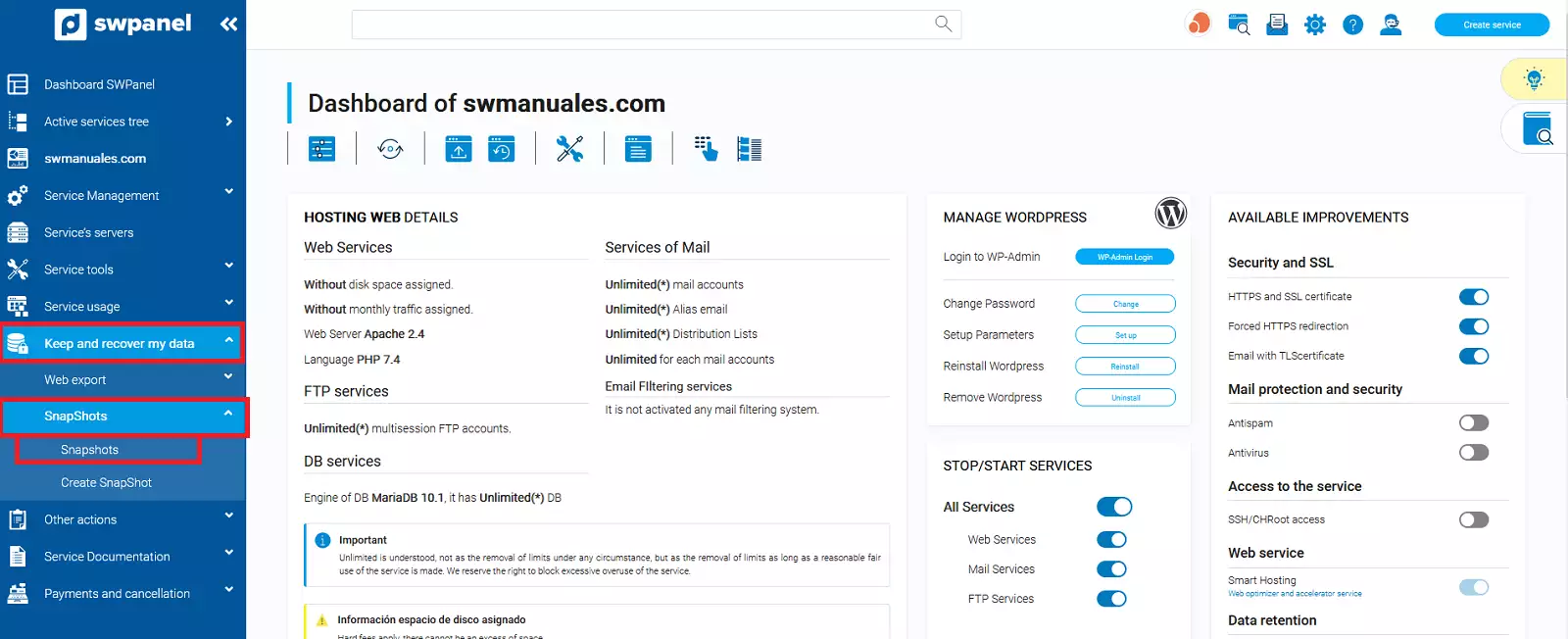
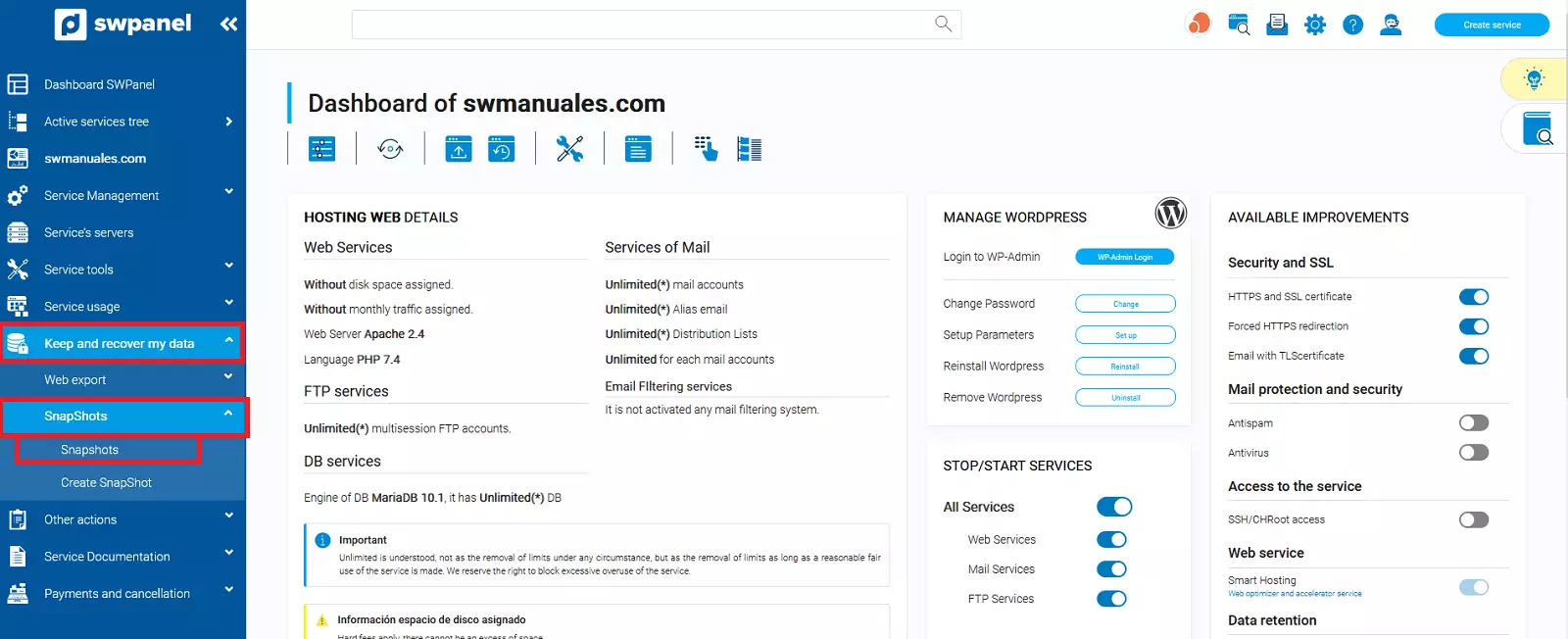
2. Once you are in the service Dashboard, you must click on Keep and recover my data -> Snapshots -> Snapshot Management.
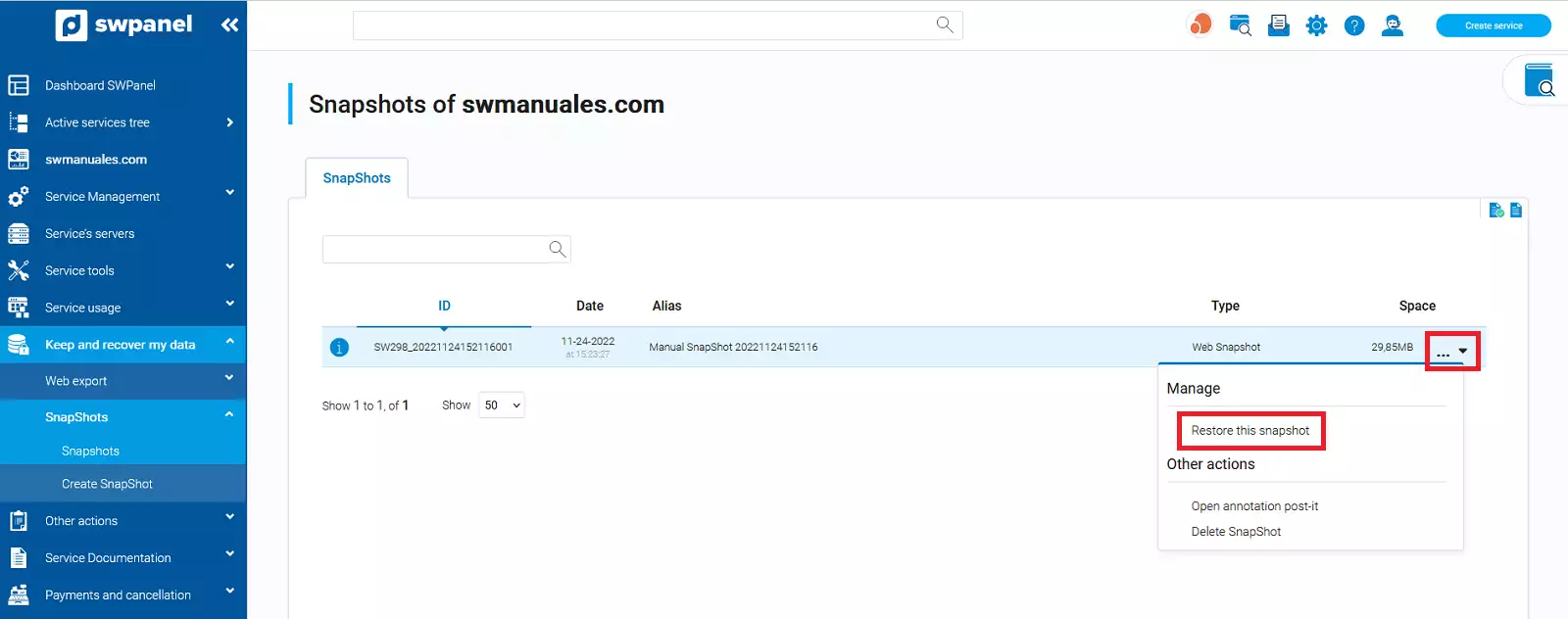
3. Locate the Snapshot you want to restore and hover the mouse over the three dots on its right [ ... ], a pop-up menu will open where you must click on the option "Restore this Snapshot"
4. In the following window, you will be warned that the process is not reversible and it will allow you to provide an email account to be notified of the completion of the restoration process (optional). To start the process, click the "Yes, recover now" button
5. Next, the restoration process will be executed and in a few seconds your website will be back exactly as it was on the day the snapshot was taken.
How to delete a Snapshot of your website from SWPanel
1. From the search box in your SWPanel, you must locate the service for which you want to delete a Snapshot.
2. Once you are in the service Dashboard, you must click on Keep and recover my data -> Snapshots -> Snapshot Management.
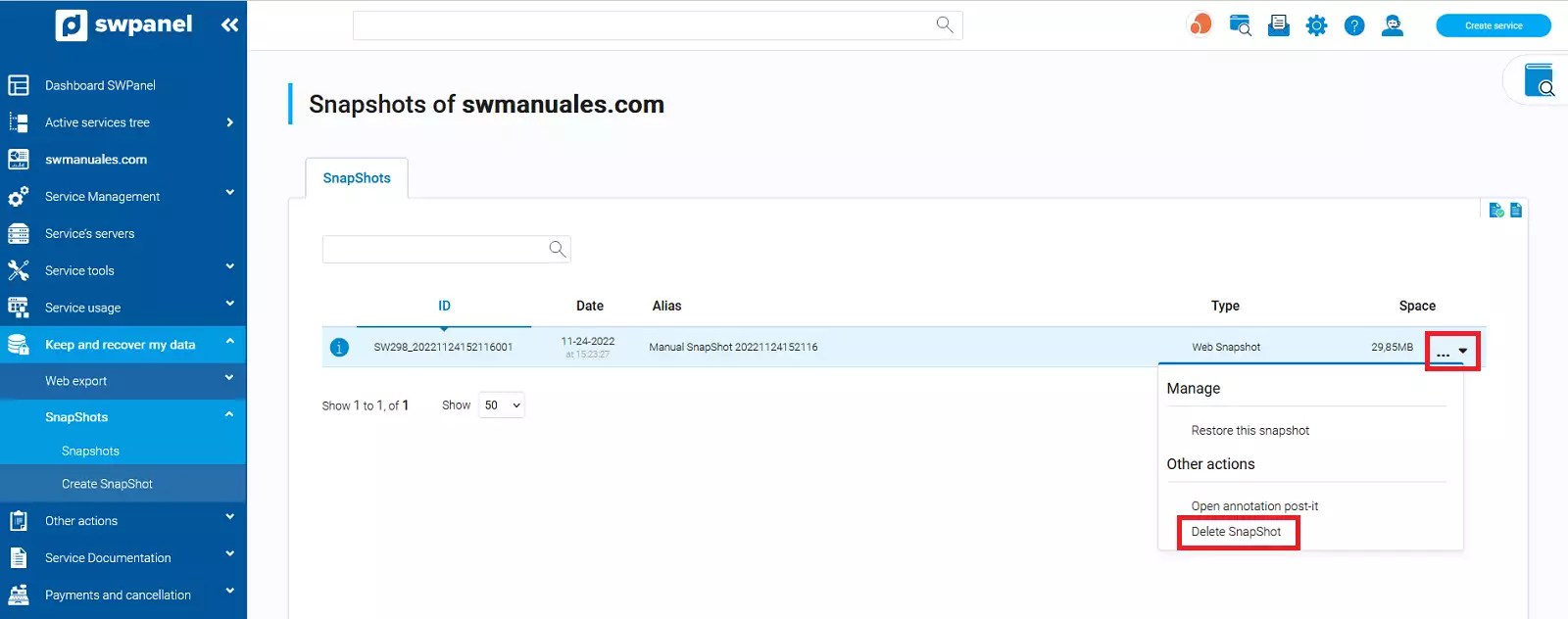
3. Locate the Snapshot you want to delete and hover the mouse over the three dots on its right [ ... ], a pop-up menu will open where you must click on the option "Delete Snapshot"
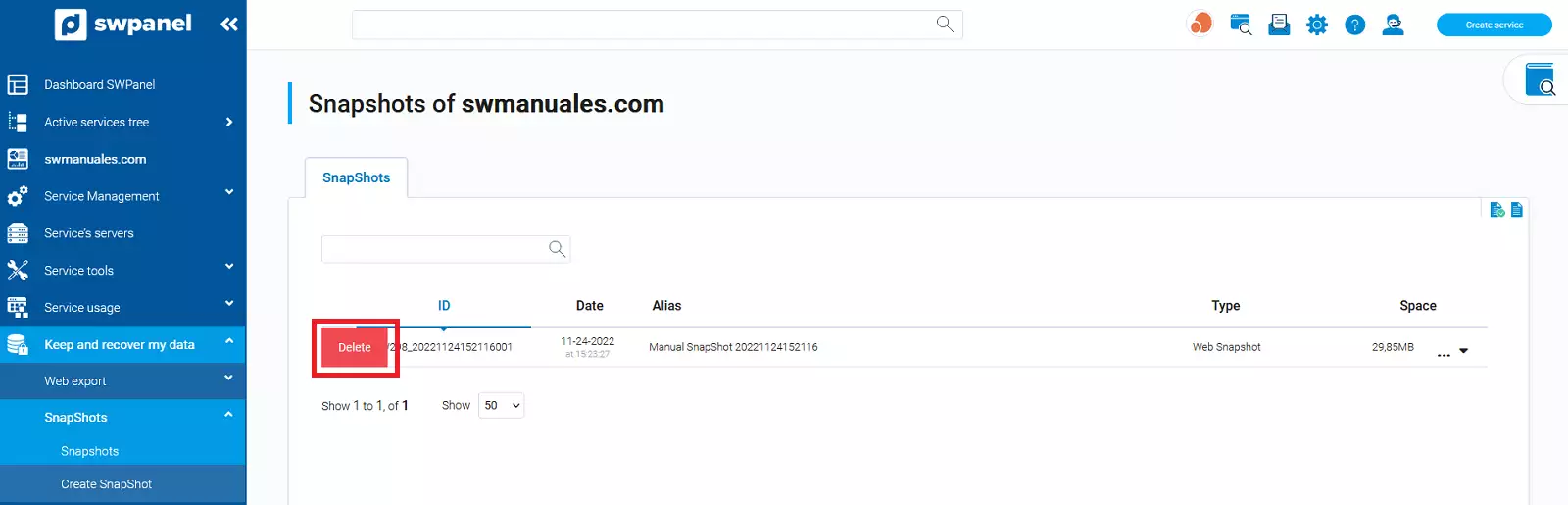
4. The word "Delete" will appear in red above the snapshot ID; click on it to confirm that you want to delete that specific snapshot.
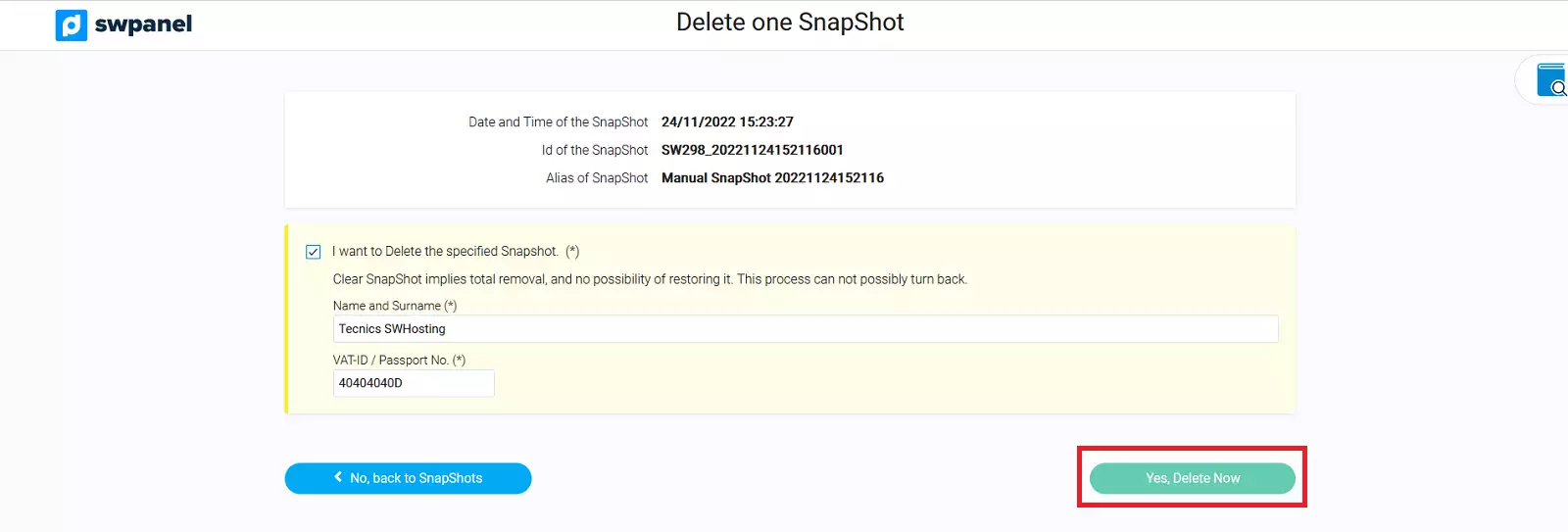
5. In the following window, you will be informed that the snapshot will be deleted, with no possibility of restoring it. Accept the process by clicking the "Yes, Delete Now" button.
6. Then, the snapshot will be deleted and it will disappear from the list of available snapshots in the hosting service.