
How to use the Active Services Tree in SWPanel
The Active Services Tree is the centralized way to visualize and manage all your services in SWPanel: hosting, domains, SSL certificates and their associated elements (email accounts, FTP, databases, etc.).
To access the Active Services Tree, log in to your SWPanel account and go to the blue left side menu. Click on Active Services Tree:
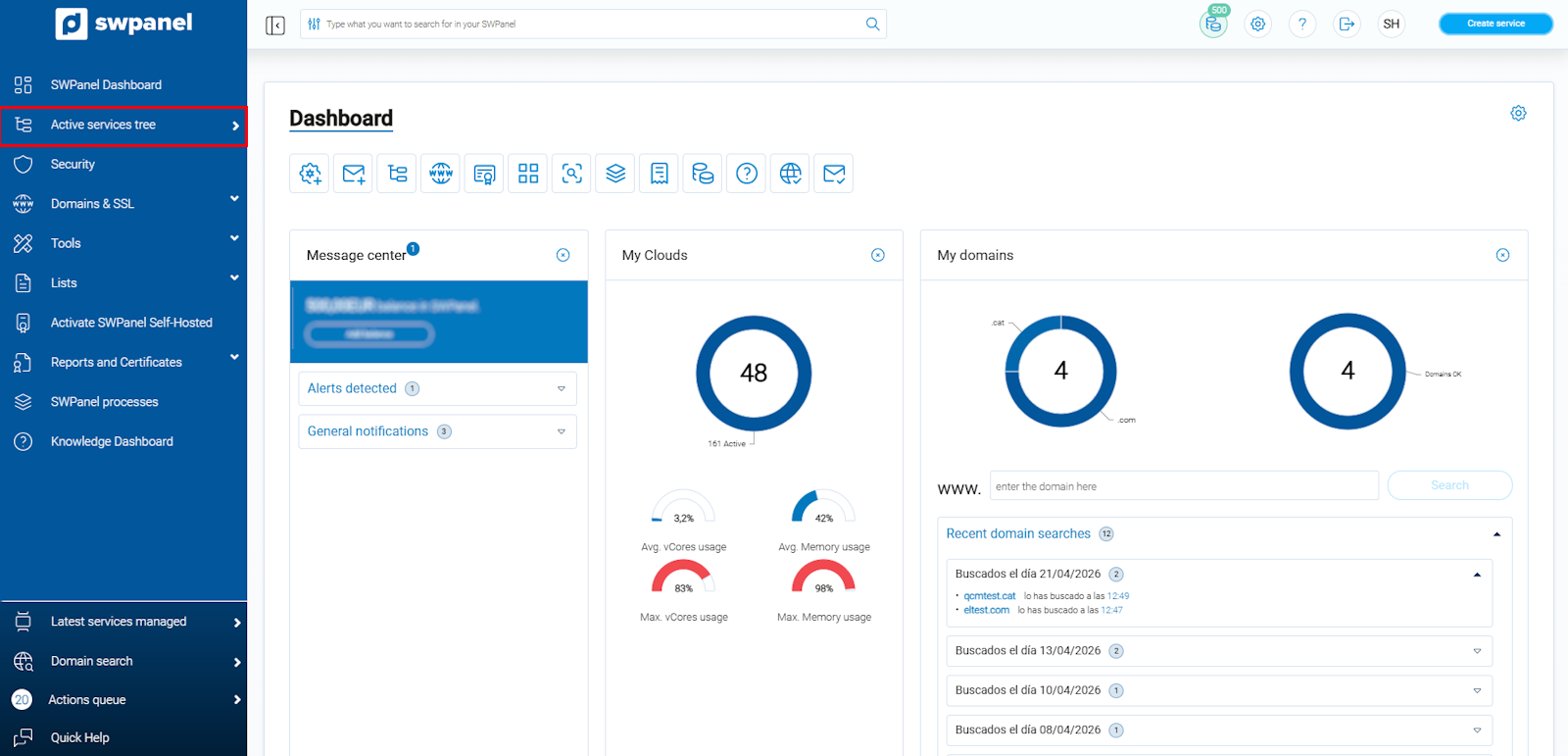
info_capture ℹ️ Note: The screenshot is for guidance purposes, taken from version 2026.001.0020 dated 25/04/2026. It may differ from the current version of SWPanel.
Structure of the Services Tree
The Services Tree shows all your services organized hierarchically, from the most general to the most detailed. At the top, you will see the main services, and each one can be expanded to see its related objects or services.
-
Domains
- Hostnames
- Contacts
- DNS
- Linked SSL certificates
- If it has a linked hosting, the details of the corresponding hosting will also be shown
-
Certificates
- Certificate type
- Issue and expiration date
- If it has a linked hosting, the details of the corresponding hosting will be shown
-
Clouds
- Associated resources (CPU, memory, storage)
- Network and security configuration
- If the cloud contains hosting, the details of each hosting will be shown
-
Hostings
- Email accounts
- FTP accounts
- Databases
- Linked domains
- Associated SSL certificates
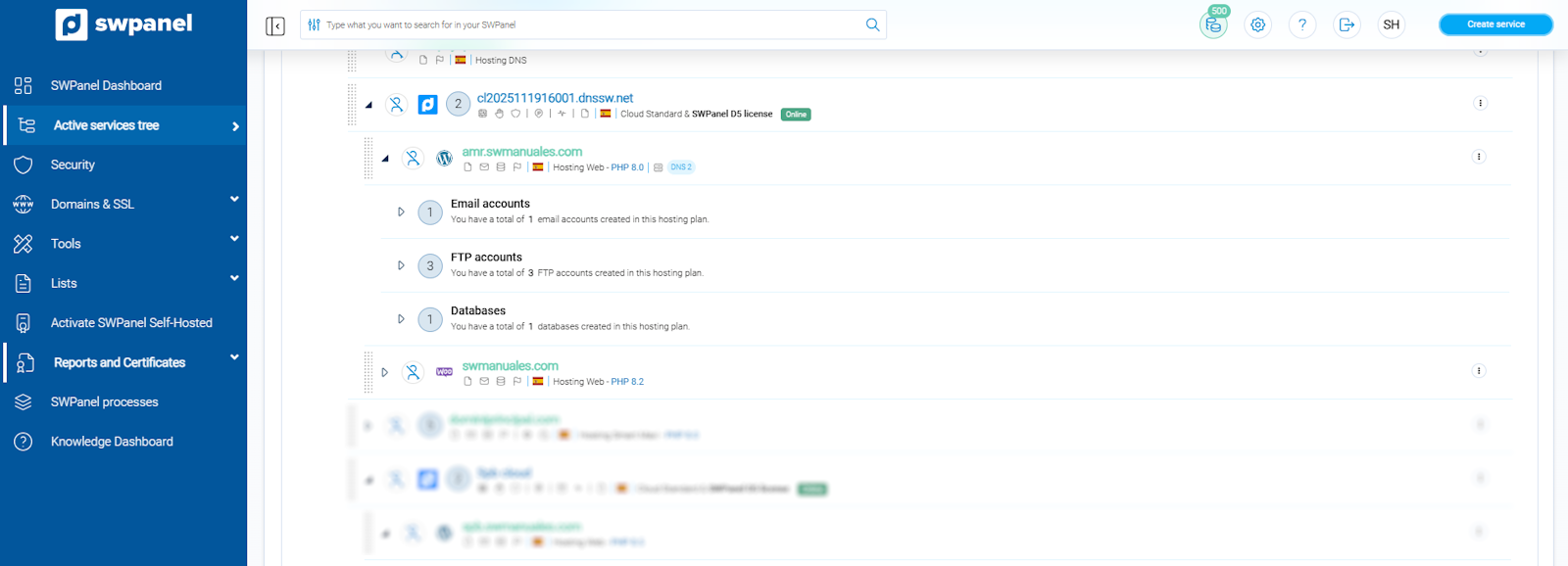
info_capture ℹ️ Note: The screenshot is for guidance purposes, taken from version 2026.001.0020 dated 25/04/2026. It may differ from the current version of SWPanel.
How to navigate and expand services
- Click on the ▶ (triangle) icon that appears to the left of each service to expand or collapse its internal elements.
By expanding a hosting, you can quickly see:
- Number of email accounts created and their usage
- Number of FTP accounts
- Number of databases and their used space
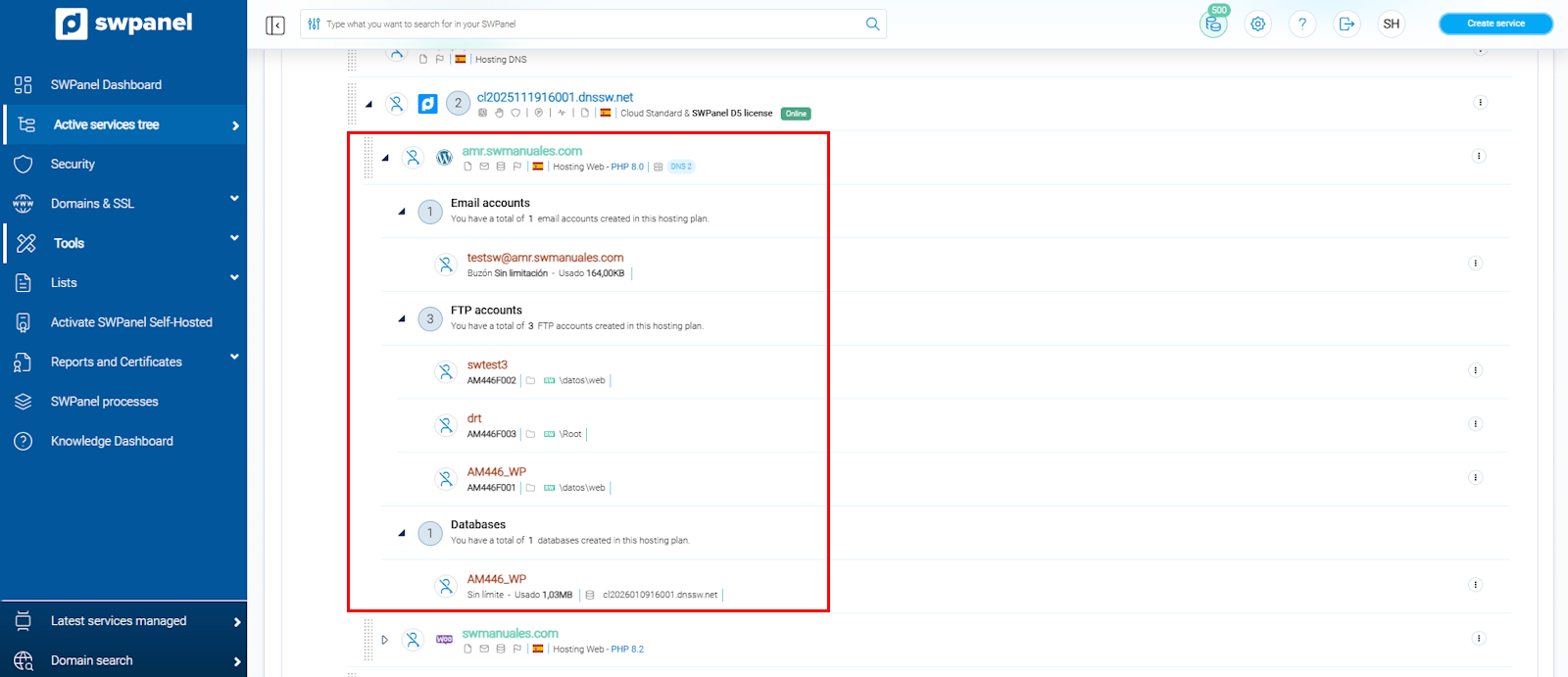
info_capture ℹ️ Note: The screenshot is for guidance purposes, taken from version 2026.001.0020 dated 25/04/2026. It may differ from the current version of SWPanel.
Quick access to the configuration of each service
On the right side of each service (domain, hosting, certificate, email account, FTP, database, etc.), you will find the context menu (three dots [...]).
By clicking on it, a context menu opens with the most common actions for that element (Manage, Modify, Go to PhpMyAdmin, etc.).
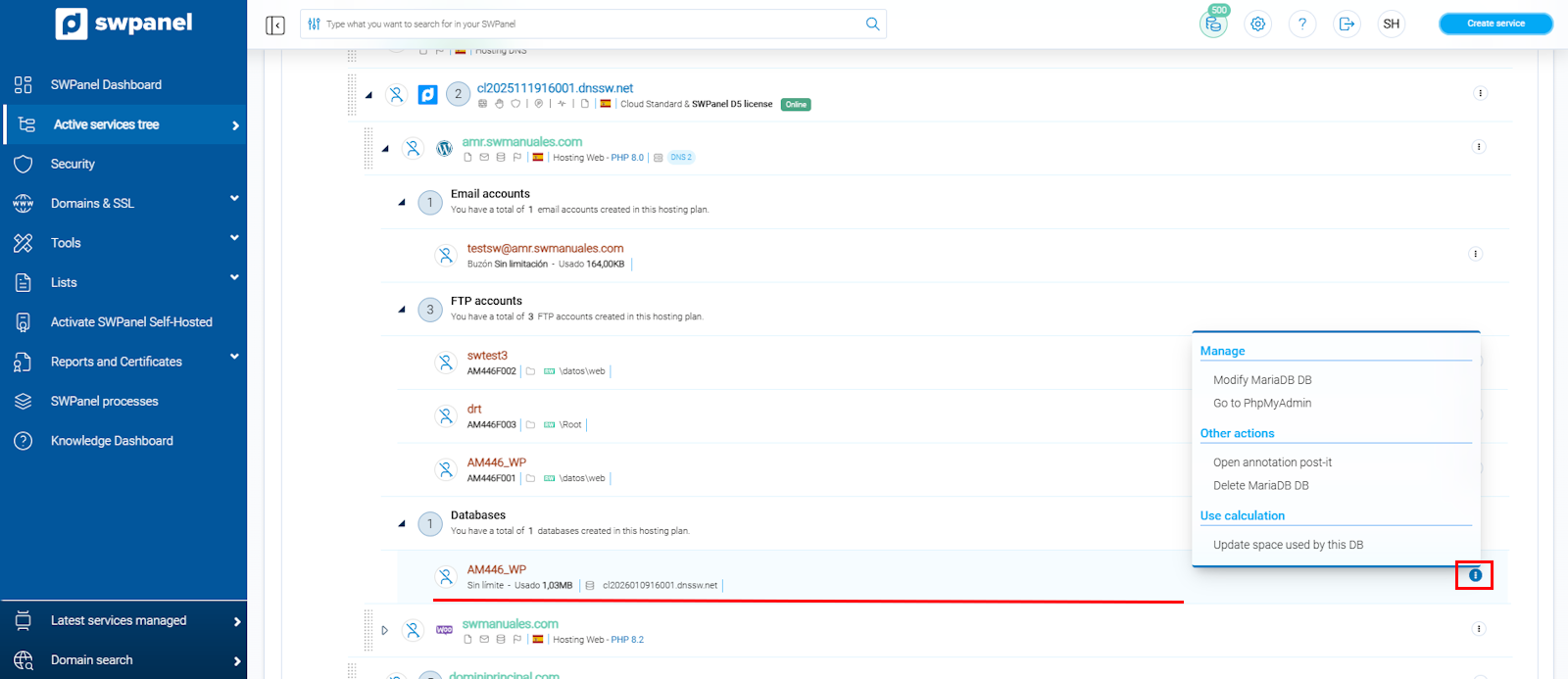
info_capture ℹ️ Note: The screenshot is for guidance purposes, taken from version 2026.001.0020 dated 25/04/2026. It may differ from the current version of SWPanel.
Customize the Tree view
You can customize what is shown in the Active Services Tree. To do this, click on the gear icon ⚙️ that appears in the upper right part of the tree.
There you can enable or disable the visualization of domains, SSL certificates, hosting services, etc., according to your preferences.
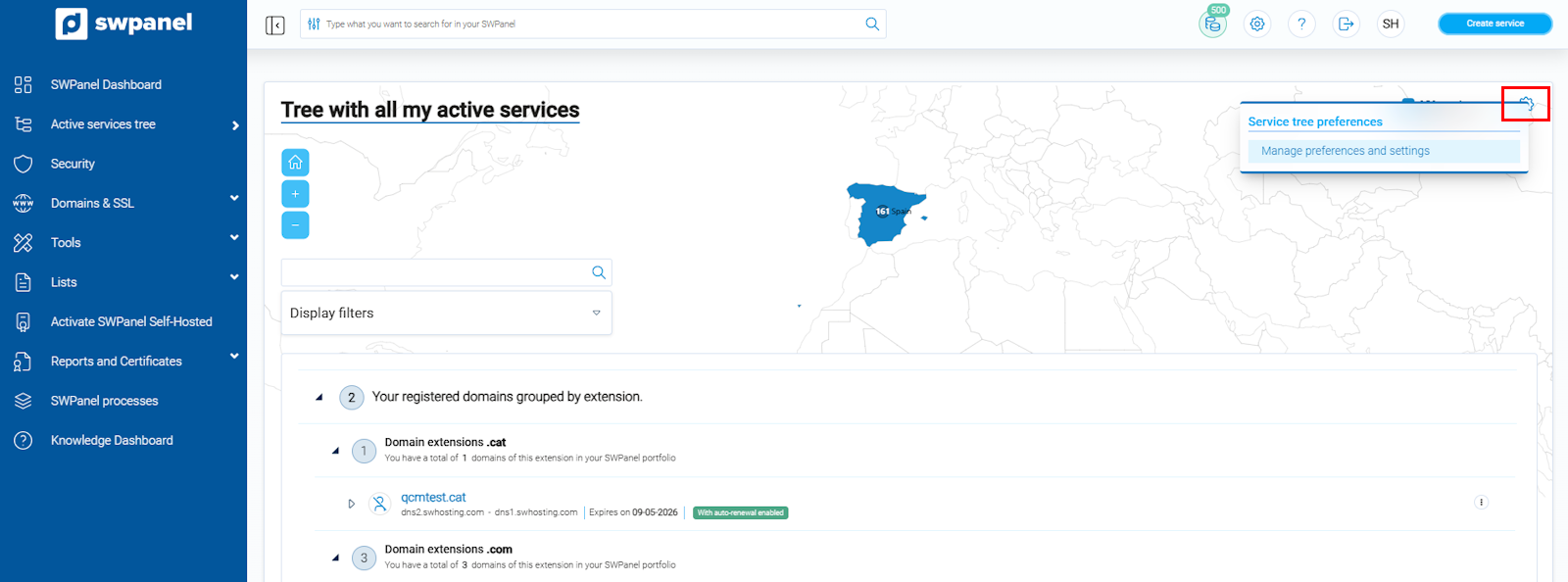
info_capture ℹ️ Note: The screenshot is for guidance purposes, taken from version 2026.001.0020 dated 25/04/2026. It may differ from the current version of SWPanel.
Advantages of the Active Services Tree
- Quick access to everything from a single place (domains, hosting, SSL, email, FTP, databases…).
- Easily switch between a domain and its associated hosting.
- See the status and resource consumption of each service at a glance.
- Context menus for quick actions without having to navigate through multiple screens.
💡 Tip: If you have many services, use the search bar located at the top of the Tree to quickly locate a specific domain, hosting or email account.