
Request cancellation of a service
In this manual, we will explain both how to request the cancellation of a hosting service, as well as a Cloud service (without having to delete the services linked to the main server one by one), and how to cancel a cancellation request.
Before learning the procedure for requesting the cancellation of a service, it is important to highlight that there are 3 different types of cancellation:
- Cancellation at the end of the contracted period: The service will be cancelled upon the completion of the contracted period. The cancellation will be requested, and when the contract for said service ends, it will be automatically deleted.
- Immediate service cancellation: The service will be cancelled immediately. You must be very sure of your intention to cancel, as your service will be automatically deleted in a few minutes.
- Scheduled cancellation: The service will be cancelled on the date you specify in the calendar that appears at the bottom. Scheduled cancellations are processed at 00:30h on the indicated day.
Cancellations can be cancelled before they are executed. In the case of immediate cancellations, you must be very fast, as the service is deleted in a few minutes.
Request cancellation of a Hosting service
Whatever hosting service level you have contracted, the cancellation process is exactly the same.
1. Access your private client area: www.swpanel.com, by entering your username and password.
2. Once inside, locate the service you want to cancel:
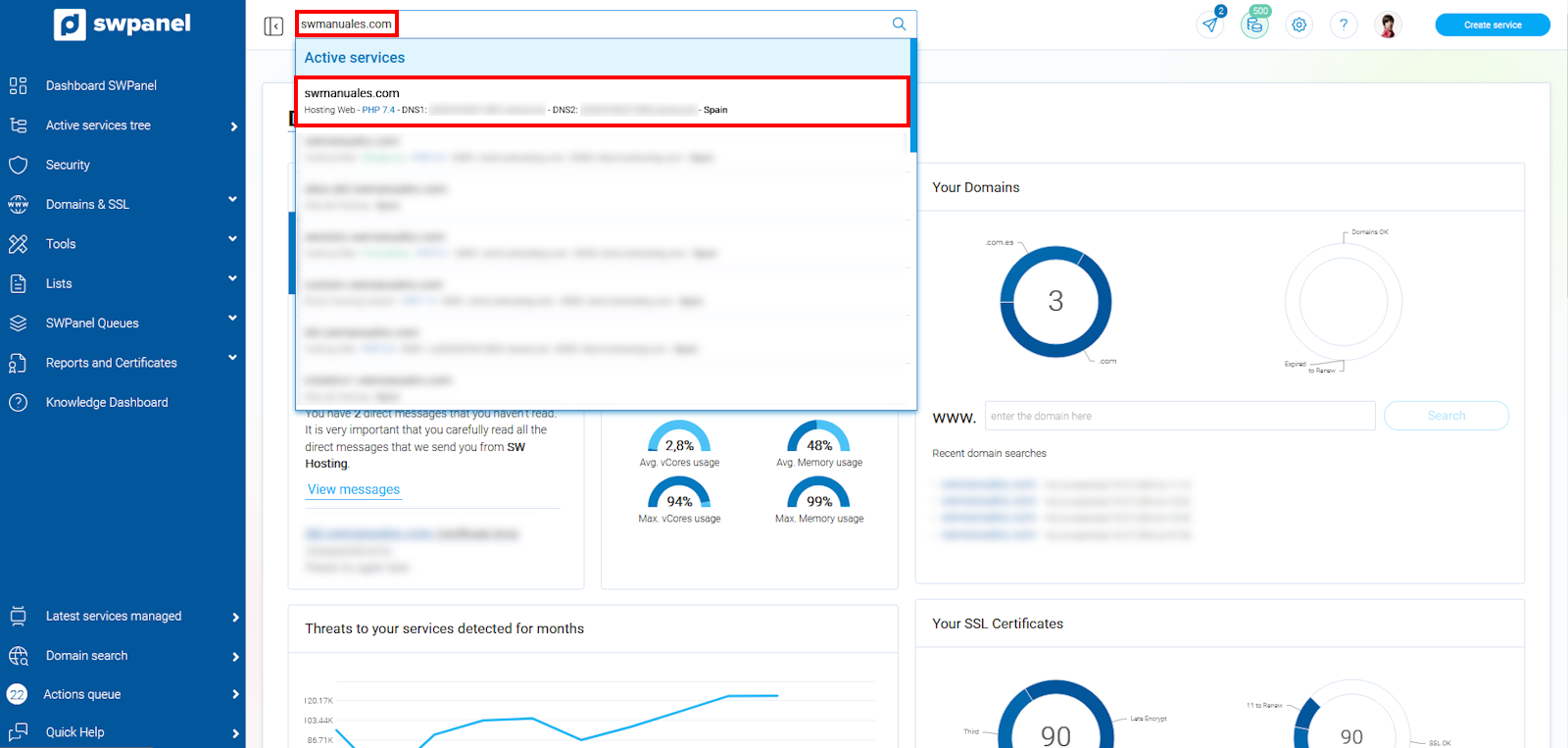
info_capture The screenshot is for guidance only. It was taken using version 2026.001.0057 dated 18/05/2026. It may differ from what the current version of SWPanel shows.
3. Expand the 'Payments and Cancellations' tab that appears in the blue left side menu -> Request cancellation:
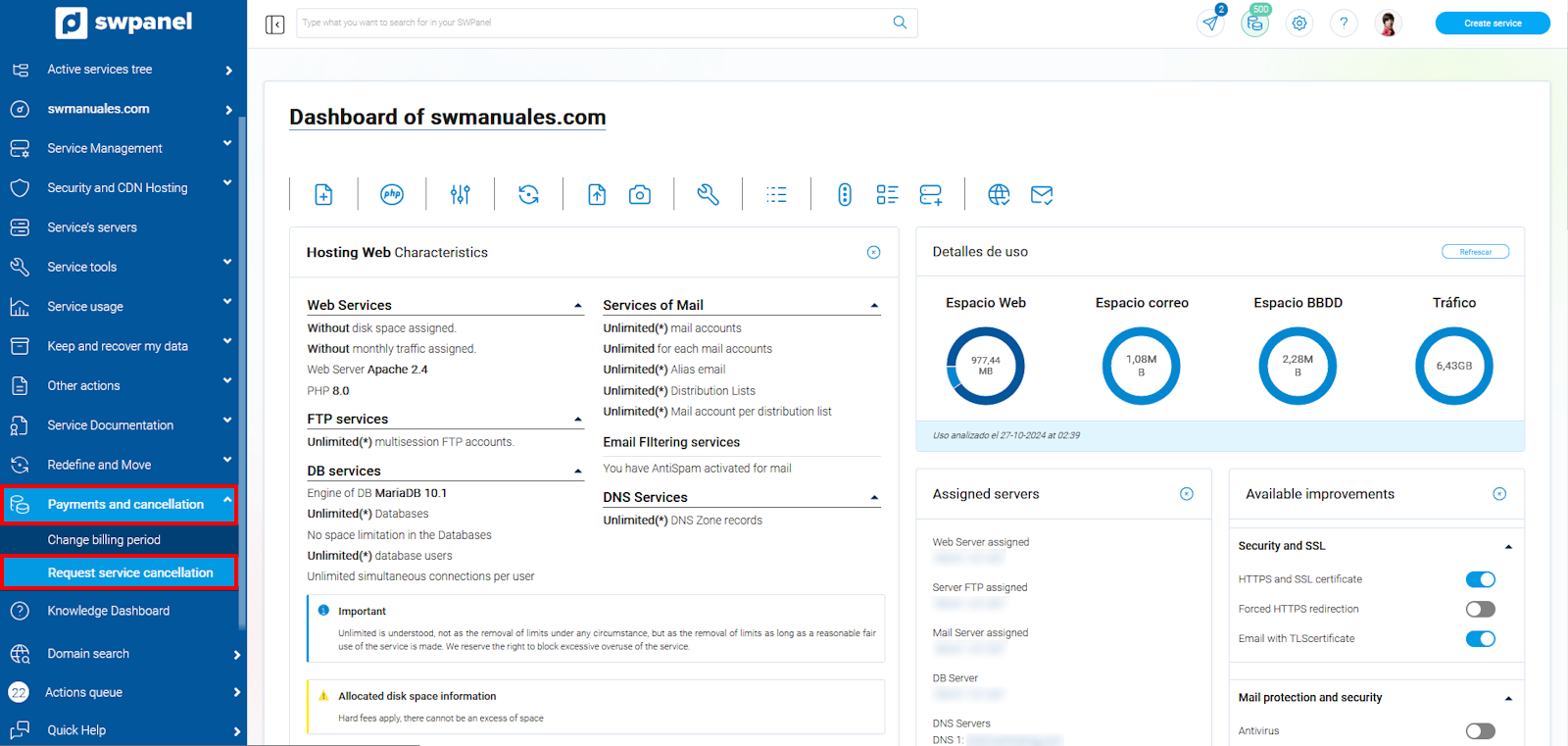
info_capture The screenshot is for guidance only. It was taken using version 2026.001.0057 dated 18/05/2026. It may differ from what the current version of SWPanel shows.
3.1. Choose the type of cancellation you desire, accept the conditions that appear at the bottom by entering the required data (name and NIF) and select the green button 'Process service cancellation':
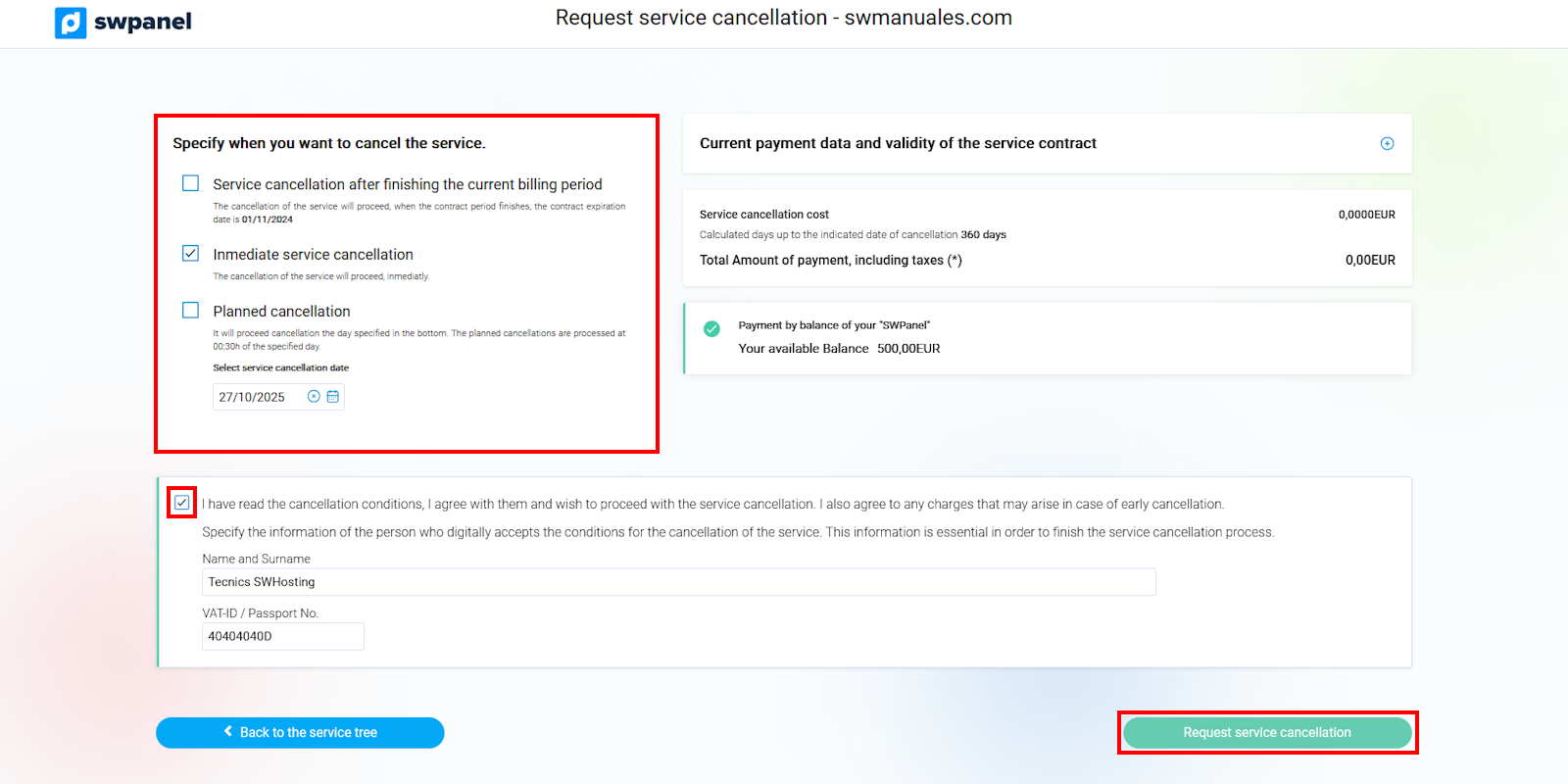
info_capture The screenshot is for guidance only. It was taken using version 2026.001.0057 dated 18/05/2026. It may differ from what the current version of SWPanel shows.
💡 As hosting services are paid annually at the time of contracting, when you request cancellation, you will not have to make any additional payments, so it is not necessary to have a balance in your client account. However, if there is an outstanding balance, you must settle it first.
4. To check that your cancellation has been requested, you only need to return to your services tree menu, and a red notification will appear there, next to the service for which you have requested the cancellation, indicating when it will be processed:
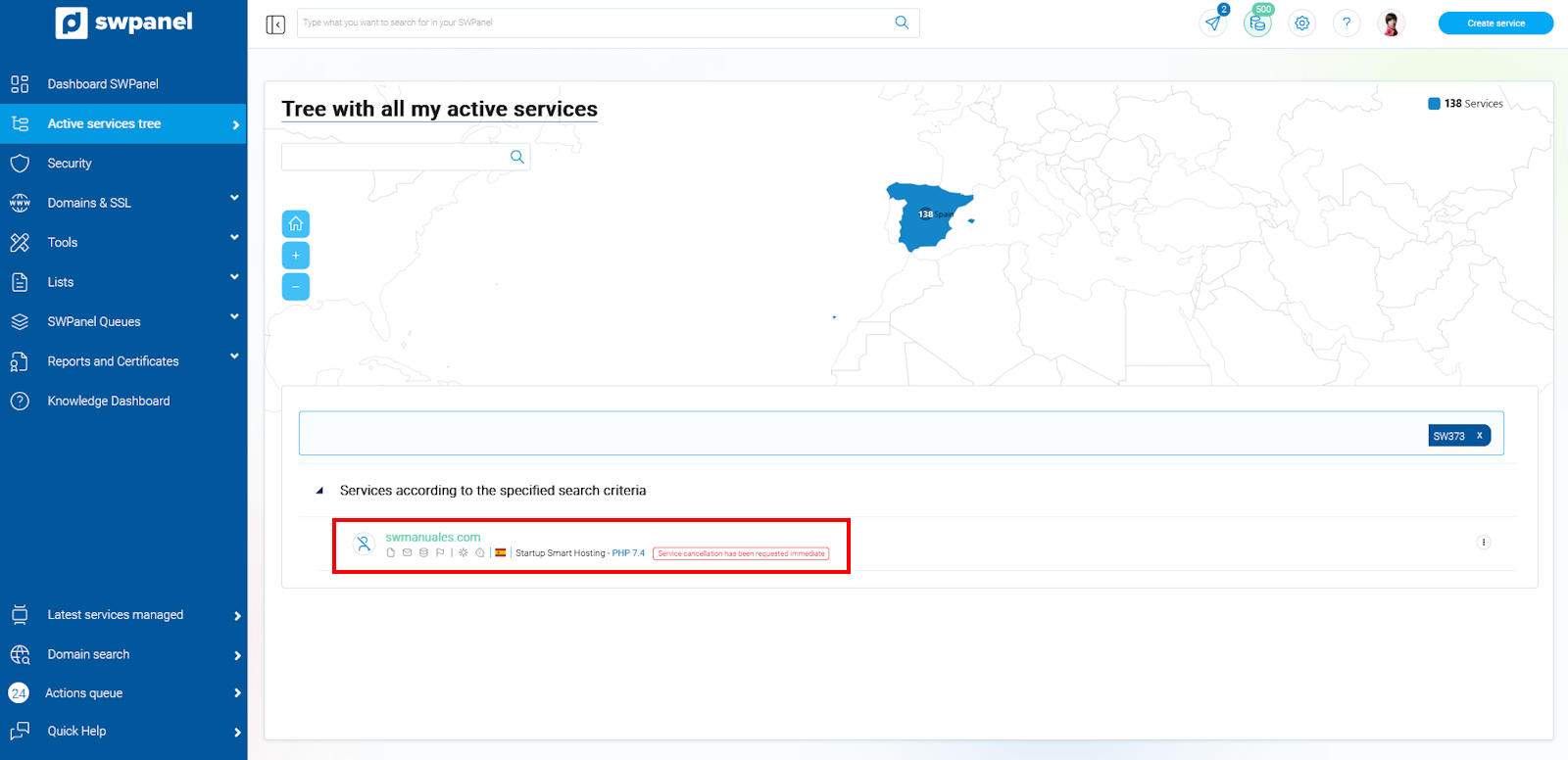
info_capture The screenshot is for guidance only. It was taken using version 2026.001.0057 dated 18/05/2026. It may differ from what the current version of SWPanel shows.
Request cancellation of a Cloud server
You can request the cancellation of a cloud server with a single click, without having to delete service by service:
Access your SWPanel Dashboard and expand the Services Tree tab (blue side menu), without clicking on it, simply by clicking on the '>' icon that appears to its right:
When the Cloud is completely stopped, we will repeat the same step as before, but this time we must click on Request cancellation

info_capture The screenshot is for guidance only. It was taken using version 2026.001.0057 dated 18/05/2026. It may differ from what the current version of SWPanel shows.
Please note that if there is any service within the cloud, you must agree to delete the Cloud and its Hostings within; otherwise, it will not allow the deletion to proceed.

info_capture The screenshot is for guidance only. It was taken using version 2026.001.0057 dated 18/05/2026. It may differ from what the current version of SWPanel shows.
Finally, accept the conditions that appear at the bottom by entering the required data (name and NIF) and select the green button 'Process service cancellation':
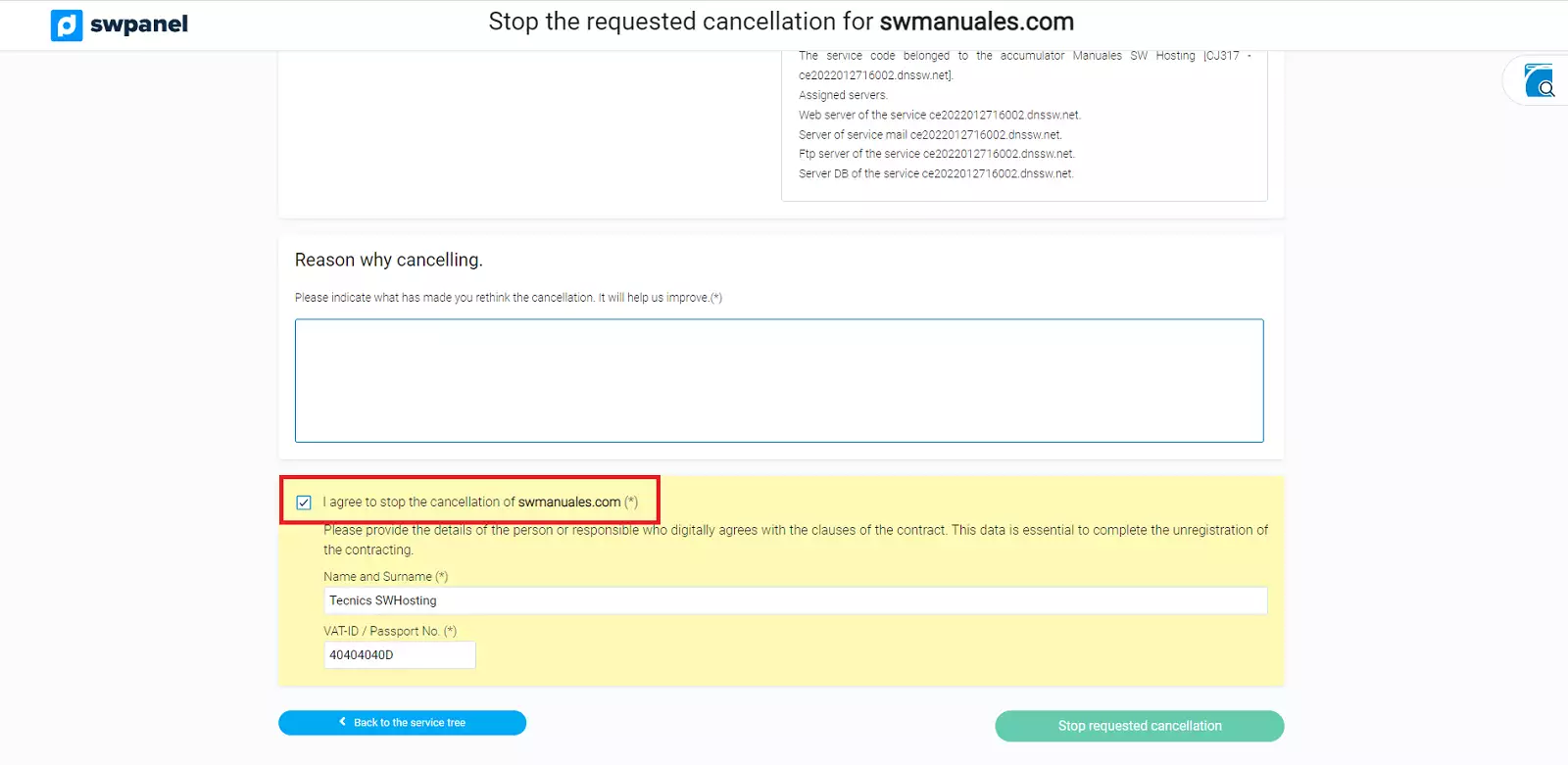
info_capture The screenshot is for guidance only. It was taken using version 2026.001.0057 dated 18/05/2026. It may differ from what the current version of SWPanel shows.
⚠️IMPORTANT: Keep in mind that once you process the cancellation of the cloud server, ALL services within it will be deleted. You must be very sure that you wish to completely delete all services hosted on it. ⚠️
⚠️IMPORTANT: At the time of processing the cancellation, you have the option to request a certificate that guarantees the deletion of the service data in accordance with ISO27001 and the current organic law on data protection (LOPD).⚠️
Cancel a cancellation request
If you made a mistake when requesting a cancellation or have changed your mind and finally decide to continue with the service, you have the option to 'cancel requested cancellation'. To do this, you must access the service tree of your SWPanel, where all active services appear.
And you must click on the specific service:
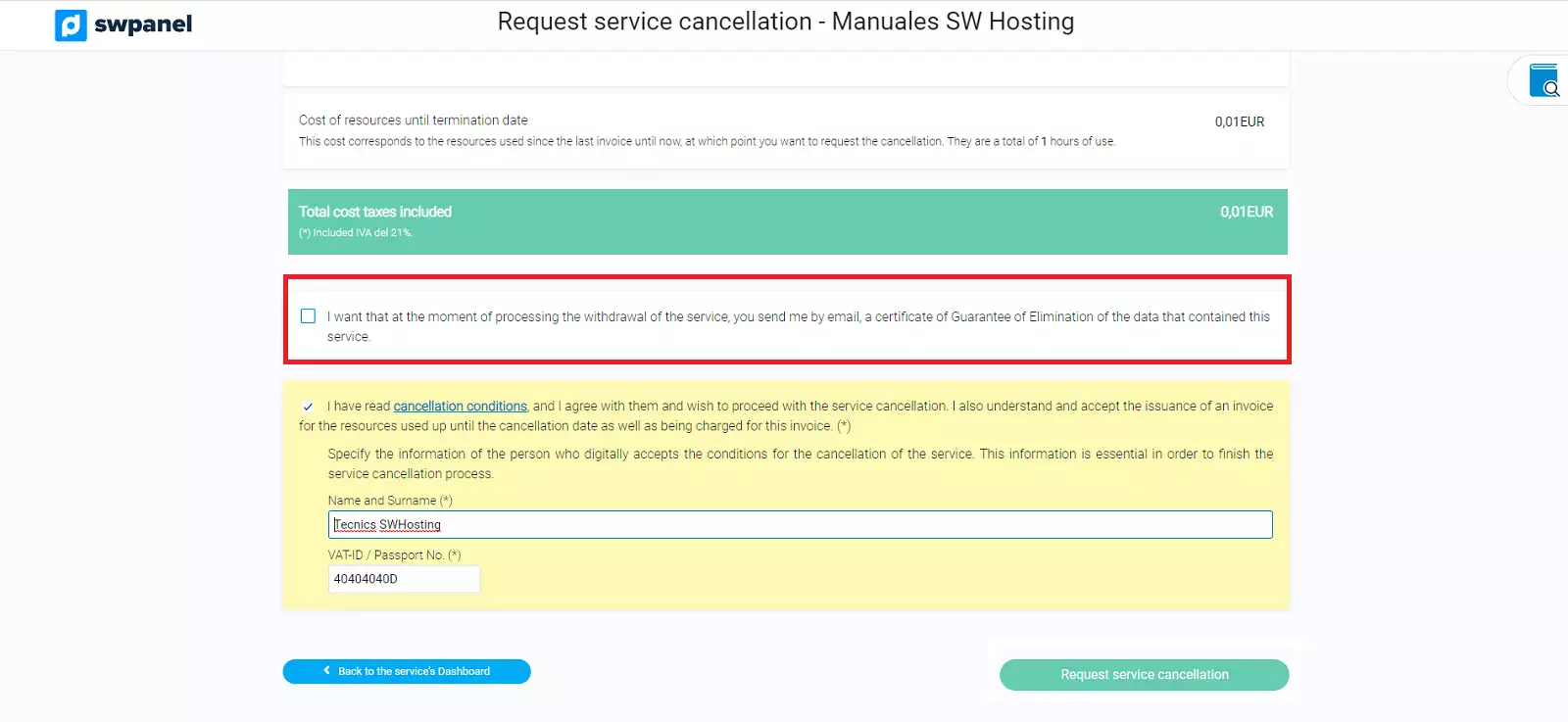
info_capture The screenshot is for guidance only. It was taken using version 2026.001.0057 dated 18/05/2026. It may differ from what the current version of SWPanel shows.
It will take you to the same cancellation screen. If you wish, you can write the reason for your cancellation, accept the cancellation by entering the required data (name and NIF), and click on the green button 'cancel requested cancellation':
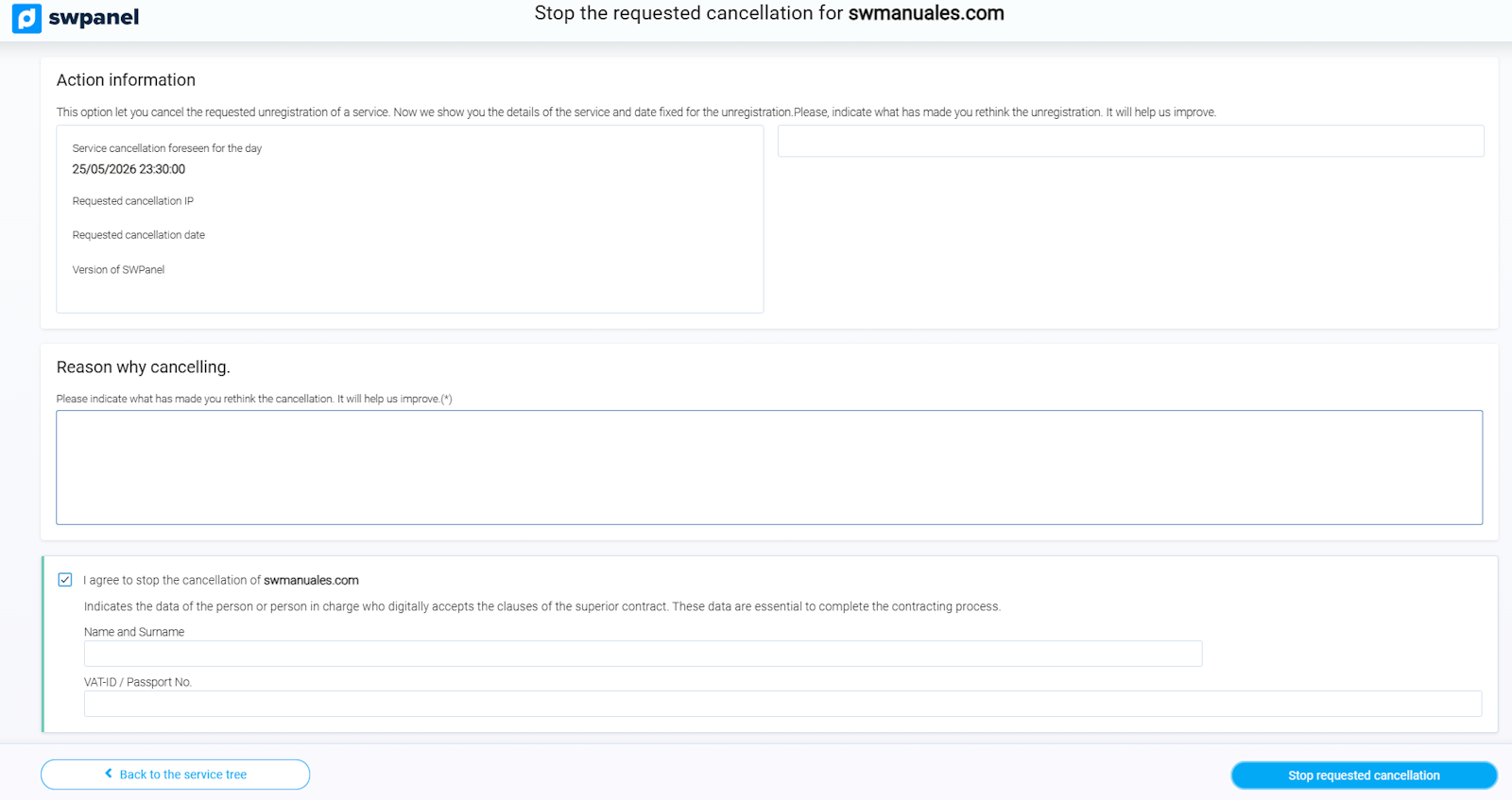
info_capture The screenshot is for guidance only. It was taken using version 2026.001.0057 dated 18/05/2026. It may differ from what the current version of SWPanel shows.