
Configure email accounts from my Hosting in Gmail
The configuration shown in this manual requires the installation of a TLS security certificate for your Hosting email.
The (example) data that we must take into account for the email account configuration are as follows:
- Incoming mail server: mail.dominio.com
- IMAP Port: 993
- POP3 Port: 995
- Outgoing mail server: mail.dominio.com
- SMTP Port: 465
- Email account
- Access key
- Protocol: SSL/TLS
To view the connection data of your email account from SWPanel, you can check this manual:
Handbuch: How to view the connection details of my email account
All configuration will be carried out from the GMail 'webmail'.
First, to configure your email account in Gmail, you must open a browser and go to gmail.com with your usual login credentials.
Two configurations will be performed:
- Configure GMail to send emails with your hosting account
- Configure GMail to view emails from your hosting account
Configure GMail to send emails with your hosting account
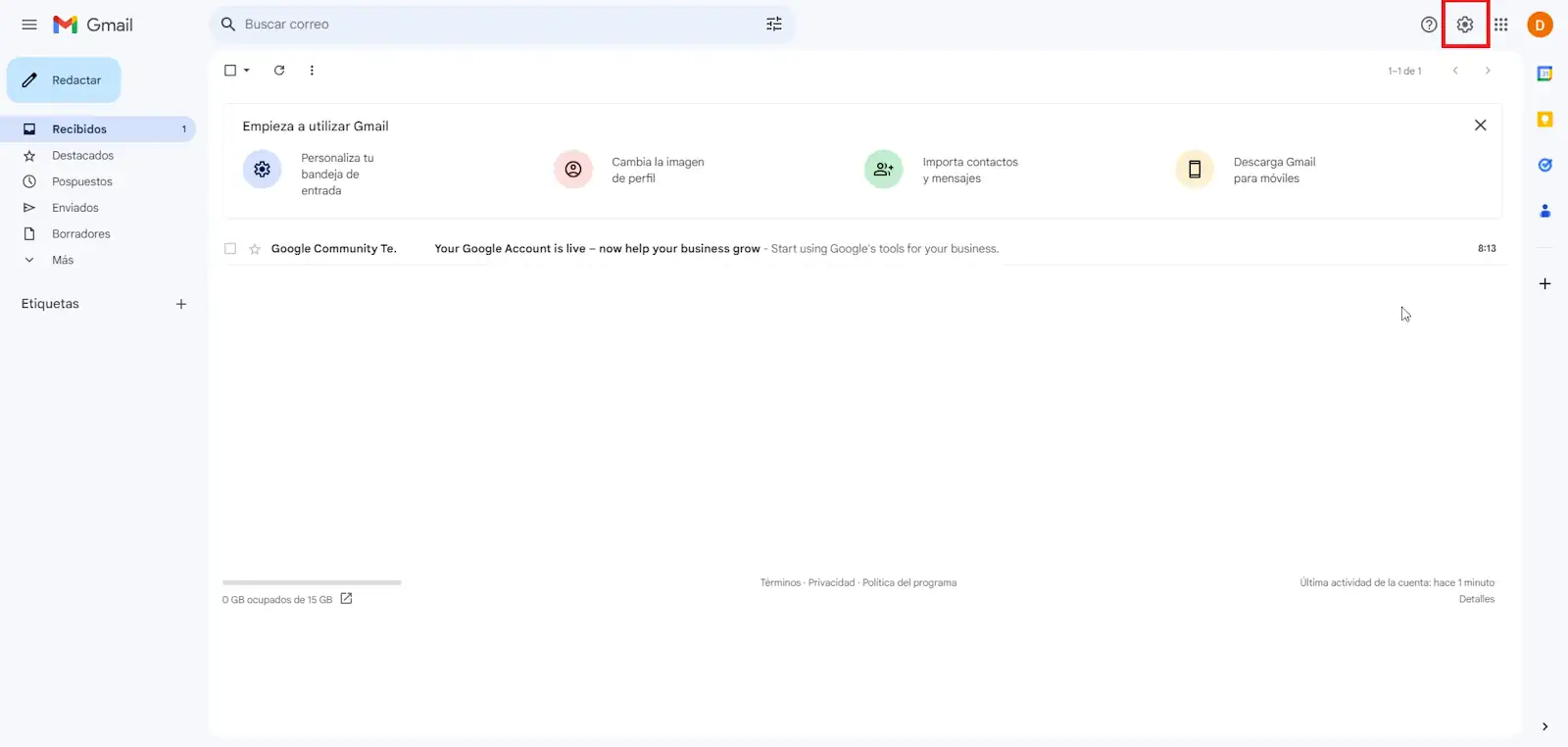
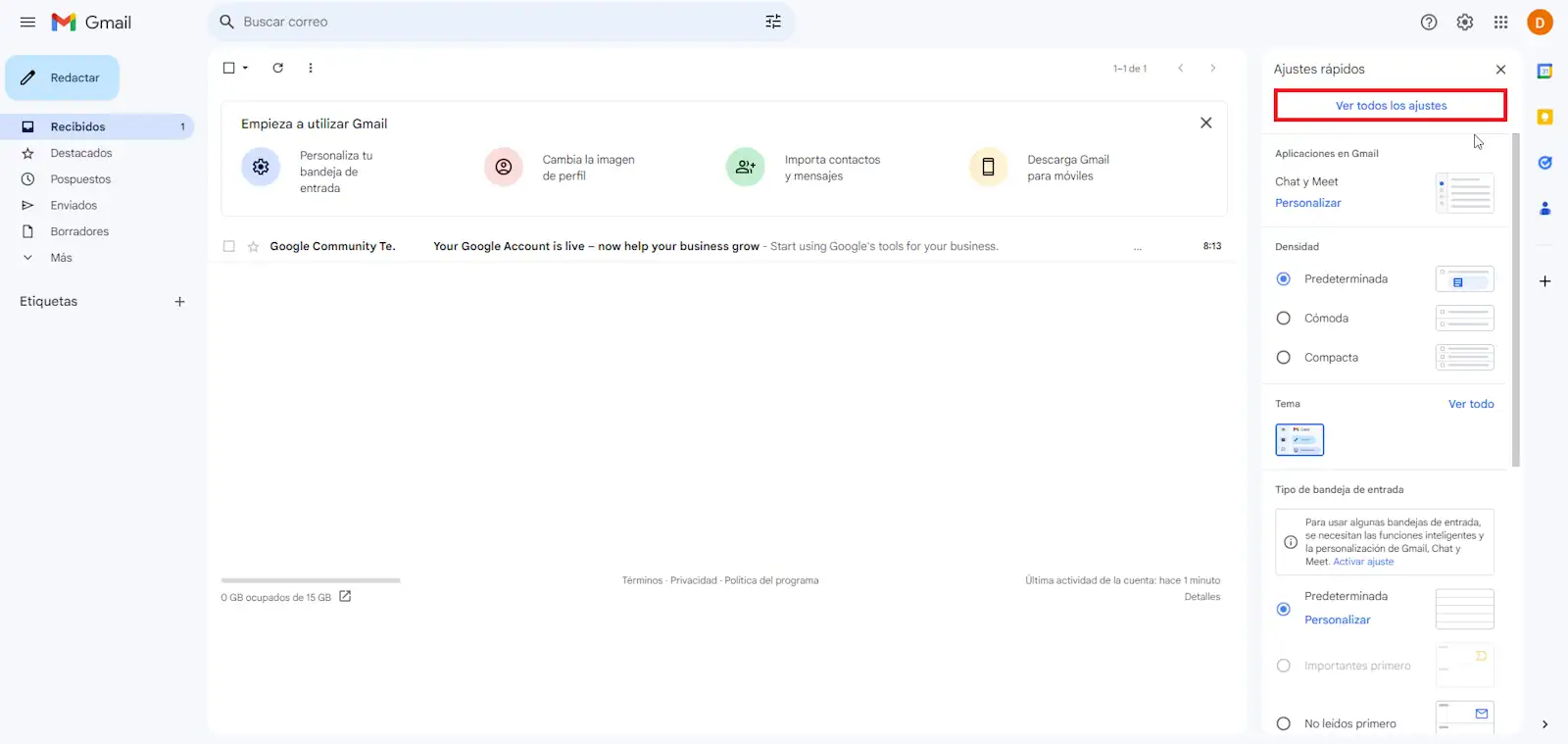
You must access the settings menu of your GMail account by clicking on the gear button and then on 'See all settings'.
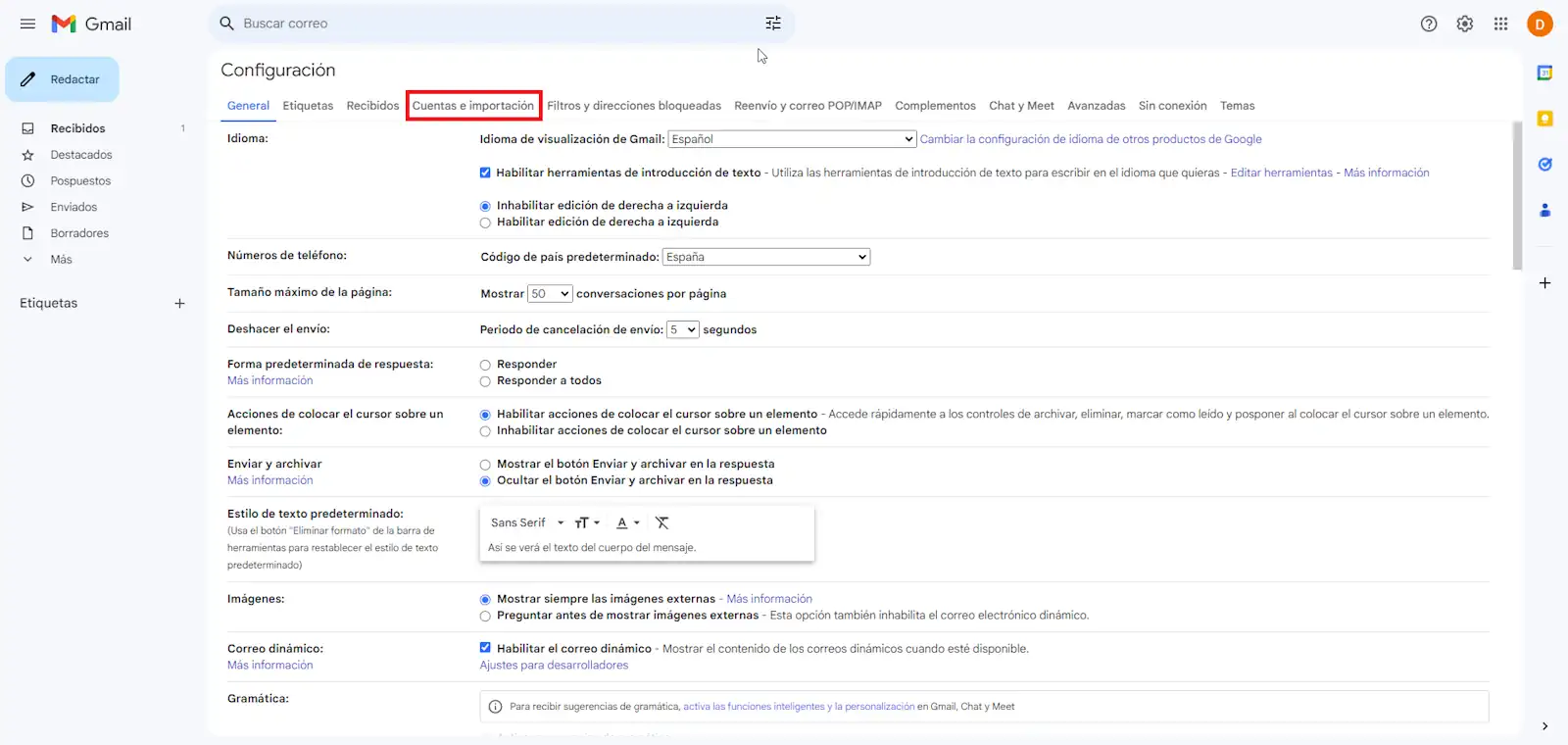
Next, you must go to 'Accounts and Import'.
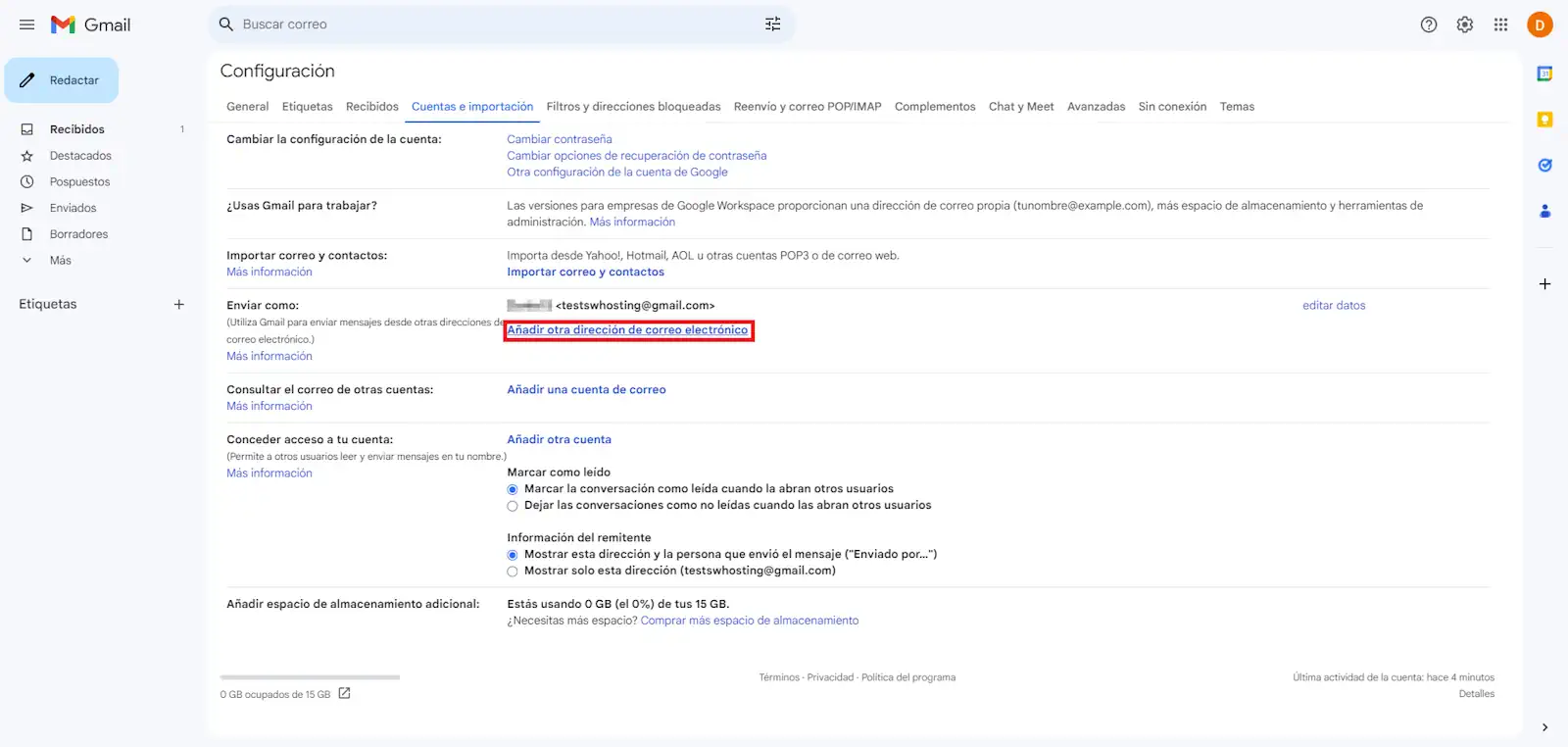
And then to 'Add another email address'
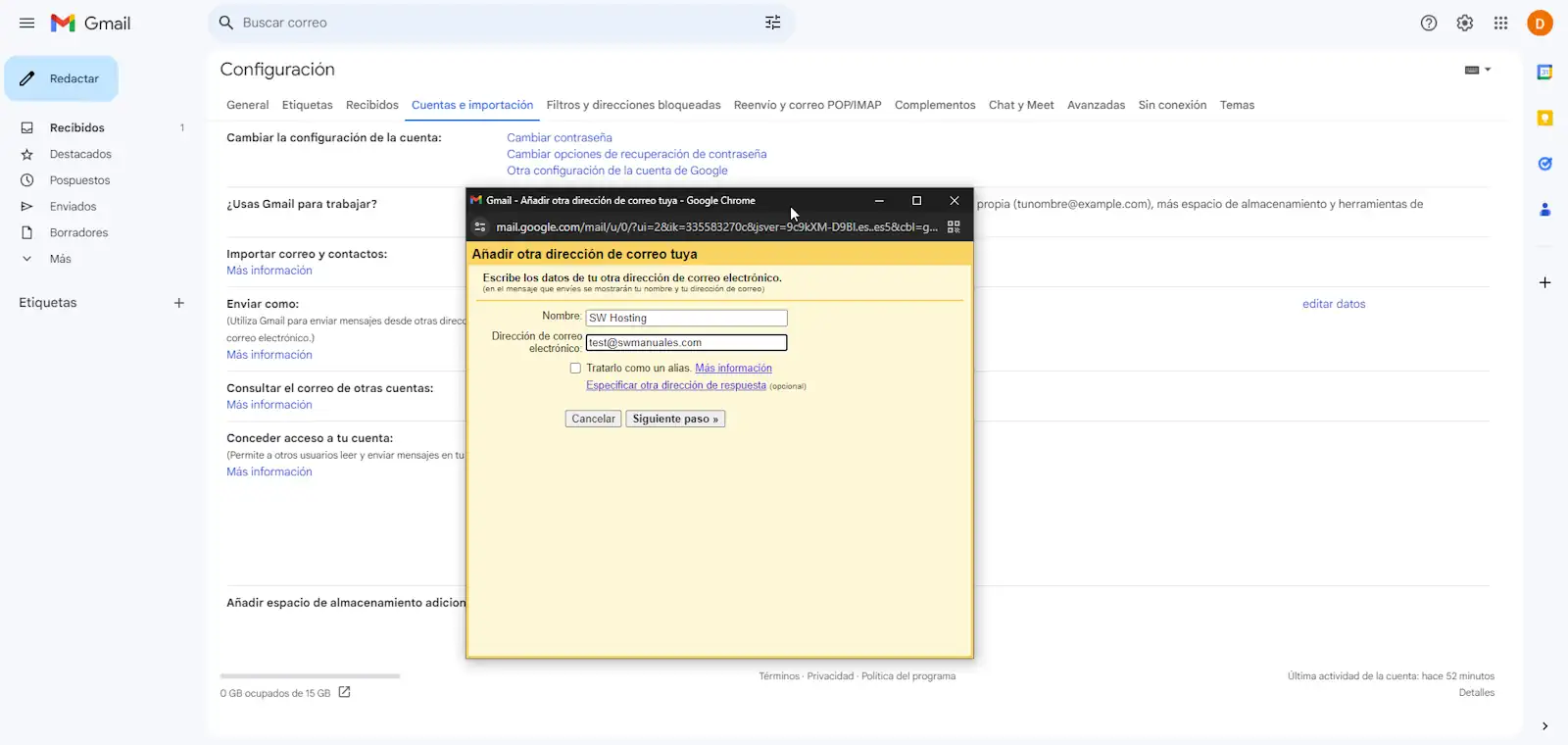
A new pop-up window will open. You must fill in the form fields:
- name : how you want your name to be displayed when others receive an email from you
- email address: the email account you are configuring
- Treat as an alias : Disabled
Once you have filled in the fields, click on 'Next step'.
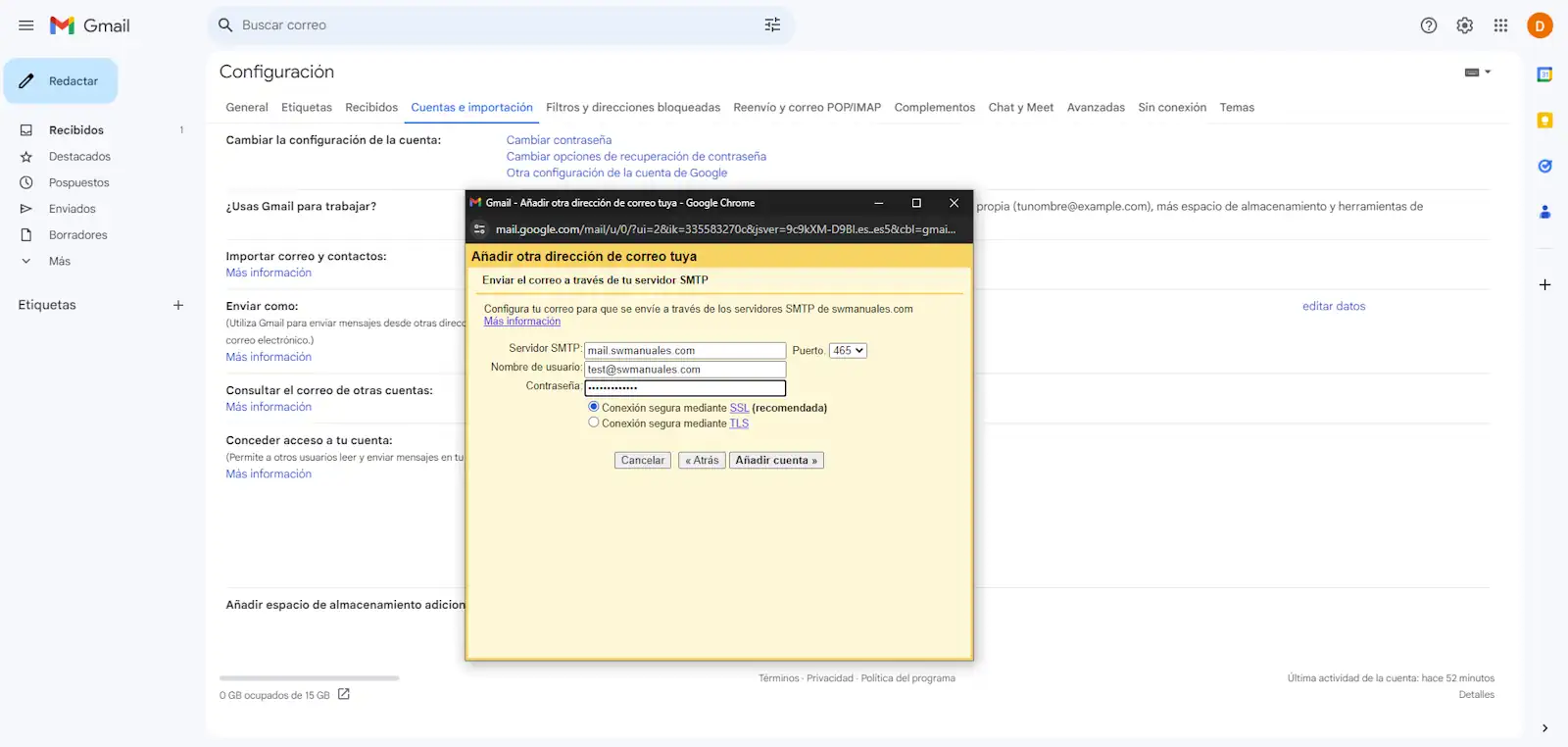
In this step, you will have to configure the SMTP sending fields. We will use the data provided by SWPanel:
- SMTP Server: indicate the server that will perform the sending.
- Port: 465
- Username: the email address you are configuring
- Password: the one you indicated at the time of creating your email account
Finally, click on 'Add account'.
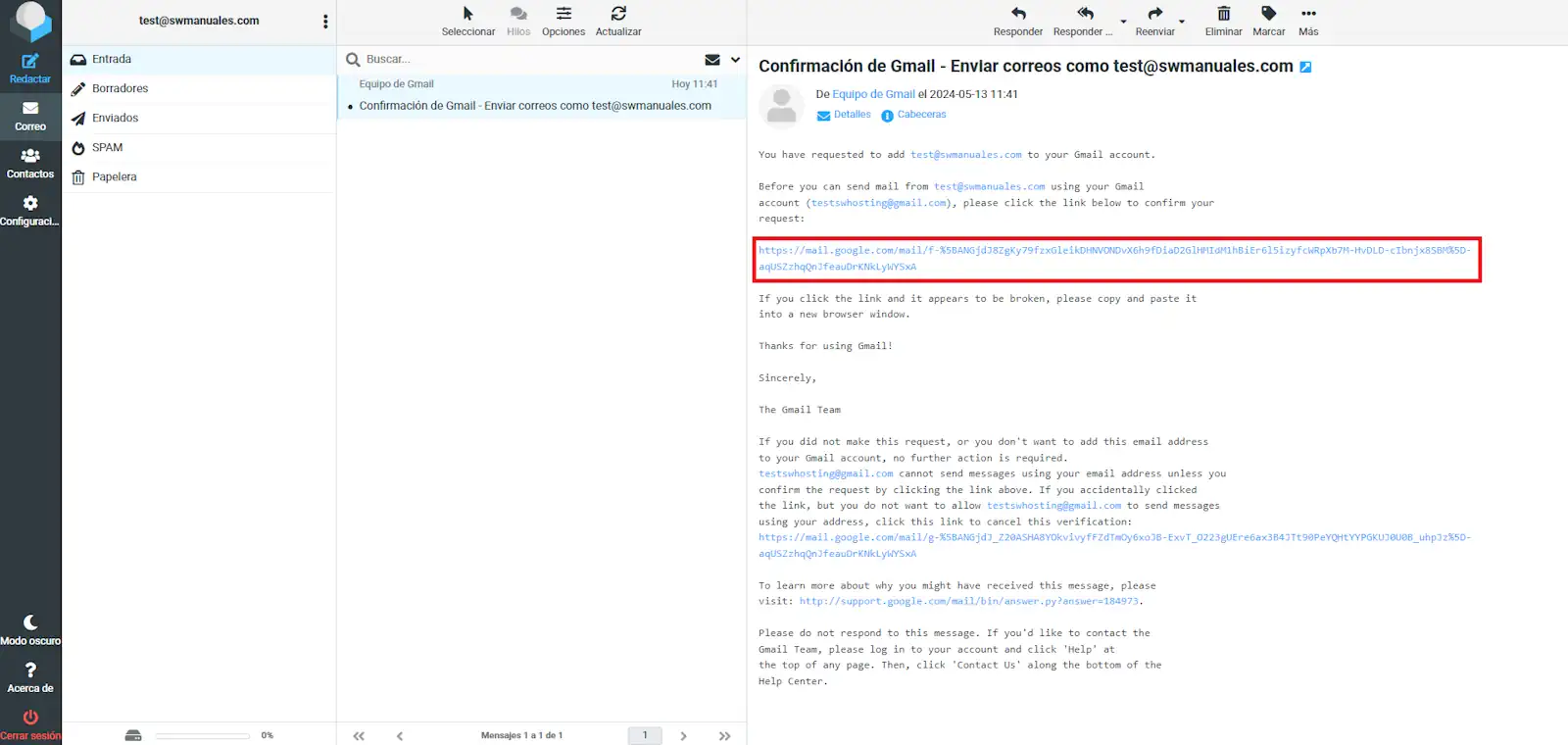
Now all that's left is to verify / confirm the configuration. To do this, an email is sent to the (hosting) mailbox you are configuring. You can access Handbuch: Roundcube (Webmail) to perform the verification.
You must click on the link that has been sent to be able to finalize the verification.
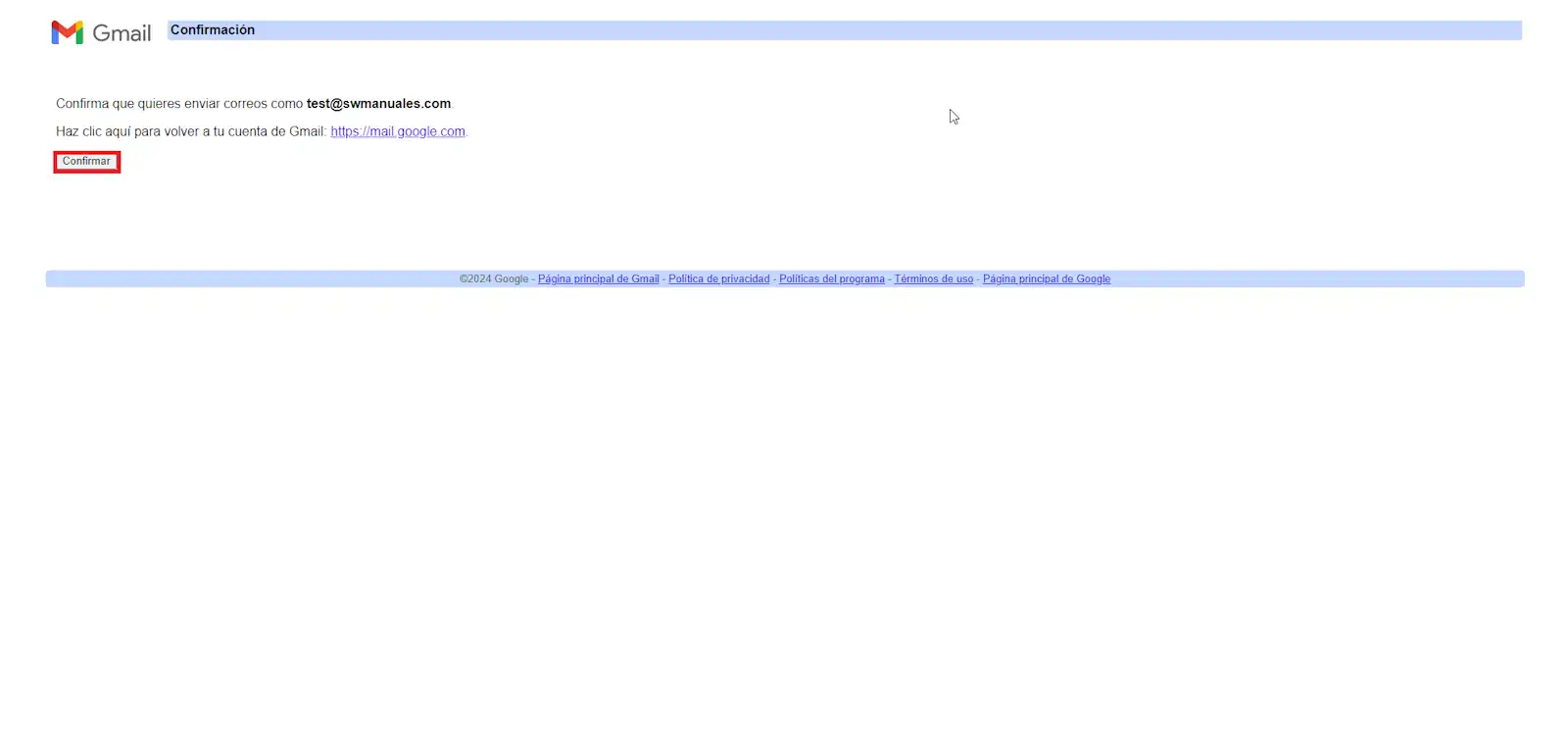
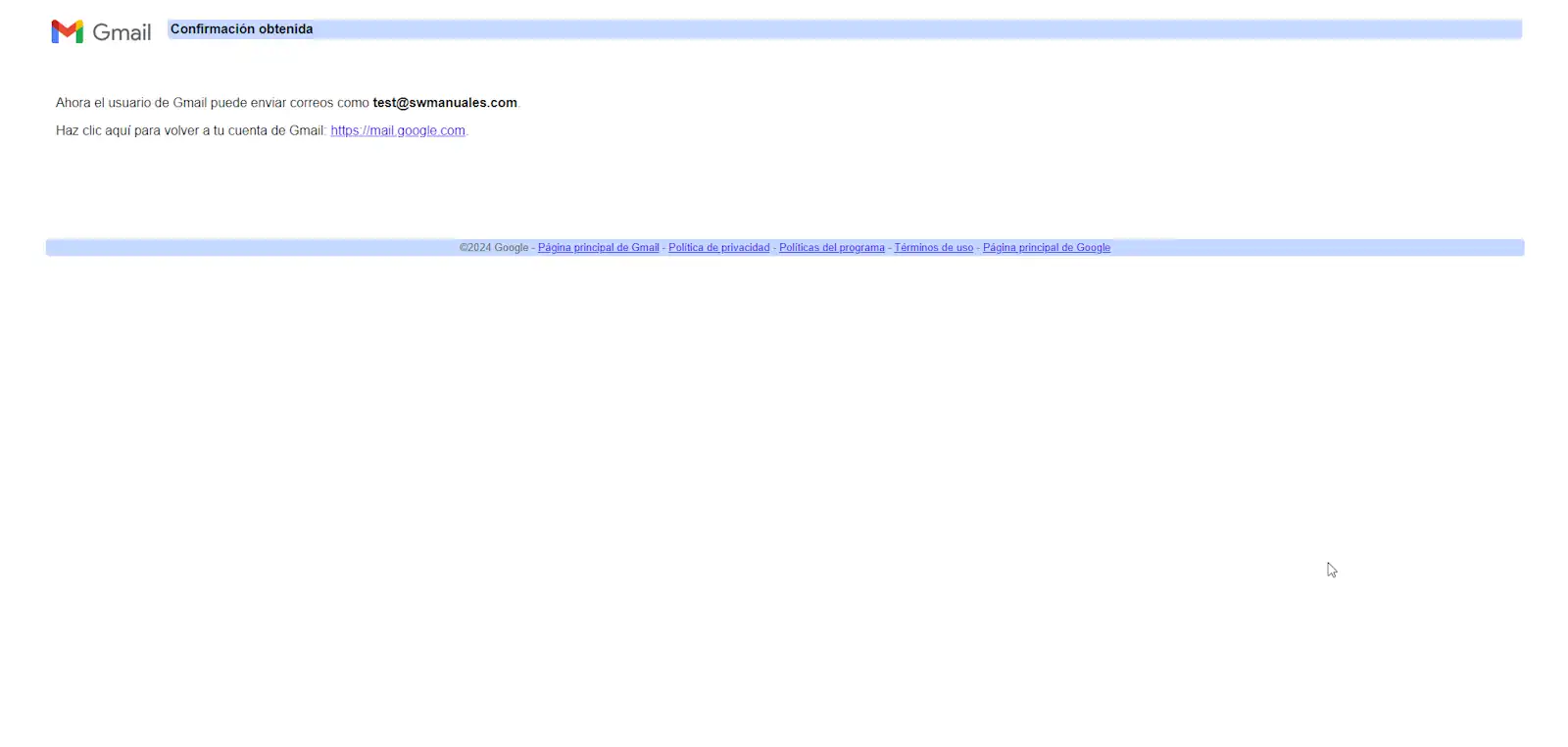
When you have clicked on the link, a new tab will open in the browser to perform the confirmation.
Do you need to host the website and email of your domain? SWHosting can help you with its hosting services managed with SWPanel.
Configure GMail to view emails from your hosting account
Gmail also allows you to receive emails from your hosting account in the inbox of your GMail account.
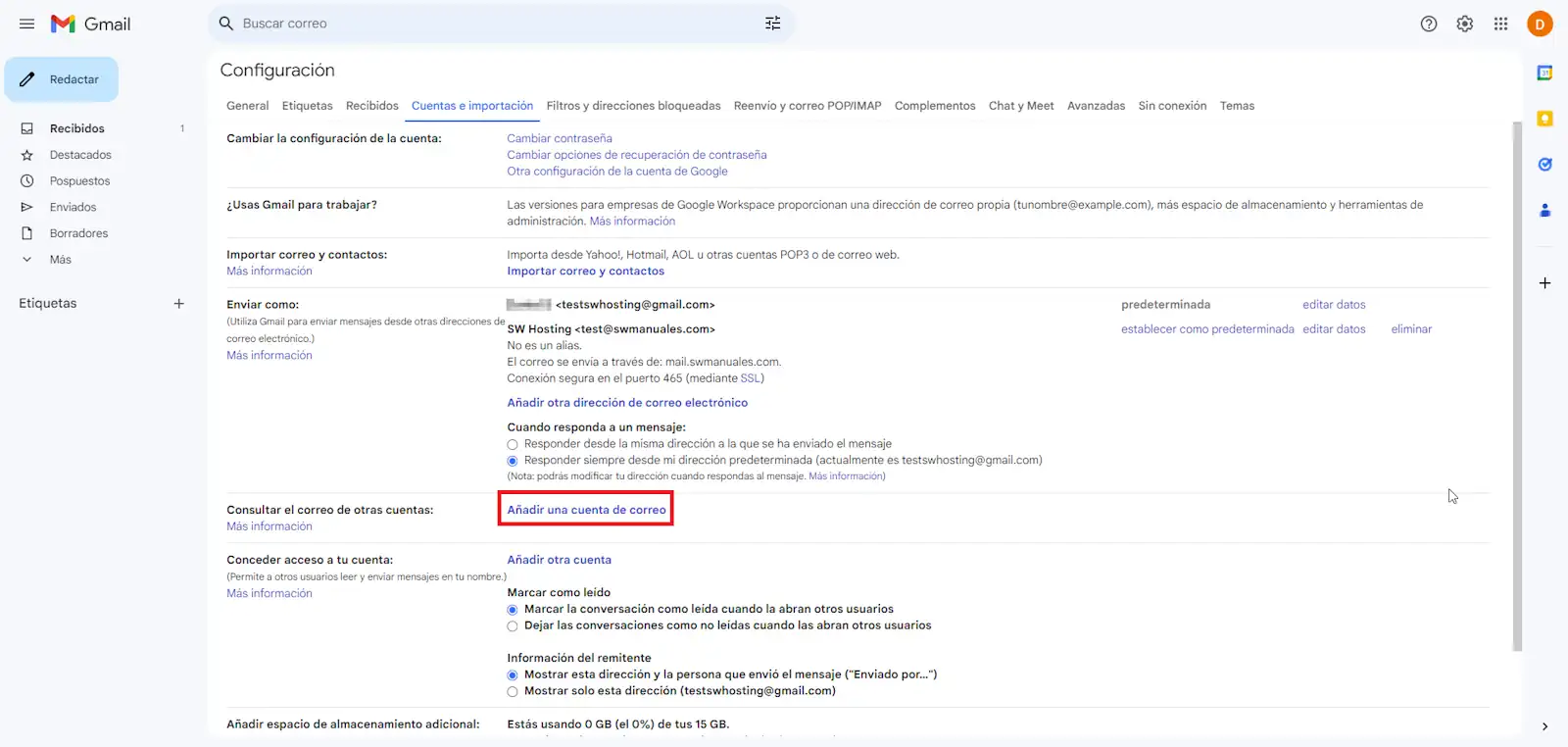
To configure it, you must again access the gear located in the upper right, click on 'See all settings', go to 'Accounts and import', look for the 'Check mail from other accounts' section and click on 'Add a mail account'.
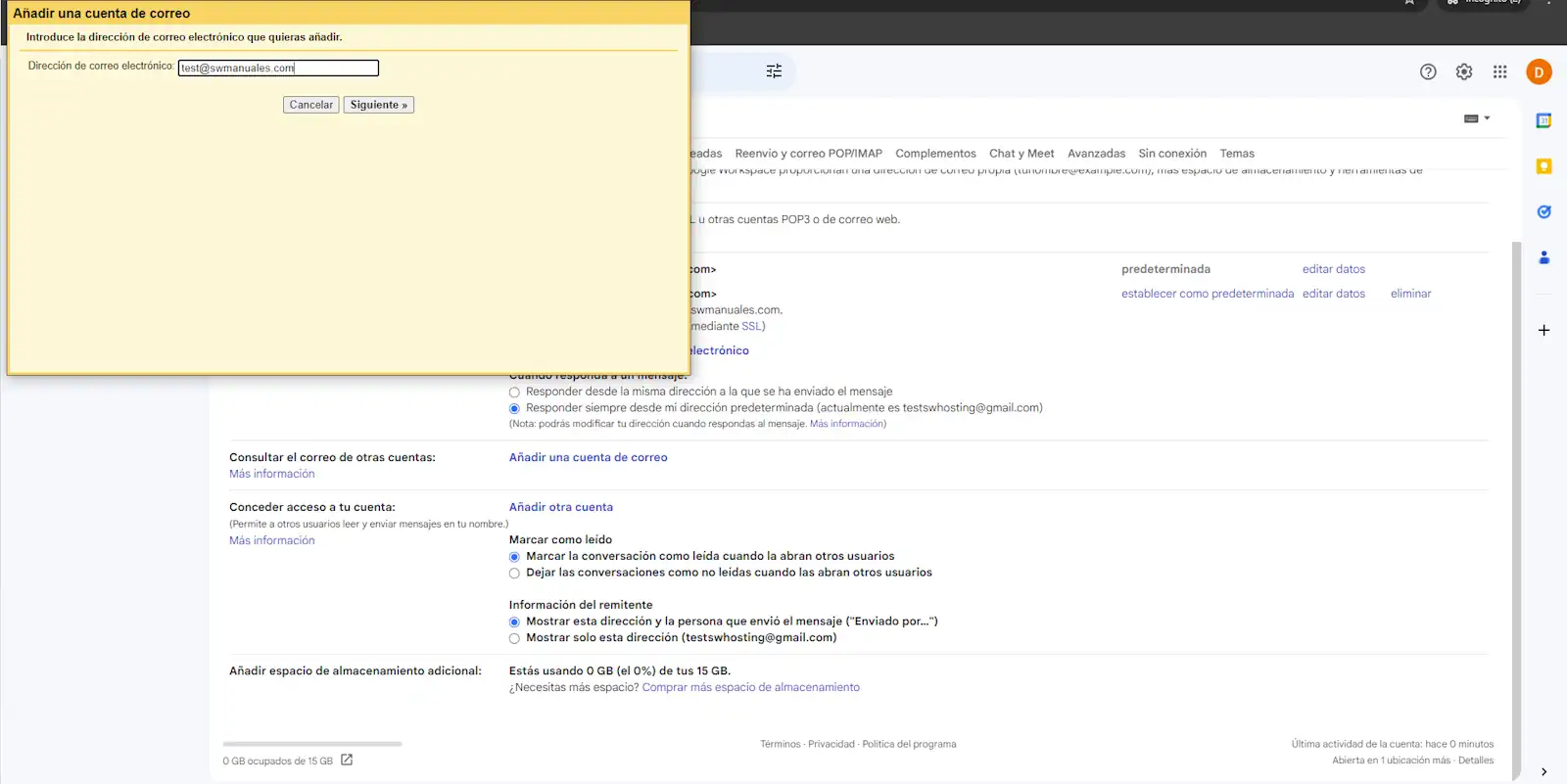
Again, a new pop-up window appears. You must add the email address you are configuring and click on 'Next':
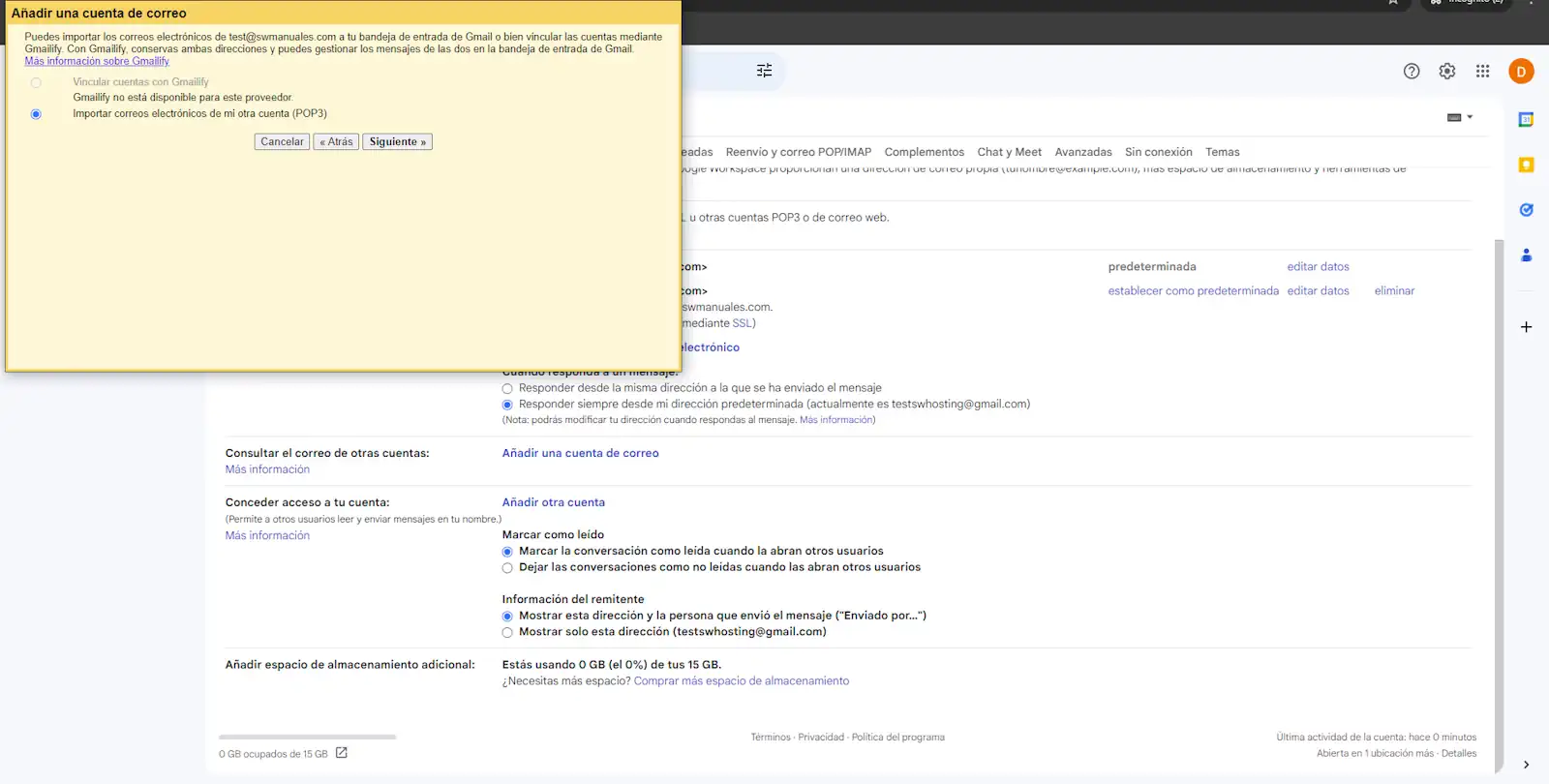
In this step, you must select the third option, 'Import emails from my other account (POP3) and click on 'Next':
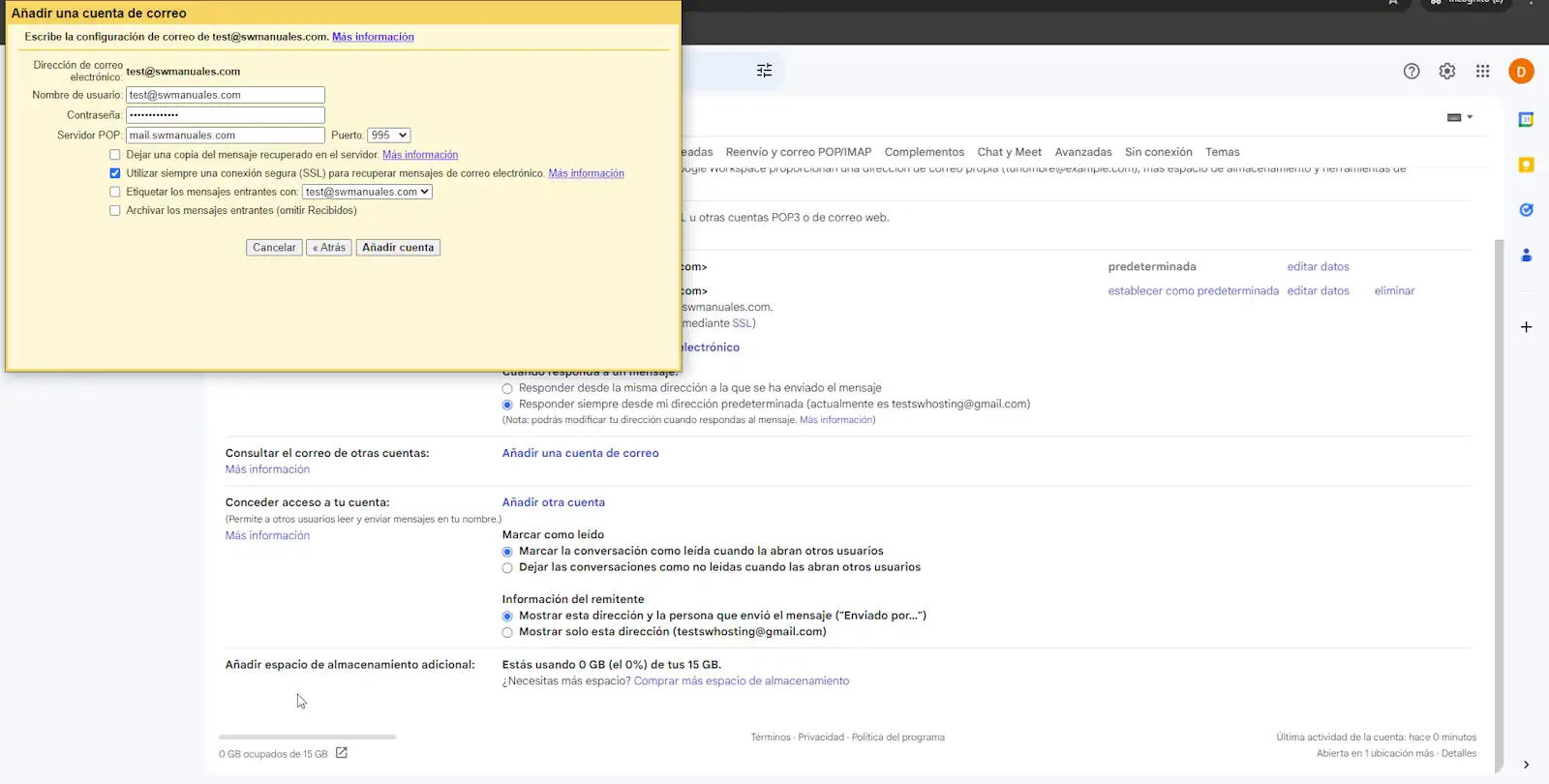
You must fill in the form:
- Username: the email address you are configuring
- Password: the one you indicated at the time of creating the email account
- [POP server] Handbuch: How to view the connection details of my email account
- Port: 995.
- Always use a secure connection (SSL) to retrieve email messages: Enabled.
Finally, press 'Add account' to finish.
💡 By clicking on the 'Leave a copy of the retrieved message on the server' checkbox, you will keep your emails on the mail server, even though they are downloaded to Gmail. In this way, you will always have access to them.
Check another manual of interest:
Remember that if you need to host the website and email of your domain, SWHosting can help you with its Cloud servers managed with SWPanel.