Quick Guide SWPanel
In this manual, we will show you the basic concepts of your SWPanel. To access it, you must enter the following URL in your browser: go.swpanel.com and provide your username and password.
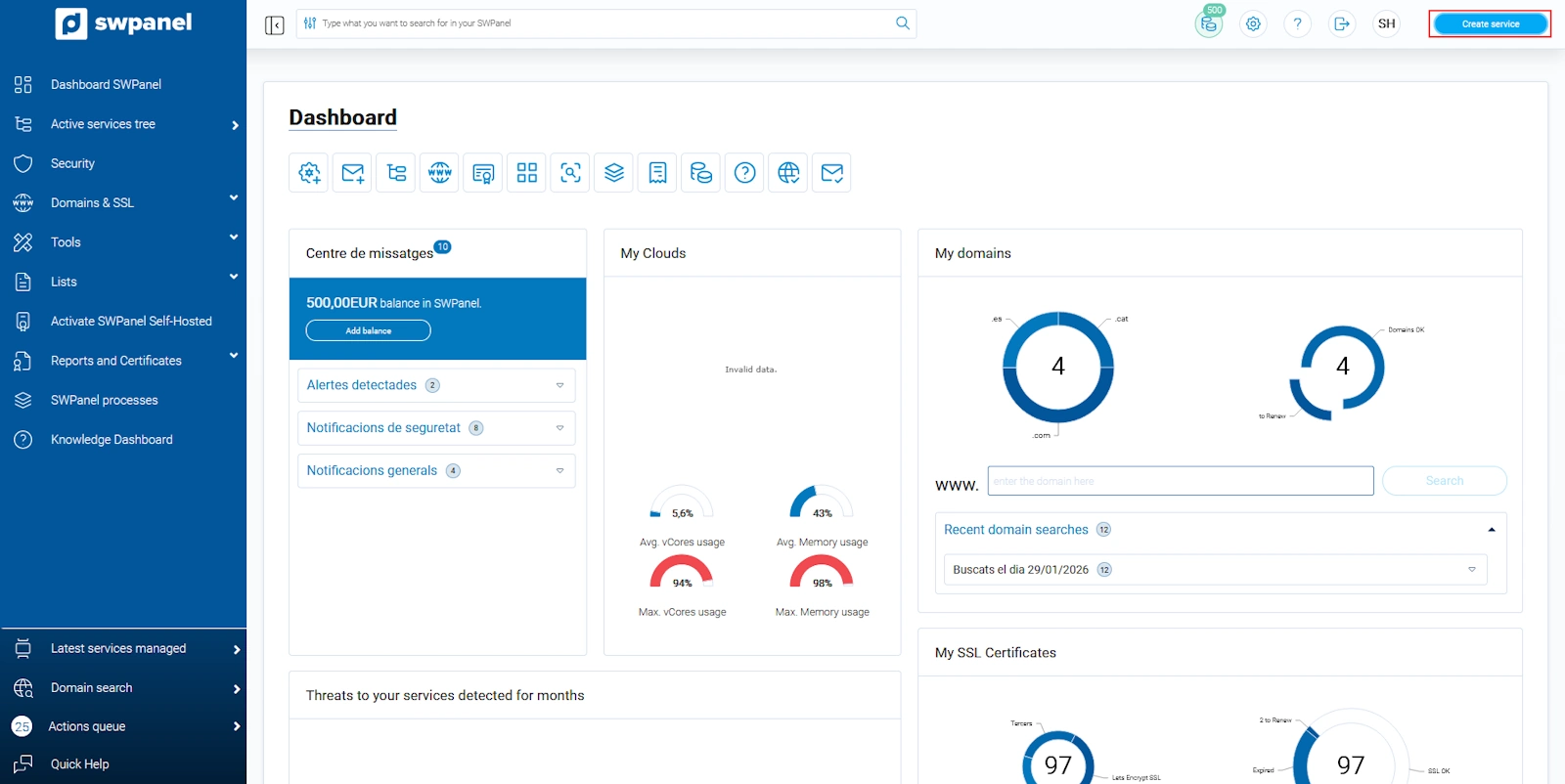
Once inside, this is what you will see:
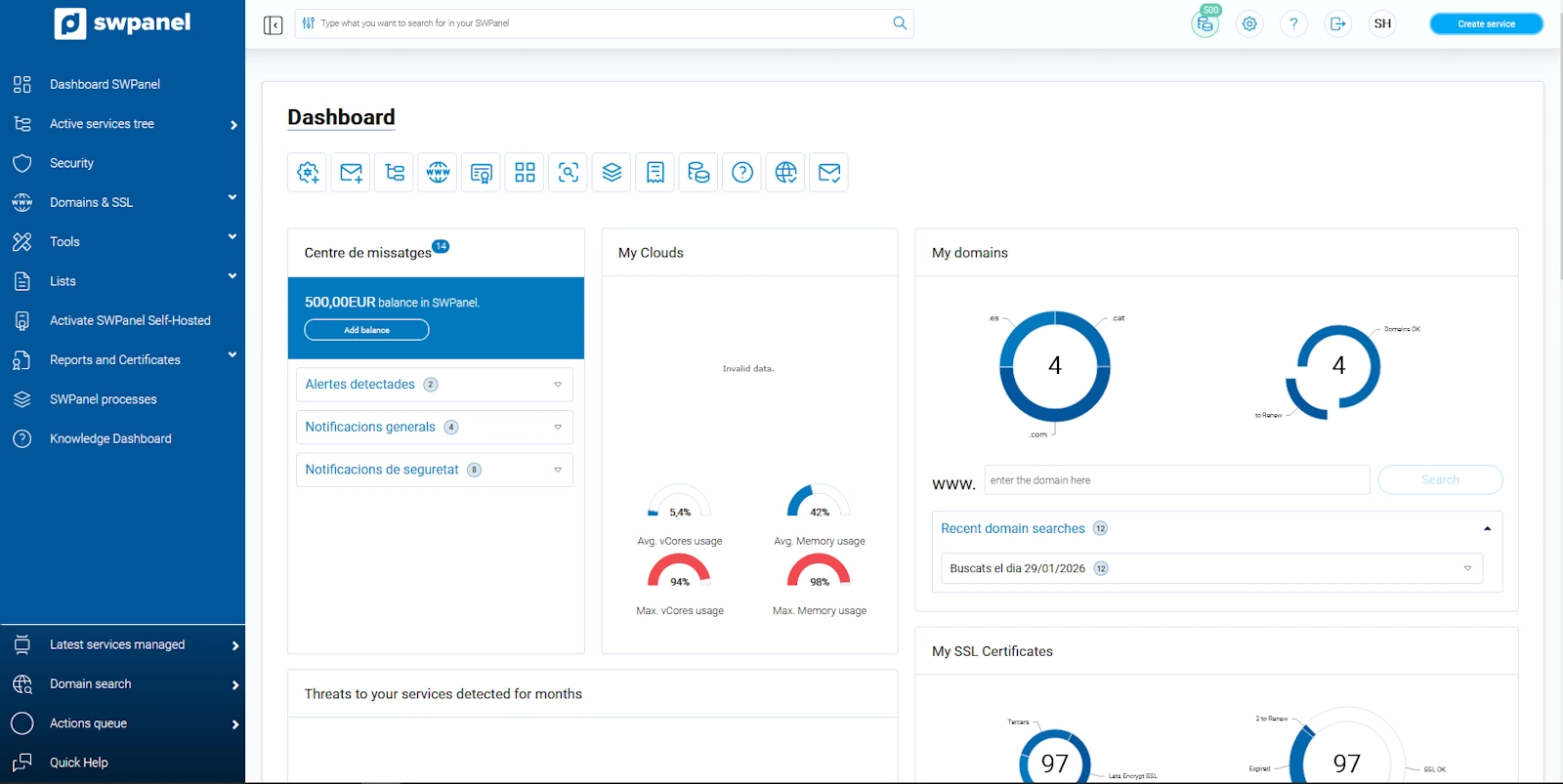
The SWPanel will vary depending on the type of services you contract (whether you have Cloud servers, support, security, etc.), but the most basic actions are performed in the same way regardless of the services you have.
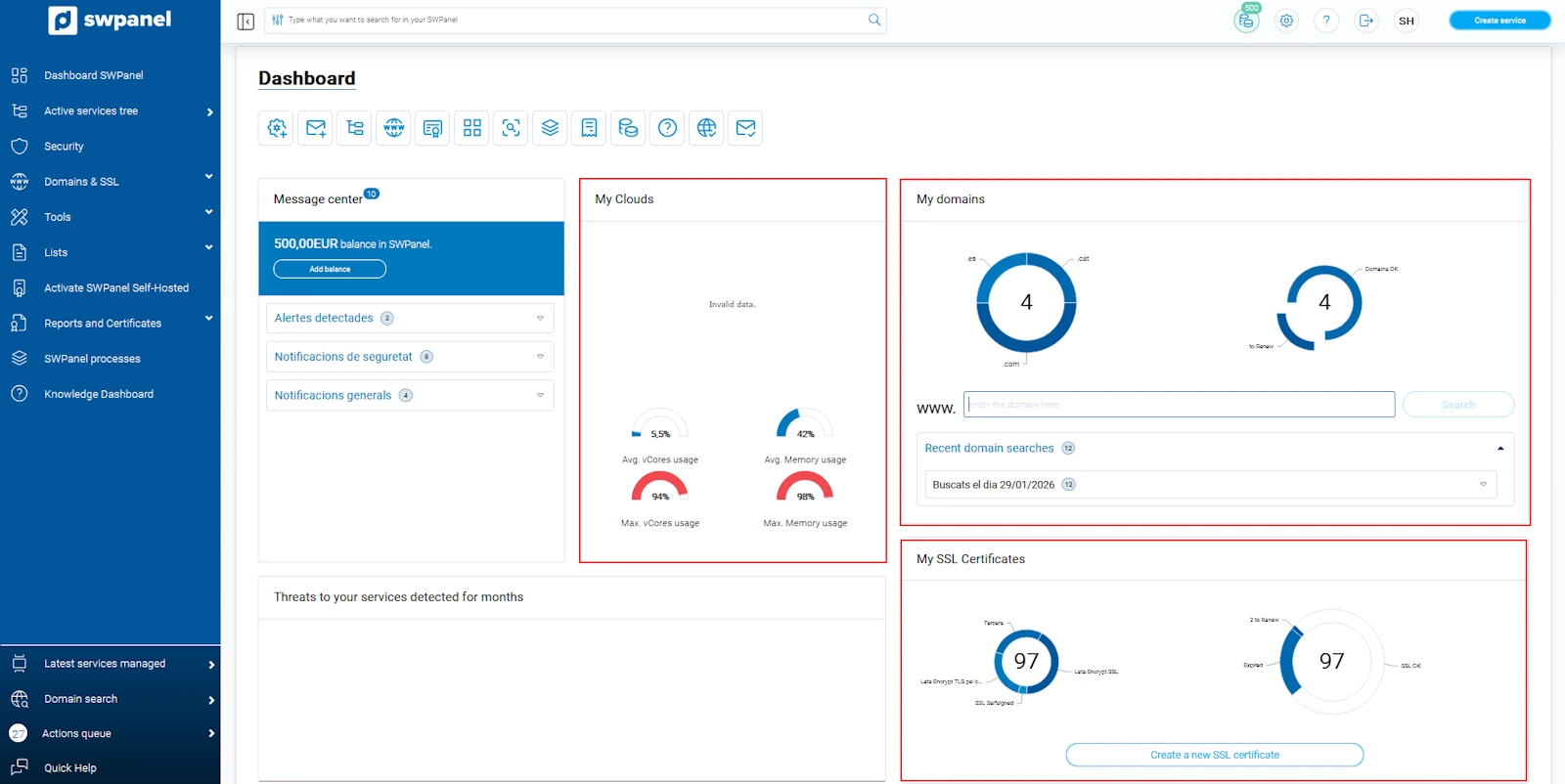
In the main dashboard, you can see a summary of the contracted services/domains, the inquiries made in the support wall, available certificates...
Without needing to access any other section of the management panel, you can perform basic actions on them (as long as you do not use organizational containers); from here, you will have the possibility to create another service quickly and easily or manage the available services (customize it, change service level, request cancellation, etc.). You can also register or transfer domains or create new SSL certificates for them:
If your payment method is 'SWPanel credits', you can see the current balance available and, also by clicking on the icon, add balance to your client account:
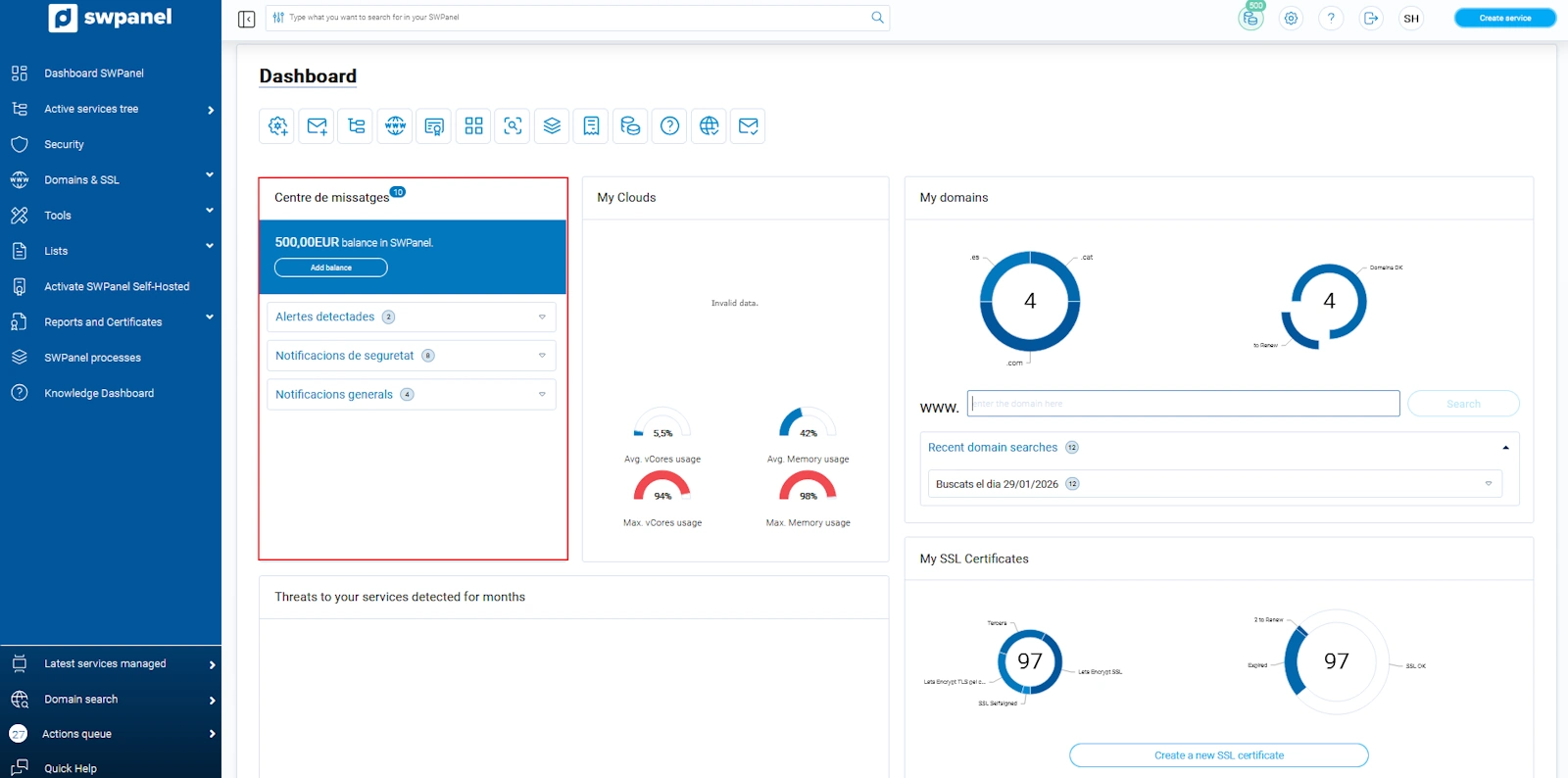
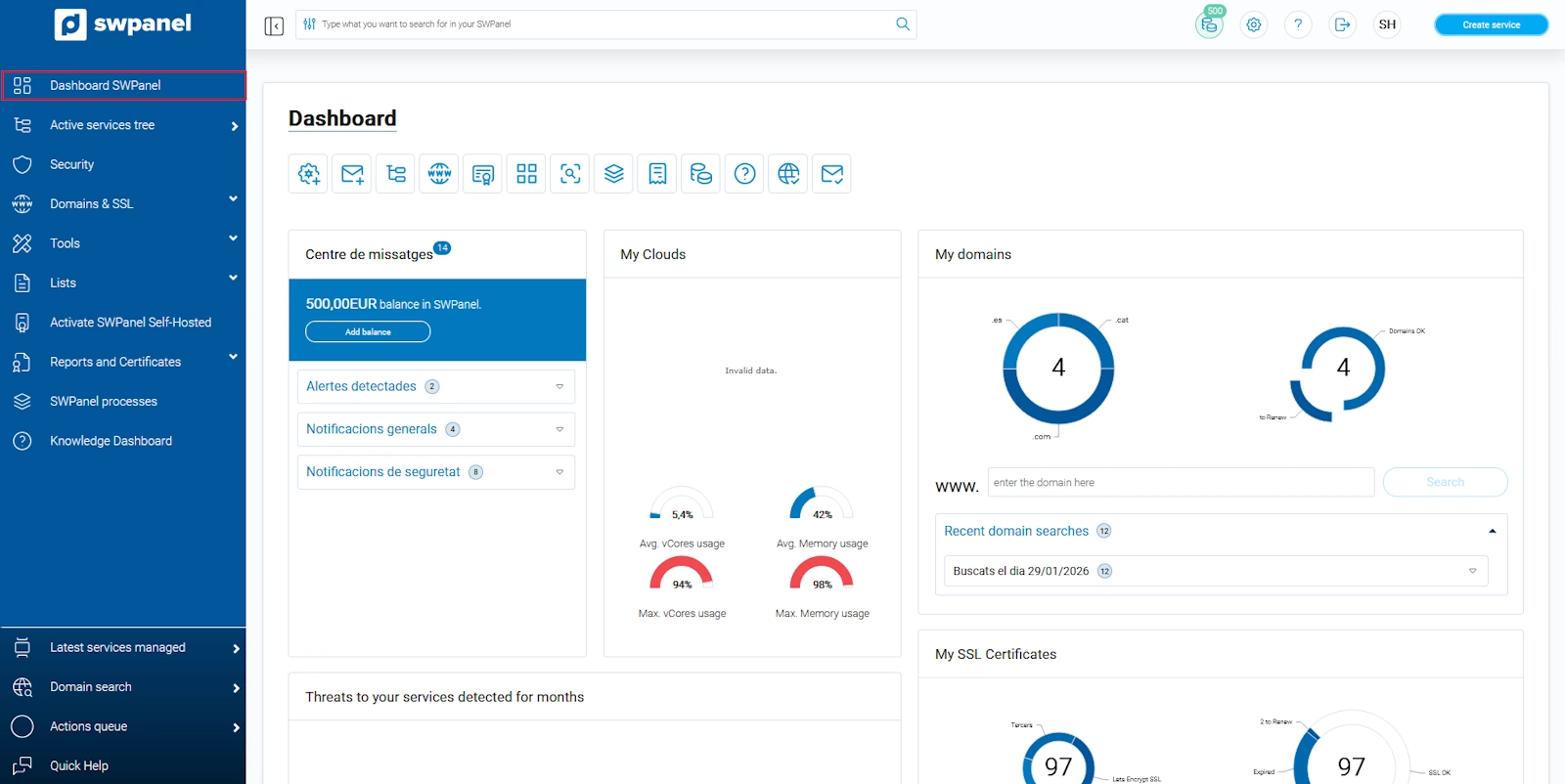
Through the blue left side menu, you can access the different sections that this control tool offers; the most basic ones are the following:
-
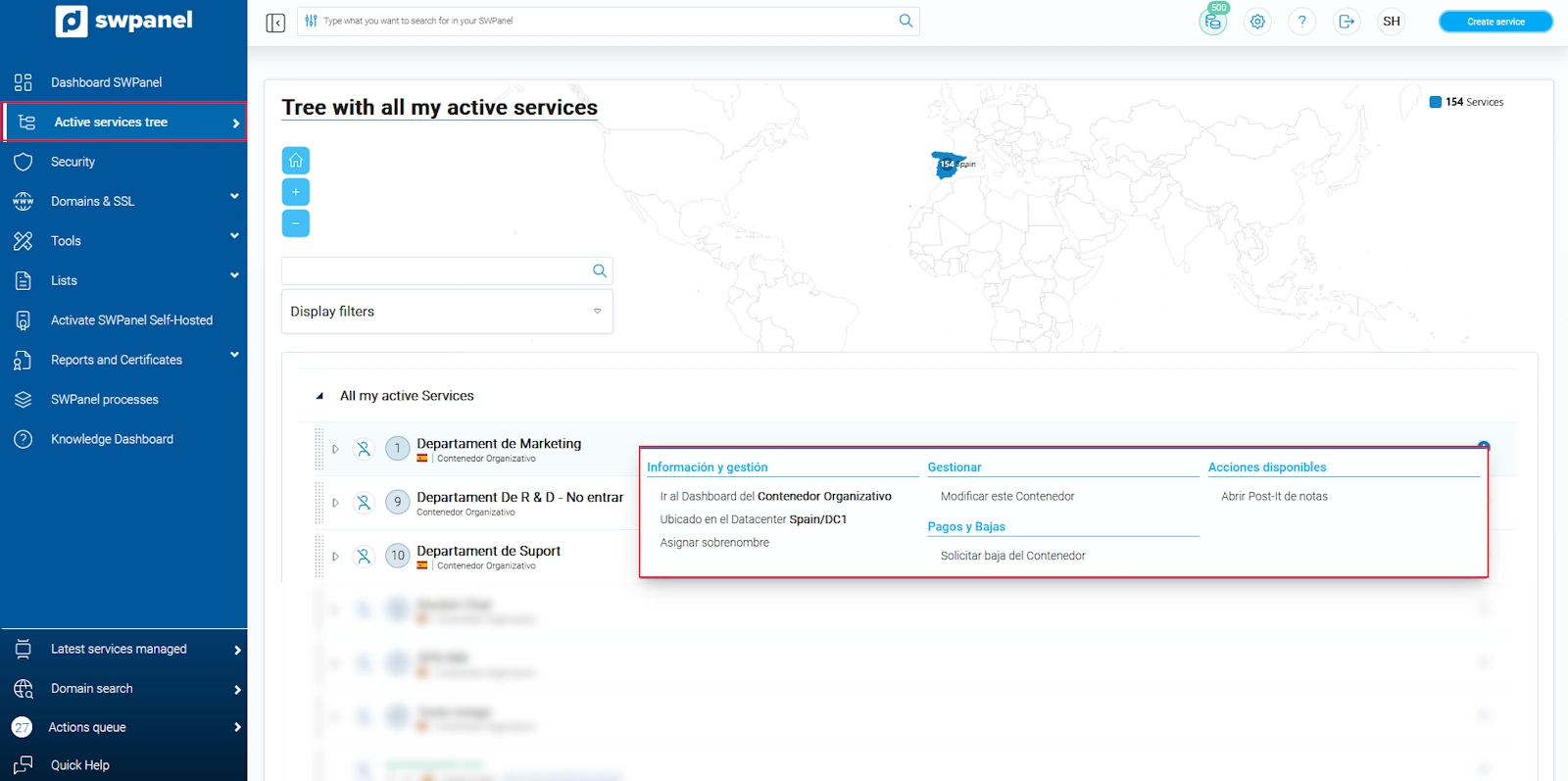
All my active services: A list of all your available services. To the right of each one, there is a [...] 'Manage' button to perform basic actions on them:
-
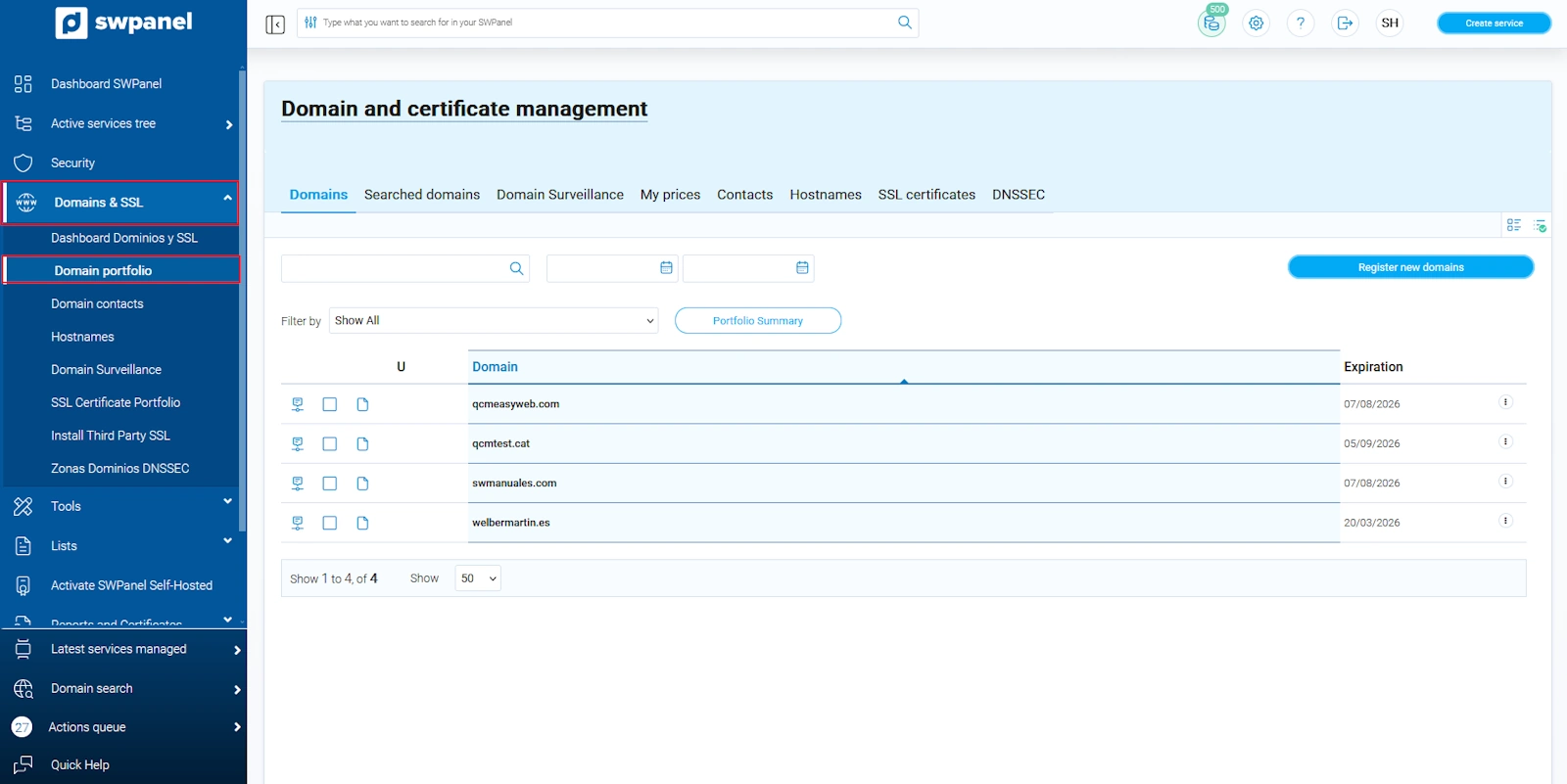
Domains and Certificates: By expanding this option, you can access your domain portfolio to view all available domains, register or transfer others, manage contacts, hostnames, activate monitoring for a specific domain, check your domain prices, or manage SSL certificates:
-
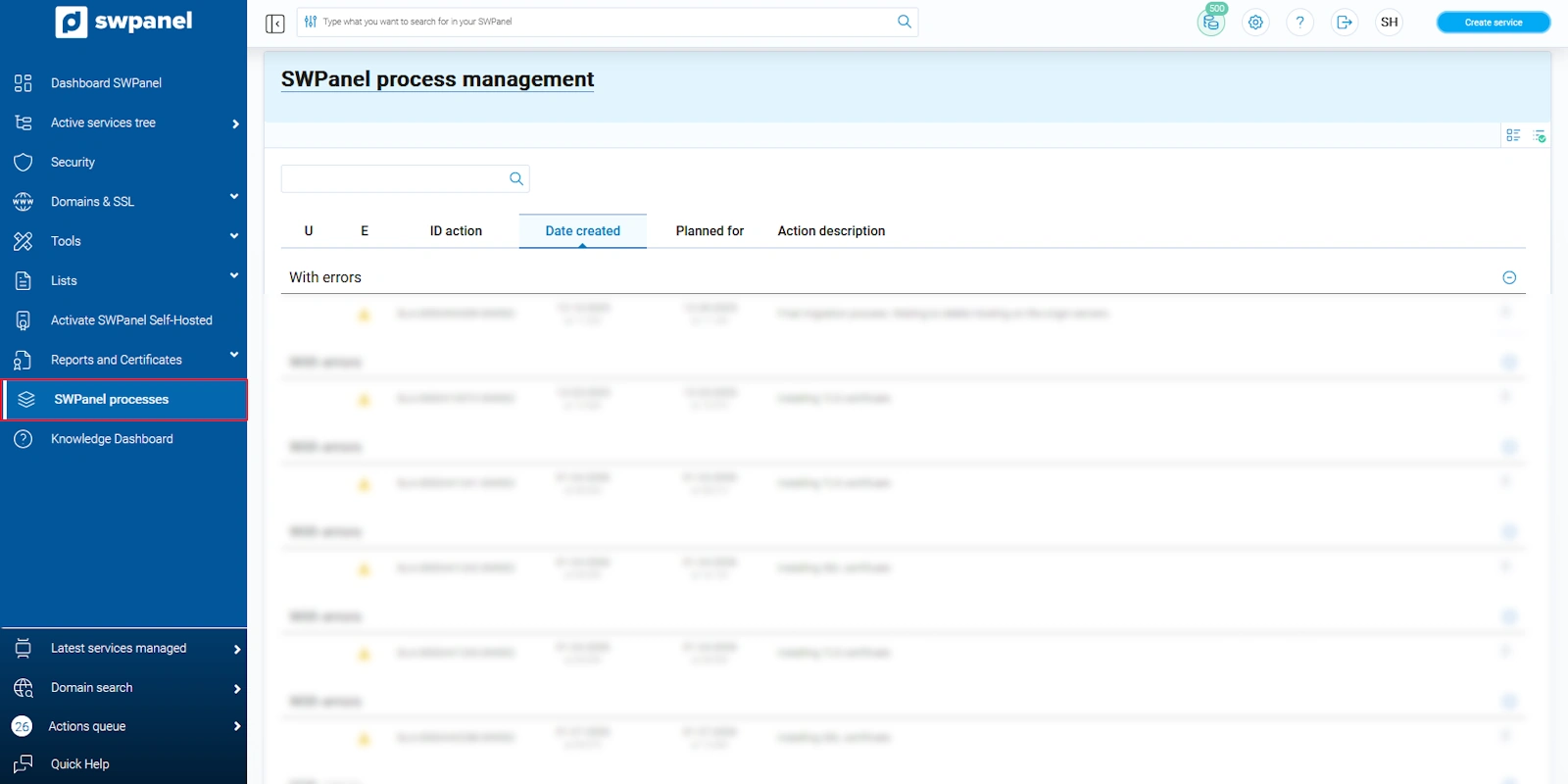
SWPanel Queues: You can see the process or action queue. If there is one that has stopped or become blocked, you can restart it from here:
From the upper right part of your SWPanel, by expanding the tab where your logo is shown, you can go to your client dashboard, invoices, your commercial offers, SWPanel history, and logout:
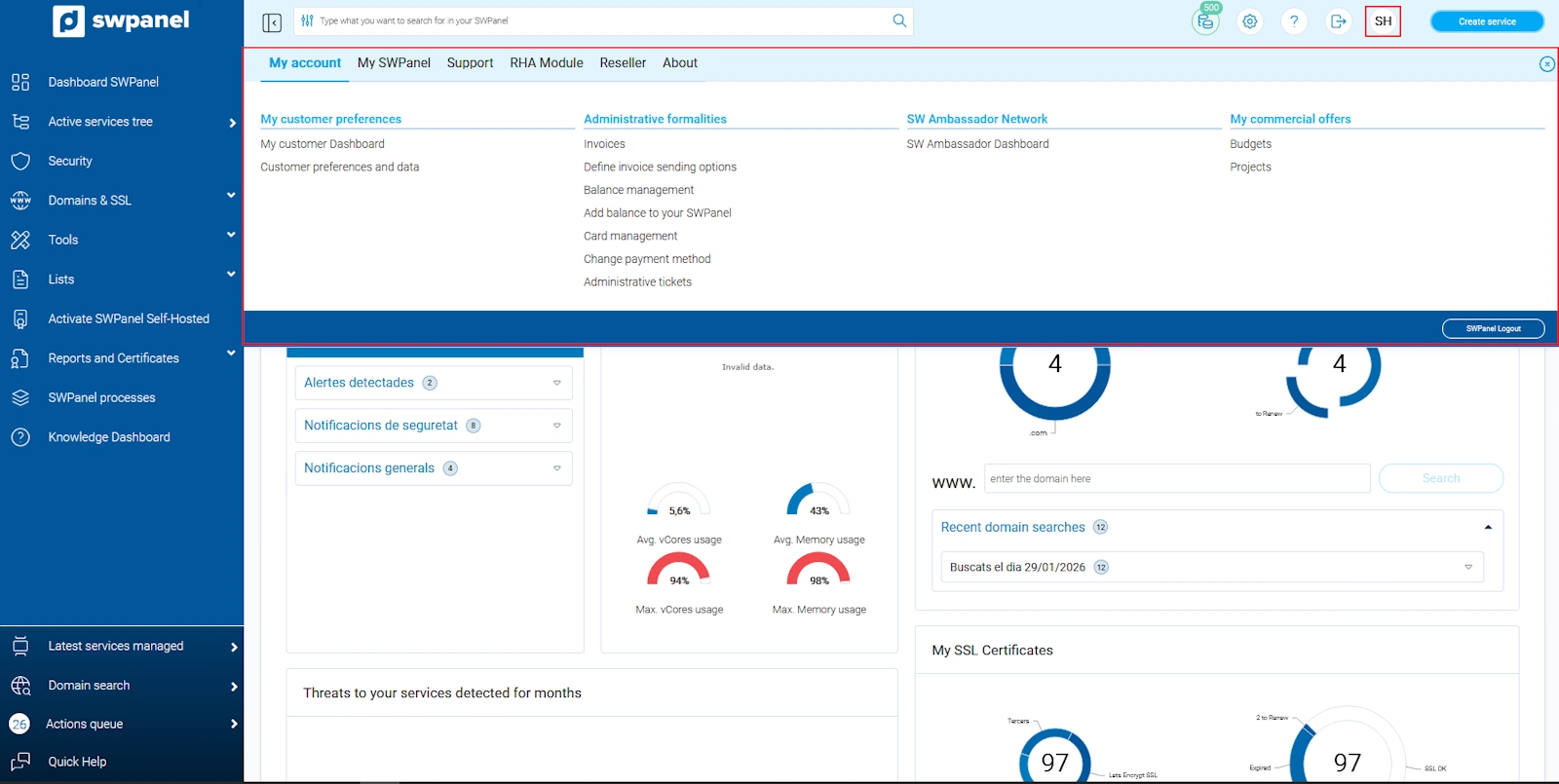
- Client Dashboard:
a) Client data and preferences: Update client data. Refer to manual ? Manuale: Customer data and preferences. b) Change of payment method: Choose the payment method that suits you best. Refer to manual ? Manuale: Change of payment method.
c) Change of access password. Refer to manual ? Manuale: Change access password. d) Definition of invoice sending. Refer to manual ? Manuale: Define the sending of electronic invoices. e) Affiliate Network: Become part of our affiliate network and earn money by attracting clients for SW Hosting. For more information, refer to manual ? Manuale: Affiliate Network.
-
Invoices: You can view your invoices, send them to the email address you want, or download them in PDF format; check balance management, manage your credit cards, and check form 347 for the year you want. For more information, refer to manual ? Manuale: Billing.
-
Your commercial offers: Manage the quotes or projects you have generated
-
SWPanel History: You can see the history of actions performed in your SWPanel and the history of emails sent from the system to your email address. To learn more, see this manual ? Manuale: SWPanel History.
-
Exit SWPanel: Log out to end the SWPanel session.
Another important section within your SWPanel is Support. Through this tab, you can create inquiries via free support ? Manuale: Talk to support with Quick Help, 24 hours a day, 365 days a year.
You can create Administrative Tickets ? Manuale: How to create an Administrative Ticket.
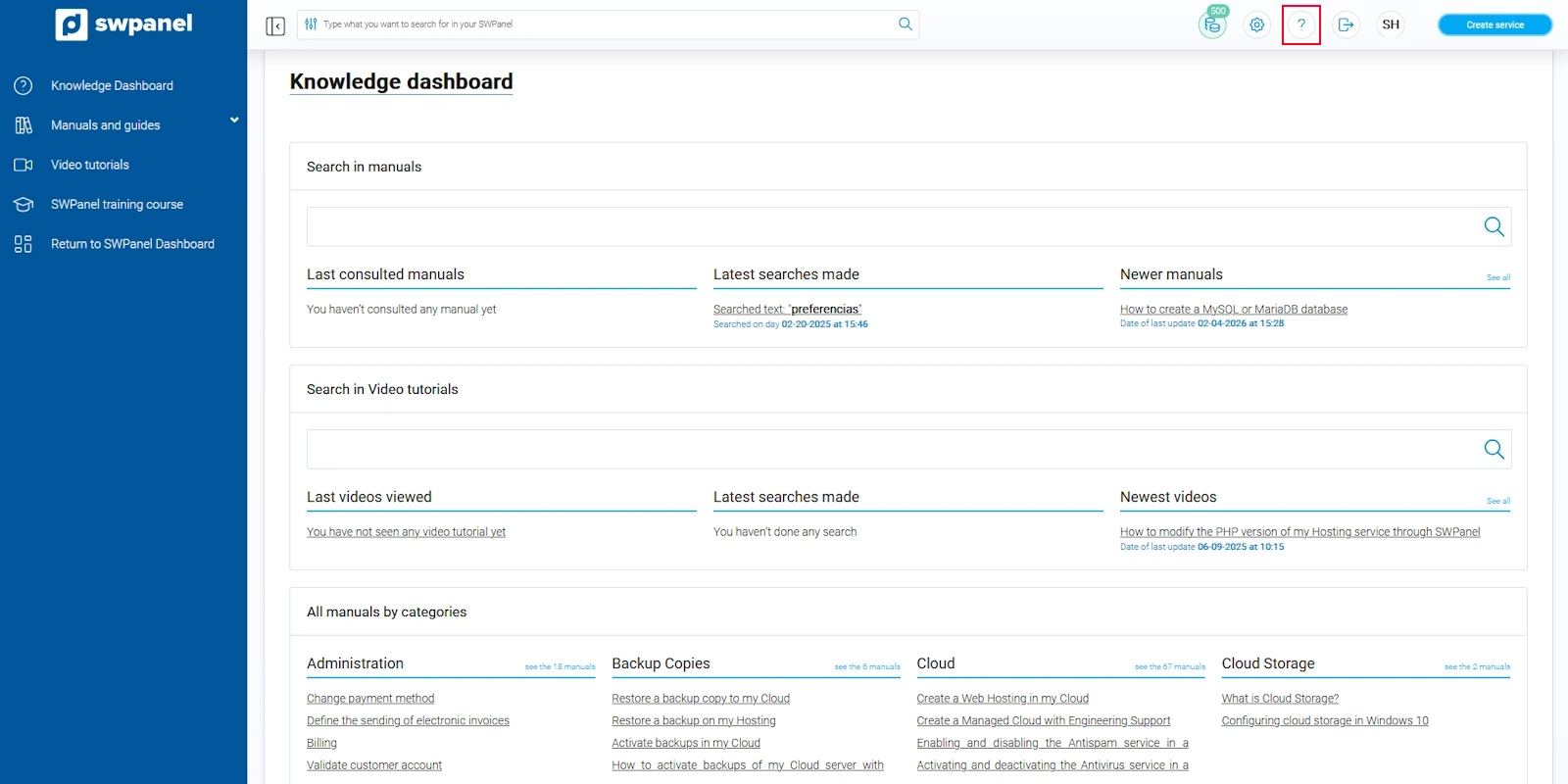
Finally, you will have at your disposal a knowledge base where you will find a series of manuals and tutorials that will guide and help you perform any action through your management panel.
To finish, you always have a quick button to easily and immediately create a service in your client account: