
Activate SWPanel Self-Hosted license
SWPanel Self-Hosted Installation and Activation Manual
1. Summary and Introduction
This manual provides a detailed, step-by-step guide for the installation and activation of SWPanel in Self-Hosted mode, allowing the user to deploy their own web hosting administration environment on external servers, whether Cloud, VPS, or dedicated, as long as they are based on Debian 12 or higher operating systems.
What is SWPanel?
SWPanel is a hosting services administration platform developed for Linux Debian environments. It provides tools to manage:
- Websites.
- Content management systems (CMS) such as WordPress, Joomla, etc.
- Email accounts.
- MariaDB databases.
- FTP access.
- DNS records.
SWPanel is characterized by its intuitive interface, which facilitates the control and administration of servers without the need for advanced technical knowledge.
What does "Self-Hosted" mean?
The Self-Hosted mode allows the installation of SWPanel on a server that does not directly belong to the SWPanel infrastructure, but is managed from its centralized panel. It is ideal if you already have an external server and wish to integrate its management with SWPanel.
What will you learn in this manual?
This document details the process to:
- Access and register in SWPanel.
- Activate the Self-Hosted functionality from the control panel.
- Choose the installation mode (assisted or manual).
- Enter a Token ID to activate the license.
- Select and add the license type.
- Complete the activation of SWPanel Self-Hosted.
2. Access to SWPanel
Unregistered user
To be able to use SWPanel in Self-Hosted mode, it is essential to have an active client account.
If you do not have an account yet, follow this manual to register: Manual: ##título##
Registered user
If you already have an account in SWPanel, access the system from this link: https://go.swpanel.com/activate/
Once inside the main panel (Dashboard), go to the blue side menu and click on Activate SWPanel Self-Hosted:
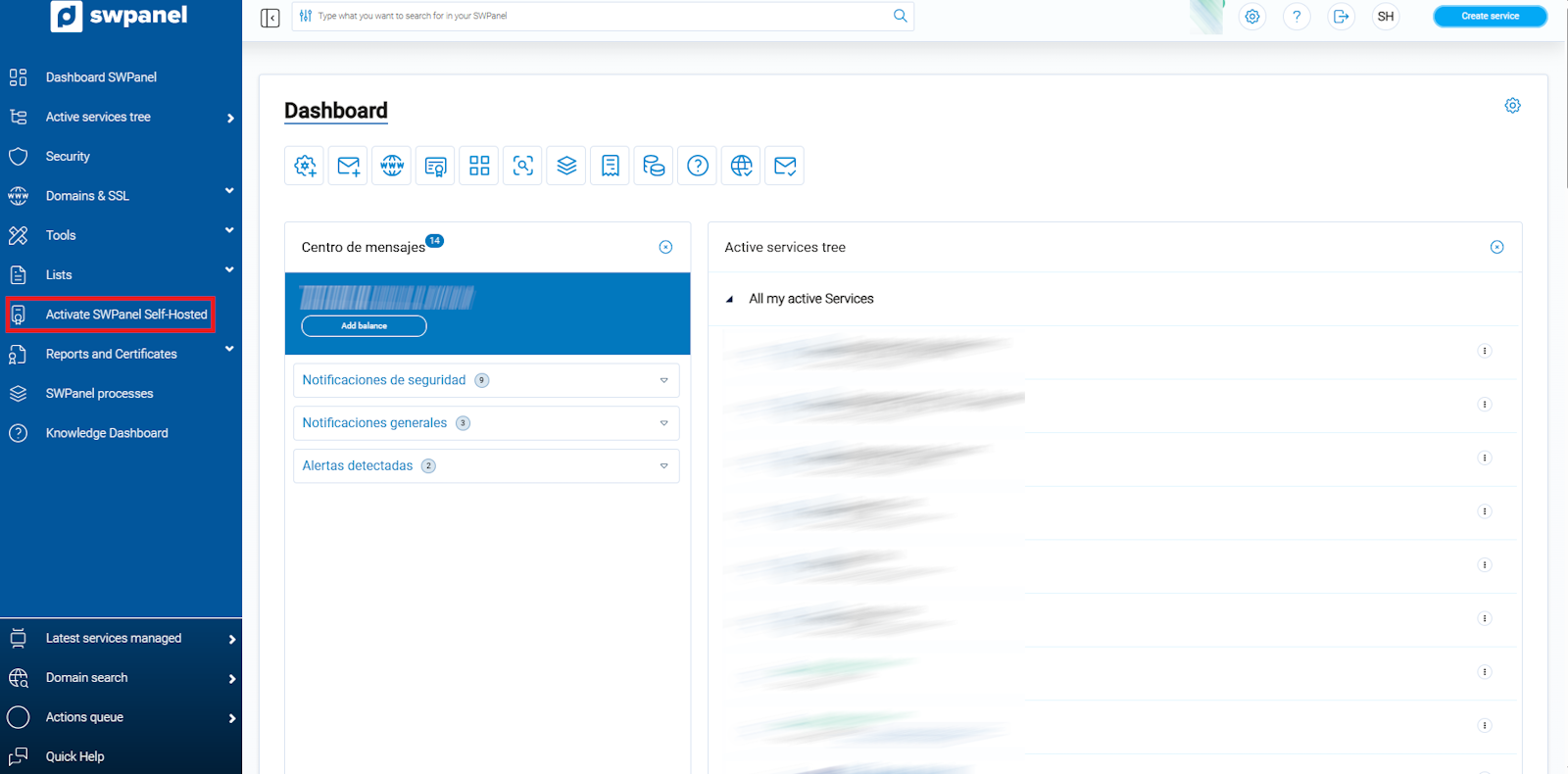
info_capture The screenshot is for guidance purposes. It was taken using version 2025.03.0003 dated 03/26/2025. It may differ from what the current version of SWPanel shows
3. Selection of the SWPanel Self-Hosted installation mode
After accessing the activation section, three methods to install SWPanel will be presented:
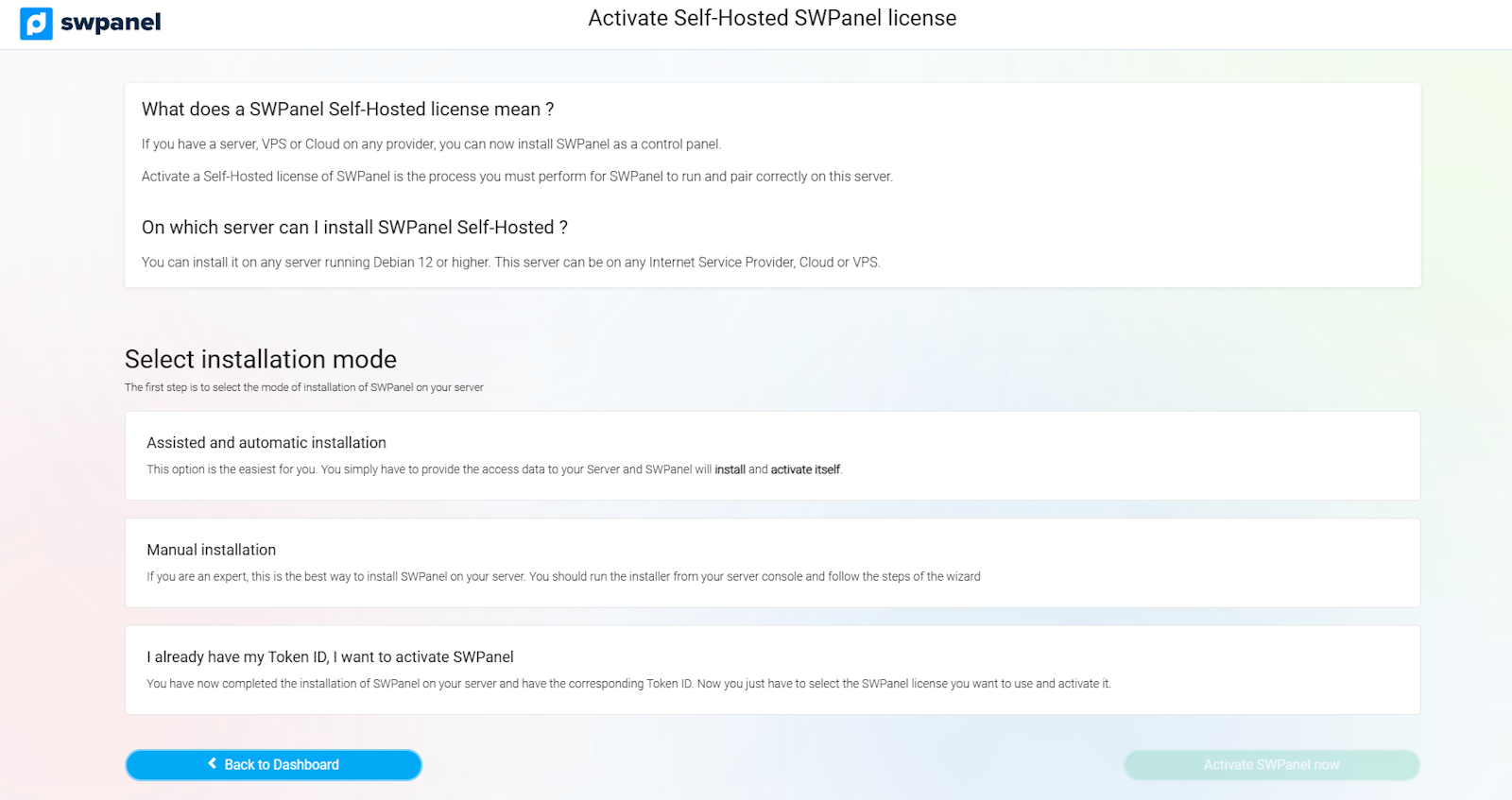
info_capture The screenshot is for guidance purposes. It was taken using version 2025.03.0003 dated 03/26/2025. It may differ from what the current version of SWPanel shows
3.1 Assisted and automatic installation
Recommended method for users without advanced technical knowledge.
Prerequisites:
- Server public IP address.
- SSH port (usually 22 by default).
- Root user password.
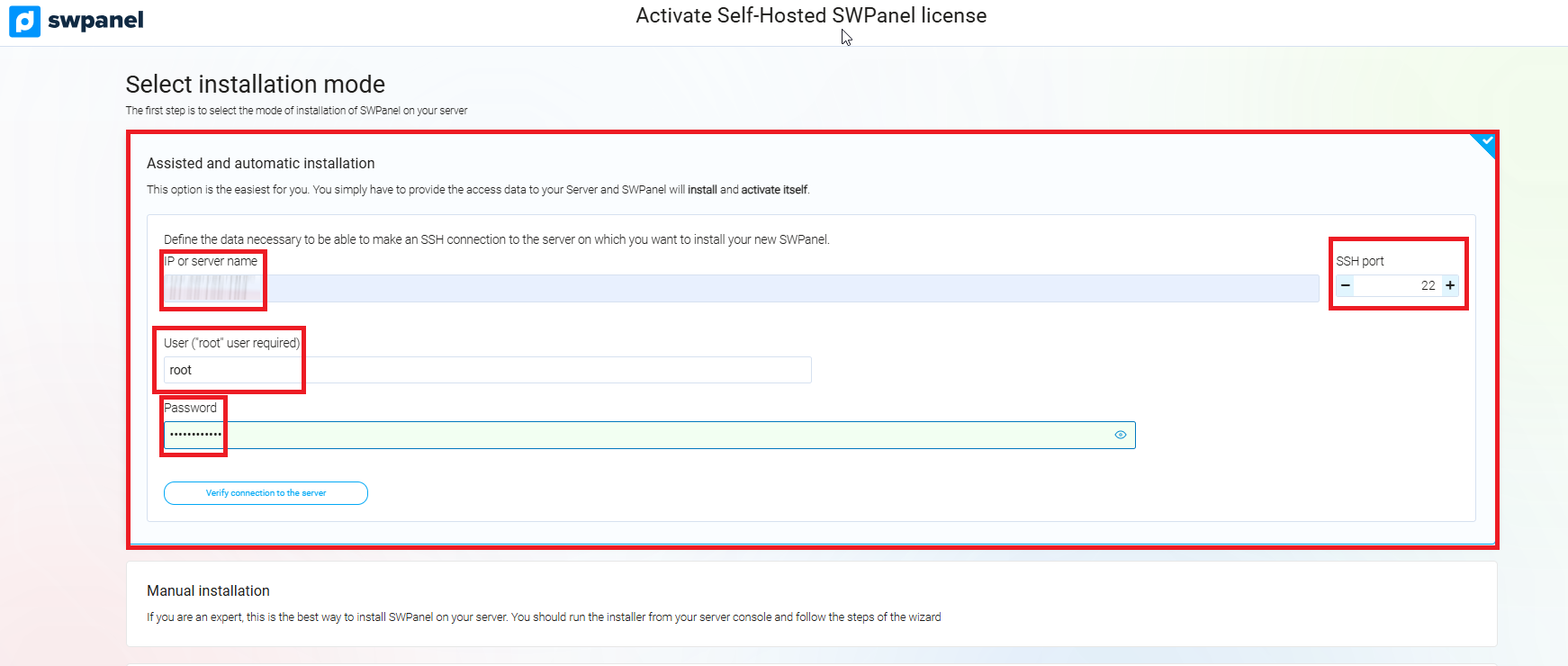
info_capture The screenshot is for guidance purposes. It was taken using version 2025.03.0003 dated 03/26/2025. It may differ from what the current version of SWPanel shows
Steps:
- Enter the server IP, SSH port, and root password.
- Click on "Verify server connection".
- Accept the liability notice by checking the corresponding box:
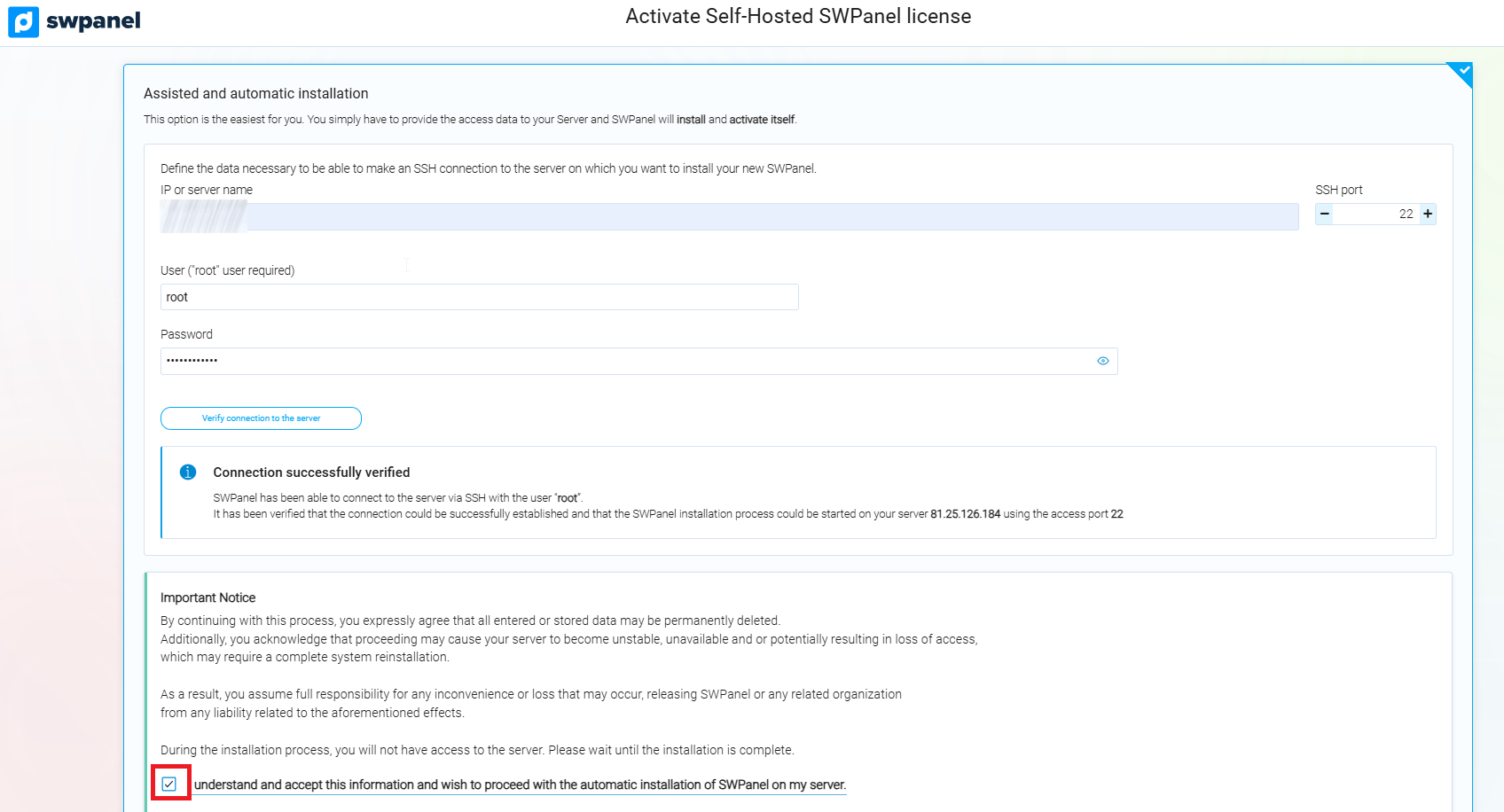
info_capture The screenshot is for guidance purposes. It was taken using version 2025.03.0003 dated 03/26/2025. It may differ from what the current version of SWPanel shows
- Once the connection is verified and the liability clause is accepted, SWPanel will start the installation automatically, without further intervention by the user.
3.2 Manual installation
Designed for advanced users with technical knowledge in server administration.
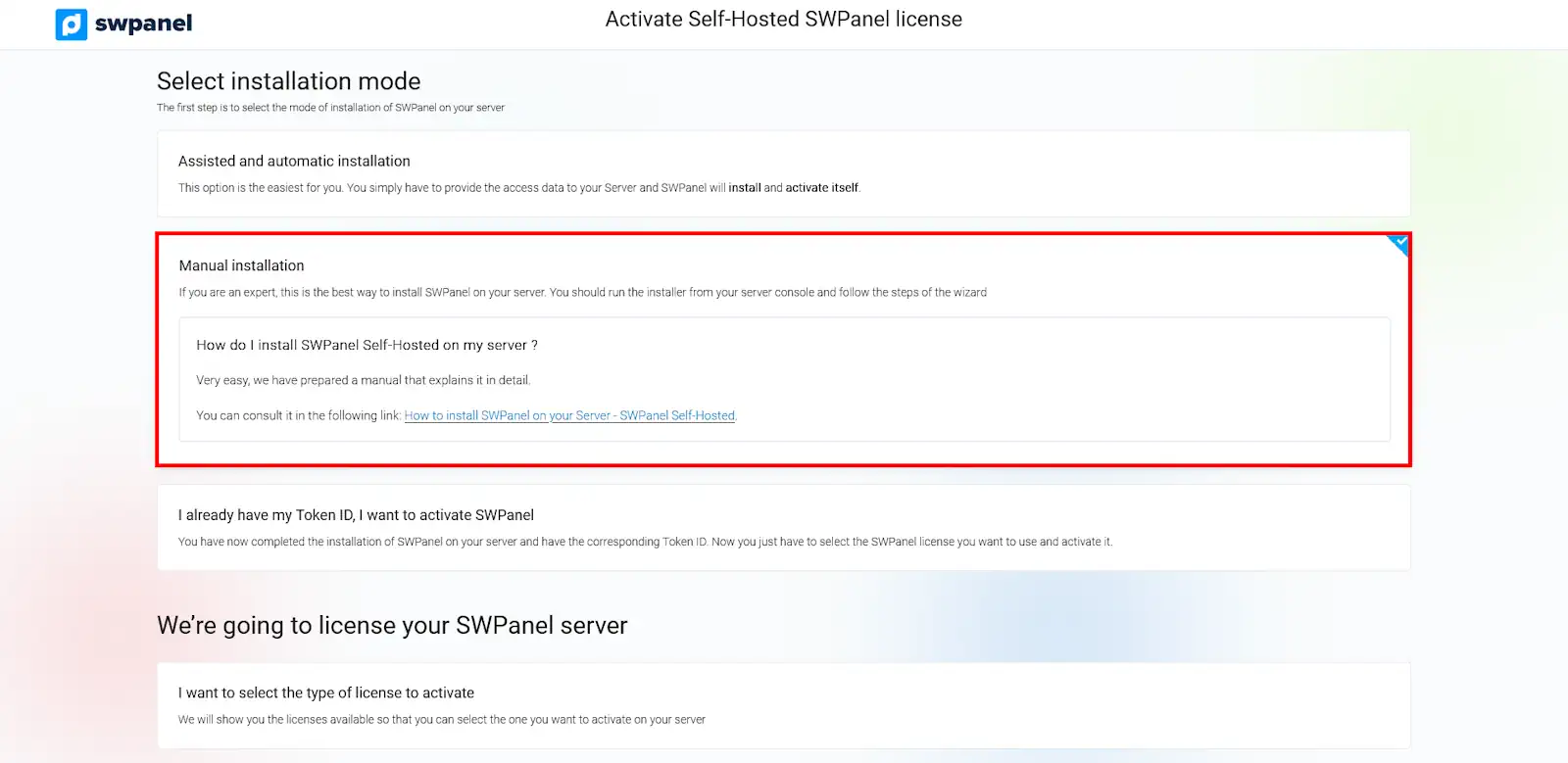
info_capture The screenshot is for guidance purposes. It was taken using version 2025.03.0003 dated 03/26/2025. It may differ from what the current version of SWPanel shows
Process:
- Access the server console.
- Manually execute the SWPanel installer.
- Follow the steps of the installation wizard.
- Once finished, a Token ID will be generated.
This Token ID must be entered later in the SWPanel panel to complete activation.
Consult the detailed steps here: Manual: ##título##
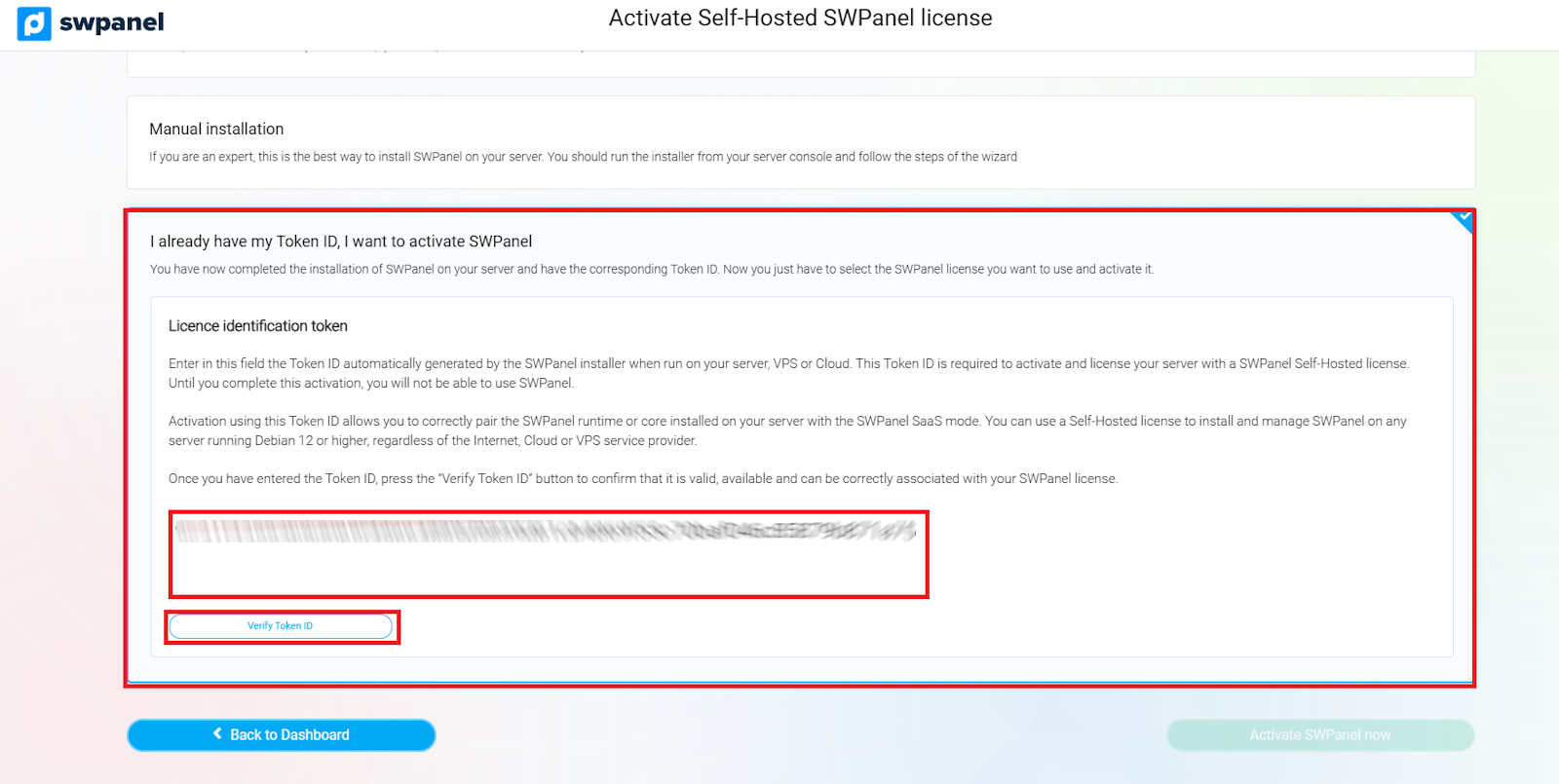
3.3 I already have my Token ID, I want to activate SWPanel
If you have already installed SWPanel manually and have the Token ID, proceed with the activation from the panel. This Token ID allows you to correctly link your server with the Self-Hosted mode of SWPanel. It is compatible with servers using Debian 12 or higher, regardless of the Internet, Cloud, or VPS service provider.
- Enter the Token ID in the corresponding field.
- Click on "Verify Token ID" to confirm validity.
info_capture The screenshot is for guidance purposes. It was taken using version 2025.03.0003 dated 03/26/2025. It may differ from what the current version of SWPanel shows
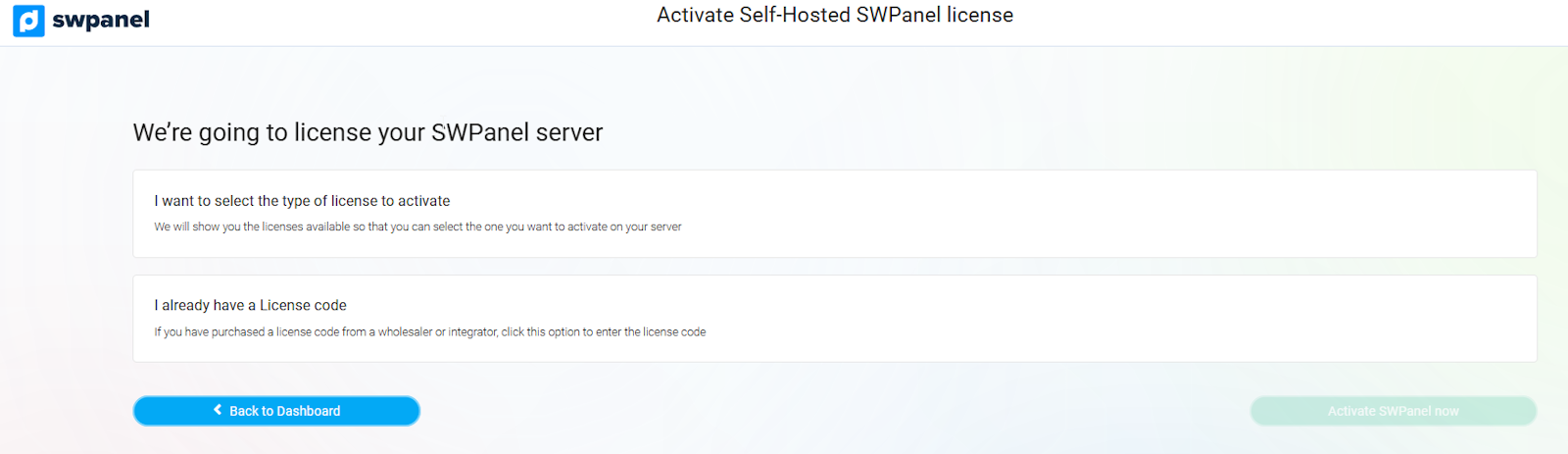
4. SWPanel server licensing
Once the installation is complete, the next step is to license the server:
info_capture The screenshot is for guidance purposes. It was taken using version 2025.03.0003 dated 03/26/2025. It may differ from what the current version of SWPanel shows
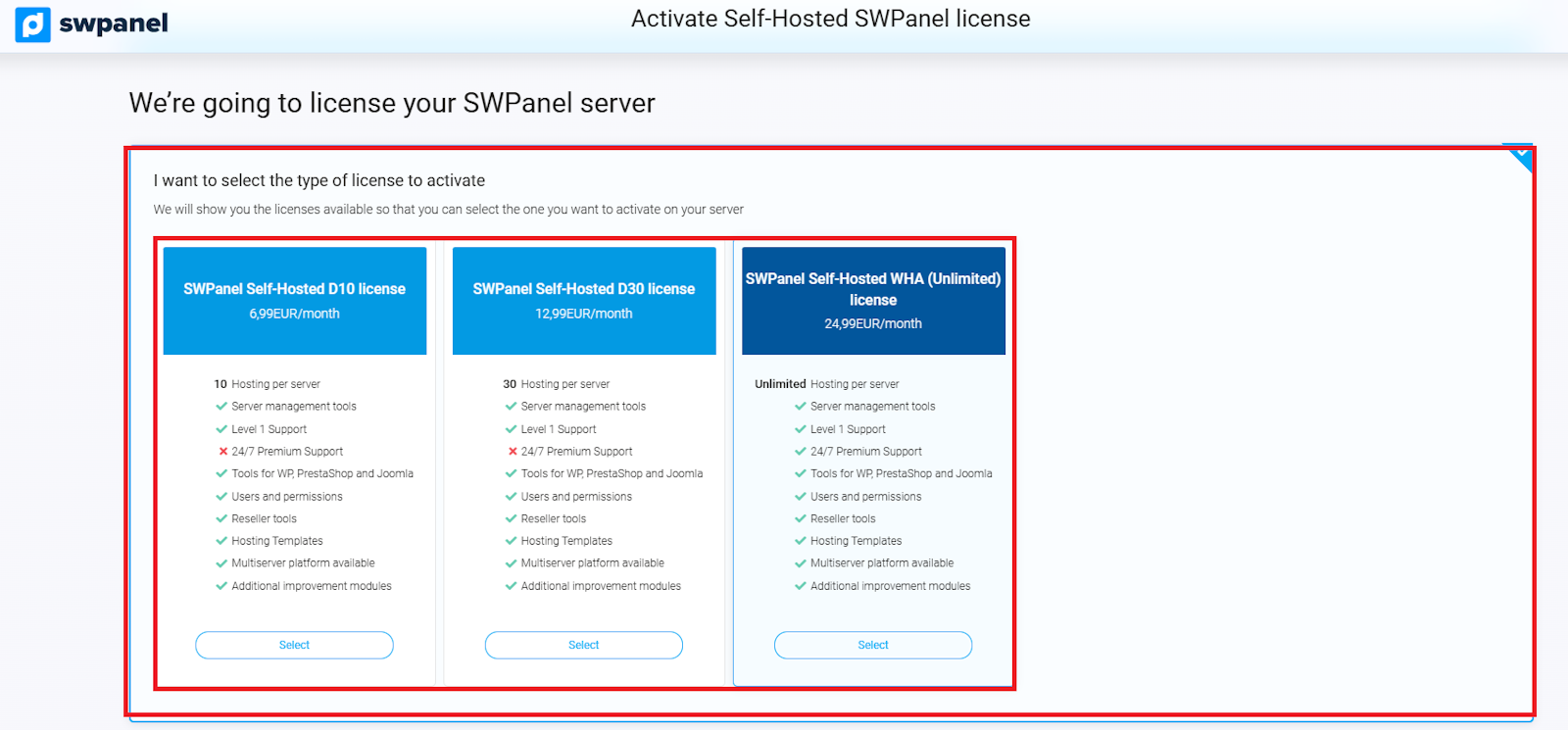
4.1 Selection of license type
The system will allow you to select the license mode most suitable for your needs.
info_capture The screenshot is for guidance purposes. It was taken using version 2025.03.0003 dated 03/26/2025. It may differ from what the current version of SWPanel shows
4.2 Add a license code
If you have already acquired a license through an authorized distributor or integrator, you can enter the code in this section:
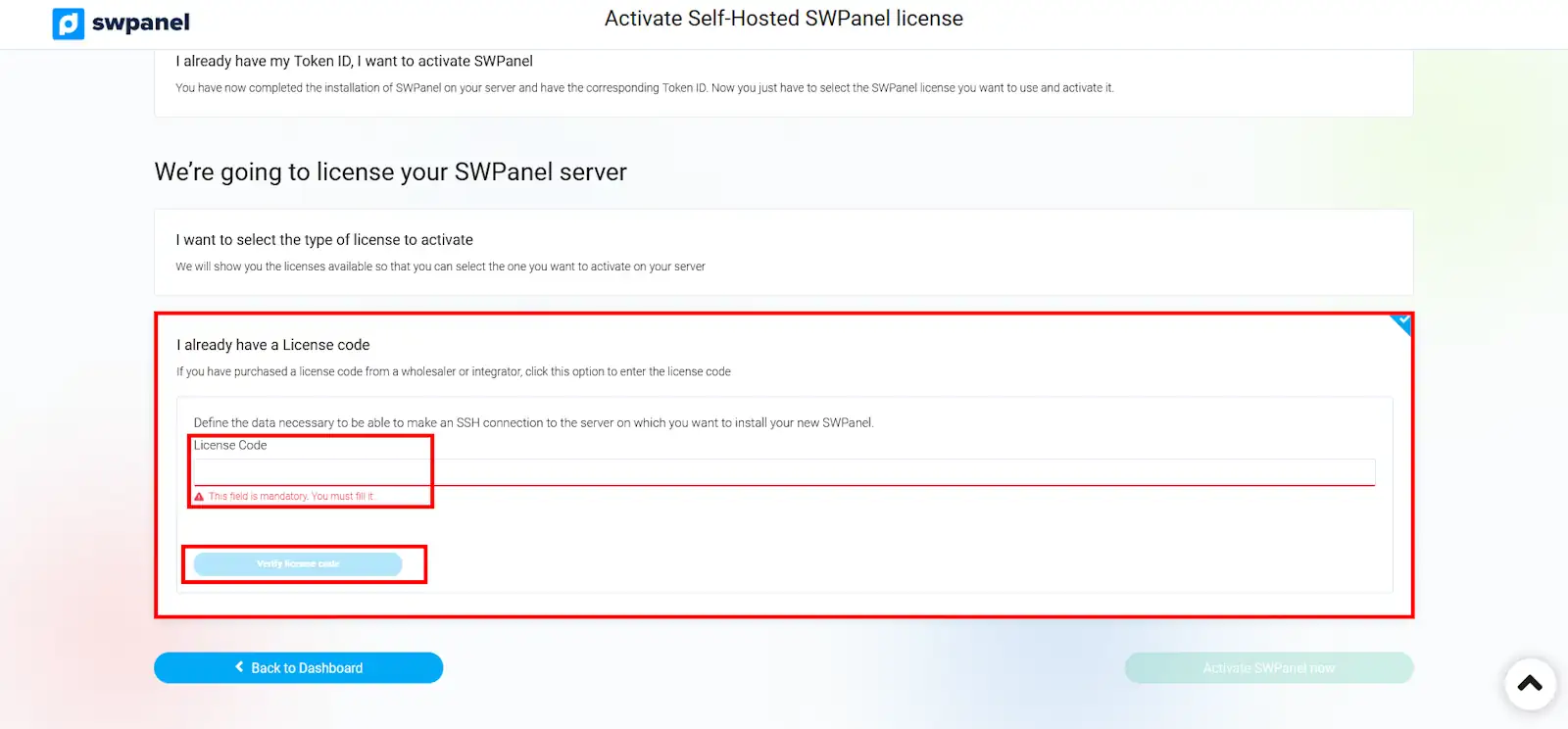
info_capture The screenshot is for guidance purposes. It was taken using version 2025.03.0003 dated 03/26/2025. It may differ from what the current version of SWPanel shows
5. Activate SWPanel Self-Hosted
To finalize the process, accept the legal conditions and press the button:
"Activate SWPanel now"
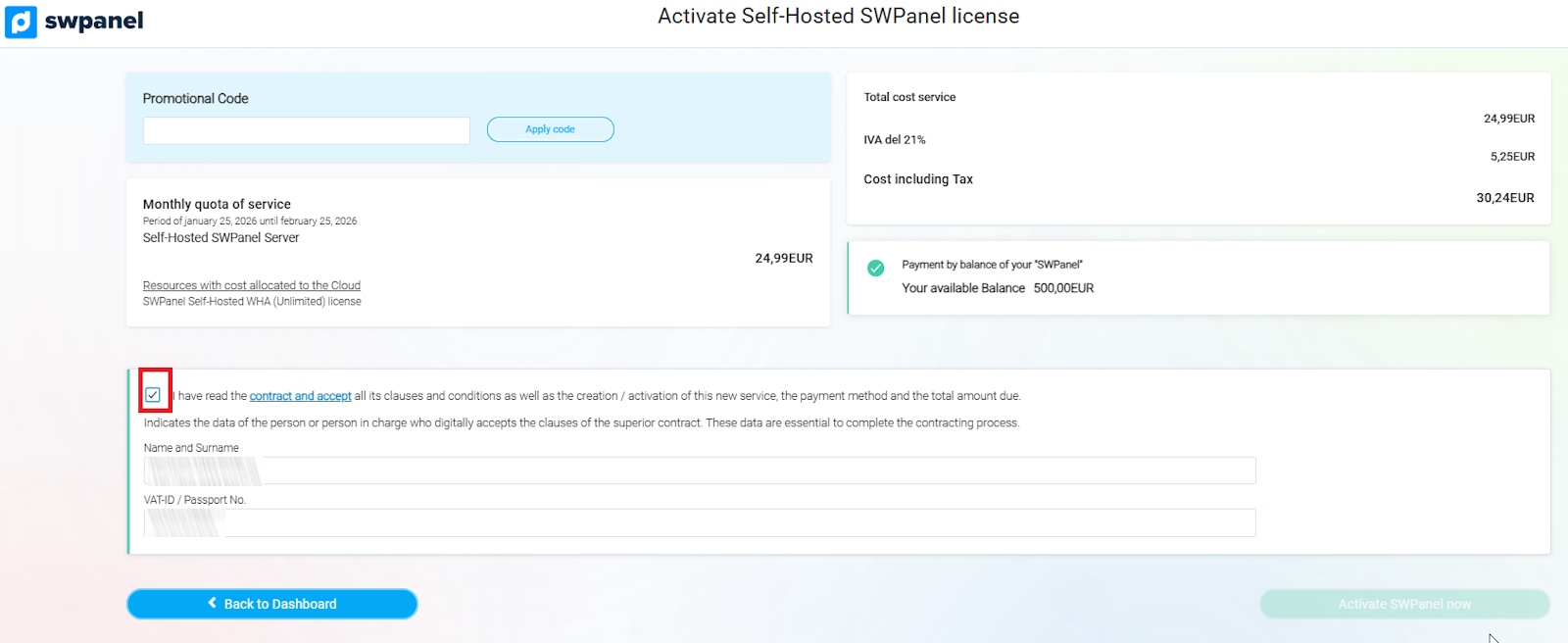
info_capture The screenshot is for guidance purposes. It was taken using version 2025.03.0003 dated 03/26/2025. It may differ from what the current version of SWPanel shows