
How to configure the OpenVPN client to connect to my Advanced VPN SSL with 2FA
Connection to an Advanced VPN SSL via OpenVPN
1. Introduction and manual summary
This manual aims to provide a step-by-step guide for SWPanel users to establish a secure connection using OpenVPN with their Advanced VPN SSL.
What is an SSL VPN?
An SSL VPN (Secure Sockets Layer) allows a secure and encrypted connection between your local equipment and cloud or remote infrastructures over the Internet. This type of VPN uses digital certificates and cryptographic keys to secure the connection.
In this case, access is managed through SWPanel, the cloud service management environment offered by SW Hosting, which allows you to manage and download the elements necessary to establish the connection.
What is OpenVPN?
OpenVPN is an open-source software client used to establish VPN connections. It is compatible with multiple operating systems (Windows, macOS, Linux, etc.) and allows importing configurations via .ovpn files, facilitating a fast and secure connection.
What is 2FA?
Two-factor authentication (2FA or MFA) adds an additional layer of security to your account, as it requires the user to provide two different forms of identification: something they know (password) and something they possess (mobile device with an authentication app).
2. Prerequisites
Before starting the connection process, ensure you have the following:
-
VPN user created in SWPanel.
-
Password assigned to the VPN user.
-
An active Advanced VPN SSL. If you do not have one, you can consult the following manual to create it:
-
Device with a 2FA application installed (Google Authenticator, FreeOTP, etc.).
-
Stable Internet access.
3. Accessing SWPanel with a VPN user
To begin, access SWPanel using the VPN user credentials (specific username and password for this connection). This user must be associated with an active Advanced VPN SSL.

info_capture The screenshot is for illustrative purposes. It was taken using version 2025.004.0005 dated 08/07/2025. It may differ from what the current version of SWPanel shows.
4. Configuring your 2FA application with the QR code
Once you access SWPanel for the first time with your VPN user, the 2FA Definition and access tab will be displayed. From there, you can scan the QR code that appears in the Security section.
To do this, open your authentication application (such as Google Authenticator, FreeOTP, etc.) and scan the QR code.
danger The QR code will only be displayed upon the first access to the portal. It cannot be regenerated. It is essential to configure it correctly at that moment.
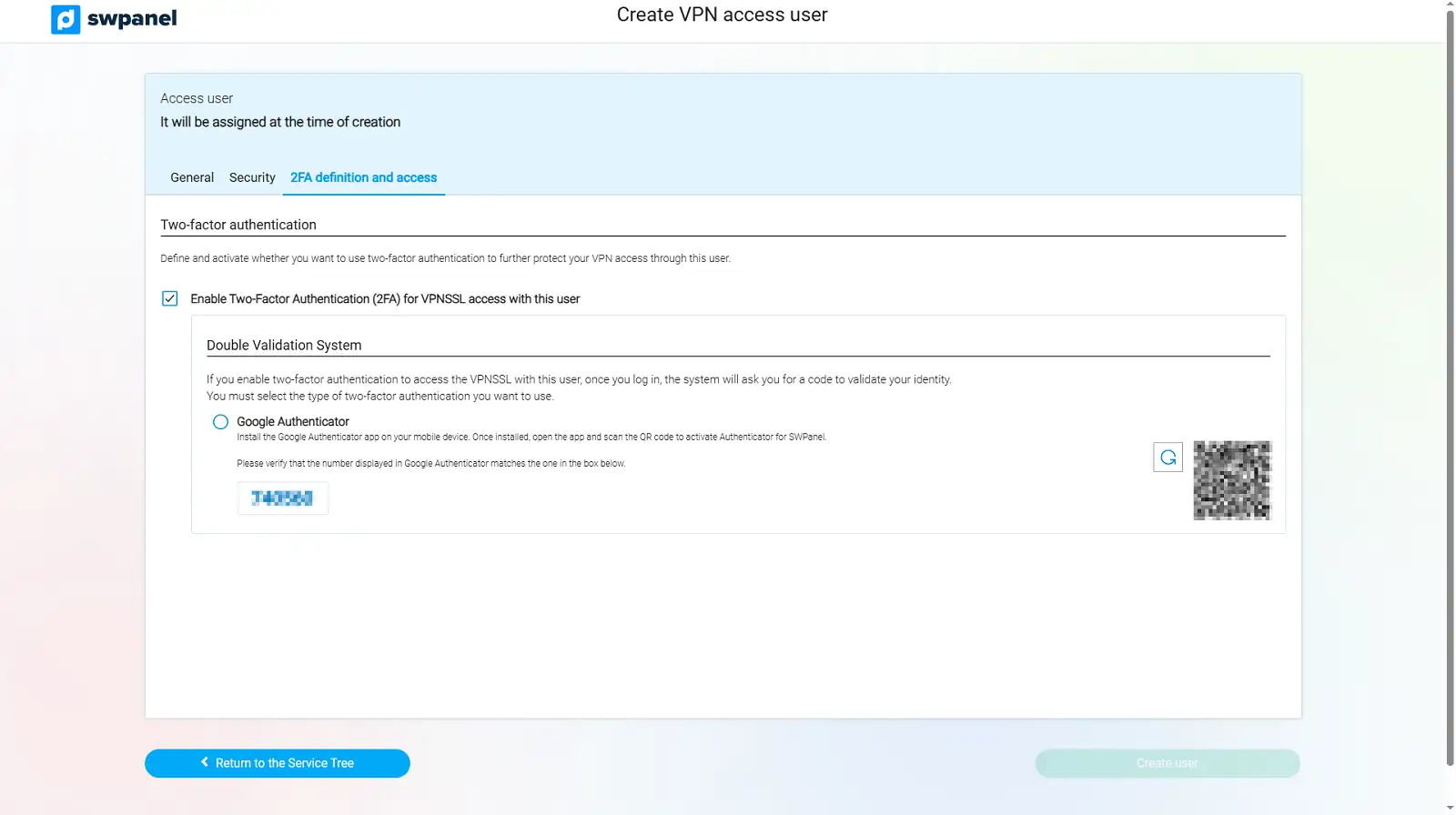
info_capture The screenshot is for illustrative purposes. It was taken using version 2025.004.0005 dated 08/07/2025. It may differ from what the current version of SWPanel shows.
Code validation
If the application and the portal show the same 6-digit code, the configuration was successful. Otherwise, use the refresh icon next to the QR to generate a new code and try again.
info In case of loss of the mobile device or if you believe it has been compromised, it is recommended to delete the VPN SSL user, create a new one, and repeat the configuration process.
5. Download and installation of the Advanced VPN SSL connection agent
To connect to the VPN, you must install the OpenVPN Community client on your operating system. Go to the official OpenVPN website and download the corresponding version.
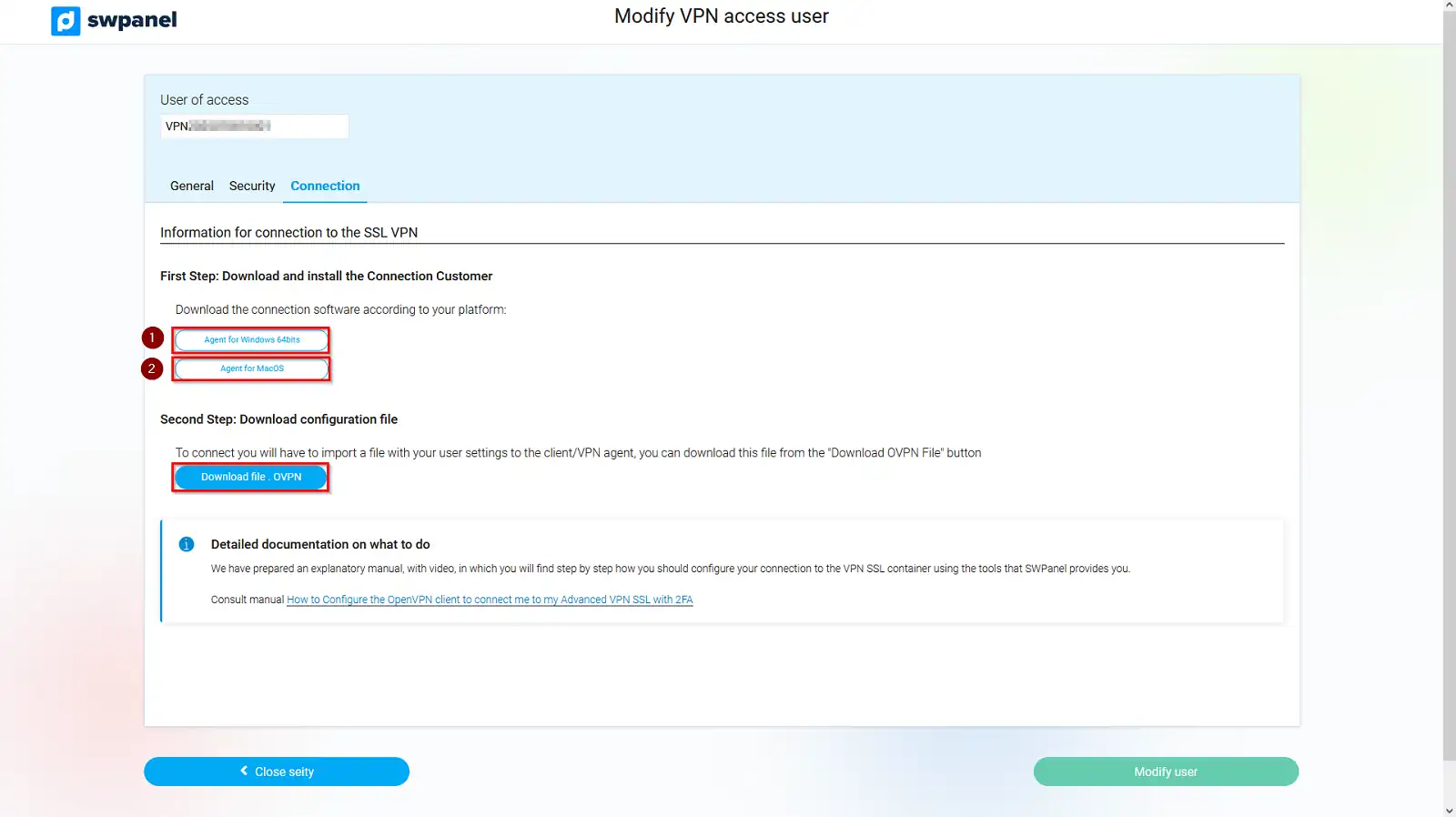
info_capture The screenshot is for illustrative purposes. It was taken using version 2025.004.0005 dated 08/07/2025. It may differ from what the current version of SWPanel shows.
Installation manuals
If you need help installing the client, consult the following manuals according to your operating system:
6. Downloading the .ovpn configuration file
Once 2FA is configured and OpenVPN is downloaded and installed, you must download the specific configuration file for your VPN SSL from SWPanel.
Click on the Download .OVPN file option.
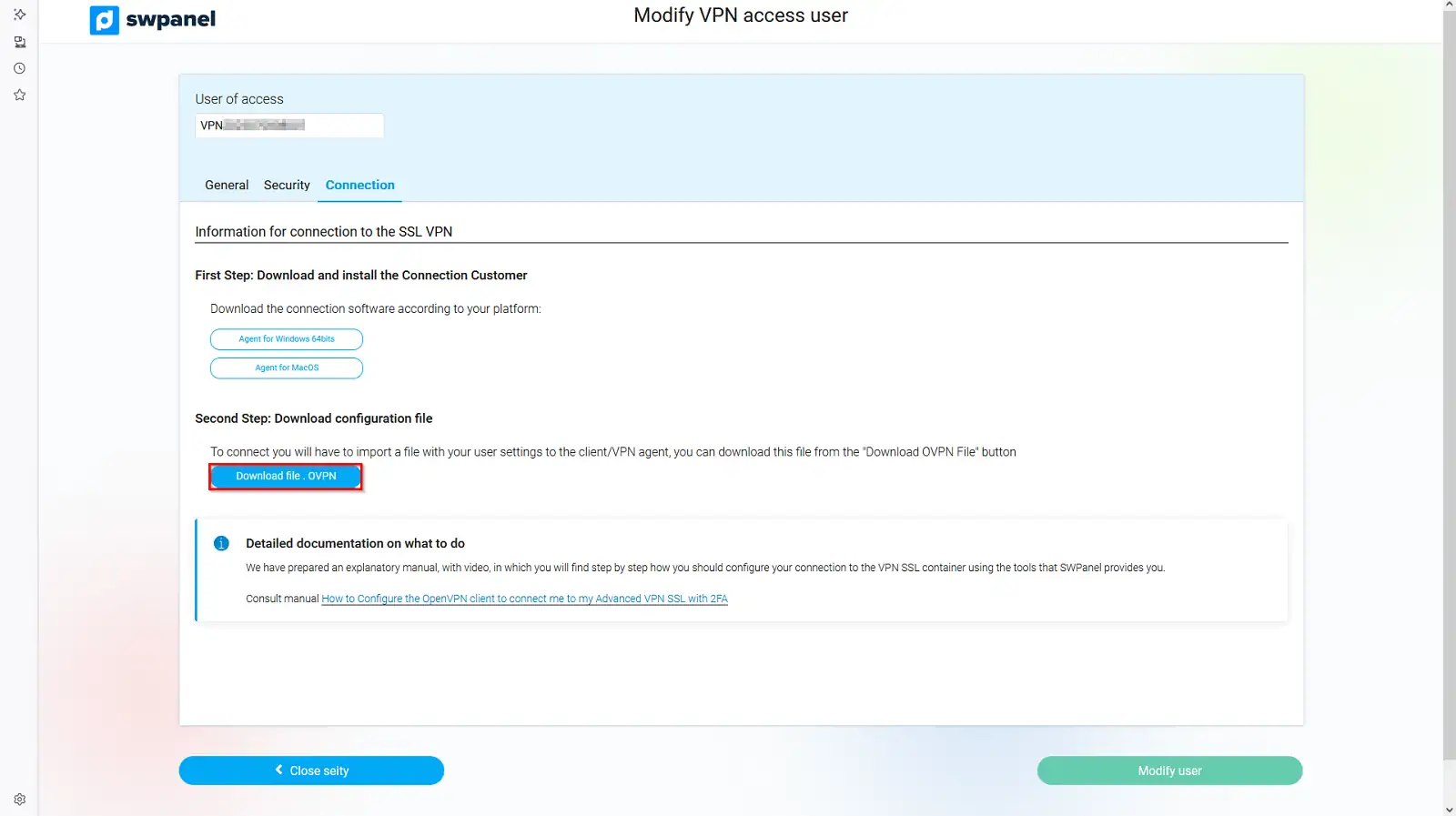
info_capture The screenshot is for illustrative purposes. It was taken using version 2025.004.0005 dated 08/07/2025. It may differ from what the current version of SWPanel shows.
This file contains all the parameters necessary to establish the connection with your VPN: server, ports, certificates, etc.
7. Establishing the VPN connection
Open the connection agent corresponding to your OS and import the previously downloaded .ovpn file. Once imported, you can start the connection by entering your credentials (VPN user and password).
If you need a step-by-step guide to configure the connection in the OpenVPN client, you can follow this manual:
Common errors and their solutions
Error: Connected but no response to ping Possible causes:
1.- The destination server does not have a return route configured towards your VPN network.
** Verification**: Access the server or Cloud within the VLAN. Verify the routing table by running:
 ip route show
 route -n
Solution: If there is no route to the VPN subnet, you must create it manually. For example, if the subnet is 192.168.25.0/24 and the gateway is 192.168.25.1, you can use the following commands:
Linux / Mac: route add -net 192.168.224.0/19 gw 192.168.25.1
In current Linux distributions: ip route add -net 192.168.224.0/19 gw 192.168.25.1
In the Windows operating system, running CMD as Administrator: route -p add 192.168.224.0/19 mask 255.255.224.0 192.168.25.1
This will add a persistent route that allows traffic to return from the server to the VPN client.
Error: Firewall blocking traffic (ICMP or VPN subnet): The server might be configured to block pings (ICMP) or traffic from unrecognized IPs (for example, those from the VPN).
Solution: In Linux, you must add the IP to iptables: iptables -A INPUT -s 192.168.224.0/19 -j ACCEPT iptables -A INPUT -p icmp -j ACCEPT
In Windows, ensure that the Firewall allows traffic from the VPN network. Add a rule that allows ICMP and traffic from that subnet.