
Nesta página 2 seções
In this manual, you will learn how to modify your access password for the SWPanel control panel quickly and securely.
Access the password change option
Follow these steps:
- Hover over your customer name at the top of the panel.
- In the dropdown menu, click on My SWPanel.
- Access the Access password change option.
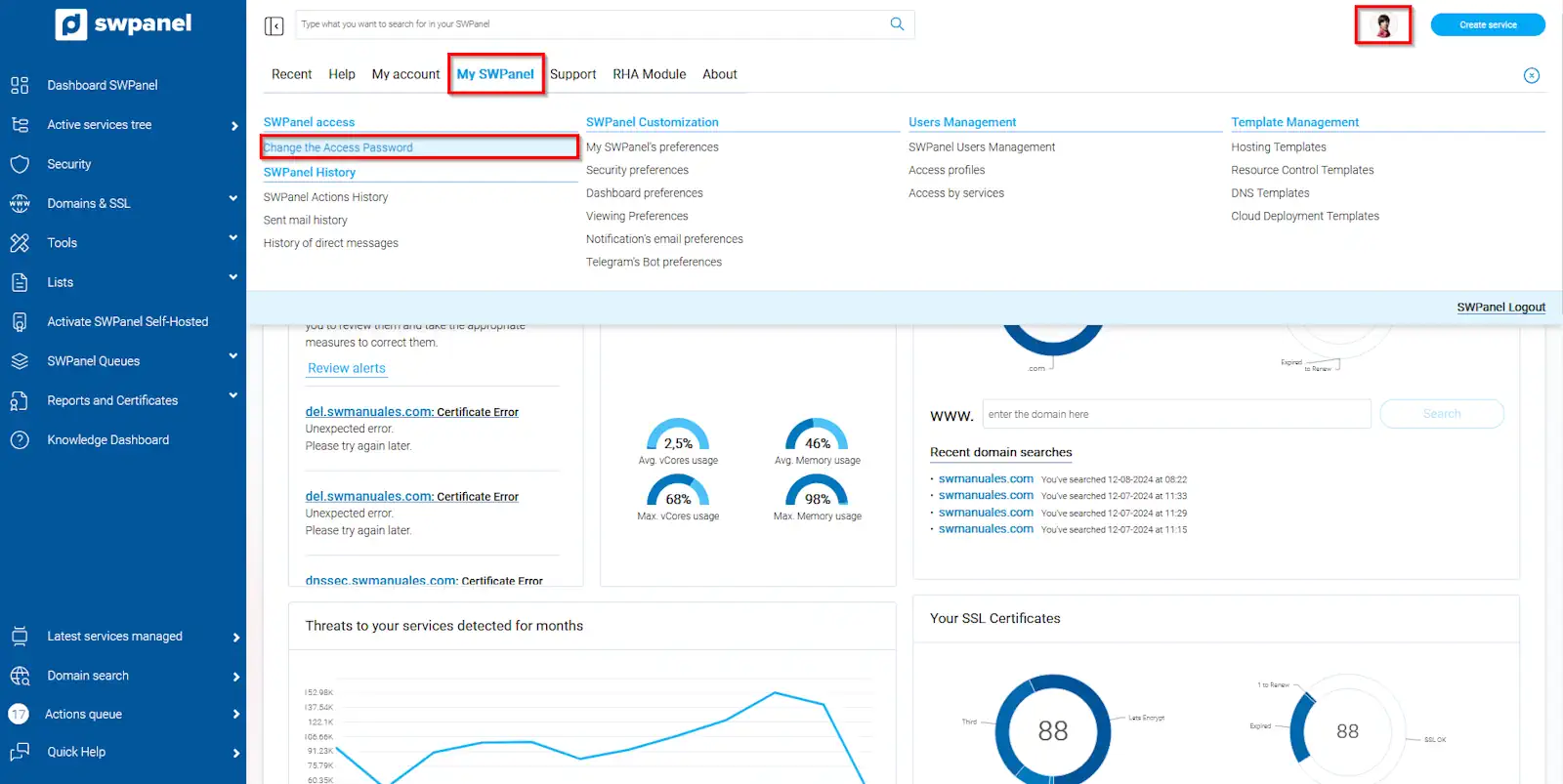
Note: The screenshot is for guidance, taken from version 2026.001.0026 dated 03/05/2026. It may differ from the current version of SWPanel.
Enter the new password
On the following screen:
- Enter your current password.
- Type your new password or generate one automatically using the magic wand icon.
- Confirm the new password if necessary.
- Click on Save new password to apply the changes.
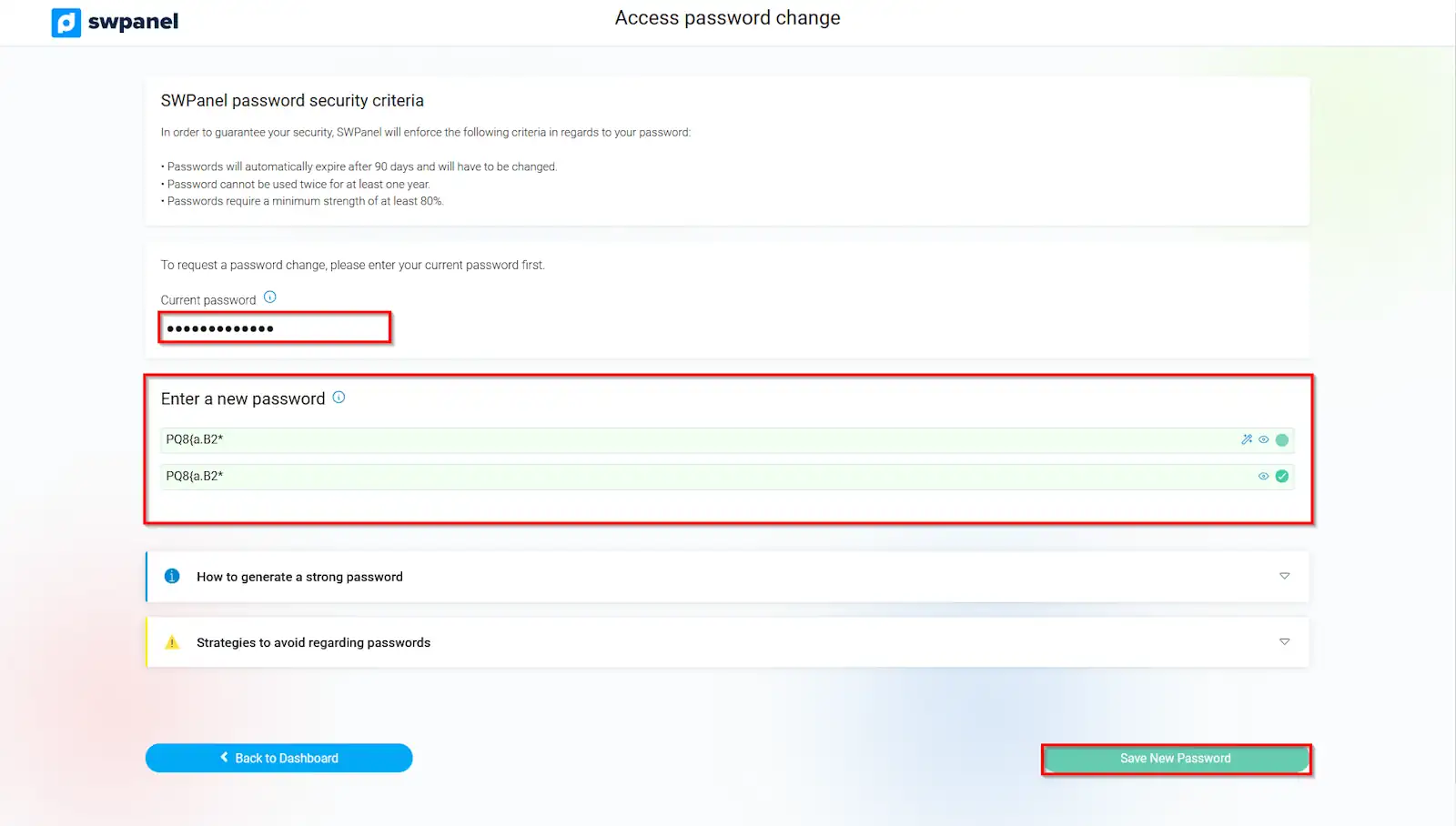
Note: The screenshot is for guidance, taken from version 2026.001.0026 dated 03/05/2026. It may differ from the current version of SWPanel.