How to access your Hosting service via Filezilla
How to access your Hosting service using Filezilla
To access and transfer your files, you will need to download an FTP client, a program that connects to the remote FTP server and manages the sending/receiving of files. The most popular FTP client is FileZilla. It is a free and easy-to-use FTP manager, available for Windows, Linux, and Mac OS X operating systems.
Downloading and installing Filezilla
At SW Hosting, we never recommend downloading applications from untrusted sites. The best option is to download the program directly from the official Filezilla website.
Once you are on the official page, you should go to FileZilla -> Download:
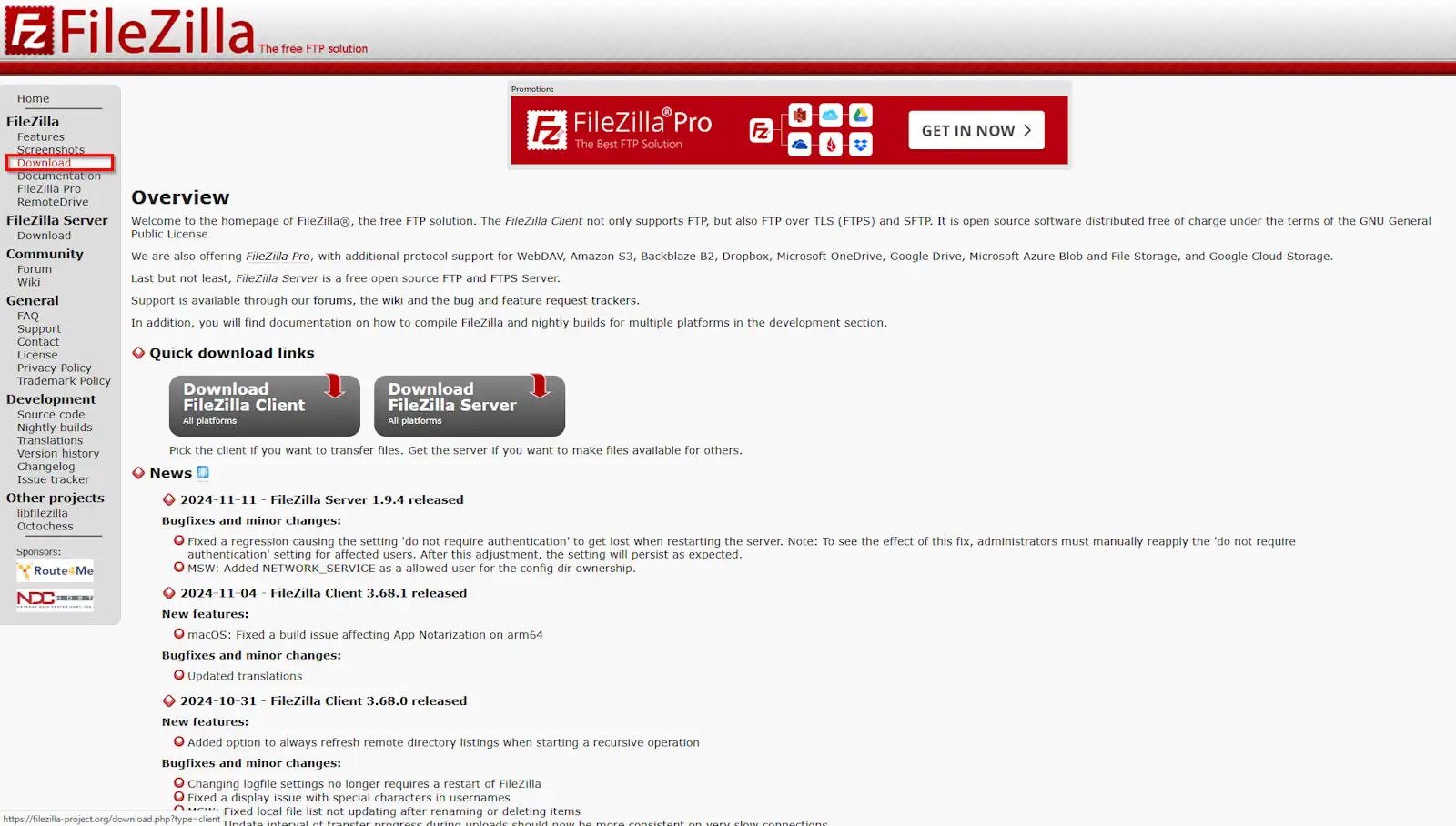
info_capture The screenshot is for reference only. It was taken from version 2025.03.0003 on 26/03/2025. It may differ from what the current version of SWPanel displays.
You should download the FileZilla Client compatible with your operating system:
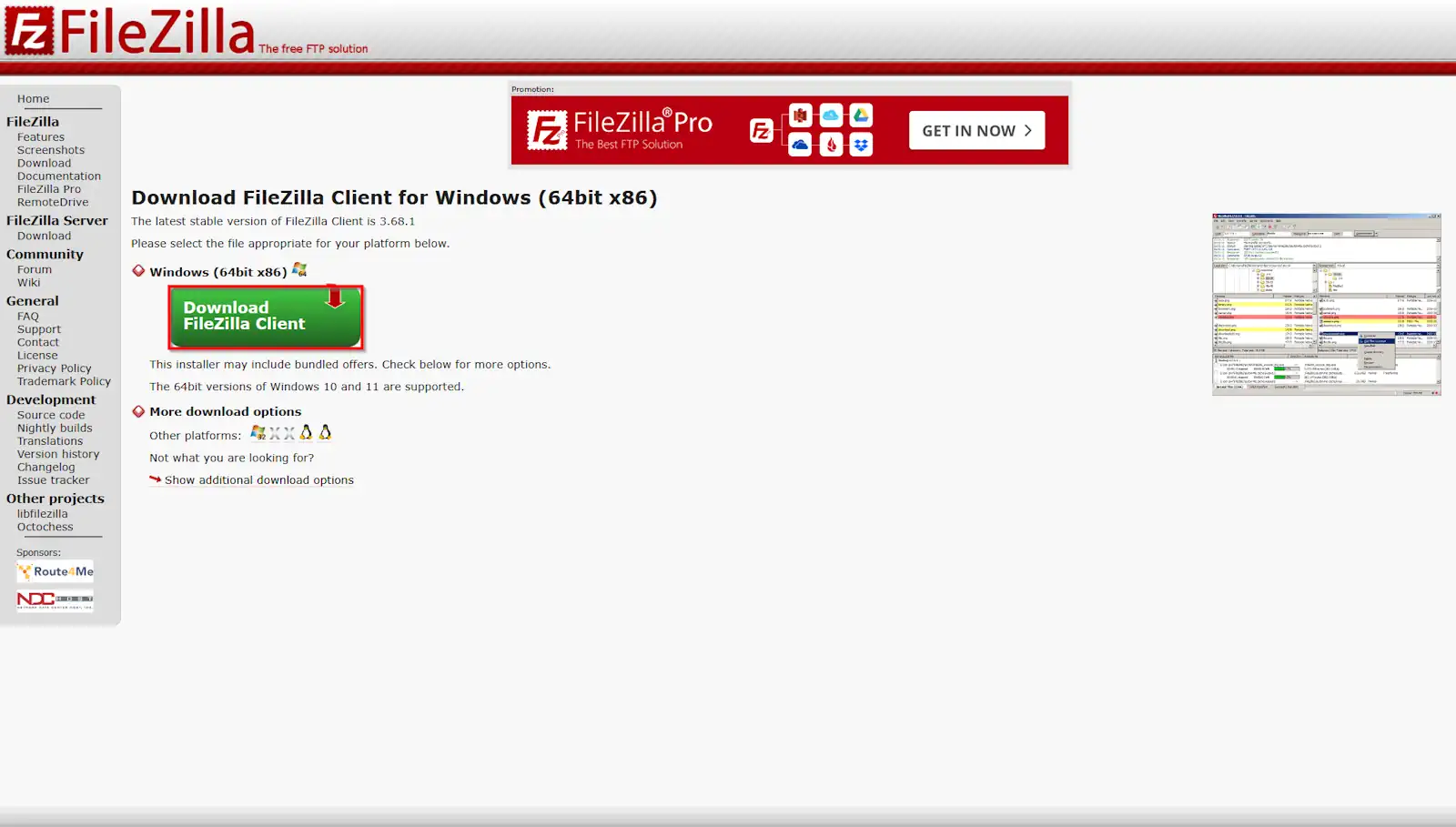
Once you have the installer, you must run the file and complete the installation process.
Connecting to your Hosting service via FTP
To find out the Host/IP name of your FTP server, you must:
- In the SWPanel search bar, type the name of the service for which you wish to check the parameters and click on it:
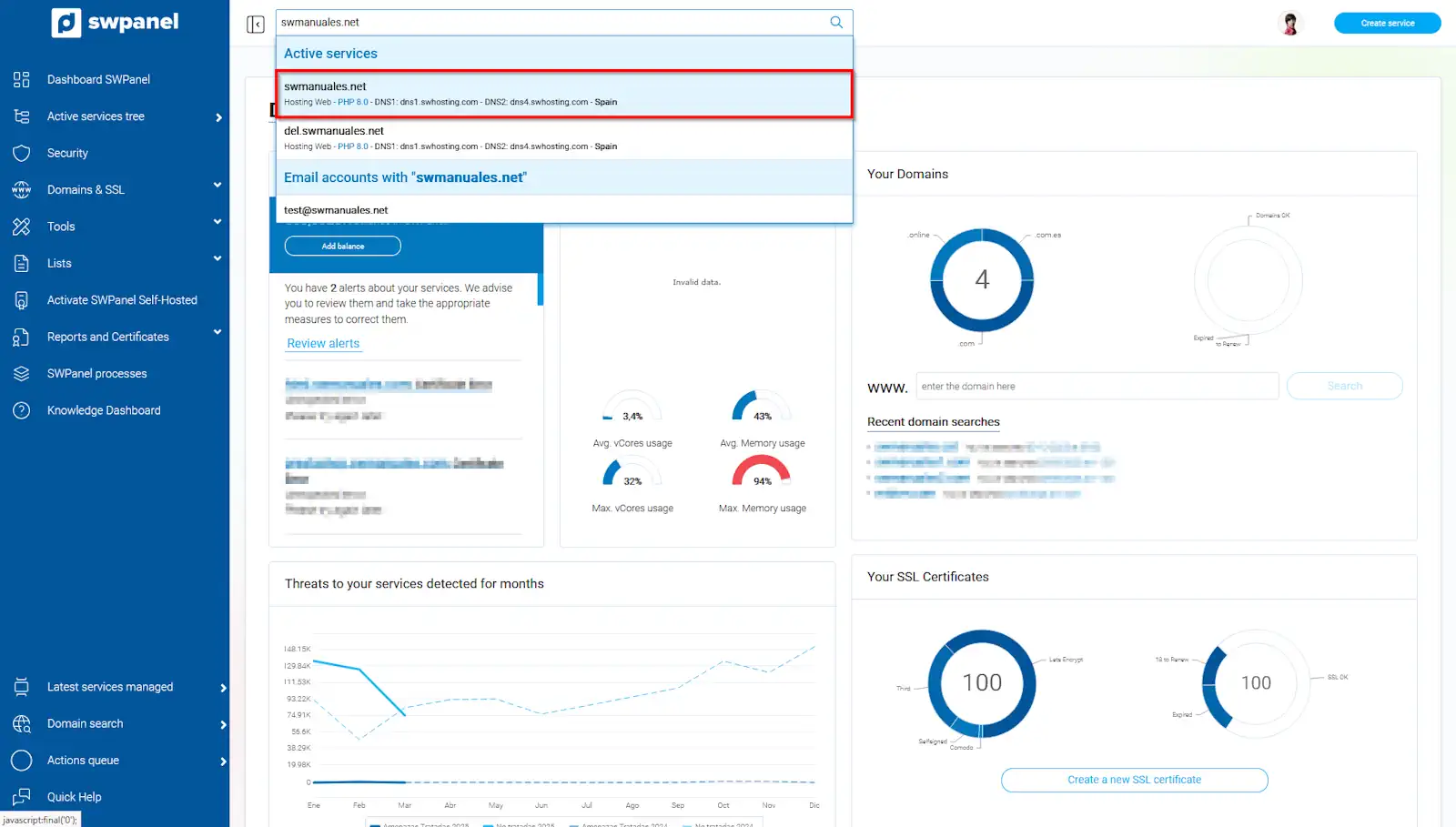
info_capture The screenshot is for reference only. It was taken from version 2025.03.0003 on 26/03/2025. It may differ from what the current version of SWPanel displays.
- Click on 'Service servers', located in the blue side menu:
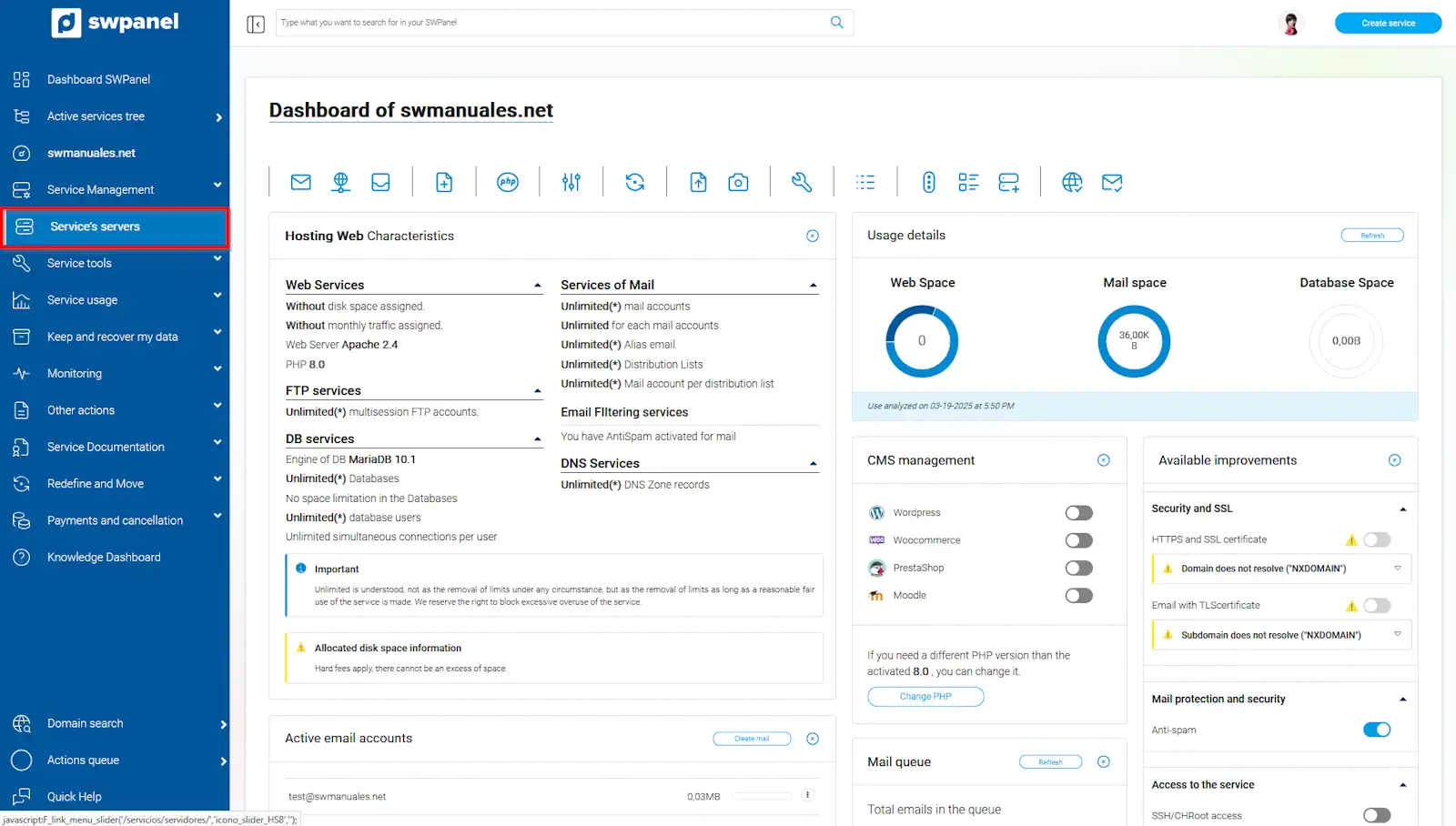
info_capture The screenshot is for reference only. It was taken from version 2025.03.0003 on 26/03/2025. It may differ from what the current version of SWPanel displays.
- The IP found in 'Assigned FTP Server' is the one you should use as the 'Host/IP Name' to access FileZilla:
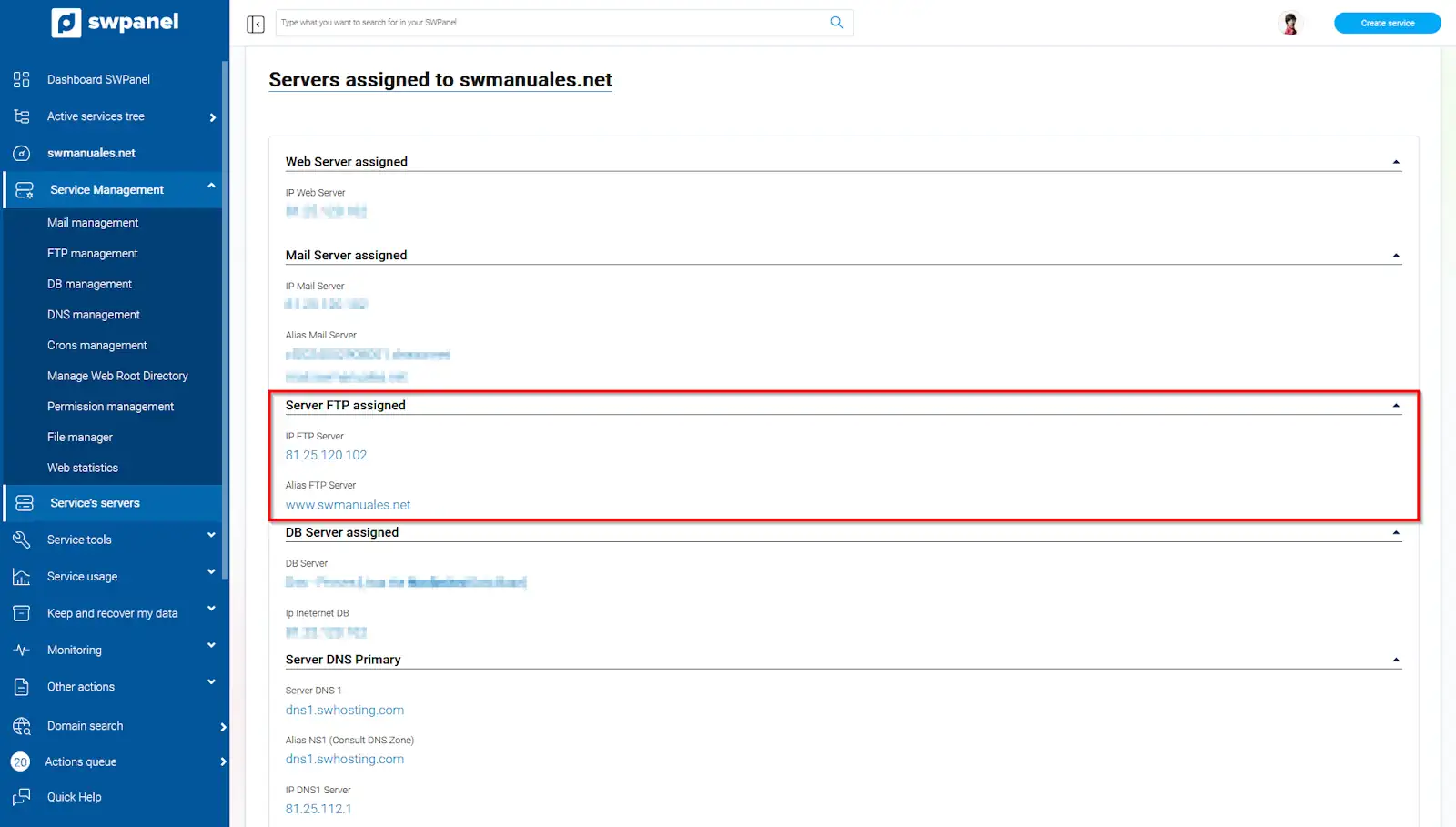
info_capture The screenshot is for reference only. It was taken from version 2025.03.0003 on 26/03/2025. It may differ from what the current version of SWPanel displays.
You must also have an FTP user created; you can refer to: ? Manual: How to create an FTP account.
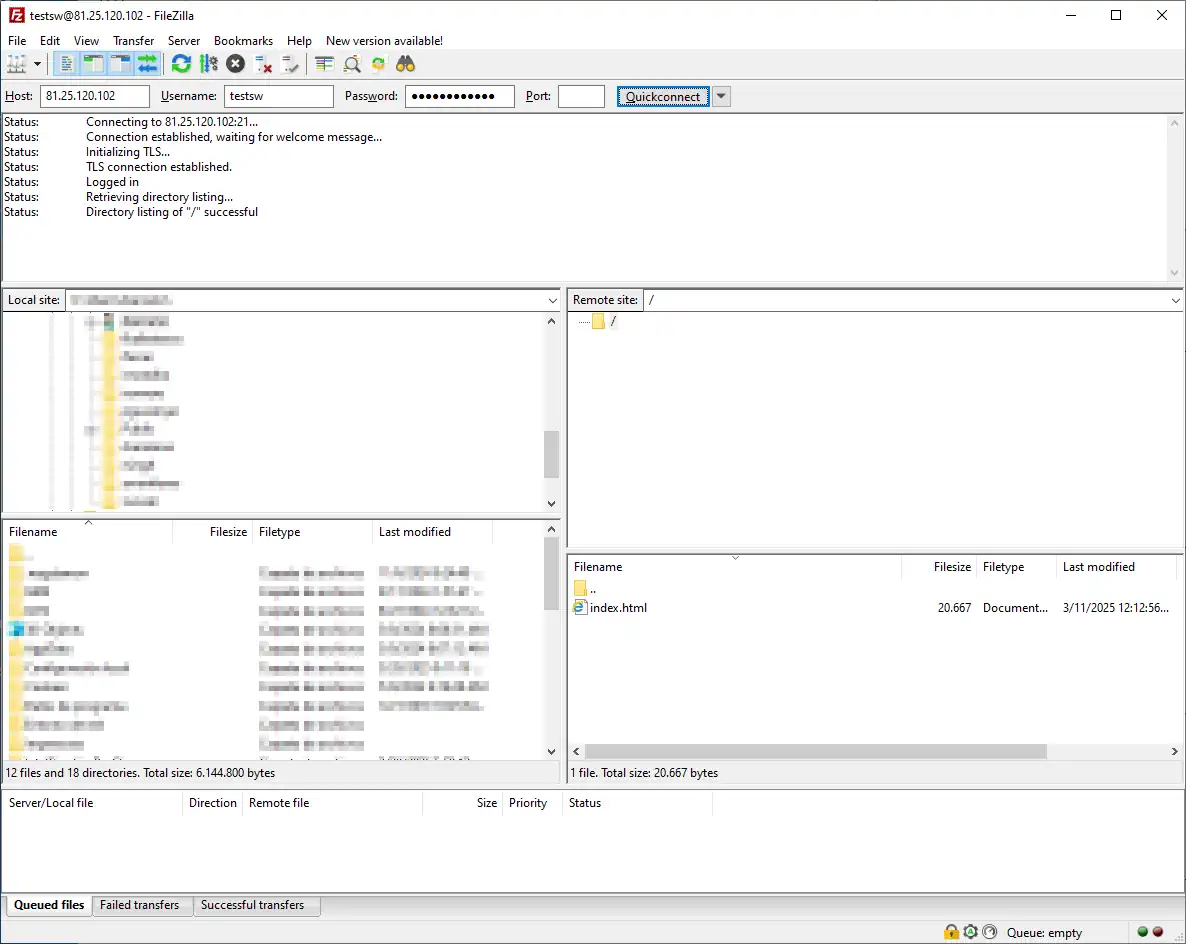
Finally, you must enter the data in the FileZilla FTP manager:
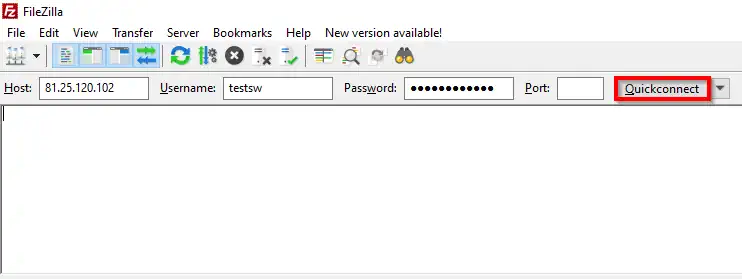
And you will now be able to manage the necessary files: