
How to create a Cloud from SWPanel
To create a Cloud service from your SWPanel, first you must access your SWPanel, by entering your username and password. Once you are in the Dashboard of your SWPanel, you must click on the "Create Service" button located in the top right:
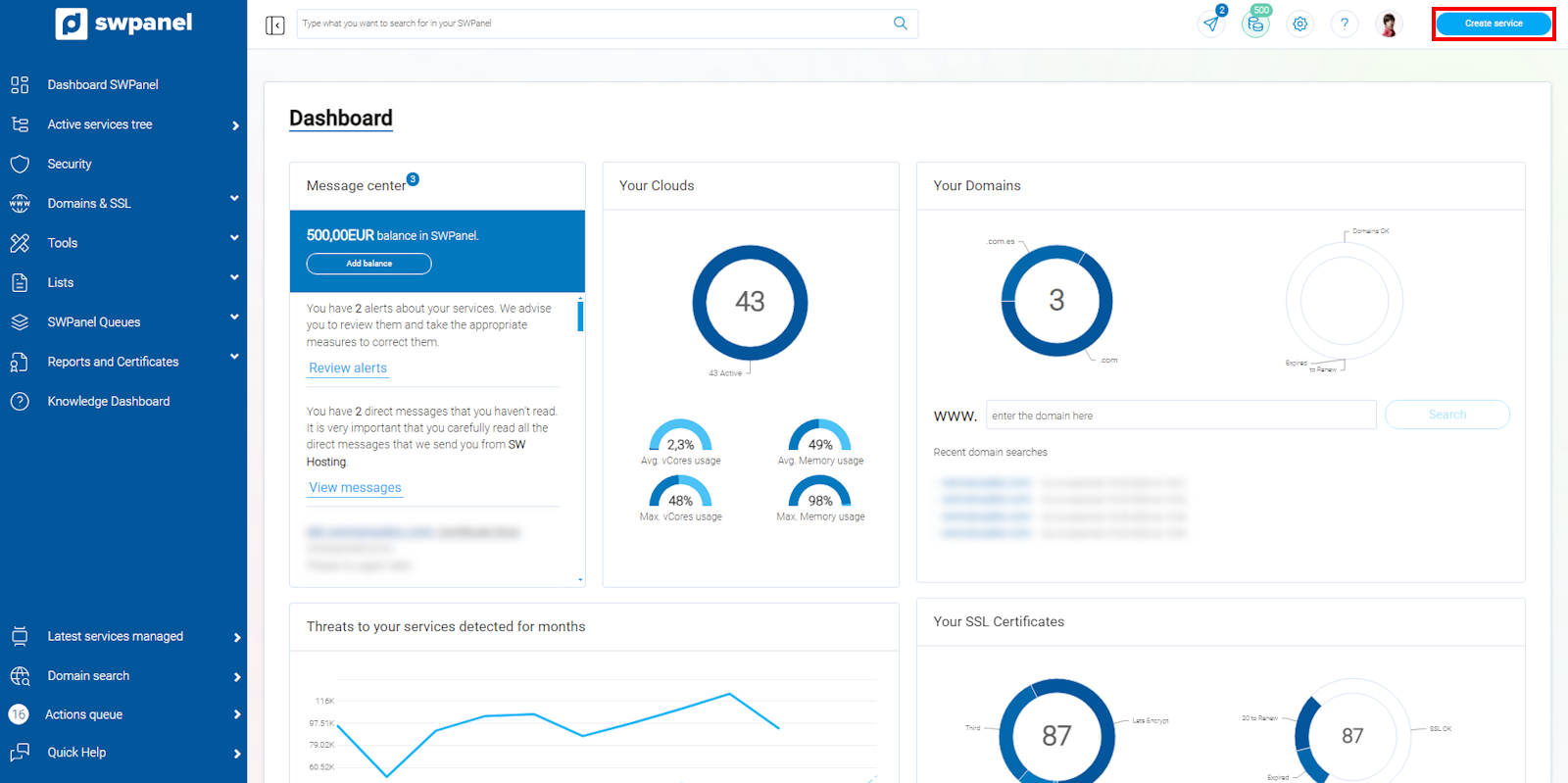
info_capture The screenshot is for guidance purposes. It was taken using version 2026.001.0058 dated 19/05/2026. It may differ from what the current version of SWPanel shows.
Here you will choose the Cloud service that best suits your needs:
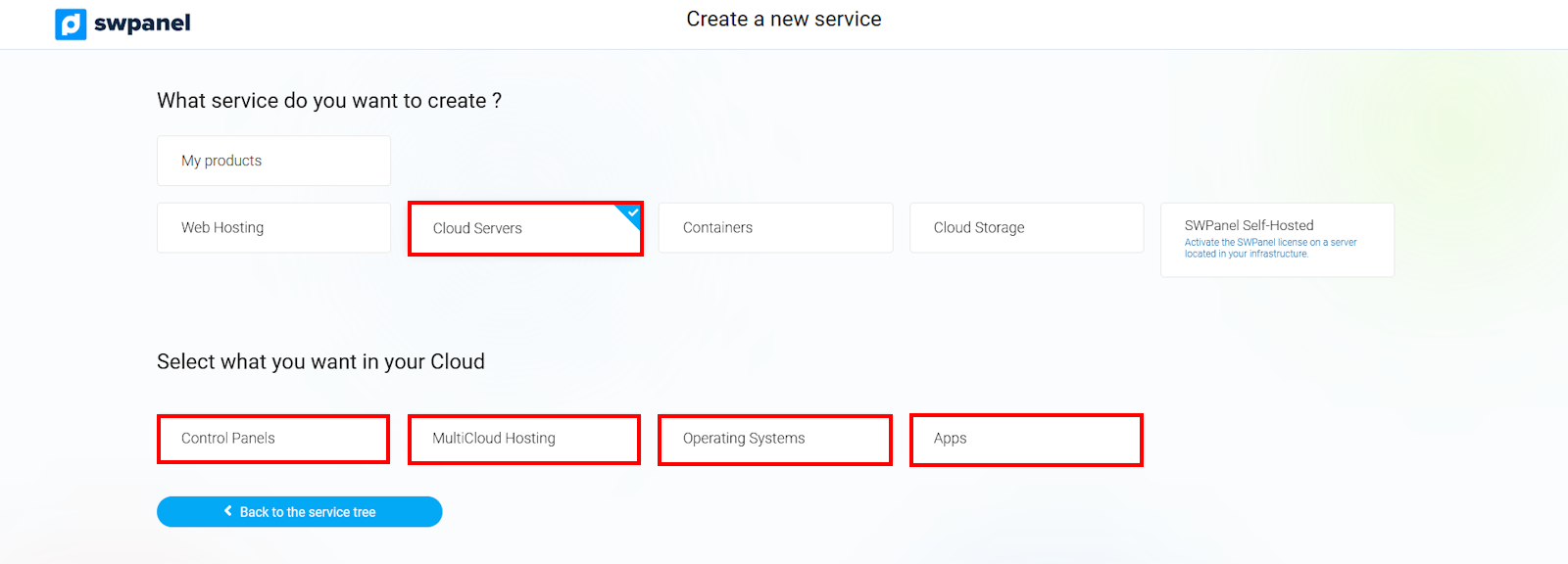
info_capture The screenshot is for guidance purposes. It was taken using version 2026.001.0058 dated 19/05/2026. It may differ from what the current version of SWPanel shows.
-
Cloud & Apps: Cloud servers in which you can choose the operating system, or those with different pre-installed applications (Apps).
-
Cloud & Admin Panel: Cloud servers with different management panels to administer the server and the hosting services hosted on it.
-
Cloud & Engineering Support: Cloud servers that include SWPanel as a management panel to administer the server and the hosting services hosted on it, in addition to having 24/7 level 2 support from SW Hosting engineers.
As an example, we will choose the first one: Cloud & Apps. The next step will be to select the type of operating system you want for your Cloud server as well as the version:
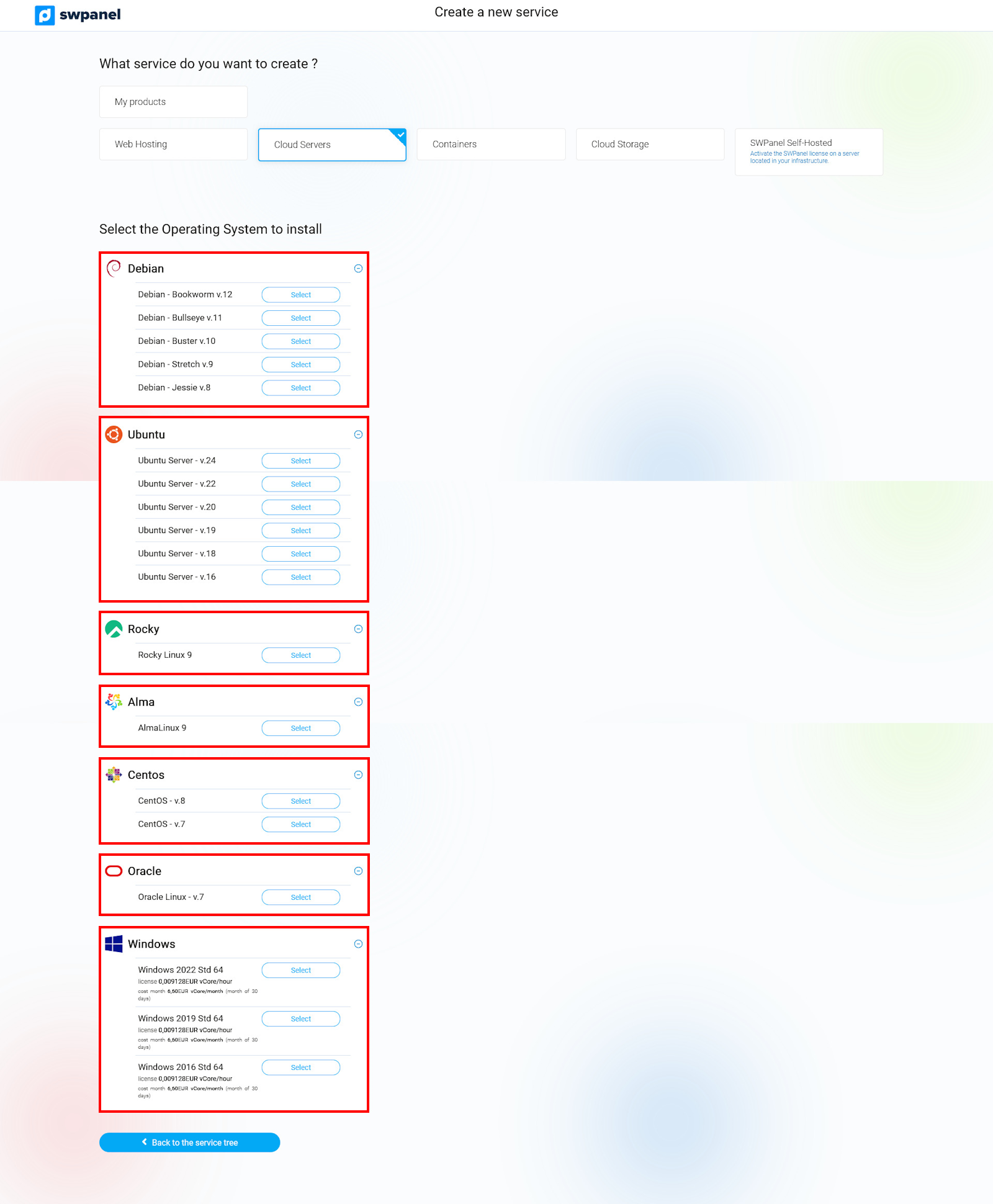
info_capture The screenshot is for guidance purposes. It was taken using version 2026.001.0058 dated 19/05/2026. It may differ from what the current version of SWPanel shows.
Next, add the size of the cloud to be created by choosing between a Cloud Standard or a Cloud Xtreme:

info_capture The screenshot is for guidance purposes. It was taken using version 2026.001.0058 dated 19/05/2026. It may differ from what the current version of SWPanel shows.
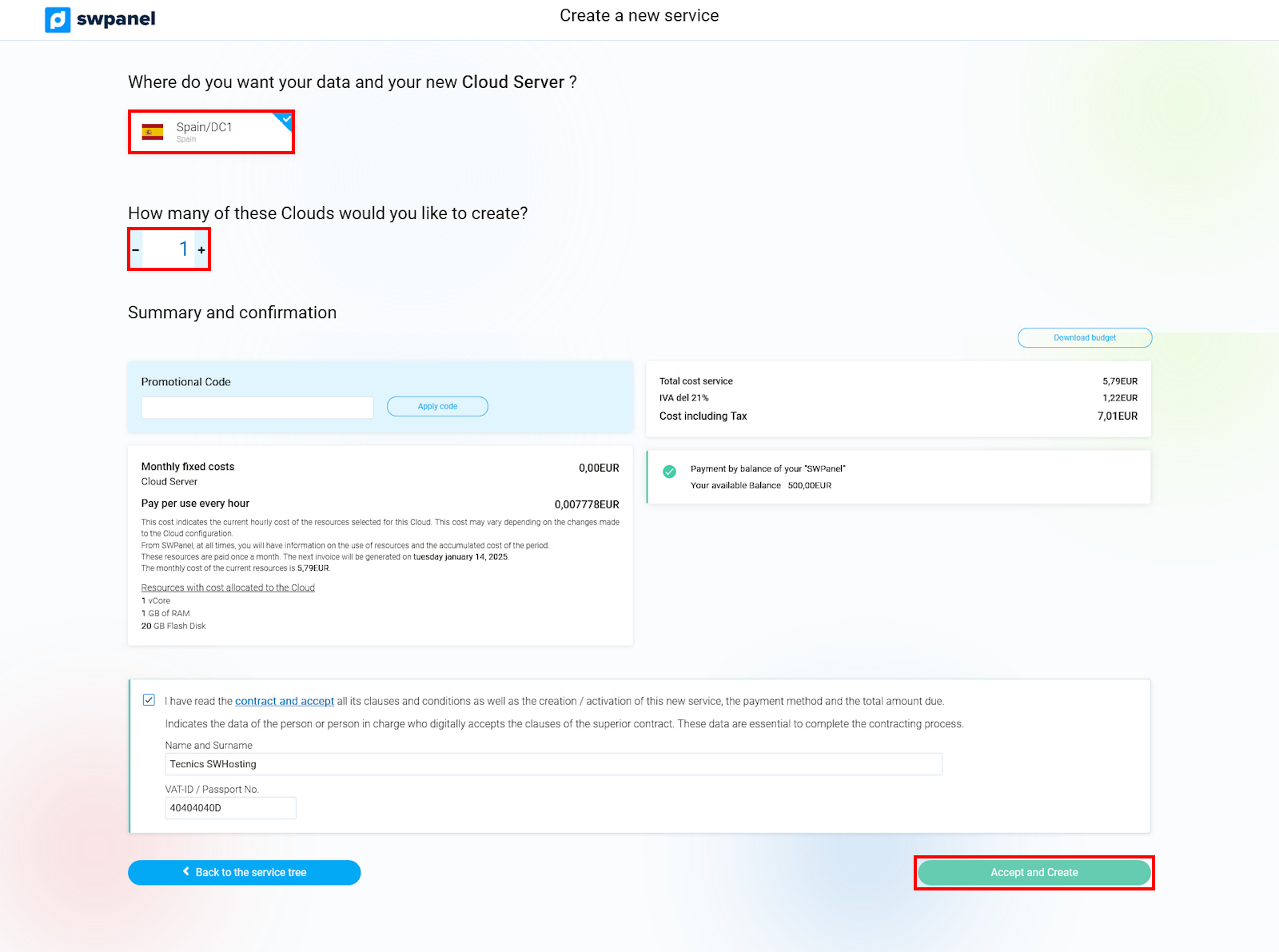
To finish, you must choose the Data Center where you want to locate your server, the number of clouds with the same selected characteristics that you need to create, and accept to finalize the purchase:
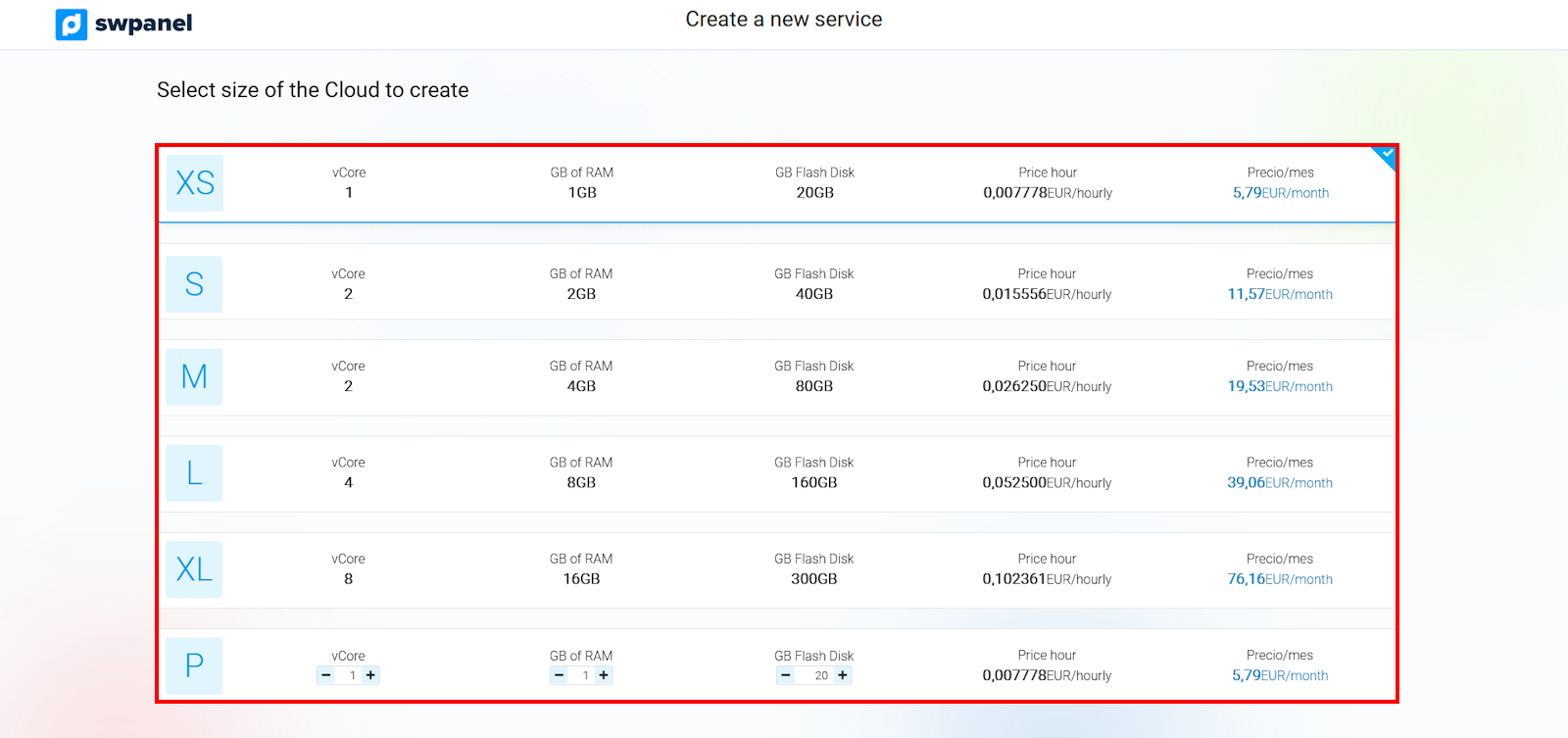
info_capture The screenshot is for guidance purposes. It was taken using version 2026.001.0058 dated 19/05/2026. It may differ from what the current version of SWPanel shows.
The system will direct you directly to the "Active services tree" section and will show you the installation process of your new Cloud server:

info_capture The screenshot is for guidance purposes. It was taken using version 2026.001.0058 dated 19/05/2026. It may differ from what the current version of SWPanel shows.
Once installed, you can begin managing it by clicking on it.
info_capture The screenshot is for guidance purposes. It was taken using version 2026.001.0058 dated 19/05/2026. It may differ from what the current version of SWPanel shows.