
How to manage DS Records from SWPanel
Guide for Creating a DS Record in SWPanel
Introduction to DS Records and DNSSEC
DNSSEC (Domain Name System Security Extensions) is a security extension for DNS that allows digitally signing DNS records and protecting them against attacks such as DNS response spoofing. A key element in DNSSEC are DS (Delegation Signer) records, which ensure the chain of trust (trustchain) between a DNS zone and its parent zone.
A DS record contains a hash of the KSK (Key Signing Key) of the delegated zone and is stored in the parent zone to authenticate the domain delegation. This process reinforces security and prevents manipulated DNS responses from being accepted as valid.
Note: The management of DS records in SWPanel is available exclusively in the Professional and Reseller operating modes. To learn about the differences between modes and how to switch between them, consult the following manual:
Manual: SWPanel Operating Modes
Creating a DS Record for Your Domain
A DS record is composed of the following parameters:
| Parameter | Definition |
|---|---|
| Key Tag | Numerical identifier of the key. Value between 0 and 65535. |
| Algorithm | Signing algorithm. Examples: 8 (RSA/SHA-256), 13 (ECDSA/SHA-256), 14 (ECDSA/SHA-384). Default value: 13. |
| Digest Type | Type of hash used. Examples: 1 (SHA-1, obsolete), 2 (SHA-256), 4 (SHA-384). Default value: 2. |
| Digest | Hexadecimal hash of the domain's public key. |
Steps to Create a DS Record
-
Access SWPanel:
- Log in to your SWPanel account.
-
Navigate to the domains section:
- In the side menu, select Domains and SSL > Domain Portfolio.
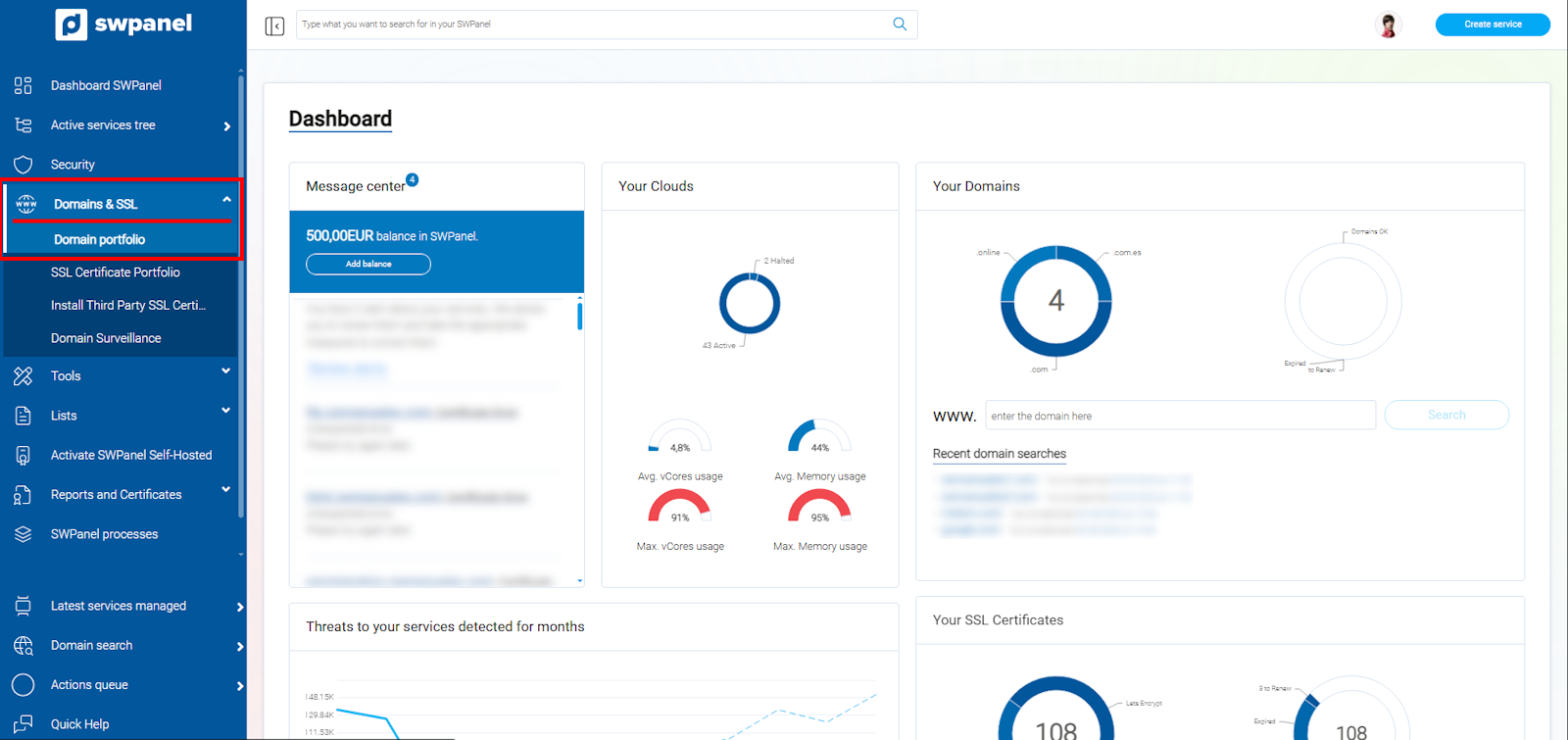
info_capture The screenshot is for guidance purposes. It was taken using version 2025.02.0002 dated 10/03/2025. It may differ from what the current version of SWPanel shows.
-
Select the domain:
- Search for and click on the domain for which you wish to configure DNSSEC.
- Click on [···] > DSSec Records.
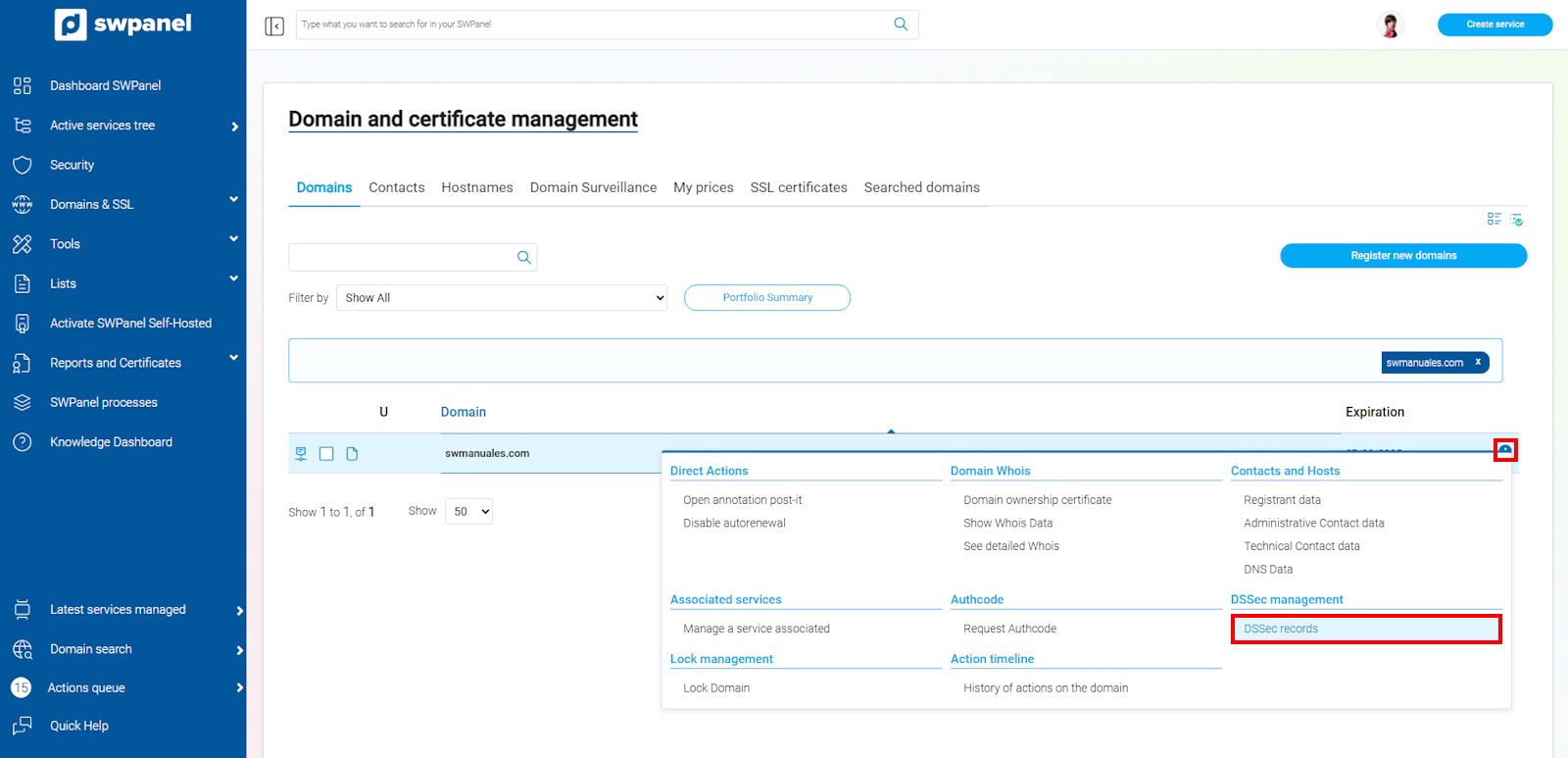
info_capture The screenshot is for guidance purposes. It was taken using version 2025.02.0002 dated 10/03/2025. It may differ from what the current version of SWPanel shows.
-
Create the DS Record:
-
Click on Create Record.
-
Enter the DS record data. Example:
12345 13 2 BB7B6D12702FC08769B5D3BA0383F5625EFD2688C04B67DEA74C1D44555D9F88
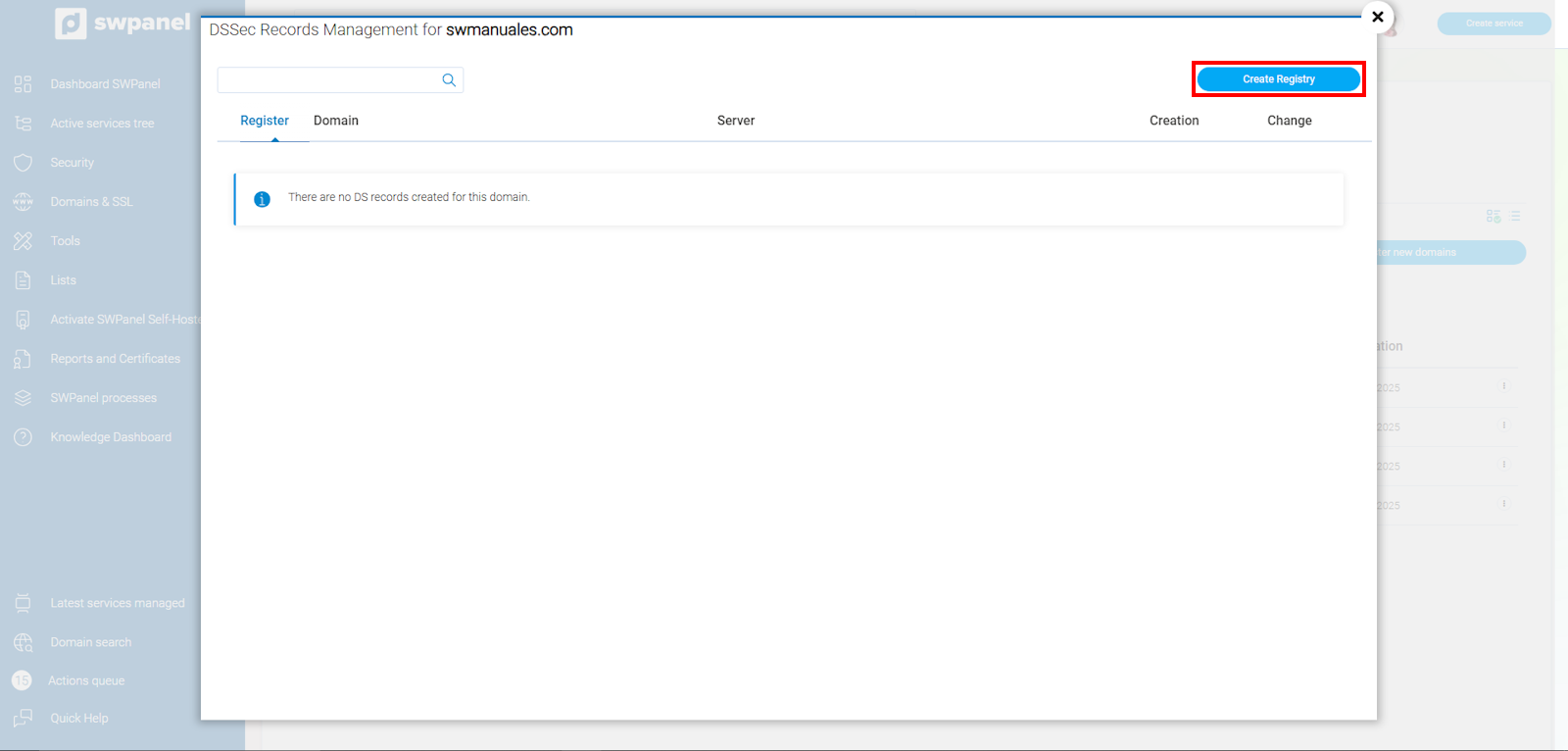
info_capture The screenshot is for guidance purposes. It was taken using version 2025.02.0002 dated 10/03/2025. It may differ from what the current version of SWPanel shows.
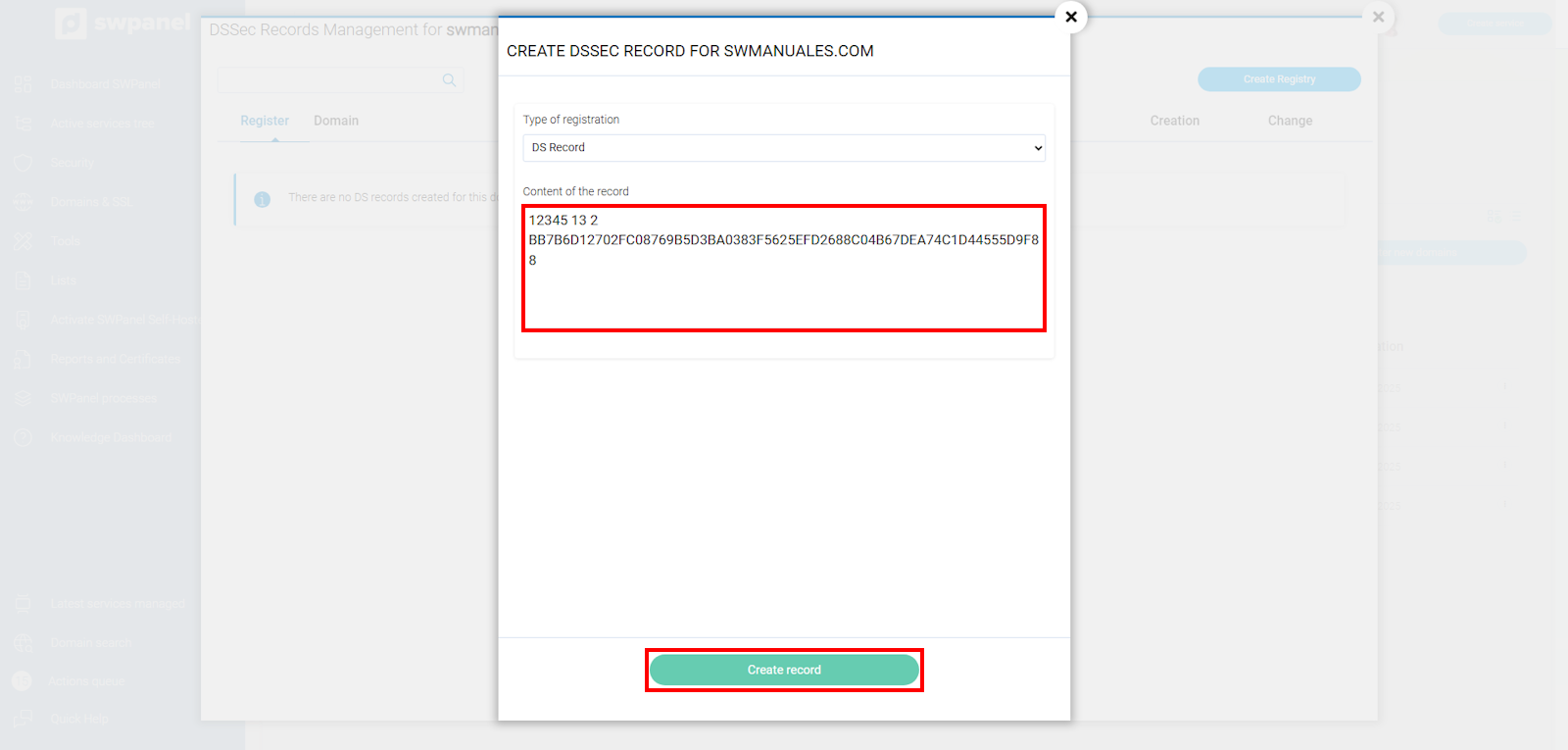
info_capture The screenshot is for guidance purposes. It was taken using version 2025.02.0002 dated 10/03/2025. It may differ from what the current version of SWPanel shows.
-
-
Save the changes:
- Click on Create Record to save the configuration.
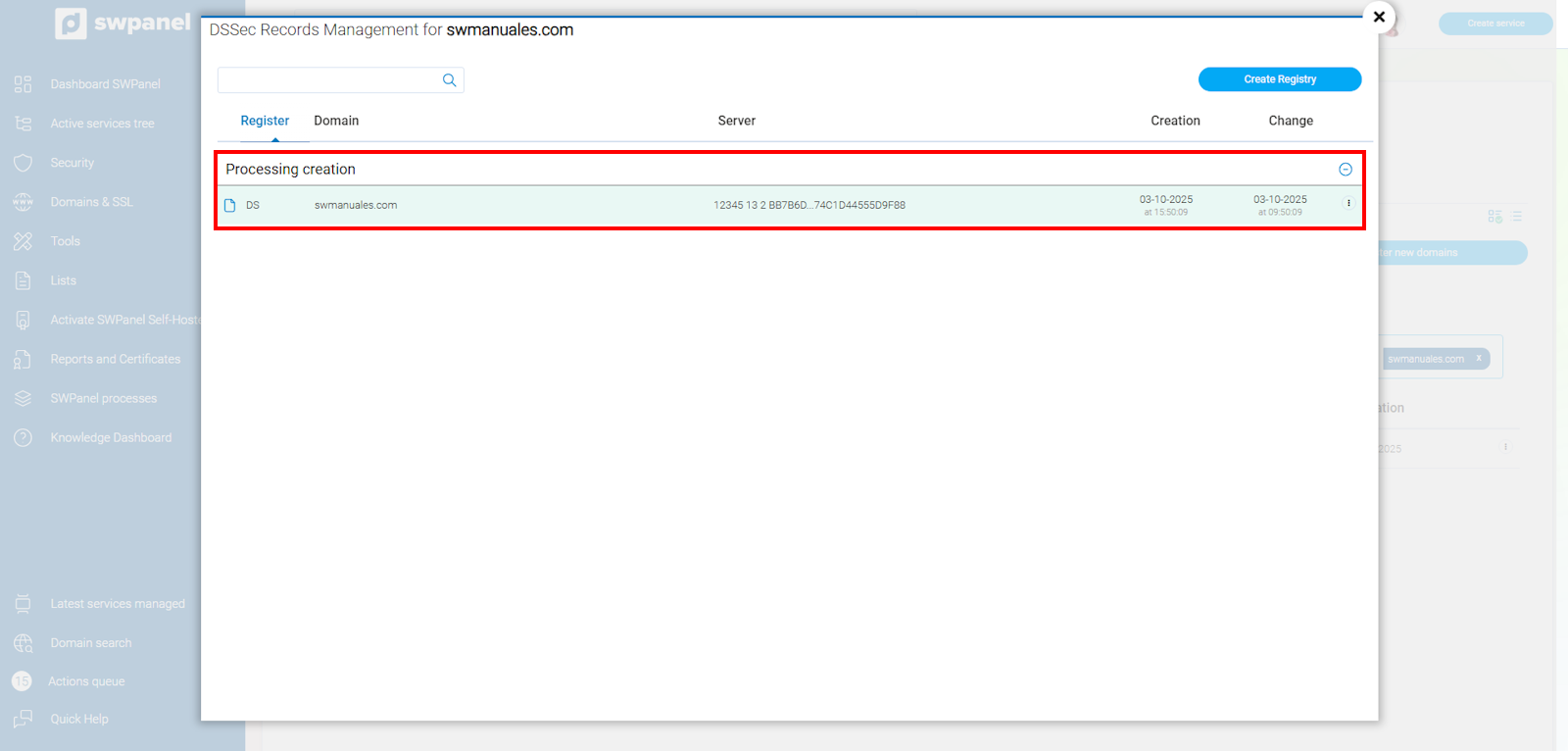
info_capture The screenshot is for guidance purposes. It was taken using version 2025.02.0002 dated 10/03/2025. It may differ from what the current version of SWPanel shows.
Activating DNSSEC in Your Hosting
If you have not yet activated DNSSEC in your hosting service, follow this manual to perform the activation in SWPanel:
Manual: How to activate DNSSec on my hosting
Once activated, it is recommended to verify the propagation of the changes with specialized tools such as:
Glossary of Terms
| Term | Definition |
|---|---|
| DNSSEC | Security extension for DNS that protects against spoofing attacks. |
| DS Record | Record that stores a hash of the KSK key to maintain trust in the delegation. |
| KSK (Key Signing Key) | Key used to sign the ZSK and establish the authenticity of the domain. |
| ZSK (Zone Signing Key) | Key used to sign the DNSSEC records of the zone. |
| Key Tag | Identifier of the DNSSEC key within the DS record. |
| Algorithm | Cryptographic algorithm used to sign the DNS records. |
| Digest | Cryptographic digest of the public key used in the DS record. |
With this guide, you will be able to correctly configure DNSSEC on your domain and reinforce the security of your website.