
How to install CloudPanel on Ubuntu 22.04
Introduction
CloudPanel is free software for configuring and managing a server with a focus on performance, security, and simplicity. It runs static websites, PHP, Node.js, and Python applications. It uses lightweight components such as NGINX, PHP-FPM, and MySQL/MariaDB. With it, you can add domains, users, and databases in a short time, as well as run and manage server applications and services.
Before starting the tutorial, don't you have a Linux Ubuntu 22.04 Cloud server where you can install your CloudPanel? Don't worry! With just one click, you can easily deploy it with SW Hosting.
Step 1: Update the system
Before installing any new software on Ubuntu, remember that you must always update the system to have the latest versions of the software packages.
The system update process and the CloudPanel installation must be performed with the root user. To do this, you must execute the commands:
sudo -s
apt update && apt upgrade -y
Step 2: Install CloudPanel
CloudPanel requires some packages to be installed on your system that are necessary to run some commands.
apt install wget curl
To install CloudPanel, you must download and run the installation script with the following command:
curl -sS https://installer.cloudpanel.io/ce/v2/install.sh -o install.sh; \
echo "85762db0edc00ce19a2cd5496d1627903e6198ad850bbbdefb2ceaa46bd20cbd install.sh" | \
sha256sum -c && sudo DB_ENGINE=MARIADB_10.11 bash install.sh
When the installer finishes, it will show you the access URLs for the CloudPanel web interface:
~~~~~~~~~~~~~~~~~~~~~~~~~~~~~~~~~~~~~~~~~~~~~~~~~~~~~~~~~~~~~~~~
The installation of CloudPanel is complete!

CloudPanel can be accessed now: https://81.25.126.188:8443
~~~~~~~~~~~~~~~~~~~~~~~~~~~~~~~~~~~~~~~~~~~~~~~~~~~~~~~~~~~~~~~~
Step 3: Access the CloudPanel control panel
Now you can access the Virtualmin 7 installation at http://YourServerIpAdress:8443 or https://YourNameServer:8443
Ignore the self-signed certificate warning and click on "Advanced" and "Continue" to access CloudPanel.
Next, you will need to create the administrator user and indicate the contact email and the time zone for your CloudPanel.
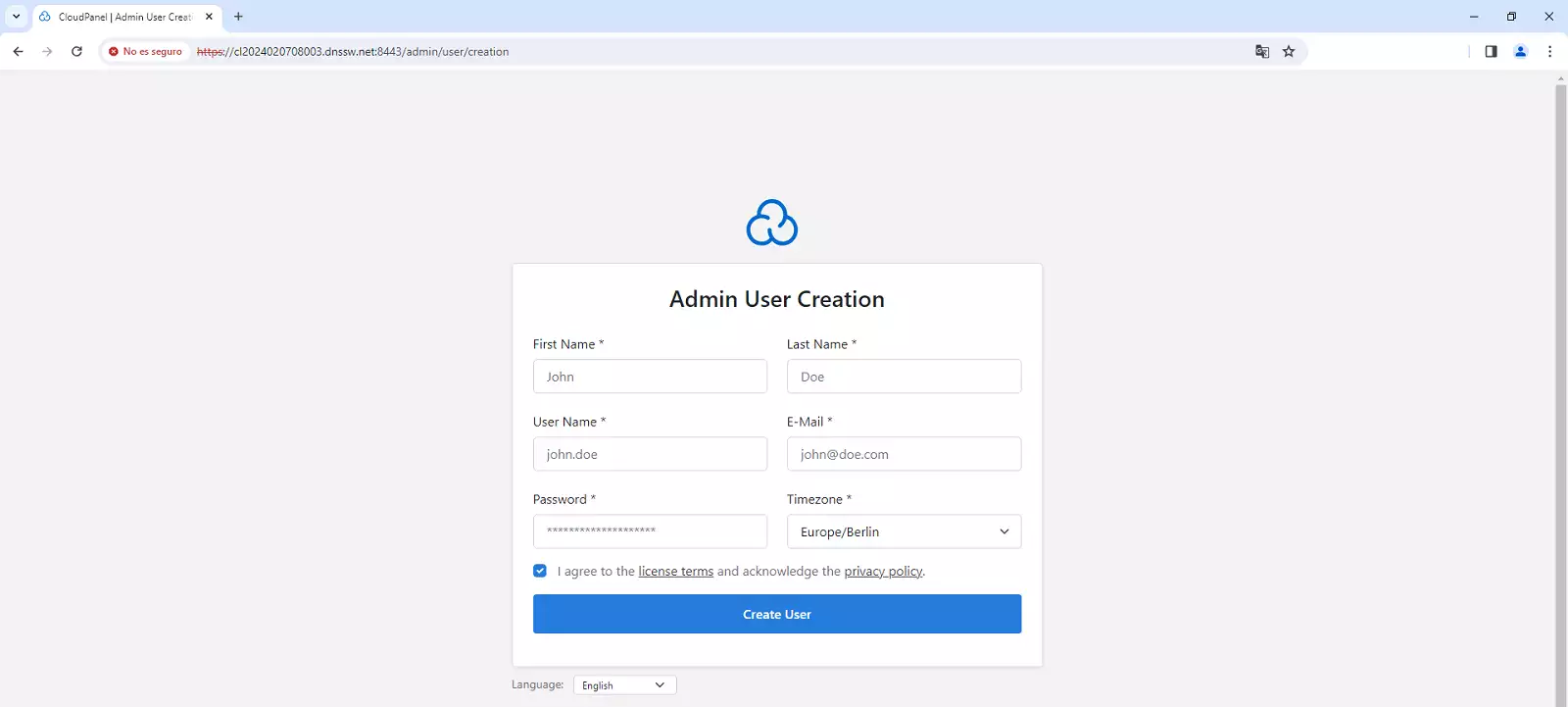
Now you can specify the username and password to access your CloudPanel.
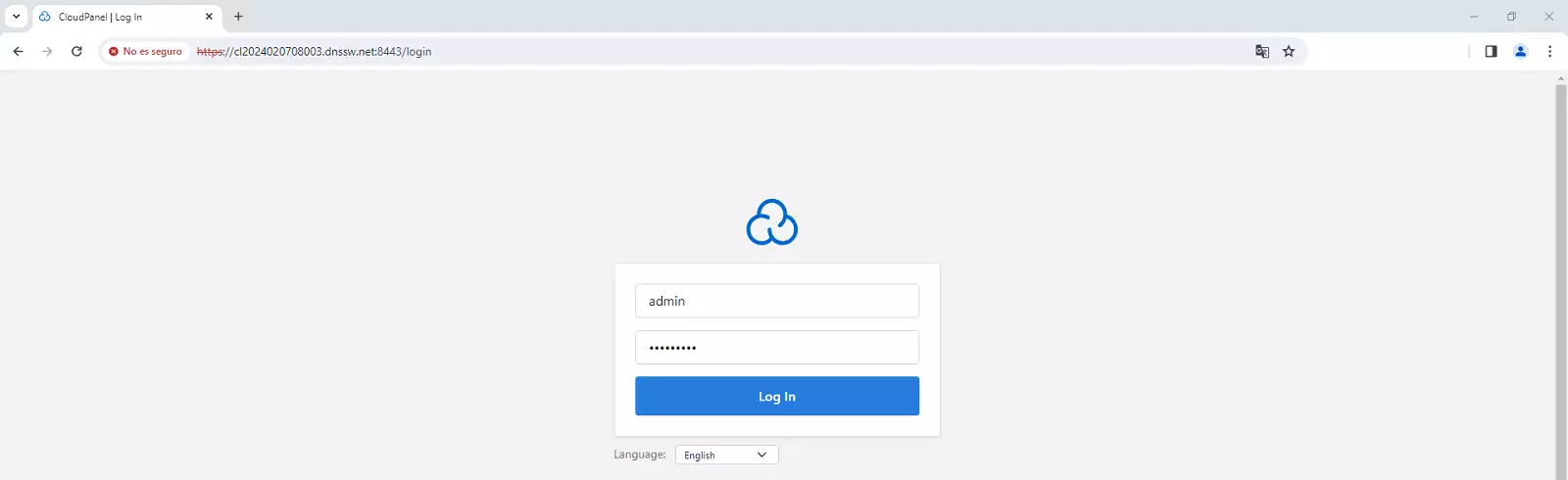
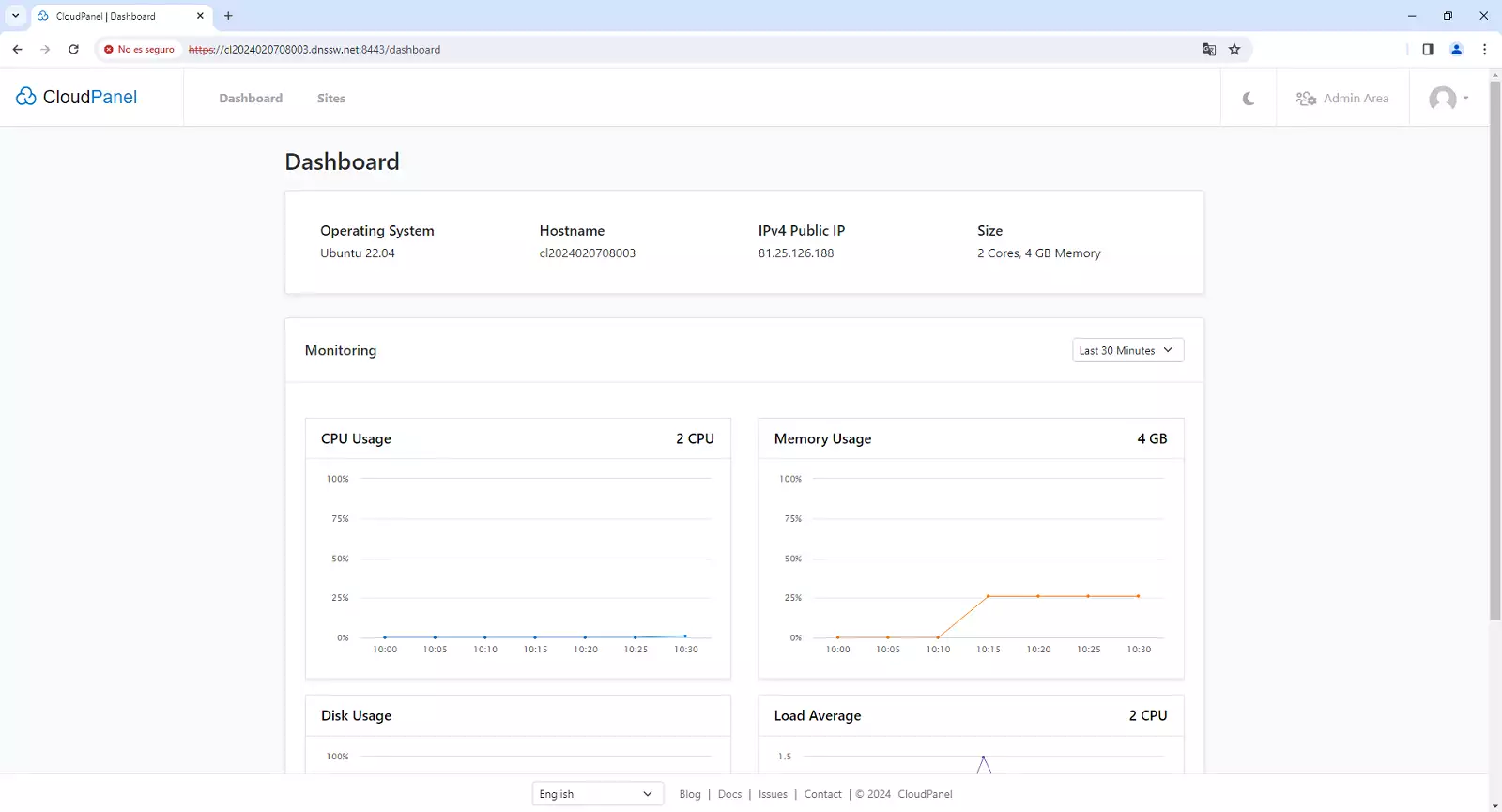
success Congratulations! You have successfully installed and configured CloudPanel in Ubuntu 22.04.
Remember that if you do not yet have a Cloud server with Linux Ubuntu 22.04 operating system to install your CloudPanel, you can easily deploy it with SW Hosting.