
How to open port 3306 in Plesk
To perform a complete migration from another Hosting provider to SW Hosting, it is essential that port 3306 —used by MySQL databases— is open.
This manual details the necessary steps to enable port 3306 in Plesk.
Step 1: Access the domains section
Once you have logged into Plesk, you must go to the main screen by clicking on Websites & Domains, located in the left menu.

Step 2: Select the website
Next, click on the website where you wish to open port 3306 to be able to perform the migration.

Step 3: Access the databases
Once the menu of the selected website is deployed, click on the Databases option.
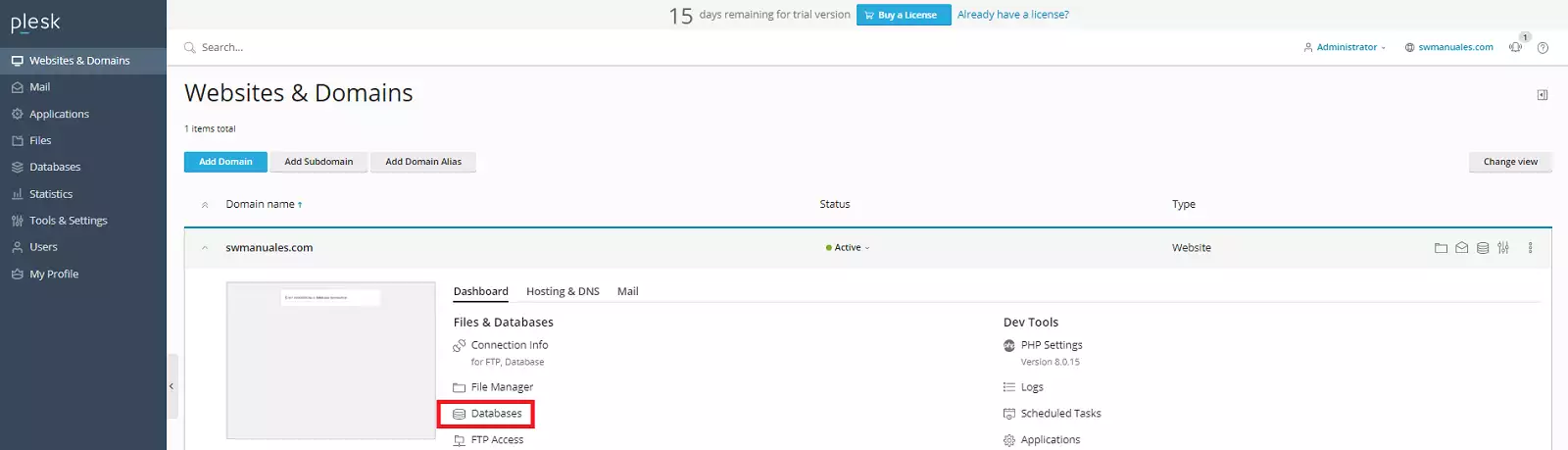
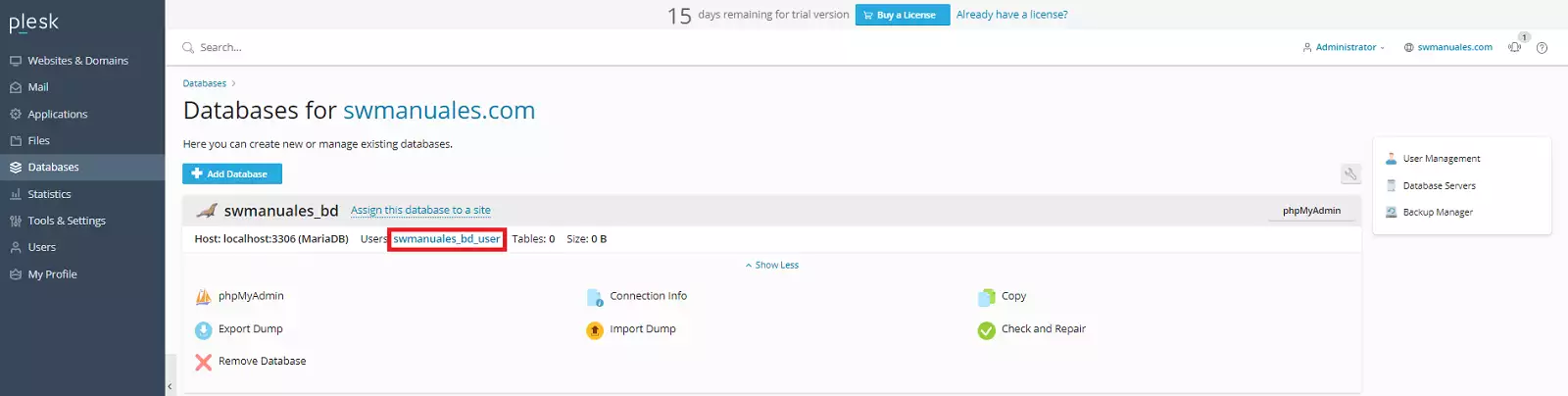
Step 4: Access the database user
Within the Databases section, locate the database of your website and click on the username associated with it.
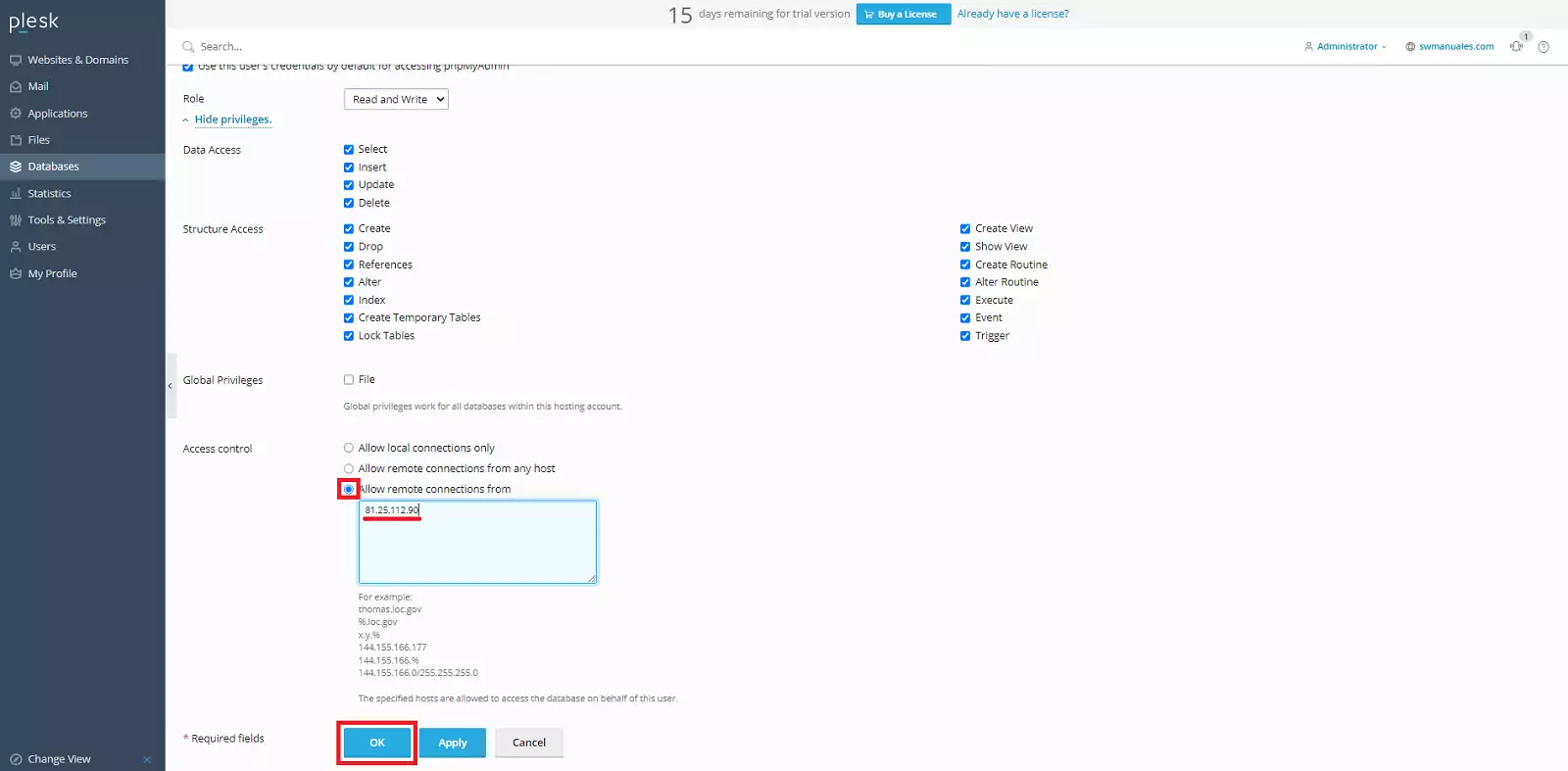
Step 5: Allow remote connections
Scroll down to the bottom of the page until you find the Access Control section. - Select the option Allow remote connections from. - Enter the following IP address: 81.25.112.90. - Save the changes to apply the configuration.
This IP address (81.25.112.90) corresponds to the SW Hosting server, responsible for carrying out the migration of your hosting from your current provider to your new hosting at SW Hosting.
Step 6: Access the server configuration
Next, you must allow remote connections for the database server.
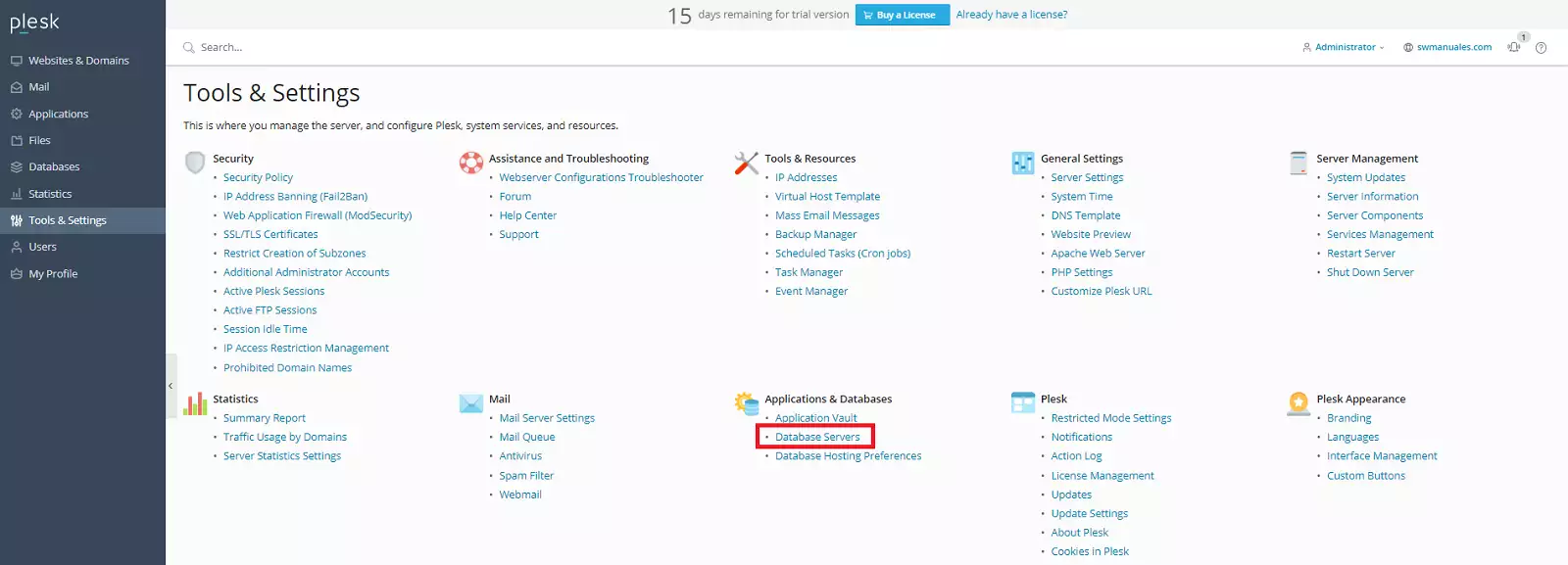
To do this, go to the left side menu of Plesk and click on Tools & Settings.
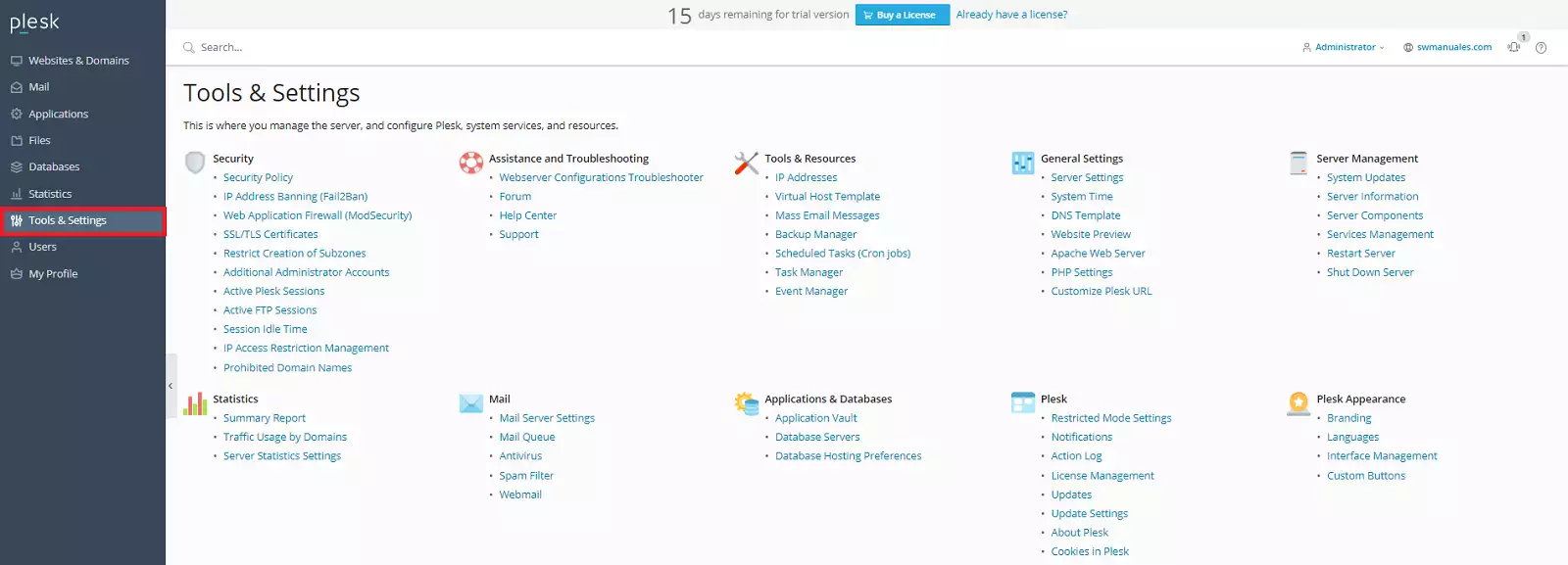
Step 7: Access the database servers
Within Tools & Settings, locate the Applications and Databases section and click on Database Servers.
Step 8: Open the database server configuration
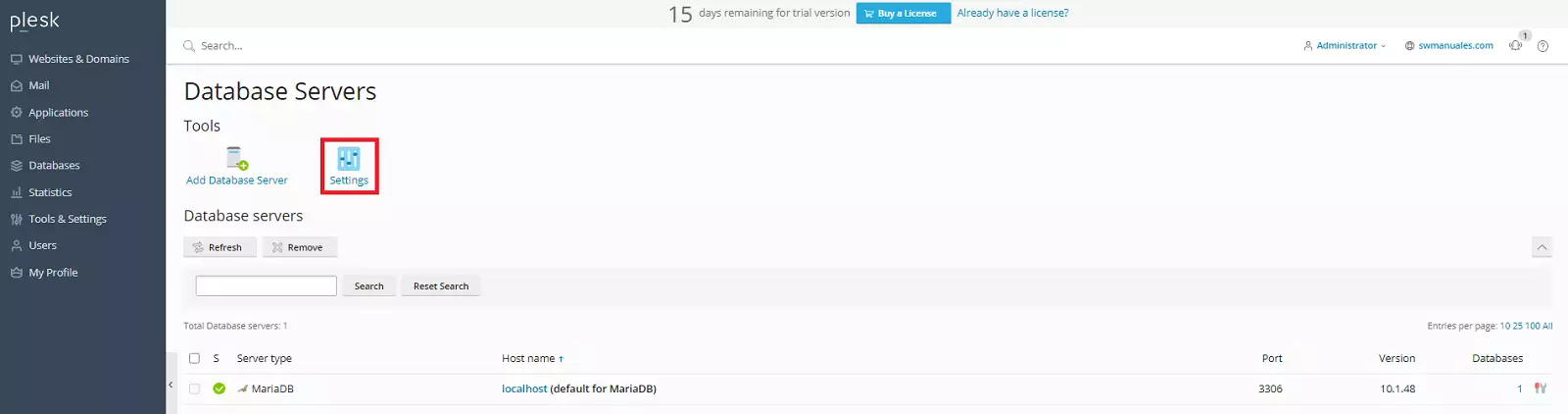
Once inside the database server, click on Settings to access its options.
Step 9: Authorize the remote connection from the migration IP
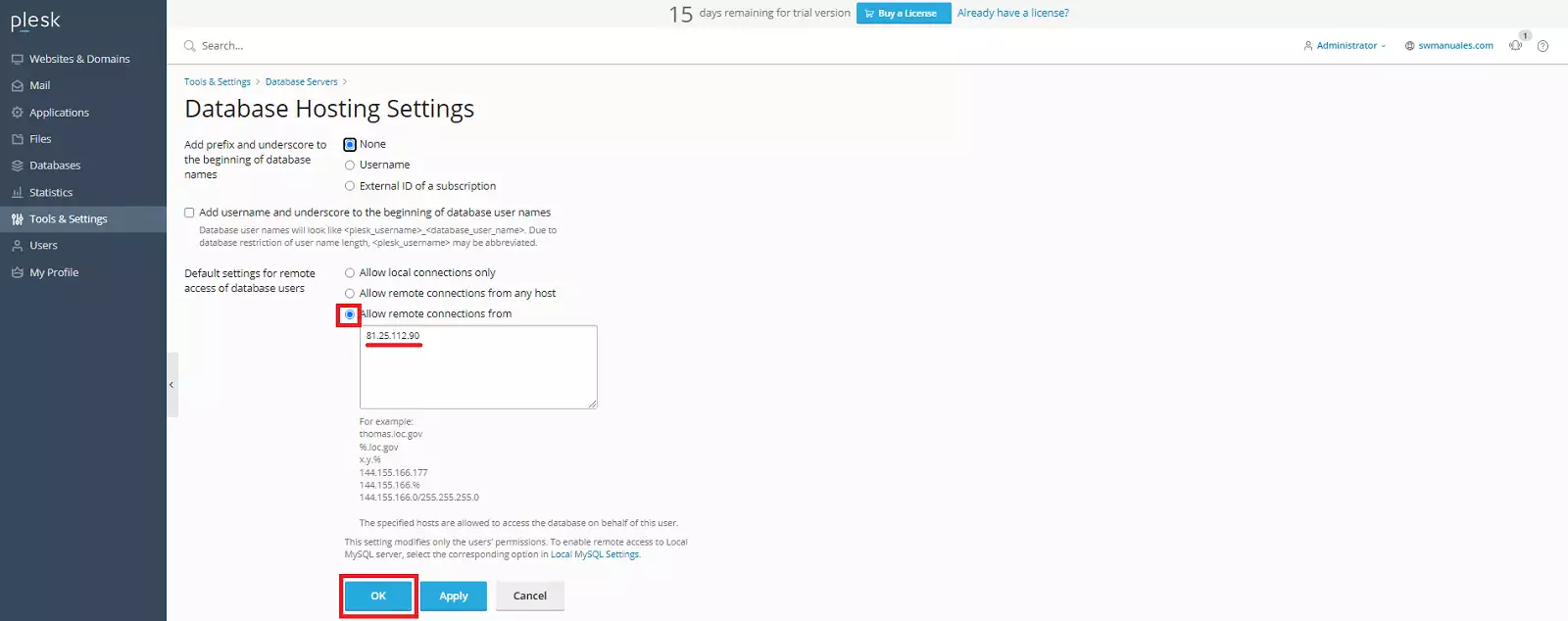
As in step 5, in the Access Control section, select Allow remote connections from and enter the following IP address: 81.25.112.90.
This configuration will allow remote access for database users to perform the migration.
Once the IP has been entered, click OK to save the changes.
Step 10: Access the database server
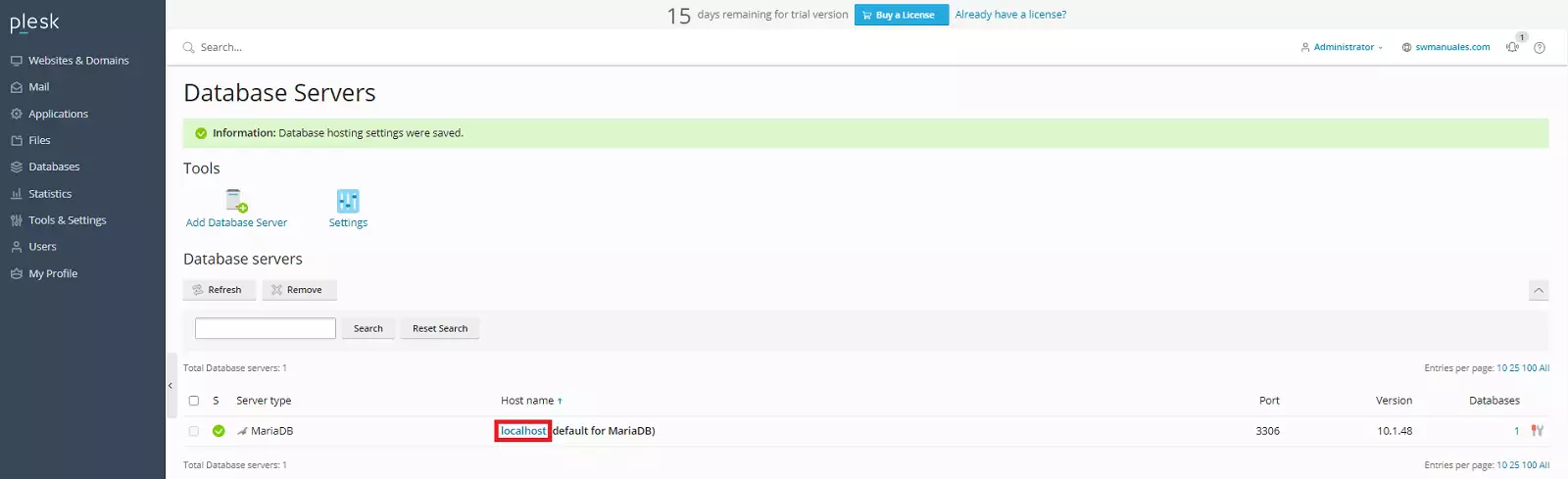
To finish, return to the Database Servers page (you can access it by following steps 6 and 7).
From there, click on localhost of the server that contains the database of the website you wish to transfer.
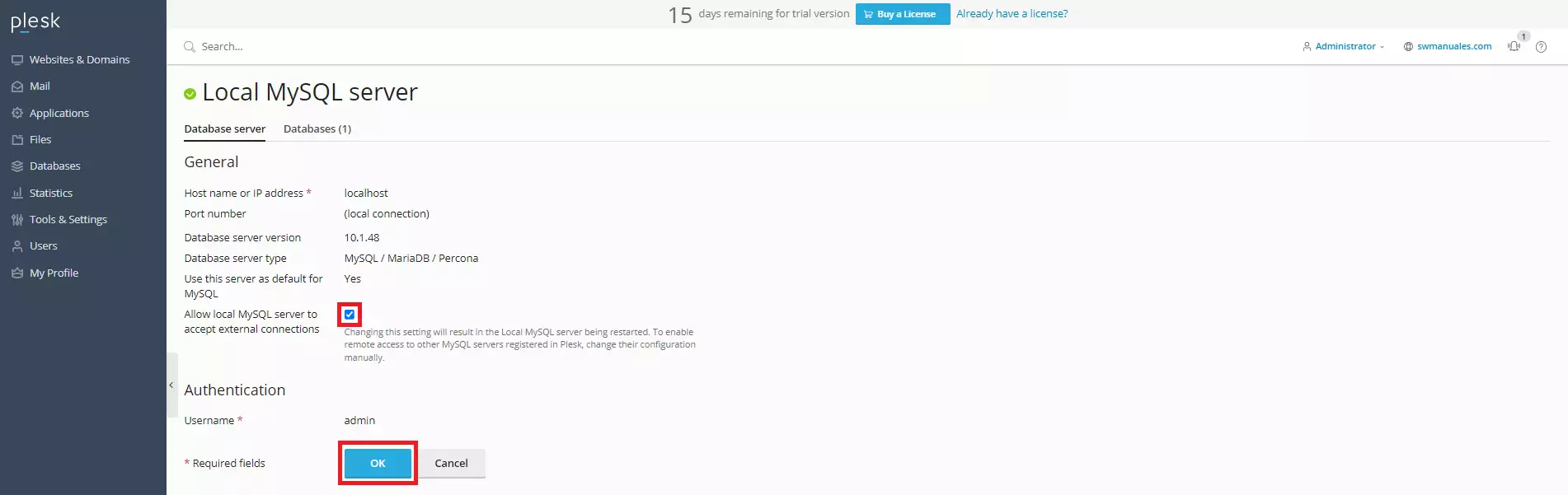
Step 11: Enable external connections in MySQL
Check the option Allow local MySQL server to accept external connections and then click OK to save the changes.
Once all the previous steps have been completed, port 3306 of your server in Plesk will be open, allowing the database migration to be carried out correctly and without inconveniences.