
How to transfer a domain from SWPanel
To transfer a domain from your SWPanel, first log in to your private customer area using your username and password.
Once inside your SWPanel Dashboard, locate the “Your domains” section on the right side of the screen. Enter the domain name along with its extension and click “Search”.
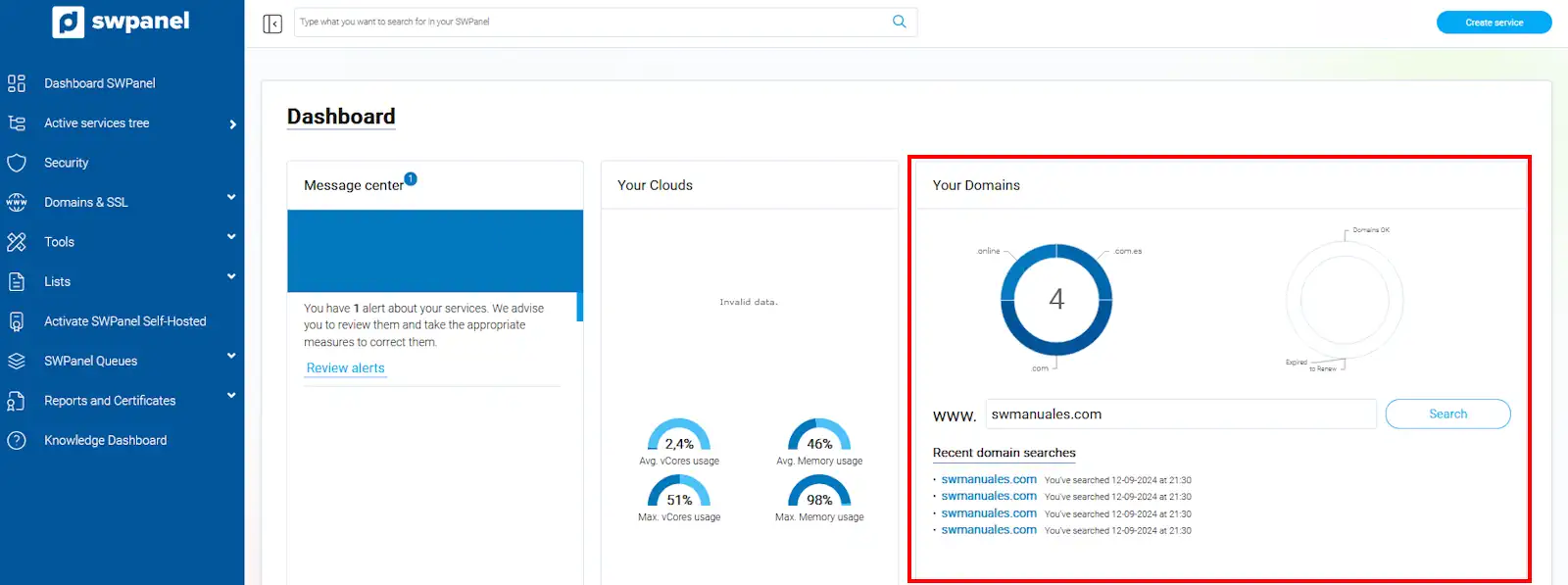
info_capture ℹ️ Note: The screenshot is for guidance purposes, taken from version 2026.000.0049 dated 21/03/2026. It may differ from the current version of SWPanel.
The domain will appear as occupied. To continue, click the “Transfer” button.
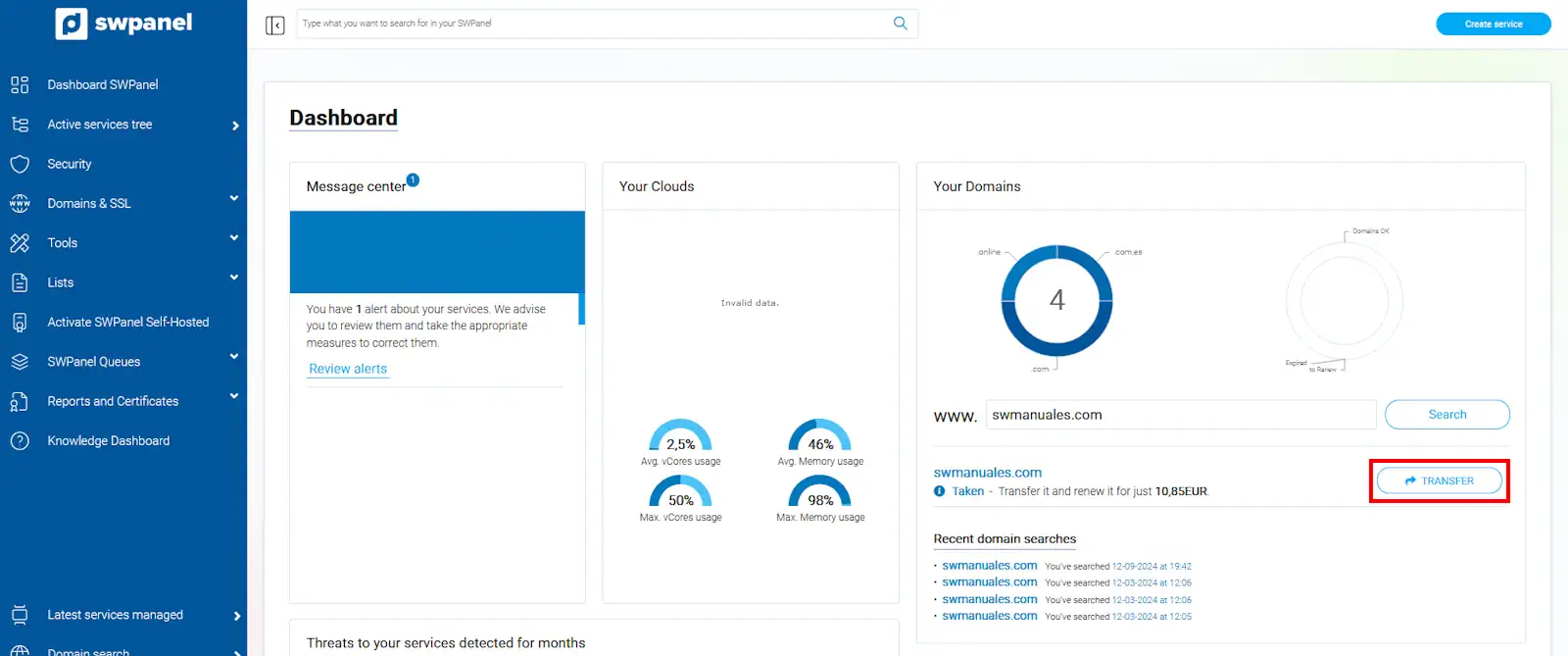
info_capture ℹ️ Note: The screenshot is for guidance purposes, taken from version 2026.000.0049 dated 21/03/2026. It may differ from the current version of SWPanel.
Now the domain will appear as 'in the cart'. Click on it or on the shopping cart image, located to the left of your customer name.
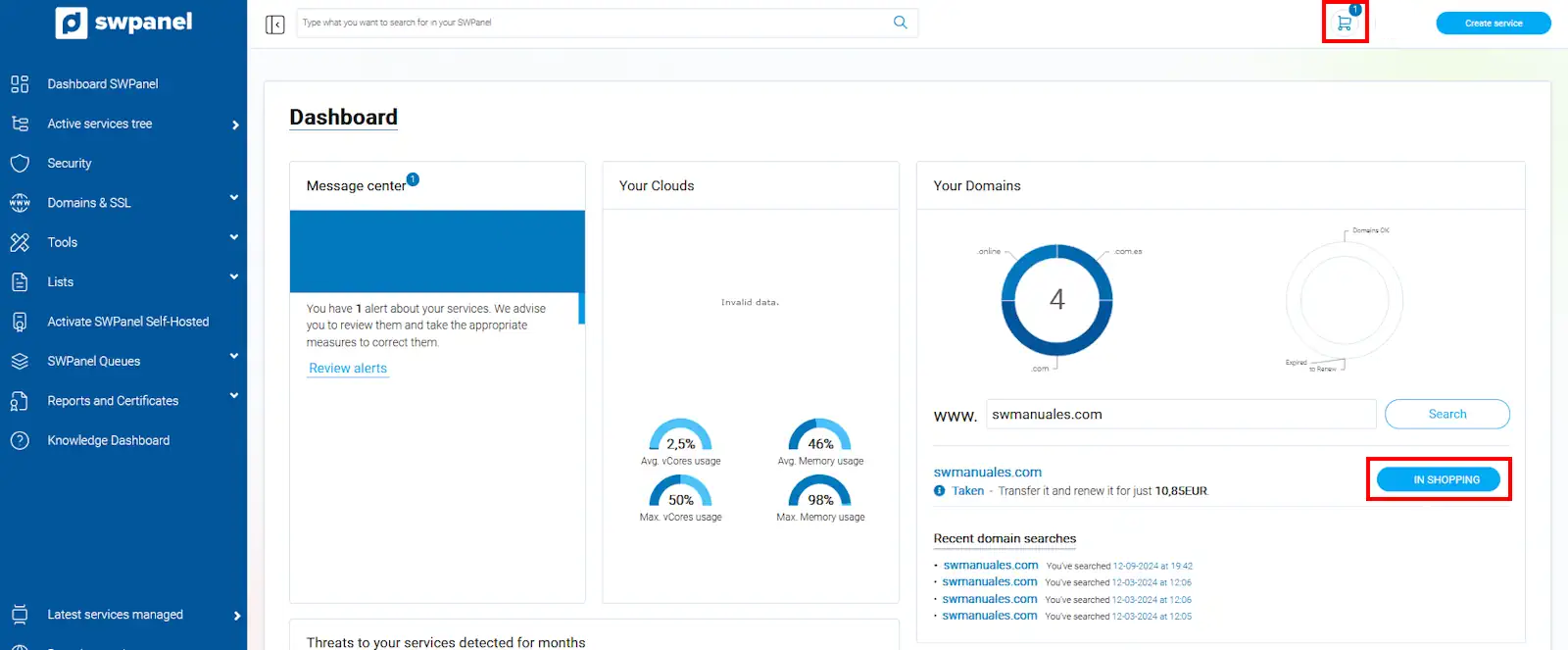
info_capture ℹ️ Note: The screenshot is for guidance purposes, taken from version 2026.000.0049 dated 21/03/2026. It may differ from the current version of SWPanel.
Next, you will see a section where you must configure the indicated fields:
- Enable auto-renewal: By enabling this option, you will not have to worry about the domain expiration date, as it will be renewed automatically.
- Domain Authcode: The authcode is the transfer code required to move a domain from one provider to another. This code must be provided by your current provider.
- Assign Domain Owner and contacts: It is mandatory to assign contacts to the domain to be able to perform the transfer. Later in this manual, we explain how to create a contact.
Once you have assigned the contacts, check the acceptance box for the terms and conditions. Finally, press the “Accept Domain Cart” button to continue.
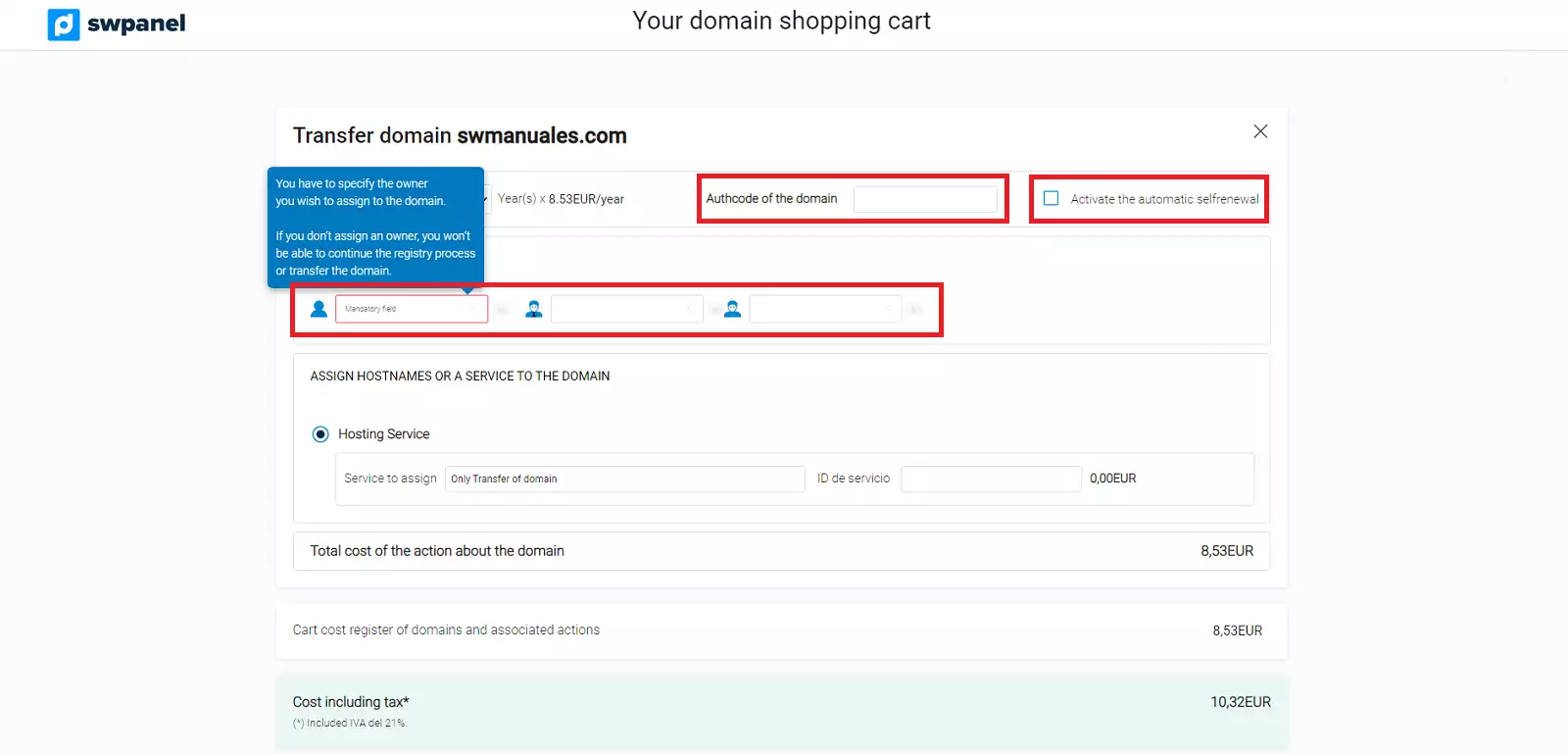
info_capture ℹ️ Note: The screenshot is for guidance purposes, taken from version 2026.000.0049 dated 21/03/2026. It may differ from the current version of SWPanel.
How to create a contact?
To create the three types of contacts associated with a domain —Owner, Administrative, and Technical— click on the cell corresponding to each contact and complete the mandatory fields indicated.
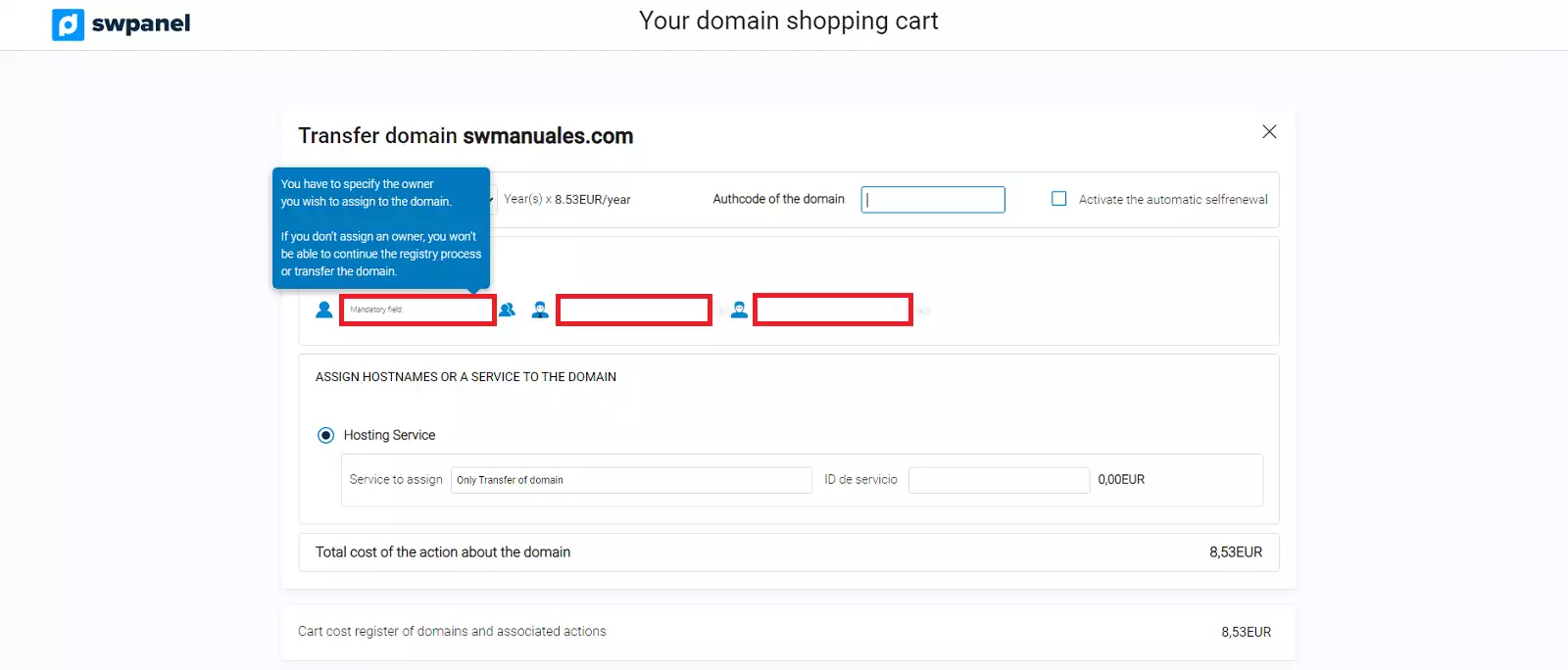
info_capture ℹ️ Note: The screenshot is for guidance purposes, taken from version 2026.000.0049 dated 21/03/2026. It may differ from the current version of SWPanel.
If the contacts are already created, simply select them. Otherwise, you must create them following the indicated procedure.
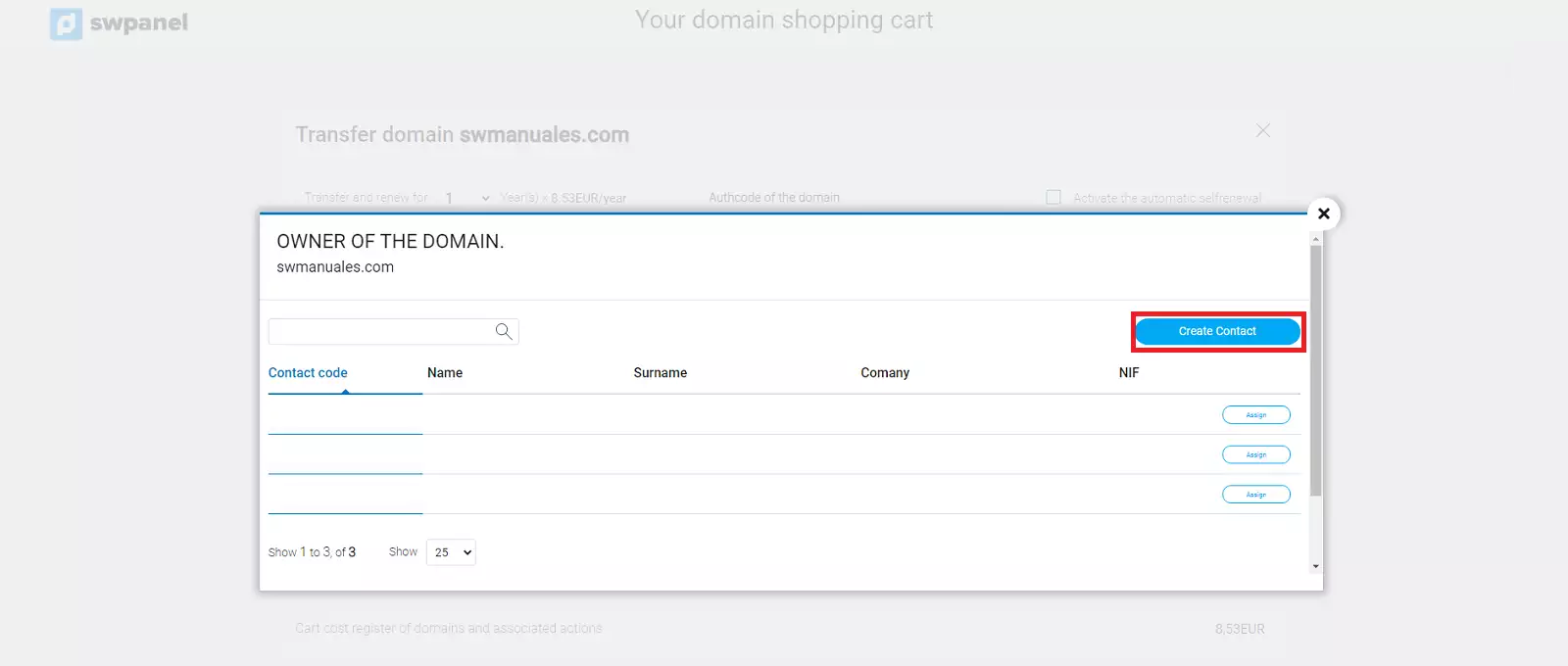
info_capture ℹ️ Note: The screenshot is for guidance purposes, taken from version 2026.000.0049 dated 21/03/2026. It may differ from the current version of SWPanel.
Once all the fields of the contact creation form have been filled in, you must accept by clicking the 'Save Contact' button
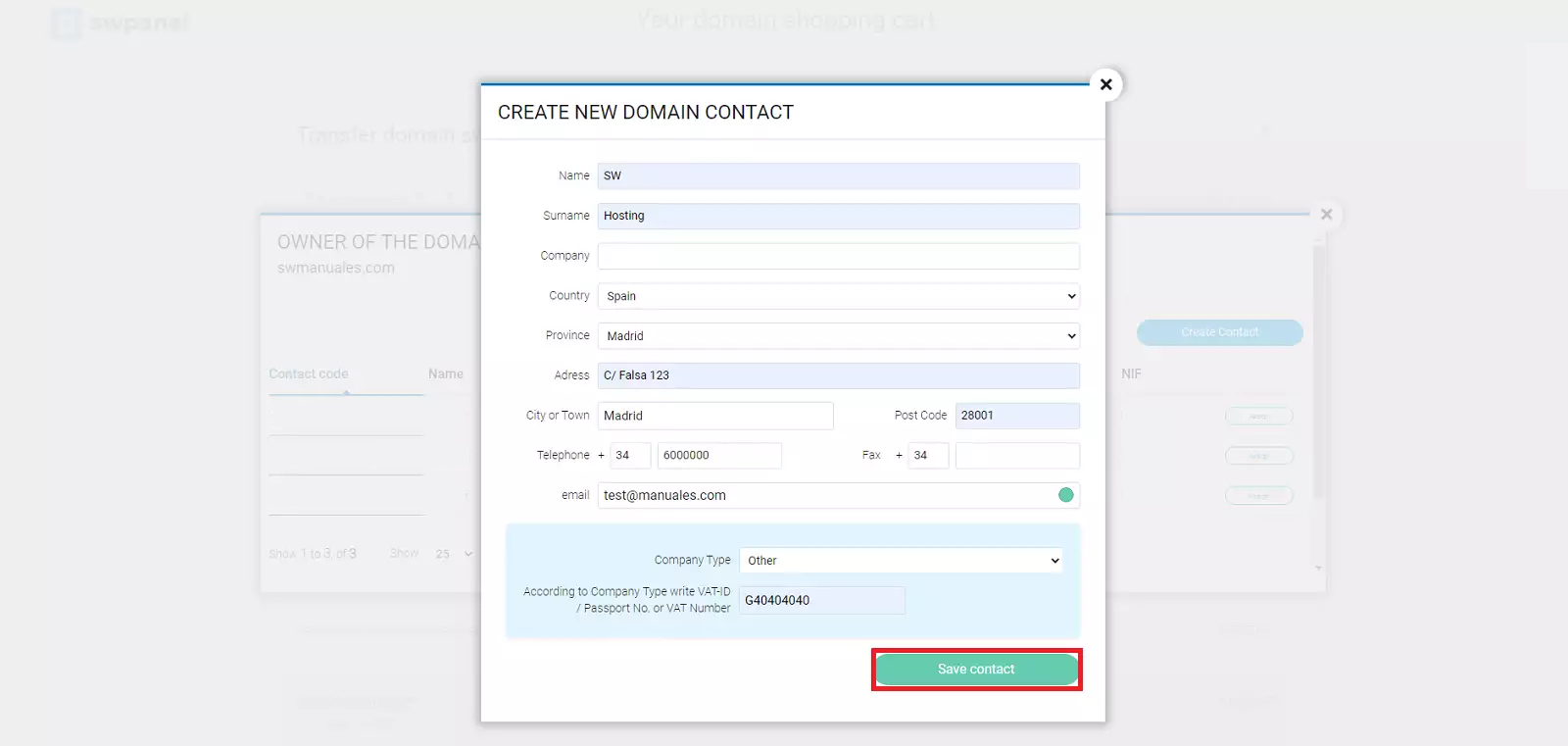
info_capture ℹ️ Note: The screenshot is for guidance purposes, taken from version 2026.000.0049 dated 21/03/2026. It may differ from the current version of SWPanel.
Next, select the created contact from your list of available contacts. You can use this same contact for the Administrative and Technical roles, or create new contacts by repeating the procedure to assign them to these roles.
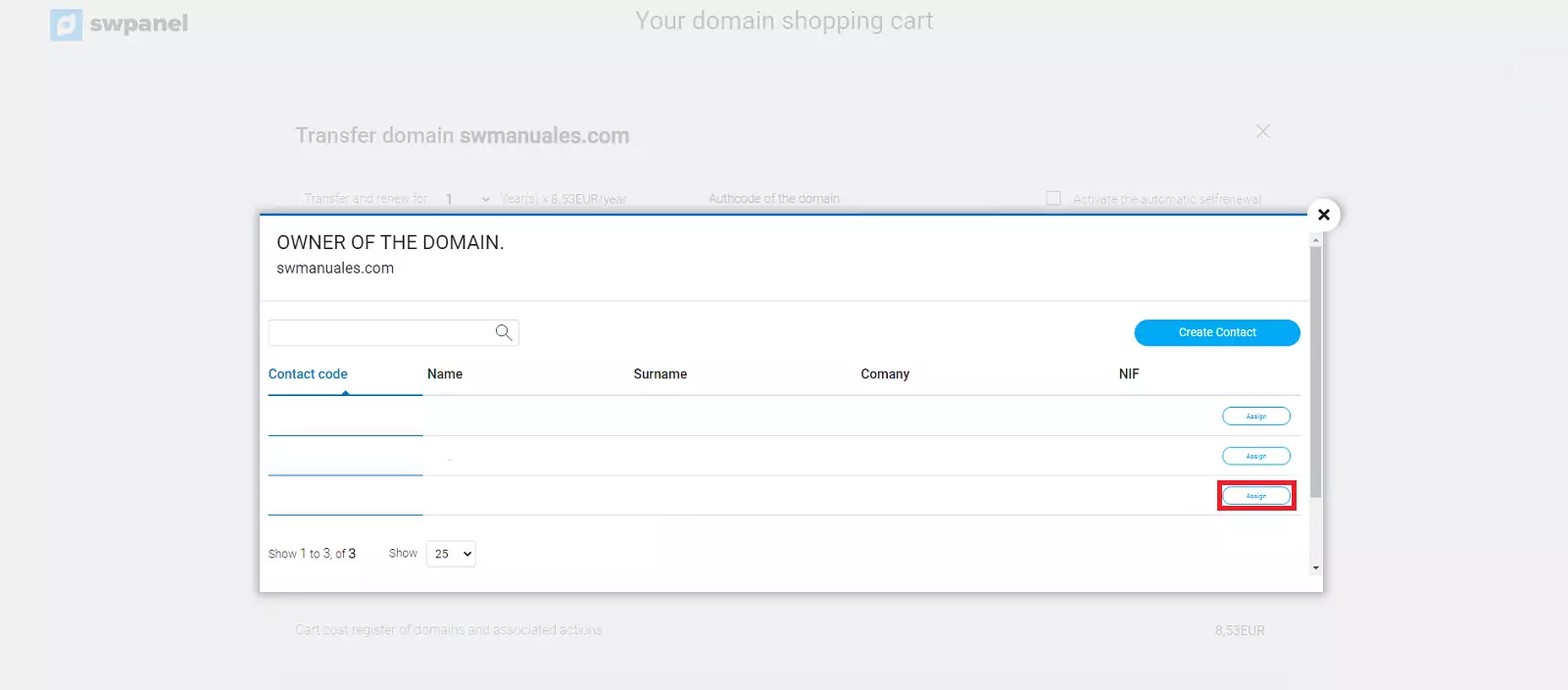
info_capture ℹ️ Note: The screenshot is for guidance purposes, taken from version 2026.000.0049 dated 21/03/2026. It may differ from the current version of SWPanel.
Final considerations for .es domains and transfer notifications
- .es domains: If the domain has a .es extension, both the Administrative and Technical contacts must be natural persons and have their corresponding DNI/NIE.
- Transfer duration: The transfer will be completed in a maximum of 5 days from its start, unless it is canceled by the current provider.
Important: For
.esdomains, you will receive an email at the administrative contact's address which you must validate. If it is not validated within 3 days or if it is rejected, the transfer will be canceled due to lack of authorization.
- Completion notification: Our system will send you an email when the transfer has been completed.
- Restriction on new transfers: Once the process is finished, you will not be able to transfer the domain to another registrar for 60 days.
- Email verification according to ICANN: You will receive one last email in accordance with ICANN regulations and, as explained in manual Manual: Whois Accuracy, it will include a link to verify your email address.
It is very important to attend to this email and complete the verification within 15 days. If you do not, the domain will remain deactivated until its validation.