How to access SWPanel with your Google or Apple account
Your SWPanel allows you to log in to your customer account using the same login credentials as your Google, GitHub, or Apple user account.
This way, when accessing your SWPanel customer account from the URL https://go.swpanel.com/login/go/ you can use your Google, GitHub, or Apple account to log in automatically, without needing to enter your username and password.
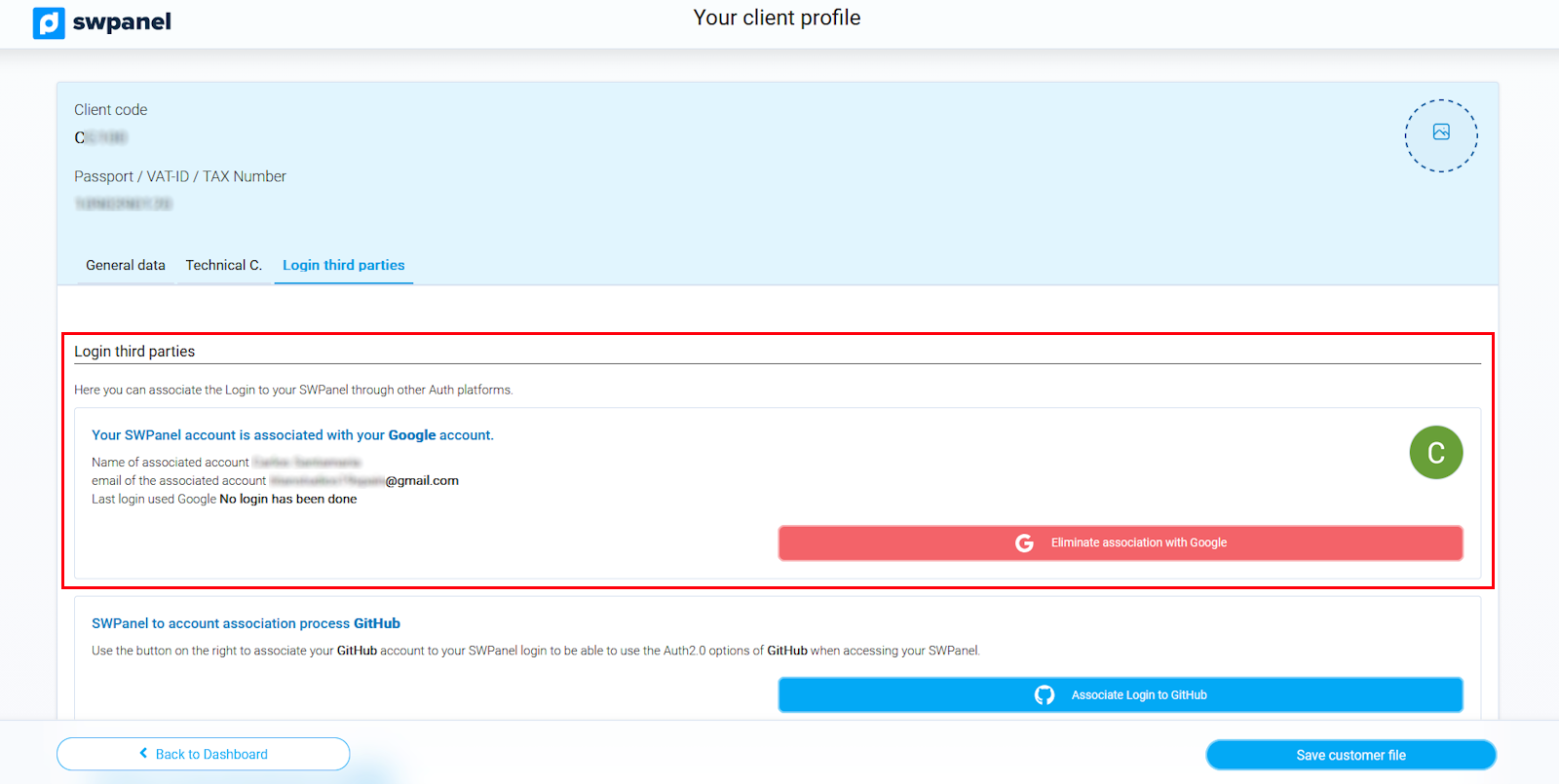
The only requirement is that the email of the Google, GitHub, or Apple account you activate must be the same one you have as the contact email in your SWPanel customer account.
Below, as an example, we show you how to associate your SWPanel login with your Google account. The process is identical if you prefer to associate it with your GitHub or Apple account.
To associate your SWPanel login with your Google account, follow these steps:
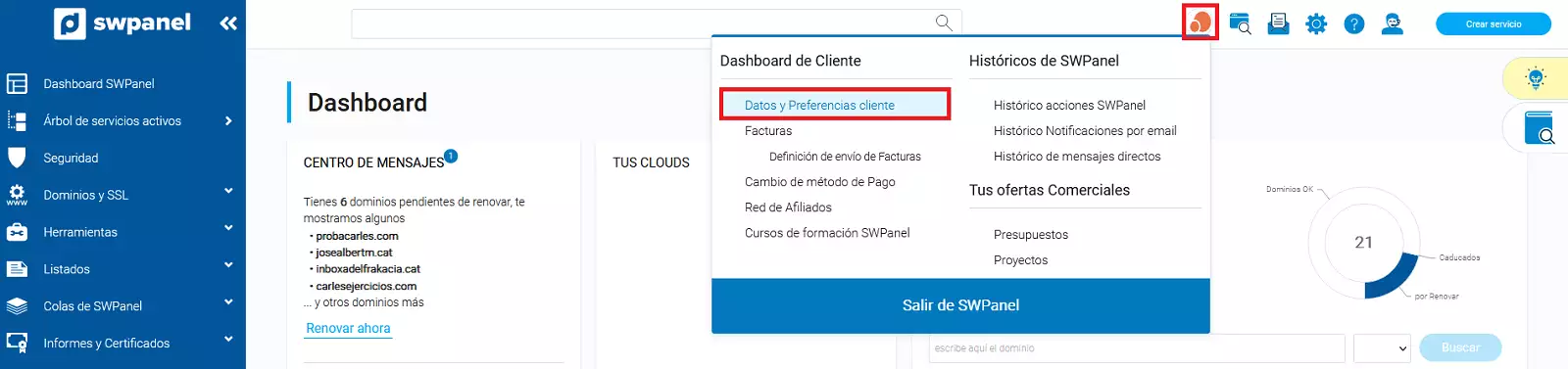
1) Access your SWPanel user account and, from the "My account" tab in the top menu, click "Customer preferences and data".
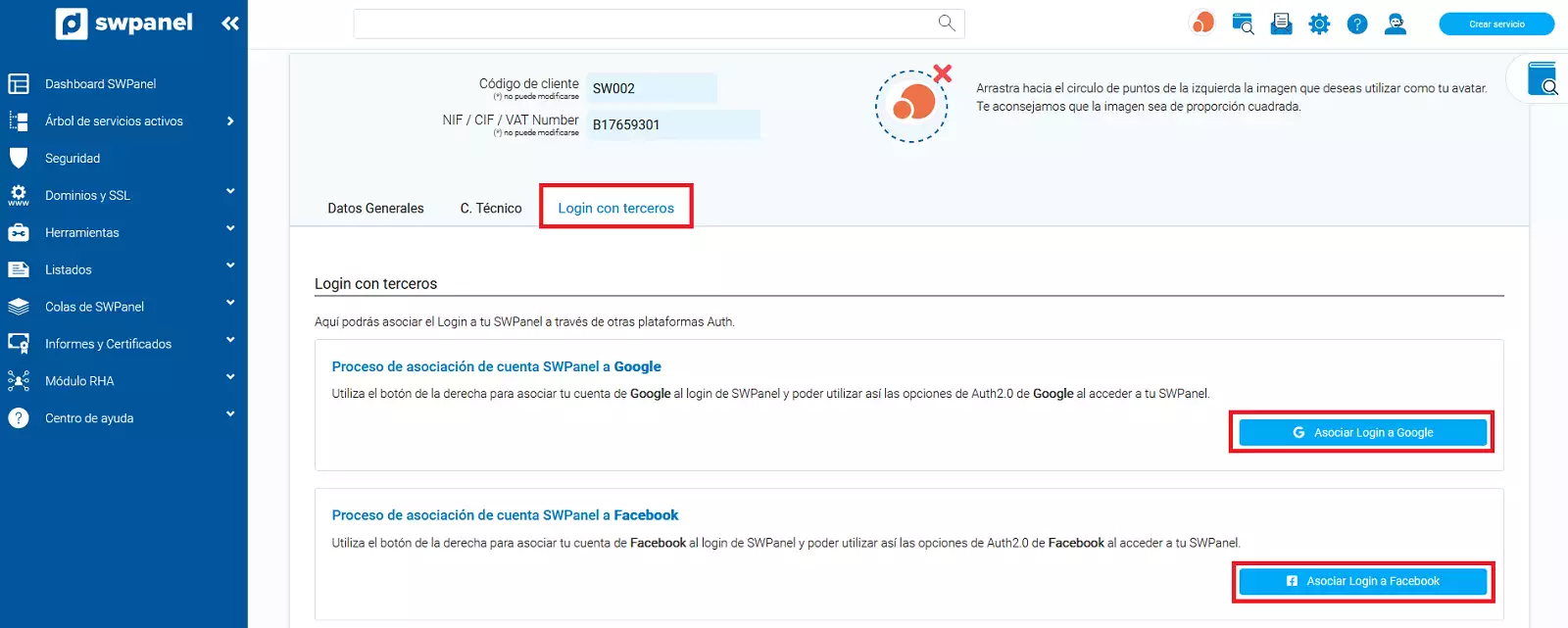
2) On your client profile, go to the "Login third parties" tab and click the "Associate Login to Google" button (you can also choose "Associate Login to GitHub" or "Associate Login to Apple" if you prefer those options).
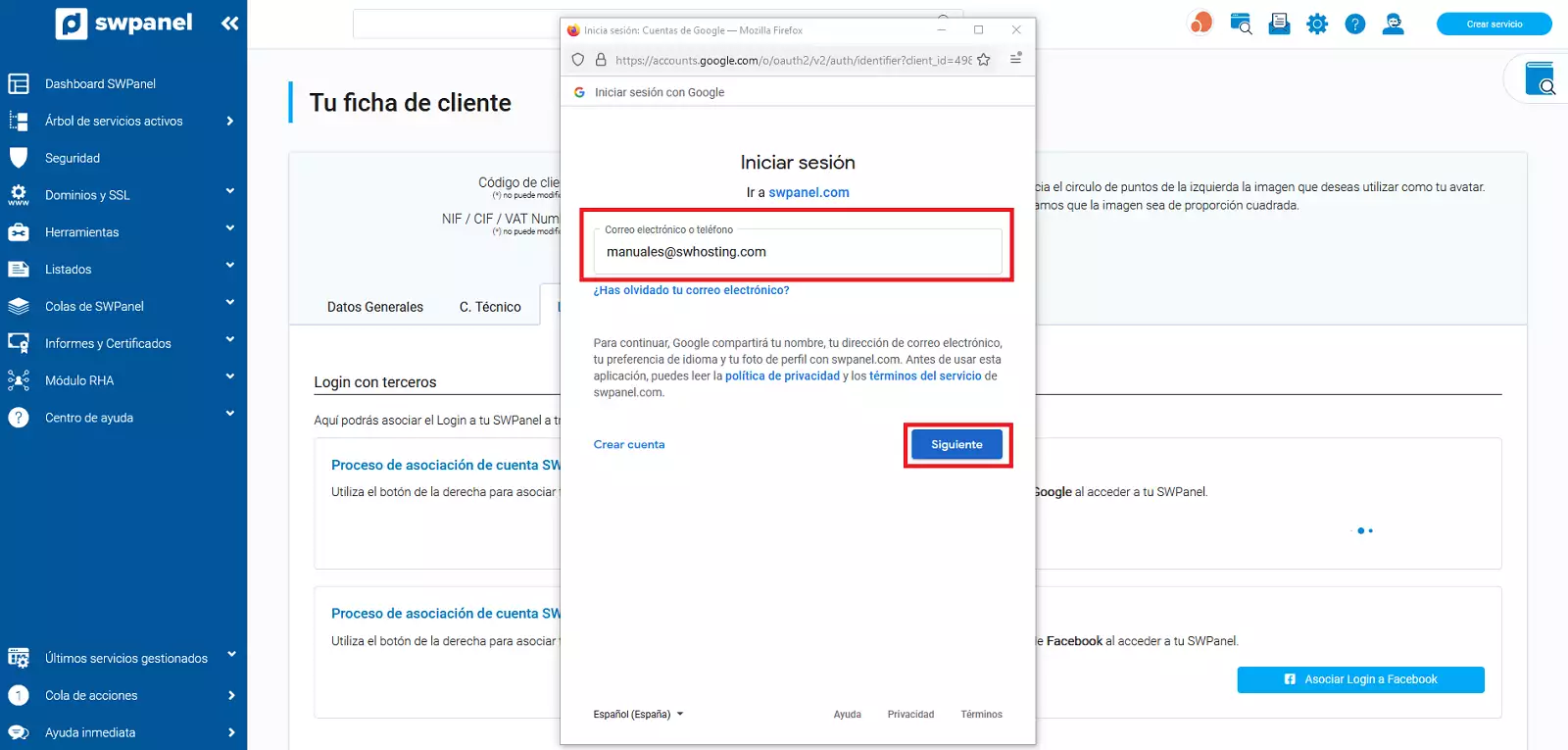
3) In the pop-up window that follows, enter your Google email address and then your password, so your credentials can be validated and the association of your login with SWPanel can be activated.
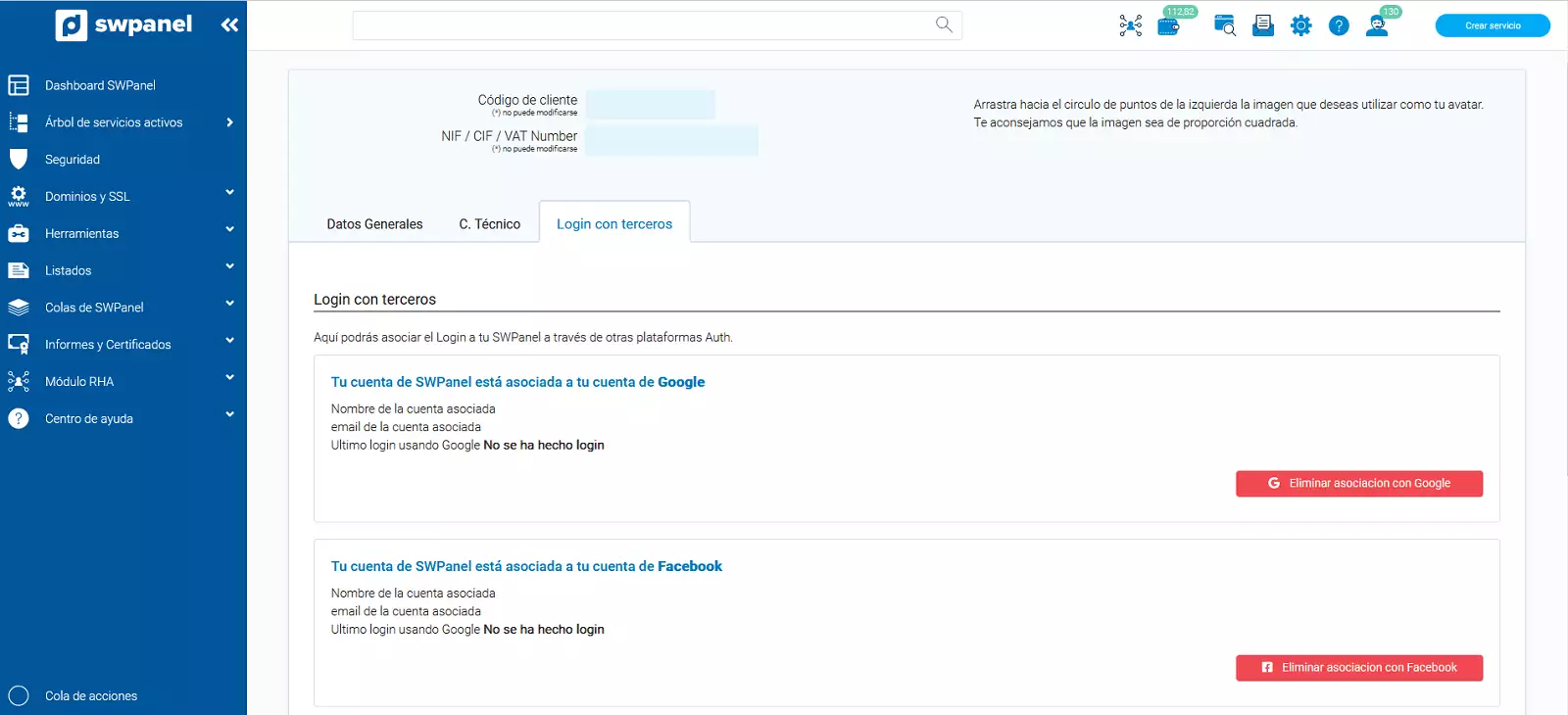
4) Once this process is complete, your SWPanel login will be associated with your Google account, allowing you to access your SWPanel account using it. If you ever want to unlink the account, you can do so from the same section by clicking "Eliminate association with Google".