
How to Activate Advanced Monitoring on my Cloud server with SWPanel and view its Dashboard.
Applicable to: Cloud with SWPanel Administration Panel.
While Basic Monitoring performs Pings against your Cloud, Advanced Monitoring goes further, monitoring the following services:
- Ping
- FTP Service
- DNS Service
- WEB Service
- HTTP Monitoring
- HTTPS Monitoring
- Apache Monitoring
- IIS Monitoring
- Analysis of 2 URLs
- Content
- Response time
- MsSQL Service
- MySQL Service
- POP Service
- SMTP Service
- IMAP Service
- Connection up to 4 TCP ports
- CPU Usage
- Memory Usage
- Disk space/partitions
All this in just 4 simple steps from SWPanel.
1. Inside your SWPanel, use the search bar to find your Cloud; in our case, it is called "manuales-server", yours will have a different name. Once you find it, select it.
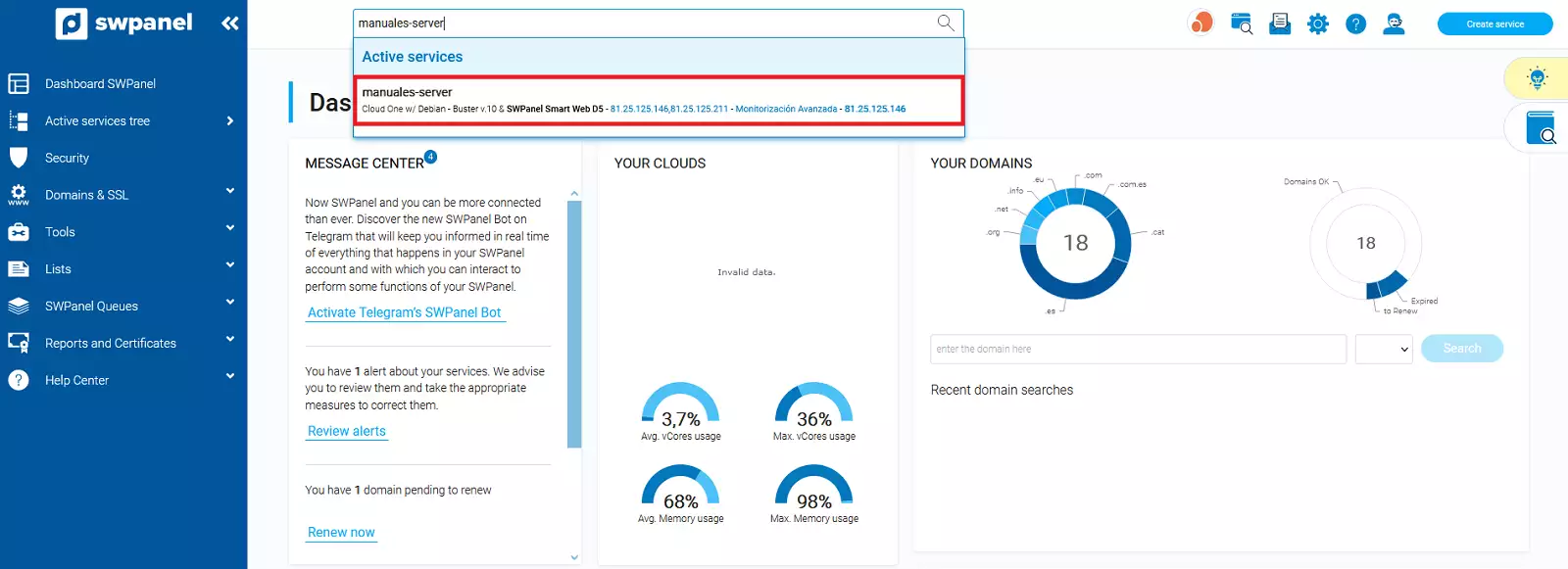
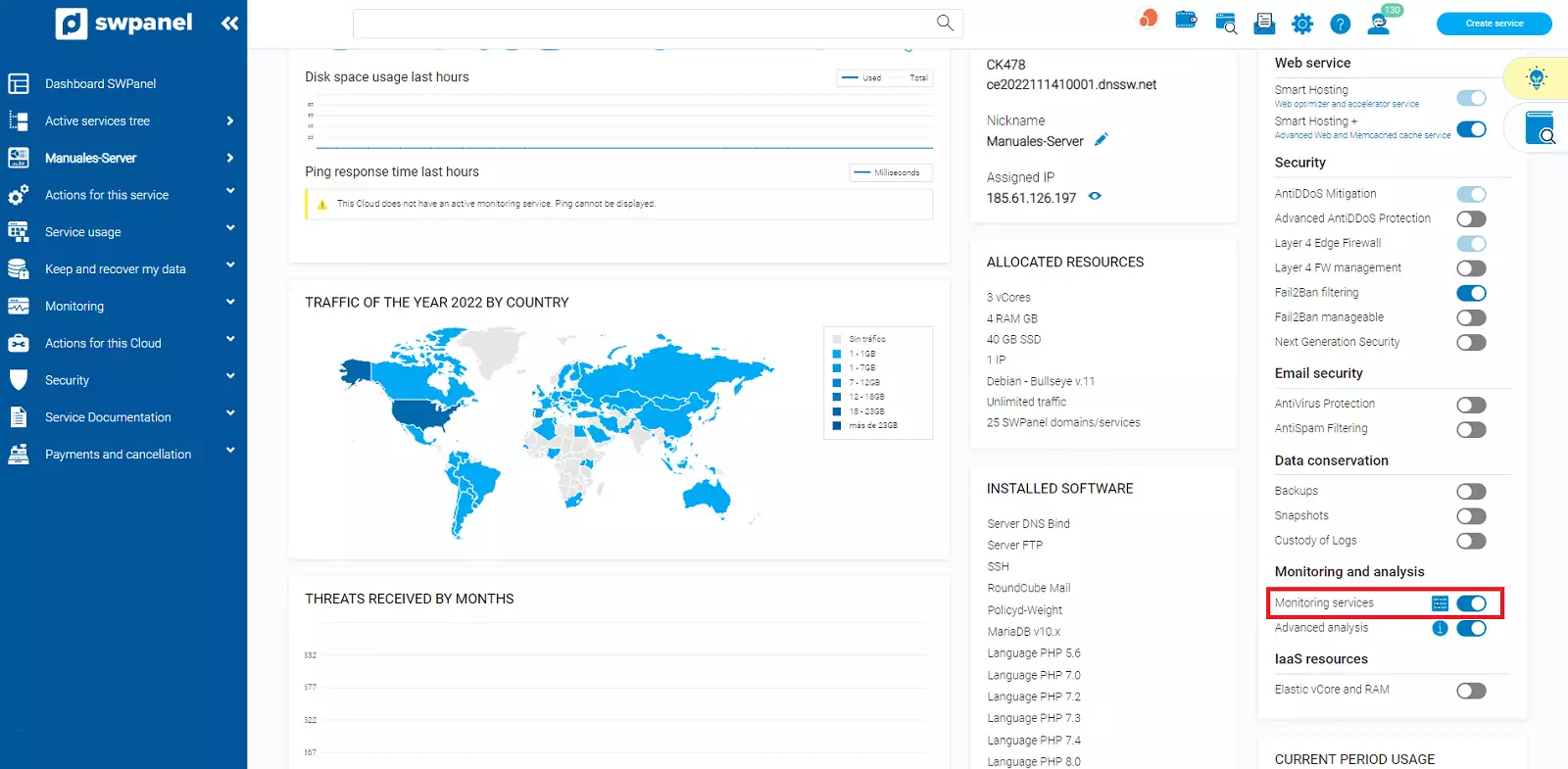
2. Next, we activate Monitoring Service in the Monitoring section, as shown in the image:
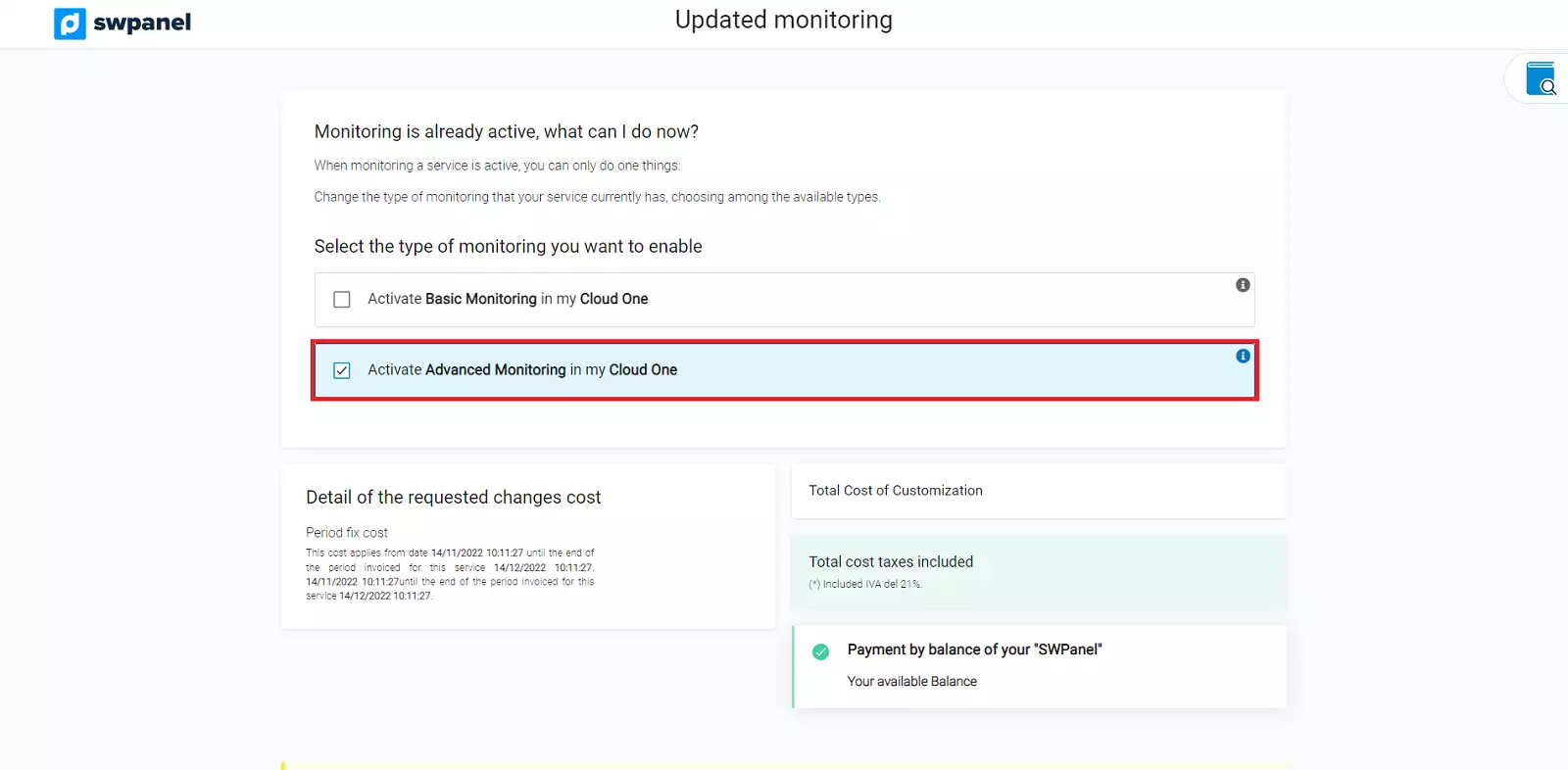
3. We select Activate Advanced Monitoring in the Cloud One.
4. If you agree with the price, click "Activate now."
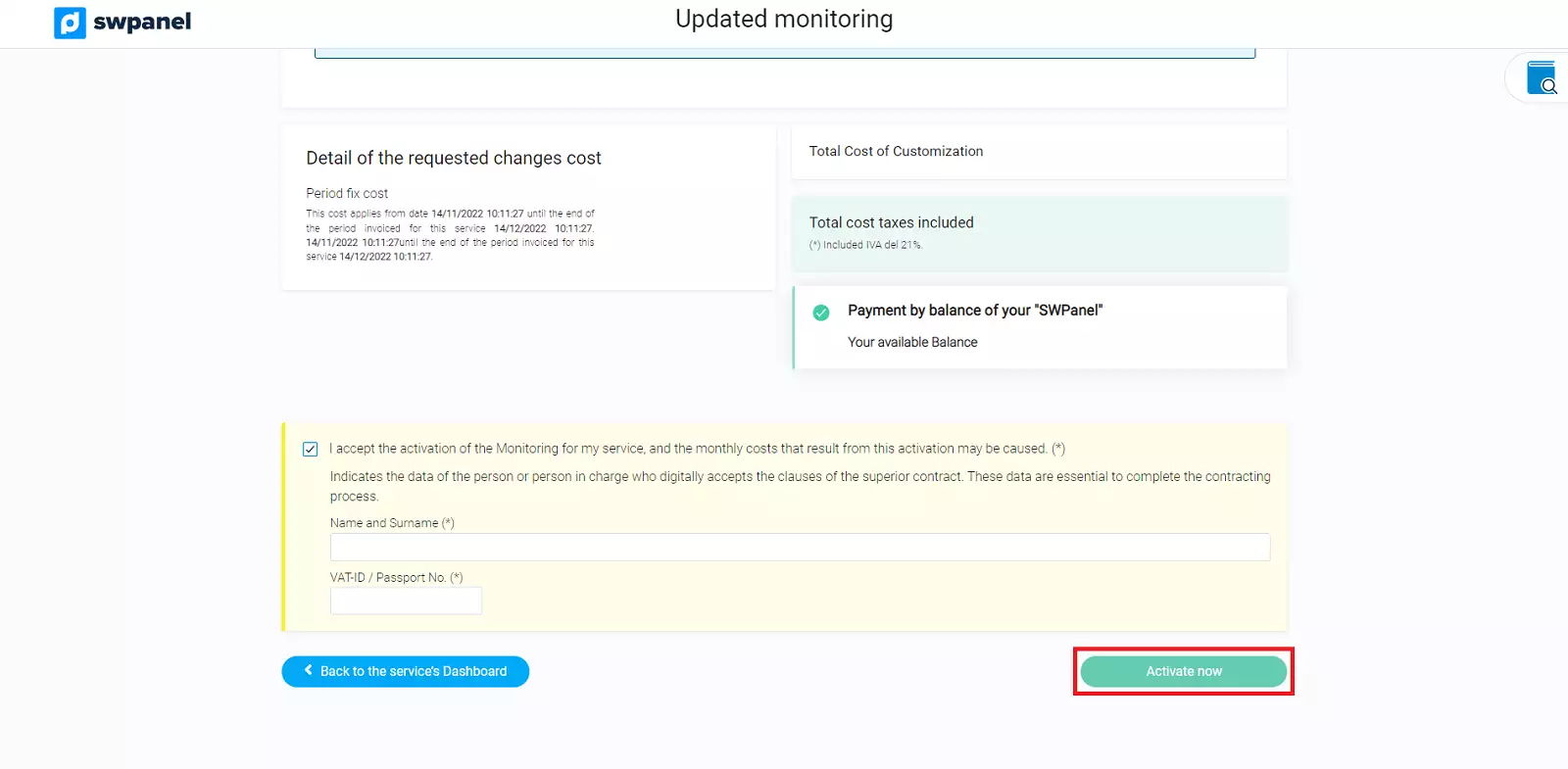
!!!Advanced Monitoring activated!!!
How to view the Advanced Monitoring Dashboard
Click the icon marked in the following screenshot.
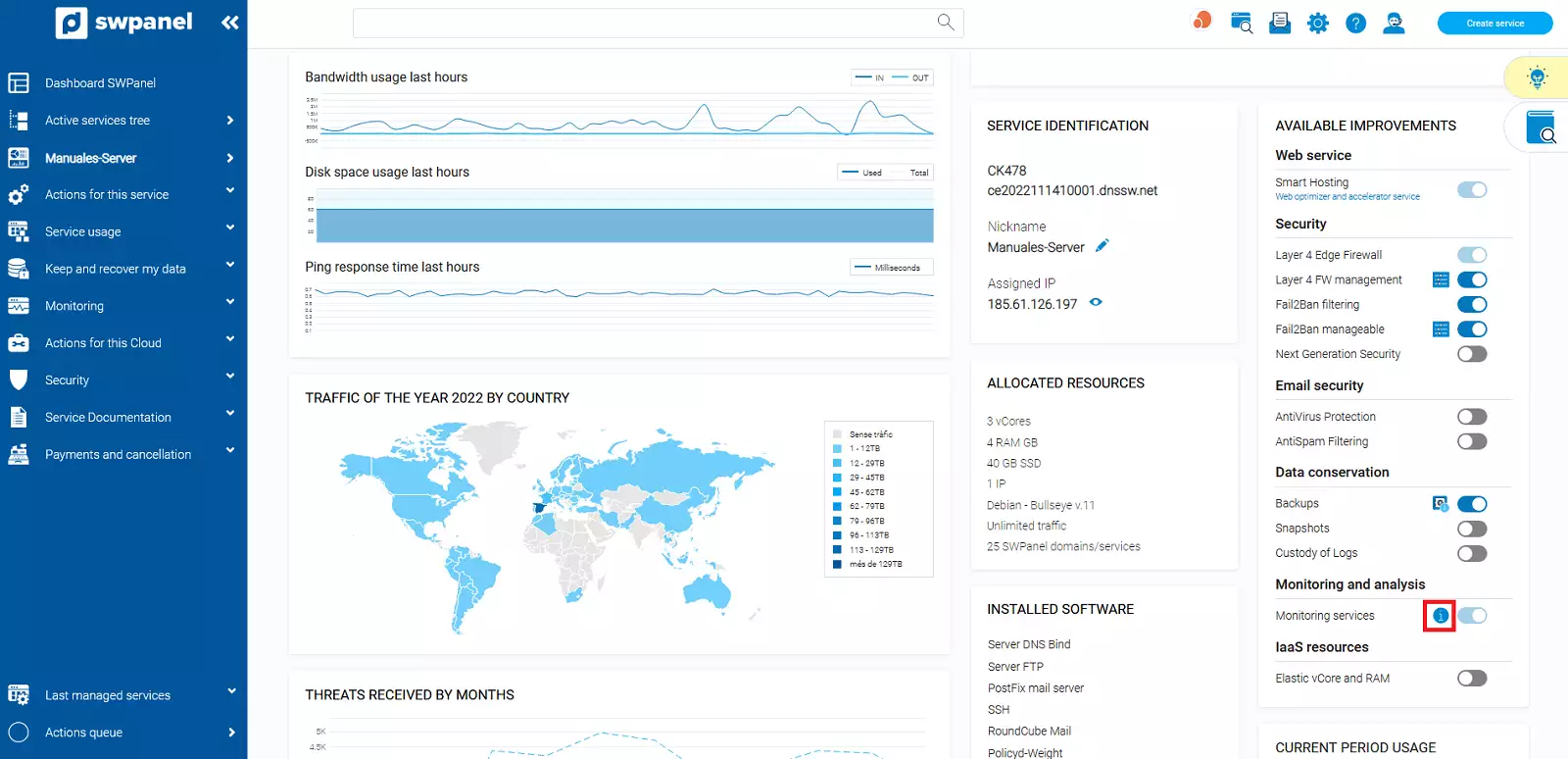
This is the Advanced Monitoring Dashboard:
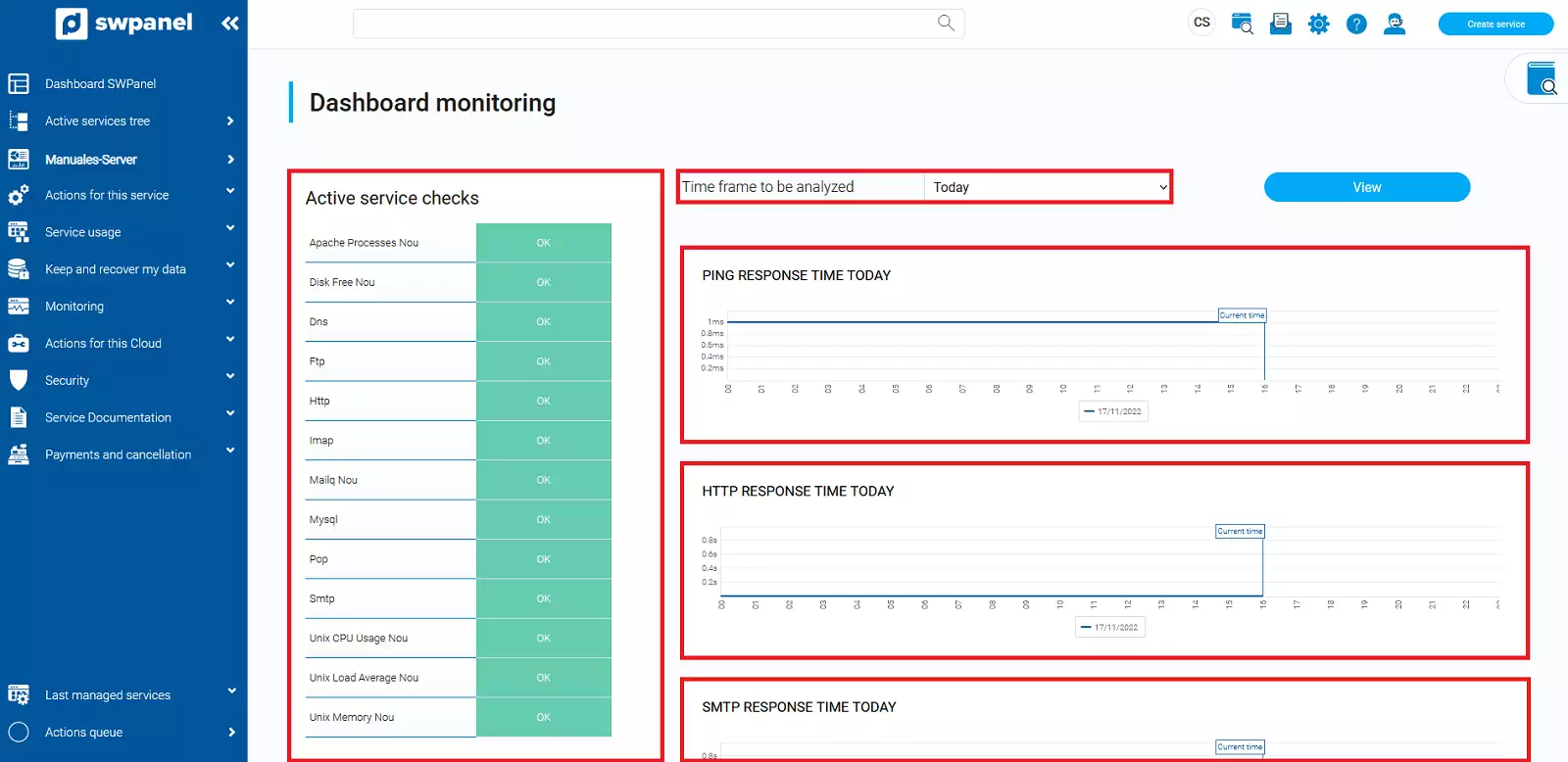
Active service checks: All the services being monitored and their current status.
Time period to analyze: You can choose between today, last week, last month, and between two days.
You will have the following graphs available:
- PING response time for the last week.
- HTTP response time for the last week.
- SMTP response time for the last week.
- POP3 response time for the last week.
- IMAP4 response time for the last week.
- Maximum number of emails in the send queue for the last week.
- CPU Load Average for the last week.
- RAM memory usage percentage for the last week.
If you have any questions, you can contact us through the support wall. Manual: Talk to support with Quick Help