How to activate a Bearer Token for access to APIs
What is an API?
An API (Application Programming Interface) is a set of rules and protocols that allows different applications to communicate with each other in a structured way.
Put simply: an API acts as a bridge between two systems, allowing one to request information or execute actions on the other without manual intervention.
For example:
- An application can use an API to automatically create a domain.
- An external system can check the status of a service without directly accessing the panel.
In the case of SWPanel, its API allows managing domains, services, and resources programmatically, enabling automation and integration with other systems.
What is a Bearer Token?
A Bearer Token is a type of security credential used to authenticate API requests.
- It works like a private access key
- It identifies the user making the request
- It is sent with each API request to authorize the action
Key concept:
Anyone who has access to a Bearer Token can use the API with the permissions associated with that token.
Therefore, it is essential to:
- Not share it publicly
- Store it securely
- Revoke it if it is suspected to be compromised
How does the SWPanel API work and what is it for?
The SWPanel API allows performing the same actions you would normally do from the panel interface, but in an automated way.
This includes, for example:
- Creating or deleting domains
- Managing services
- Automating repetitive tasks
- Integrating SWPanel with external systems (CRM, ERP, custom applications, etc.)
It is designed to:
- Reduce manual intervention
- Improve operational efficiency
- Enable integrations with other platforms
API Activation
SWPanel has several operating modes. API management is only available in Integrator mode, so you must activate it first.
Activate Integrator Mode
-
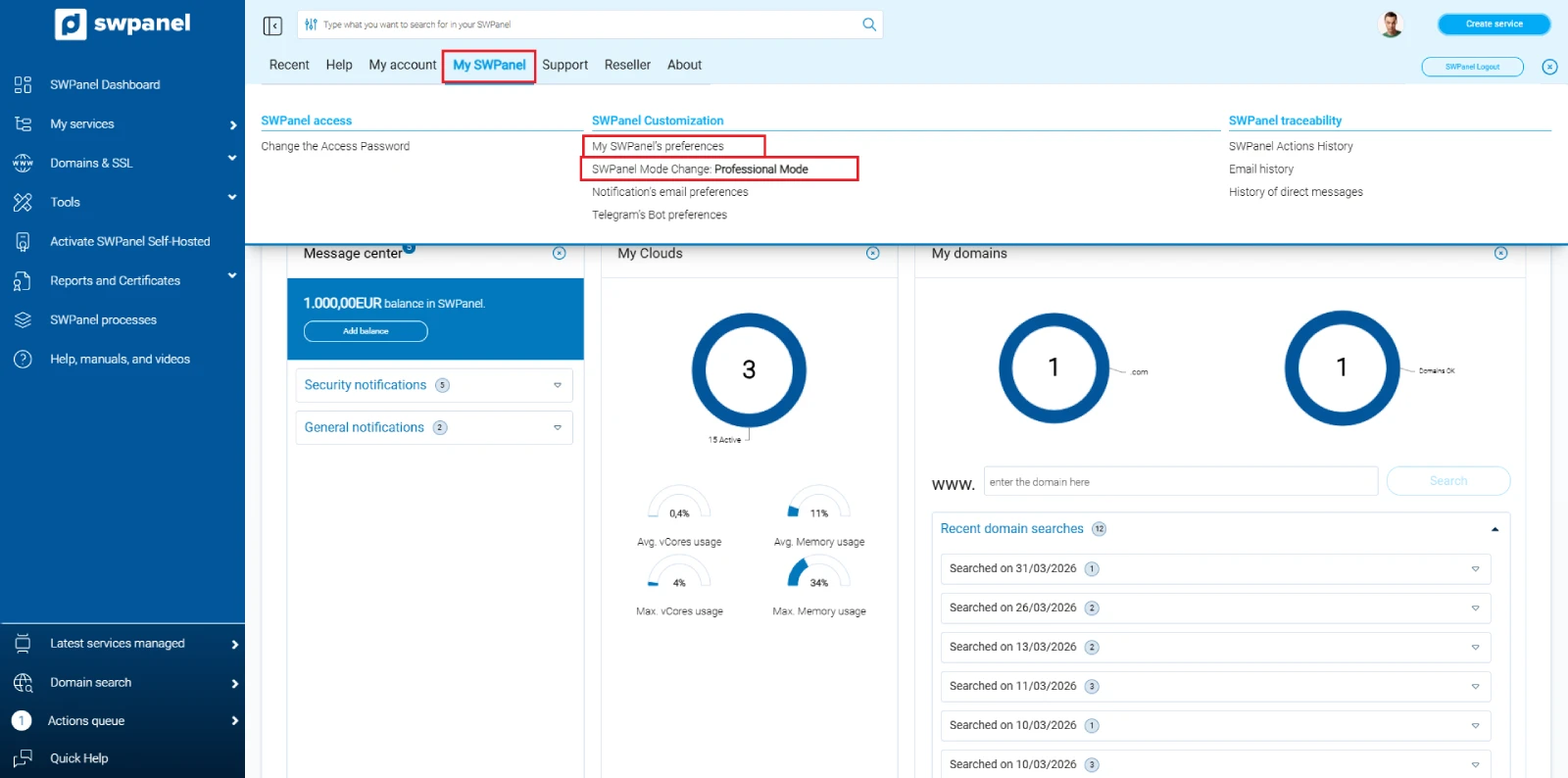
Access the top menu of SWPanel
-
Click on the "My SWPanel" tab
-
Select "SWPanel Preferences" or directly "Change operating mode"
-
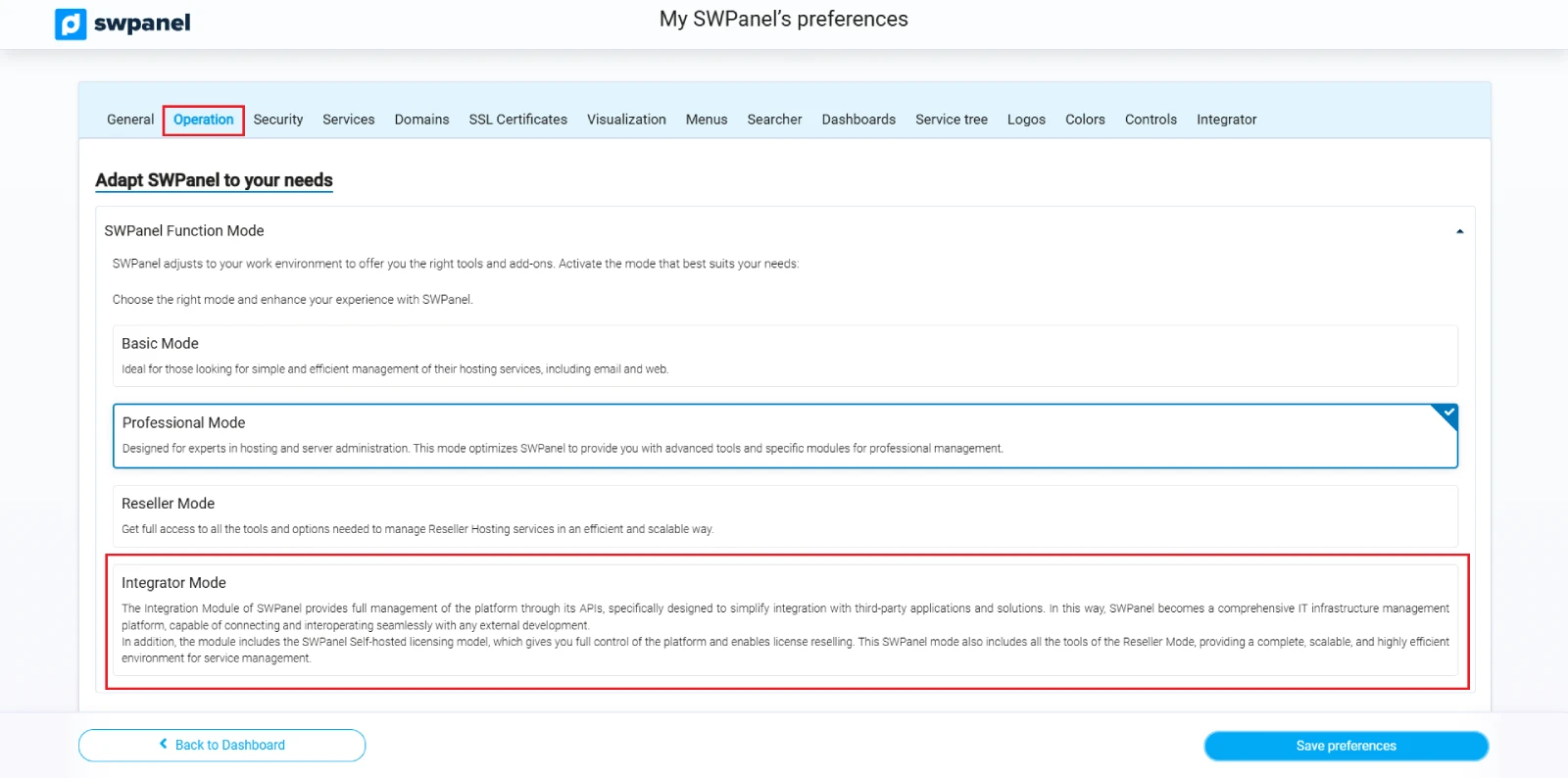
Go to the "Operation" tab
-
Select "Integrator" mode
-
Save changes
-
Return to the Dashboard
-
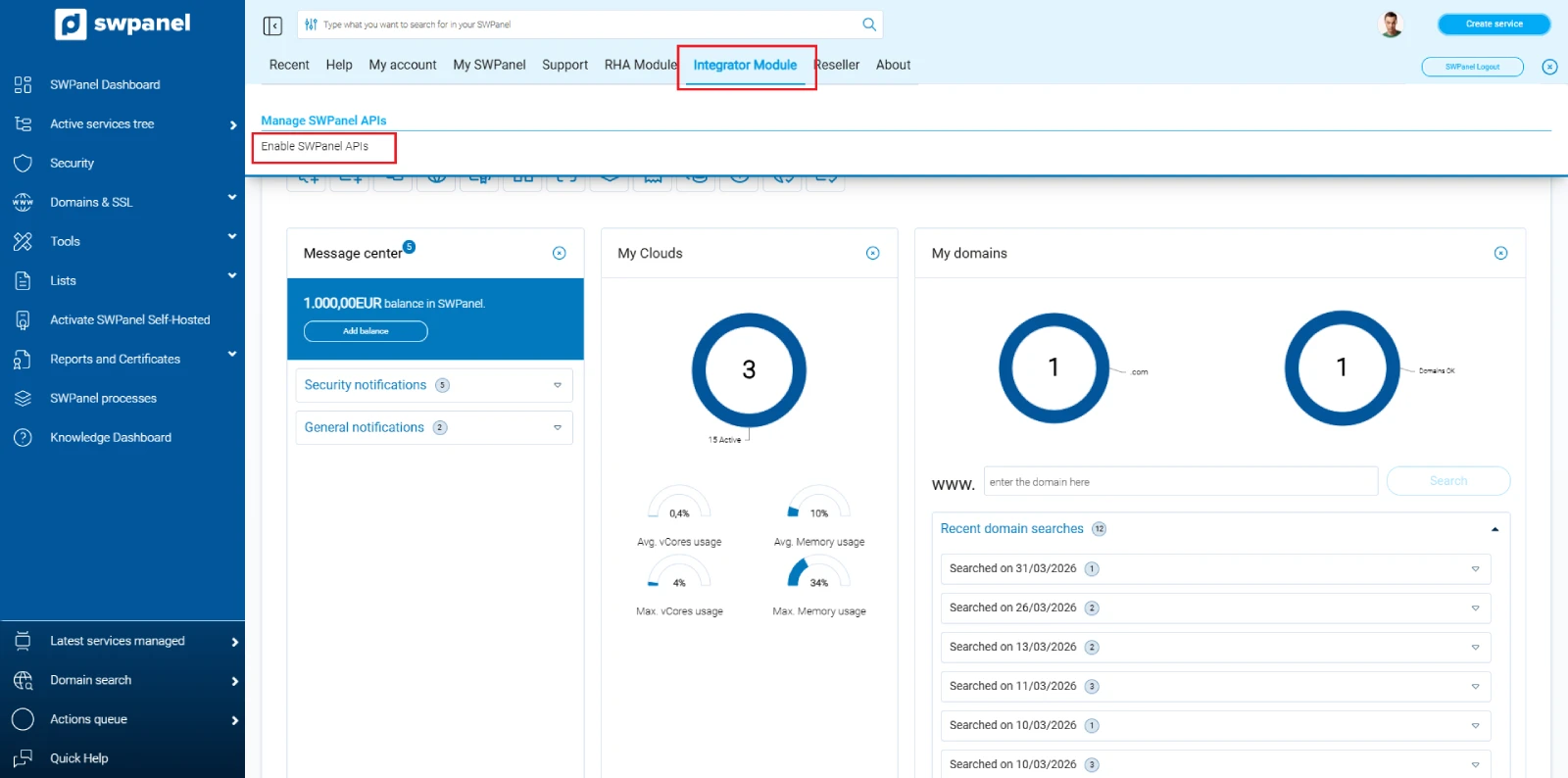
Click your avatar to open the top menu
-
Go to the "Integrator Mode" tab
-
Click "Activate SWPanel APIs"
-
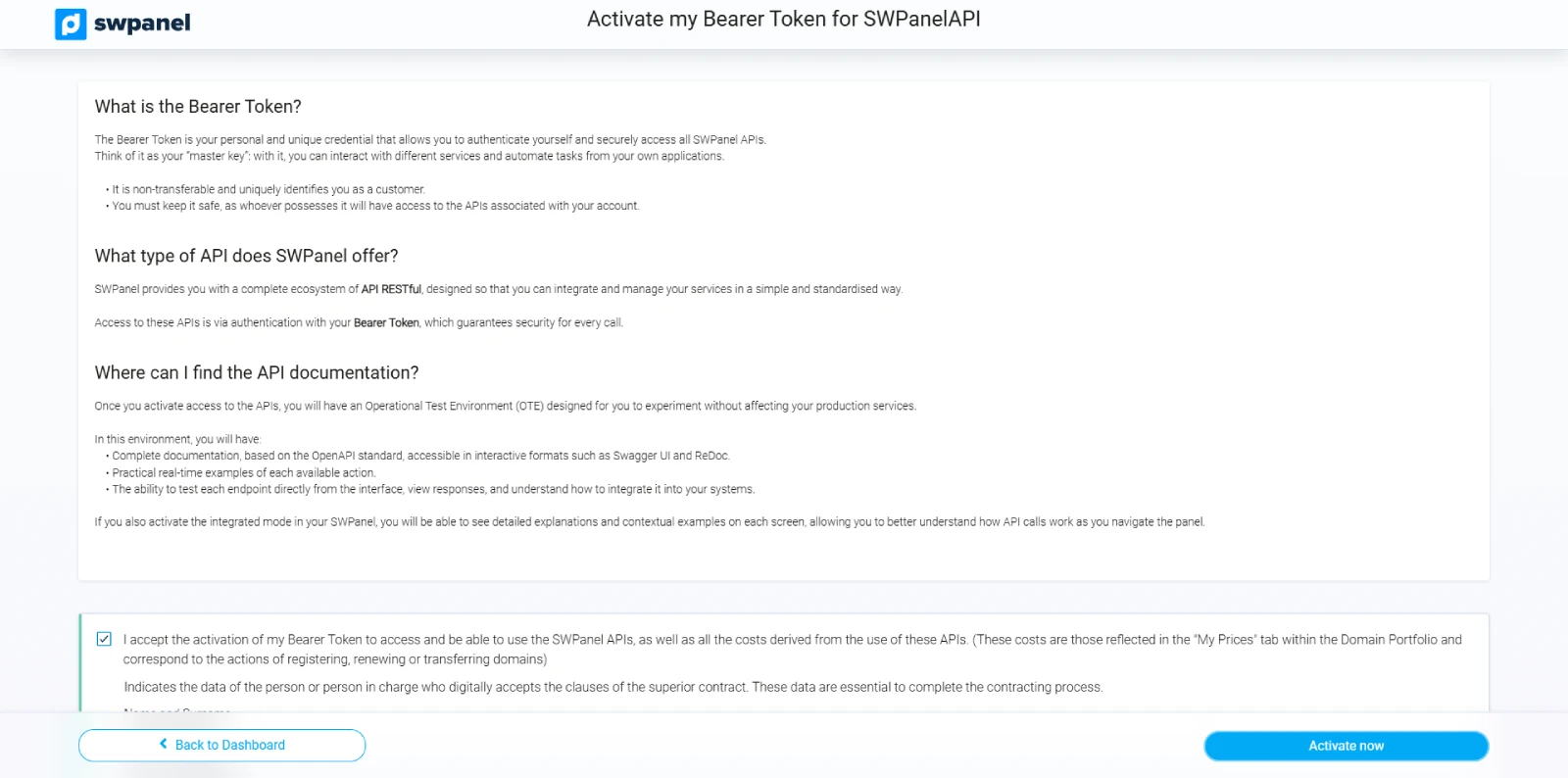
Read the information shown and accept activation
-
Once APIs are activated, the Integrator Mode menu will show new options
-
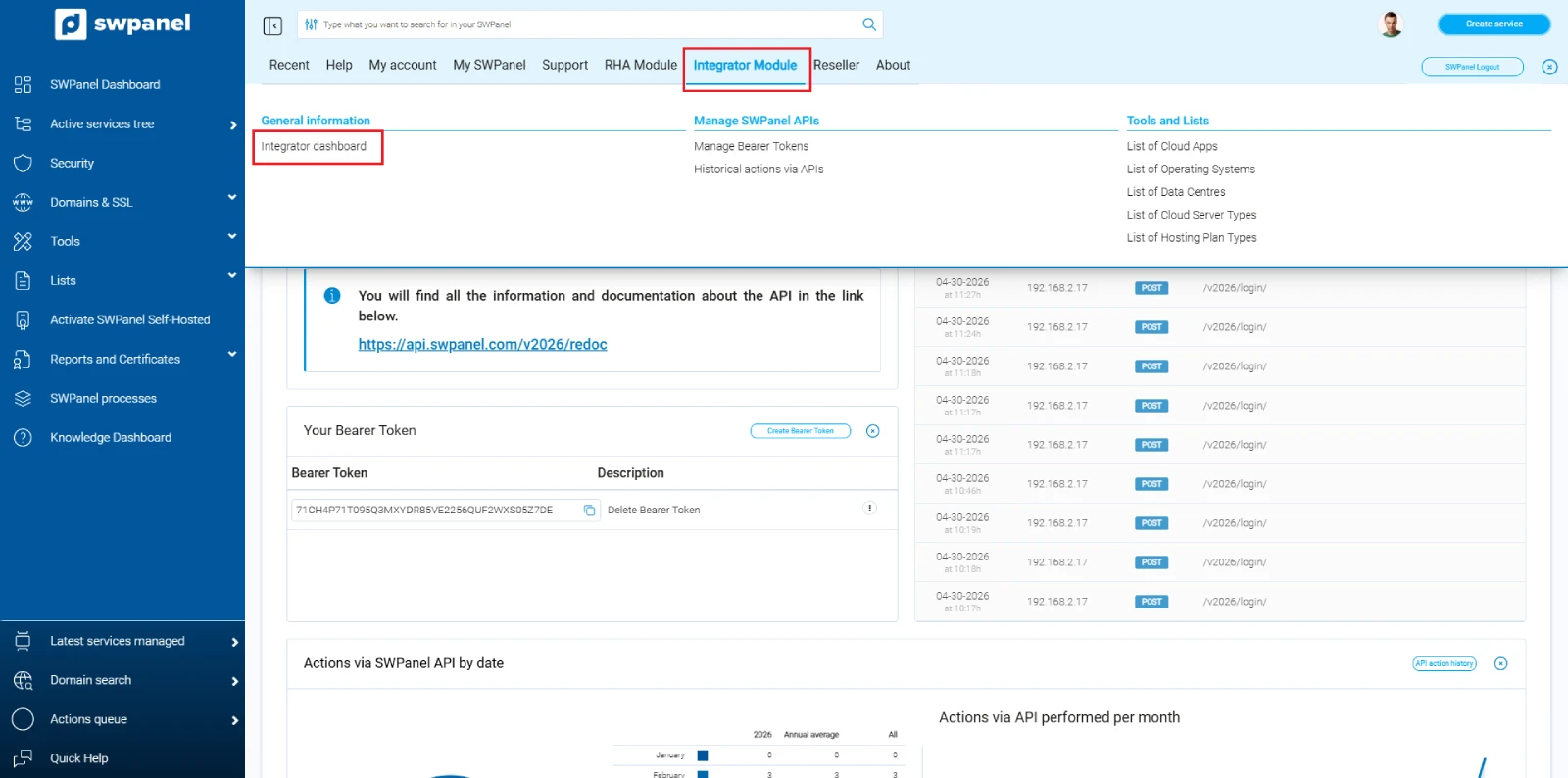
Access the Integrator Mode Dashboard
-
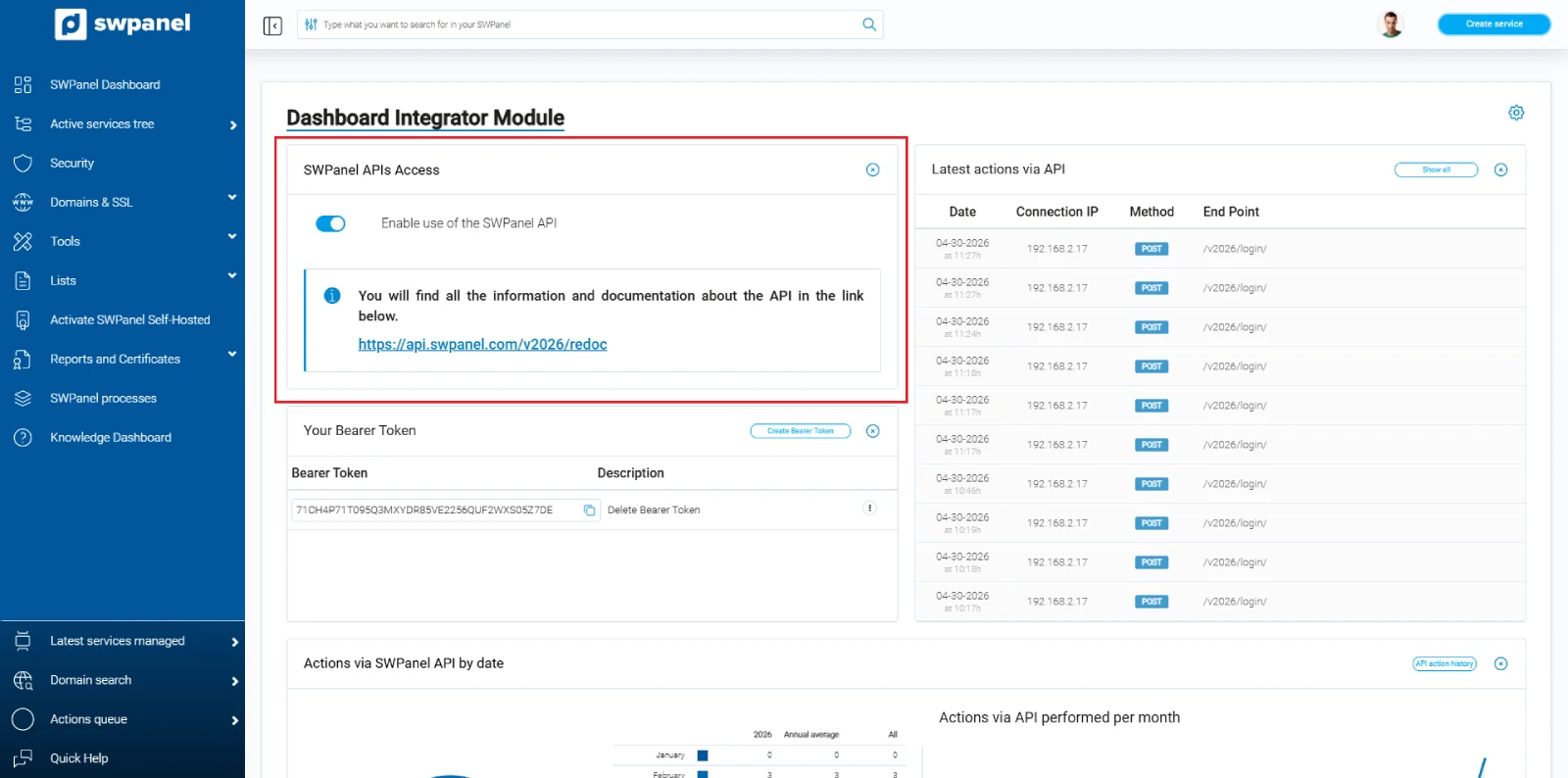
From the Dashboard you can view your Bearer Token, access API documentation, and manage its usage
Bearer Token Management
SWPanel allows creating and managing multiple Bearer Tokens with different configurations.
This is especially useful for:
- Development teams
- Multiple integrations
- Application-level access control
Why use multiple tokens?
- Separate environments (production, development)
- Limit permissions per application
- Revoke access without affecting other systems
How to manage your Bearer Tokens
-
Access the SWPanel top menu
-
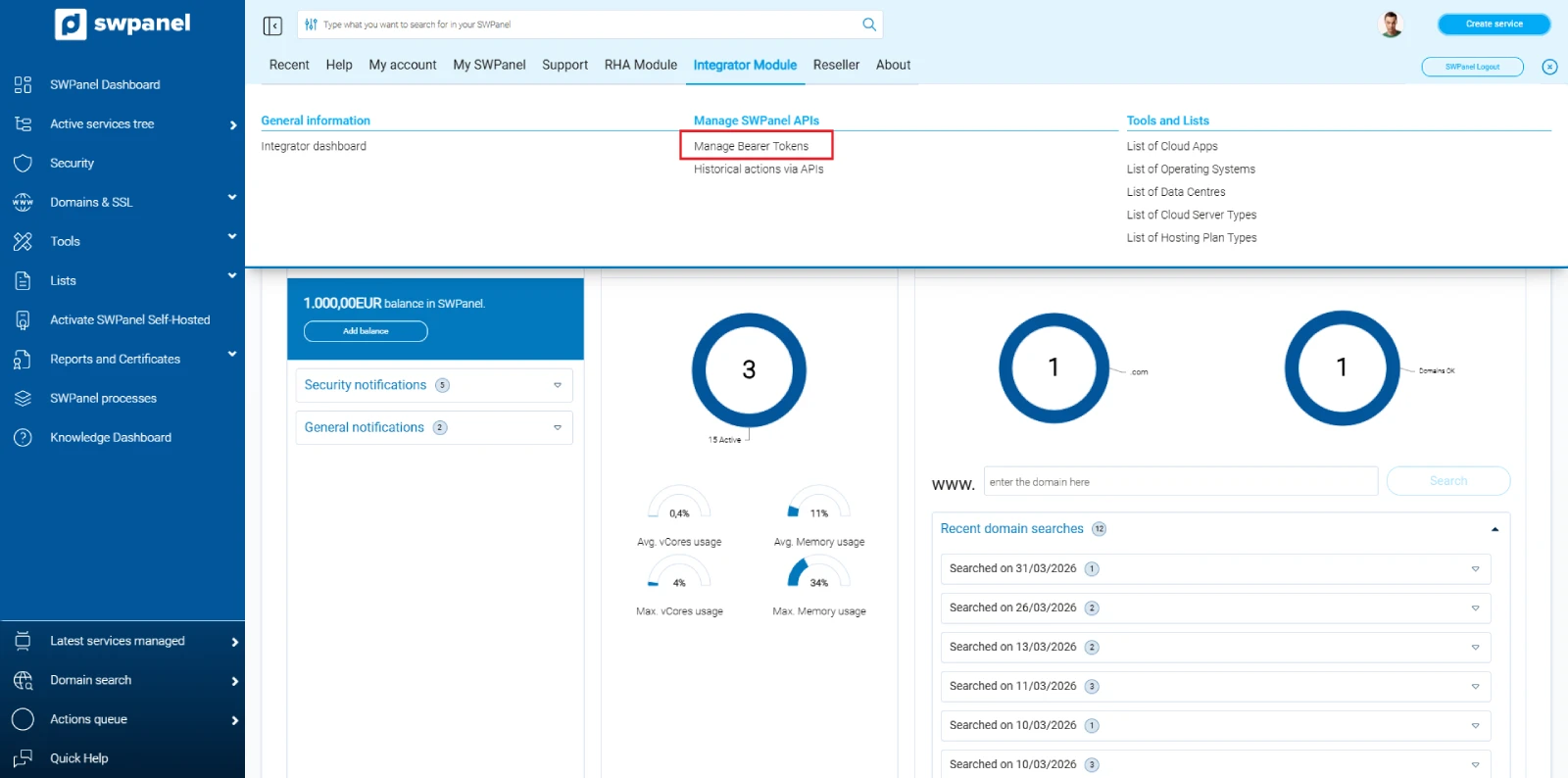
Go to "Integrator Mode"
-
In "Manage SWPanel APIs", select "Manage Bearer Tokens"
-
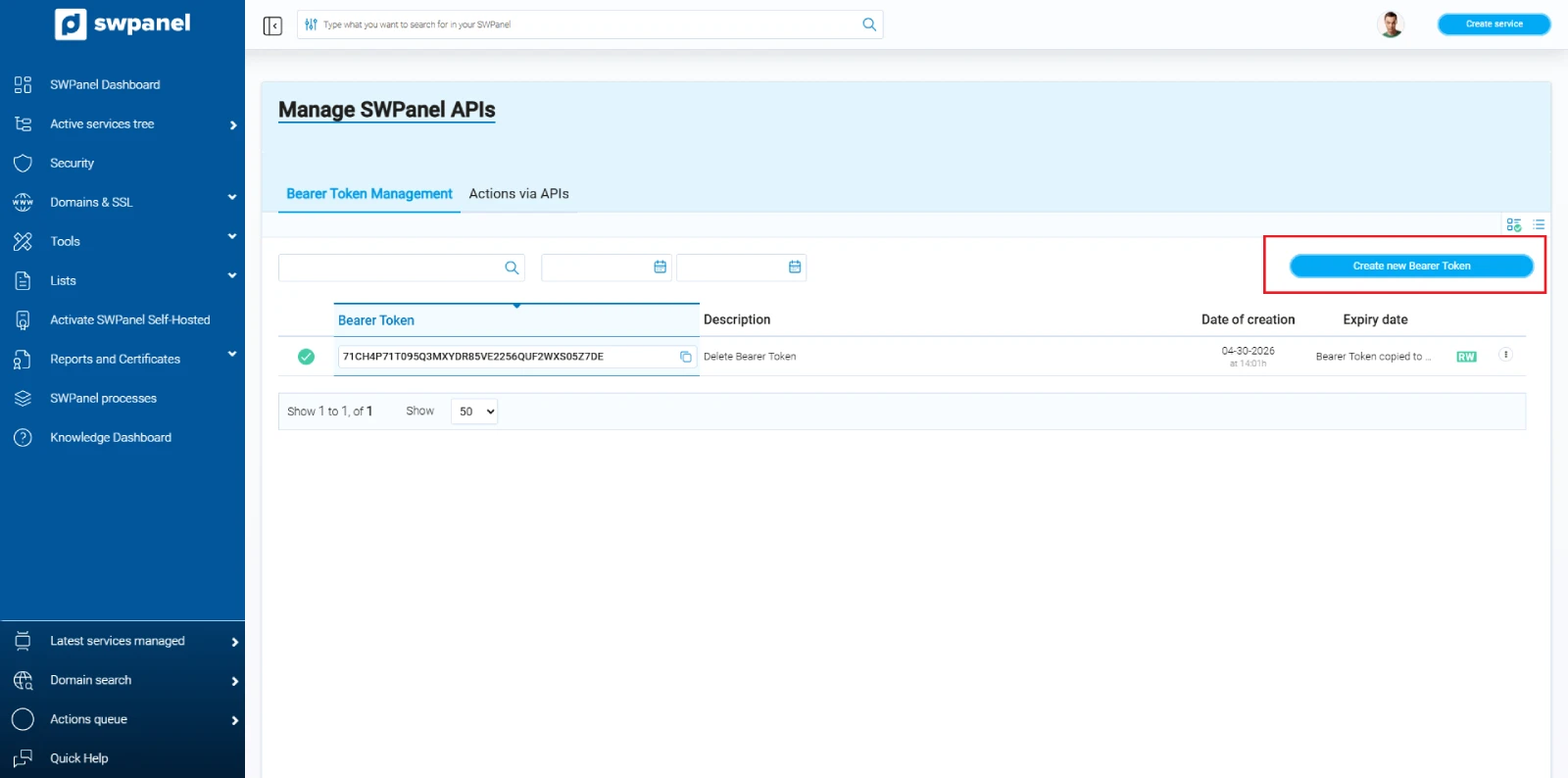
View the list of existing tokens
-
Use available options to create, edit, or revoke tokens
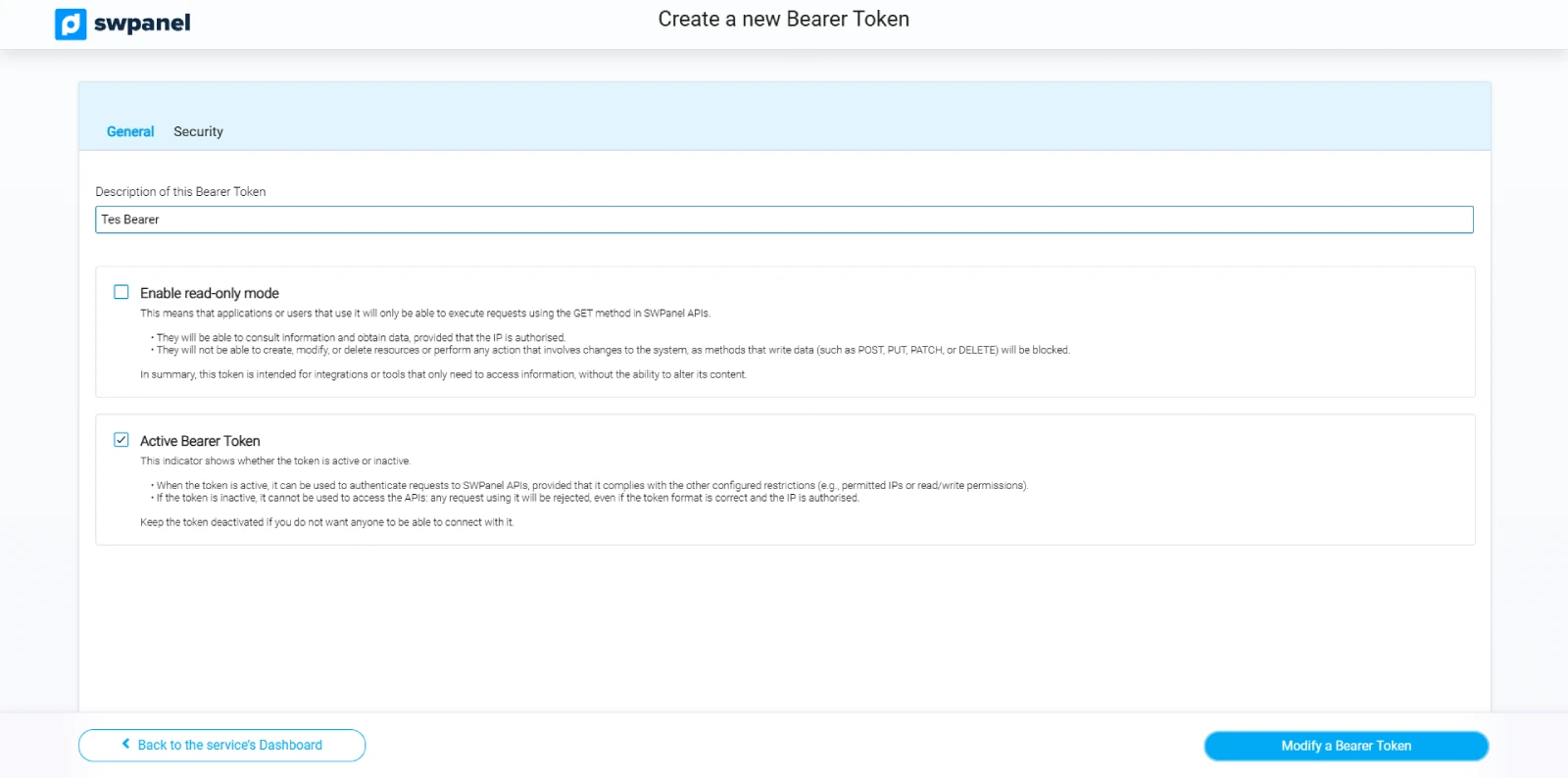
Create a new Bearer Token
-
Click "Create new Bearer Token"
-
Fill in the required fields:
- Descriptive name
- Permissions
- Security settings
-
Save the configuration
Recommendation:
- Use descriptive names such as:
crm-productionscript-backupsbilling-integration
Security best practices
- Do not share your tokens in public code
- Use different tokens for each integration
- Revoke tokens that are no longer used
- Apply the principle of least privilege (only necessary permissions)
More Integrator Mode options
Integrator Mode offers additional tools for working with SWPanel APIs.
Refer to the full manual to explore all features in detail.
Additional documentation
If you wish, you can consult the technical documentation for each SWPanel API endpoint at the following link: Technical documentation
info_capture Note: The screenshots in this manual were taken from version 2026.001.0020 dated 27/04/2026. They may differ from the current version of SWPanel and should be considered as guidance only