
Configure permalinks in WordPress
Configuring the permalinks of your WordPress site is one of those essential tasks that you have to perform before you start generating content.
A correct configuration of permalinks allows you to:
- Generate clear and understandable URLs.
- Improve your search engine optimization (SEO) in search engines like Google and other indexers.
- Help others link to and share your content.
According to the WordPress documentation:
'Permalinks are the permanent URLs to an individual entry of the weblog, as well as to the categories and other lists of the Weblog publication. A permalink is what another weblogger usually sends to their article (or section), or how you might send a link to your article in an email message. Especially when used to link to individual entries, once an article is published, the URL to this article should be permanent, and never changed. Hence the 'perma' in the name.'
Configure permalinks
First of all, you must ensure that the '.htaccess' file of your web space is correctly configured.
To do this, connect via FTP to the directory '/datos/web/' and verify that the file '.htaccess' contains the following:
# BEGIN WordPress
<IfModule mod_rewrite.c>
RewriteEngine On
RewriteBase /
RewriteRule ^index\\.php$ - [L]
RewriteCond %{REQUEST_FILENAME} !-f
RewriteCond %{REQUEST_FILENAME} !-d
RewriteRule . /index.php [L]
</IfModule>
# END WordPress
If it is not, modify it.
The '.htaccess' file is hidden. If you do not see it, you will need to activate the option to view hidden files in your FTP client. It is also possible that you may need to create it.
Now that we have the '.htaccess' file ready, we can configure the permalinks in Wordpress:
-
Access the Wordpress administration panel. Usually, this is located in the 'wp-admin' directory, for example:
- https://www.tudominio.com/wp-admin
-
In the left menu, go to Settings > Permalinks.
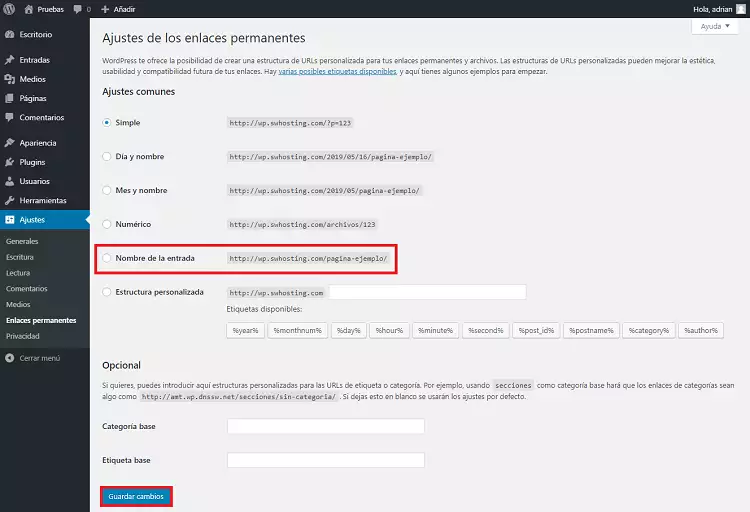
As you will see, several predefined settings are available and you can even create a custom one.
We recommend using the 'Post name' option, as it is the most friendly and effective for search engine optimization (SEO), indexers, and also offers a clearer structure, making it easier to be shared.
- Finally, click Save changes.