
Connect to your Cloud via console using PuTTY
In this manual, we will teach you how to access your Cloud server console from any computer using the free application PuTTY.
What is PuTTY?
PuTTY is a free SSH client that allows us to connect to another machine in remote mode or via Serial. Its most common use is connecting to a server to which we do not have physical access in order to execute commands within it. By being able to execute commands within our server, we can perform operations such as installing a program, copying or moving files, making updates, or modifying a configuration file. The program is completely free and secure.
How do I get PuTTY?
You can download the PuTTY application through its official page in the downloads section; you only have to choose the version for your operating system. For example, if we have Windows 10 (64-bit), we only have to click on the first download link on the page.
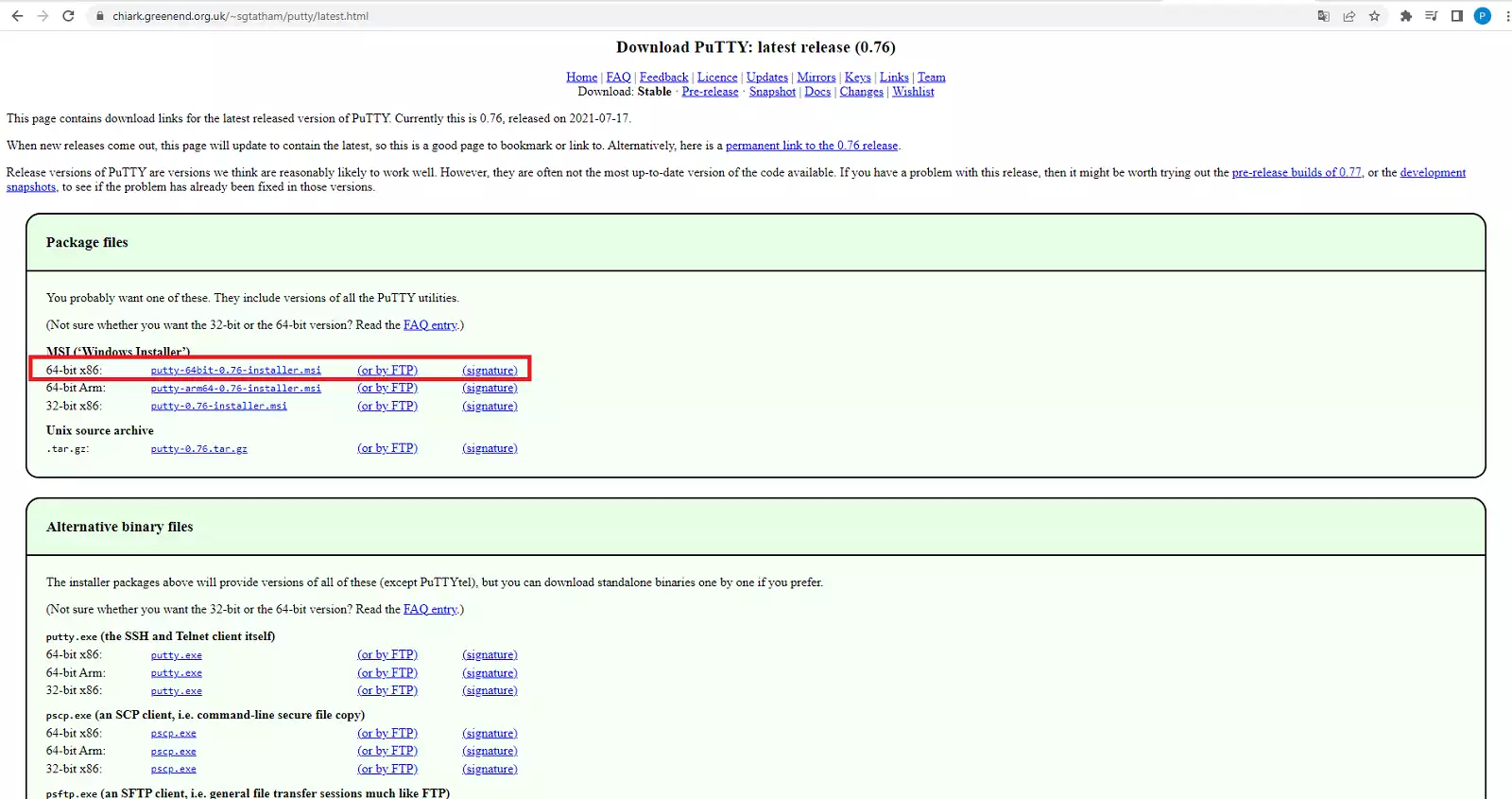
Once we download the installation package, simply run it and follow the standard installation procedure.
How can I access my Cloud console?
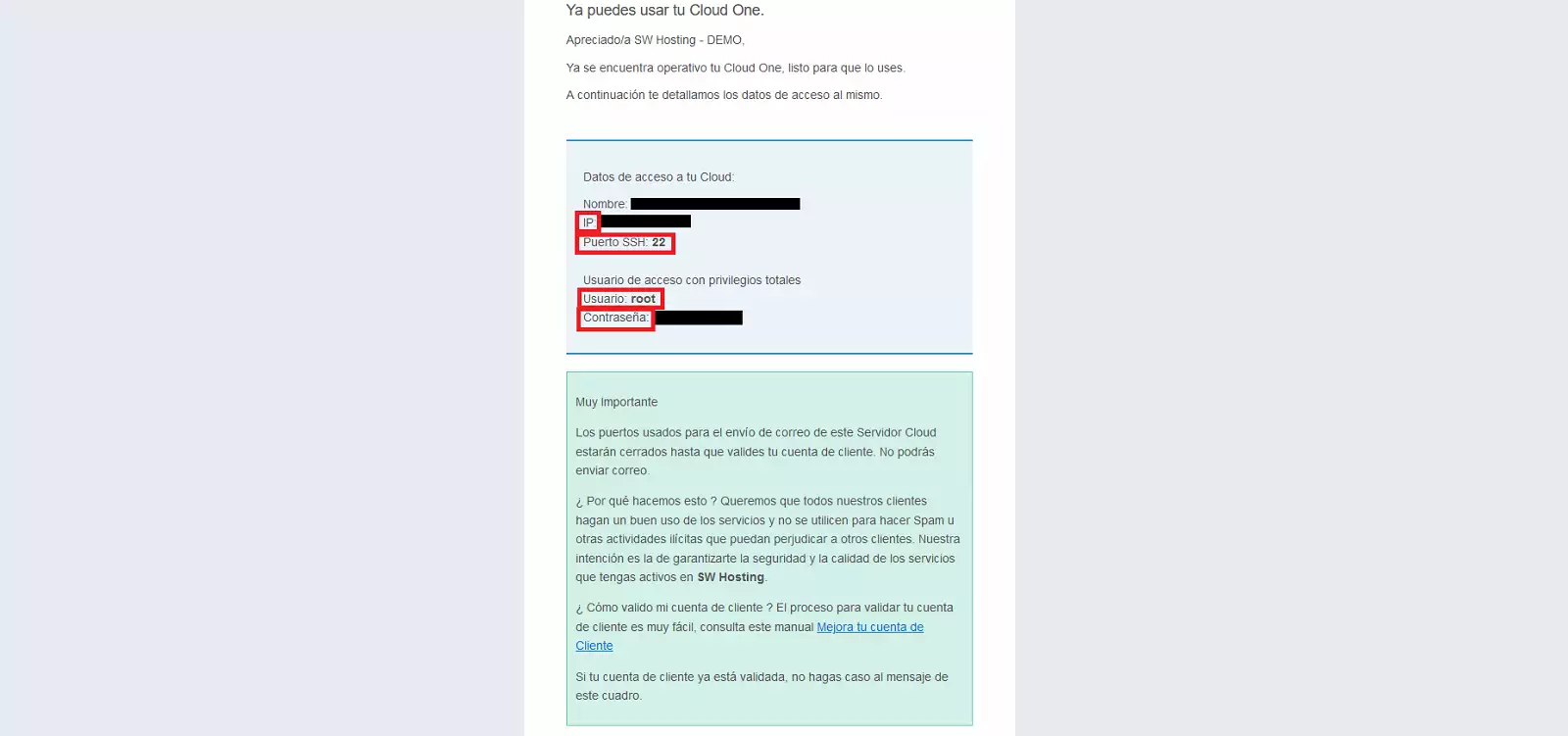
To be able to access our Cloud console, we will need to gather a series of data:
- The IP or server name
- The port through which to connect
- The connection method
- The root user password
All this data is sent by email to the person responsible for the service at the moment a Cloud is created. The beginning of the email subject is 'SW Hosting - Access to your Cloud...' and its content is similar to what we show below:
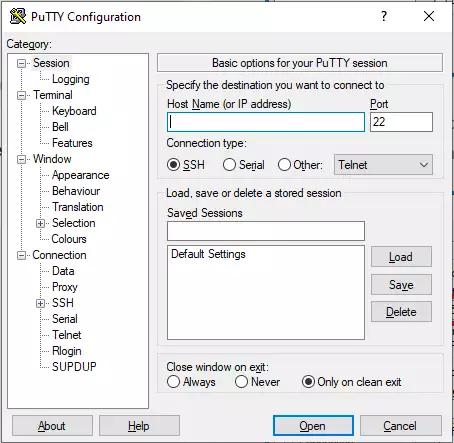
To connect to our Cloud, we run the PuTTY program and a screen like the following will appear:
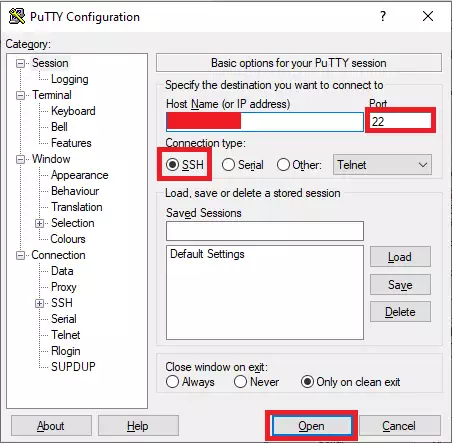
First, we will enter the IP, ensure that the correct port is selected (usually 22), the correct connection method (SSH), and finally, we will click on 'Open'.
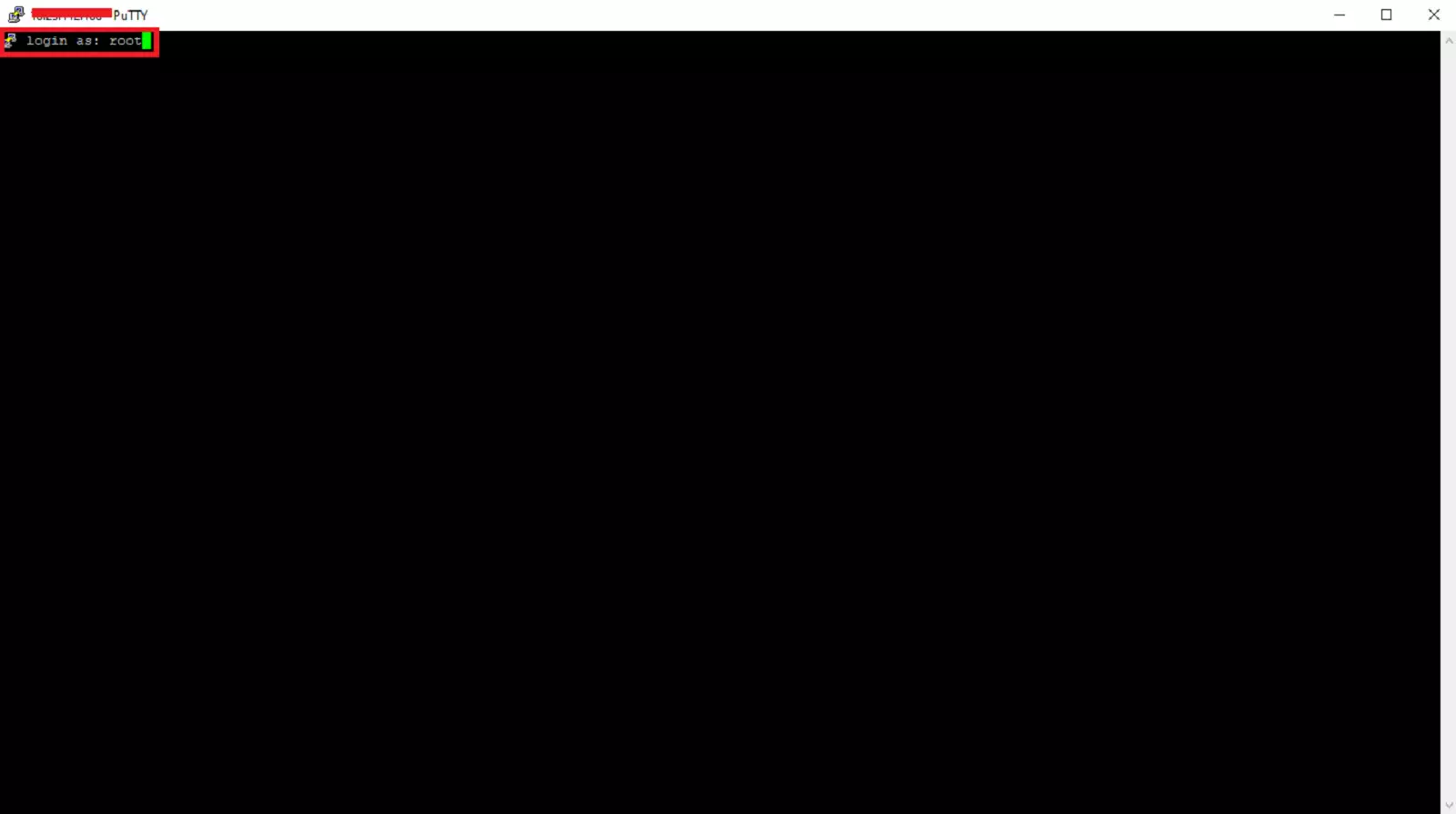
A pop-up window will appear asking us which user we want to connect with, we will enter 'root' and press 'enter'.
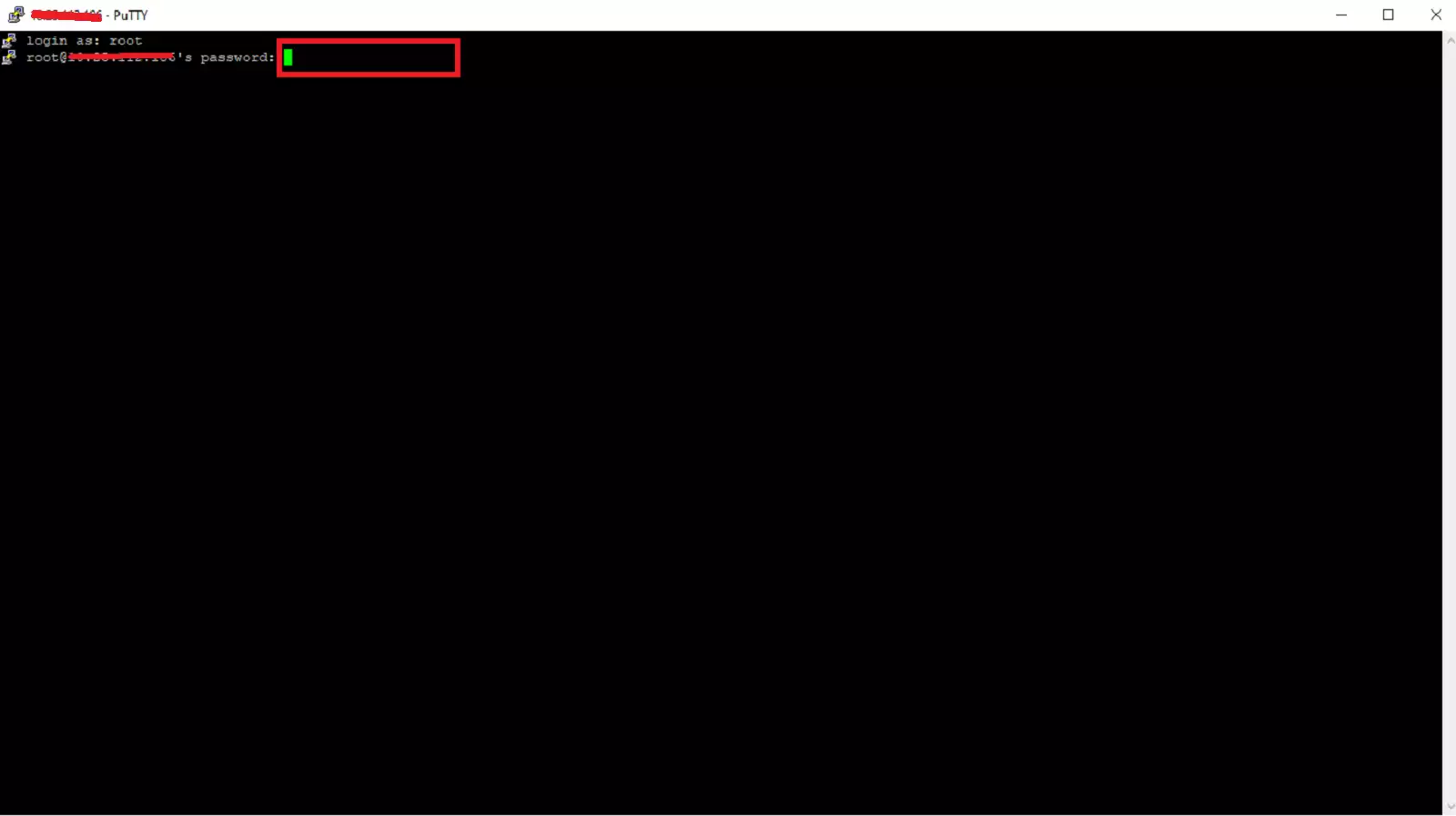
Then it will ask for the root user password, we will enter it (while entering it, nothing appears on the screen, this is for security) and press 'enter'.
And we will now be in the console of our Cloud connected as the root user, who has all privileges and can perform any operation.
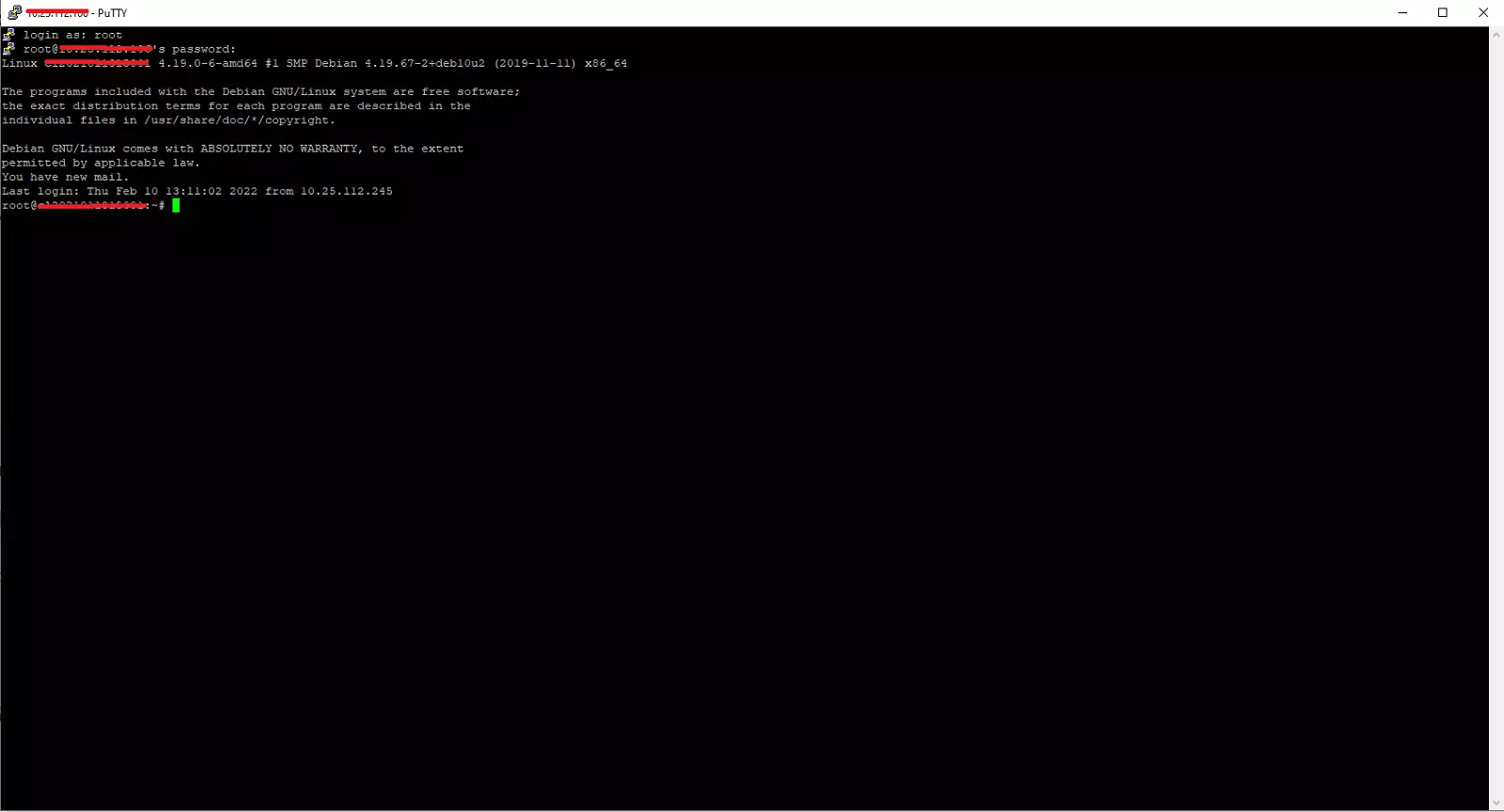
⚠️To close the window and disconnect from the server, we activate the 'exit' command, the program will cut the connection and close automatically.⚠️
Done! We now know how to enter the console of our Cloud using the PuTTY program.