
Create Organizational Container
An Organizational Container allows you to group services according to your own criteria, facilitating better organization within SWPanel.
You can think of it as a folder, where you can include different services to manage them in a more orderly manner.
What is it for?
- Organize services by project, client, or purpose
- Locate resources more quickly
- Maintain a clear structure within the panel
Create an Organizational Container
Follow these steps:
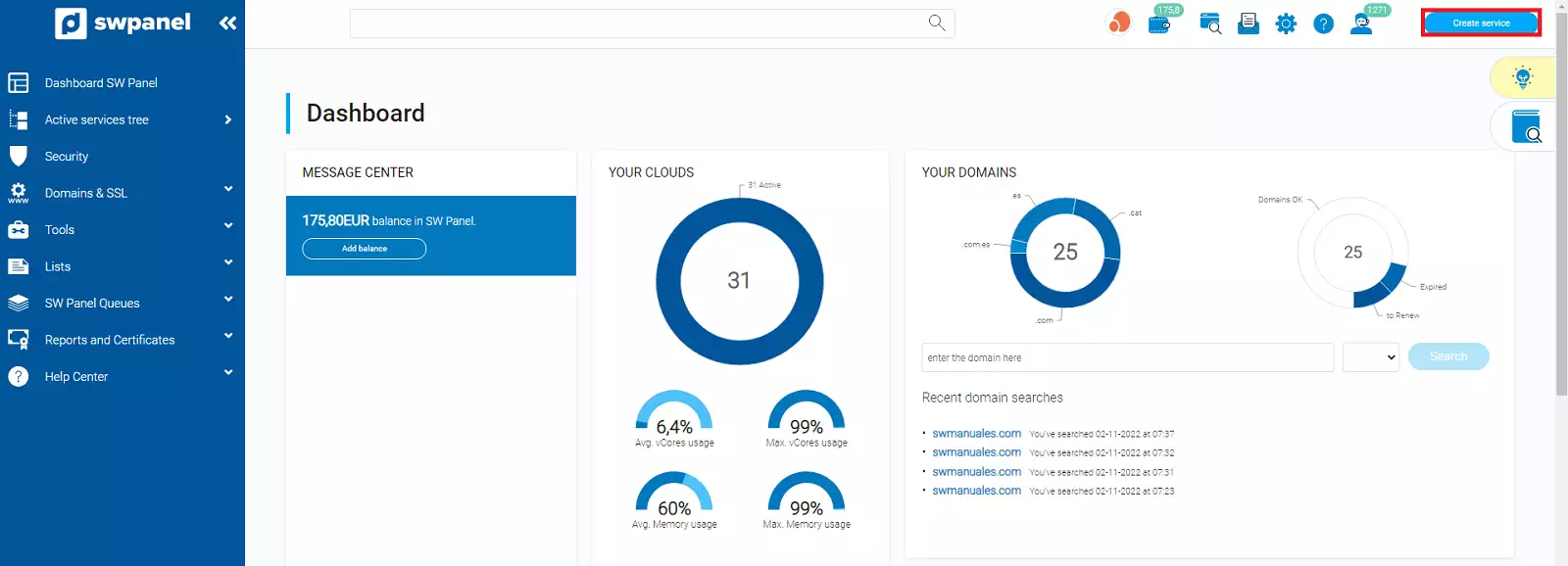
1. Start creation
- Click on Create service (top right corner)
info_capture ℹ️ Note: The screenshot is for guidance purposes, taken from version 2026.001.0026 dated 04/05/2026. It may differ from the current version of SWPanel.
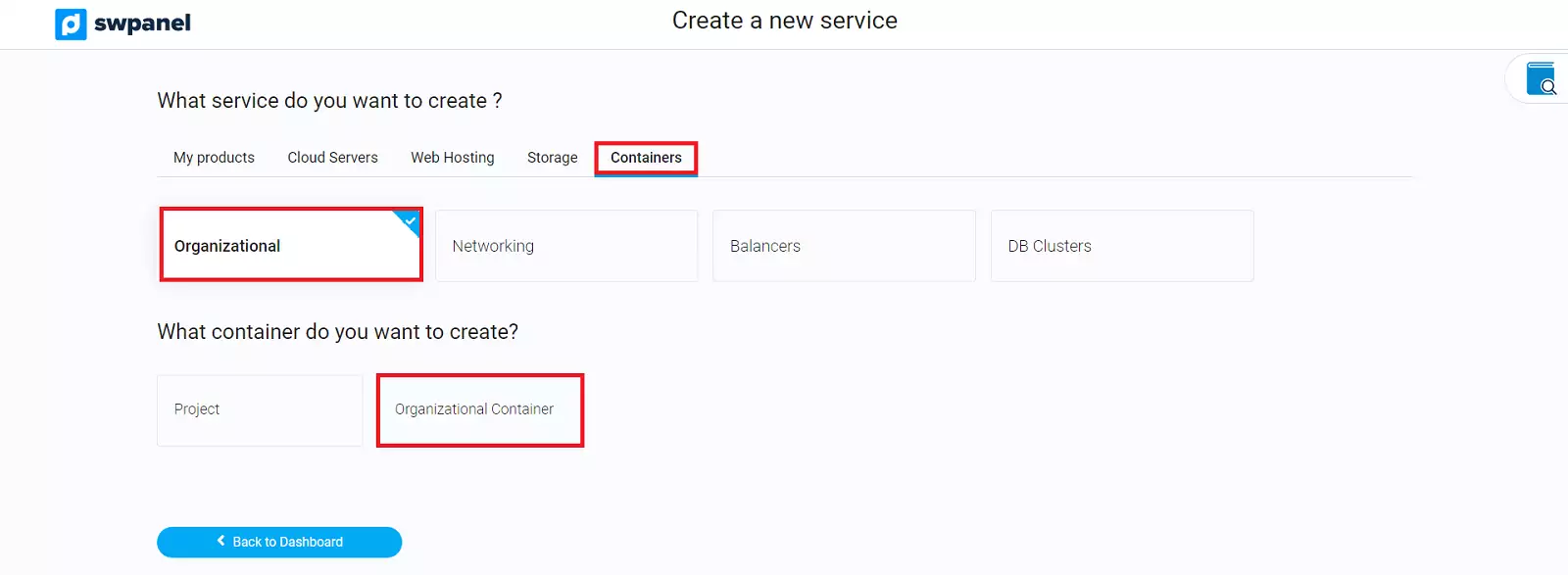
2. Select container type
- Containers → Organizational → Organizational Container
info_capture ℹ️ Note: The screenshot is for guidance purposes, taken from version 2026.001.0026 dated 04/05/2026. It may differ from the current version of SWPanel.
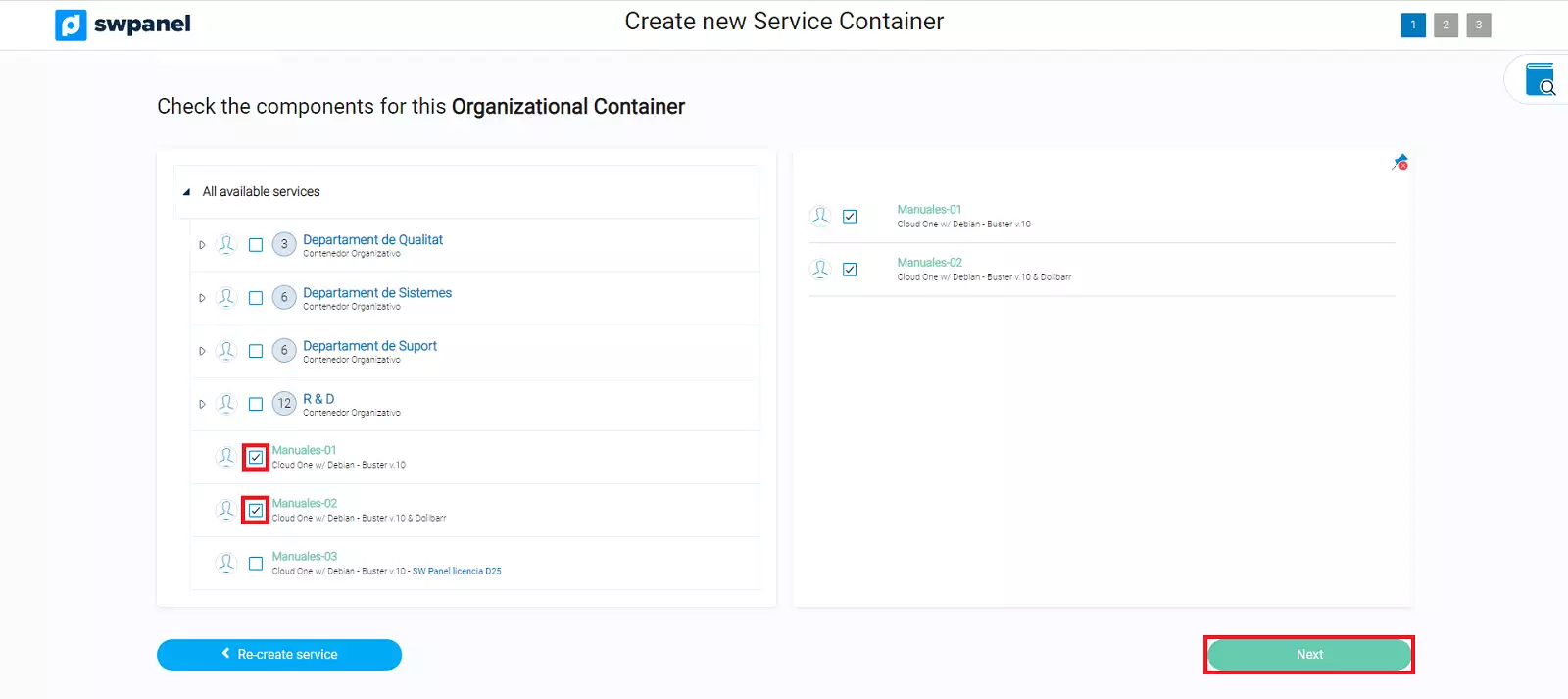
3. Select services
- Mark the services you wish to include from the list
- Click on Next
info_capture ℹ️ Note: The screenshot is for guidance purposes, taken from version 2026.001.0026 dated 04/05/2026. It may differ from the current version of SWPanel.
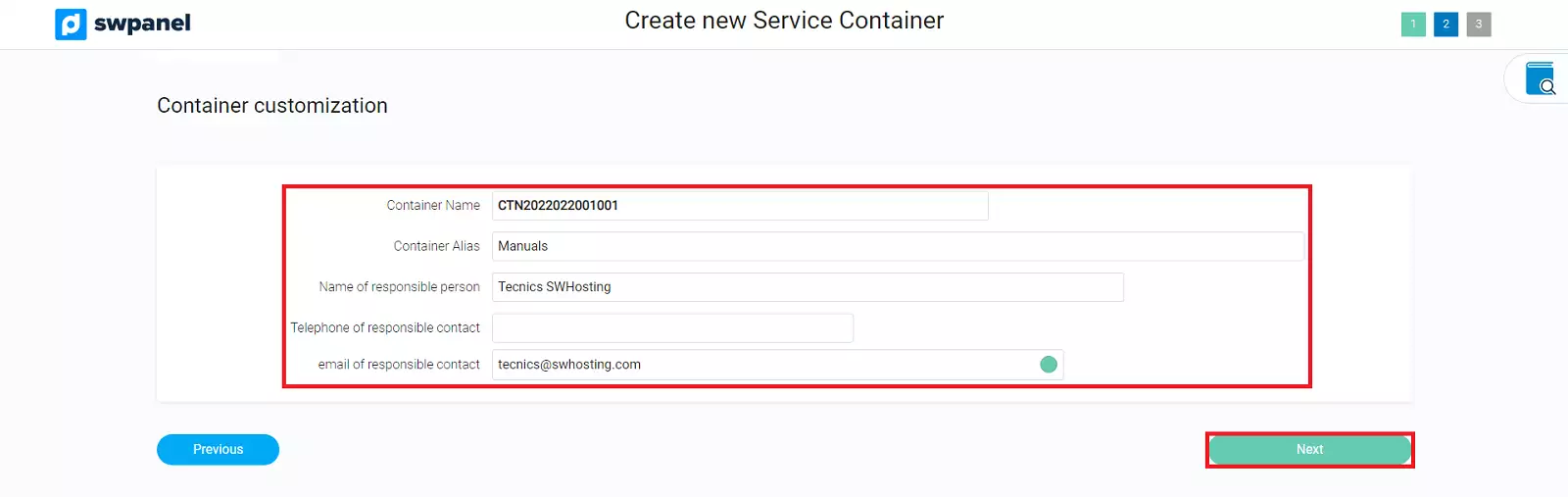
4. Configure data
- Fill in the requested information
- Click on Next
info_capture ℹ️ Note: The screenshot is for guidance purposes, taken from version 2026.001.0026 dated 04/05/2026. It may differ from the current version of SWPanel.
5. Confirm creation
- Review the data
- Press Create New Container
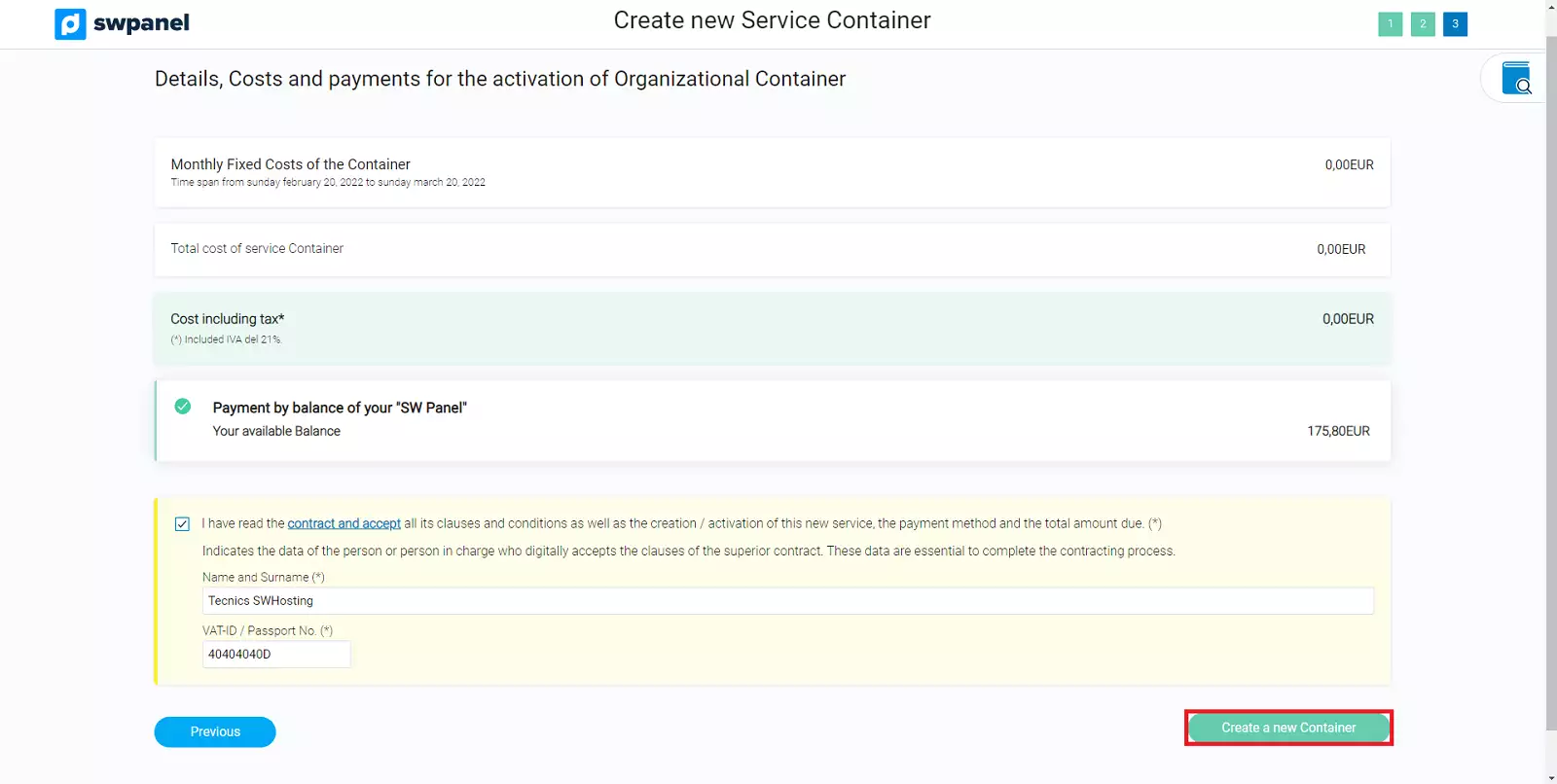
info_capture ℹ️ Note: The screenshot is for guidance purposes, taken from version 2026.001.0026 dated 04/05/2026. It may differ from the current version of SWPanel.
✅ Done! The services will be grouped within the new container.
You can check it in:
- SWPanel → Active Services Tree
Add services to a container
- Go to Active Services Tree
- Locate the container
- Click on the options menu (···)
- Select Modify this Container
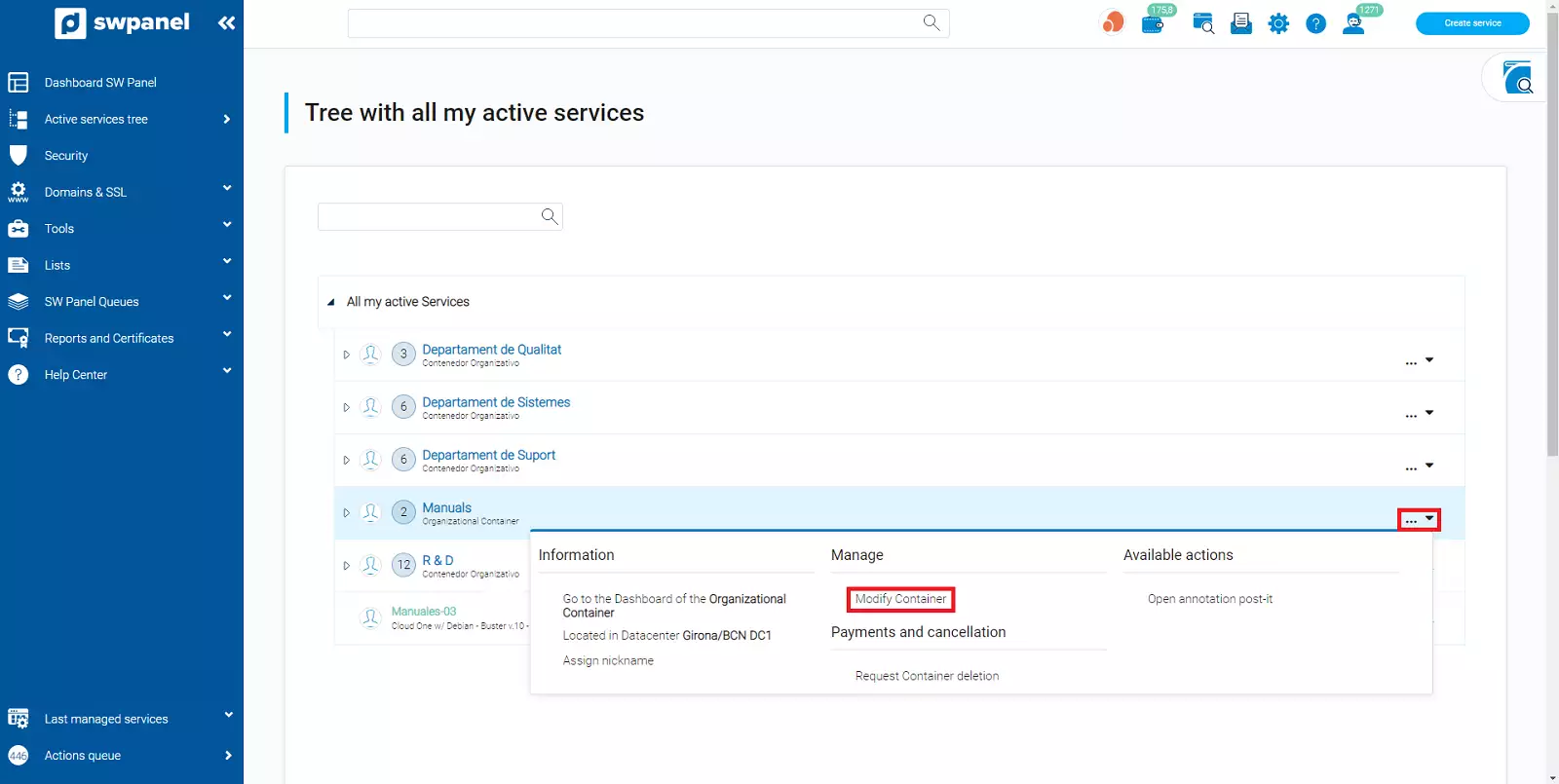
info_capture ℹ️ Note: The screenshot is for guidance purposes, taken from version 2026.001.0026 dated 04/05/2026. It may differ from the current version of SWPanel.
- Mark the services you wish to add
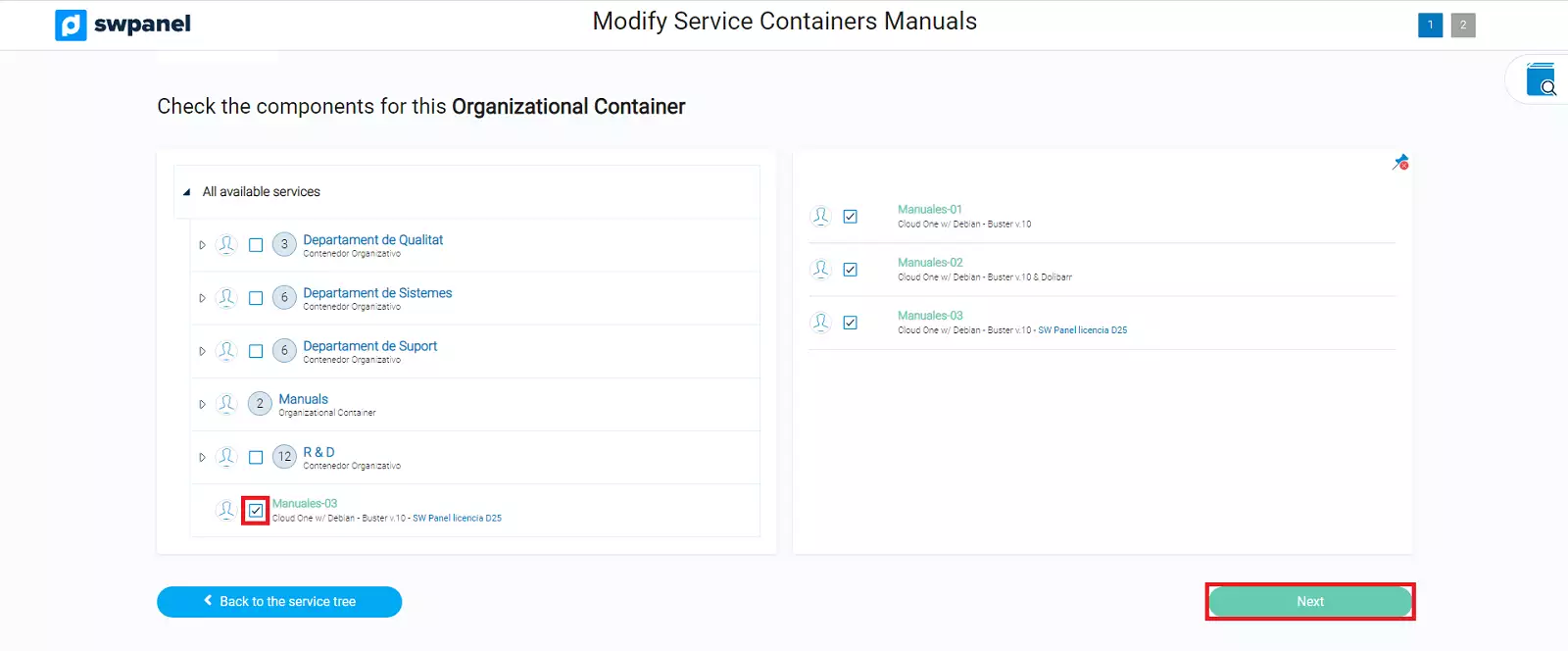
info_capture ℹ️ Note: The screenshot is for guidance purposes, taken from version 2026.001.0026 dated 04/05/2026. It may differ from the current version of SWPanel.
- Press Next → Modify Container
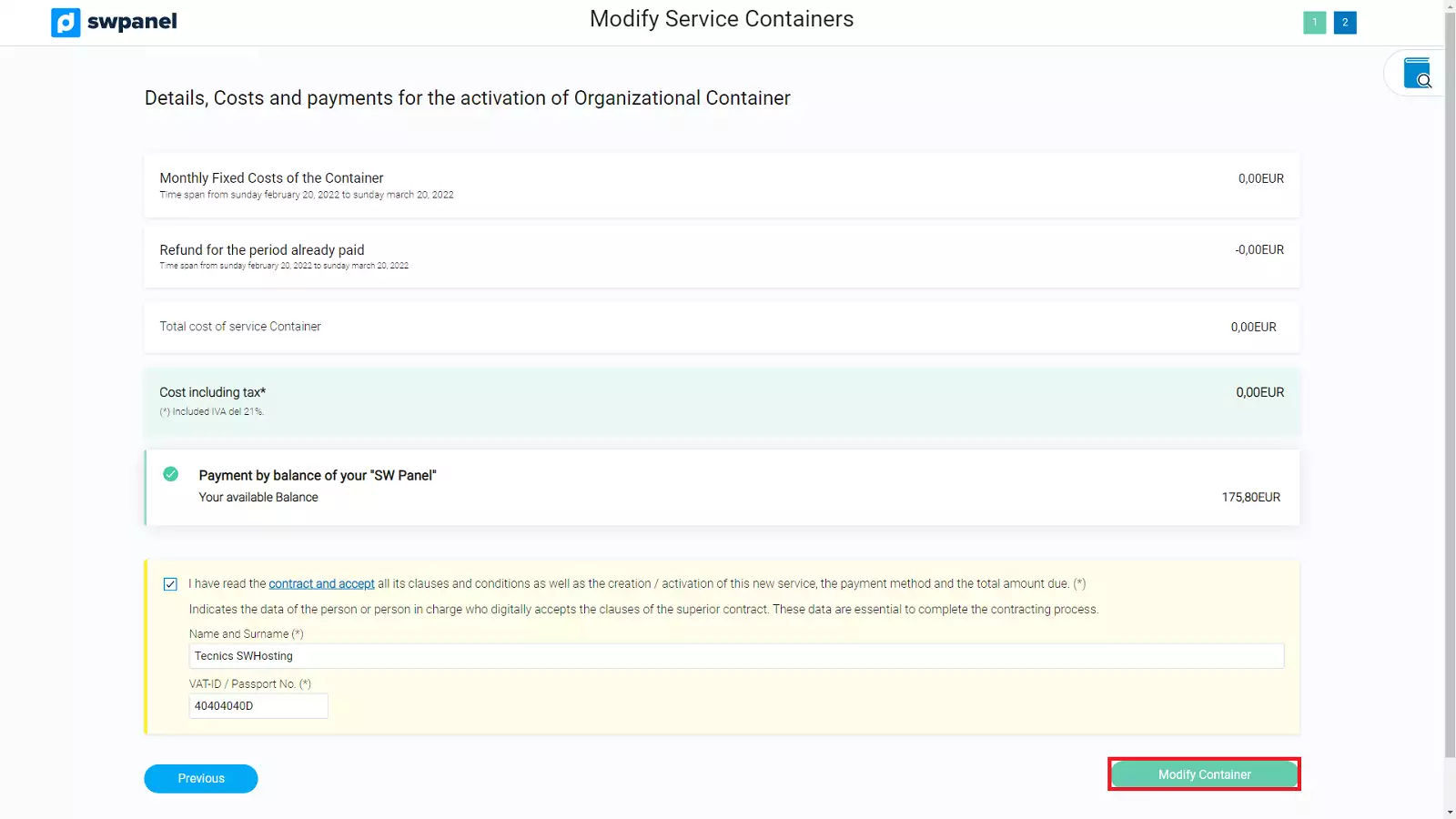
info_capture ℹ️ Note: The screenshot is for guidance purposes, taken from version 2026.001.0026 dated 04/05/2026. It may differ from the current version of SWPanel.
Remove services from a container
- Go to Active Services Tree
- Locate the container
- Click on (···) → Modify this Container
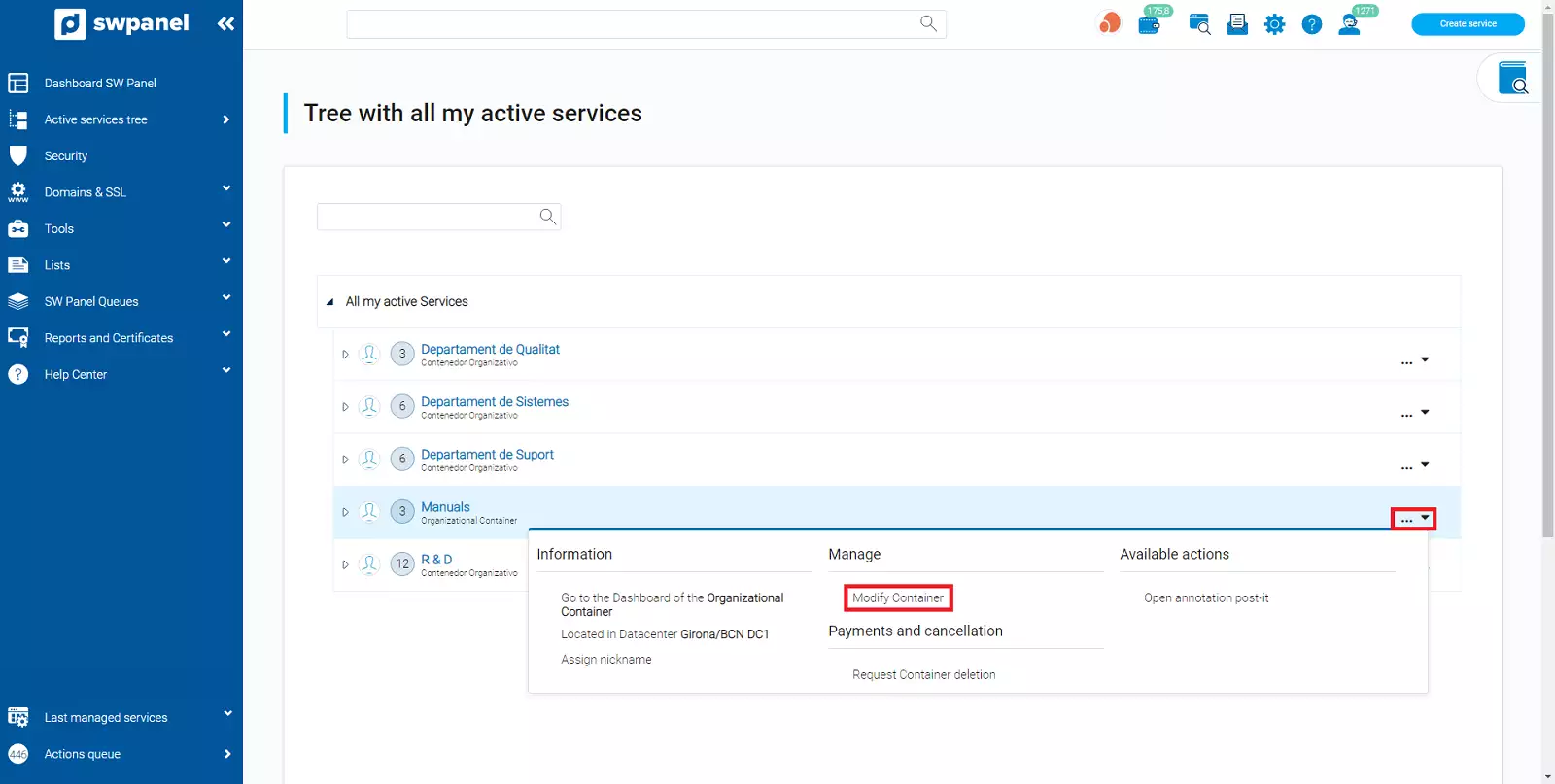
info_capture ℹ️ Note: The screenshot is for guidance purposes, taken from version 2026.001.0026 dated 04/05/2026. It may differ from the current version of SWPanel.
- Uncheck the services you wish to remove
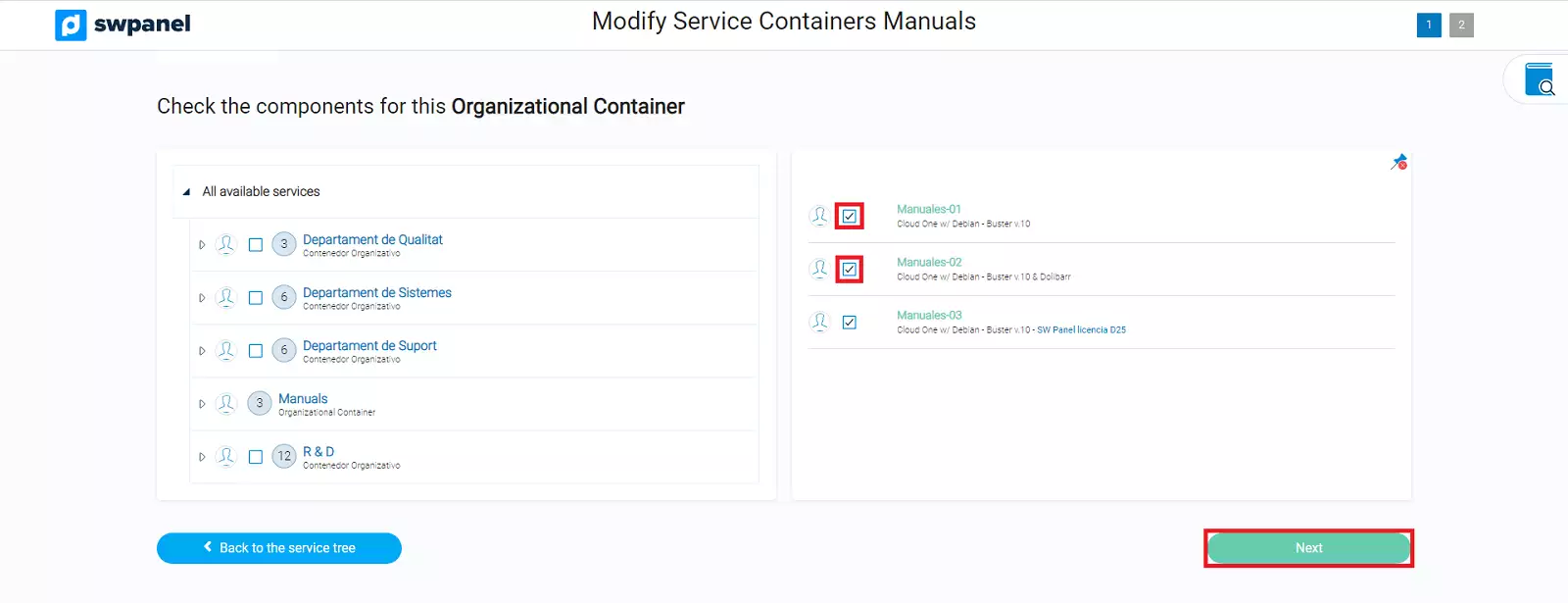
info_capture ℹ️ Note: The screenshot is for guidance purposes, taken from version 2026.001.0026 dated 04/05/2026. It may differ from the current version of SWPanel.
- Press Next → Modify Container
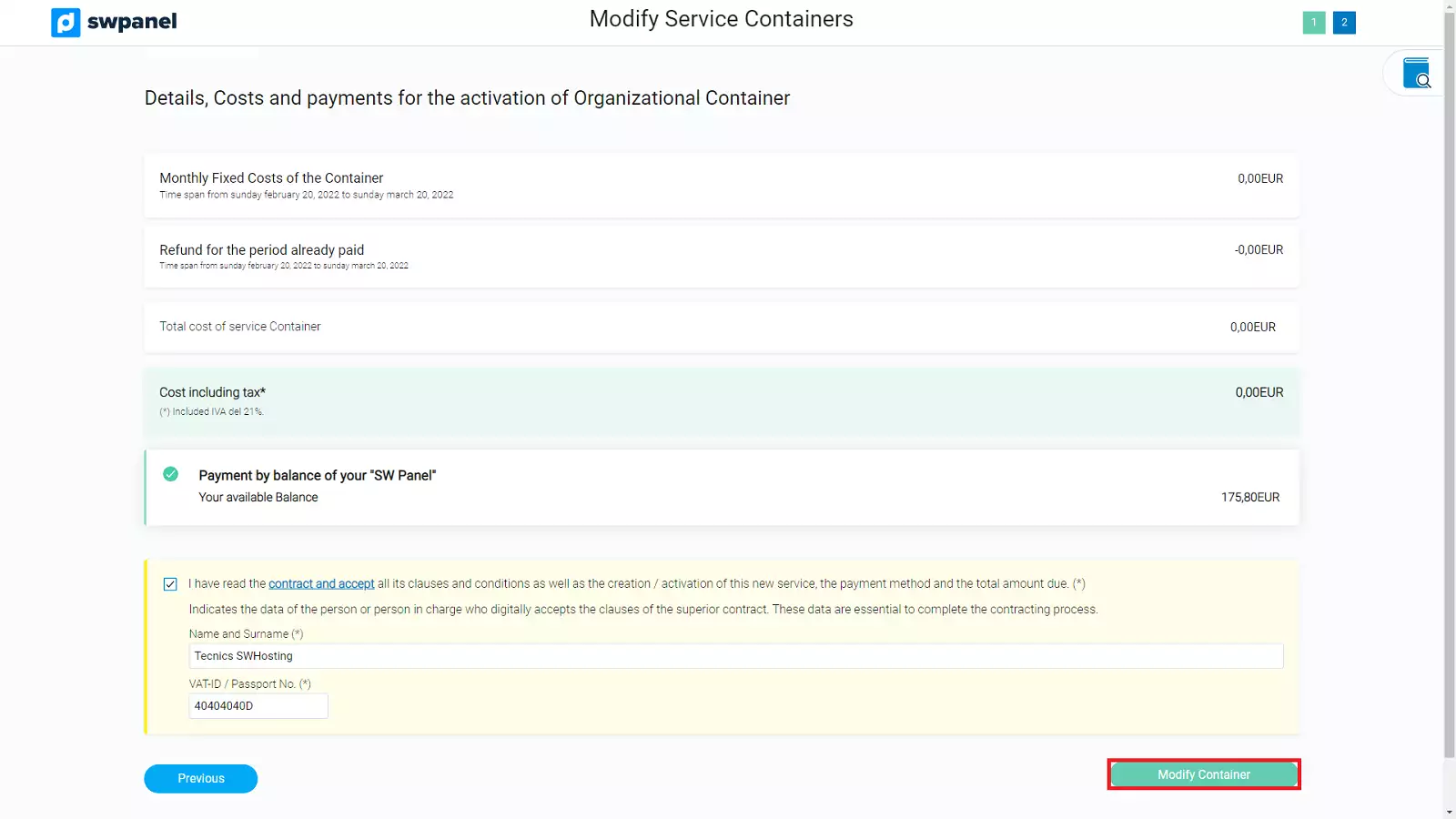
info_capture ℹ️ Note: The screenshot is for guidance purposes, taken from version 2026.001.0026 dated 04/05/2026. It may differ from the current version of SWPanel.
Rename a container
- Go to Active Services Tree
- Locate the container
- Click on (···) → Assign nickname
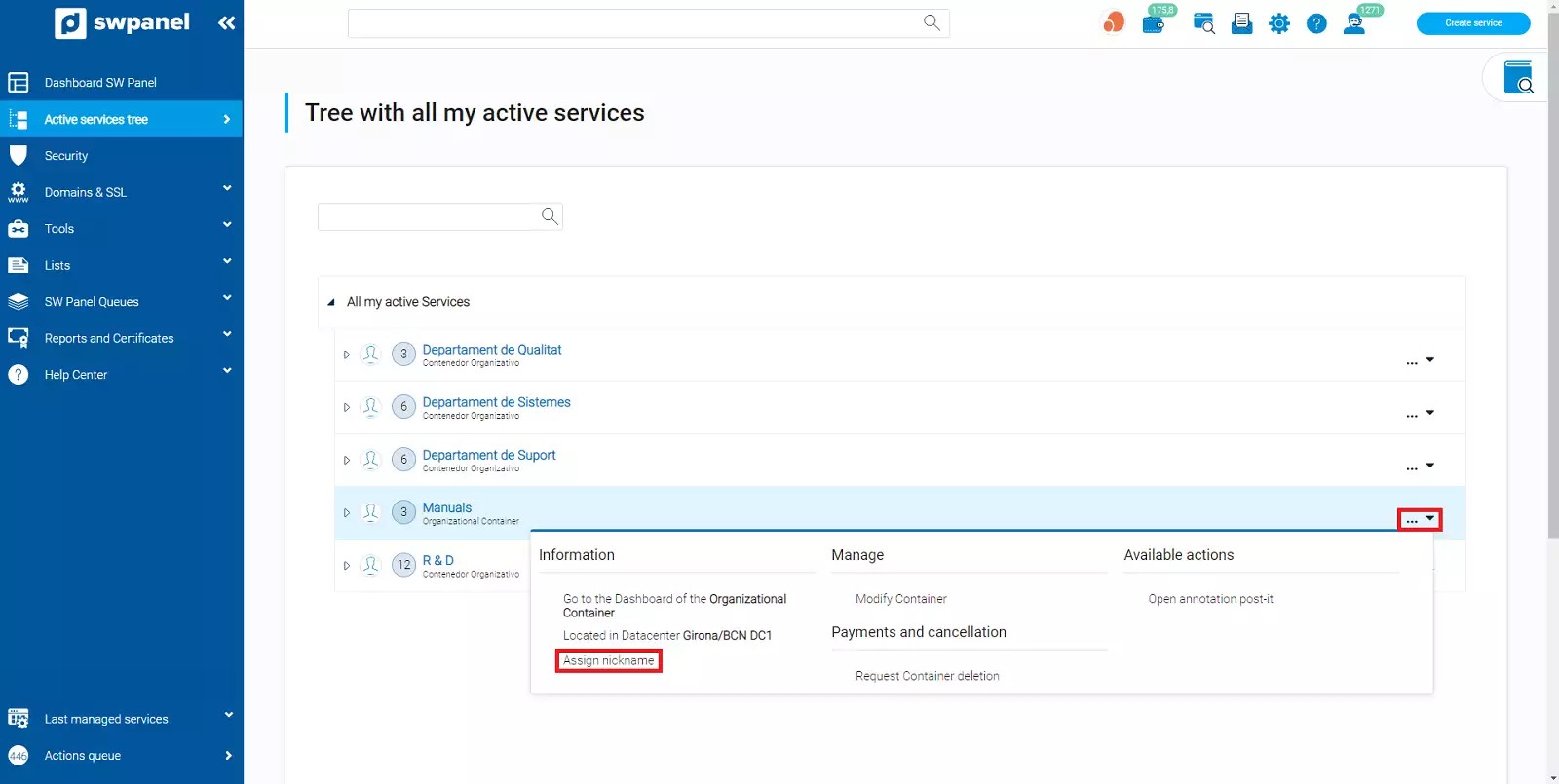
info_capture ℹ️ Note: The screenshot is for guidance purposes, taken from version 2026.001.0026 dated 04/05/2026. It may differ from the current version of SWPanel.
- Enter the new name
- Press Insert/modify
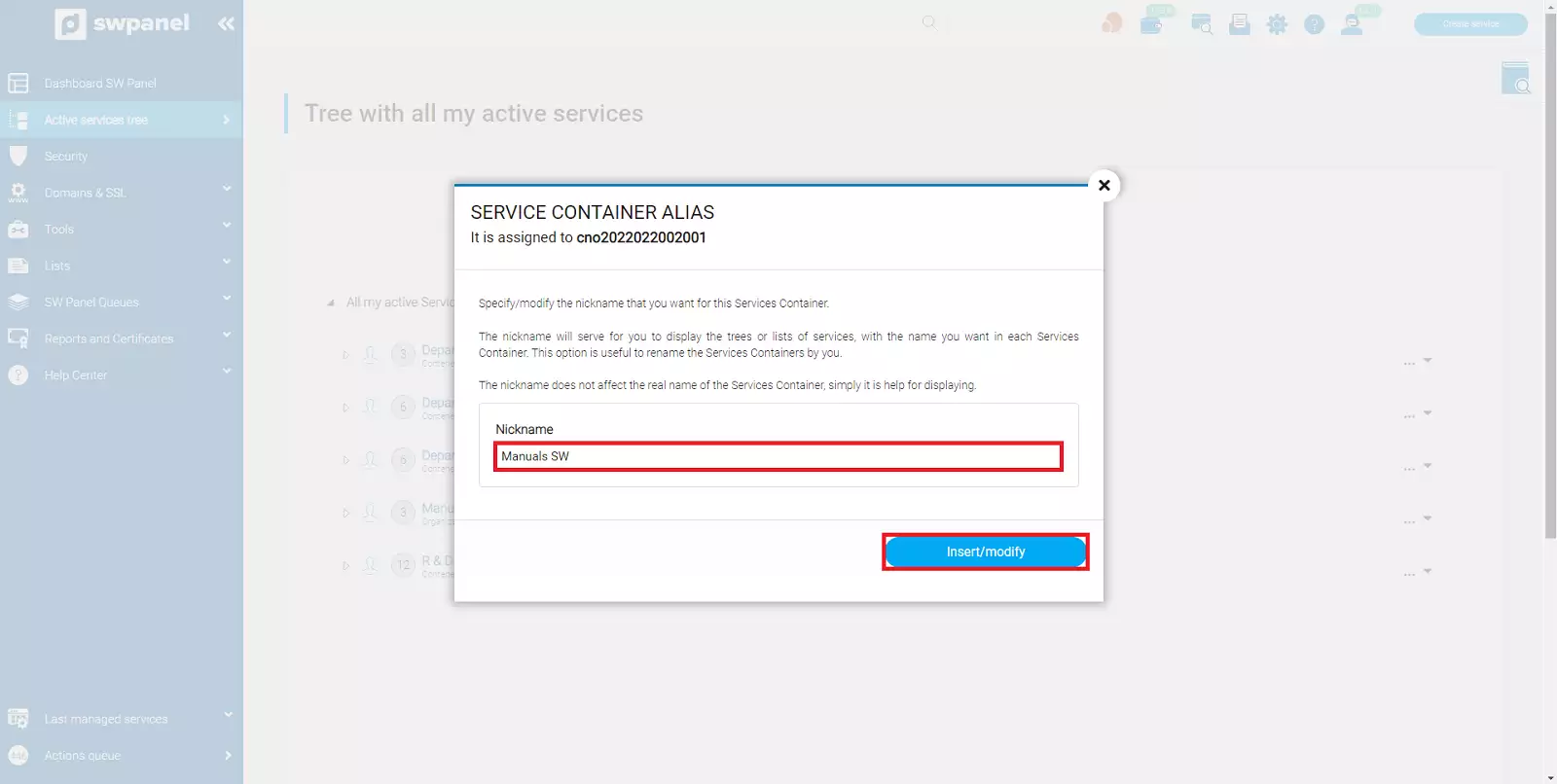
info_capture ℹ️ Note: The screenshot is for guidance purposes, taken from version 2026.001.0026 dated 04/05/2026. It may differ from the current version of SWPanel.
Delete an Organizational Container
⚠️ Important:
When deleting a container, only the container is deleted, not the services it contains.
The services will then be displayed without grouping in the tree.
Steps:
- Go to Active Services Tree
- Locate the container
- Click on (···) → Request Container removal
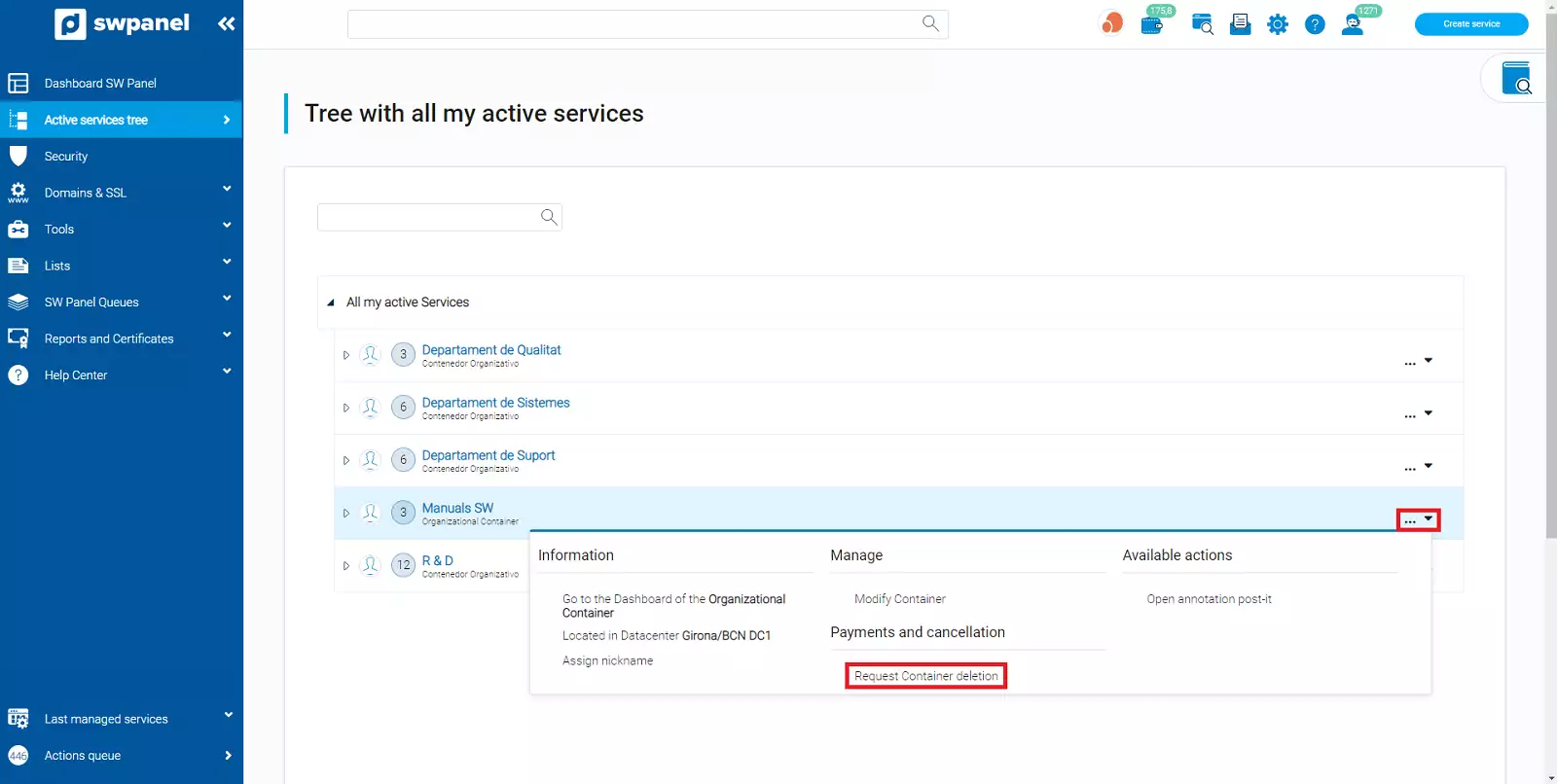
info_capture ℹ️ Note: The screenshot is for guidance purposes, taken from version 2026.001.0026 dated 04/05/2026. It may differ from the current version of SWPanel.
- Indicate when you wish to apply the removal
- Press Process service removal
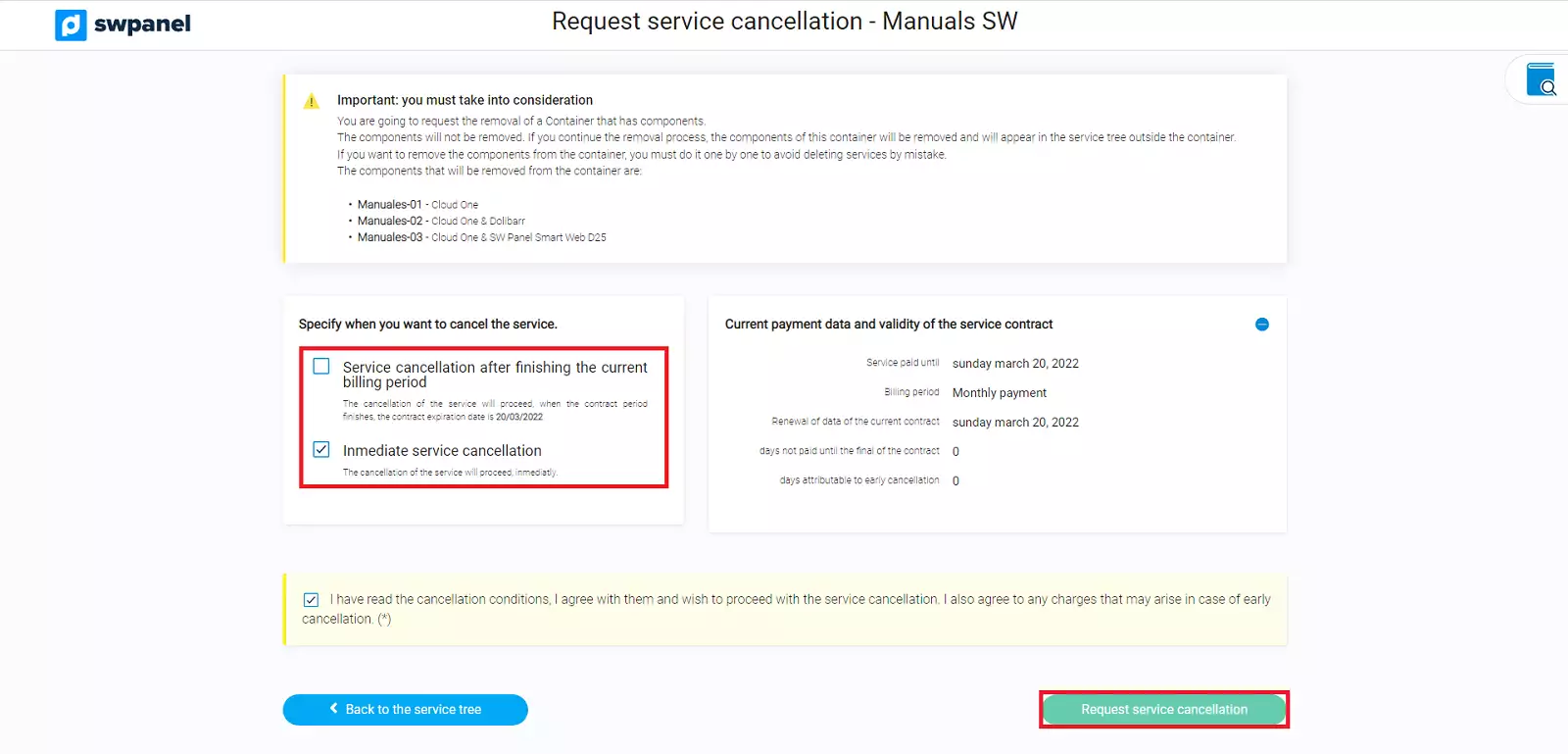
info_capture ℹ️ Note: The screenshot is for guidance purposes, taken from version 2026.001.0026 dated 04/05/2026. It may differ from the current version of SWPanel.