
Change of contact for a domain
Any change related to the Administrative Contact or the Technical Contact of a domain must be carried out through the SWPanel. However, this procedure applies to all extensions except for .es domains, which have a specific manual indicated below.
Access: go.swpanel.com and click on the “Domains and Certificates” tab, located in the blue left side menu -> Domain portfolio
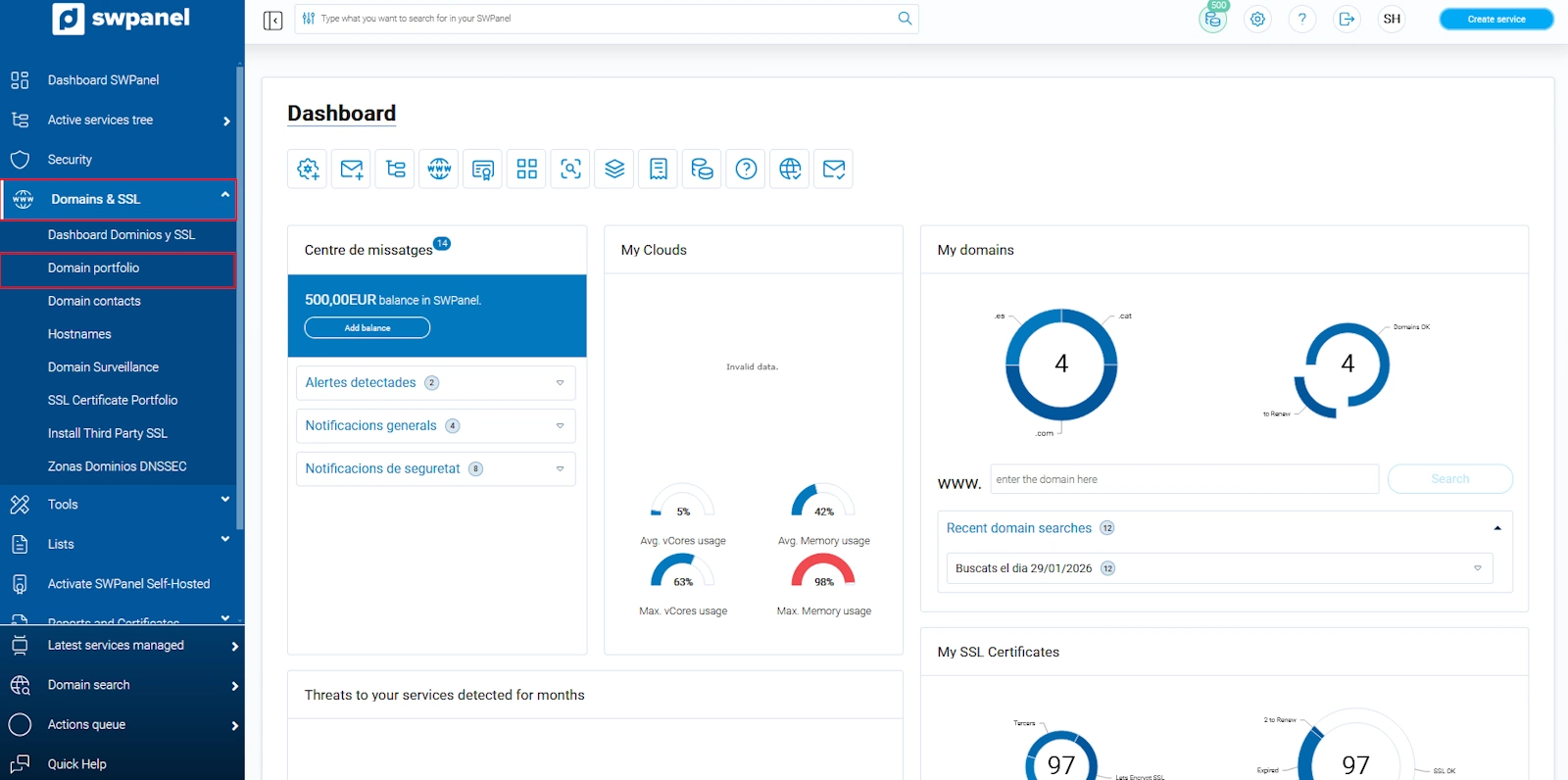
info_capture The screenshot is for guidance purposes. It was taken from version 2025.00.0017 dated 12/17/2024. It may differ from what the current version of SWPanel shows.
The first thing to do before changing a contact is to create a new one with the data we want to appear in the domain's whois. To create it, you must click on the “Contacts” tab and then press 'Create contacts'
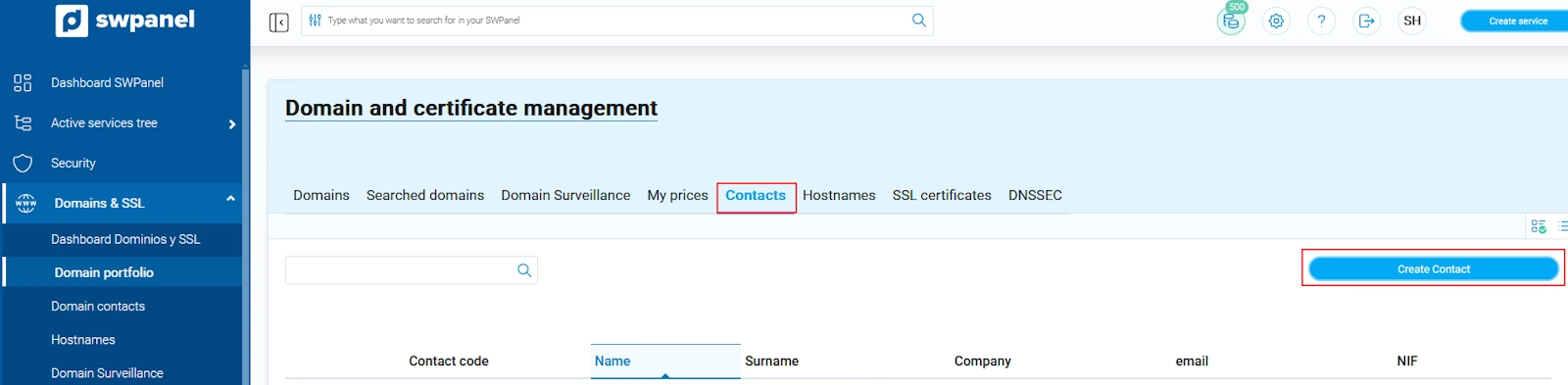
info_capture The screenshot is for guidance purposes. It was taken from version 2025.00.0017 dated 12/17/2024. It may differ from what the current version of SWPanel shows.
The contact creation form must be filled out and you must click on “Save contact”
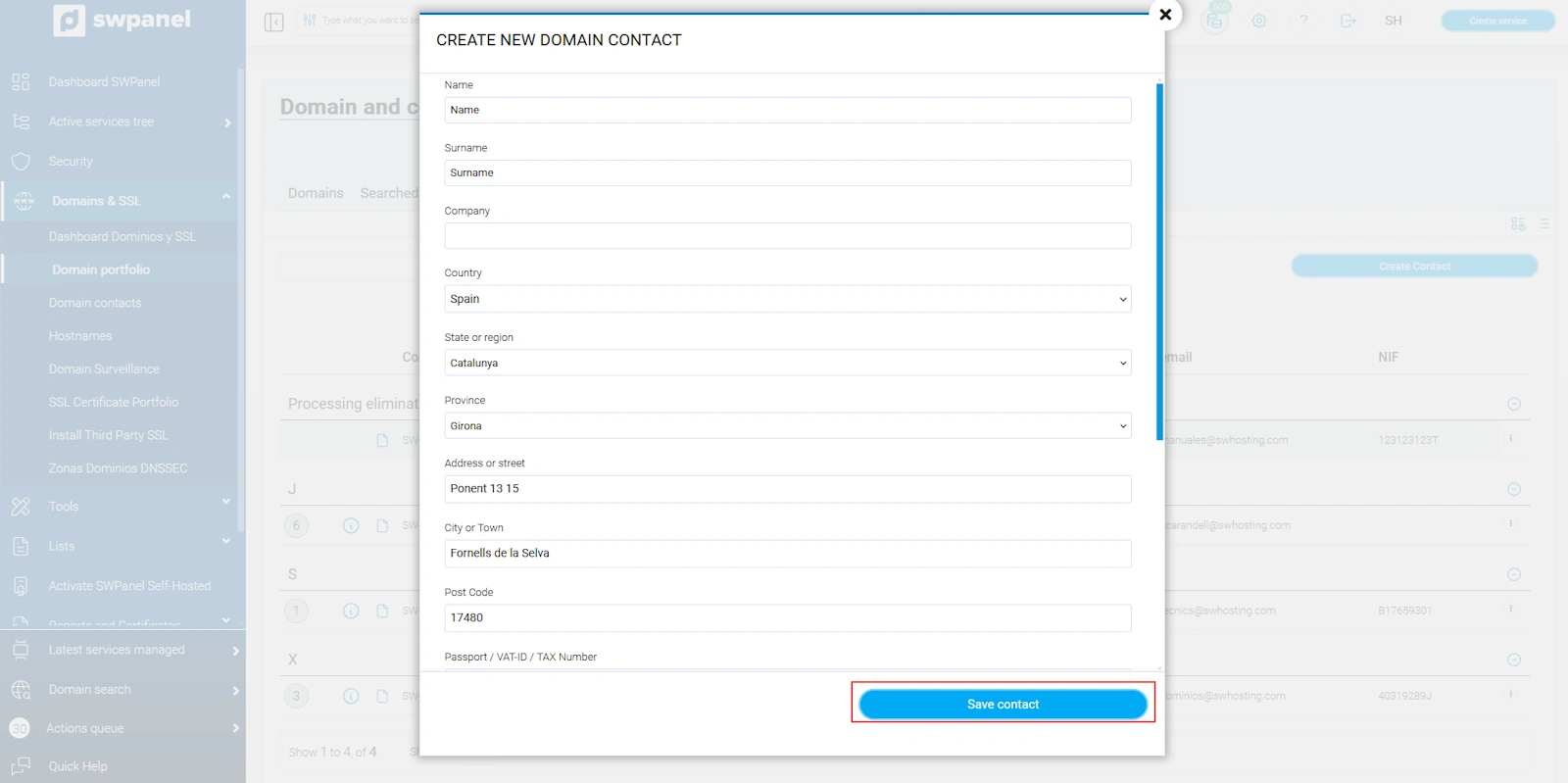
info_capture The screenshot is for guidance purposes. It was taken from version 2025.00.0017 dated 12/17/2024. It may differ from what the current version of SWPanel shows.
Once created, we will proceed to modify the current contact. To do this, you must select the “Domains” tab and expand the tab on the right of the domain. If you wish to change, for example, the administrative contact, you must click on “Administrative Contact Data”
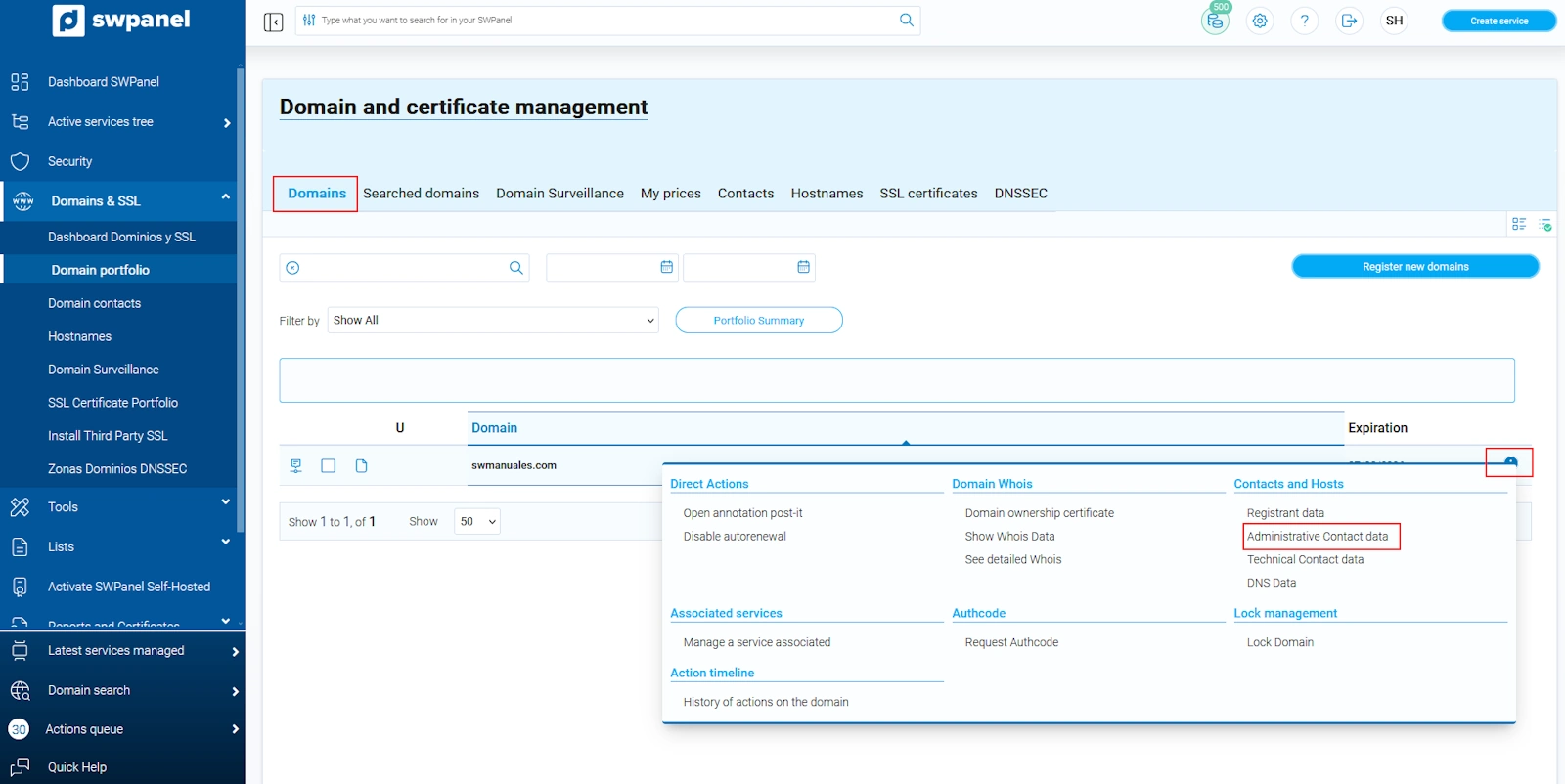
info_capture The screenshot is for guidance purposes. It was taken from version 2025.00.0017 dated 12/17/2024. It may differ from what the current version of SWPanel shows.
The current data of your domain will appear. We will click on Change contact.
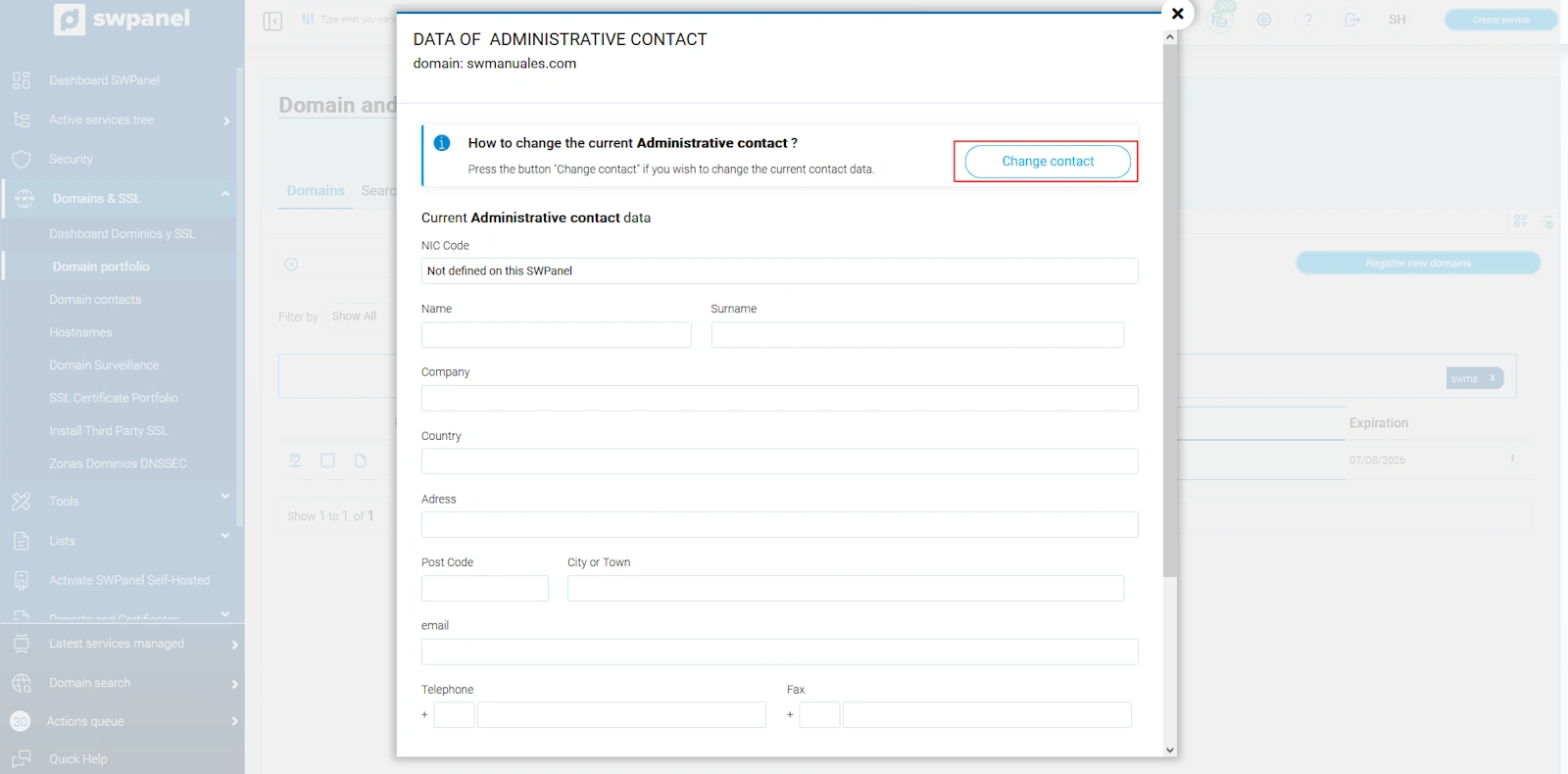
info_capture The screenshot is for guidance purposes. It was taken from version 2025.00.0017 dated 12/17/2024. It may differ from what the current version of SWPanel shows.
All the contacts you have created in your SWPanel will appear here. Select the desired contact and click on “Assign”
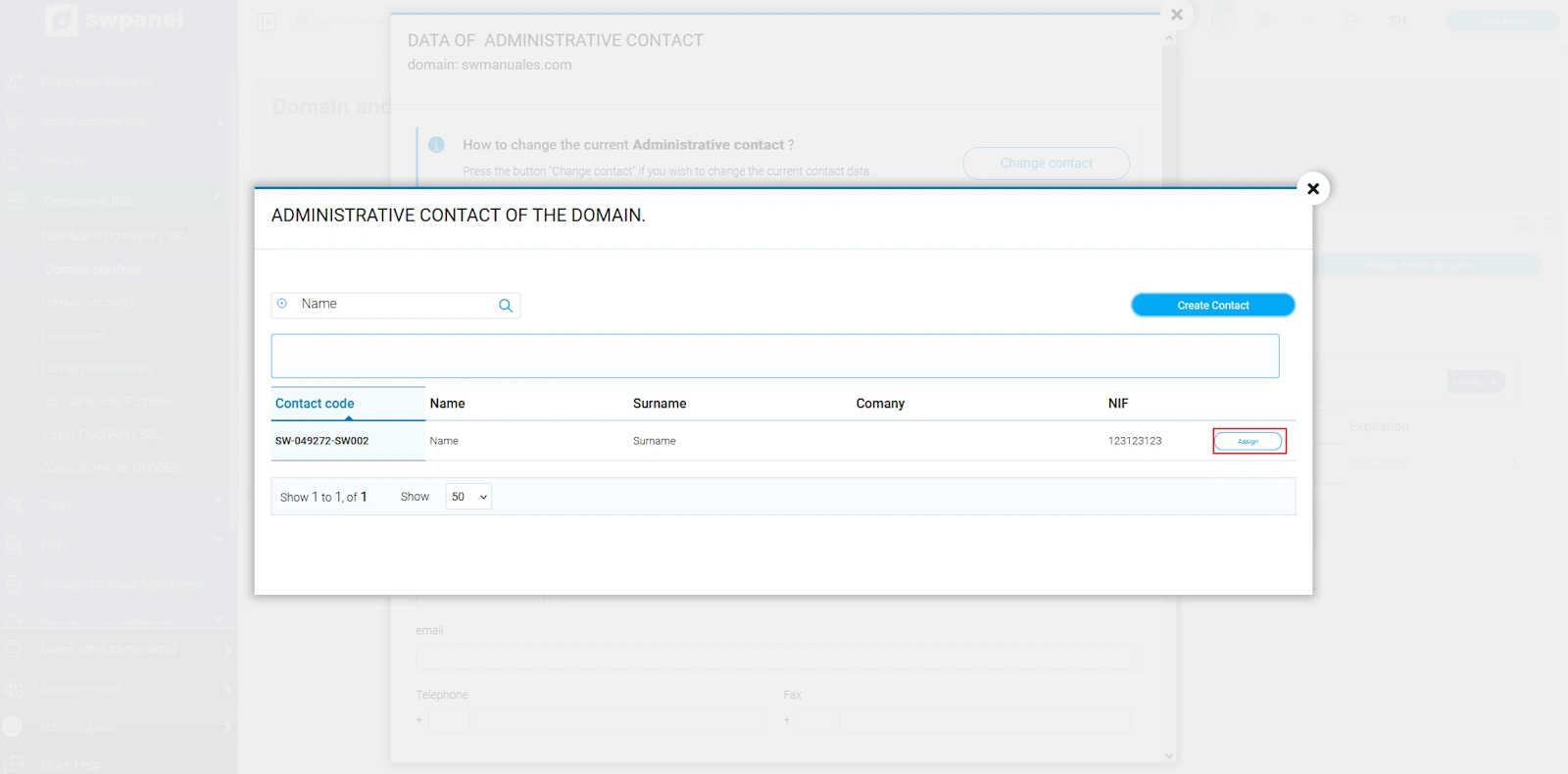
info_capture The screenshot is for guidance purposes. It was taken from version 2025.00.0017 dated 12/17/2024. It may differ from what the current version of SWPanel shows.
The change may take a few minutes. You will notice that to the left of the modified domain, an “updating” icon appears until the change has propagated.
We will repeat the same steps if the contact we want to modify is the Technical Contact of the domain.
info .ES DOMAINS: .es extensions strictly require the administrative and technical contact of the domain to be a natural person
Holder / Owner
GENERIC DOMAINS
On December 1, 2016, a new ICANN policy came into effect, as the highest authority in domain matters, which directly affects the process of changing ownership for generic domains.
As the entity responsible for managing Internet extensions globally, ICANN has established new mandatory rules and procedures for holders of generic domains (.com, .net, .org, info...) and new domains or ngTLDs (.eus, .blog, .futbol, etc.), but which do not affect territorial extensions such as .es.
In summary, the new regulation implies:
- The blocking of the domain for transfer for 60 days after the change of ownership.
A change of ownership will occur whenever any of the owner's data is modified and a new contact is attempted to be assigned.
The procedure for a change of ownership is carried out in the same way as a change of Administrative and Technical Contact.
.ES DOMAINS
Modifying the holder / owner of a .ES domain is slightly different from other domains, as it cannot be changed from SWPanel: it requires a special procedure with NIC.es. You can carry out this procedure yourself at NIC.es
If you need more information for .es domains, you can consult our manual ? Manual: Change of contact for a .es domain.