
Change WordPress password
If you have a WordPress installation from SWPanel and have lost the email with the original administrator credentials sent on the day of installation, or simply do not remember the access password, you can change it easily by following this manual.
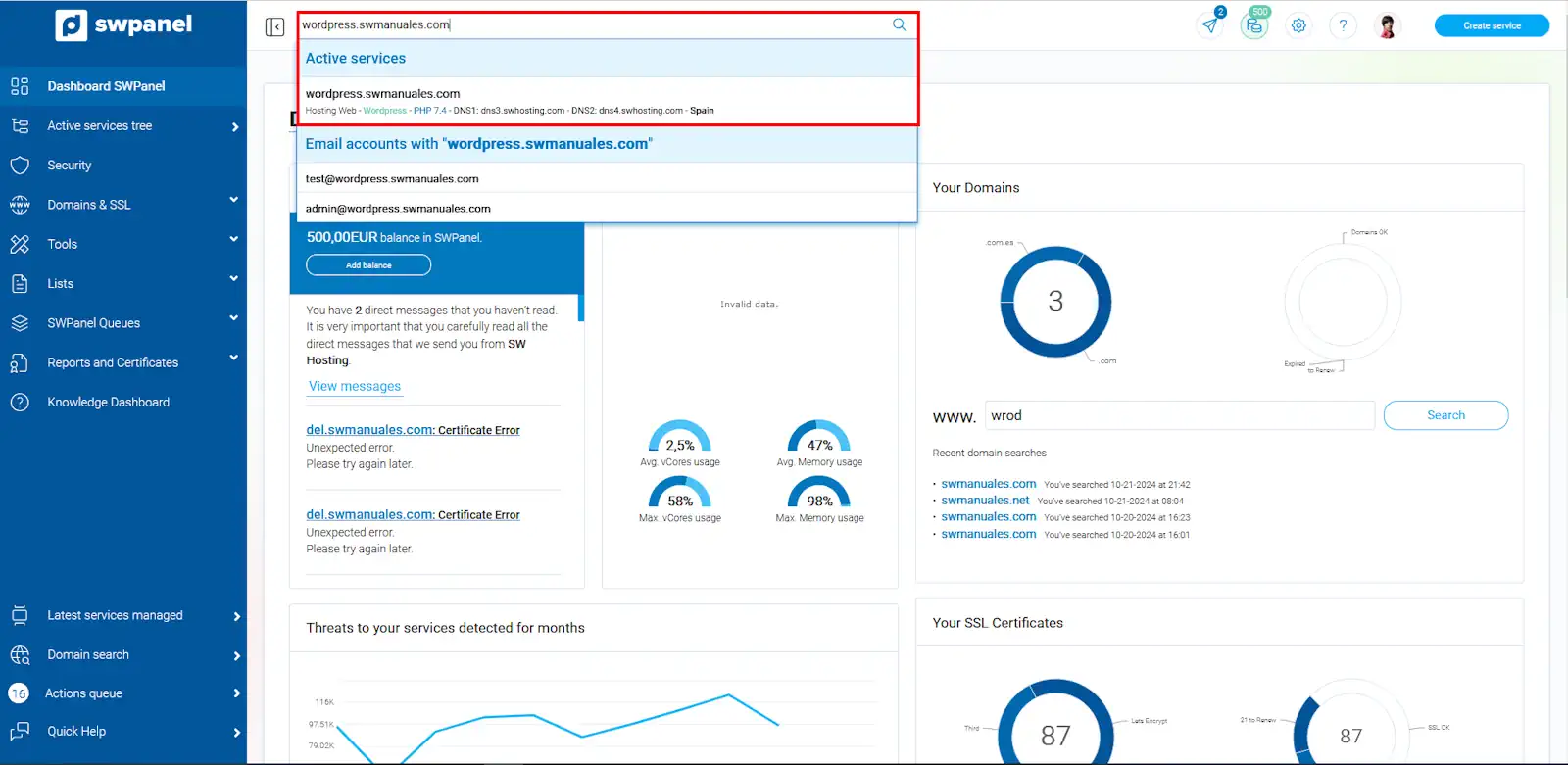
Access SWPanel and go to the Dashboard of your Hosting service using the service search or from the Active services Tree (side menu).
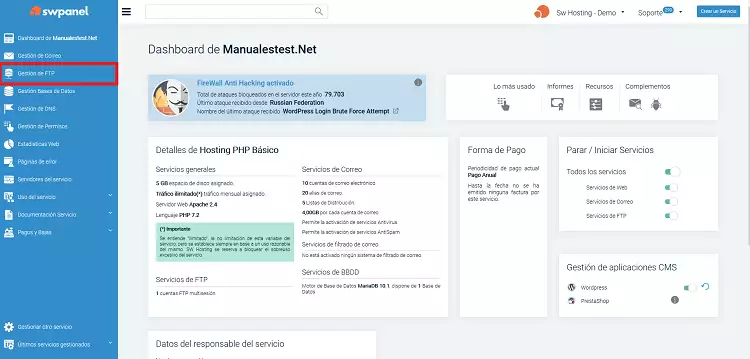
Next, go to the Manage WordPress → Change password section and click on the “Change” button.
Then, you can define a new administrator password for your WordPress. Once entered, press the “Yes, change” button to apply the changes.
The password change may take a few minutes to complete.
Manually installed WordPress
If your WordPress was installed manually and you have lost the access password, you can also recover it easily.
To do this, access the WordPress login page, usually available at:
https://www.mydomain.com/wp-admin/
Once there, click on the “Lost your password?” option and follow the instructions provided.
The system will ask for the email address associated with your WordPress user account to send you a recovery link.
If you do not remember the associated email or an error appears during the process, you can recover access by following the steps in the next section.
Changing my WordPress password without email access
If you do not have access to the email associated with your WordPress, you can recover access by directly modifying the password from the database.
For this, you will need:
- An FTP account with write permissions (RW)
- The WordPress database connection details
- Access to phpMyAdmin or any database manager
Normally, phpMyAdmin can be found at a URL similar to:
http://www.mydomain.com/phpmyadmin
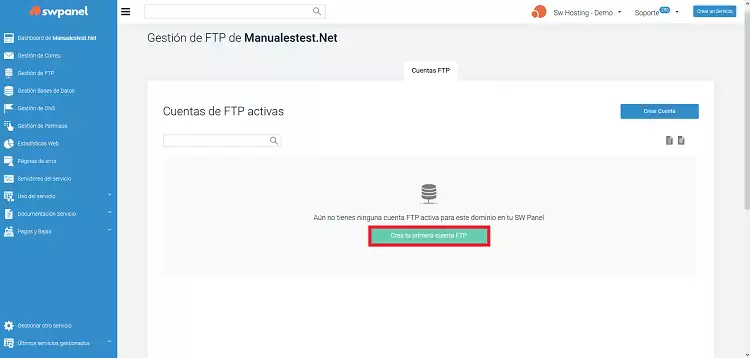
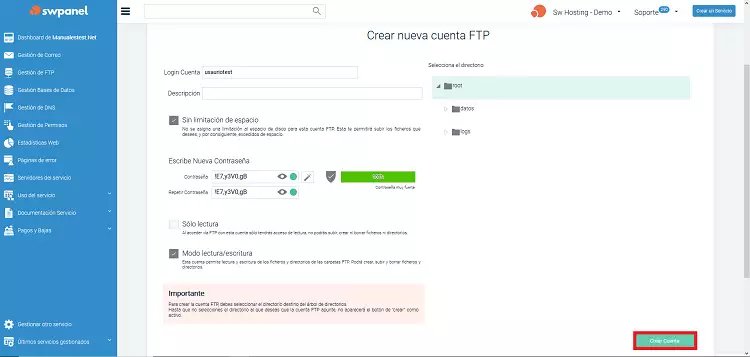
If you do not have access to your FTP account, consult the following manual: Manual: How to create an FTP account
Obtaining the database access details
Connect to your FTP account using FileZilla.
Inside the /datos/web/ folder, locate the wp-config.php file and right-click on it to select the “View/Edit” option.
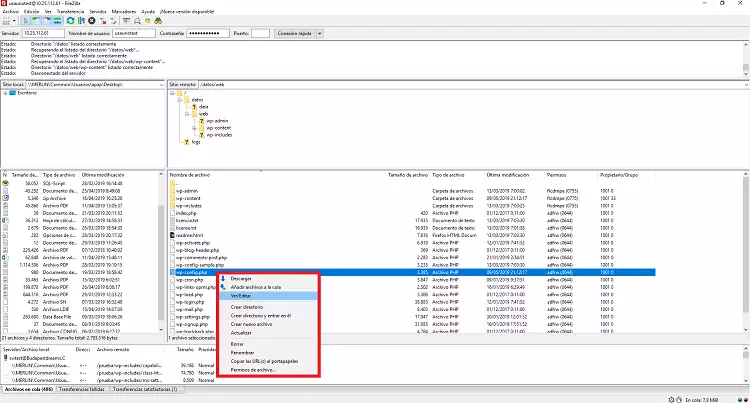
Inside the file, you will find, among other parameters, the database access username and password. Look for the following lines:
...

define('DB_USER', 'database_username');
...

define('DB_PASSWORD', 'database_password');
...
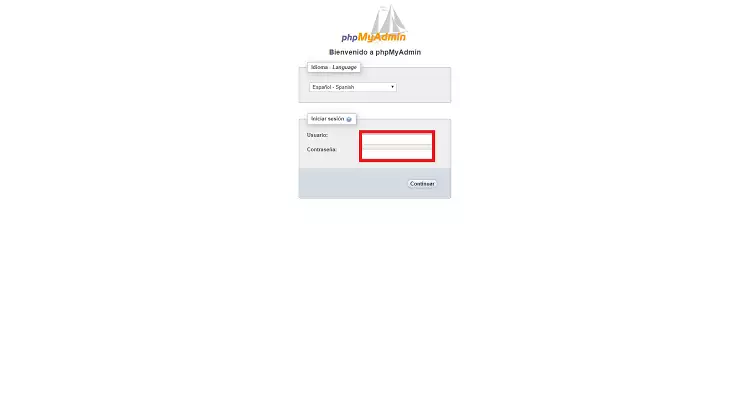
Accessing phpMyAdmin
Once you have the access details, enter phpMyAdmin from:
http://www.mydomain.com/phpmyadmin
Enter the username and password obtained in the previous step.
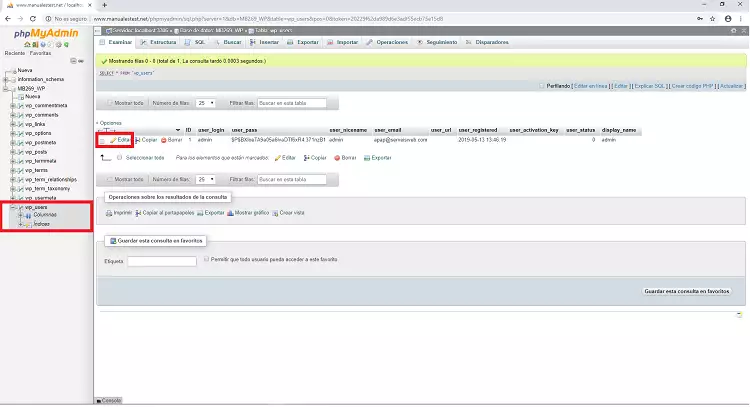
In the left side menu, locate the wp_users table and click on “Edit”, as shown in the following image:
Modifying the password
Look for the user_pass field and enter the new password you wish to use.
It is recommended to use a secure password that is easy to remember.
Ensure that the MD5 option is selected in the “Function” field.
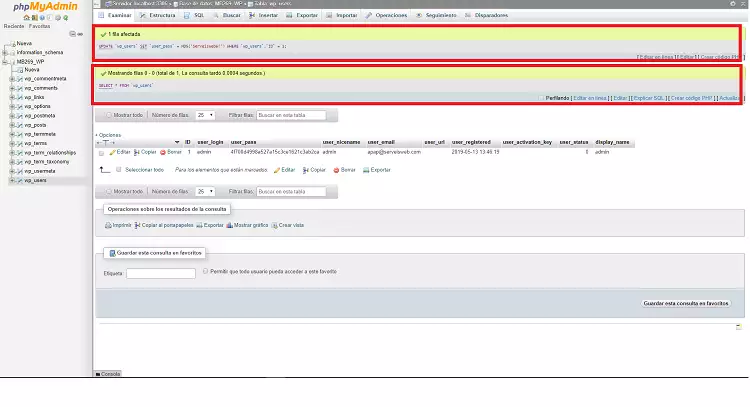
Finally, click on “Go” to save the changes.
If the process has been completed successfully, a screen similar to the following will appear:
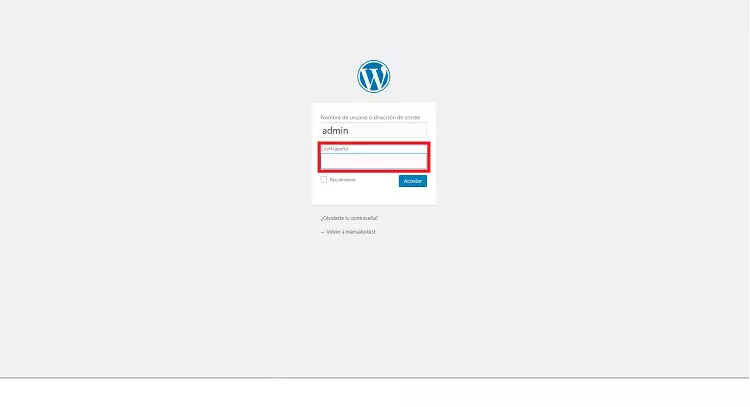
Now return to the WordPress administration page and try to log in with the new password.
success Done! You can now access your WordPress again using your new password.