
How to create a Hosting within a MultiCloud.
Applicable to: Cloud with the SWPanel Administration Panel, Cloud with Engineering Support. Other administration panels such as Vesta or cPanel do not have this option.
MultiCloud allows you to set up services within it in a matter of minutes, without needing to access the machine or have advanced computer knowledge, all from SWPanel.
In a MultiCloud, you can deploy a Web Hosting service to create your website, email accounts, DNS records, and databases in an easy and fast way. You can create a Web Hosting following these steps.
1. Within your SWPanel, use the search bar to find your Cloud; in our case, it is called manuales, yours will have a different name. Once you find it, select it.

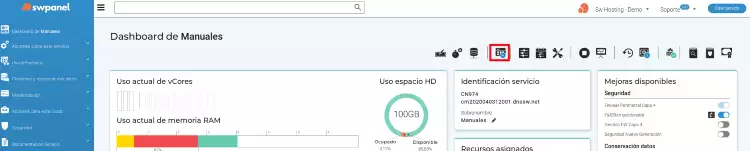
2. Now click on the image icon, Create a new service in this accumulator.
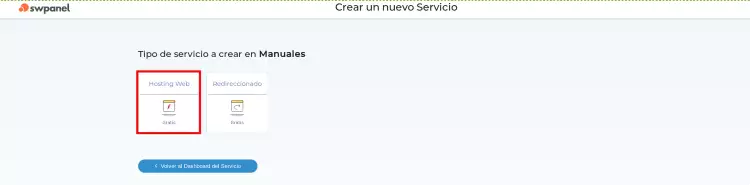
3. Select the type of service to be created, in this case Web Hosting.
4. Multicloud Distribution of the Web Hosting service.
-
If you have several servers: you can establish a distributed infrastructure (distributing our services among several servers).
-
If you do not have several servers, or if it is more convenient for you to host all services on the same server, select the server itself for each service.
You can also choose to leave some of them blank by unchecking the checkbox located on the right. In this way, the Hosting will not have an email service, database, or DNS.
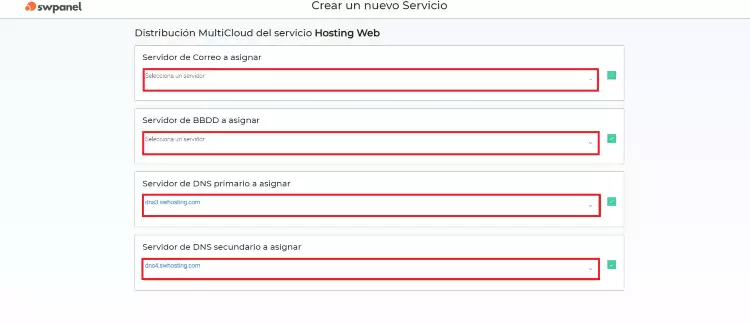
- Mail Server to assign: the Cloud where the mail will be hosted.
- DB Server to assign: the Cloud where the Database will be hosted.
- Primary DNS Server to assign: Primary DNS server.
- Secondary DNS Server to assign: Secondary DNS server.
5. Enter the domain name or subdomain of the Web Hosting. In this case, we will use the name manuales with the .com extension as an example.
For more information about domains and their registration process, consult our Manual: Domains.
By default, the default option of 'Create only 1 Hosting service' appears, although if you wish, you can use the option 'Create multiple Hosting services' to create different Hosting services at the same time.
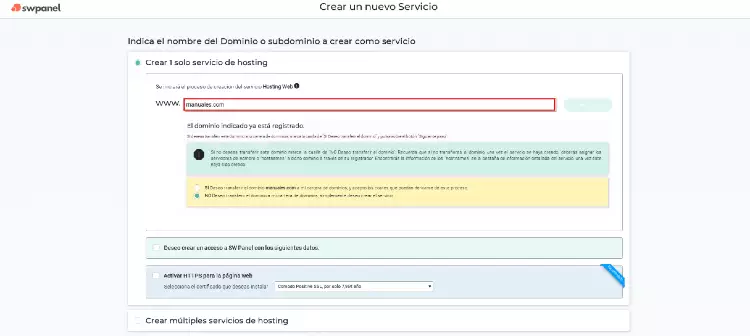
Next, click the Verify button and SWPanel will check if the domain is available and offer you different options:
-
Register the domain if it is available.
-
Transfer the domain if it is already registered.
-
Activate the service without registering or transferring the domain.
Depending on what is requested, different options will be loaded. In this example, we only create the Hosting service without registering or transferring the domain, as shown in the previous screenshot.
I wish to create access to SWPanel with the following data: This allows you to create an SWPanel user and assign a profile (which you must have created previously) so that they can manage only the newly created Hosting.
Activate HTTPS for the website: You can choose a type of certificate to display your website as secure:
- Comodo Positive SSL.
- Comodo Essential SSL.
- RapidSSL Certificate.
- Let's Encrypt SSL.
- Comodo Positive SSL Wildcard.
- Comodo Essential SSL, Wildcard.
Click on the link for more information and to learn about the different types of SSL certificates. Manual: SSL Certificates
6. Now you can adjust your new service to your needs. The available options will vary depending on the characteristics of the Cloud on which the service is being created.
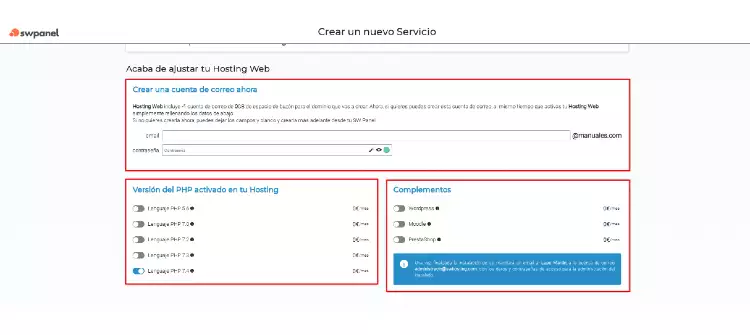
Create an email account now: This allows you to create your first email account. If you wish, you can leave it blank to create it later by following the following Manual: Email.
PHP version activated on your Hosting: This allows you to select the PHP version for the Hosting. The version can be changed later depending on your Cloud instance.
Plugins: This allows you to install a CMS or content manager. Currently, you can choose between WordPress, Moodle, or Prestashop.
7. Formalization and acceptance. Finally, review the data that appears; the cost of the action to be performed (if any) and the data of the person making the request will be presented. Proceed by clicking on Accept and create:
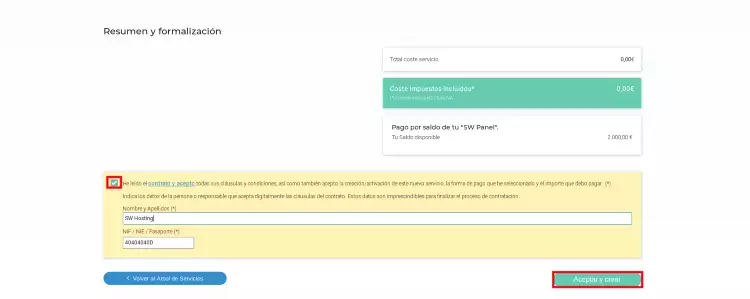
Done! Your new service will be operational in a few seconds.