
How to register a domain from SWPanel
To register a domain in SWPanel, first access your private customer area using your username and password.
Once you are in the Dashboard of your SWPanel, there are two different routes to register a domain:
- Quick and easy method:
- From the Dashboard, in the “Your domains” section located on the right, enter the domain name you wish to register along with its extension (for example,
.com,.net). - Click on “Search” to verify the availability of the domain.
- If the domain appears as “Available”, select “Register” to continue with the process.
- From the Dashboard, in the “Your domains” section located on the right, enter the domain name you wish to register along with its extension (for example,
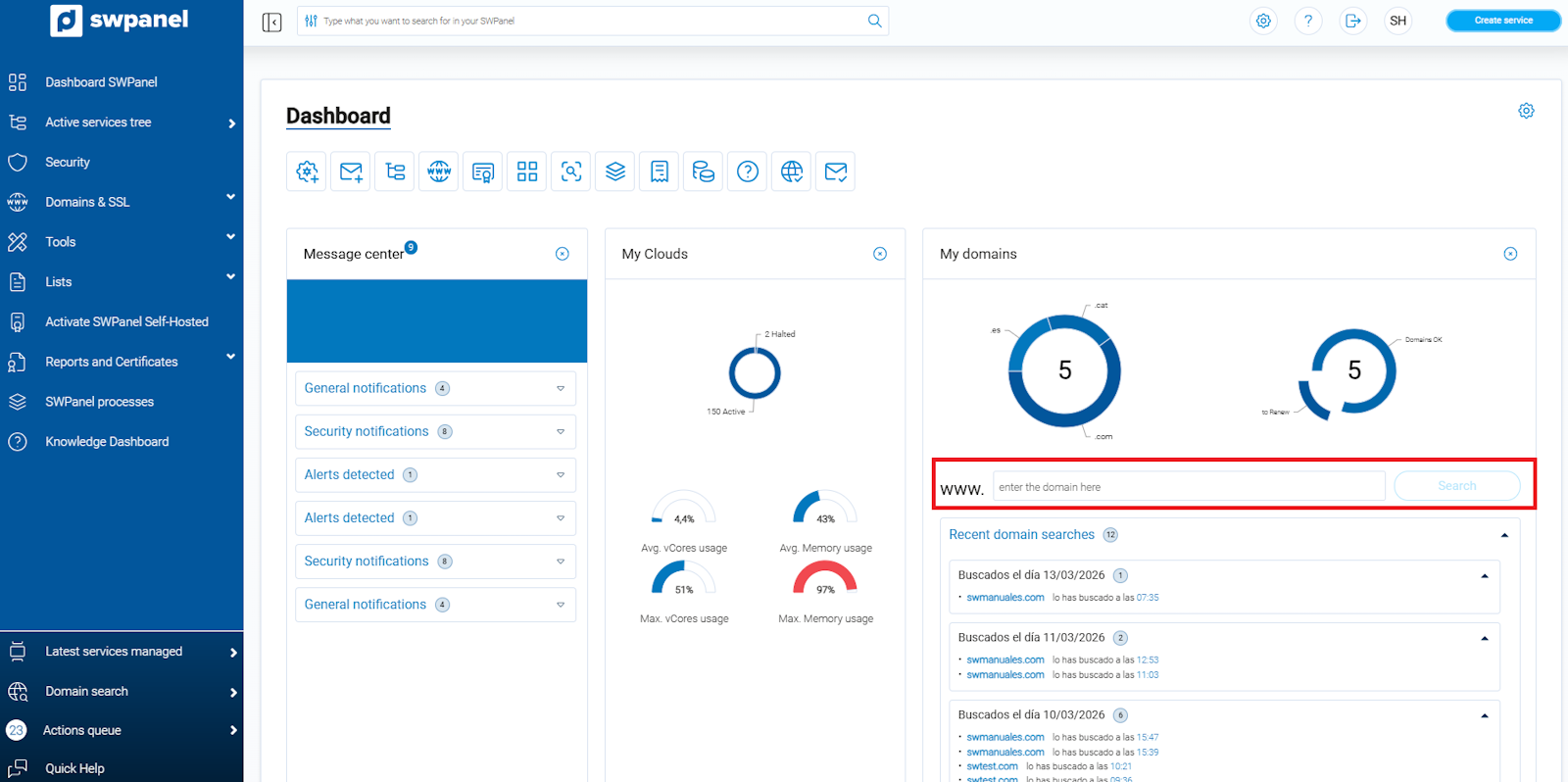
info_capture ℹ️ Note: The screenshot is for guidance purposes, taken from version 2026.000.0030 dated 15/03/2026. It may differ from the current version of SWPanel.
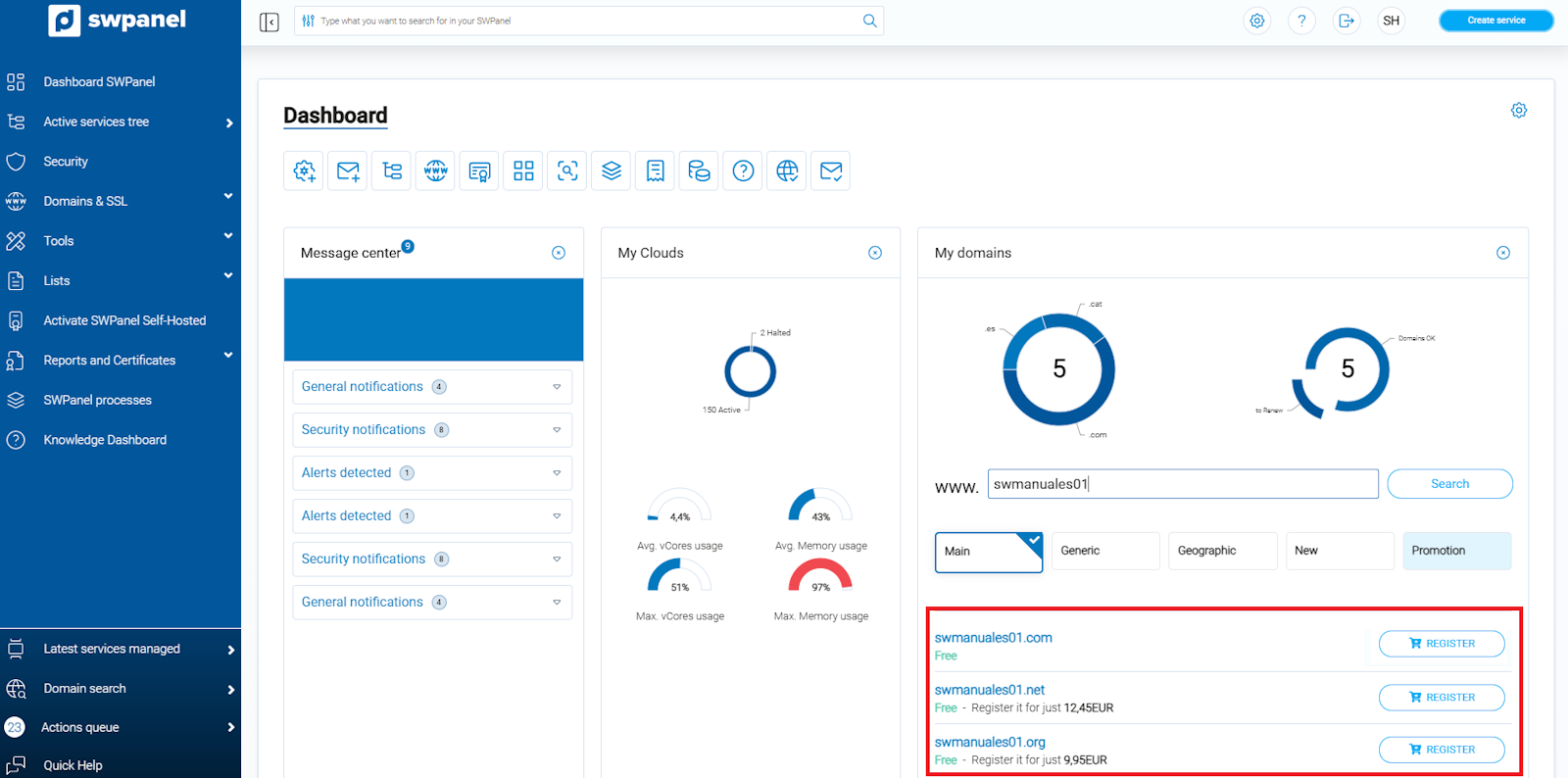
info_capture ℹ️ Note: The screenshot is for guidance purposes, taken from version 2026.000.0030 dated 15/03/2026. It may differ from the current version of SWPanel.
- Through the “Domains and SSL” section:
- In the blue menu on the left side of your screen, click on “Domains and SSL”.
- Select your domain portfolio. (If you do not have any domains registered with us yet, the option to register a new one will be displayed directly.)
- On the right side, click the “Search domain” button to start the availability verification.
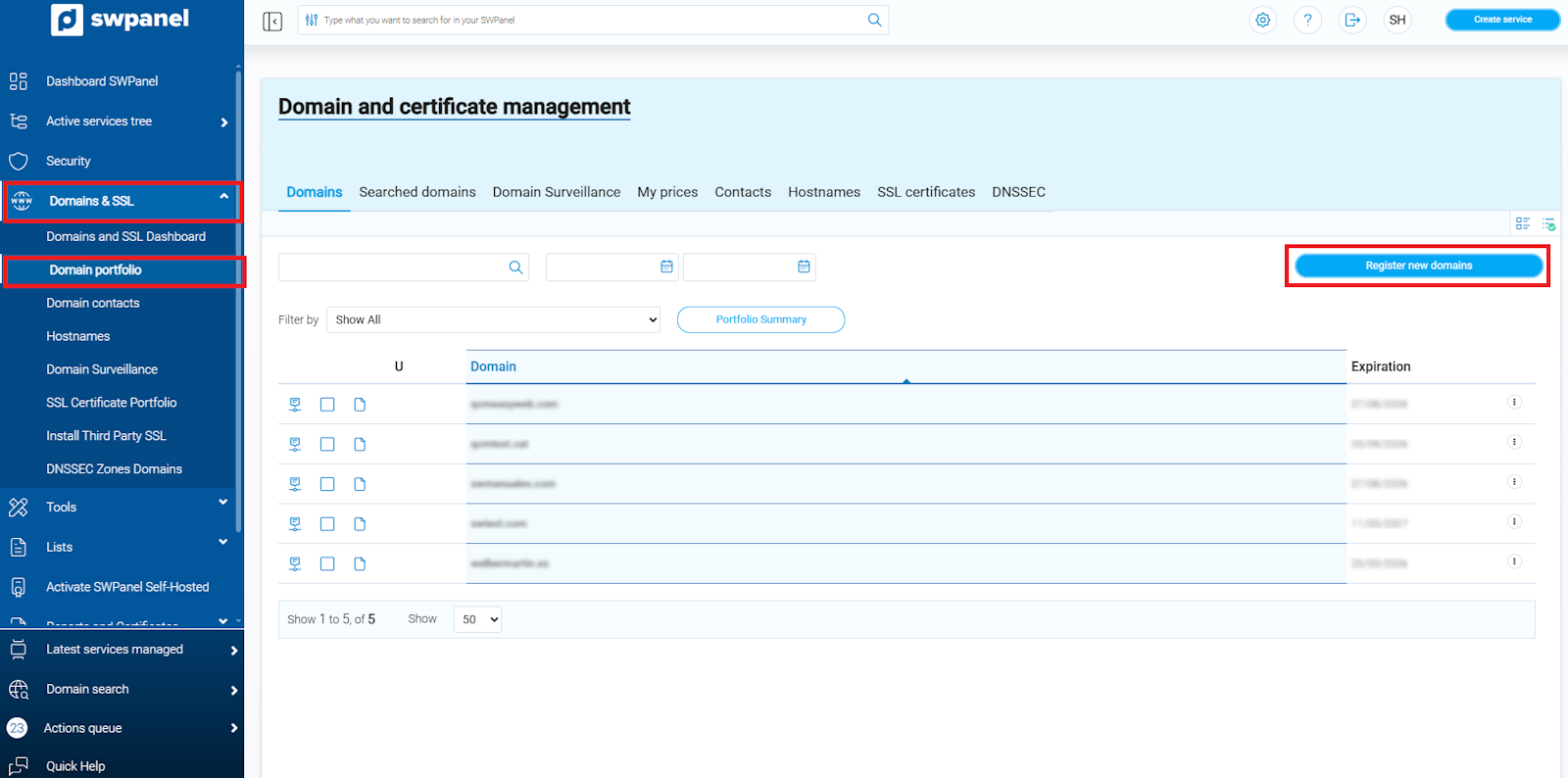
info_capture ℹ️ Note: The screenshot is for guidance purposes, taken from version 2026.000.0030 dated 15/03/2026. It may differ from the current version of SWPanel.
From this section, you can search for your domain in the same way as in the quick method described above.
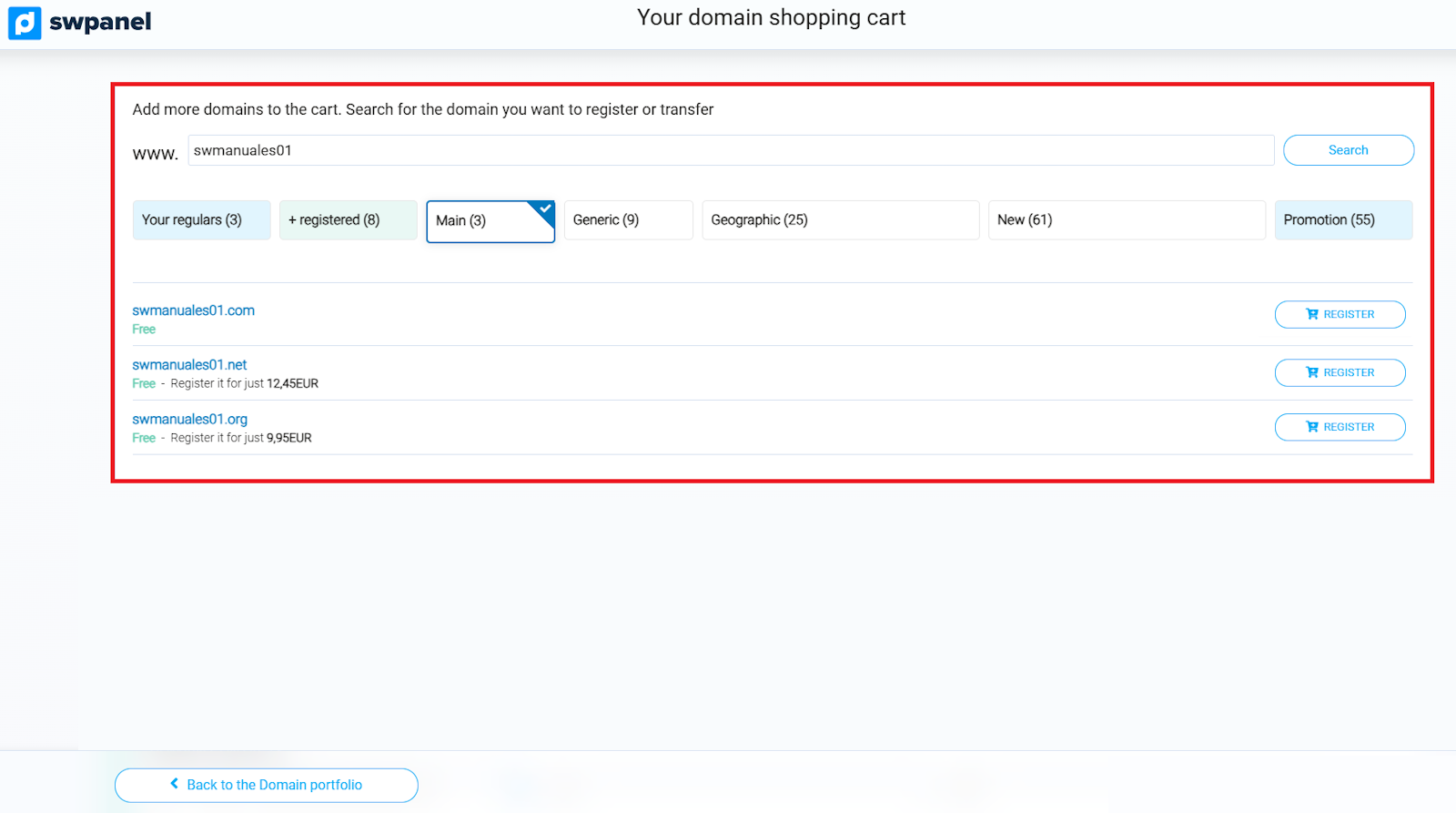
info_capture ℹ️ Note: The screenshot is for guidance purposes, taken from version 2026.000.0030 dated 15/03/2026. It may differ from the current version of SWPanel.
In this step, verify if the domain you wish to register is available or what its current status is.
If the domain is available, a “Register” button will appear, allowing you to start the registration process.
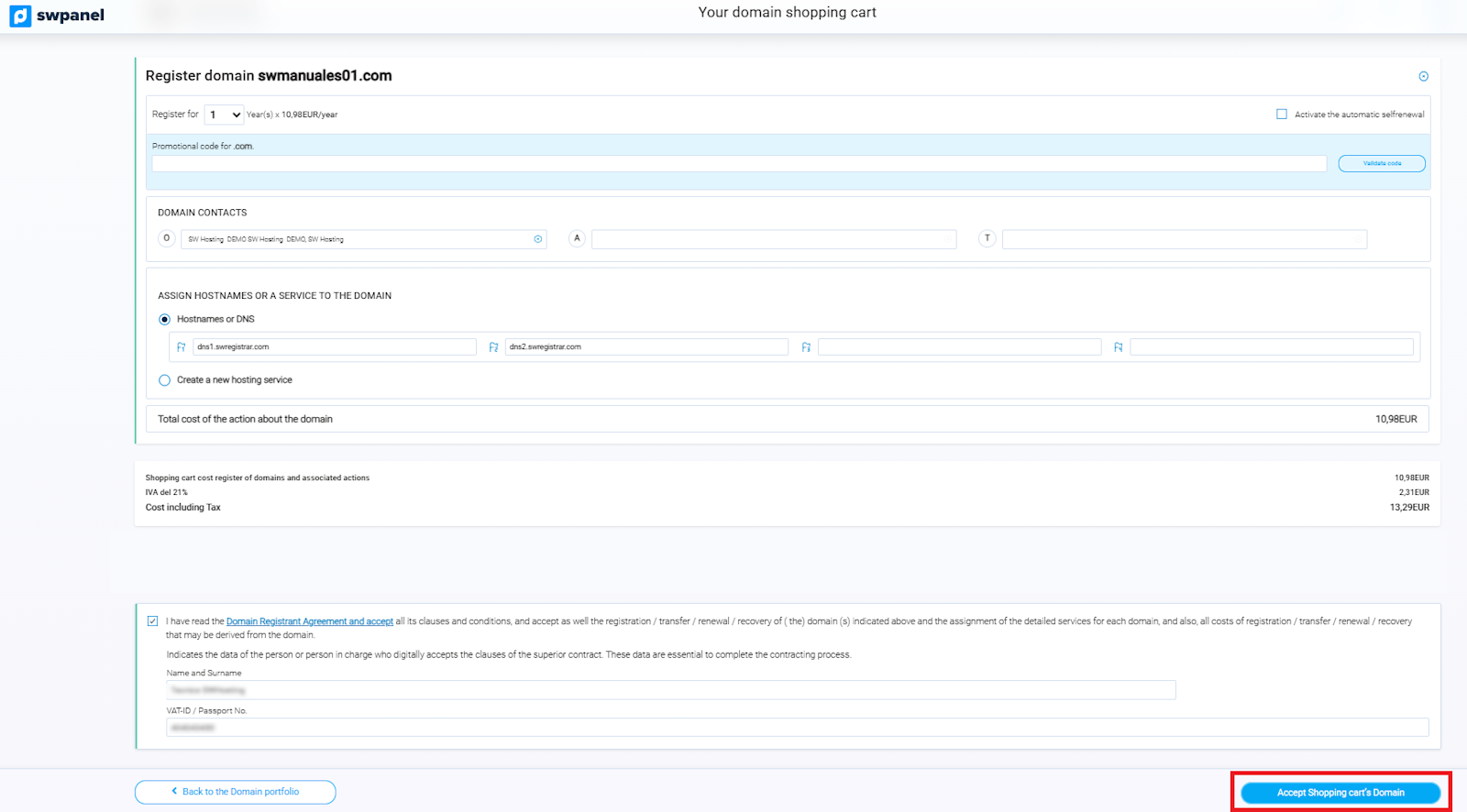
Once the domain has been added to the shopping cart, you will be able to finalize the transaction by accepting the purchase.
Remember that:
- It is necessary to assign three contacts to the domain in order to register it (see the “How to create a contact?” section below).
- You can assign the hostnames you wish or create a new hosting service for your domain.
To create a new contact for your domain, you can follow this manual: ? Manual: Change of contact for a domain.
Important: If the domain has a .es extension, both the administrative contact and the technical contact must be natural persons with their corresponding DNI/NIE.
Once the domain is registered, you will receive an email at the address in your contact profile notifying you of the domain status.
Additionally, in accordance with ICANN regulations and as explained in manual ? Manual: Whois Accuracy, you will receive another email at the address of the domain owner with a link to verify your email address.
Important: You must attend to this email and validate the address within the established period of 15 days. Otherwise, the domain will remain deactivated until verification is complete.