
How to access and use the Domains and SSL Dashboard
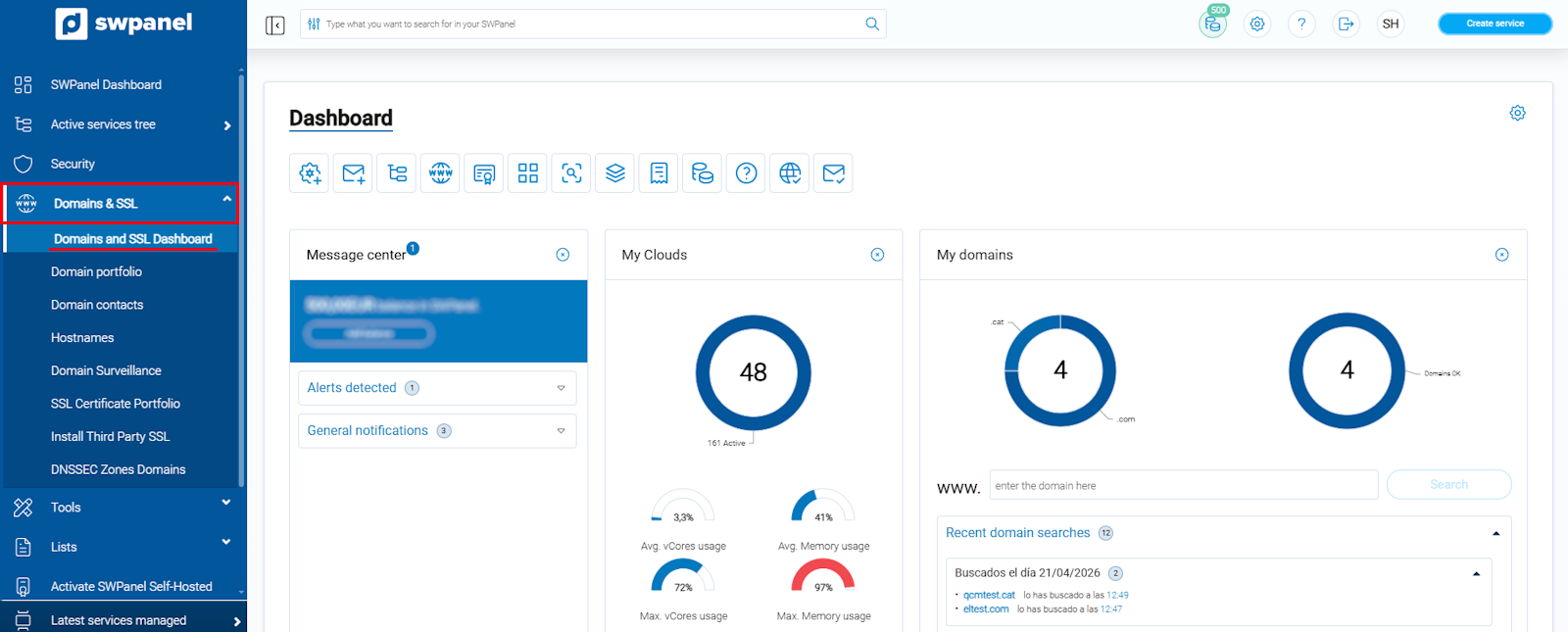
To access the Domains and SSL Dashboard, log in to your SWPanel account.
Next, go to the left side menu and select Domains and SSL → Domains and SSL Dashboard:
info_capture ℹ️ Note: The screenshot is for guidance purposes, taken from version 2026.001.0020 dated 25/04/2026. It may differ from the current version of SWPanel.
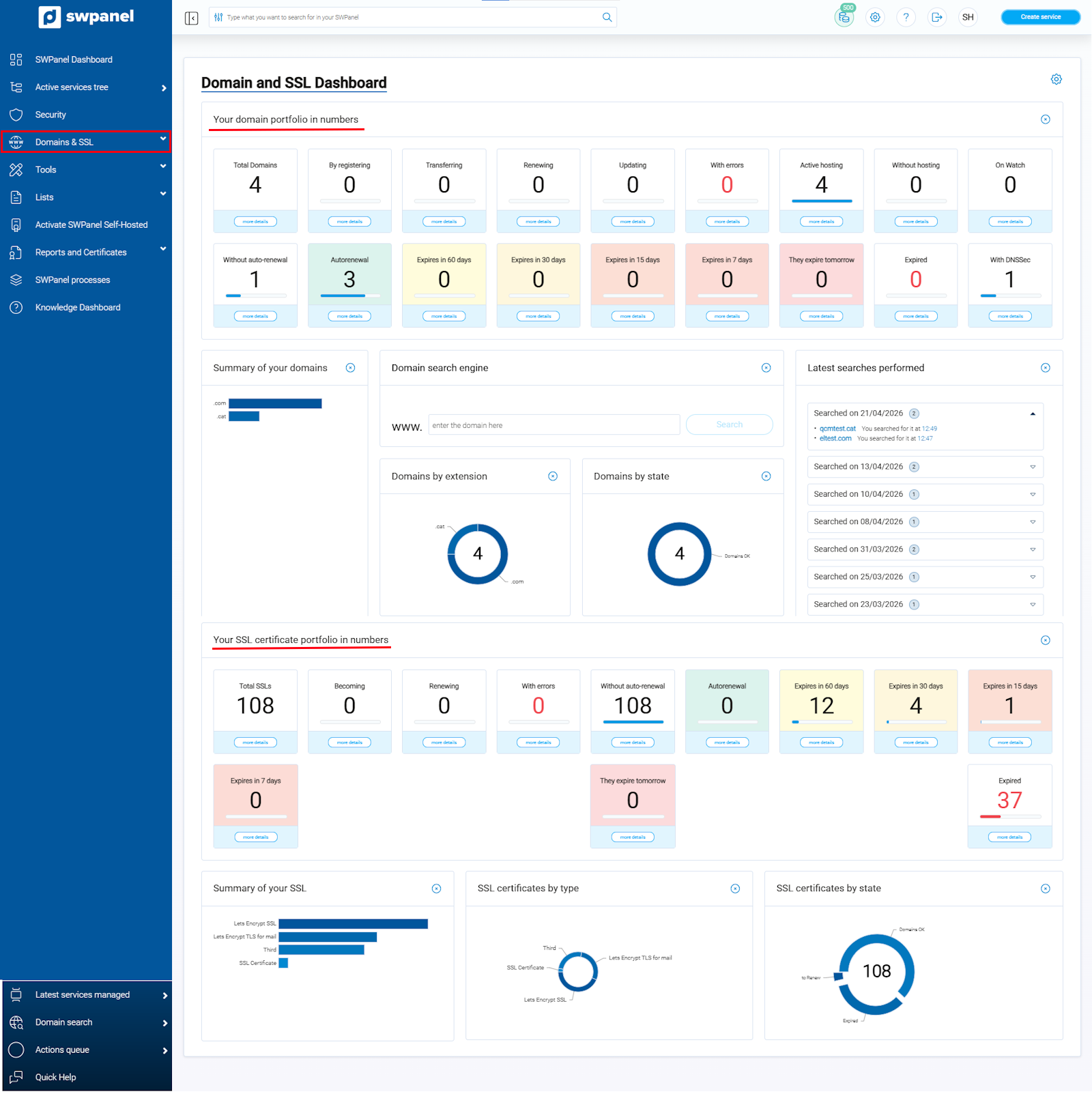
In this dashboard, you will get a general and summarized overview of the status of your entire domain and SSL certificate portfolio.
General Domains and SSL Dashboard
At the top, you will see two large blocks:
- Your domain portfolio in numbers: shows the total number of domains and their status (active, registration in progress, renewal, with errors, with hosting, without hosting, etc.).
- Your SSL certificate portfolio in numbers: shows the total number of certificates and their status (active, expiring soon, auto-renewing, etc.).
info_capture ℹ️ Note: The screenshot is for guidance purposes, taken from version 2026.001.0020 dated 25/04/2026. It may differ from the current version of SWPanel.
You will also find pie charts that help you quickly visualize: The number of domains by extension (.com, .es, .cat, .net, .org etc.) or domains by status, as well as the number of SSL certificates by type and status.
Accessing the Individual Domain Dashboard
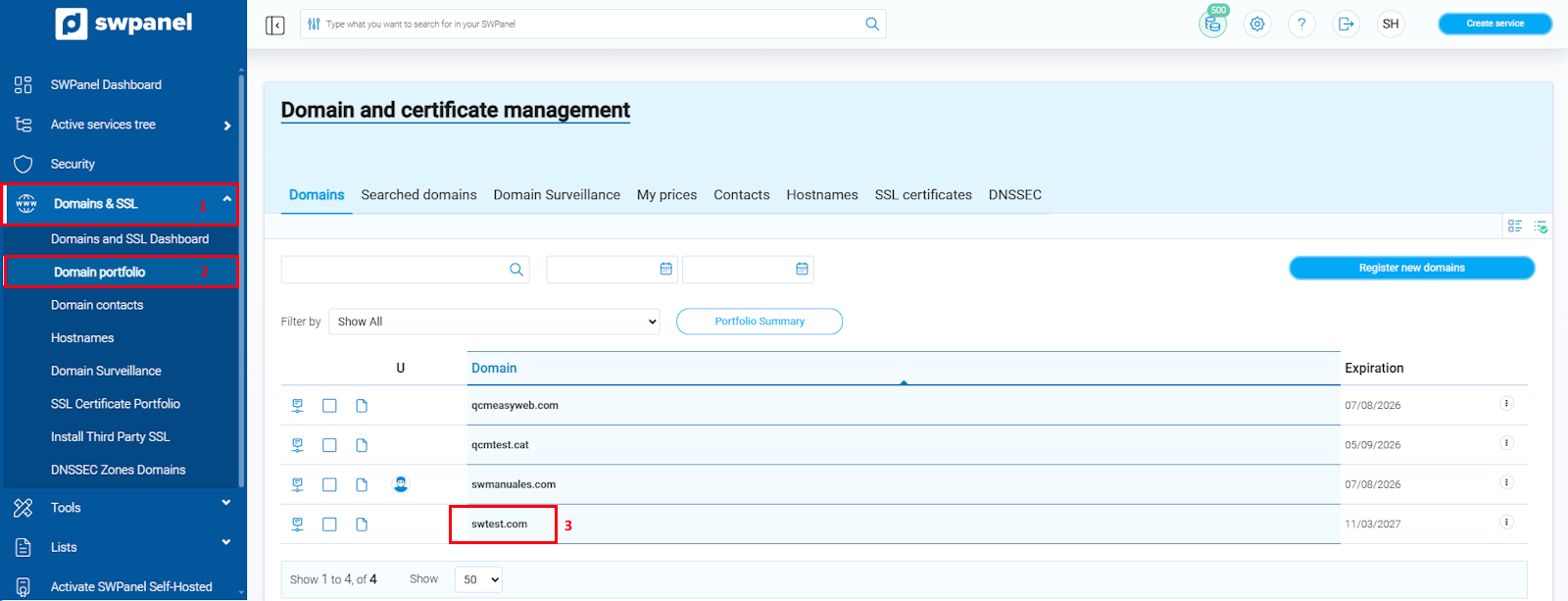
From the Domains and SSL Dashboard (or from the Domain Portfolio), you can click directly on the name of any domain to access its Individual Dashboard.
info_capture ℹ️ Note: The screenshot is for guidance purposes, taken from version 2026.001.0020 dated 25/04/2026. It may differ from the current version of SWPanel.
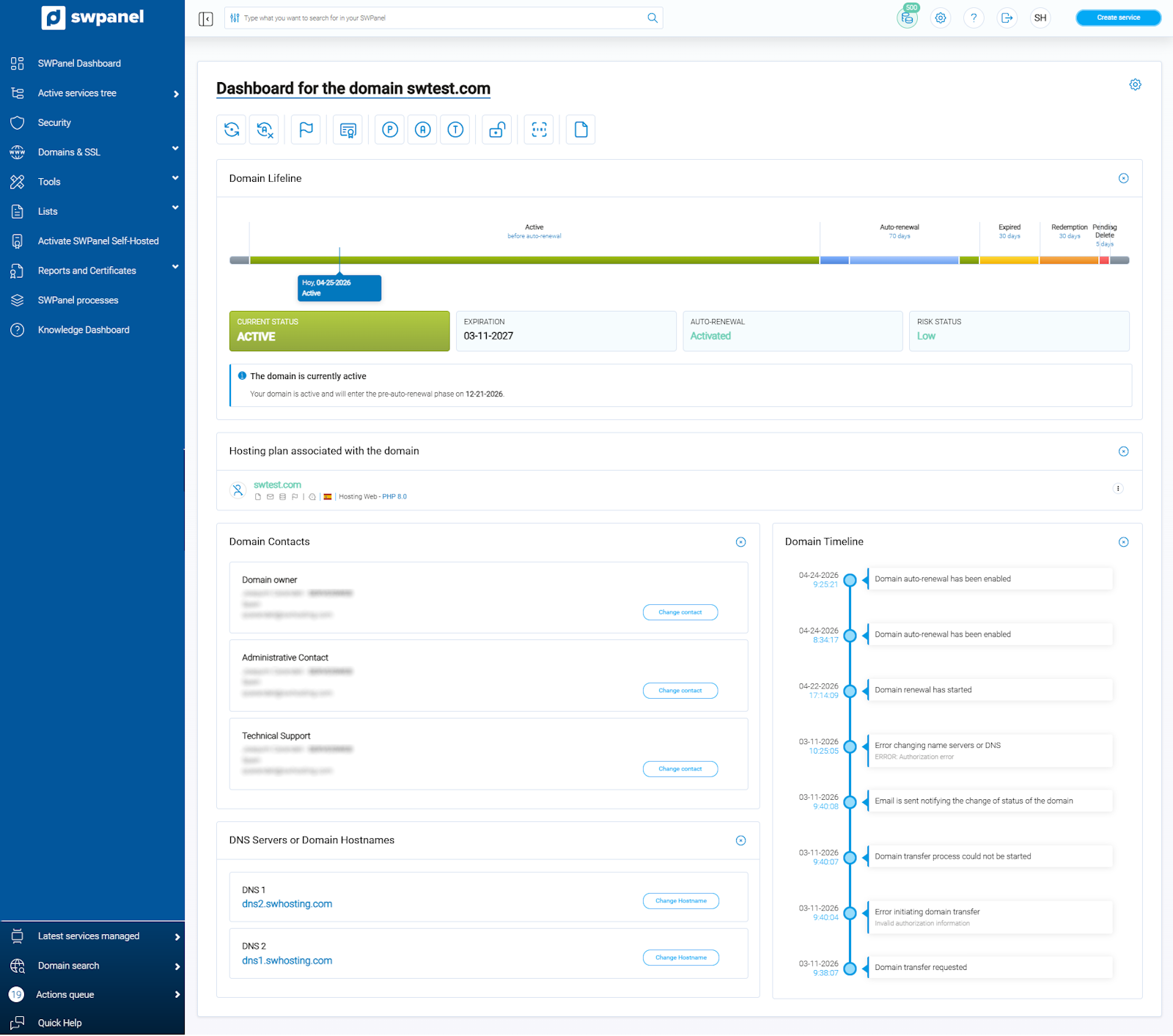
In the Domain Dashboard, you will find the following key information at a glance:
-
Domain lifeline: Visual timeline of current status and future phases (Active, Expired, Redemption, Pending Delete…)
-
Current status: Current status of the domain and expiration date
-
Auto-renewal: Enabled or disabled
-
Hosting plan: Plan associated with the domain
-
Domain contacts: Registrant, Administrative, and Technical
-
DNS or Hostnames: Servers associated with the domain
-
Domain timeline: Detailed history of actions performed
info_capture ℹ️ Note: The screenshot is for guidance purposes, taken from version 2026.001.0020 dated 25/04/2026. It may differ from the current version of SWPanel.
Accessing the Individual SSL Certificate Dashboard
Similarly, you can click on any SSL certificate from the list to view its individual dashboard.
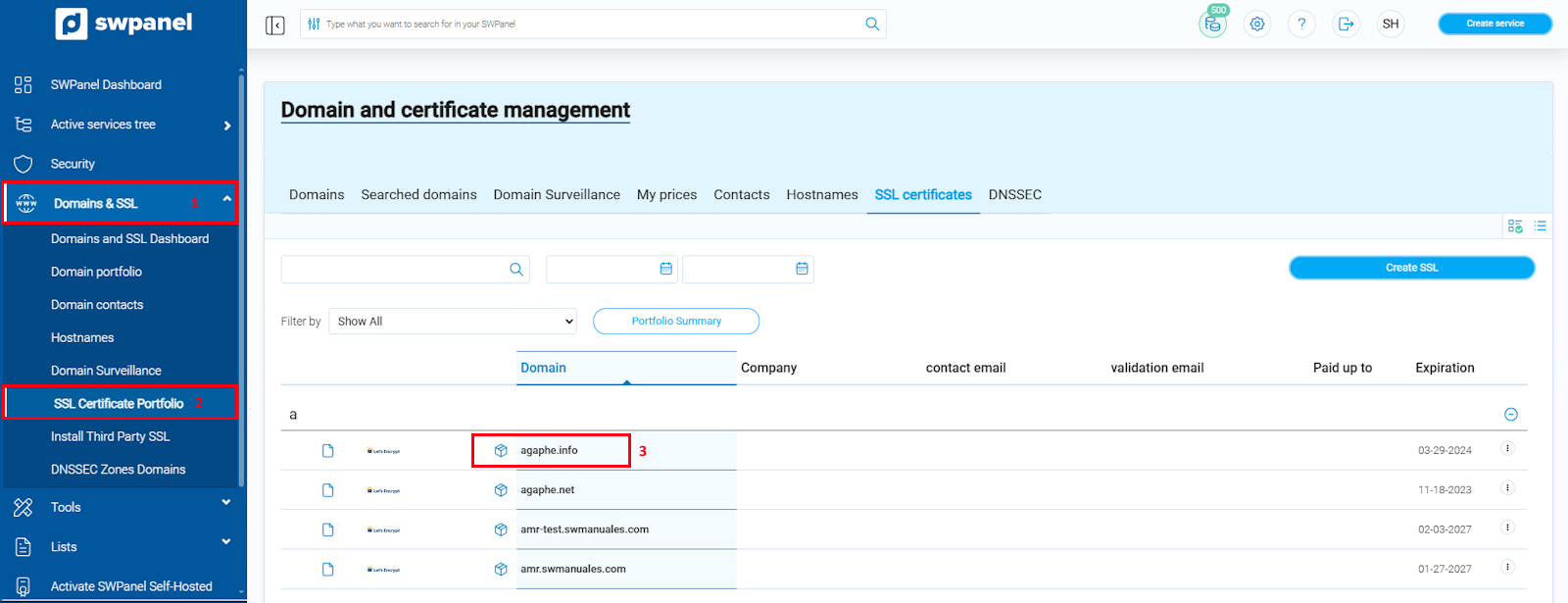
info_capture ℹ️ Note: The screenshot is for guidance purposes, taken from version 2026.001.0020 dated 25/04/2026. It may differ from the current version of SWPanel.
In the SSL Certificate Dashboard, you will see:
- Certificate lifeline
- Certificate type (Let’s Encrypt, Comodo, RapidSSL etc.)
- Current status and days remaining until expiration
- Auto-renewal (if enabled)
- Hosting plan where the certificate is installed
- Certificate downloads (RSA, CRT, CA, PEM, PFX, etc.) with an explanation of each format
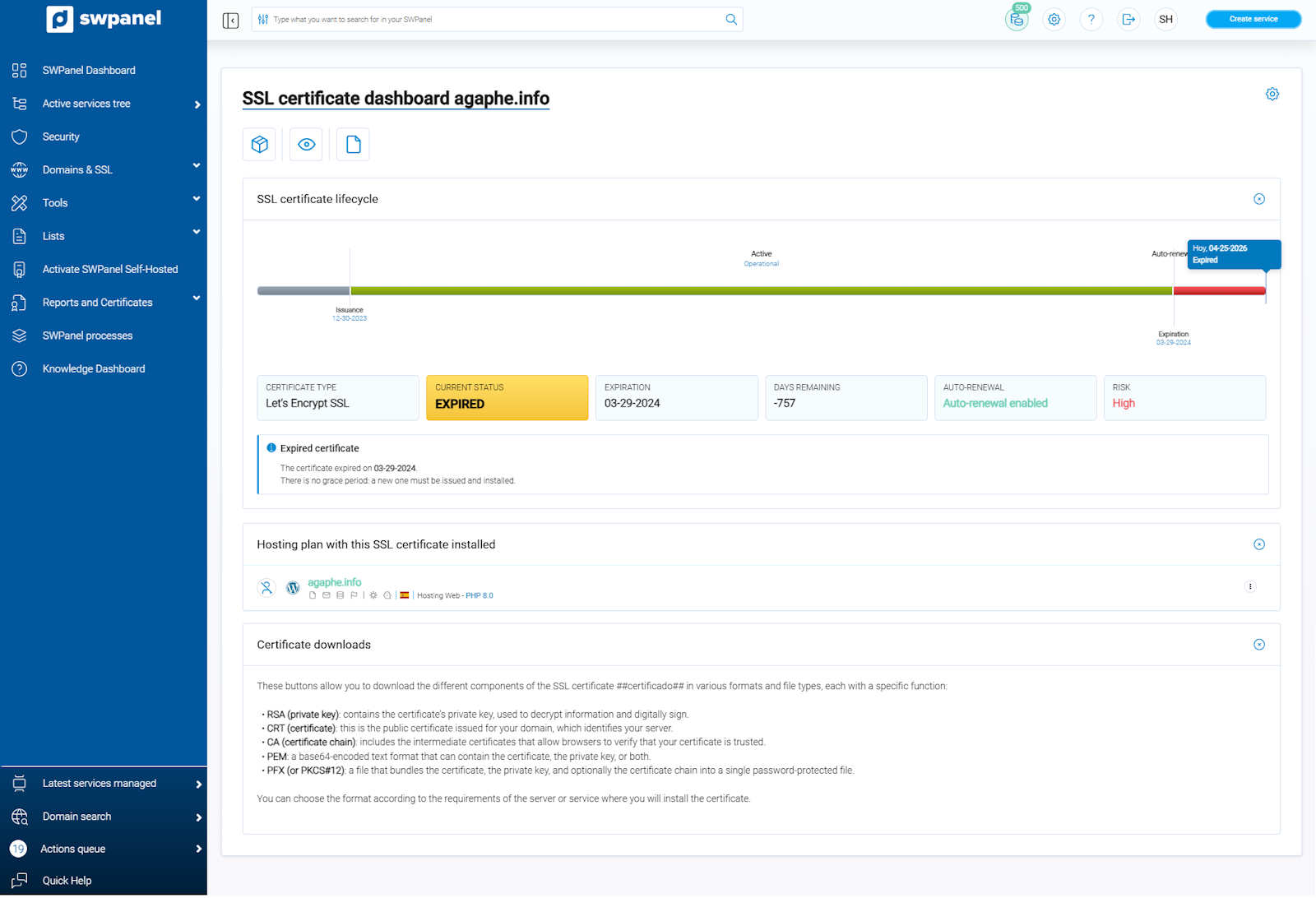
info_capture ℹ️ Note: The screenshot is for guidance purposes, taken from version 2026.001.0020 dated 25/04/2026. It may differ from the current version of SWPanel.
Useful Tips
- 💡 From the General Dashboard, you can quickly see which domains or certificates are about to expire or have an issue.
- 💡 The domain Timeline is very useful for reviewing the change history (nameserver changes, enabling/disabling auto-renewal, etc.).
- 💡 Remember that you can enable or disable auto-renewal directly from these dashboards to avoid surprises.