
Create a Hosting service using a Template
Creating Hosting Services from Templates in SWPanel
1. Introduction and manual summary
This manual is designed to guide you step by step through the process of creating Hosting services in SWPanel by using previously configured templates. Its main objective is to enable you to replicate specific configurations quickly, efficiently, and without errors, saving time and ensuring consistency in the administration of your web services.
What will you find in this manual?
Throughout this document, you will learn how to:
- Access the option to create new services in SWPanel.
- Select a previously created template.
- Associate a domain or subdomain with the new service.
- Complete the creation of the service using said template.
What is a Hosting template?
A Hosting template is a predefined configuration that you can save and reuse when creating new services. These templates allow you to standardize technical parameters and avoid repeating tasks every time you need to create a service.
Templates can include configurations such as:
- Service resources (disk space, RAM, CPU limits).
- PHP version or other server language.
- Security and access policies.
- Database parameters.
- File system permissions.
- Email environment configuration.
Example: If you manage websites with similar characteristics, you can create a base template with PHP 8.2, 2 GB of disk space, and FTP access. Then, you only need to choose that template when creating a new service.
info If you have not yet created your Hosting templates, we recommend consulting the following manual:
Manual: How to create Hosting Templates
2. Creating a Hosting Service from a template
Below, the step-by-step process of how you can create a new Hosting service in your SWPanel account using an existing template is detailed.
Step 1: Access the creation of a new service
From your SWPanel account, locate the Create new service button in the upper right part and click on it.
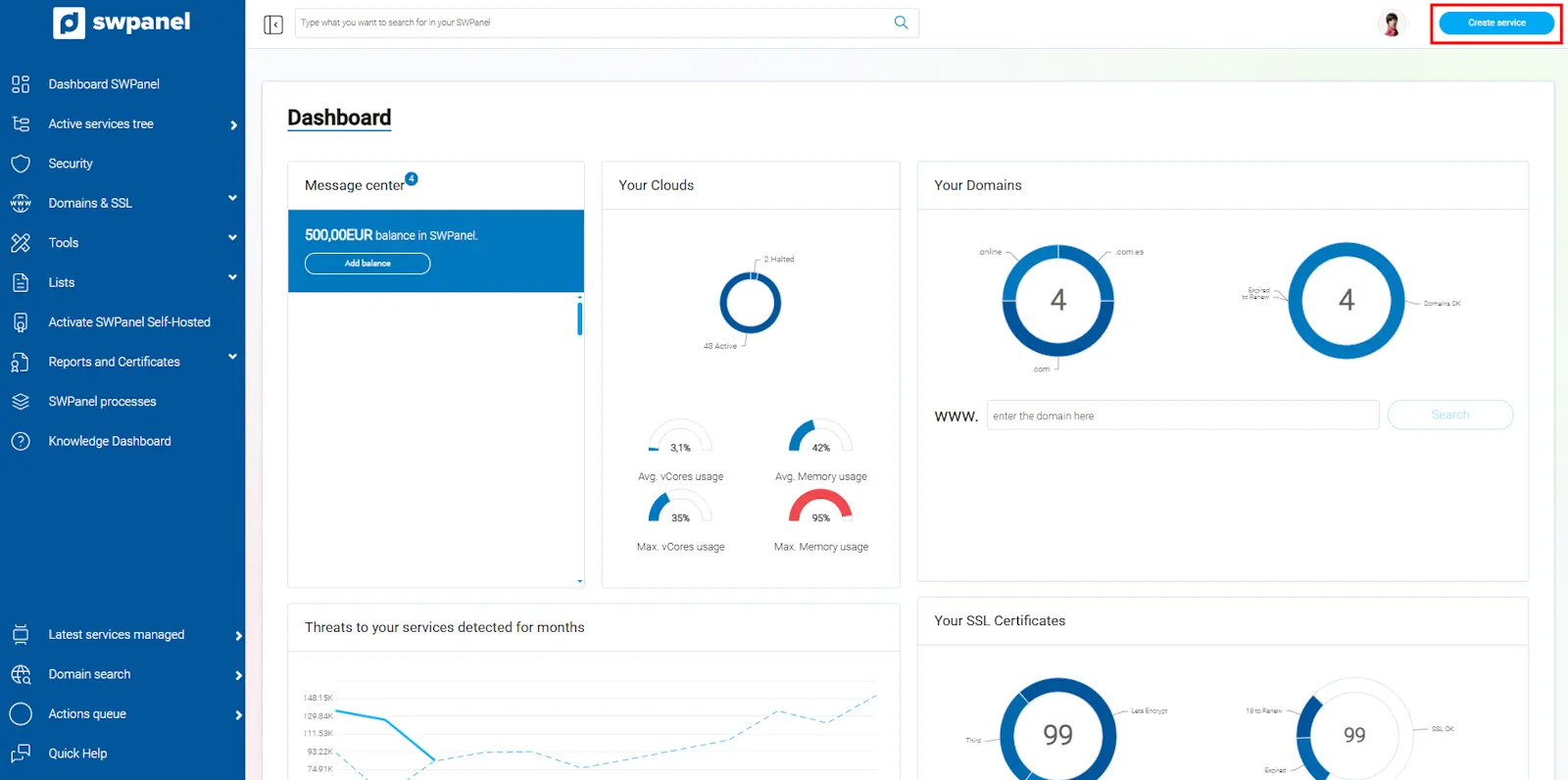
info_capture The screenshot is for guidance. It was taken from version 2025.03.0001 dated 03/23/2025. It may differ from what the current version of SWPanel shows.
Step 2: Select the templates option
Once inside the creation screen, go to the My products > Hosting Templates option to view your available templates.
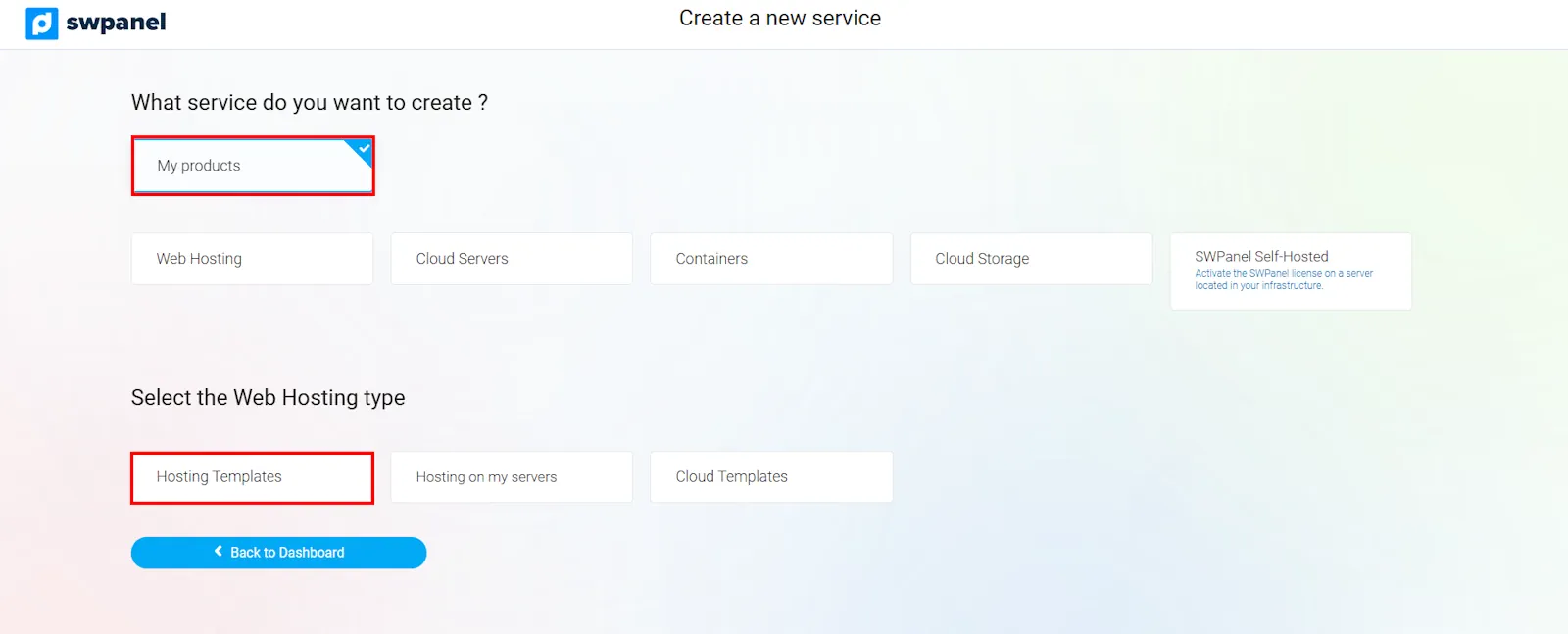
info_capture The screenshot is for guidance. It was taken from version 2025.03.0001 dated 03/23/2025. It may differ from what the current version of SWPanel shows.
Step 3: Choose the desired template
You will see a list of all the templates you have previously created. Select the one that best fits the type of service you wish to deploy.
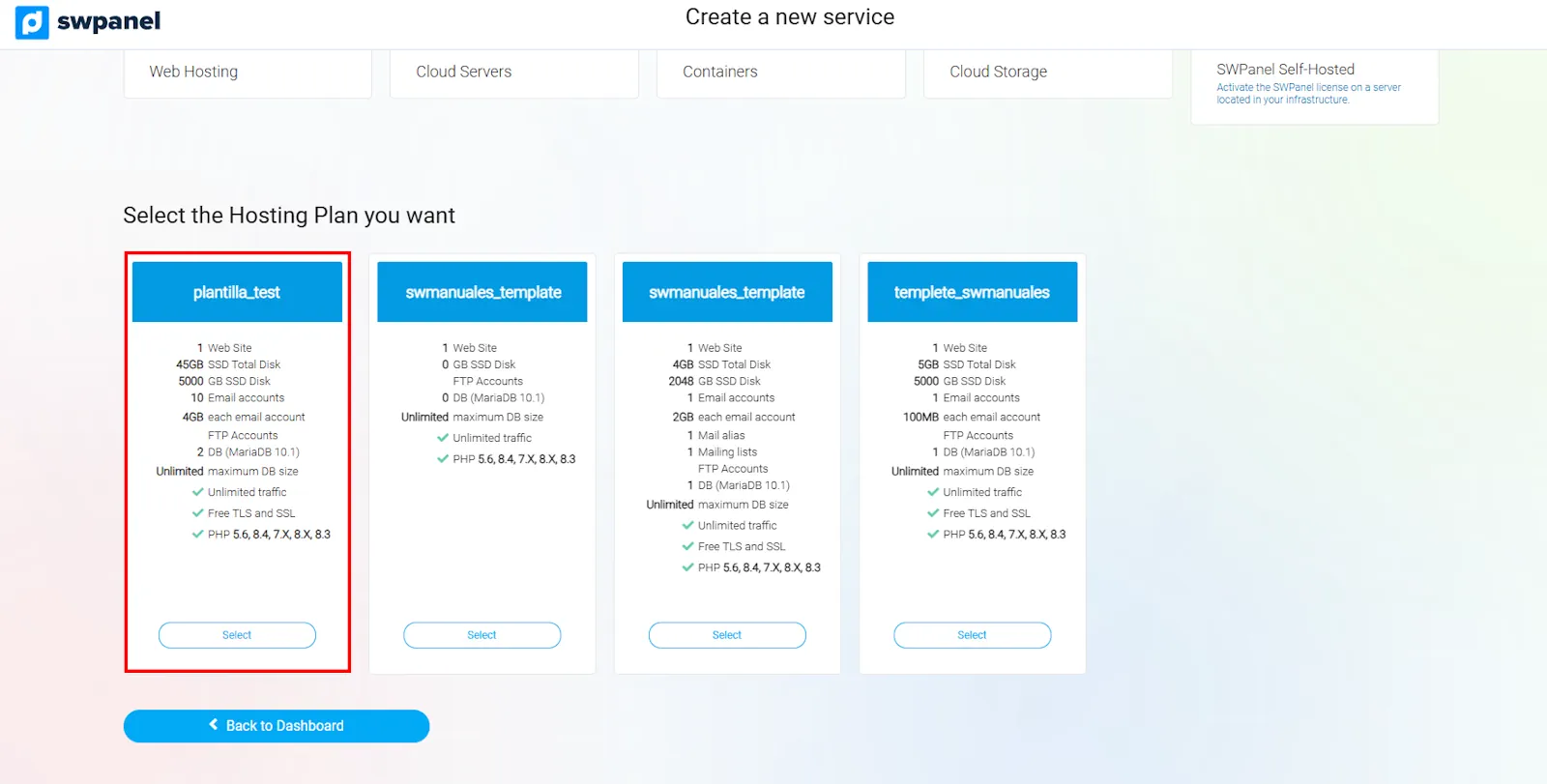
info_capture The screenshot is for guidance. It was taken from version 2025.03.0001 dated 03/23/2025. It may differ from what the current version of SWPanel shows.
Step 4: Indicate the domain or subdomain
Enter the name of the domain or subdomain that will be associated with the new service. This will be the public identifier through which users will access your site or application.
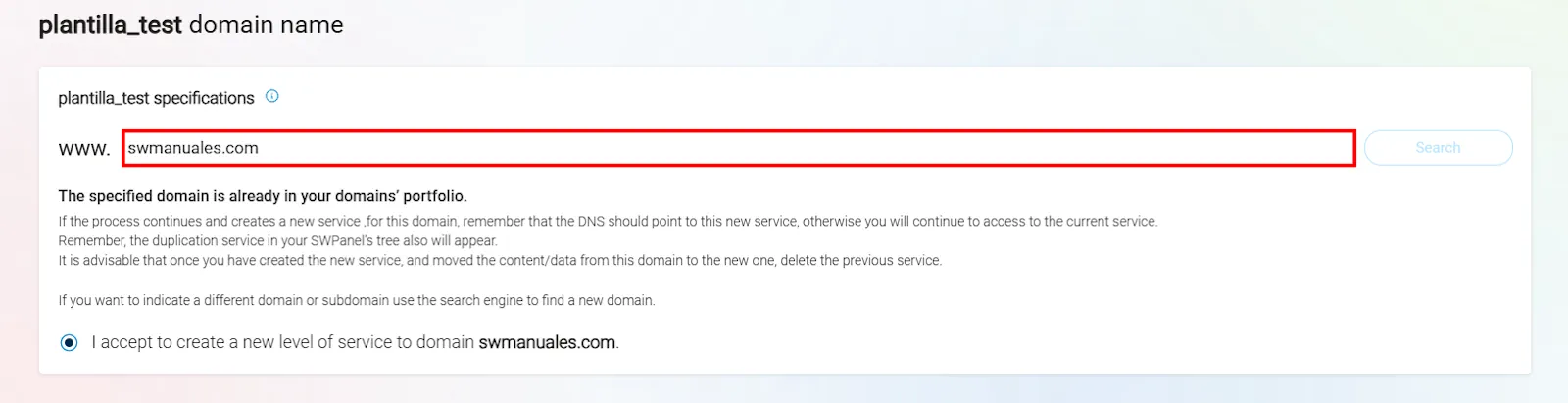
info_capture The screenshot is for guidance. It was taken from version 2025.03.0001 dated 03/23/2025. It may differ from what the current version of SWPanel shows.
Step 5: Create the service
To finish, click the Accept and create button. The system will deploy the new Hosting service applying the parameters defined in the selected template.
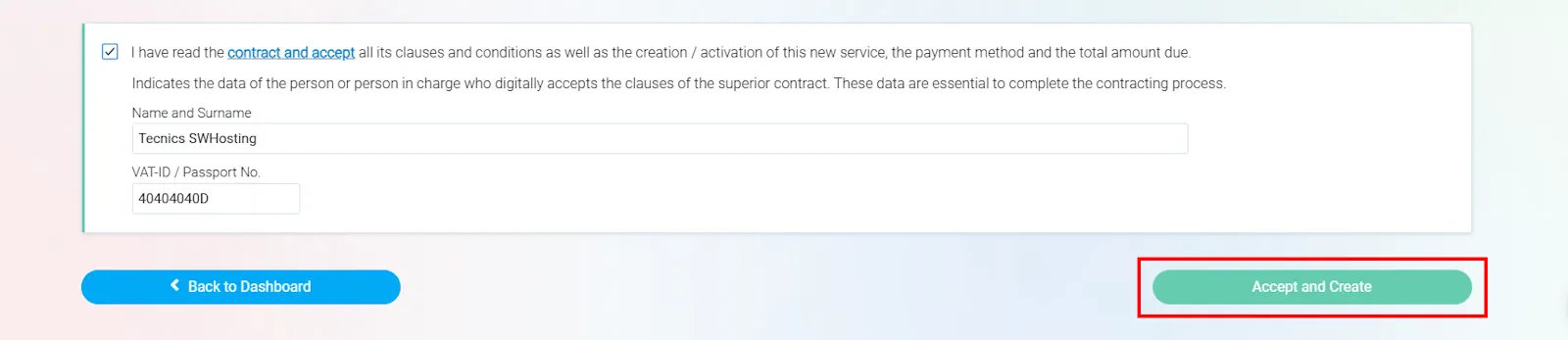
info_capture The screenshot is for guidance. It was taken from version 2025.03.0001 dated 03/23/2025. It may differ from what the current version of SWPanel shows.
success Done! Your new Hosting service created from a template is now operational and available in your service list within SWPanel.
3. Glossary of terms
| Term or concept | Definition and link to its corresponding section |
|---|---|
| Hosting Service | Environment where a website or other resources are hosted, configured to be available on the Internet. |
| Hosting Template | Predefined configuration of resources and parameters that can be used to create new services quickly. |
| Domain | Unique name that identifies an address on the Internet (for example, mydomain.com). |
| Subdomain | Extension of the main domain that allows creating divisions (for example, blog.mydomain.com). |
| Accept and create | Button that confirms and executes the creation of the new Hosting service based on the chosen template. |
| Create new service | Panel button that starts the process of adding a new service. |
| My products > Hosting Templates | Menu path within SWPanel to access the available templates. |