
On this page 1 sections
What should I do to keep a domain at SW Hosting but have it point to another service provider?
To keep a domain at SW Hosting but have it point to another service provider, it is necessary to change the DNS name servers (or "hostnames") of the domain.
To do this, the first step will be to access the SWPanel. In the blue column located on the left, go to Domains and SSL > Domain Portfolio:
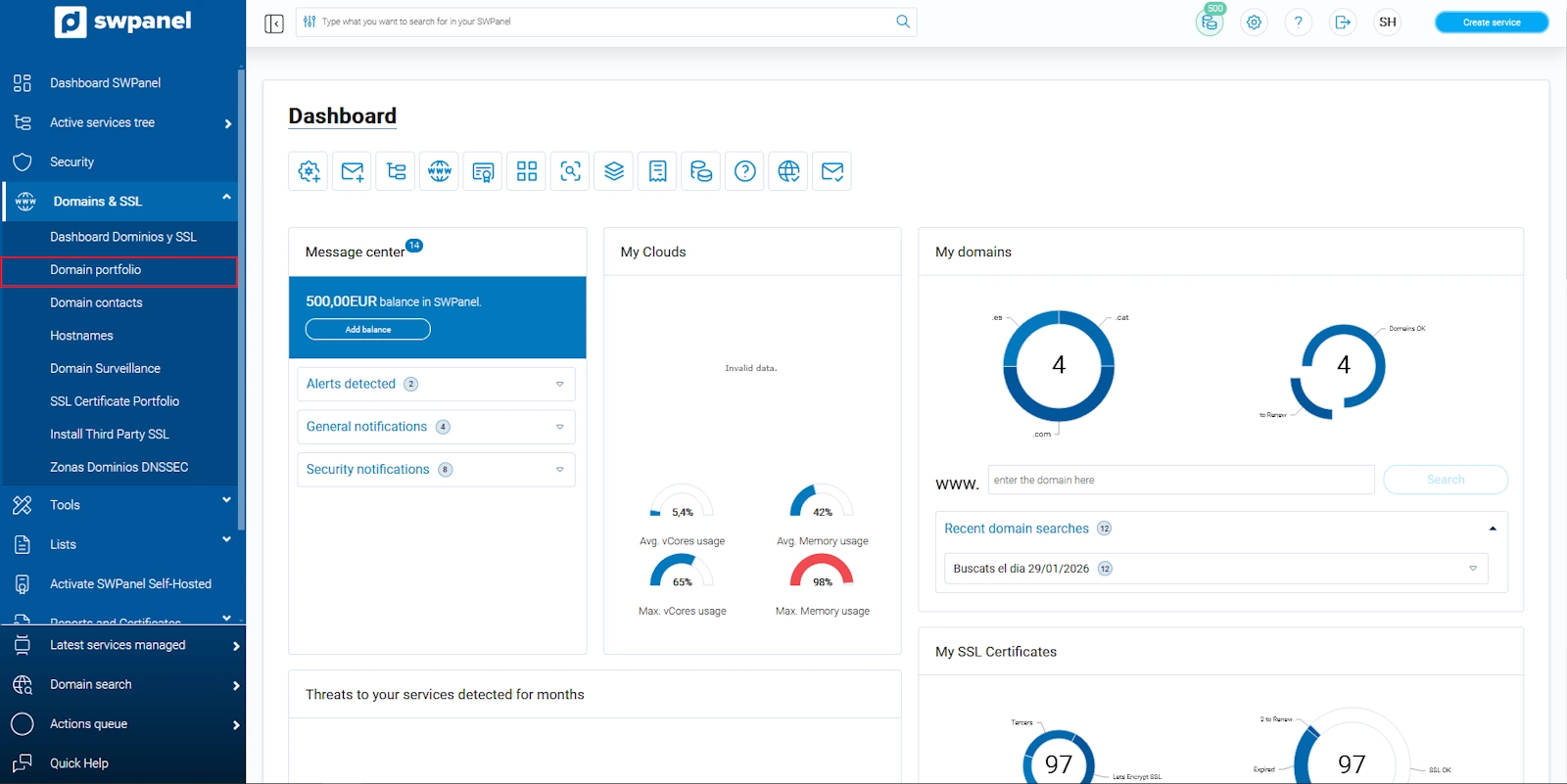
The screenshot is for guidance purposes. It was taken from version 2026.001.0057 dated 17/05/26. It may differ from what the current version of SWPanel shows.
Within the Domain Portfolio, you will be able to see all the domains you currently have registered. To the right of each domain, you will find the ··· dropdown:
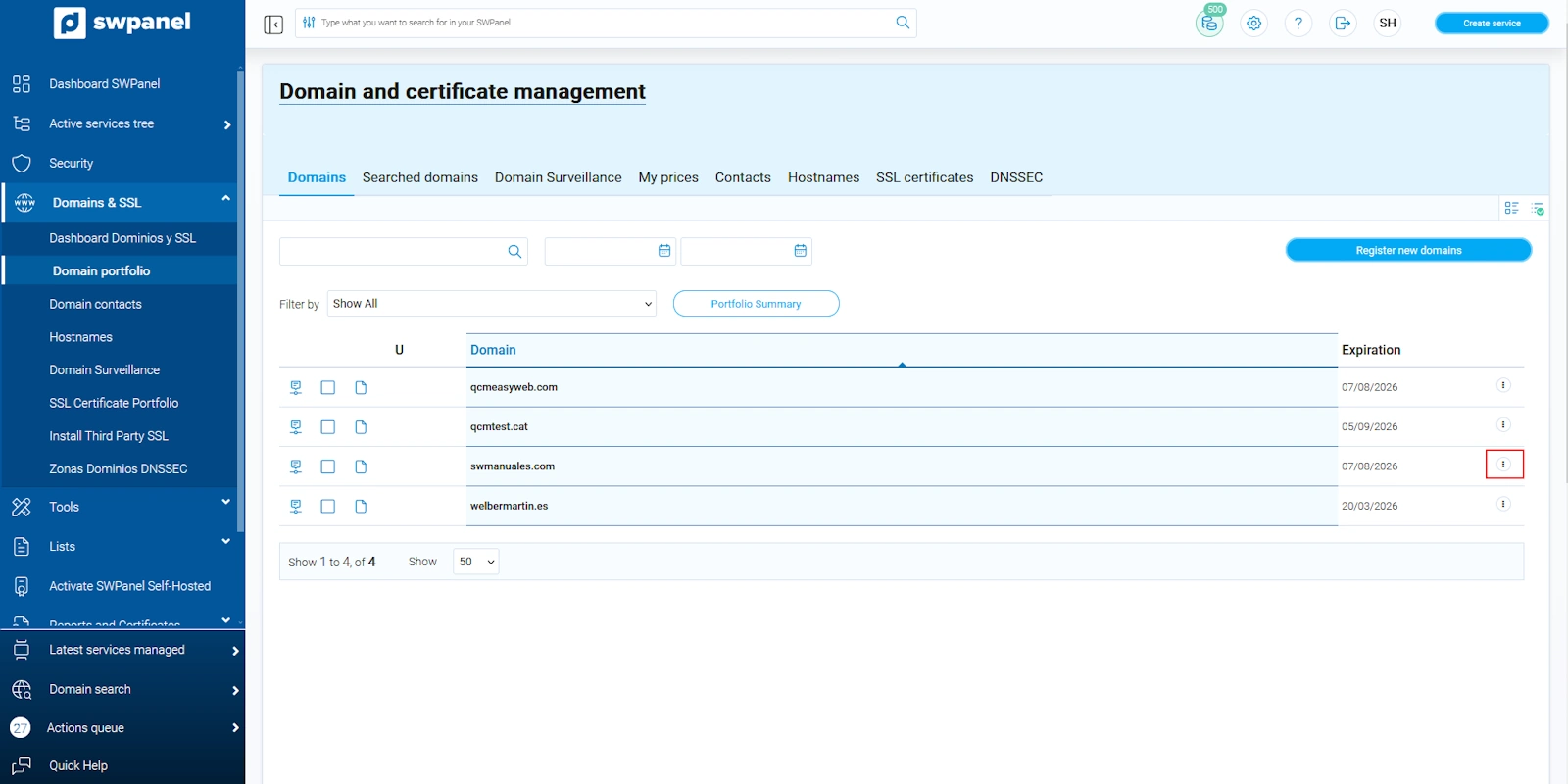
The screenshot is for guidance purposes. It was taken from version 2026.001.0057 dated 17/05/26. It may differ from what the current version of SWPanel shows.
You must place your cursor over the ··· tab and, in the right column, under Contacts and Hosts, you must select DNS Data:
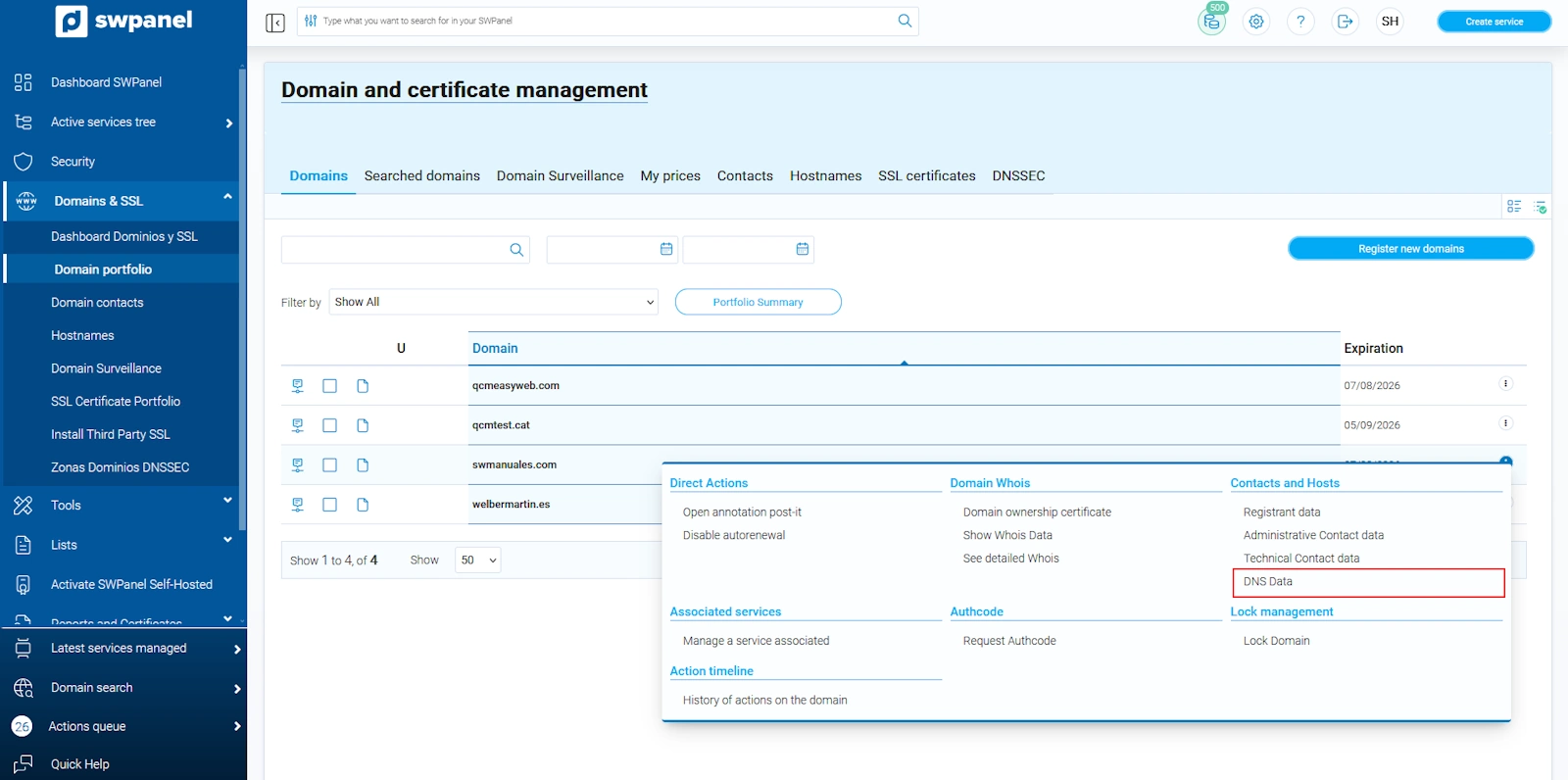
The screenshot is for guidance purposes. It was taken from version 2026.001.0057 dated 17/05/26. It may differ from what the current version of SWPanel shows.
A new tab will open where you will find the DNS name servers assigned to your domain. By default, the DNS belonging to SW Hosting will be assigned. At this point, you can modify them and enter the DNS of your other provider and finally, click on the green DNS Data button:
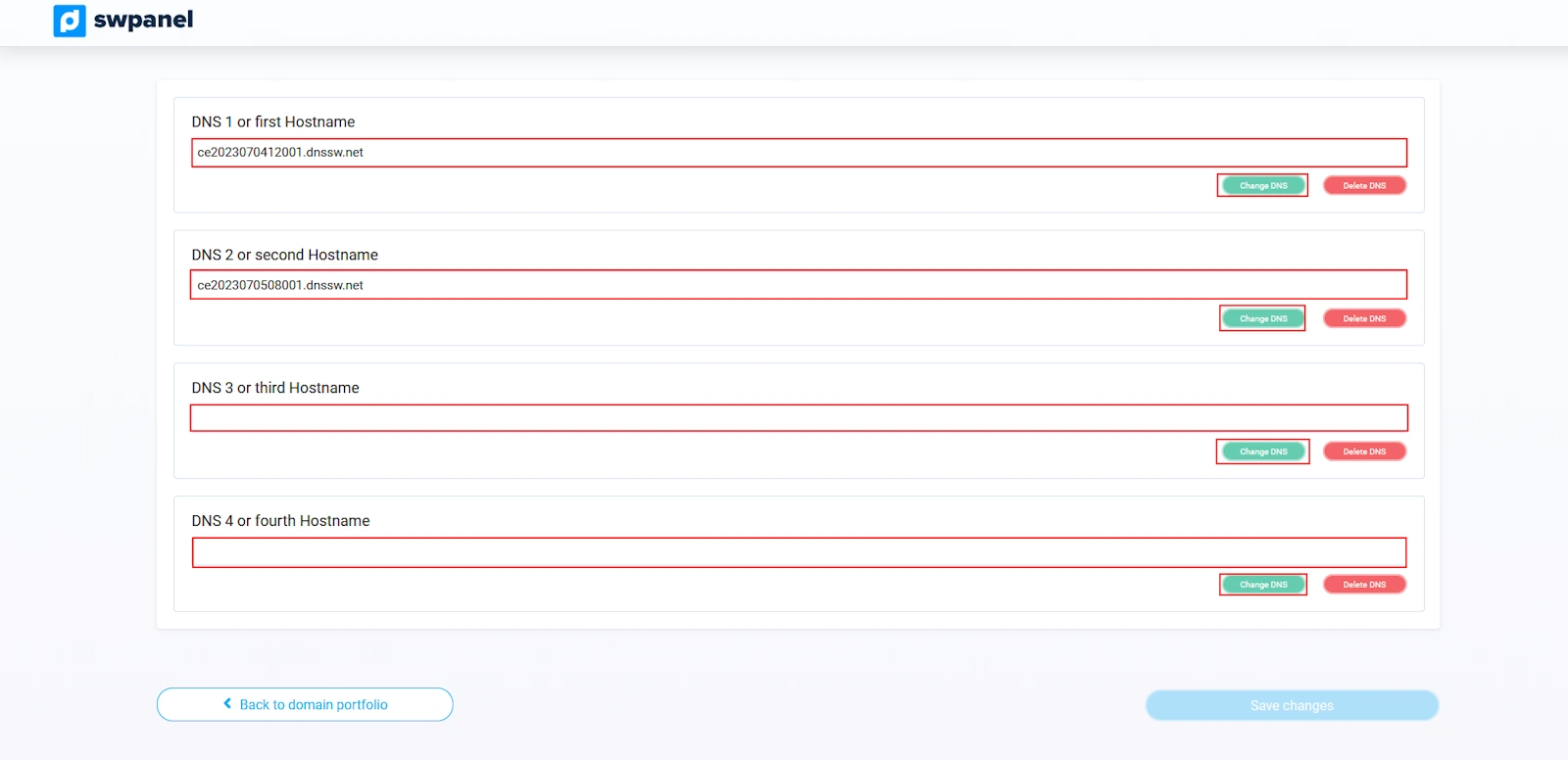
The screenshot is for guidance purposes. It was taken from version 2026.001.0057 dated 17/05/26. It may differ from what the current version of SWPanel shows.
Finally, once you have entered the DNS records of your external provider, you must click on the I accept responsibility checkbox and, lastly, on the green button to save the changes made.
Please be informed that this change is not immediate, so it takes some time to propagate, and once the change has been made, the other provider's servers will decide on your service.
Continue with these manuals
- Manage DNS records DNS Registers · updated on 17 Nov 2026
- Basic concepts about domains and DNS records DNS Registers · updated on 17 Nov 2026
- How to configure the DNS servers (Nameservers) of my domain. DNS Registers · updated on 17 Nov 2026
- How to create custom Nameservers with your domain DNS Registers · updated on 17 Nov 2026