
How to activate Debug mode in Wordpress
Activating debug mode in WordPress
Debug mode is a WordPress tool that can be very useful for obtaining the error messages that your WordPress-based website is giving you.
To activate this mode, you must edit the wp-config.php file located in the root folder of your website (/datos/web). You can edit this file through the File Manager provided by SWPanel (you can also access it via FTP or SSH).
1- Enter the dashboard of the hosting service where your WordPress is hosted by searching for it in SWPanel:
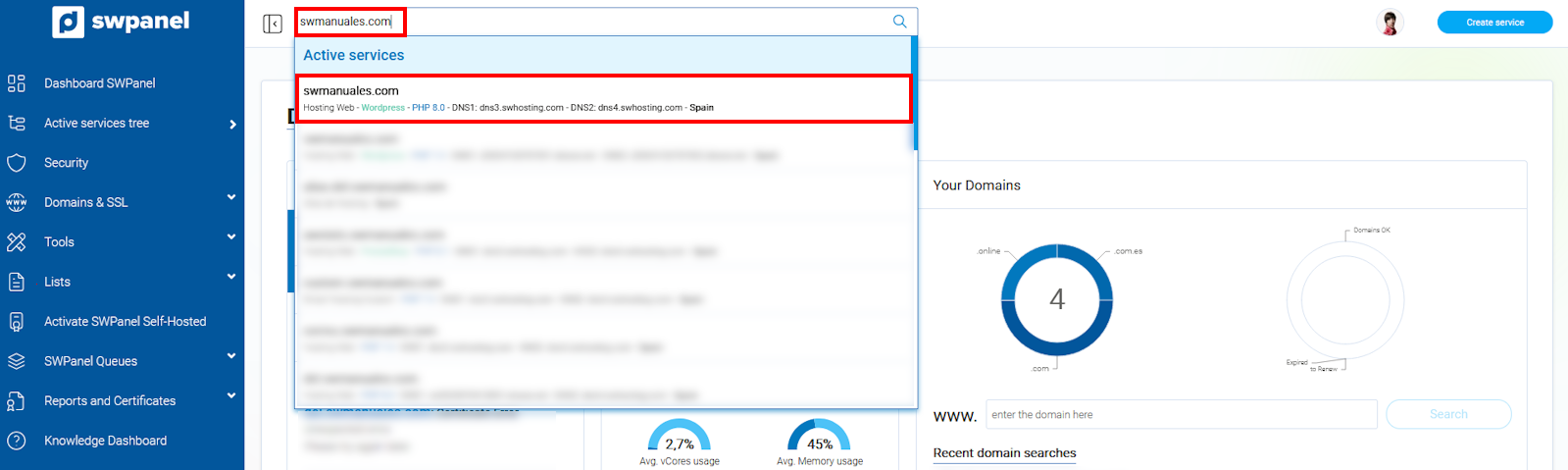
info_capture The screenshot is for guidance only. It was taken using version 2025.00.0017 dated 04/01/2025. It may differ from what the current version of SWPanel shows.
2- Access the file manager by clicking on Service Management -> File Manager:
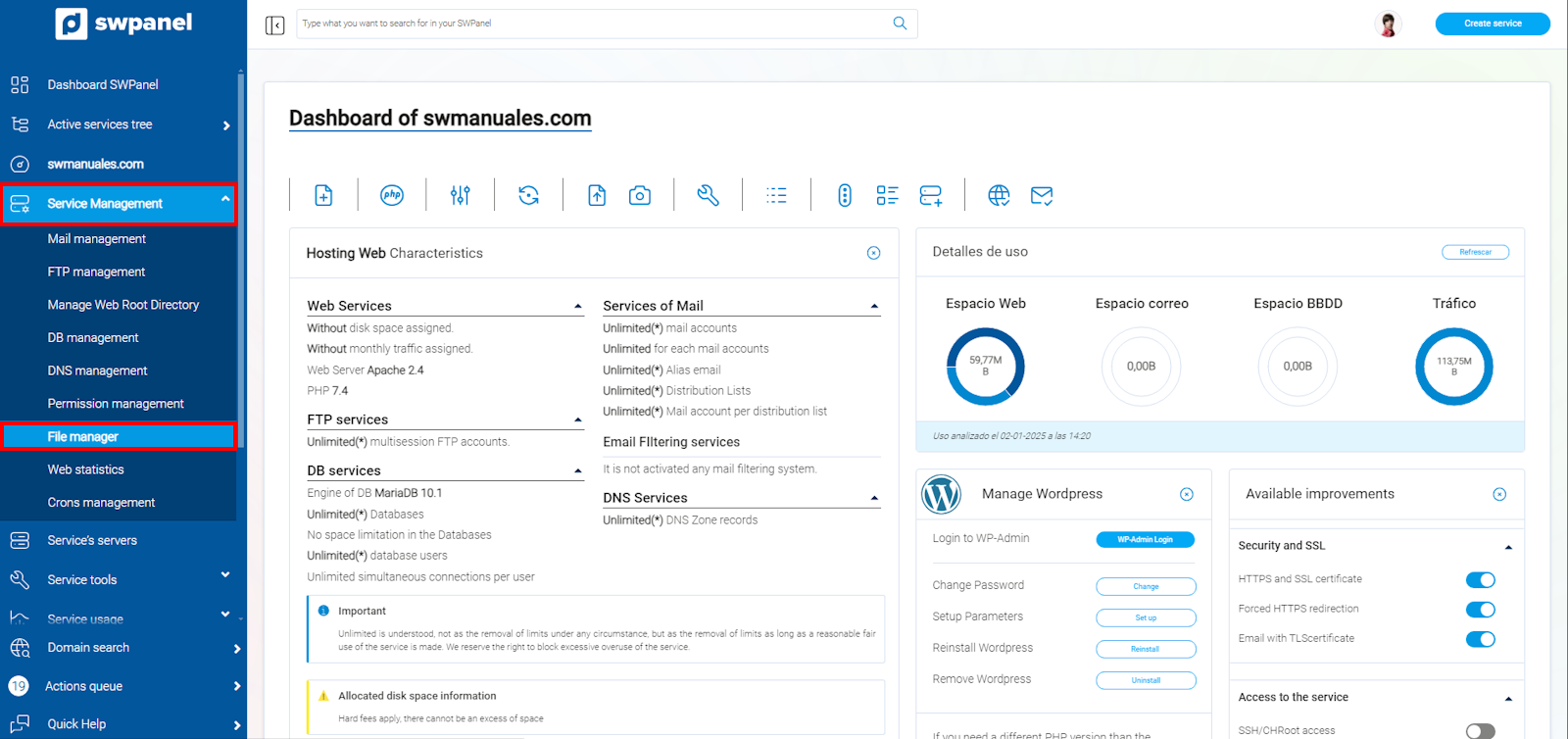
info_capture The screenshot is for guidance only. It was taken using version 2025.00.0017 dated 04/01/2025. It may differ from what the current version of SWPanel shows.
3- Locate the wp-config.php file within the hosting service folders (/datos/web/wp-config.php):
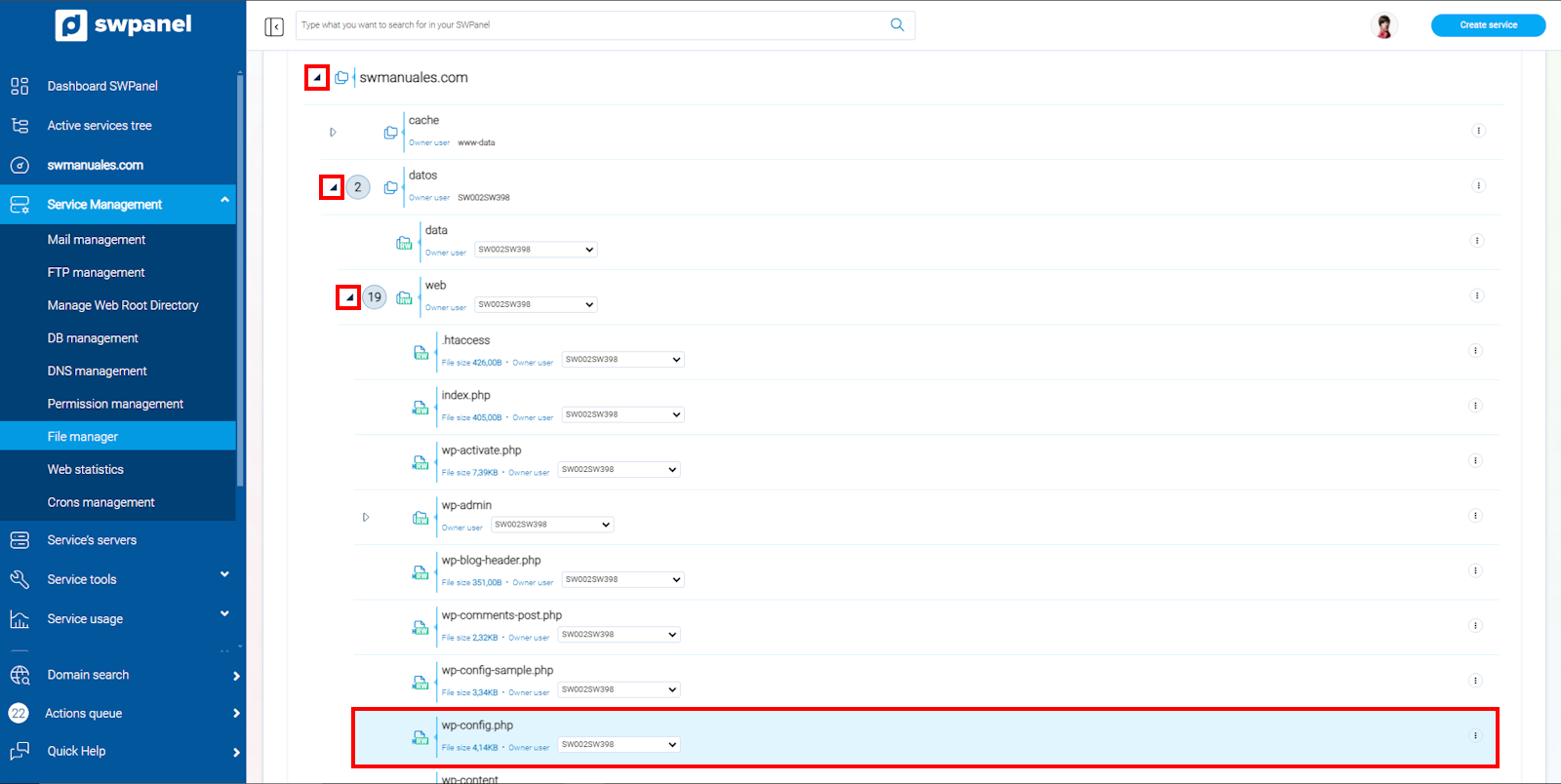
info_capture The screenshot is for guidance only. It was taken using version 2025.00.0017 dated 04/01/2025. It may differ from what the current version of SWPanel shows.
4- Hover your mouse over the three dots to the right of the wp-config.php file and click on Edit file:
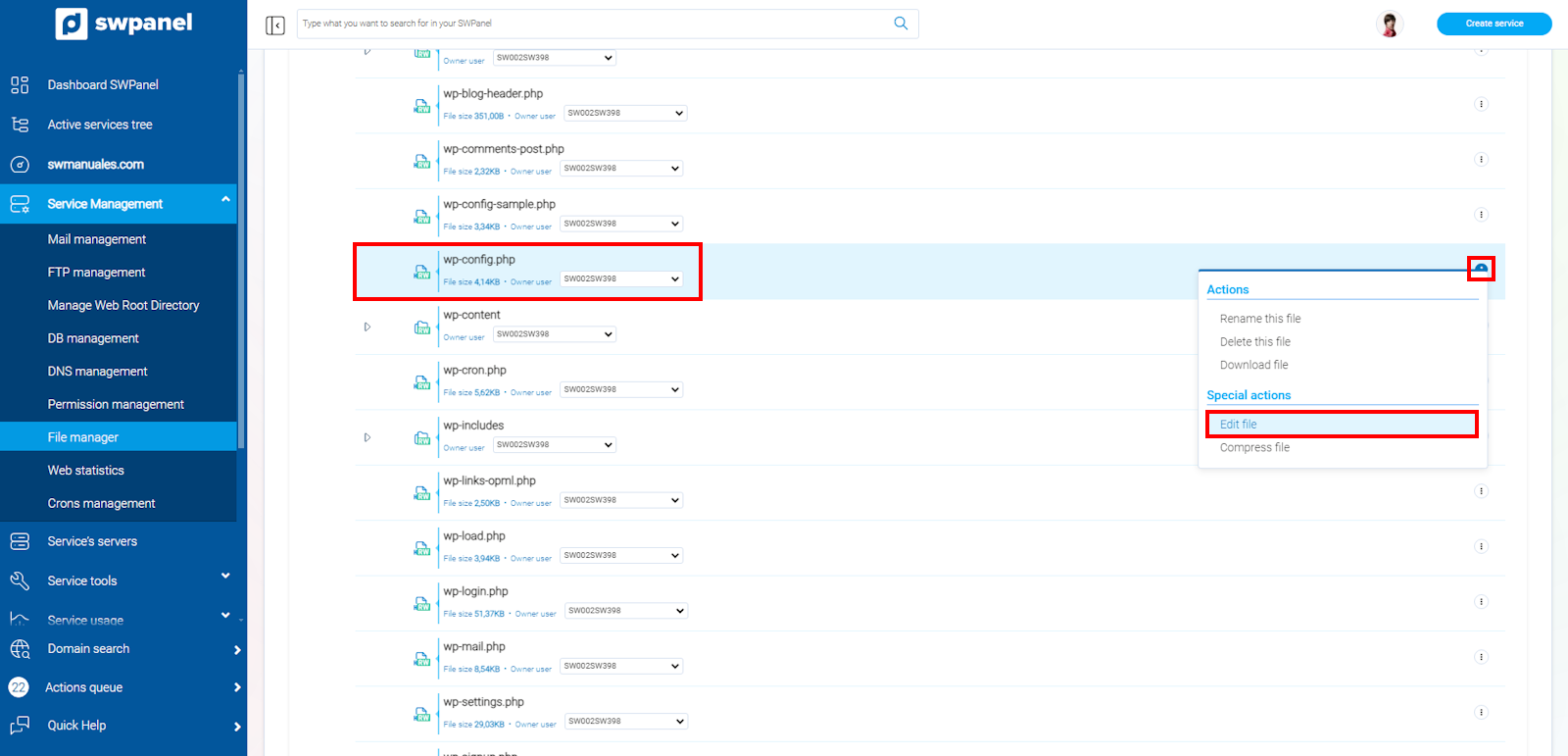
info_capture The screenshot is for guidance only. It was taken using version 2025.00.0017 dated 04/01/2025. It may differ from what the current version of SWPanel shows.
5- In the file editor that opens, look for the following line:
define( 'WP_DEBUG', false );
And change the word false to true, resulting in:
define('WP_DEBUG', true);
To finish, click on the Save changes button:
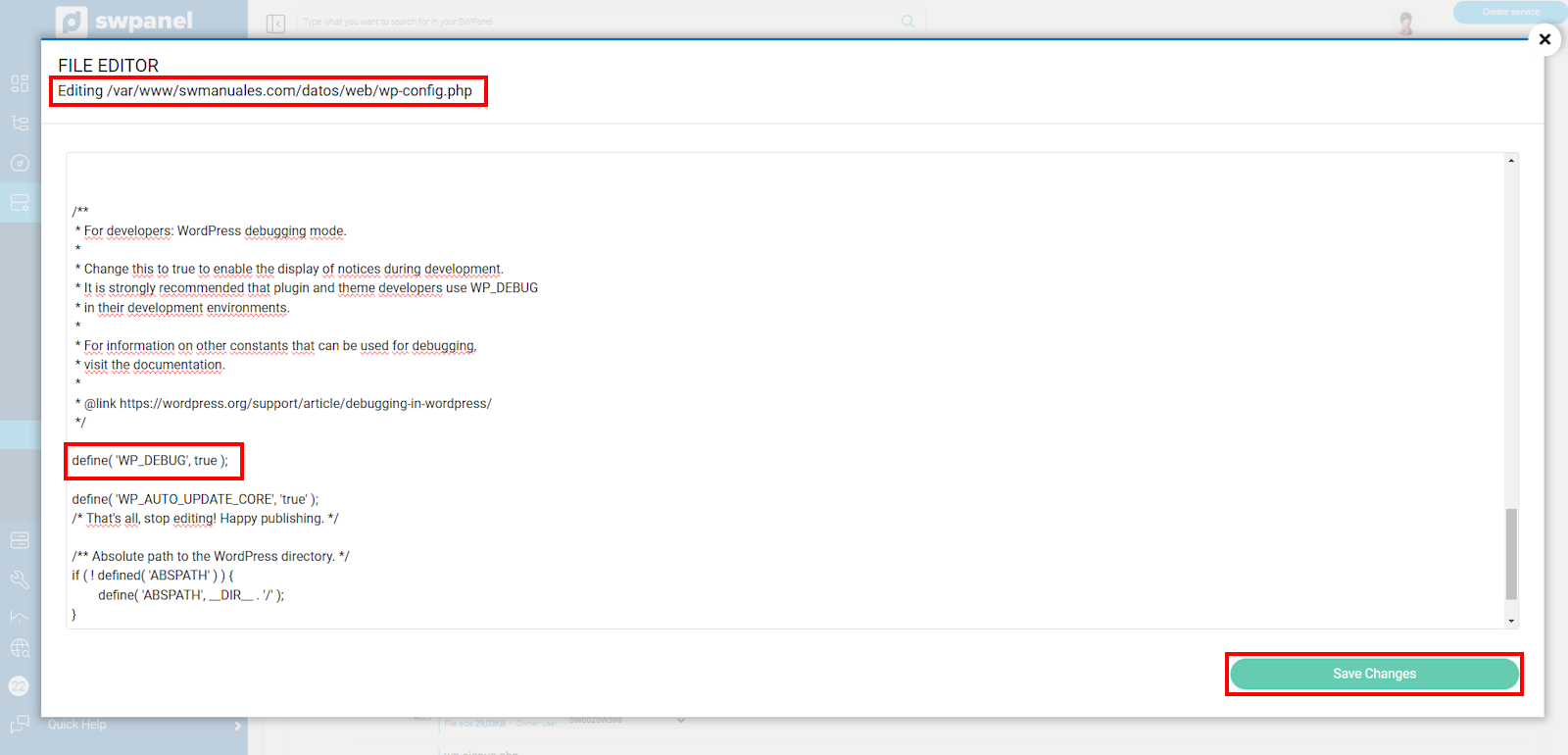
info_capture The screenshot is for guidance only. It was taken using version 2025.00.0017 dated 04/01/2025. It may differ from what the current version of SWPanel shows.
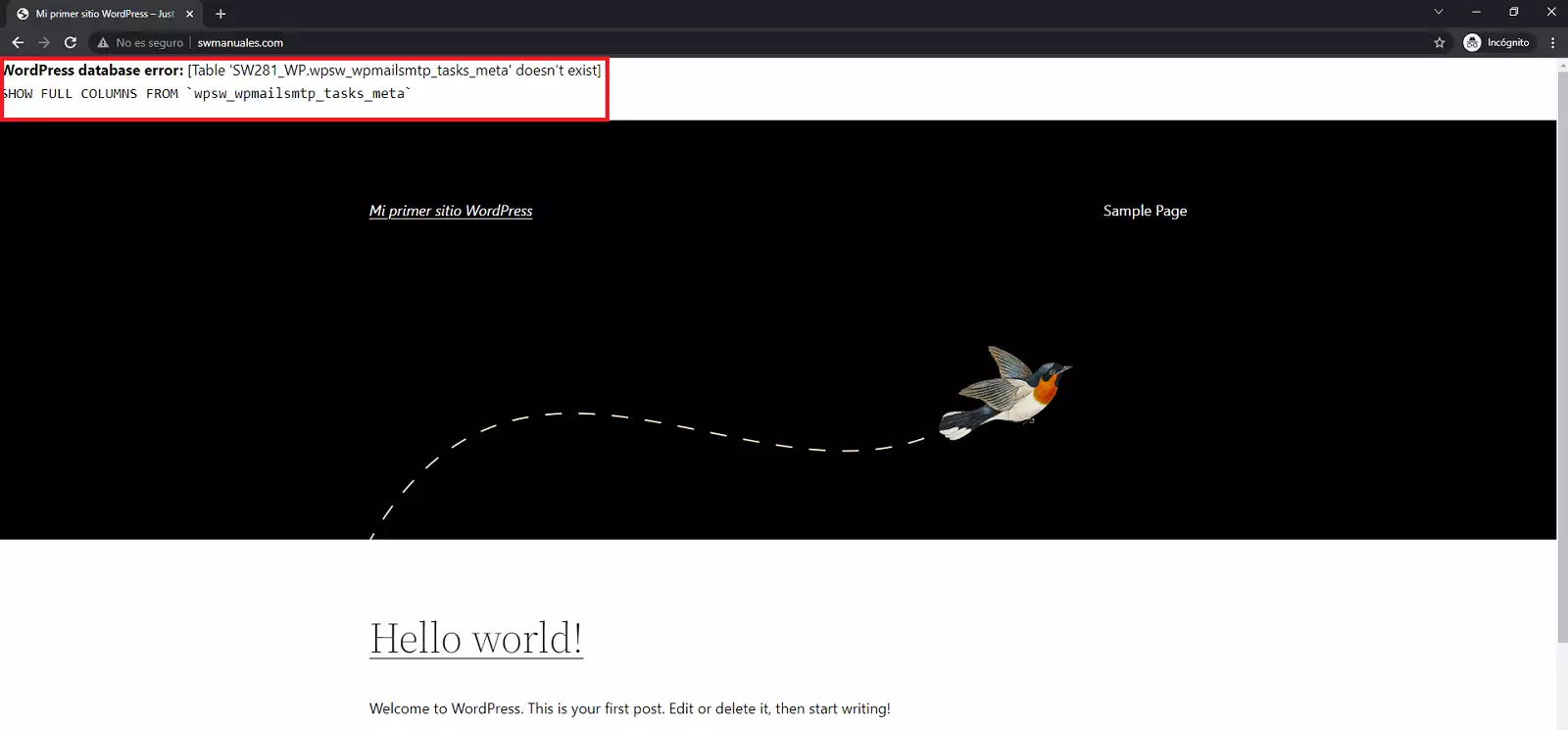
6- Now, if we access the website with any browser, we will see that debug mode is activated and it will show the errors on the screen.
Activating debug mode in WordPress, but without showing errors publicly
If you want to activate debug mode but do not want the errors to be visible publicly, you should follow the same steps, but after changing the value from "false" to "true", you must add the following lines right below:
define( 'WP_DEBUG_LOG', true );

define( 'WP_DEBUG_DISPLAY', false );

@ini_set( 'display_errors', 0 );
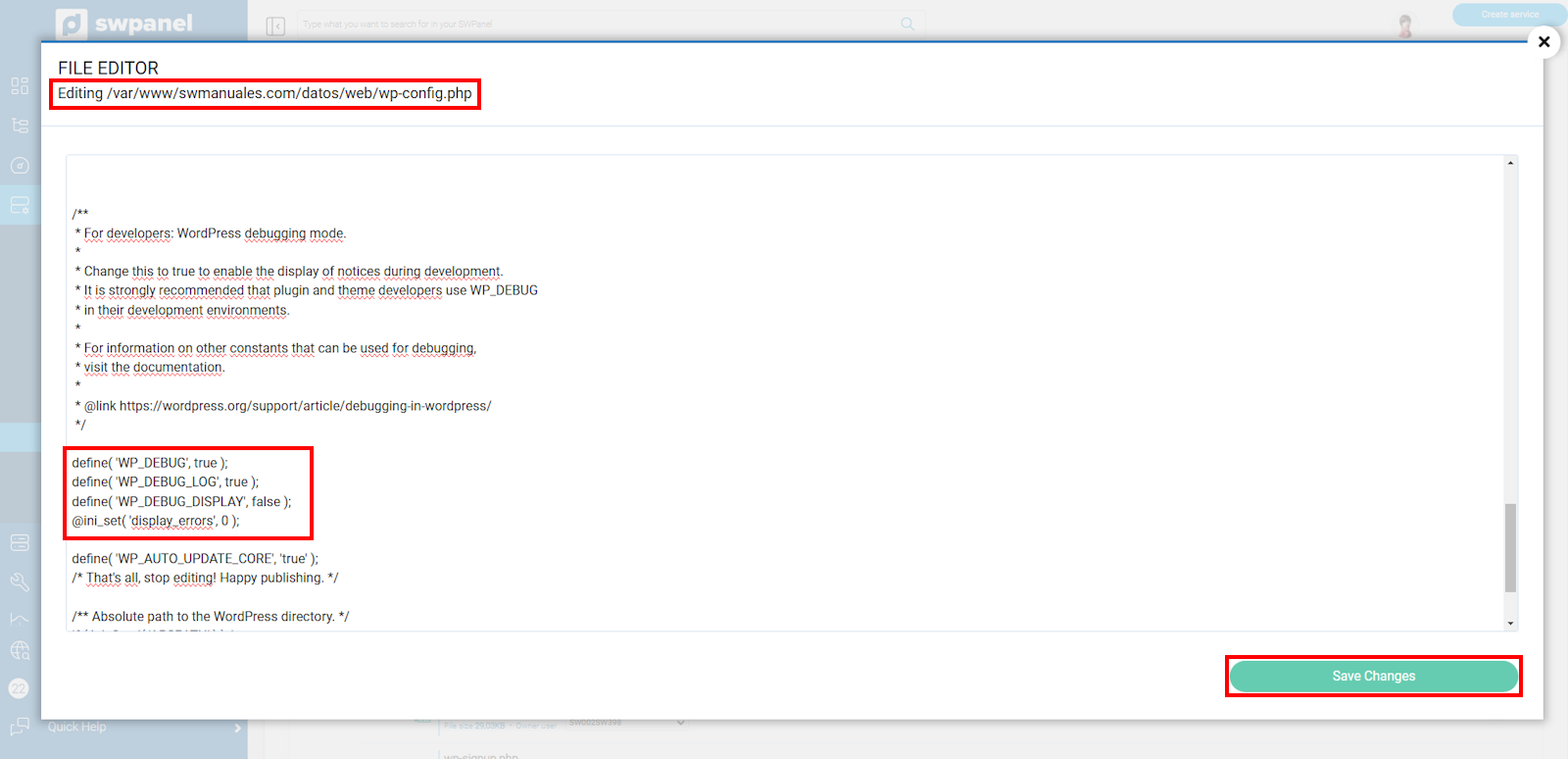
info_capture The screenshot is for guidance only. It was taken using version 2025.00.0017 dated 04/01/2025. It may differ from what the current version of SWPanel shows.
Once this is done, instead of the errors being displayed on the website itself, they will be saved in a log (debug.log) within the wp-content folder located in the root directory of the page (/datos/web/wp-content/debug.log).