
How to change the root directory of your Web
To manage the root directory of your web hosting on your cloud server using SWPanel, you must follow these steps:
1. In the upper box of SWPanel, enter the name of the service whose root directory you wish to modify
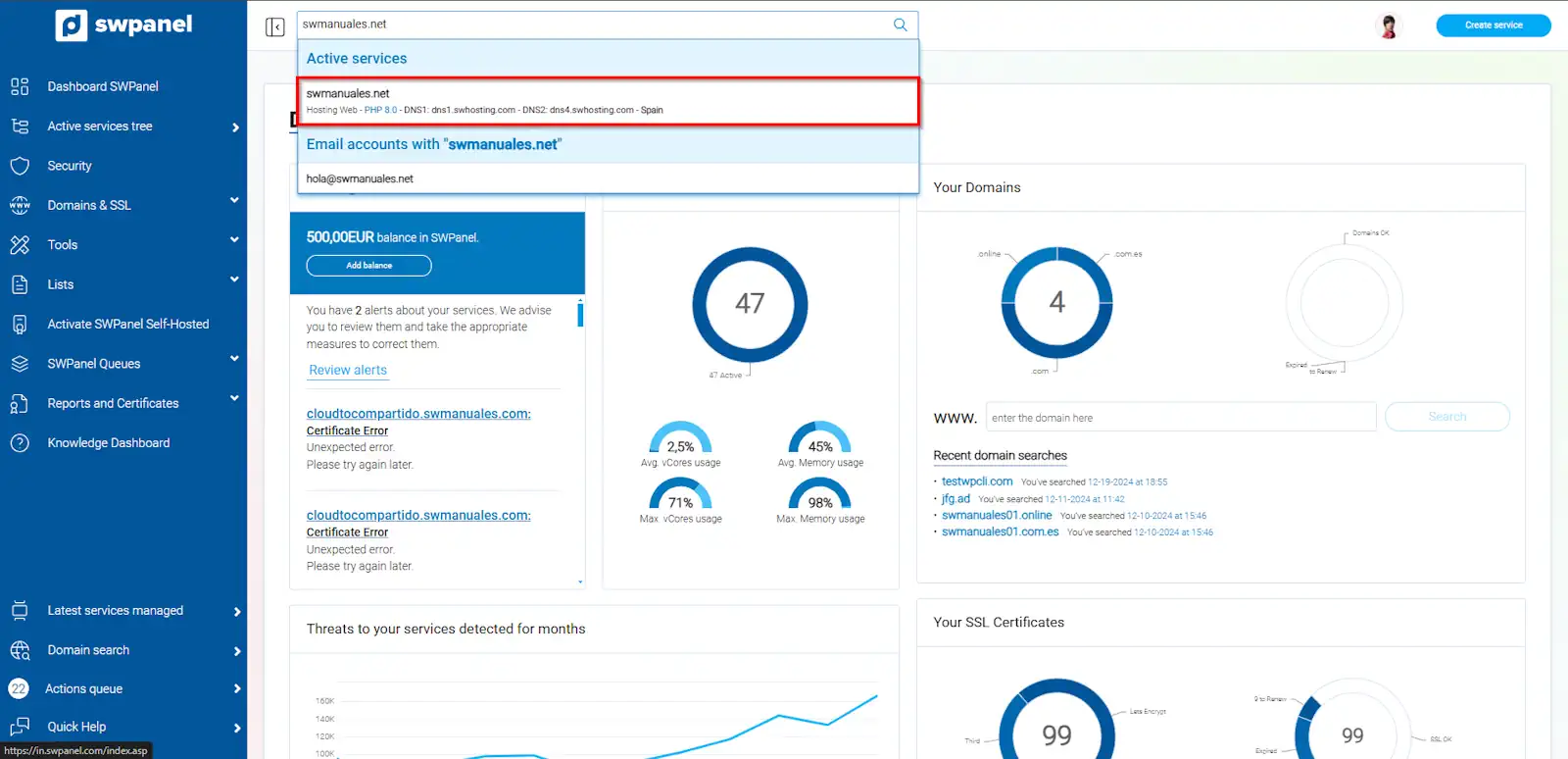
info_capture The screenshot is for guidance. It was taken from version 2025.00.0017 dated 25/01/2025. It may differ from what the current version of SWPanel shows.
2. In the menu on the left side of your Hosting service Dashboard, click on the Service Management dropdown to go to the Manage Web Root Directory option.
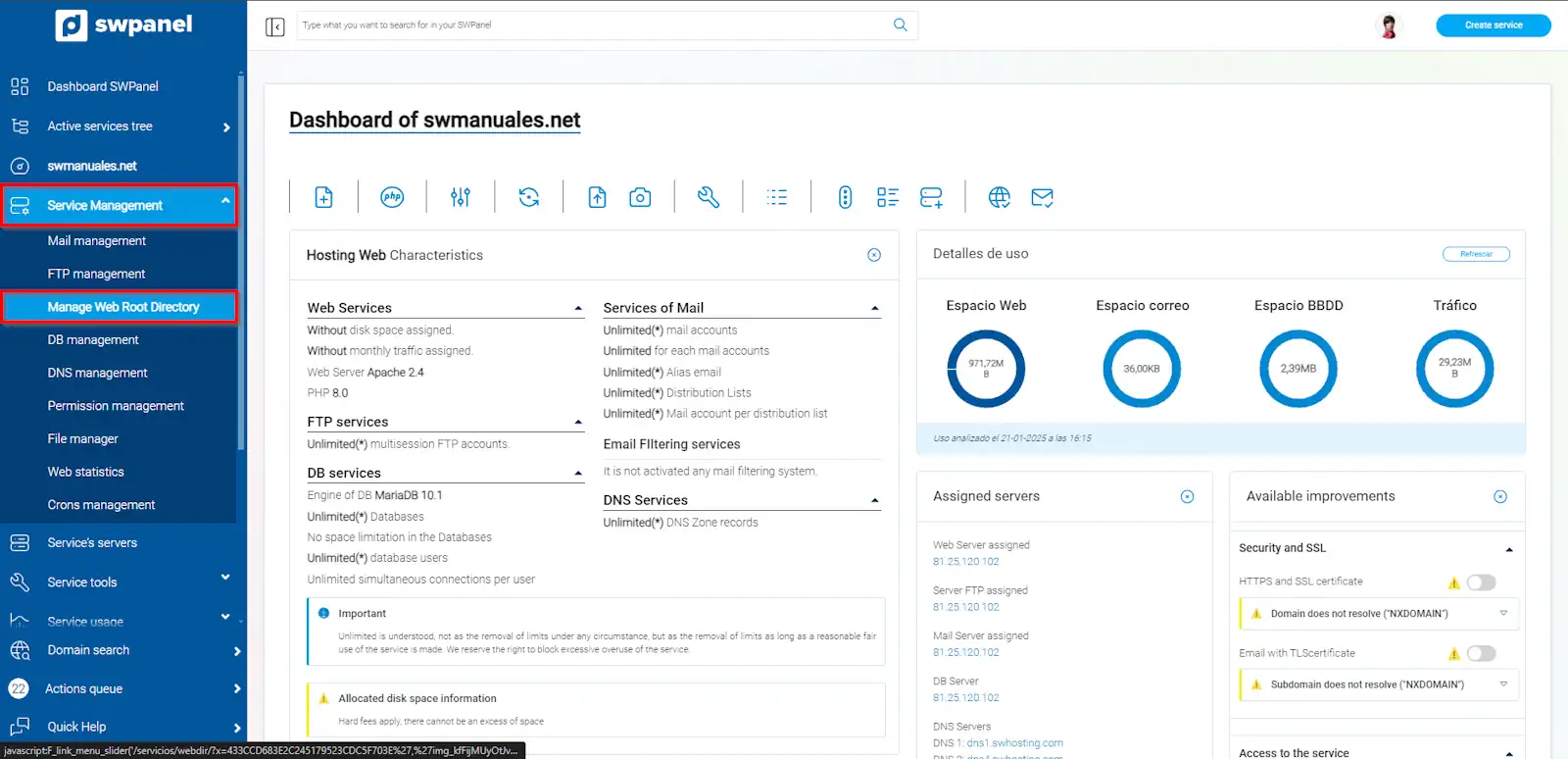
info_capture The screenshot is for guidance. It was taken from version 2025.00.0017 dated 25/01/2025. It may differ from what the current version of SWPanel shows.
3. By default, the web root path is yourdomain/datos/web. To modify it, you must click on the folder in the directory tree that you wish to set as the root directory.
4. Finally, accept the changes by clicking the "Assign directory" button.
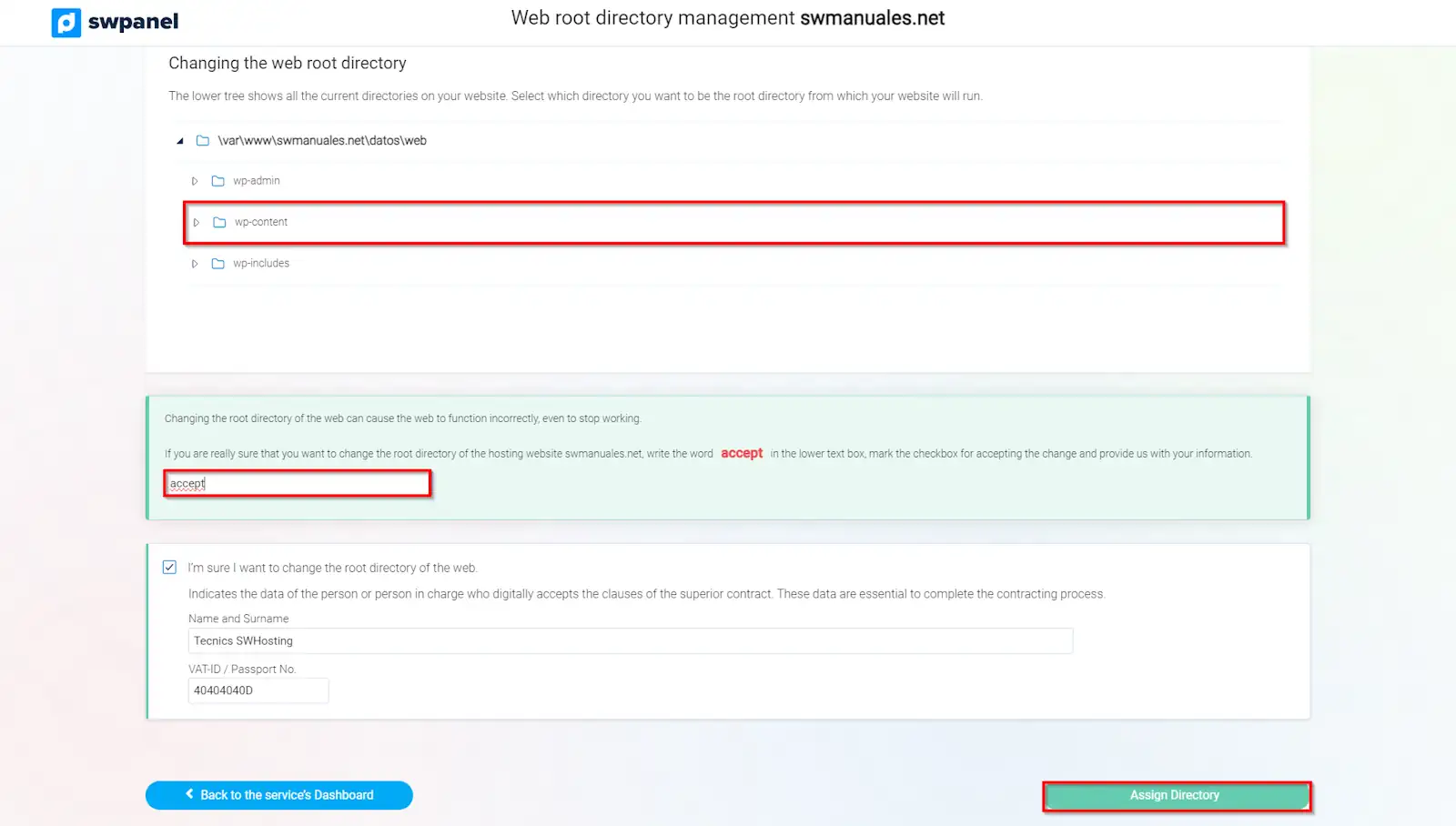
info_capture The screenshot is for guidance. It was taken from version 2025.00.0017 dated 25/01/2025. It may differ from what the current version of SWPanel shows.
Once the action is completed, your hosting will load the website from the directory defined in the previous step.