
How to configure the DNS servers (Nameservers) of my domain.
For your domain to use SWHosting's DNS servers (Nameservers) and point correctly to your Web Hosting, you must follow these steps.
If you are using nameservers from another provider, you can go directly to step 4.
Below we explain the process step by step.
1. Locate your service in SWPanel
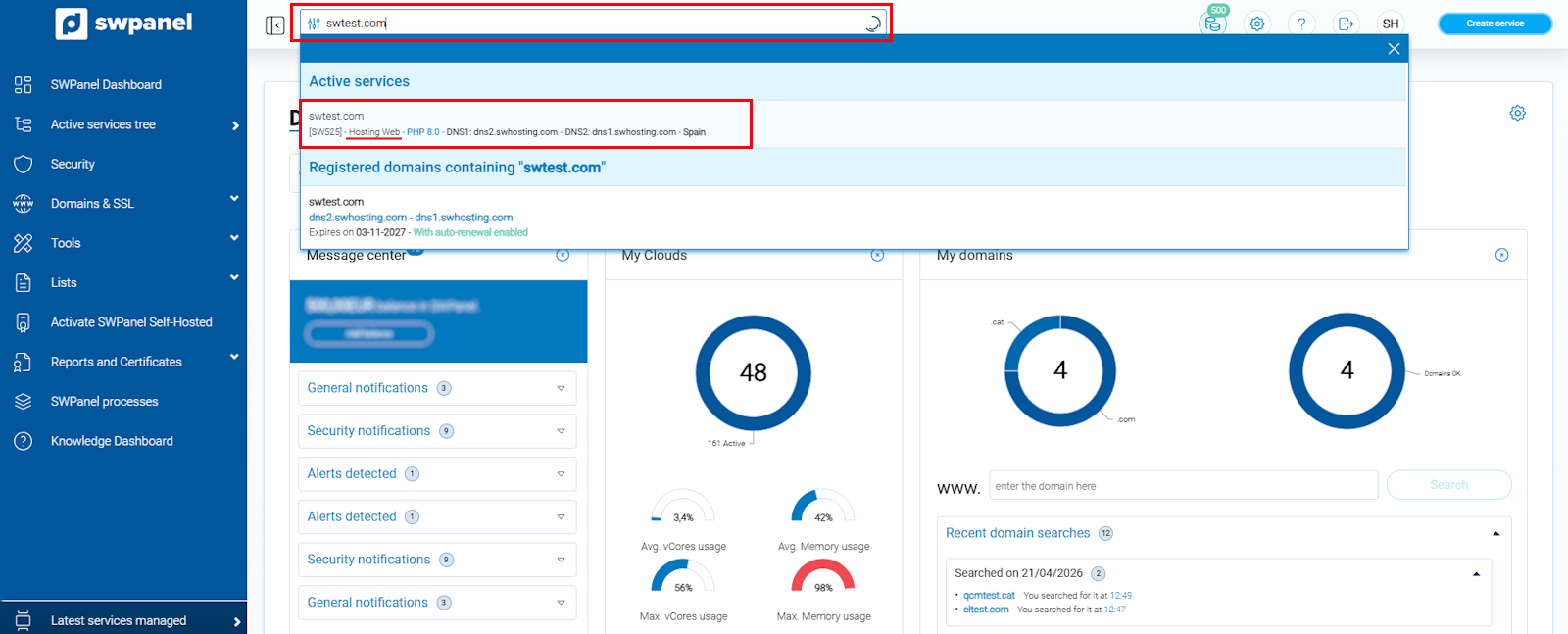
At the top of SWPanel, in the search bar, type the name of your domain or service (for example: swtest.com).
Click on the result that appears to access the Service Dashboard.
info_capture The screenshot is for guidance purposes. It was taken using version 2026.001.0020 dated 25/04/2026. It may differ from what the current version of SWPanel shows.
2. Access the service servers
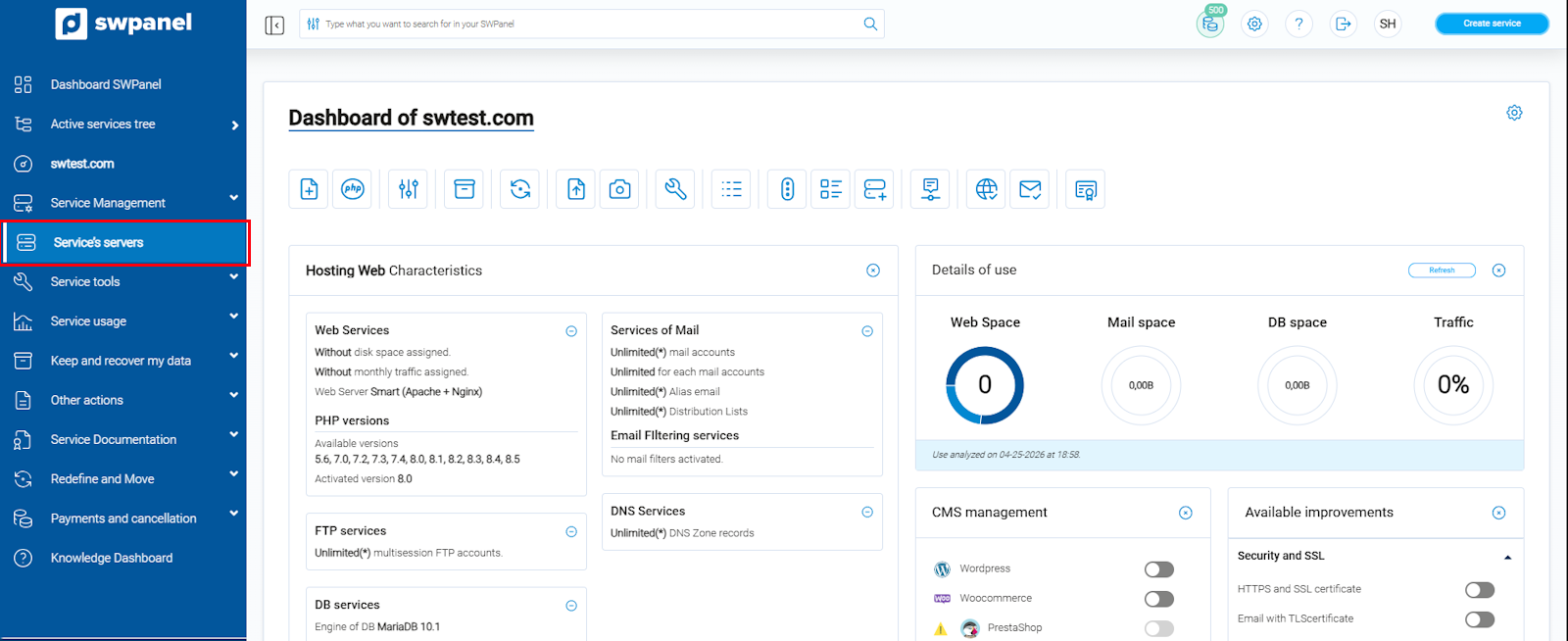
In the left side menu (blue column), within your service section, click on Service's servers (or Servidores del servicio).
info_capture The screenshot is for guidance purposes. It was taken using version 2026.001.0020 dated 25/04/2026. It may differ from what the current version of SWPanel shows.
3. Check the assigned Nameservers
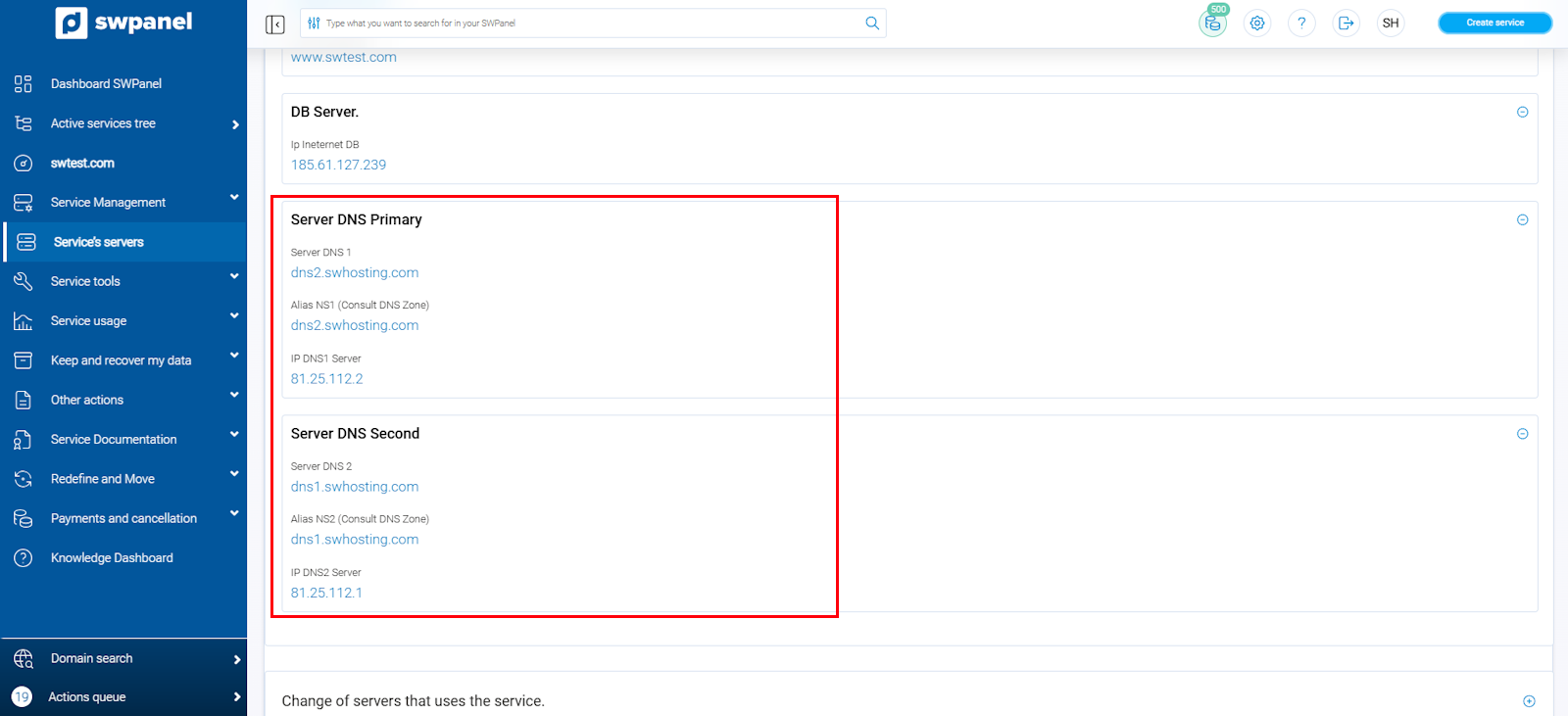
On this screen, you will be able to see the Primary DNS Server and Secondary DNS Server that you should use.
Write down these two values, as you will need them in the next step.
info_capture The screenshot is for guidance purposes. It was taken using version 2026.001.0020 dated 25/04/2026. It may differ from what the current version of SWPanel shows.
4. Access your domain's DNS management
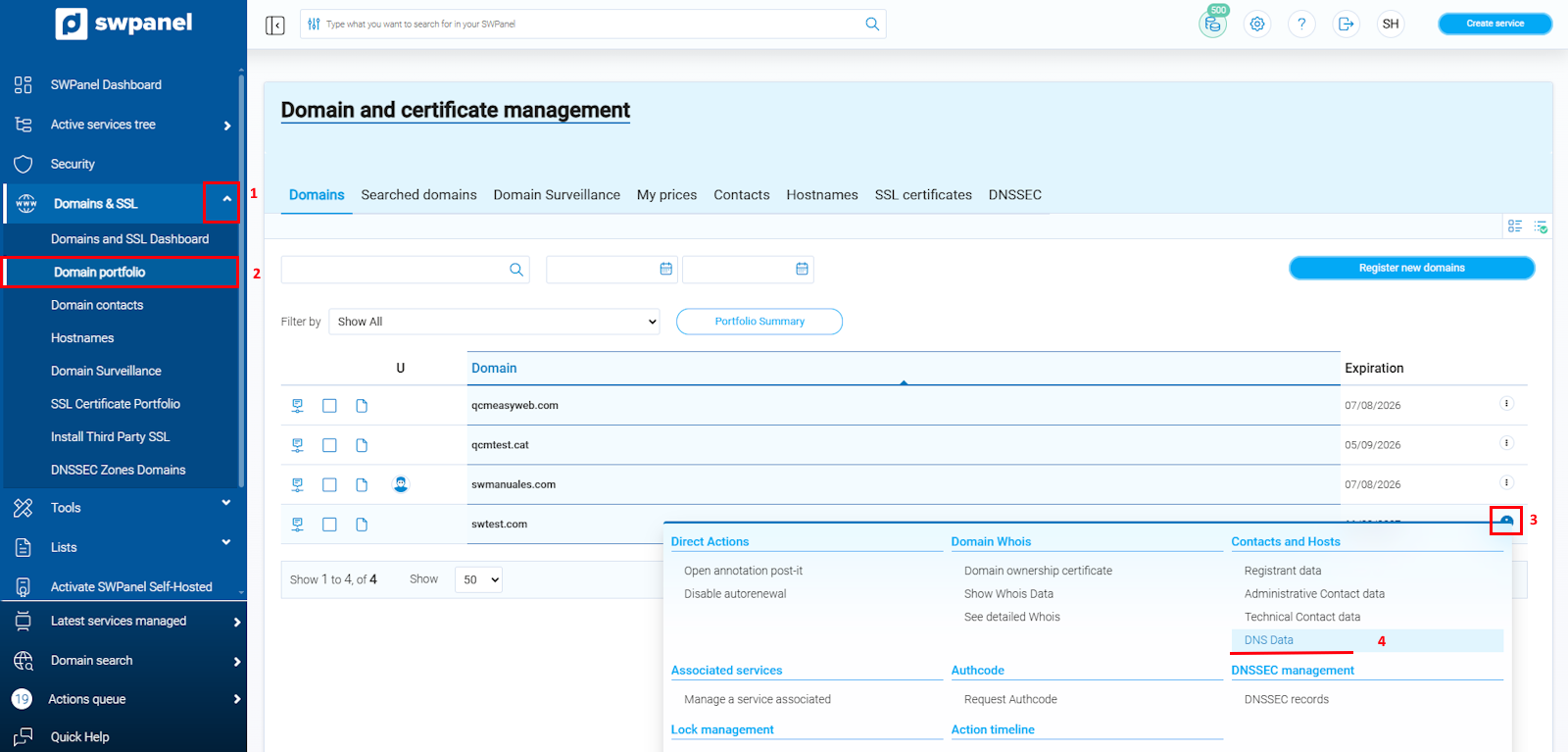
Go to the left side menu and select Dominios y SSL → Domain portfolio (or Cartera de dominios).
Find your domain in the list, hover over the [...] menu that appears on the right, and select DNS Data (Datos de DNS).
info_capture The screenshot is for guidance purposes. It was taken using version 2026.001.0020 dated 25/04/2026. It may differ from what the current version of SWPanel shows.
5. Modify the Nameservers
In the DNS management screen, you will see the DNS 1 and DNS 2 fields (and optionally DNS 3 and DNS 4).
Click on the Change DNS button for each and enter the nameservers you obtained in step 3.
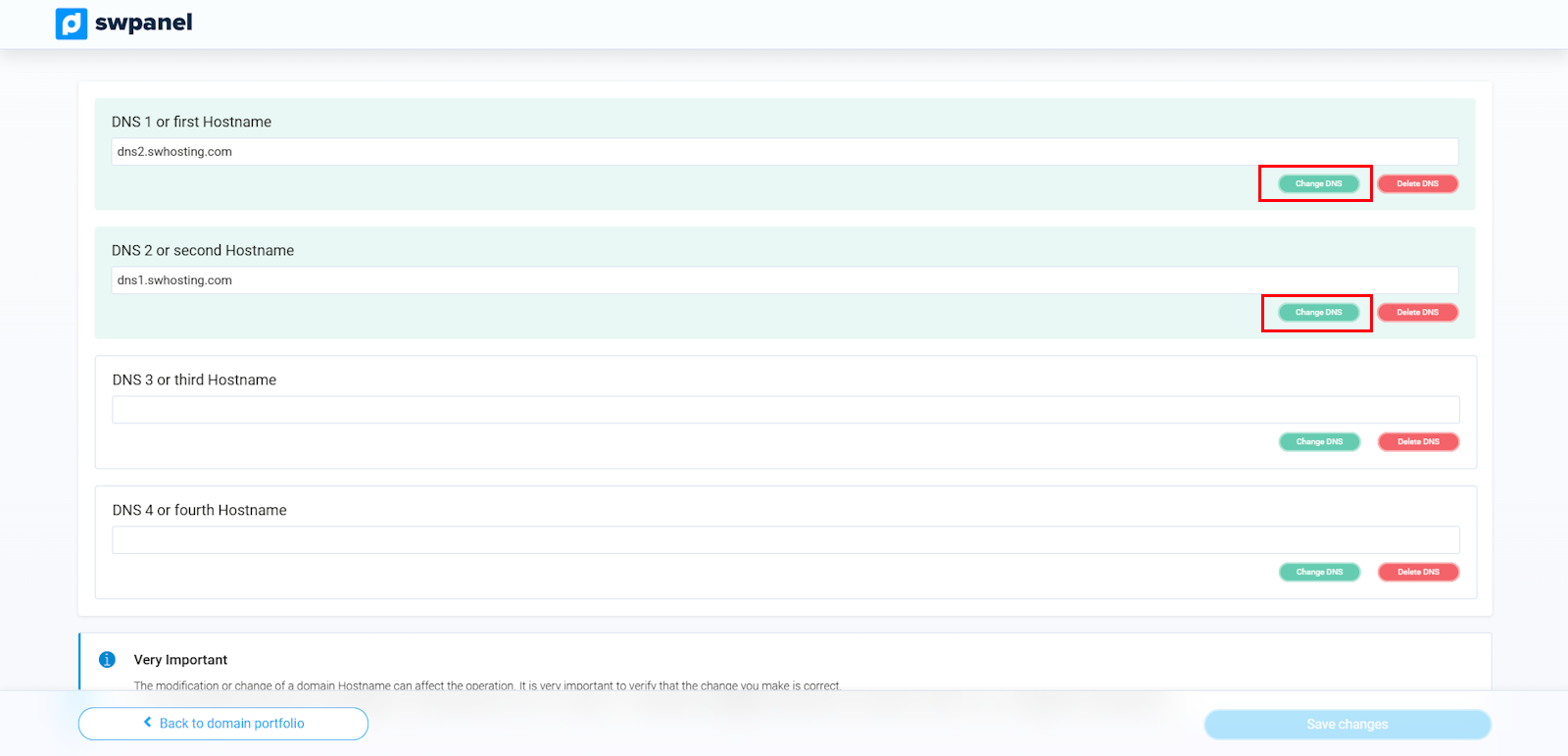
info_capture The screenshot is for guidance purposes. It was taken using version 2026.001.0020 dated 25/04/2026. It may differ from what the current version of SWPanel shows.
Once the two main nameservers have been entered, check the box I accept responsibility for the DNS change and press the blue Save Changes button.
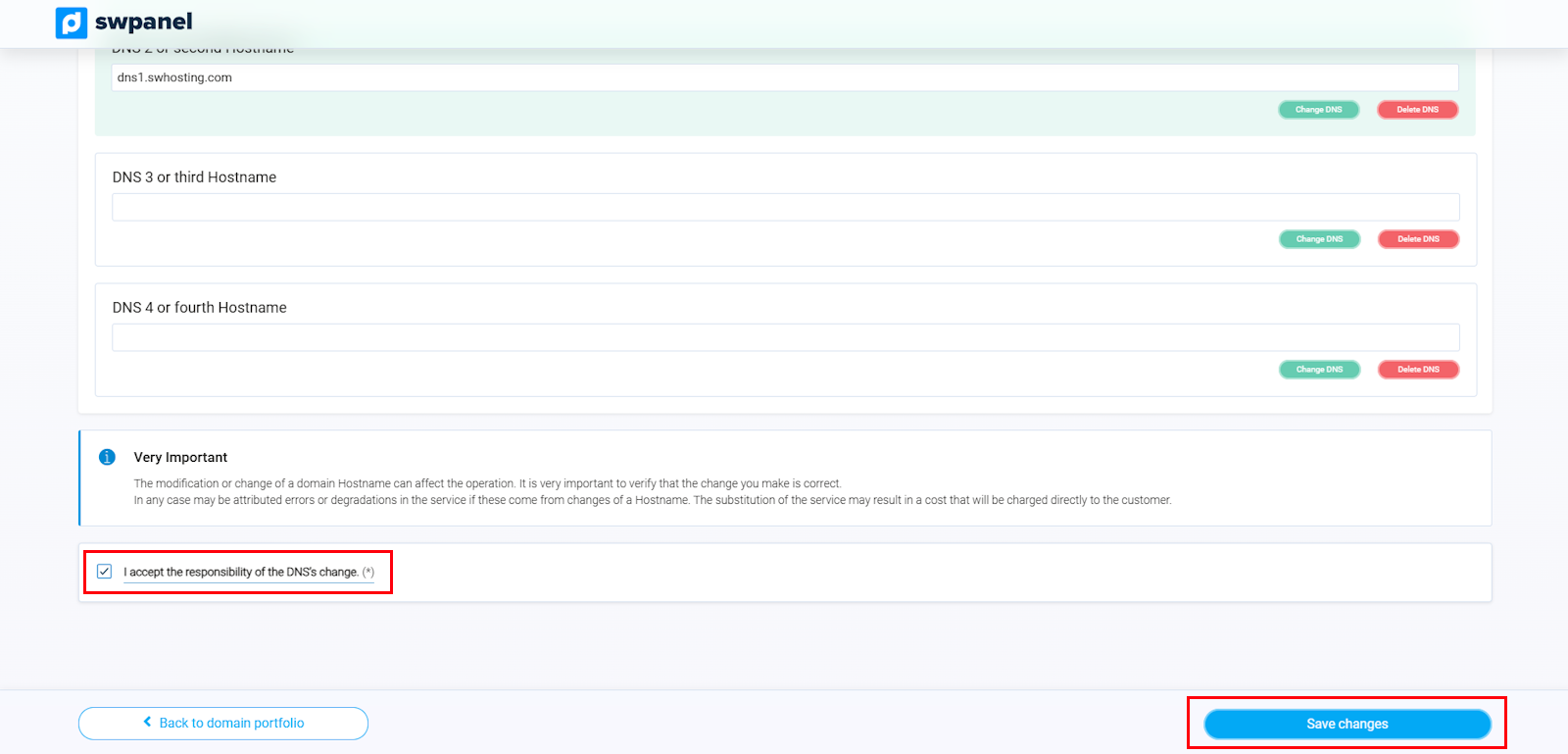
info_capture The screenshot is for guidance purposes. It was taken using version 2026.001.0020 dated 25/04/2026. It may differ from what the current version of SWPanel shows.
⚠️ Important: Changing a domain's nameservers can take up to 48 hours to propagate fully across the internet (DNS TTL). During this time, some users may continue to see the previous version of the site.
If your domain is not registered with SWHosting, you must make the nameserver change from the registrar's panel where your domain is held (Other provider), using the same Primary and Secondary DNS values.