
How to configure the network of a Windows server with the SWPanel data
To be able to reconfigure the network of your Windows server, first, it is necessary to know the data to be entered.
To do this, enter your SWPanel and, using the top search bar, access the dashboard of your Cloud with Windows:

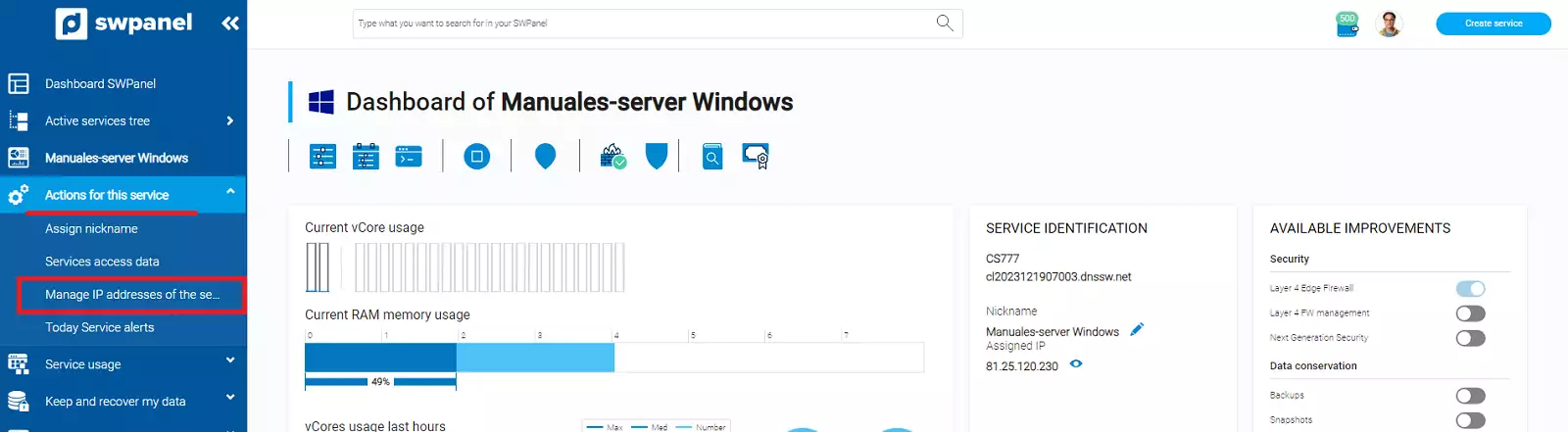
Subsequently, from the side menu, click on 'Actions on this service' -> 'Manage service IPs':
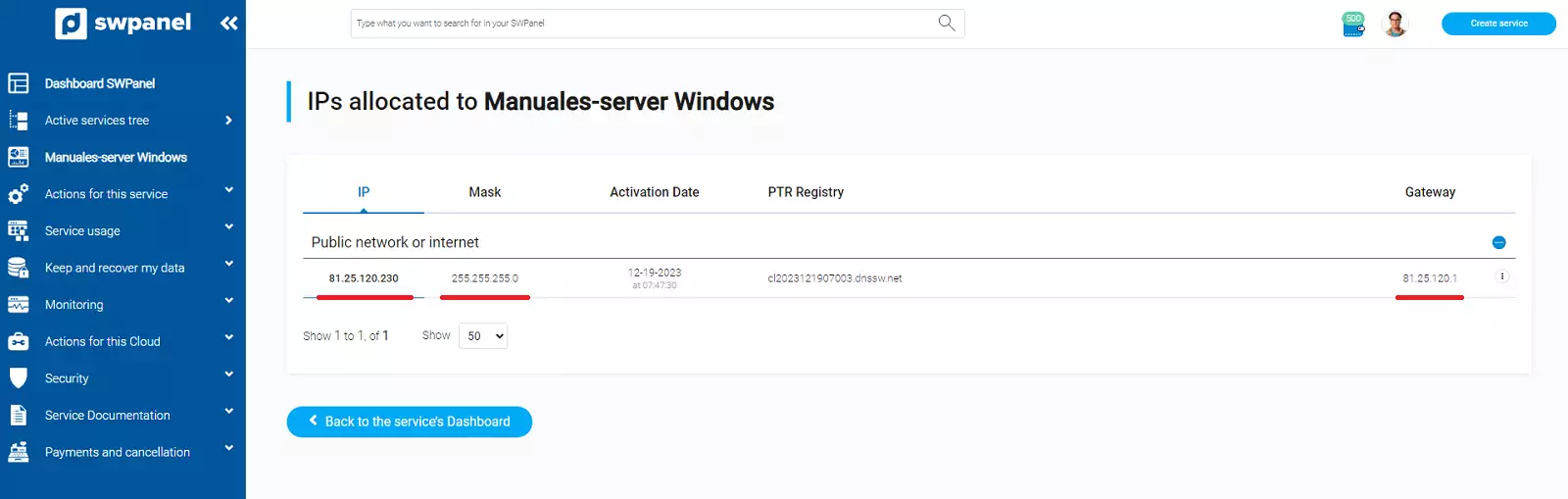
In this window, you will have the IP, subnet mask, and gateway to configure on the server:
Next, access your Windows Cloud.
info You can do this through the SWPanel console.
Manual: How do I access my Cloud using the console via SWPanel
Subsequently, press the keys 'Windows + R', in the text box, type ncpa.cpl and finally, click OK:

Right-click on the adapter named 'internet' and, subsequently, click on Properties:
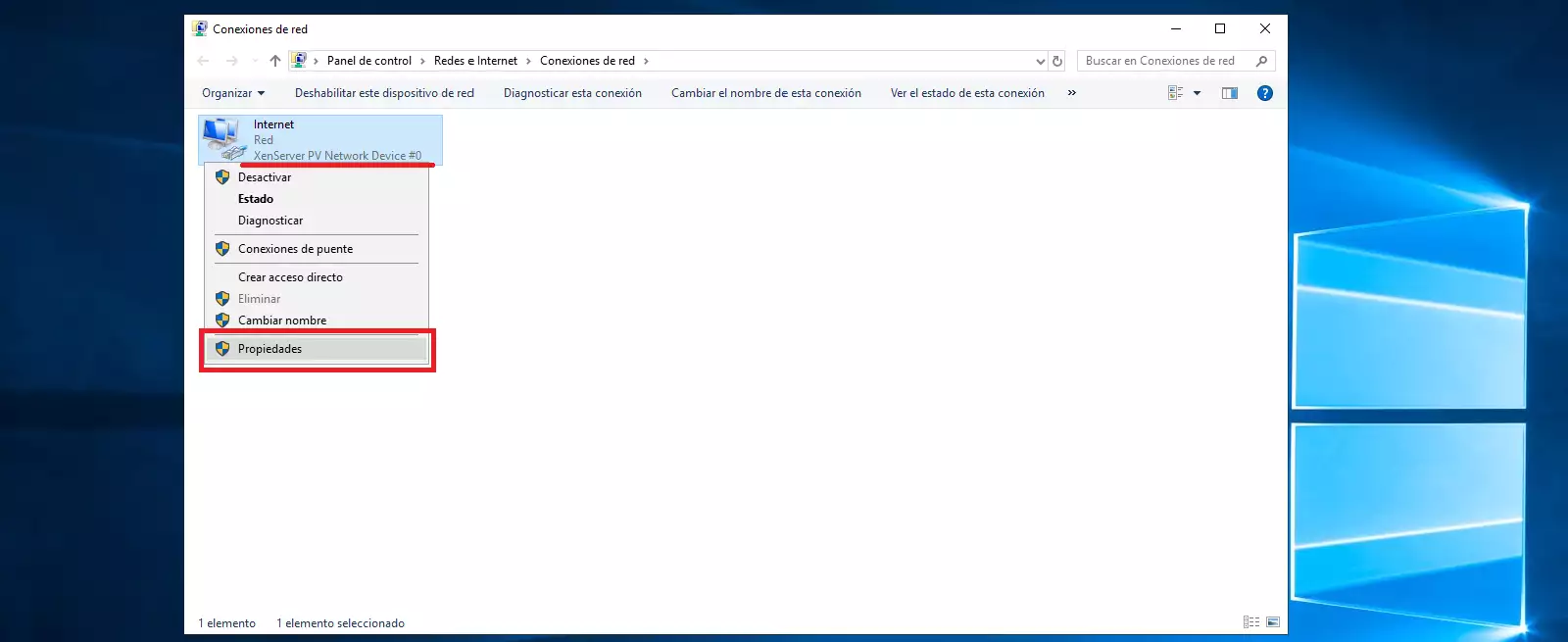
danger In case more than one network interface appears, make sure to configure the 'XenServer' interface
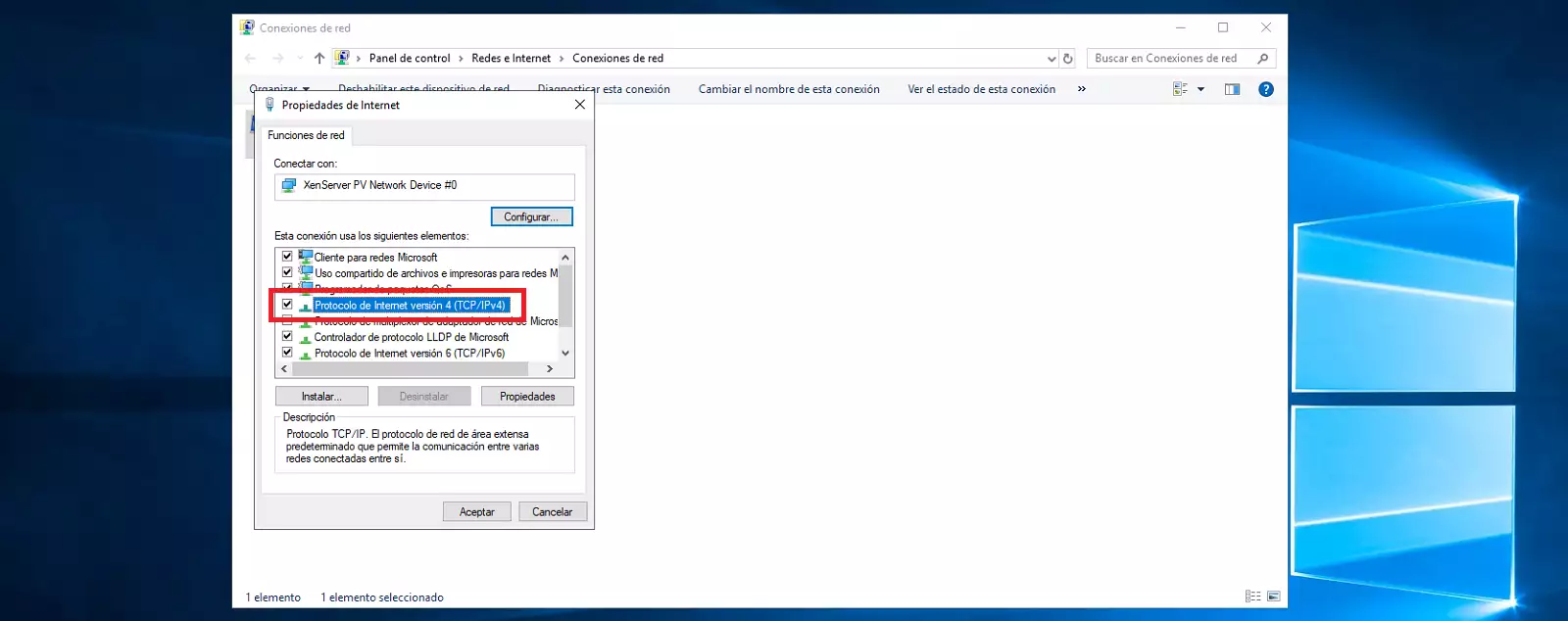
Double-click on the section 'Internet Protocol Version 4 (TCP/IPv4)':
Here, you must enter the data from your SWPanel:
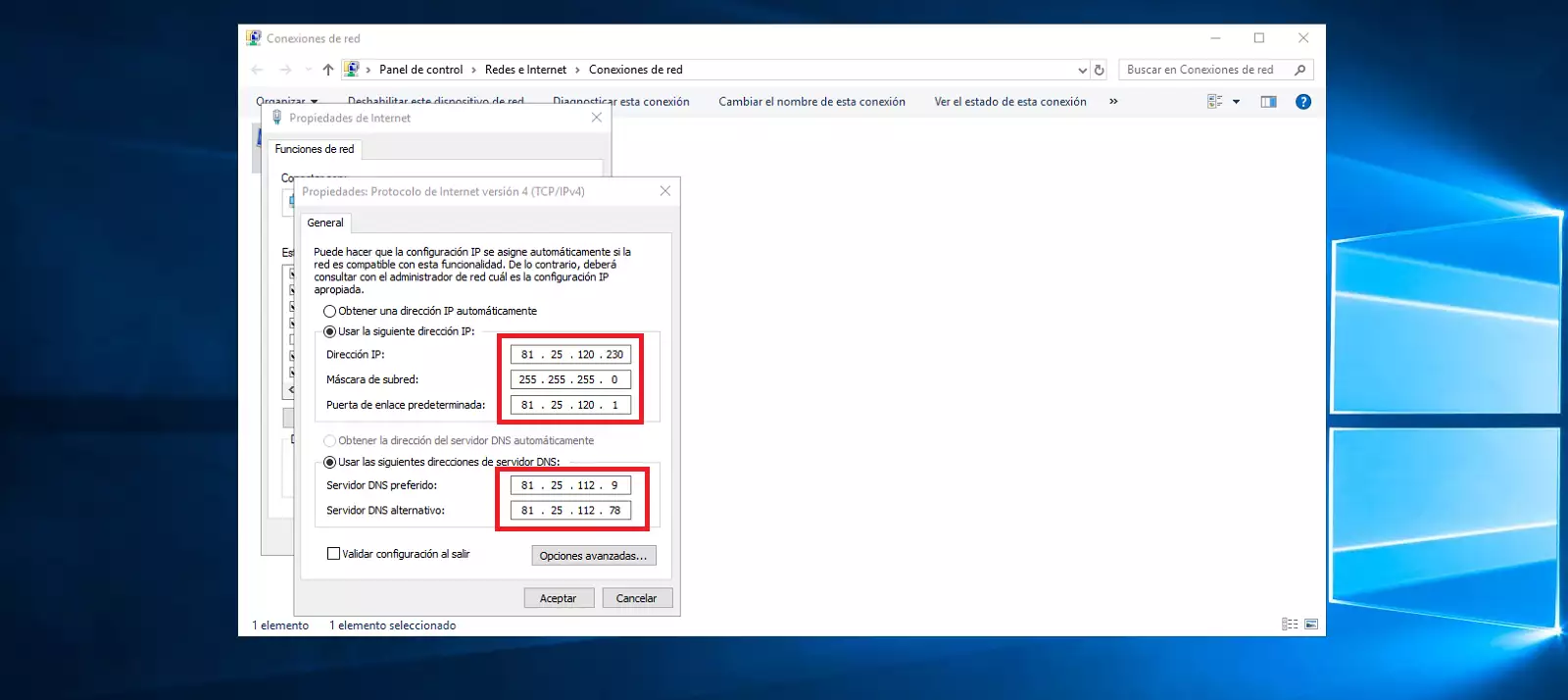
As DNS servers, you can use those of your preference. If you want to use those from SW Hosting, you can use the following:
If your IP starts with 81.25.x.x:
81.25.112.9
81.25.112.78
If your IP starts with 185.61.x.x:
185.61.124.25
185.61.124.26
Finally, click OK.