
How to create a load balancing system in SWPanel?
What is load balancing?
Load balancing is a mechanism that allows the distribution of resource consumption: CPU, network, storage... in order to provide a specific service without the limitations that a single device would offer. A typical example is the web traffic that a certain URL receives and which can saturate the available resources on a single machine. If instead of offering that web service from a single machine, we do it by distributing the traffic and load among several servers, the capacity of that service can certainly grow to much higher limits. Therefore, load balancing consists of distributing traffic or processing among several servers, reducing response times… to be able to handle more requests.
Therefore, load balancing allows us to offer a service with better availability and handle a greater demand for requests.
Web load balancing: it is one of the most common cases, based on the previous example, where we receive a certain amount of traffic (for example, web traffic) that we distribute among several web servers, to be able to handle many more visits than a single server could support, even if we could increase the resources to the maximum. The latter is known as vertical scaling, that is, increasing the resources of a machine to the maximum, for example in CPU and RAM, unlike horizontal scaling, where new servers are added when the system needs to grow to handle more HTTP requests.

How to create a load balancing system in SWPanel?
1. Request for the creation of the balancing container.
a) In the upper right part of SWPanel, we click on the "Create Service" button.
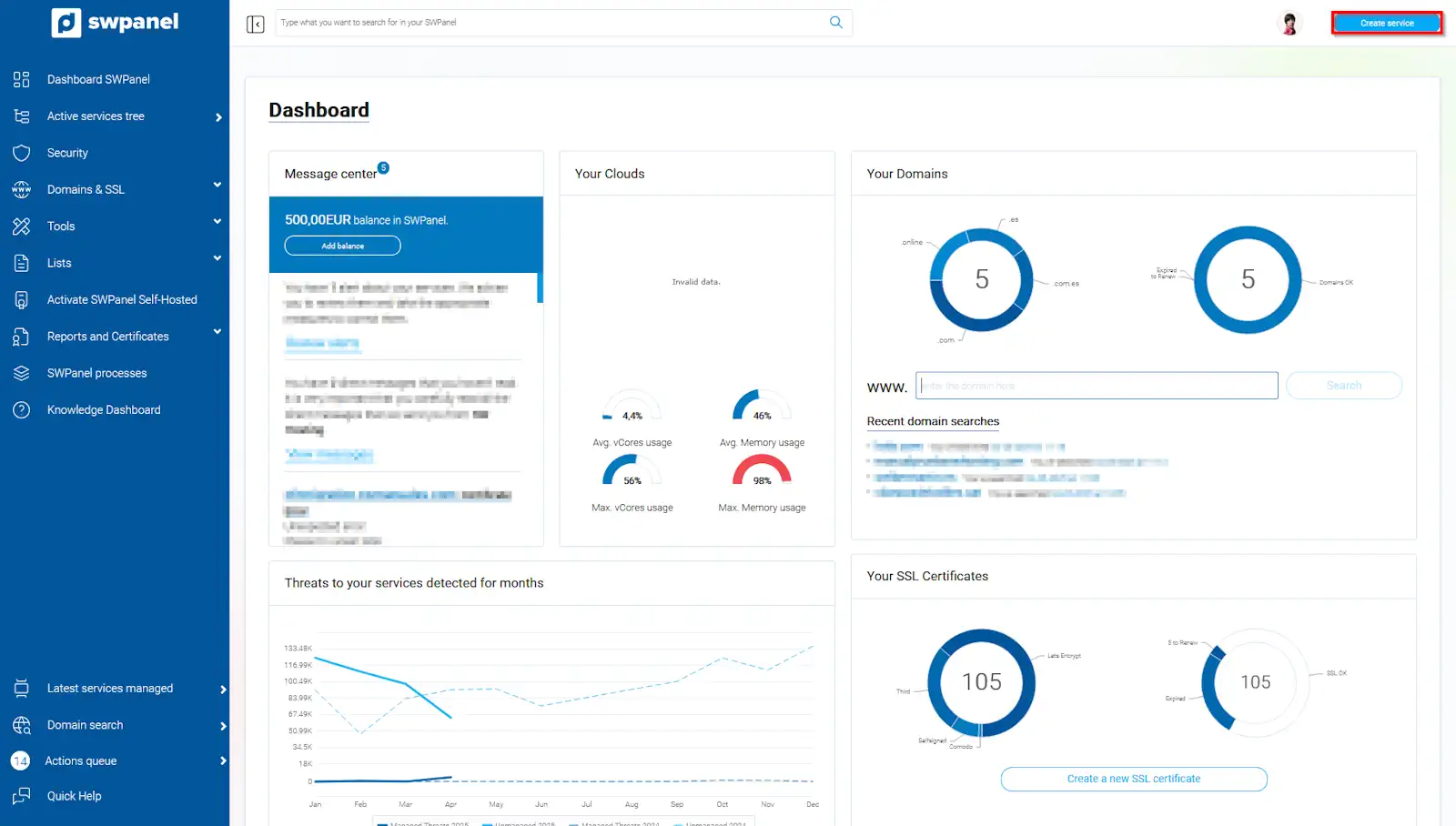
info_capture The screenshot is for guidance. It was taken on version 2025.003.0007 dated 04/24/2025. It may differ from what the current version of SWPanel shows
b) In the following window, we go to the "Containers" tab and choose the “Balancers” option.
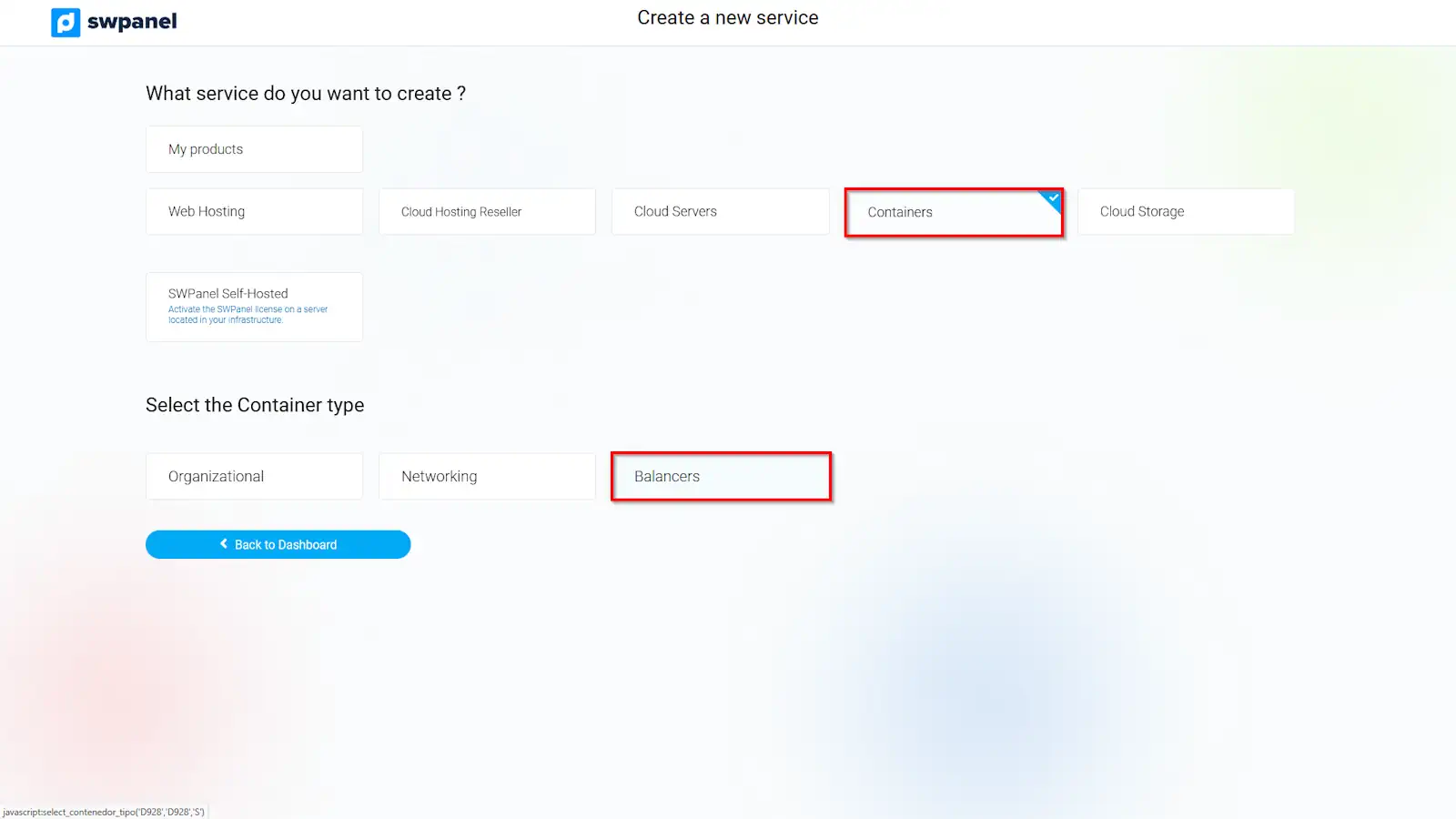
info_capture The screenshot is for guidance. It was taken on version 2025.003.0007 dated 04/24/2025. It may differ from what the current version of SWPanel shows
c) In the following step, we select the "Balancer" option
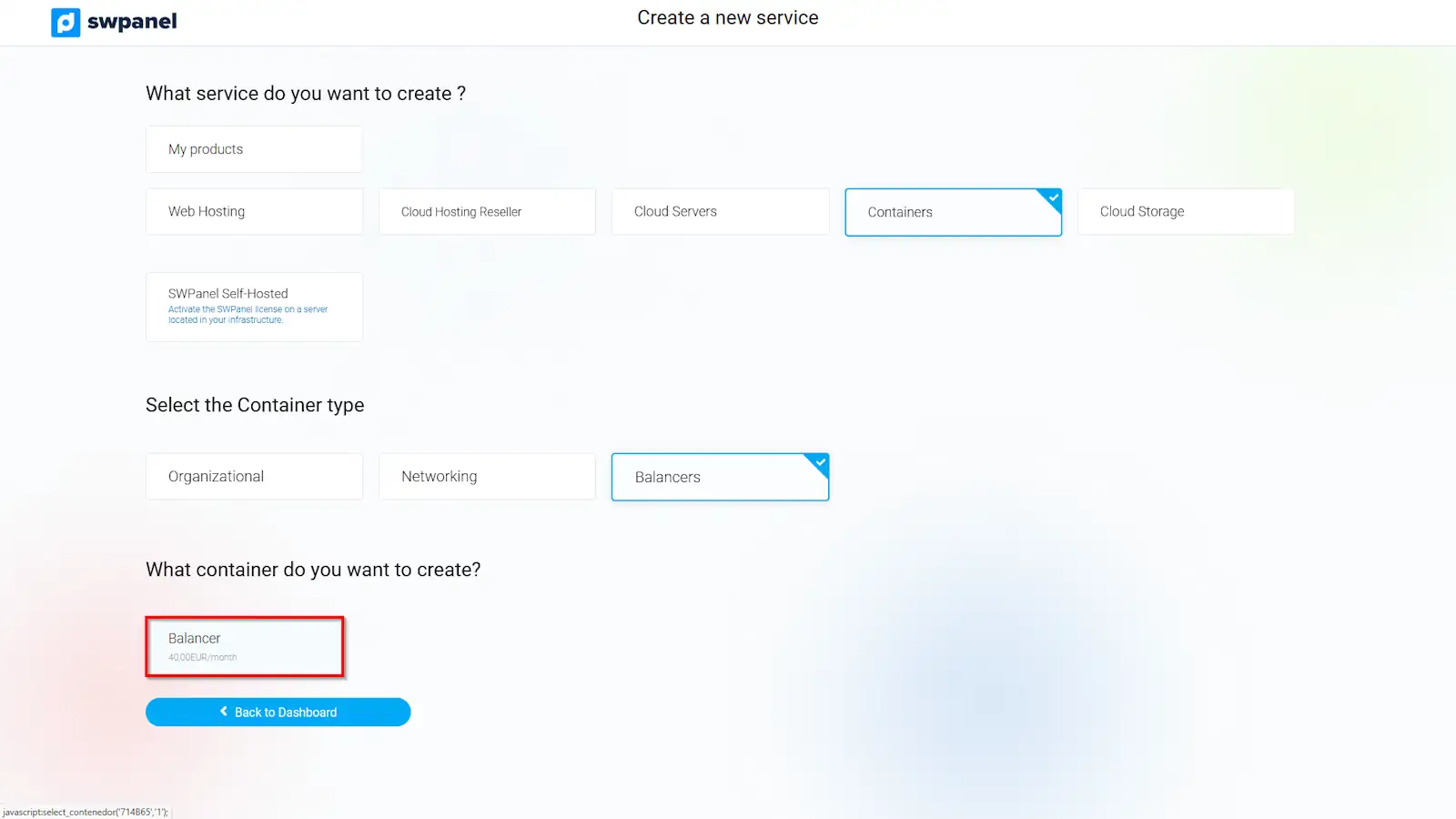
info_capture The screenshot is for guidance. It was taken on version 2025.003.0007 dated 04/24/2025. It may differ from what the current version of SWPanel shows
d) In the following window, we will define the servers that we wish to include in the load balancing system. We check the checkbox of the servers that will be part of the balancing container and press the "Next" button
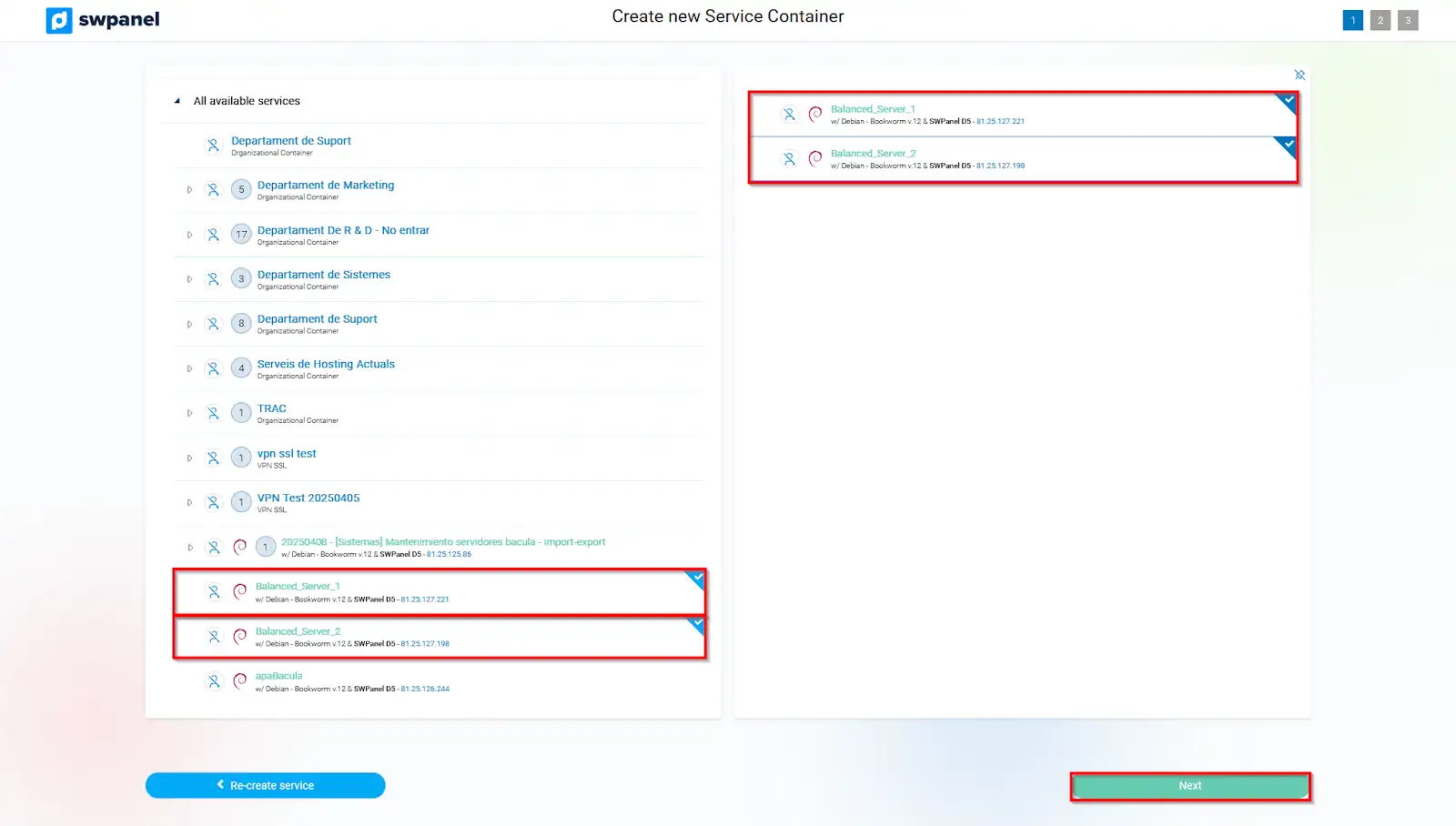
info_capture The screenshot is for guidance. It was taken on version 2025.003.0007 dated 04/24/2025. It may differ from what the current version of SWPanel shows
2. Customization of the balancing container
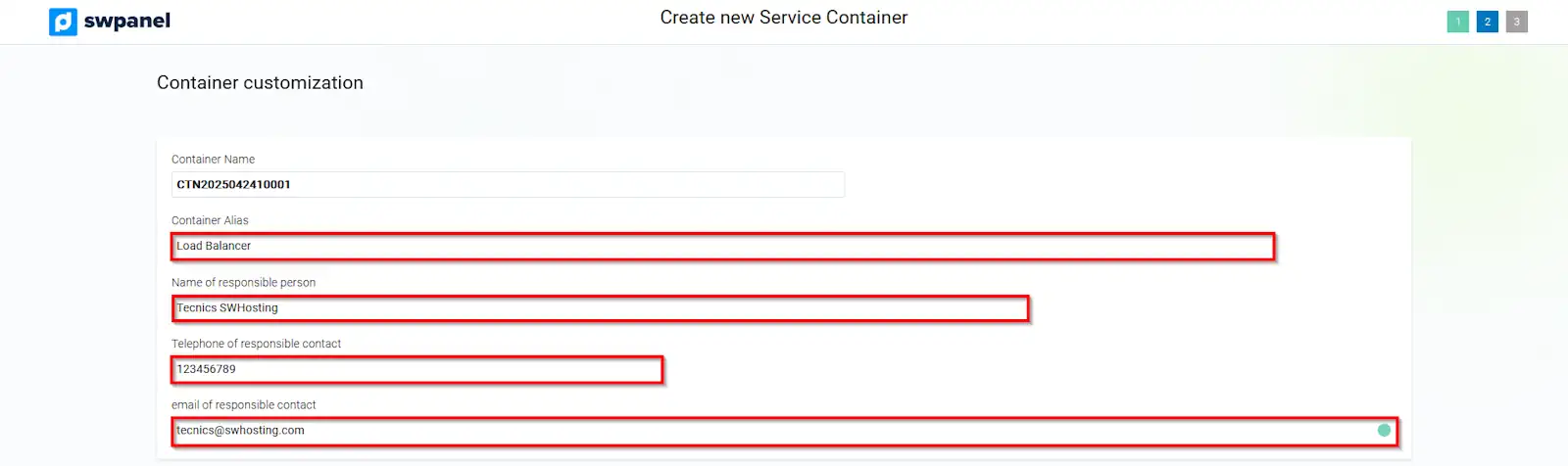
a) We will customize the Balancing container by indicating:
- Balancing container nickname:
- Person in charge name:
- Person in charge phone:
- Person in charge email:
info_capture The screenshot is for guidance. It was taken on version 2025.003.0007 dated 04/24/2025. It may differ from what the current version of SWPanel shows
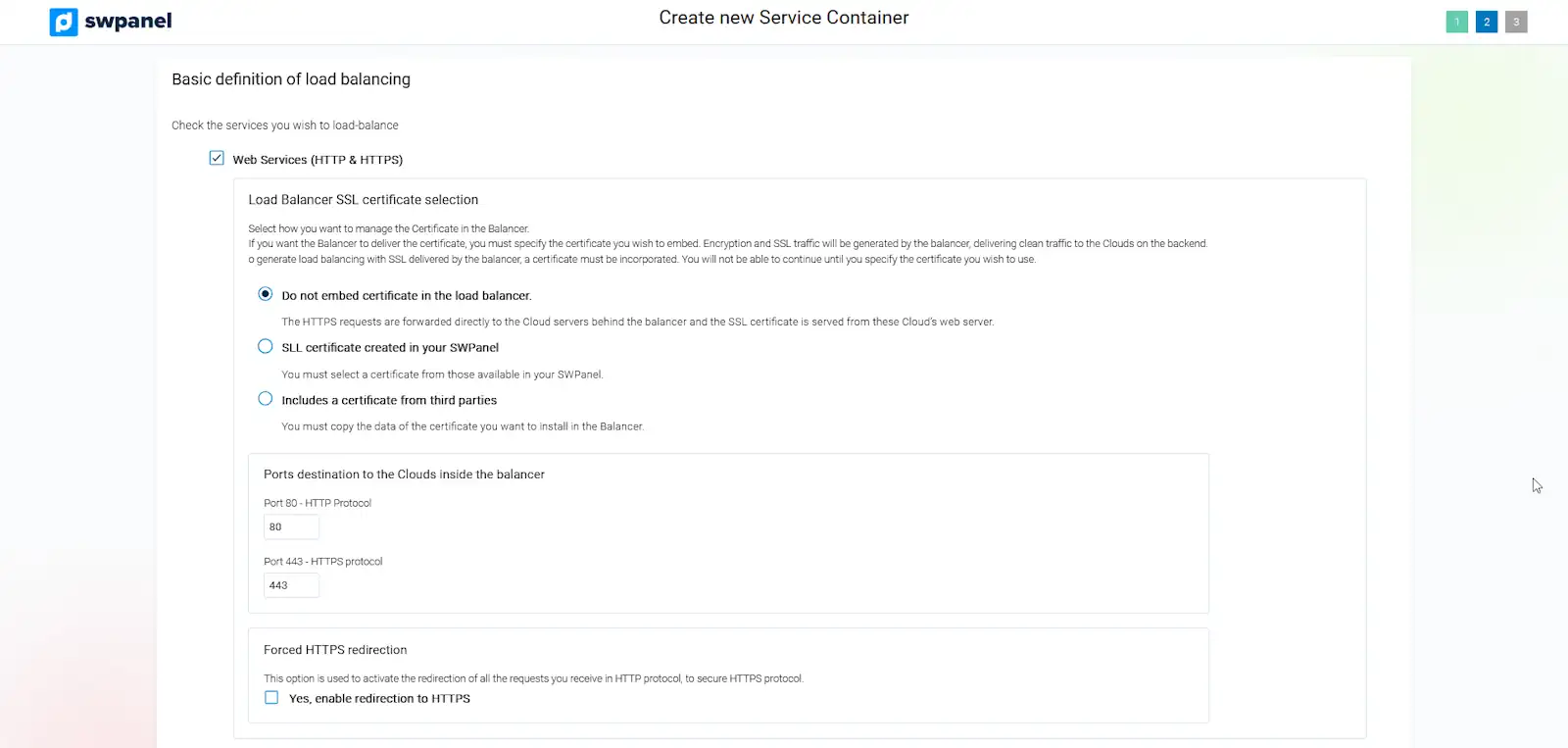
3. Basic definition of Load Balancing
By default, we will find the options regarding the services that we wish to balance
A) Web Services (HTTP and HTTPS)
B) Other ports
info_capture The screenshot is for guidance. It was taken on version 2025.003.0007 dated 04/24/2025. It may differ from what the current version of SWPanel shows
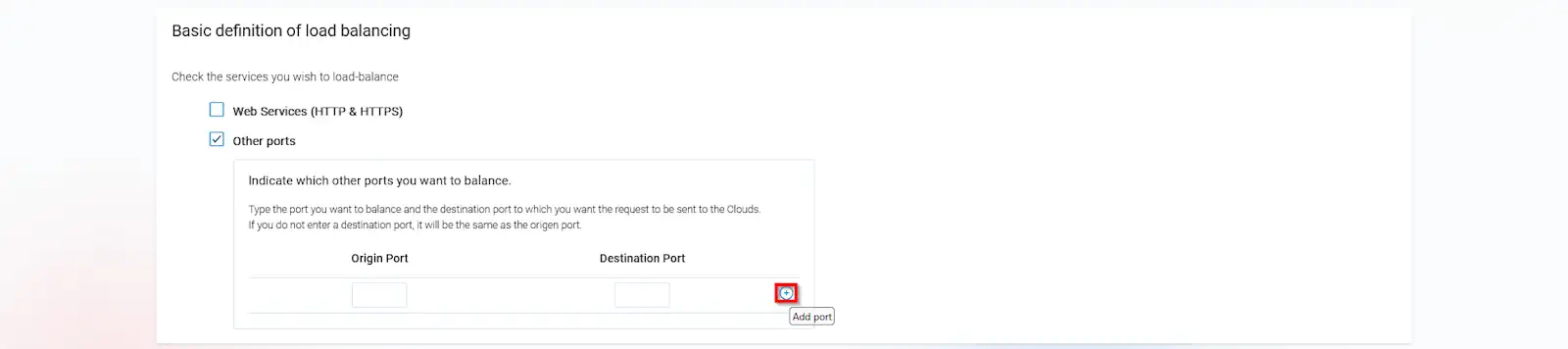
A) Web Services (HTTP and HTTPS)
info_capture The screenshot is for guidance. It was taken on version 2025.003.0007 dated 04/24/2025. It may differ from what the current version of SWPanel shows
Selection of the SSL certificate to be entered in the Balancer
The options you can choose from are:
- Do not enter certificate in the balancer: No SSL certificate is installed on the load balancer.
- SSL certificate created in your SWPanel: An SSL certificate available in your SWPanel is installed.
- Enter third-party certificate: An SSL certificate acquired from another SSL certificate provider is installed.
Destination ports to the Clouds within the balancer
You can define to which ports of the servers included in the balancing system the traffic received by the balancer on its communication ports 80 and 443 should be sent.
By default, traffic received by the balancer on its port 80 is sent to port 80 of the balanced Web servers, and traffic received by port 443 of the balancer is sent to the same port 443 of the balanced Web servers.
Forced HTTPS redirection
By activating this option, all requests received in HTTP protocol will be redirected to secure HTTPS protocol.
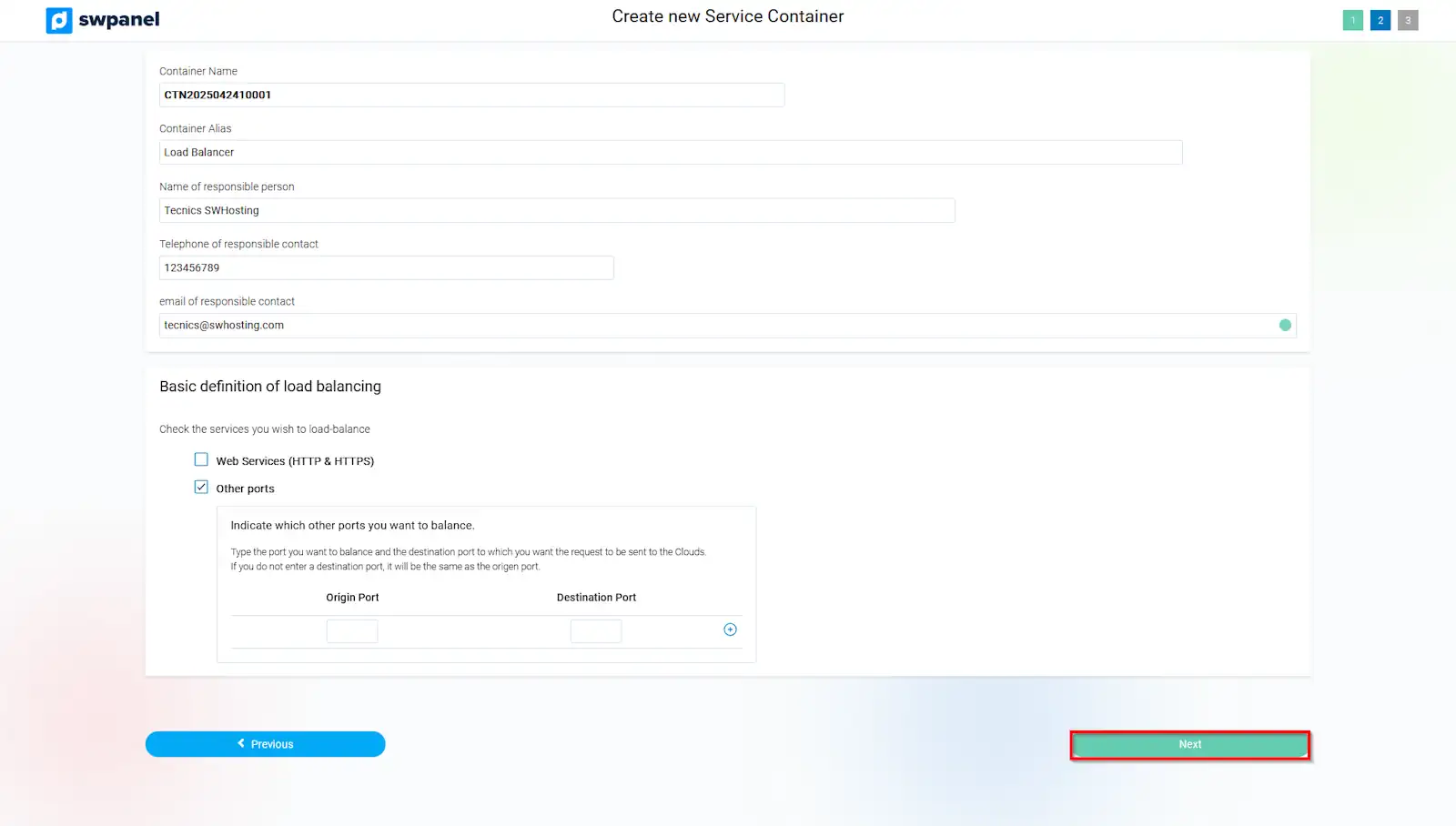
B) Other Ports
If you activate this option, you can define the port that you want to be balanced and the destination port of your servers to which you want the traffic to be sent. If you wish to add more source and destination ports, you can add them using the + icon to add more ports.
info_capture The screenshot is for guidance. It was taken on version 2025.003.0007 dated 04/24/2025. It may differ from what the current version of SWPanel shows
Once the basic definition of load balancing is completed, you must press the Next button
info_capture The screenshot is for guidance. It was taken on version 2025.003.0007 dated 04/24/2025. It may differ from what the current version of SWPanel shows
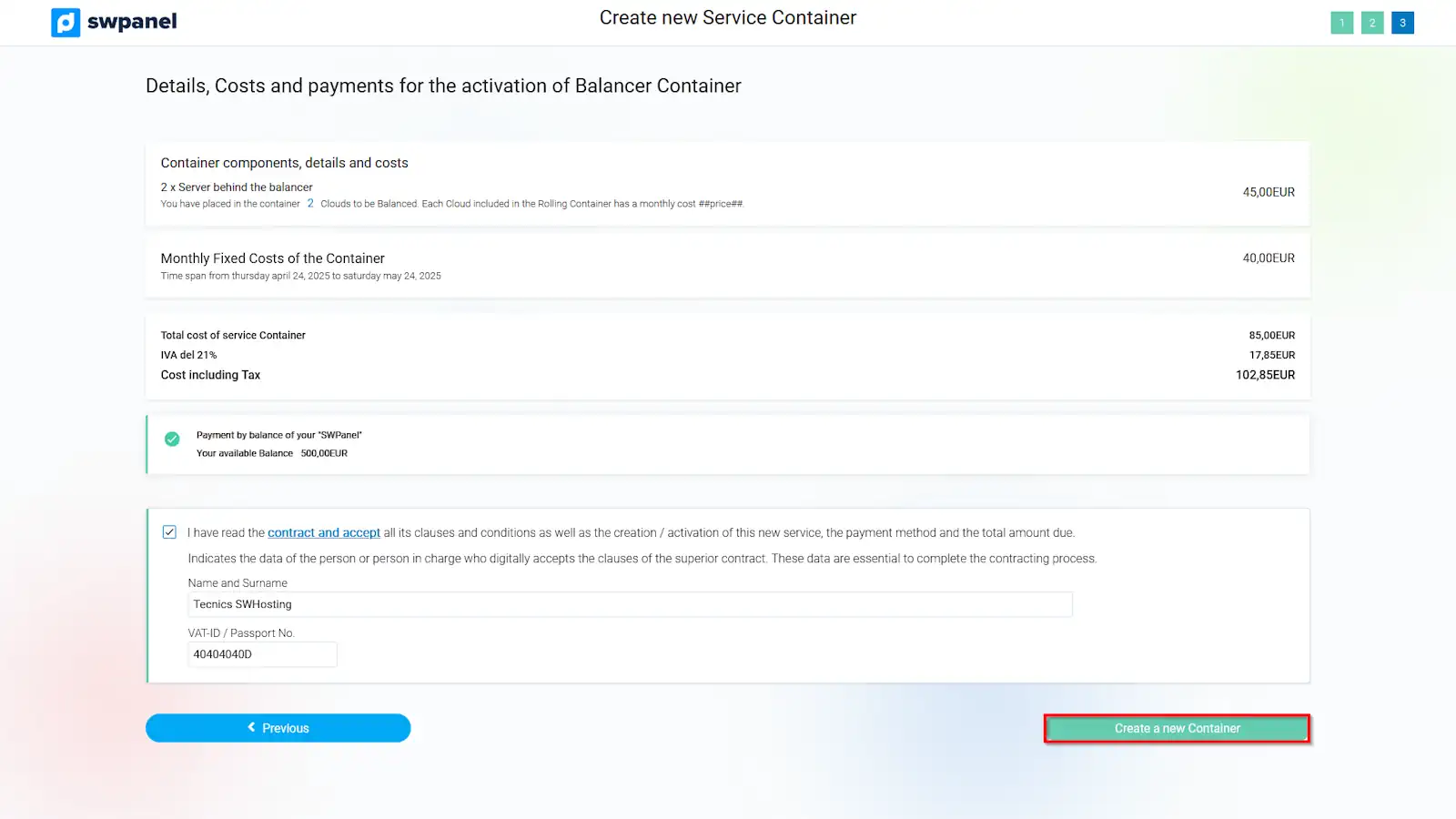
4. Contracting the Balancing Container
In the following window, a summary of the monthly fixed costs will be shown, corresponding to the load balancing system that will be contracted and subsequently created when you accept with the "Create new container" button.
info_capture The screenshot is for guidance. It was taken on version 2025.003.0007 dated 04/24/2025. It may differ from what the current version of SWPanel shows
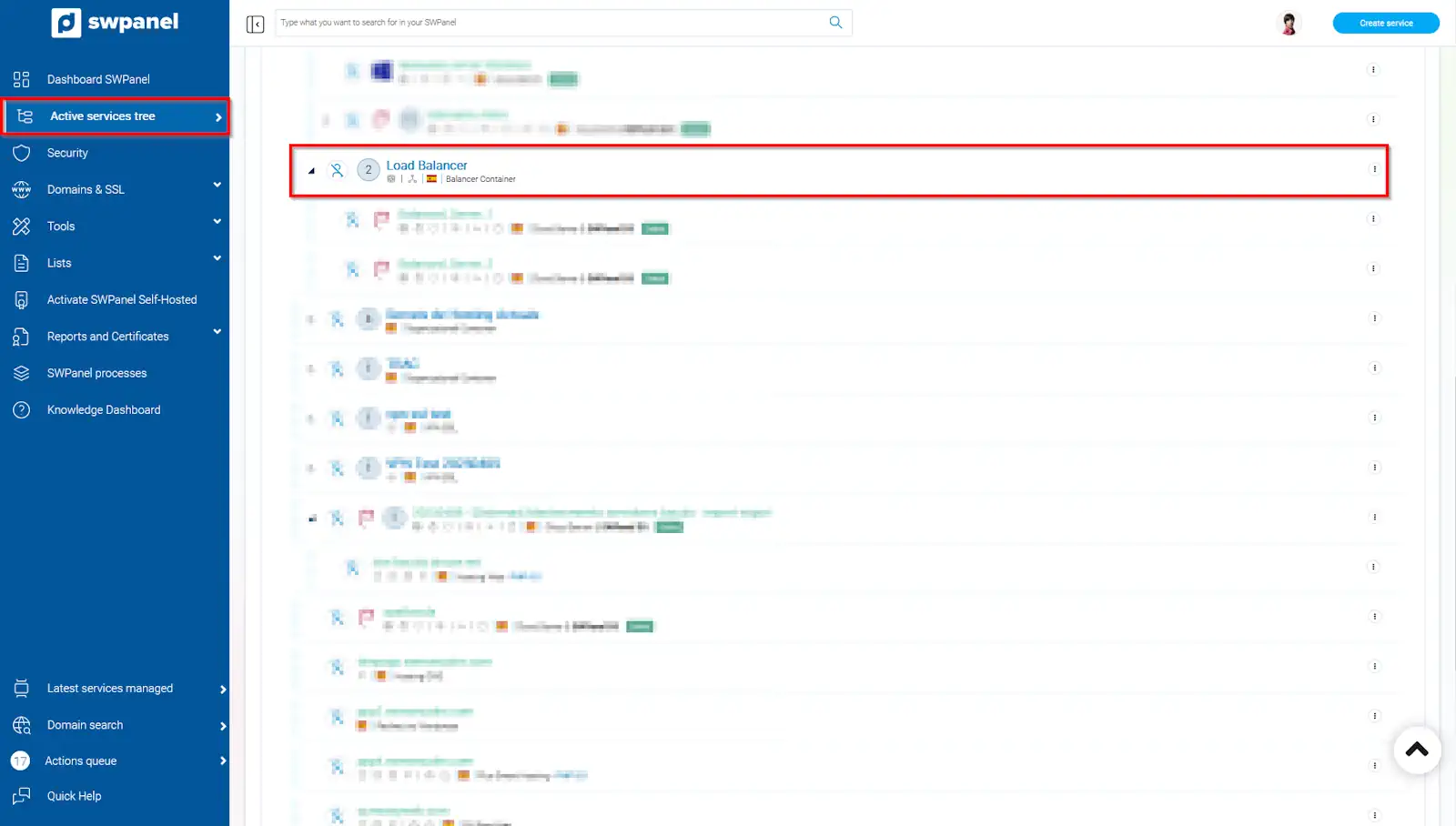
5. Visualization and access to the management of the Balancing Container
Once the balancing container is created, you can view it in the Active services Tree in your SWPanel customer account, where you can access the "Dashboard" for managing the Balancing Container by clicking on the name of the container.
info_capture The screenshot is for guidance. It was taken on version 2025.003.0007 dated 04/24/2025. It may differ from what the current version of SWPanel shows
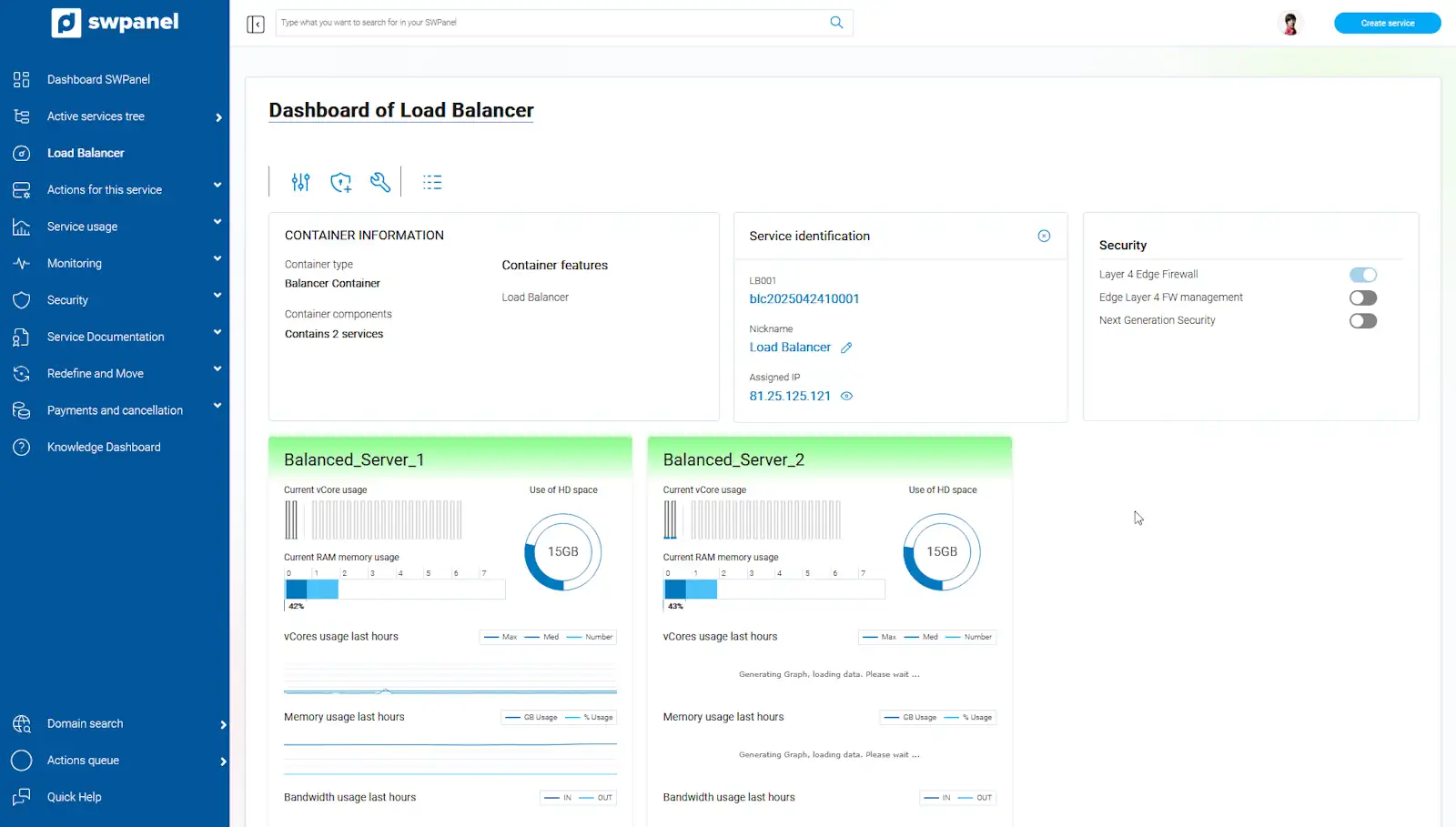
From the balancing container "Dashboard", you can review the active balanced servers, add new additional balanced servers, change the general configuration of the balancing container (SSL, ports, ...), access the event log (logs) of the balancing system, as well as add value-added services such as Layer 4 Firewall management or Next Generation Security.
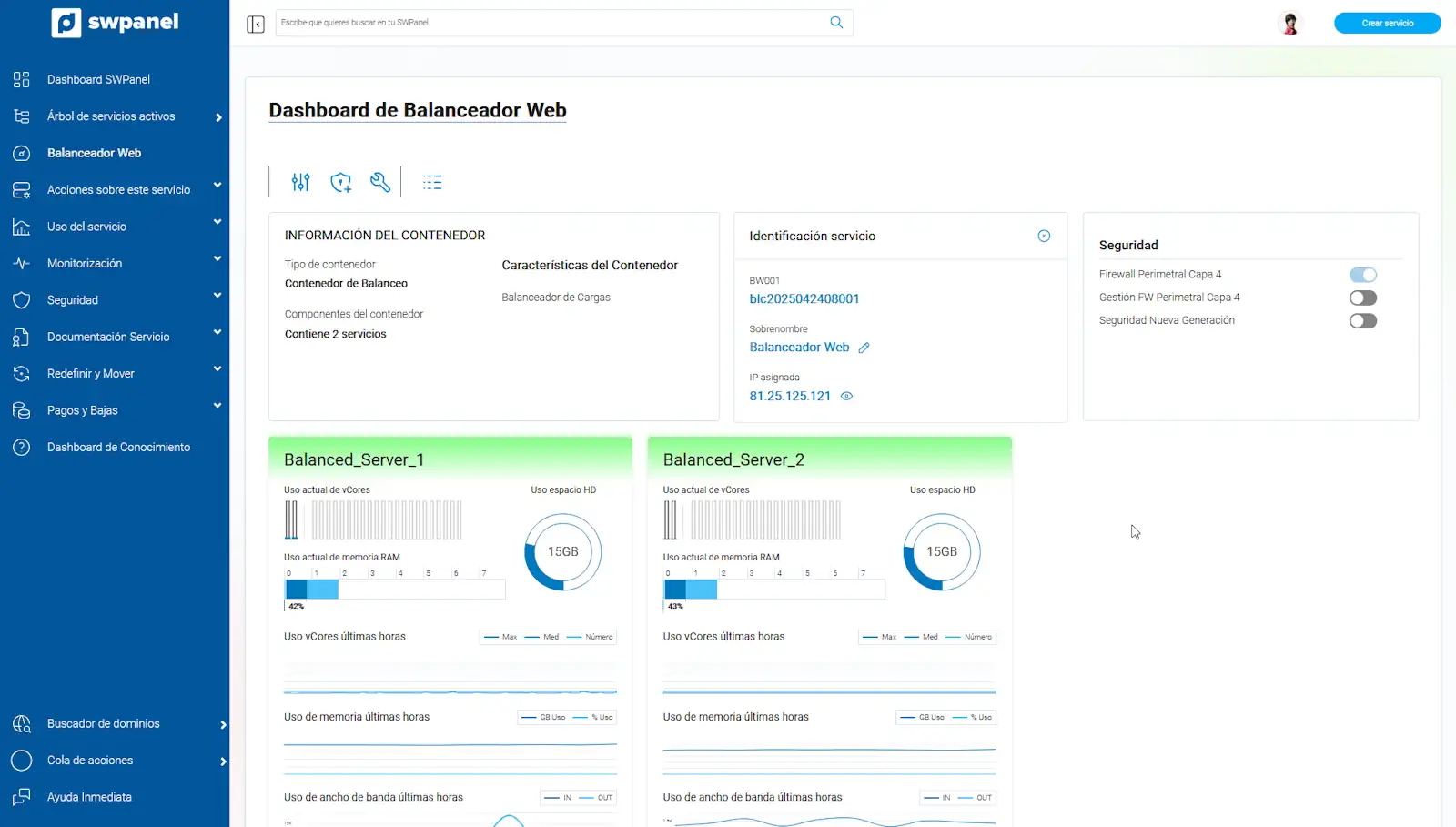
info_capture The screenshot is for guidance. It was taken on version 2025.003.0007 dated 04/24/2025. It may differ from what the current version of SWPanel