How to free up space in your email account
If you want to free up space in a mailbox, either as part of preventive maintenance or because the mailbox is full and no new emails can be received, you should follow the steps in this manual.
- Free up space via Webmail
To free up space via Webmail, you must access the mailbox where the space will be freed using a URL in your web browser. There are two ways to write the URL:
mail.domain/webmail
mail_server_name/webmail
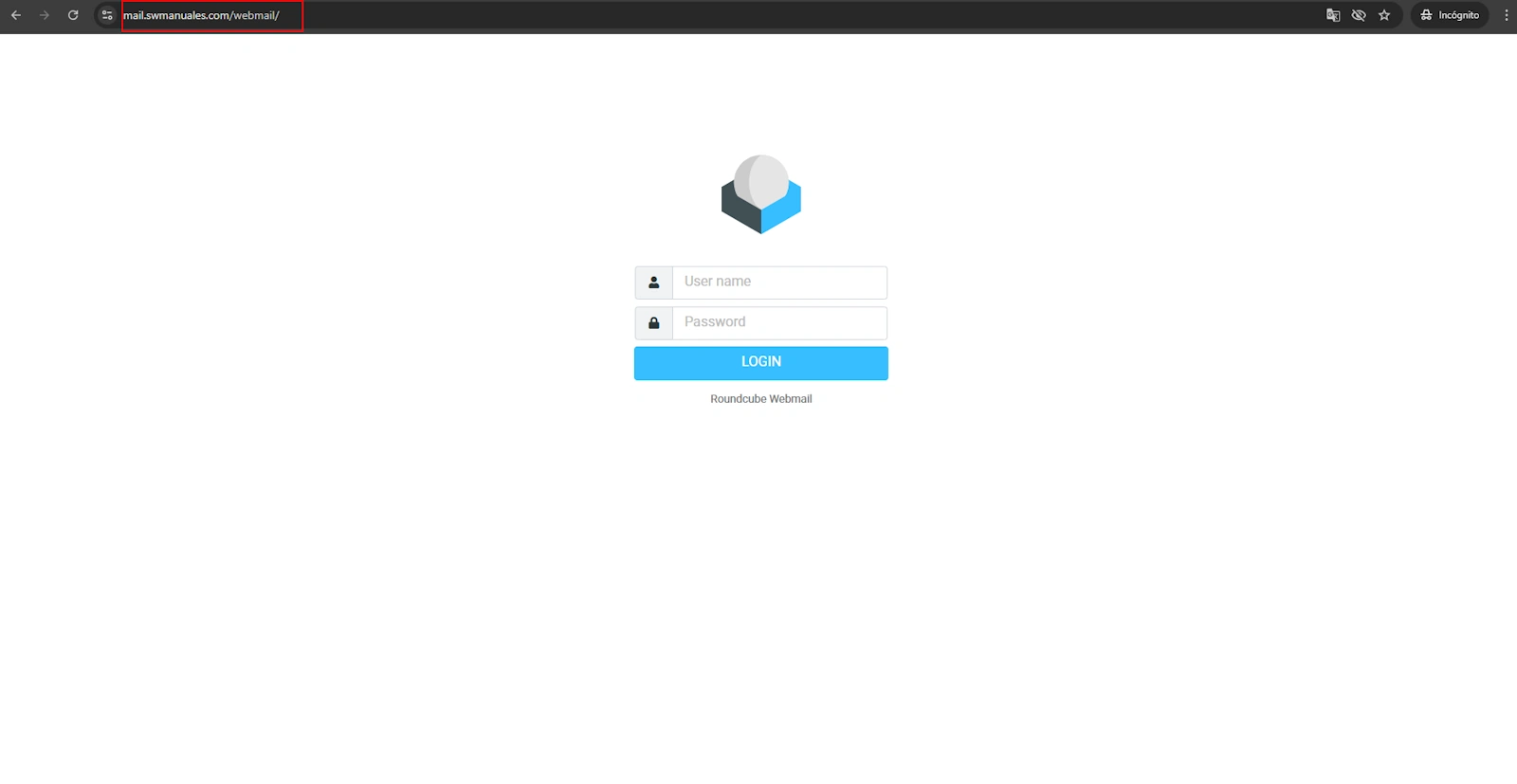
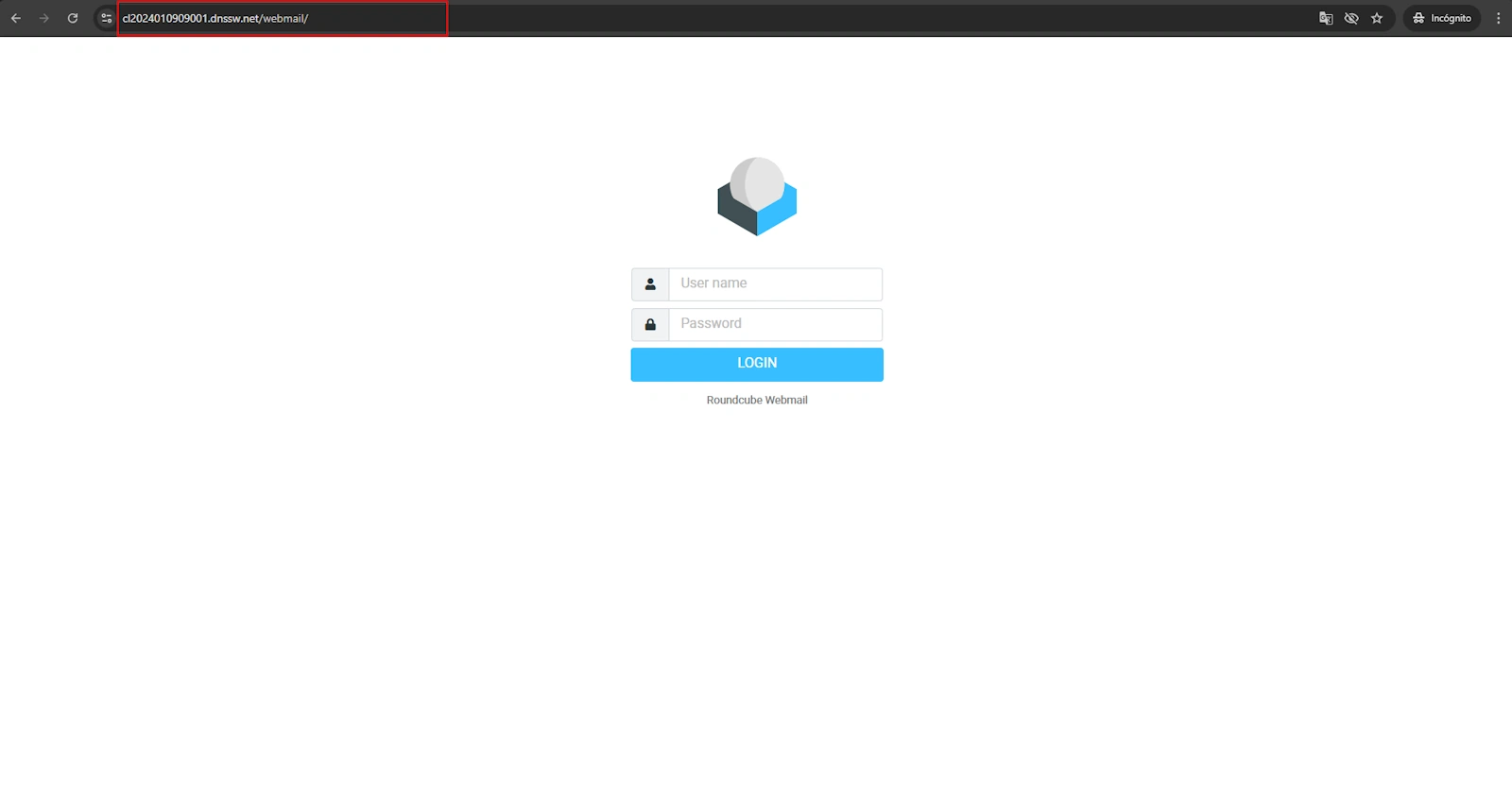
Once the login page loads, you must enter the email account and the corresponding password to access it. For more information about accessing Webmail, you can consult the following manual: https://swpanel.com/ca/comunidad/manual/roundcube-webmail
Delete emails in Webmail
In order to free up space, you must select and delete emails. We recommend selecting emails with attachments (which are “heavier” emails that take up more space) that are no longer needed. For the space to be effectively freed, once the emails are deleted you must empty the “Trash” folder, and after doing so, you will have successfully freed up disk space.
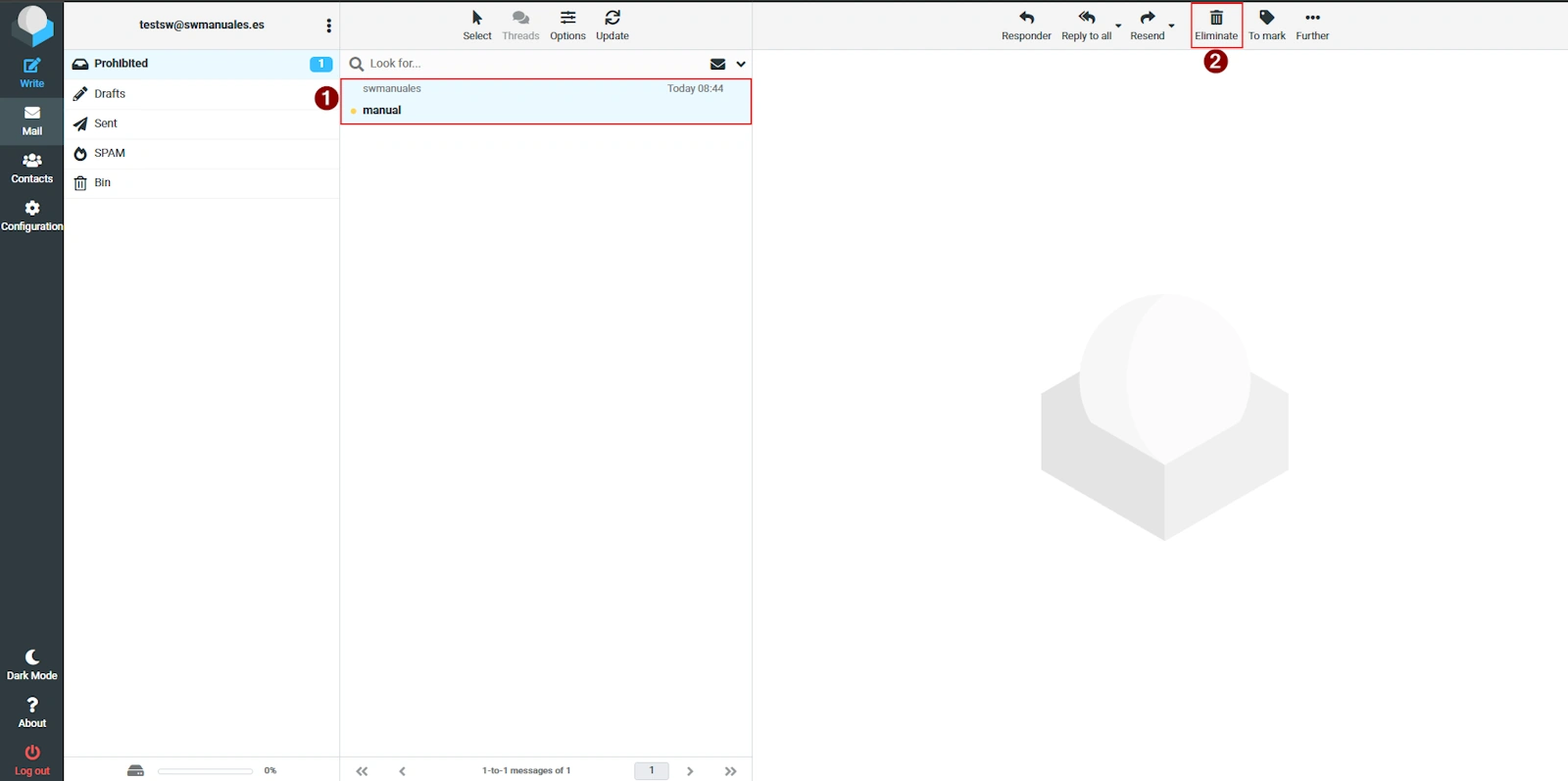
If the mailbox is full and you try to delete emails, the following error may appear: “Server error: UID COPY: Quota exceeded (mailbox for user is full)”
If this happens, to delete the email you must use the key combination Shift + Del. With this key combination, the email will be deleted without passing through the Trash folder.
- Configure your email client (Outlook, Gmail, Thunderbird…) using POP3
The POP3 protocol is the protocol through which emails are downloaded from the server to your computer and then deleted from the server, automatically freeing the space that the email was using. Therefore, configuring your email client will prevent the disk space on your mail server from becoming full. To do this, you will need to change your email client’s configuration:
You must find out which port the POP3 protocol uses on your server. You can do this by following the manual below:
https://www.swhosting.com/es/comunidad/manual/como-visualizar-los-datos-de-conexion-de-mi-cuenta-de-correo
To configure your email client to use the POP3 protocol, you can follow these manuals:
https://swpanel.com/es/comunidad/manual/configurar-cuentas-de-correo-de-mi-hosting-en-thunderbird
https://swpanel.com/es/comunidad/manual/configurar-cuentas-de-correo-de-mi-hosting-en-correo-de-microsoft
https://swpanel.com/es/comunidad/manual/configurar-cuentas-de-correo-de-mi-hosting-en-android-gmail
https://swpanel.com/es/comunidad/manual/configurar-cuentas-de-correo-de-mi-hosting-en-outlook
https://swpanel.com/es/comunidad/manual/configurar-cuentas-de-correo-de-mi-hosting-en-mail-osx
https://swpanel.com/es/comunidad/manual/configurar-cuentas-de-correo-de-mi-hosting-en-mail-apple-ios