
How to increase the maximum number of Imap/Pop connections of my Cloud server with SWPanel
To increase the maximum number of connections for the mail service (Pop and Imap) from SWPanel, you must access the Cloud server dashboard where your mail Hosting service is located:
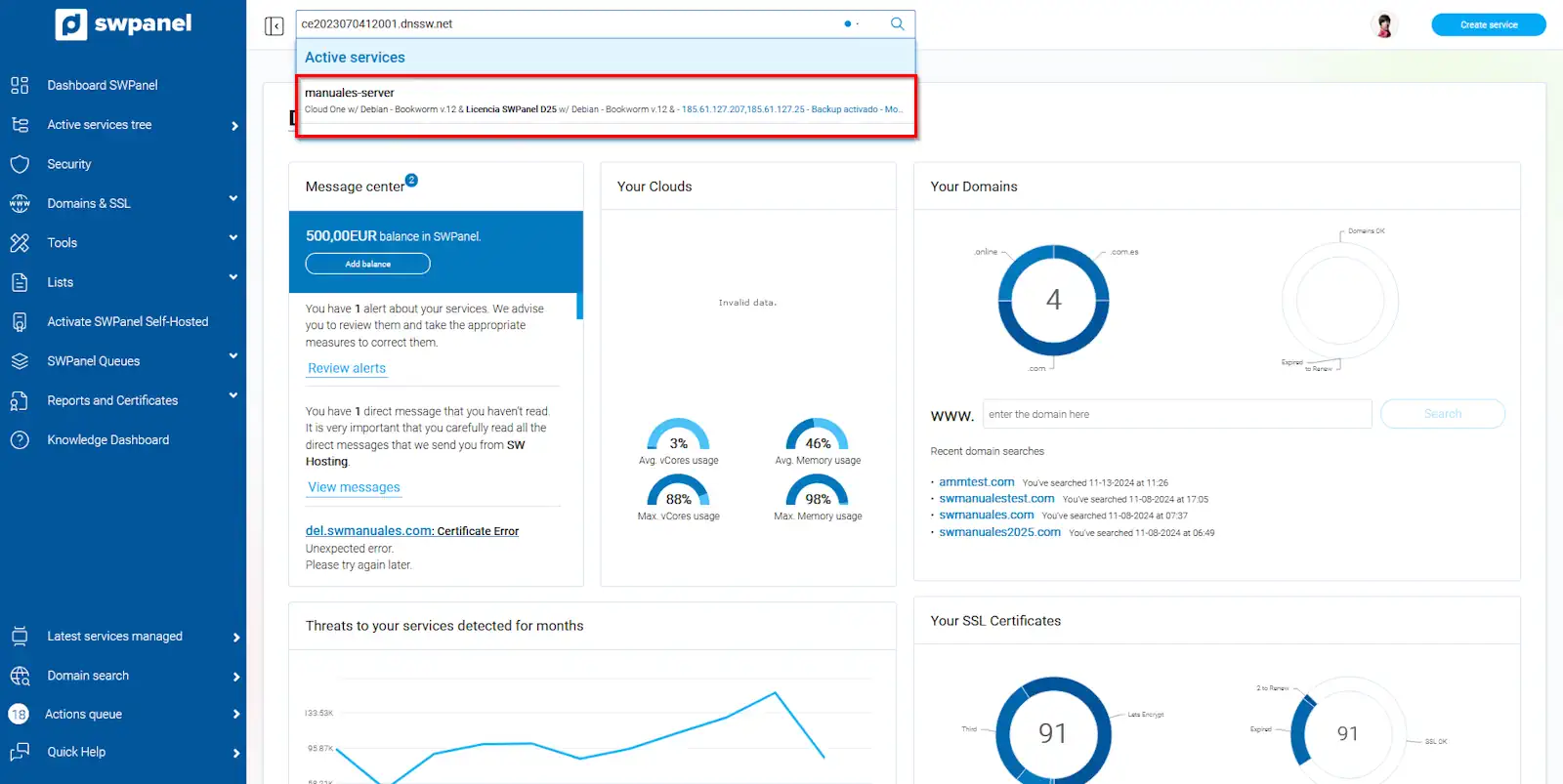
info_capture The screenshot is for guidance purposes. It was taken from version 2025.00.0010 dated 11/20/2024. It may differ from what is shown in the current version of SWPanel.
info You can access it using the SWPanel top search bar.
Subsequently, you must click on the Basic service parameters settings icon:
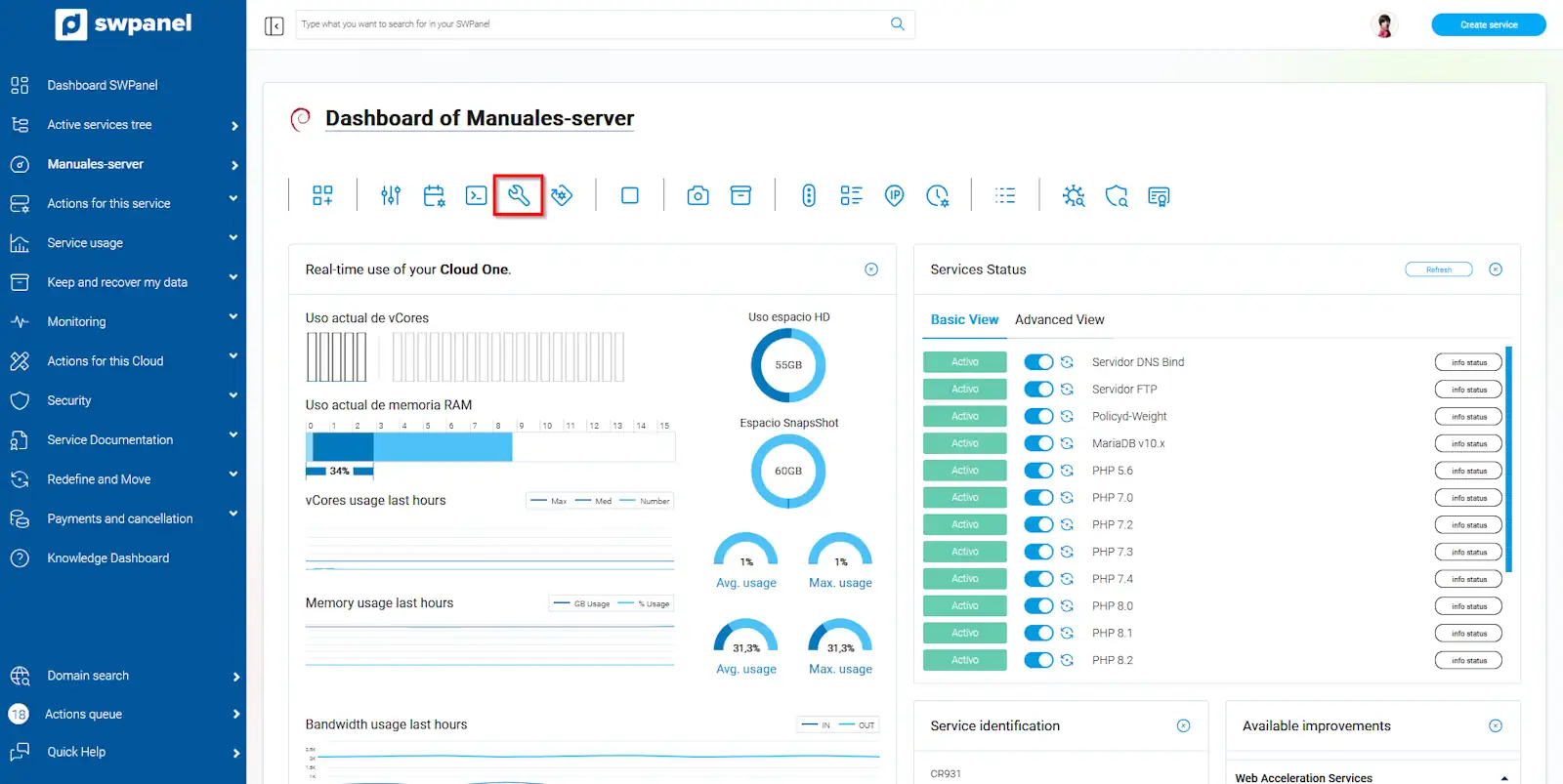
info_capture The screenshot is for guidance purposes. It was taken from version 2025.00.0010 dated 11/20/2024. It may differ from what is shown in the current version of SWPanel.
Go to the Dovecot section. You will find four variables that you can modify:
-
default_client_limit: Maximum number of connections per process. If the limit is reached, a new process is started. The default value is 1000.
-
default_process_limit: Maximum number of processes. The default value is 100.
-
mail_max_userip_connections: Maximum number of IMAP connections per IP. The default value is 10.
-
mail_max_userip_connections: Maximum number of POP3 connections per IP. The default value is 10.
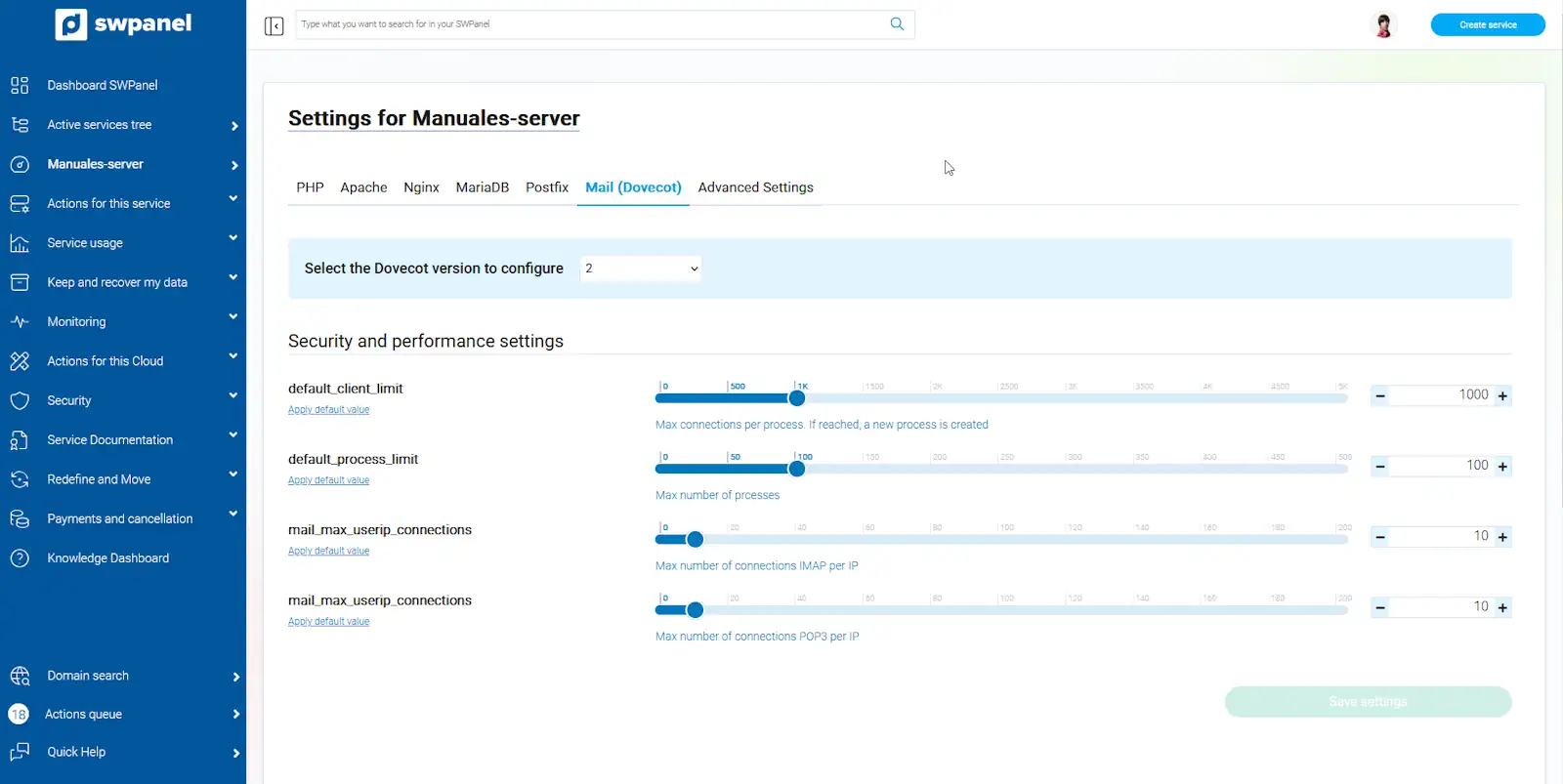
info_capture The screenshot is for guidance purposes. It was taken from version 2025.00.0010 dated 11/20/2024. It may differ from what is shown in the current version of SWPanel.
To increase the number of connections, you must increase the value of default_process_limit. SWPanel will allow you to increase it up to 500.
If you have more than 10 devices in your office using the same mail server, you must increase the value of mail_max_userip_connections. Otherwise, you will not need to modify it.
Finally, save the changes made using the Save Settings button