How to manage the disk volumes of your Windows 10 cloud server
Updated on
2026-10-27 12:01:21
9
visits
All our Cloud servers with the Windows 10 operating system feature a custom disk partitioning structure, allowing you, once your Windows Cloud server is created, to easily decide whether you want your O.S. to have a single disk volume C:/ or if you also wish to have a second disk volume E:/
Below, we explain, for each version of the Windows Operating System available for your Cloud, the two methods to ensure your server has a single disk volume C:/ or two disk volumes C:/ + E:/
Windows 10 Professional and Windows 10 Enterprise LTSC
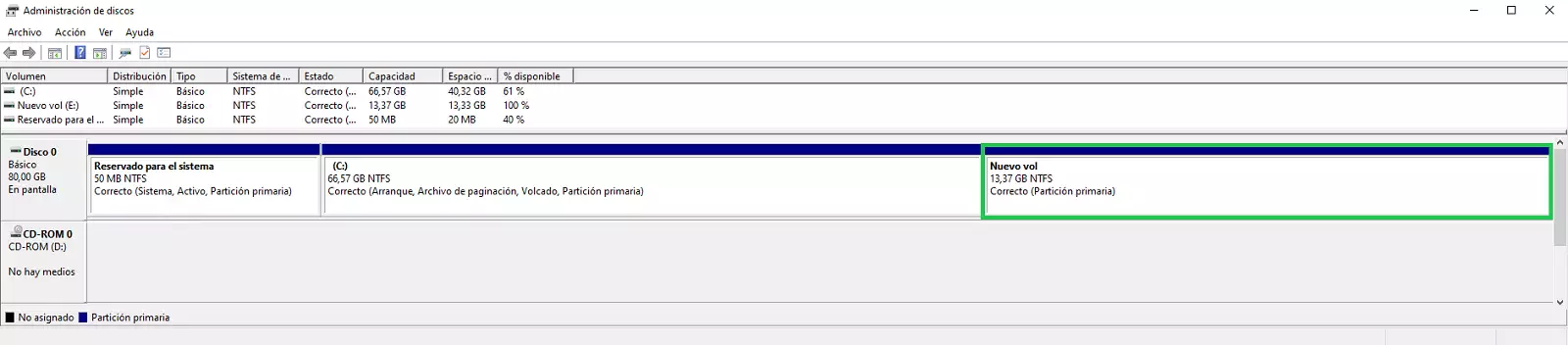
The original structure of the 80GB disk of your Windows 10 Cloud server is as follows:

A) Server with a single disk volume C:/
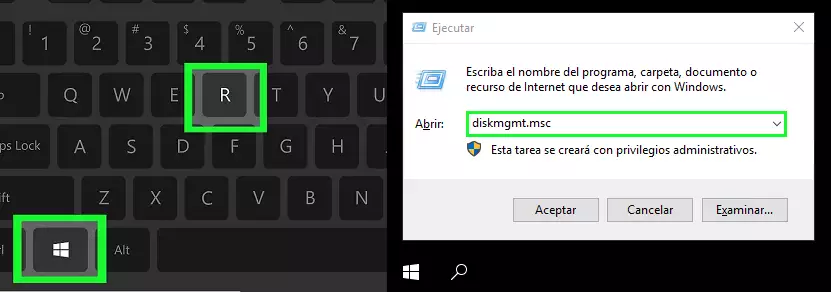
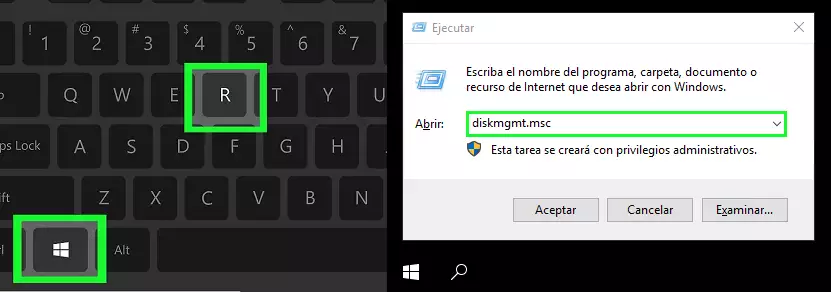
- Press the Windows + R keys to open Run, type diskmgmt.msc and press the Enter key.
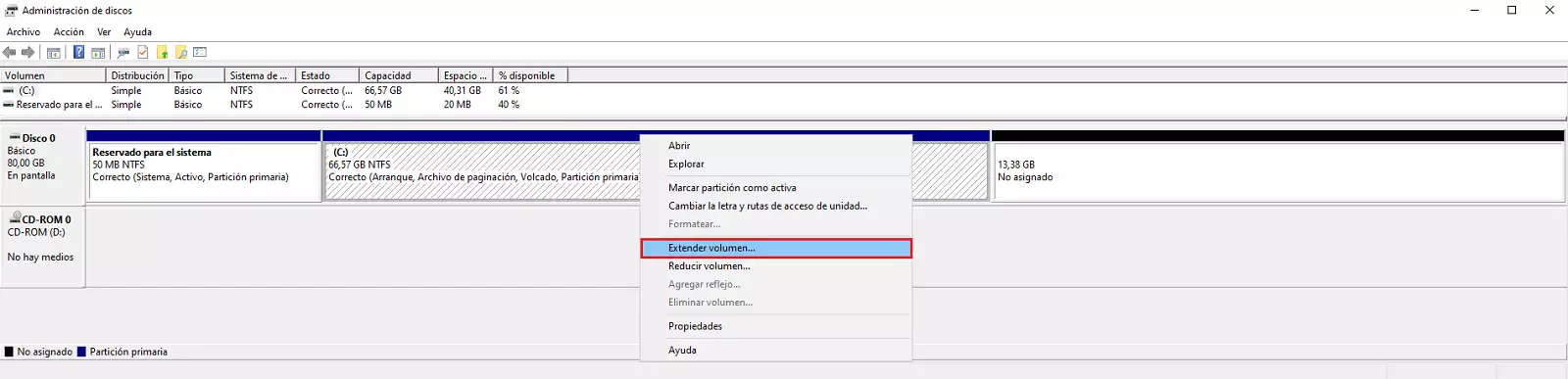
- Once the Windows Disk Management is open, place the mouse over the C: disk drive, right-click, and in the menu, click on the Extend Volume... option.
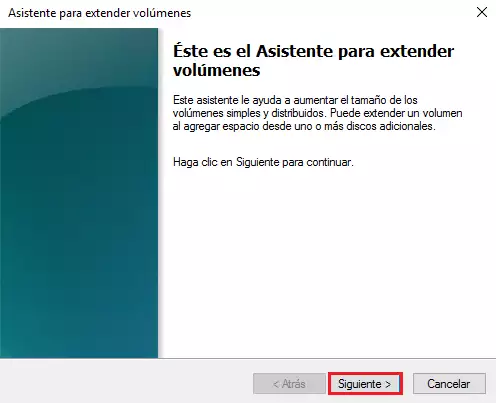
- In the extend volume wizard, click the Next > button.
- In the window for 'Select disks', click the Next > button.
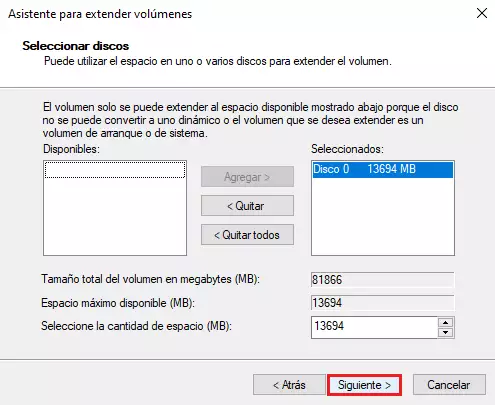
- In the following window, click the Finish > button.
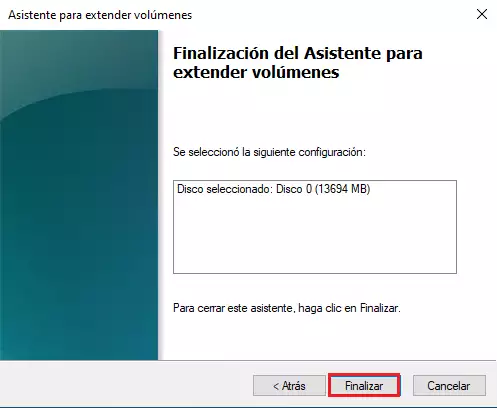
- Next, you can check how the C:/ disk volume has been extended and occupies all the available disk space of your Cloud server.
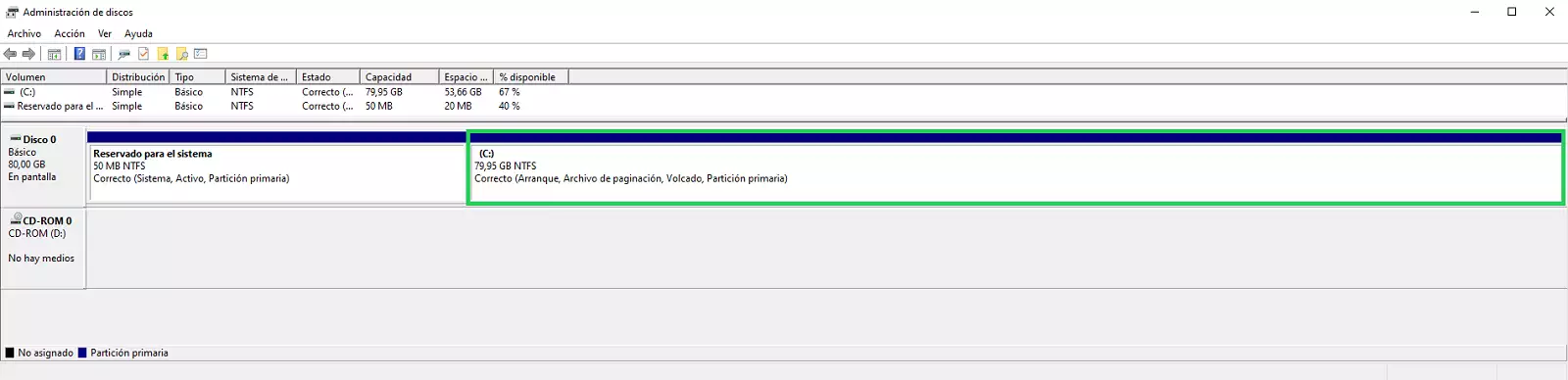
B) Server with a disk volume C:/ and a second disk volume E:/
- Press the Windows + R keys to open Run, type diskmgmt.msc and press the Enter key.
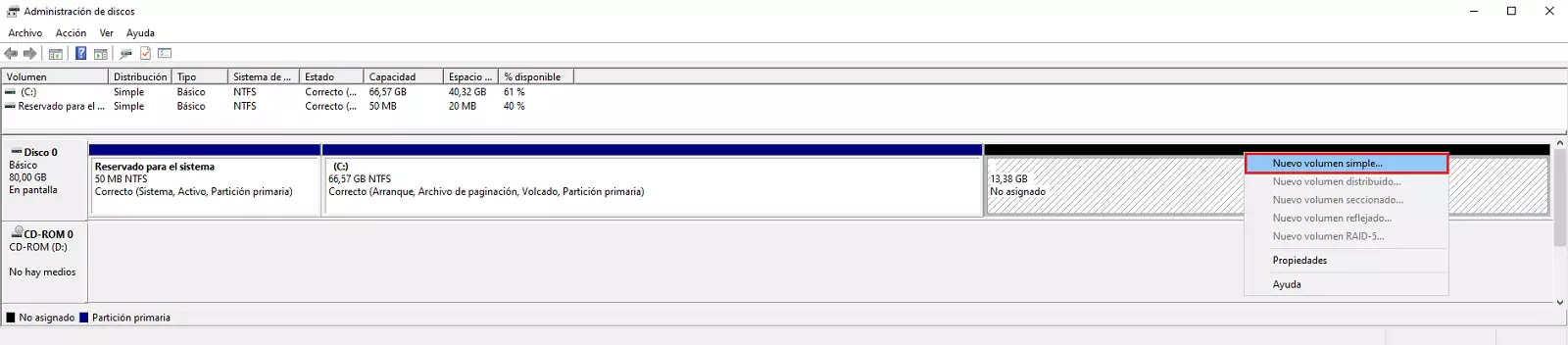
- Once the Windows Disk Management is open, place the mouse over the unallocated disk space, right-click, and in the menu, click on the New Simple Volume... option.
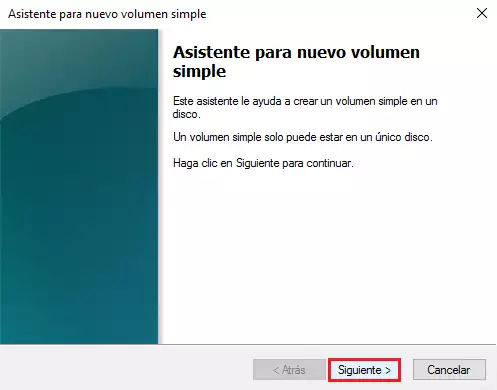
- In the new simple volume wizard, click the Next > button.
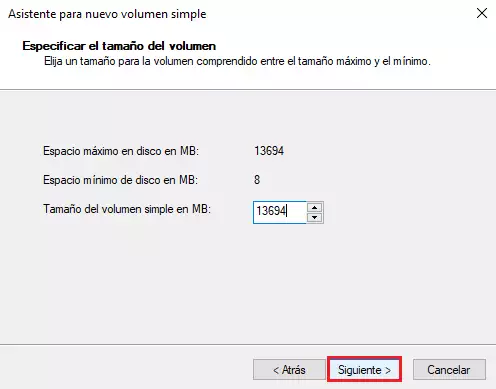
- In the window for 'Specify the volume size', click the Next > button.
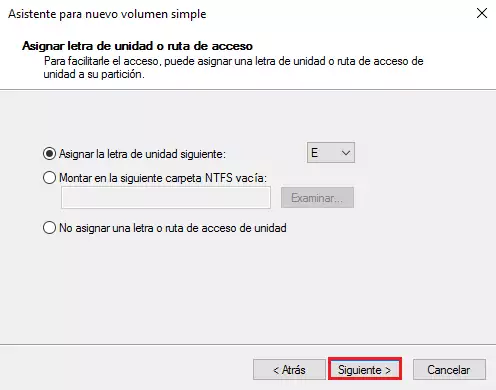
- In the window for 'Assign drive letter...', click the Next > button.
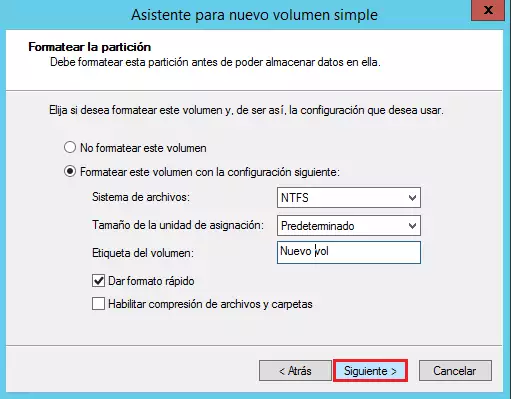
- In the window for 'Format the partition', click the Next > button.
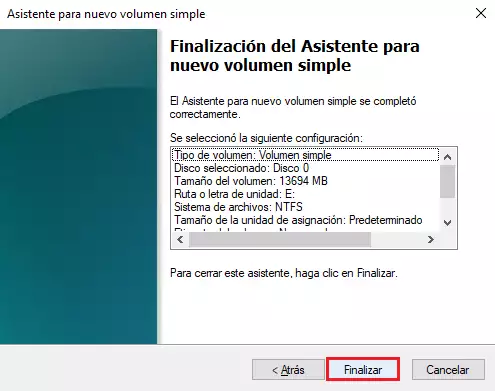
- Next, accept the changes for the creation of the new volume by clicking the 'Finish' button.
- Next, you can check how a disk volume E:/ has been created and occupies all the available disk space of your Cloud server.