
How to park and unpark a Cloud
1. What is the purpose of parking a Cloud
Imagine that for a while you are not going to use your Cloud, neither do you need it to be operational, although you know that in a while you will have to start it up again.
Then a good option to save monthly costs of your Cloud server would be to park it.
Parking a Cloud server means to stop it and stop assigning it certain resources (vCores and RAM), but keeping its assigned public IP and also all the data stored on its disk.
The cost of the resources of this Cloud (vCores and RAM) will no longer be billed, only the total disk space allocated to your Cloud server and the public IP will be billed.
Thus, the monthly cost of your Cloud server is the minimum possible and corresponds only to the conservation of the Cloud disk data that you are going to park, in addition to the public IP of your server.
1.1 What is the difference between stopping a Cloud and parking a Cloud?
A stopped Cloud does not free the resources corresponding to the server’s vCores and RAM, so it continues to generate costs for all the server’s resources (vCores, RAM, HD, IPs…), in the same way as when the server continues to be started and running.
2. How to park a Cloud server
2.1 Locate your Cloud server
In the main Dashboard of your SWPanel account use the search engine to locate your Cloud server. Once located, click on the name of your Cloud server:
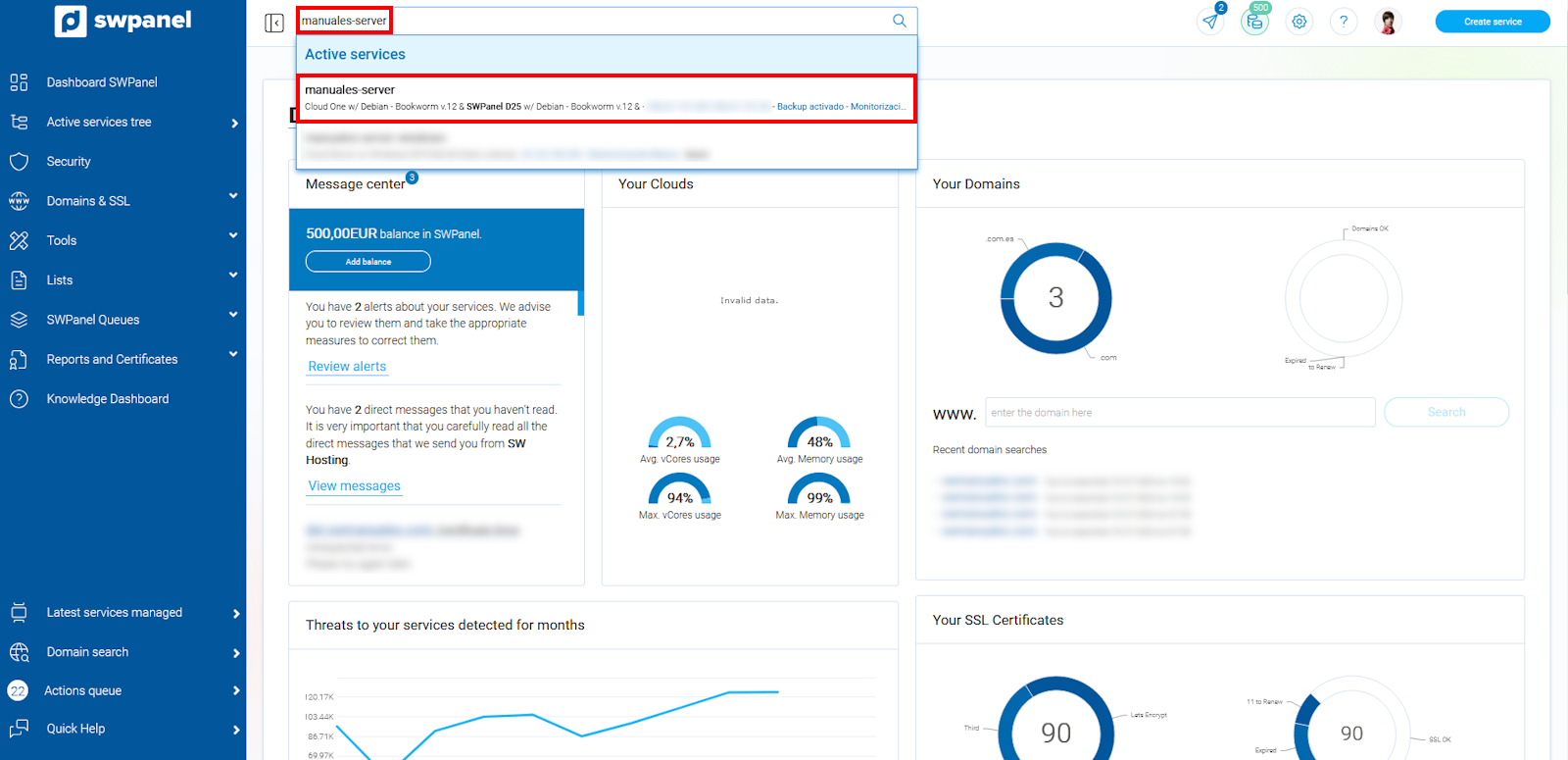
info_capture The screenshot is for guidance only. It was taken on version 2025.00.0017 with date 30/12/2024. It may differ from what the current version of SWPanel displays.
info You can use the service finder located at the top of your SWPanel Dashboard to quickly locate and access the Cloud server or its hosting services.
2.2 Access the menu to park your Cloud
From the blue side menu, access “Actions for this Cloud” → “Act on the Cloud” → “Park Cloud”:
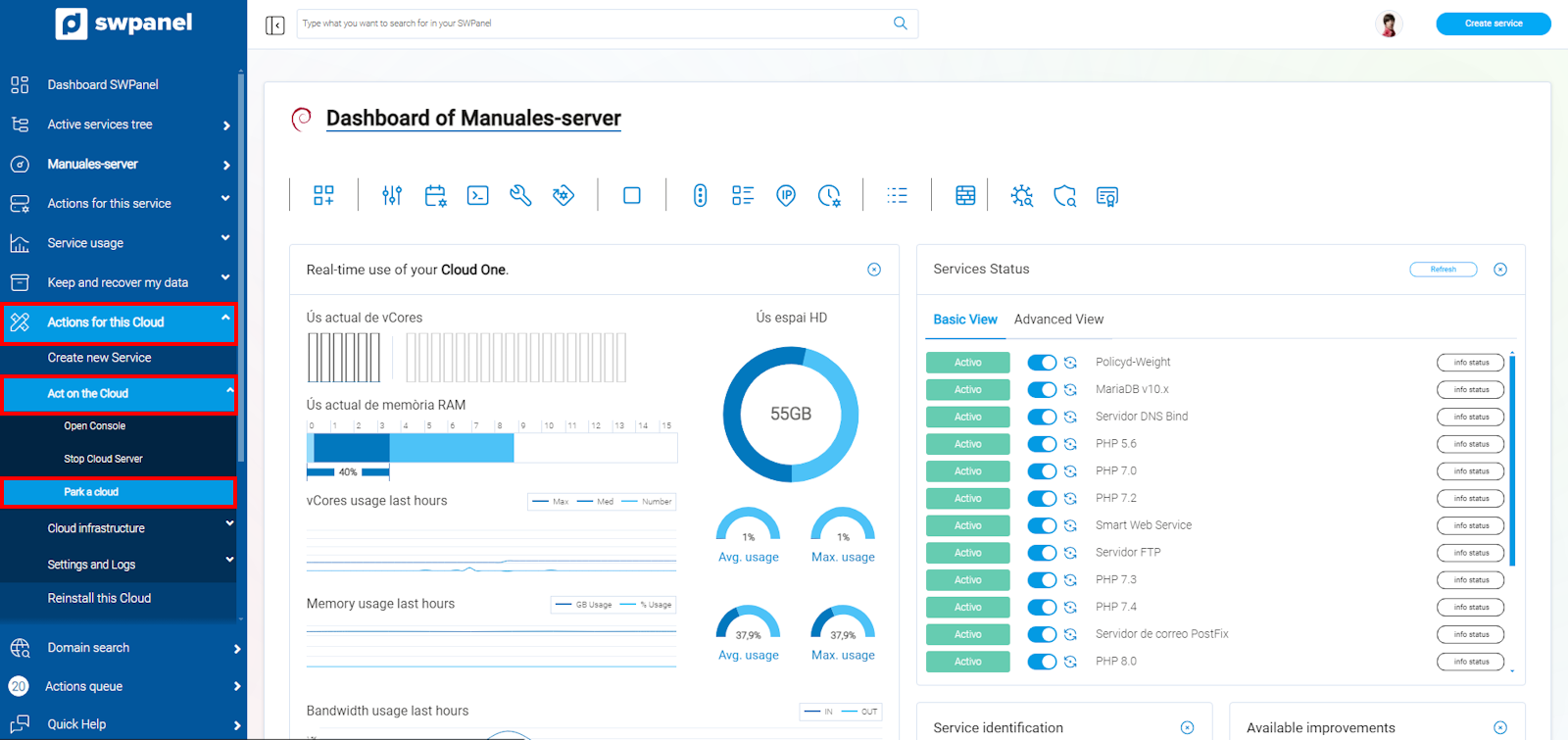
info_capture The screenshot is for guidance only. It was taken on version 2025.00.0017 with date 30/12/2024. It may differ from what the current version of SWPanel displays.
2.3 Park your Cloud
You will be billed the monthly cost of the server until the date you park your server. You will also be informed of the monthly cost you will have to pay to keep your IP assigned to your server and the disk space of your data.
If you have backups activated, you will be informed that while the server is parked the copies cannot be made and, therefore, the backups will be deactivated and the copies that exist in our servers will be eliminated.
Finally, you must agree to park the server and click on the “Park now” button:
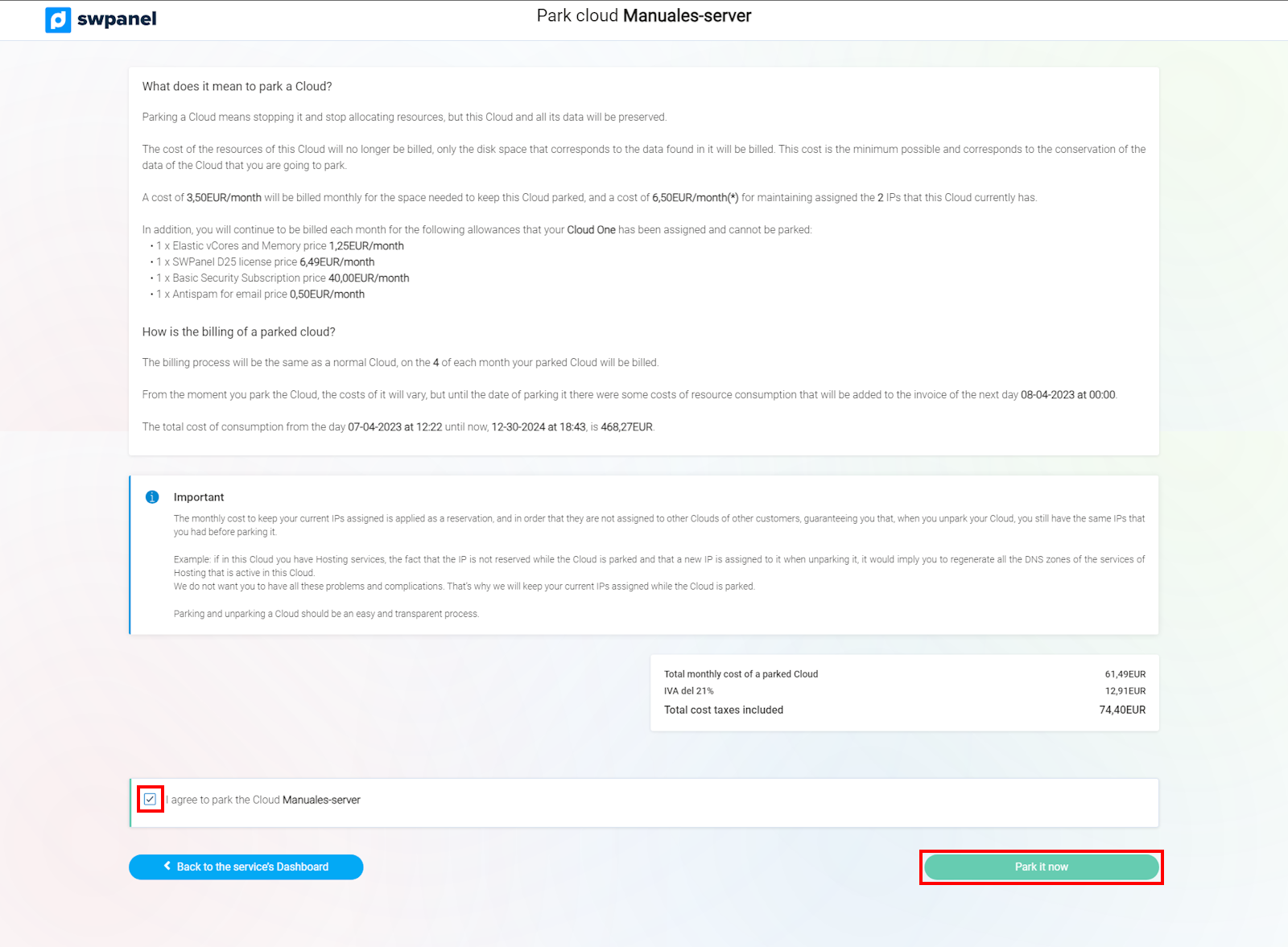
info_capture The screenshot is for guidance only. It was taken on version 2025.00.0017 with date 30/12/2024. It may differ from what the current version of SWPanel displays.
3. How to unpark a Cloud server
3.1 Locate your Parked Cloud Server
In the main Dashboard of your SWPanel account use the search engine to locate your Cloud server. Once located, click on the name of your Cloud server:
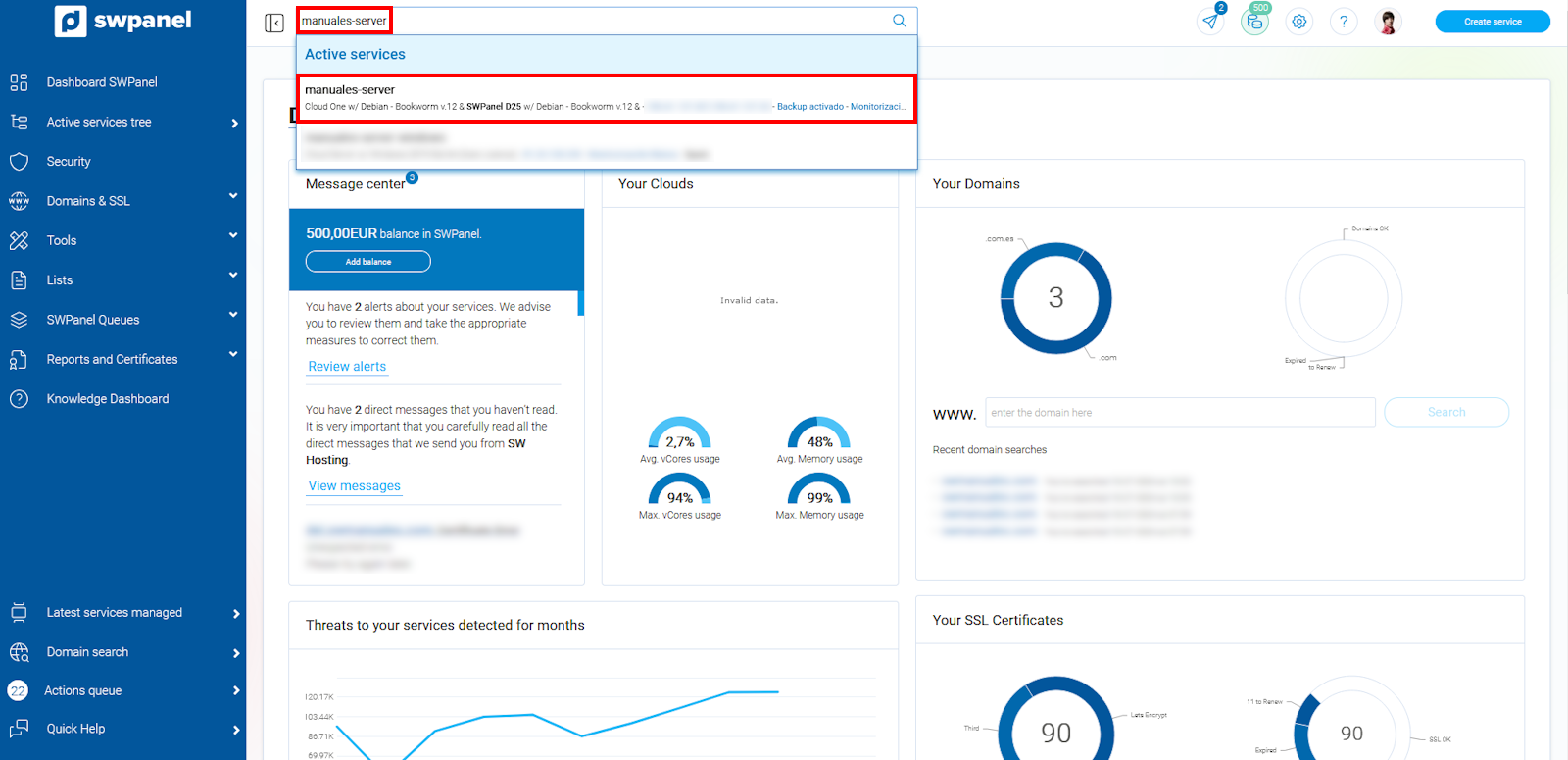
info_capture The screenshot is for guidance only. It was taken on version 2025.00.0017 with date 30/12/2024. It may differ from what the current version of SWPanel displays.
info You can use the service finder located at the top of your SWPanel Dashboard to quickly locate and access the Cloud server or its hosting services.
3.2 Access the menu to unpark your Cloud
From the blue side menu, access “Actions for this Cloud” → “Act on the Cloud” → “Unpark Cloud”:
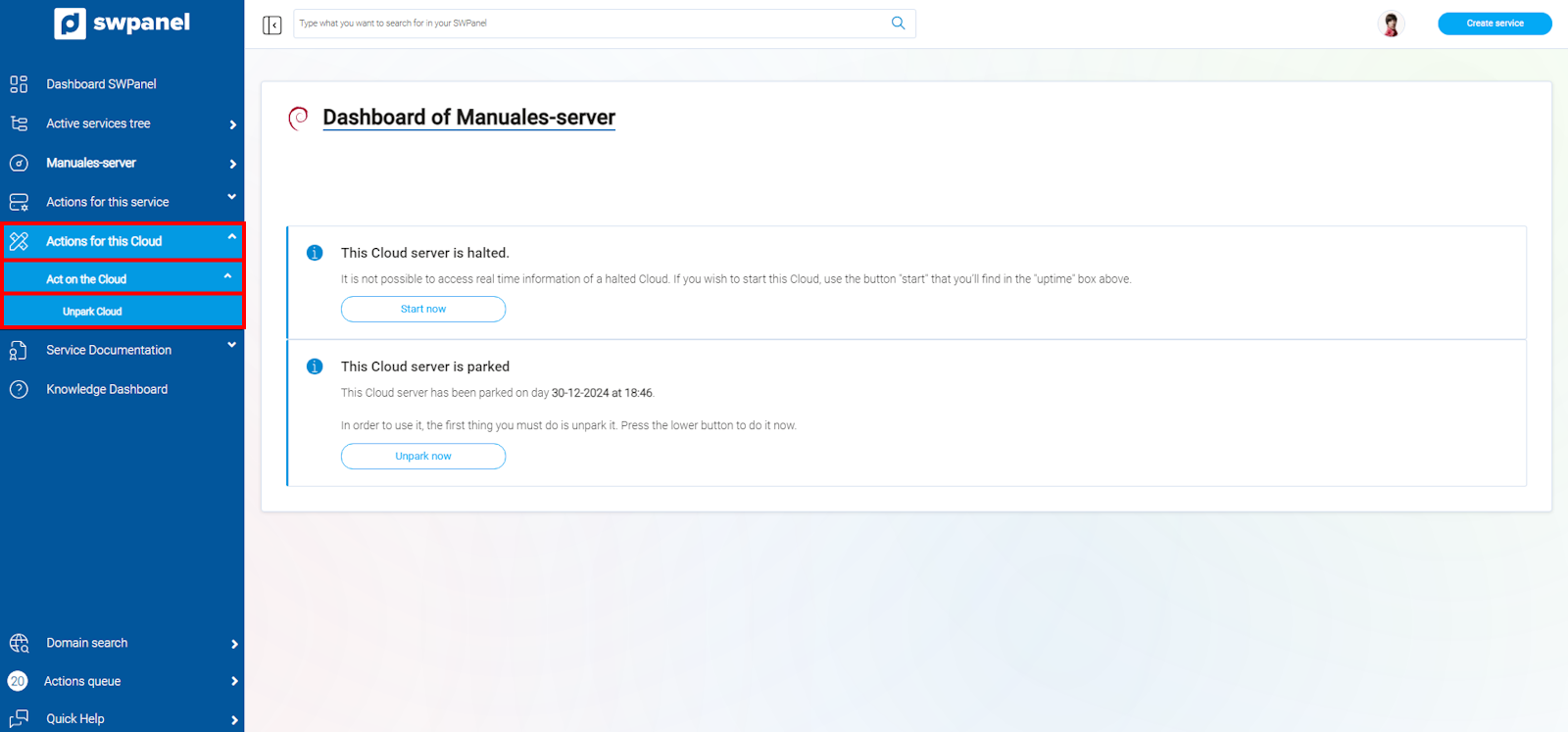
info_capture The screenshot is for guidance only. It was taken on version 2025.00.0017 with date 30/12/2024. It may differ from what the current version of SWPanel displays.
3.3 Unpark your Cloud
Confirm the action by clicking on “Unpark now”. The server will be unparked and will start automatically.
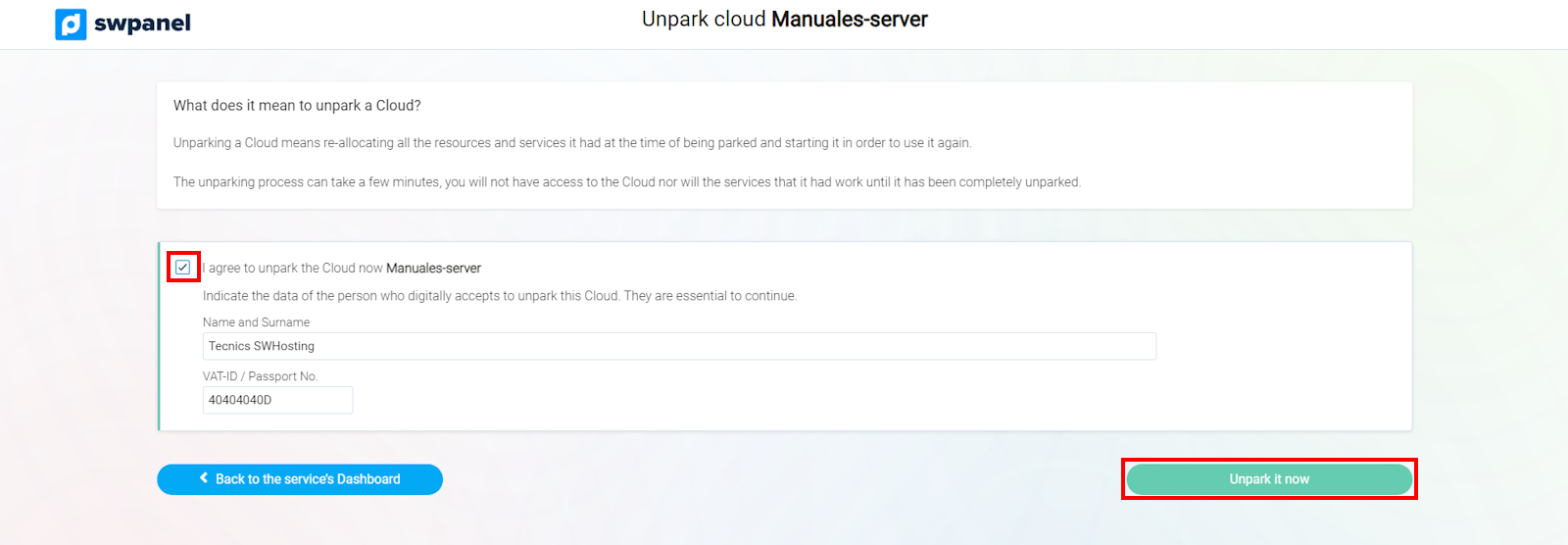
info_capture The screenshot is for guidance only. It was taken on version 2025.00.0017 with date 30/12/2024. It may differ from what the current version of SWPanel displays.